Introduction
While Apple’s built-in Preview app can handle PDFs, it lacks advanced features. Therefore, you’ll need a more powerful tool. That’s why we’ve compiled a list of the five best PDF editors for Mac to help you find the perfect tool for your needs.
1. JOPDF
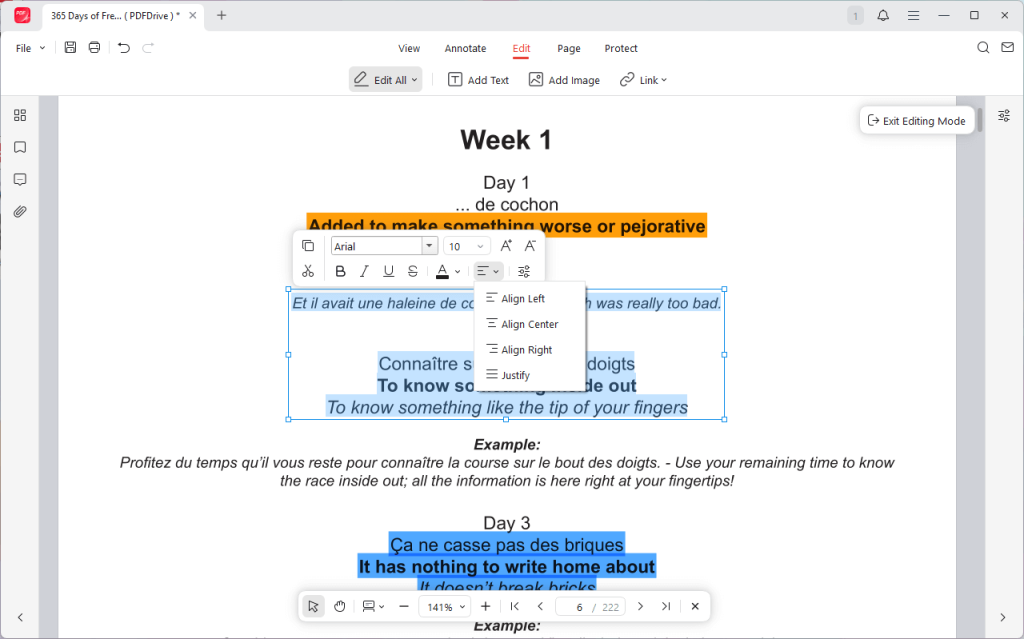
Want the best free PDF editor for Mac? JOPDF is the answer. This professional PDF editor has an intuitive interface and powerful features. It is a reliable and user-friendly choice for individuals and small businesses.
💎 Features
- JOPDF provides a comprehensive suite of tools to meet all your PDF needs.
- It lets you easily edit text and images, add notes, highlights, and comments, and insert stamps and shapes.
- The software also provides robust conversion tools, allowing you to convert PDFs to Word, Excel, and other formats without losing original formatting.
- Additionally, the software allows you to lock a PDF to prevent editing, protecting your document.
🔶 Price
$0. JOPDF is completely free to use.
PDF editor for Mac free download:
✅ Pros
- 100% free to use
- Intuitive and requires no learning curve
- Lightweight and can run well on older Mac computers
- The conversion tool is highly accurate, ensuring document integrity
❎ Cons
- Lack advanced form-field automation or complex redaction tools
🏆 Best For
JOPDF is a good choice for students, educators, small business owners, and anyone who needs a free all-in-one PDF solution to edit PDF on Mac.
2. Adobe Acrobat
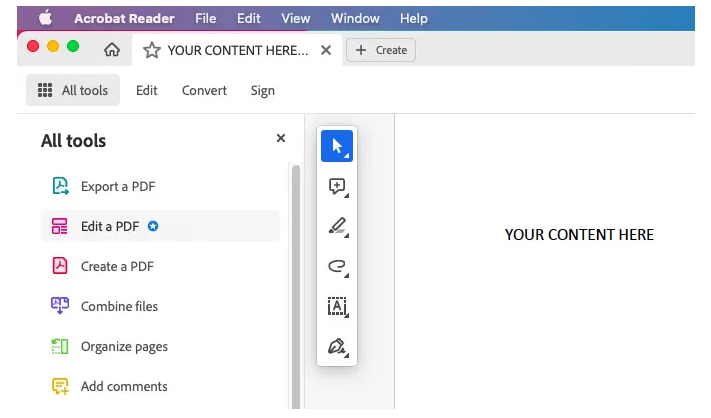
Adobe Acrobat is the industry standard solution for PDF management. As the creator of the PDF format, Adobe provides the most comprehensive and feature-rich solution.
💎 Features
- Adobe Acrobat Pro DC provides an unparalleled set of tools.
- It supports advanced text and image editing, comprehensive commenting and review tools, and professional-grade security options.
- The software excels at creating interactive forms, merging or splitting PDF files, comparing documents, and highlighting differences.
- The cloud feature lets users sharing files across device easily, which is good for collaboration.
🔶 Price
It starts at around $19.99 per month.
✅ Pros
- Offers the most powerful tools for all PDF tasks
- The go-to choice for professional environments
- Perfect for teams working together on documents
❎ Cons
- The subscription is expensive
- Can be slow and consume a lot of system resources
- The complete interface may overwhelm new users
🏆 Best For
Adobe Acrobat is the best PDF editor for Mac users (professionals, legal experts, and enterprise-level users) who want the most robust and secure PDF tools.
3. Wondershare PDFelement
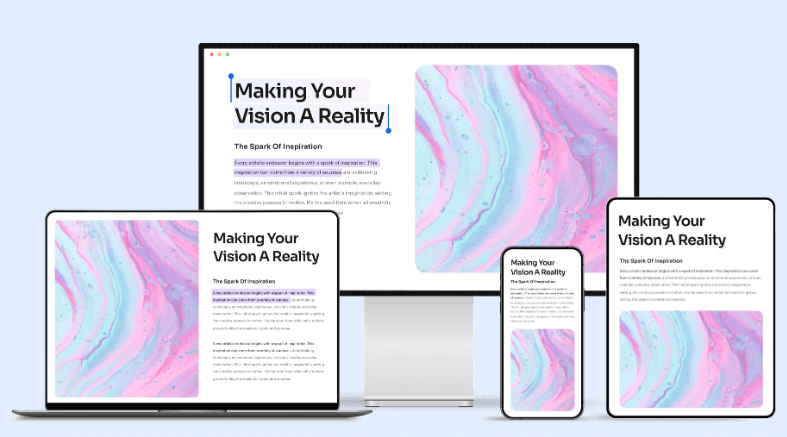
Wondershare PDFelement is a popular Mac PDF editor. It aims to be a more accessible alternative to Adobe Acrobat, particularly for users who want robust editing capabilities without the steep learning curve.
💎 Features
- Wondershare PDFelement offers all the essential tools that can help you handle PDFs.
- It can help you edit text, images, and pages. Its annotation tools include highlights, sticky notes, and drawing tools.
- It also features an excellent OCR engine, form creation and data extraction, and a solid range of conversion options.
- A standout feature is its AI tools, which can summarize PDFs, translate text, and proofread documents.
🔶 Price
PDFelement lets users choose a subscription plan (billed annually, $79.99 per year) or a one-time perpetual license ( around $103.99).
✅ Pros
- The interface is clean and intuitive
- Various basic and advanced features
- The integrated AI assistant can improve efficiency
❎ Cons
- Occasional bugs or performance issues
- Sometimes, promote other Wondershare products
🏆 Best For
Wondershare PDFelement can be the best PDF editor for Mac users who need a comprehensive, easy-to-use, and affordable PDF editor.
4. Foxit PDF Editor
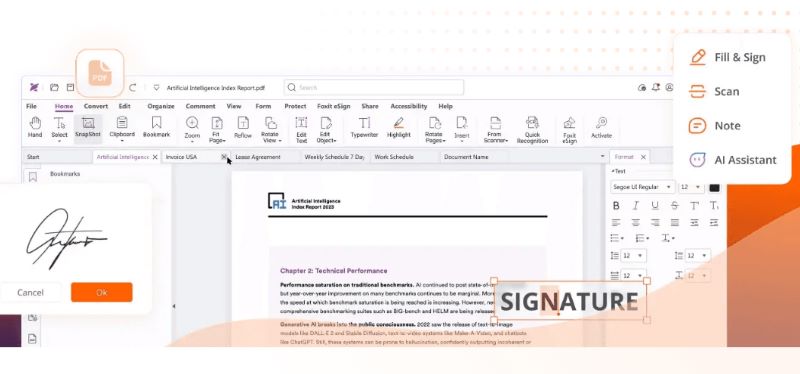
Foxit has long been a major player in the PDF space, known for its fast performance and feature-rich software. Foxit PDF Editor for Mac delivers a professional-grade experience, particularly excelling in speed and security compared to competitors.
💎 Features
- Foxit PDF Editor owns a full suite of PDF editing tools
- It provides text and image editing, page organization, and form filling.
- The OCR technology is highly regarded for its speed and accuracy.
- The software also provides strong security features, such as password protection and redaction.
- Good at collaboration, with a range of annotation tools and the ability to track comments and feedback.
🔶 Price
Foxit offers both an annual subscription (around $129.99 per year) and a one-time perpetual license. It also provides a free PDF Reader that includes basic annotation functions.
✅ Pros
- Excellent performance
- Good at handling large documents
- Offers a complete set of editing, conversion, and collaboration tools
❎ Cons
- The interface is complex
- Its Windows version is better optimised
🏆 Best For
Foxit PDF Editor is designed for professionals and businesses that need a fast, secure, and reliable PDF editor.
5. Nitro PDF
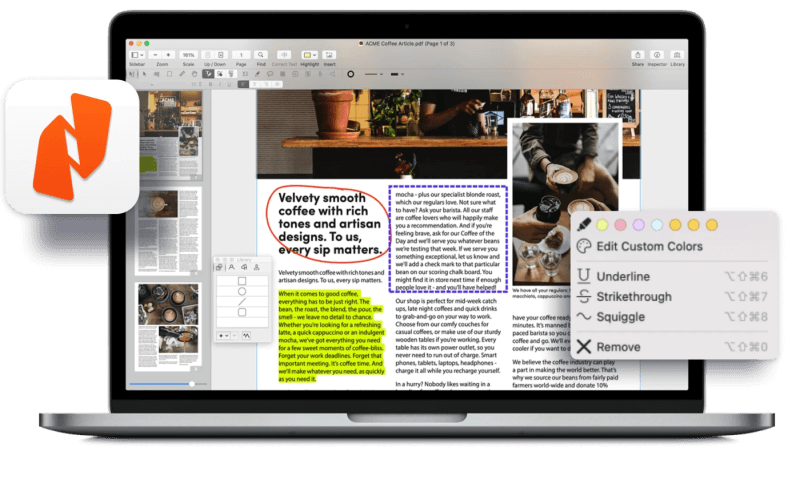
Nitro PDF has established a strong reputation as a powerful and cost-effective alternative to Adobe Acrobat, particularly in business and enterprise environments. It provides a polished, familiar interface and a powerful feature set.
💎 Features
- Nitro PDF has various tools to help you create, edit, and protect PDFs.
- It has advanced text editing, image manipulation, and comprehensive annotation tools.
- The form-filling and e-signature capabilities are excellent, making it a go-to for digitizing workflows.
- Nitro also features a solid OCR engine and robust file conversion options.
🔶 Price
Nitro PDF Pro offers a subscription plan ($15/per user/month) and a one-time perpetual license (approximately $270). The company also provides enterprise-level subscription plans for teams.
✅ Pros
- Strong eSignature and enterprise-grade ecurity tool
- The ribbon-style toolbar is intuitive for anyone accustomed to Microsoft Office
- More affordable for teams and businesses in the long run compared to Adobe’s
❎ Cons
- Nitro does not have a free-to-use version
- Less frequent updates due to the one-time purchase
🏆 Best For
Nitro PDF is great for power users who want a single purchase that will meet all their PDF needs for years to come.
What’s the Best Mac PDF Editor for You?
What works extremely well for one user may not be effective for another. So, which one should you choose? Well, please consider these key factors before making your choice:
Cost vs. Features: Do you need a simple tool for basic PDF editing, or do you want professional features? JOPDF is a good option for daily work; however, others has more advanced features for business purposes.
Ease of Use: An intuitive interface can save you hours of frustration. If you’re a casual user, a cleaner, simpler design like JOPDF might be more appealing. If you’re a power user, the more dense interface of Adobe Acrobat or Foxit may be preferable.
Specific Needs: Consider what you’ll be doing most frequently. If you need to convert files, look for software that includes a robust OCR and conversion tool. If collaboration is key, a tool with comprehensive annotation and cloud-sharing is the best.
Performance: A fast, lightweight editor is essential for productivity, especially on older Macs or when handling large files. Check reviews to see how a software performs with large documents and complex tasks.
Anyhow, most of the software on this list offers a free trial or a limited free version. Why not give them a try? You’ll quickly discover which one is the most efficient for your workflow.
Conclusion
Have you found the best one for Mac? From the free JOPDF, factory-standard Adobe, affordable Wondershare PDFelement, to the fast and secure Foxit, and the business-focused Nitro PDF, you are sure to find the one that suits you best.
Try them all to find the best one that can streamline your document workflow on your Mac!
FAQs
Table of Contents

Your Best Free PDF Expert in PDF editing, compressing, converting, annotating, protect, organizing, and more.
Free DownloadWindows · macOS

Queena
Editor
“As a staff editor for JOPDF, Queena excels at guiding users to the optimal tools and solutions. When she's not analyzing the latest PDF solutions, she enjoys spending her free time playing with her four cats.”