![5 Best Free PDF Compressors in 2026 [Desktop and Online]](https://b.jopdf.com/wp-content/uploads/2026/04/best-free-pdf-compressor.png)
Introduction :
PDFs remain a common format for document exchange, though large files can hinder smooth uploading, storage, and sharing. Users need tools that can compress PDFs without losing quality for both study and professional purposes. That’s why many users look for the best free PDF compressor to reduce the size efficiently. In this article from JOPDF, we’ll explore five reliable free offline and online tools for desktop and Mac.
A Quick Overview of the 5 Best Free PDF Compressors
A variety of the best tools to compress PDF files are available today to meet different needs. Below is a quick comparison to help you choose the right online and offline solutions based on features, speed, and ease of use.
| PDF Compressor | Compression Level Options | Ease of Use | Processing Speed | Platform | Best For |
| JOPDF | Low, Medium, High | Very easy | Fast | Windows, Mac, and Linux | Quick, free compression with balanced quality without ads. |
| Preview | Limited (basic compression) | Very easy | Fast | macOS, iOS, and iPadOS | Mac users needing built-in offline compression. |
| Adobe Acrobat Online | Medium and high | Easy | Moderate | Online | Reliable compression with trusted performance. |
| Smallpdf | Basic, strong | Easy | Fast | Online | Simple interface and quick results. |
| SwifDoo PDF Online Converter | Low and medium | Very easy | Fast | Online | Easy, lightweight compression perfect for everyday tasks. |
They enable you to compress PDFs without losing quality, simplifying document management on desktops, Macs, and online.
JOPDF: Best Free PDF Compressors for Windows/Mac/Linux
For Windows, Mac, and Linux users, JOPDF is a powerful offline PDF compressor that helps manage large documents safely and efficiently. It helps users batch compress PDF files free, making it ideal for handling bulk files quickly.
This 100% free PDF compressor with no watermark provides seamless PDF compression with clear, unrestricted output. The tool lets you compress multiple PDFs at once for free while maintaining smooth operation. With its smart optimization, you can reduce PDF file size without losing quality and easily make PDFs smaller for email and sharing.
Get a complete guide to compress PDFs for free in JOPDF efficiently and safely.
Step 1. Download JOPDF and set it up on your Windows or Mac computer. Once launched, go to the Compress PDF tool under the Popular Tools section.
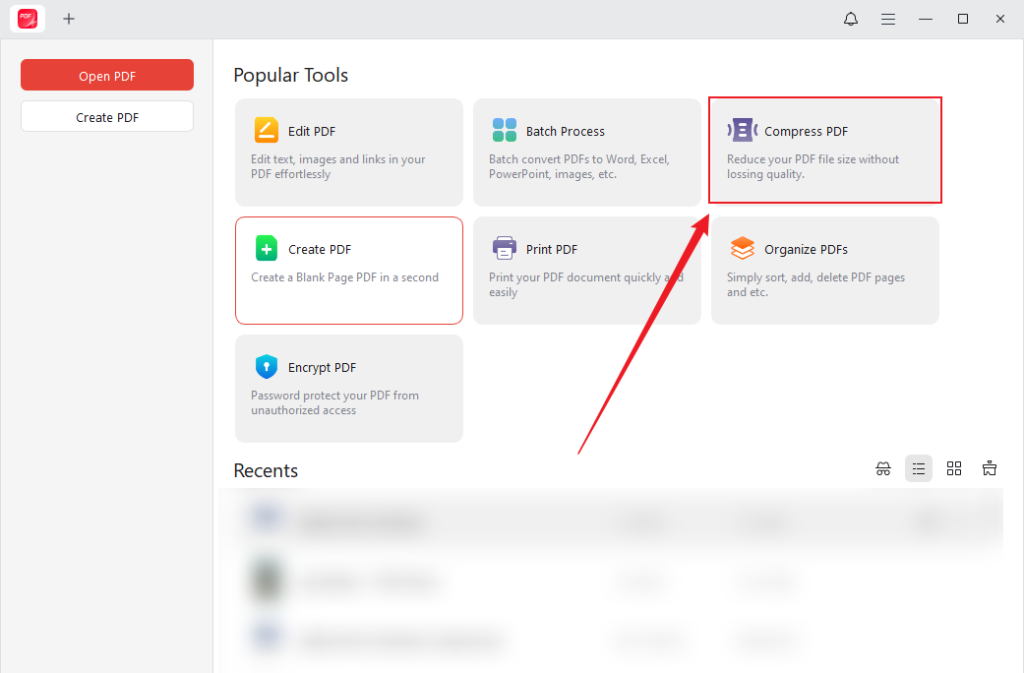
Alternatively, open a PDF with the program and navigate to Edit and click Compress.
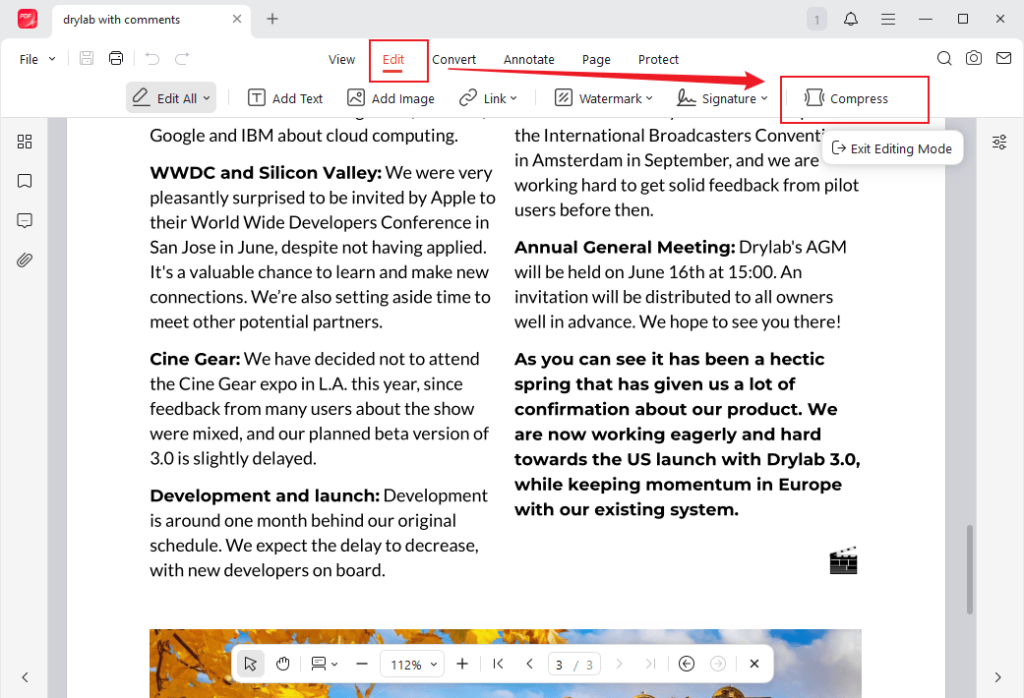
Step 2. Now, drag and drop the PDFs you want to compress into the list. Another option is to hit +Add Files to find and open your PDFs.
Step 3. Next, choose from three compression levels.
- High. Maximum compression and lower quality.
- Medium. A balanced compromise between file size and quality (recommended).
- Low. Minimal compression and highest quality.
Step 4. Once you choose your desired compression level, select the output folder and click Start.
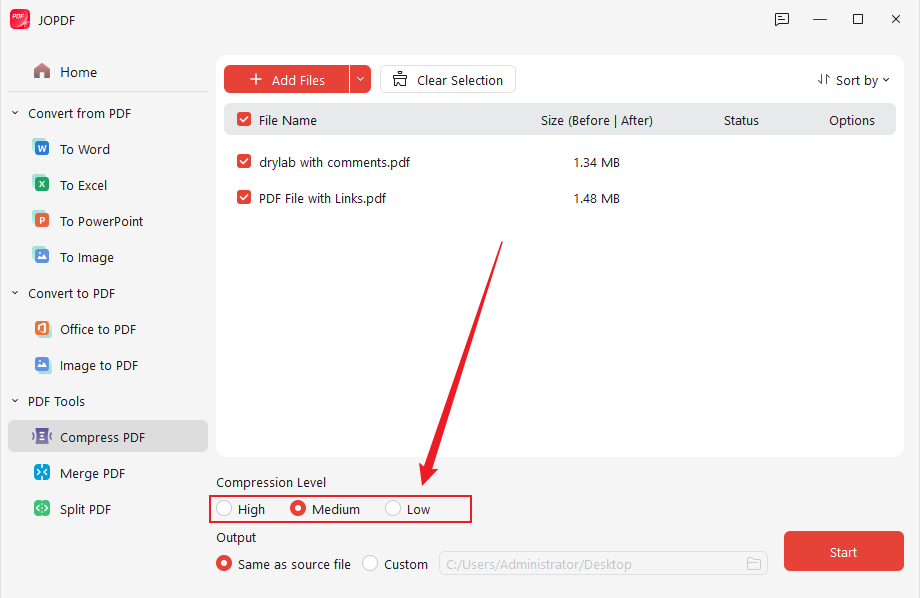
In a short while, the compressed PDF will be ready to use.
Other Highlighted Features of JOPDF:
- Among the best free PDF converter options, it works with Word, Excel, images, and other file types
- Batch processing to compress and convert multiple files at once.
- Works offline on Windows, Mac, and Linux for better privacy and security.
- Minimalistic and clear interface tailored for both new and experienced users.
- Retains the original design and formatting when compressing files.
Pros of JOPDF
- 100% free, without any added watermarks, ads, or charges.
- Fast performance even with large files.
- Users can conveniently resize a PDF for emails, sharing, or storage.
- No internet needed, so your files remain absolutely safe.
- Lets you perform bulk actions, speeding up your work.
Cons of JOPDF
- No online version available for quick browser-based use.
Overall, JOPDF is dependable software for anyone who needs to compress multiple PDFs at once while keeping documents clear and system-friendly.
Preview: Best Built-in PDF Compressor for Mac
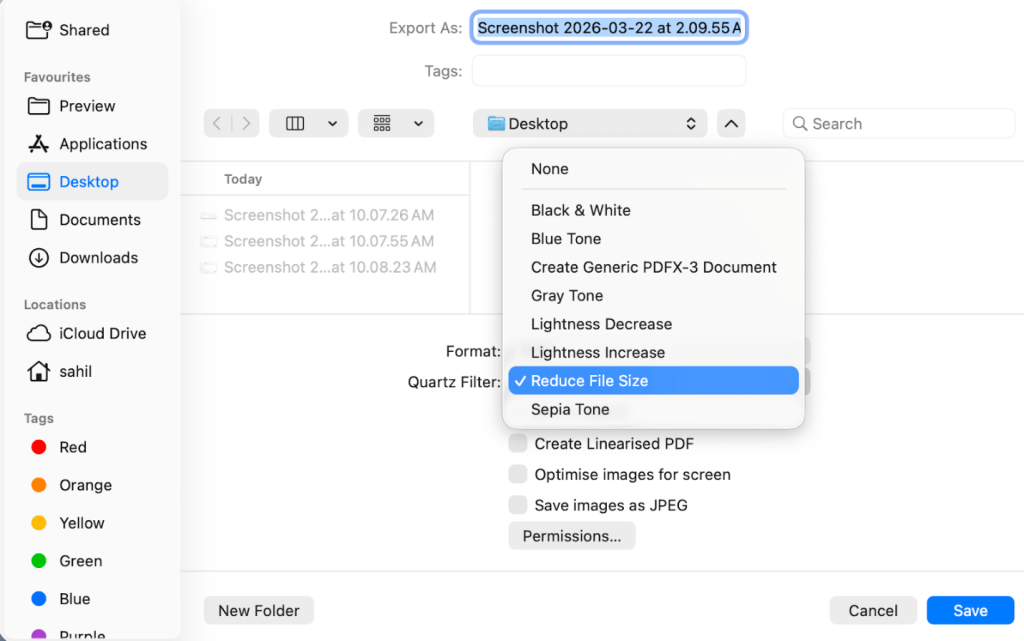
Preview comes pre-installed on macOS and offers a straightforward method to reduce PDF sizes without extra tools. This tool enables you to compress PDFs on Mac for free without installing any additional software, ideal for simple and fast compression needs.
Pros of Preview
- Quick processing for small to medium files.
- Free and easy to use for basic compression.
- Heavily reduce file sizes, shrinking them up to 70%.
- Offers quick compression without requiring document uploads to online services, ensuring better privacy.
- Includes a “Create Linearized PDF” option, which optimizes the document for faster viewing in web browsers.
Cons of Preview
- Compression often results in blurry images, fuzzy text, and washed-out colors because it significantly downsamples images.
- Users cannot pick specific resolution (DPI) settings or choose to compress only certain images; it is generally a “one-size-fits-all” approach.
- Once the file is exported and saved, the original high-resolution data is lost.
- Preview can compress only one file at a time, which can be tedious for large projects.
Overall, Preview lets users reduce PDF file size without extra tools on Mac, making it great for fast, straightforward compression.
Adobe Acrobat Online: Most Trusted Brand PDF Compressor
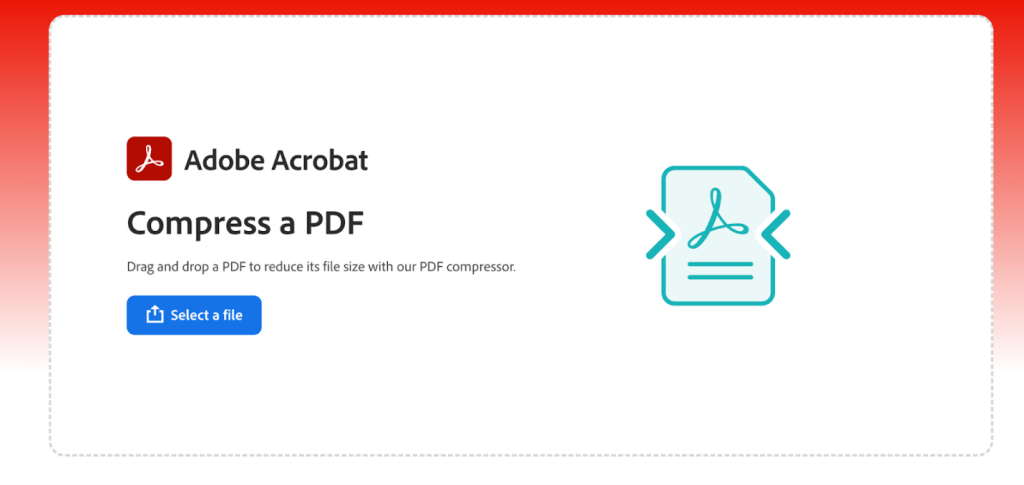
Adobe Acrobat Online is a widely trusted solution for users who prefer a browser-based tool backed by a well-known brand. Using Adobe compress PDF online, files can be quickly uploaded and optimized. It also allows users to reduce PDF file size in Adobe while providing a secure PDF compress online experience for safe handling.
Pros of Adobe Acrobat Online
- Optimizes documents and compresses images (like removing unused fonts or data) while preserving text and image clarity.
- Offers a choice between High, Medium, and Low compression to balance file size and quality.
- Uses 256-bit encryption and deletes files automatically from servers after processing.
- Easy-to-use browser tool accessible on any operating system, including Chrome and mobile.
- Shows estimated file size reduction before downloading.
Cons of Adobe Acrobat Online
- Fewer advanced settings compared to the desktop Adobe Acrobat Pro.
- Free users may face limits on the number of files they can compress daily before requiring a subscription.
- Requires Internet connection; inoperable offline.
Overall, it is a trustworthy option to reduce PDF file size in Adobe, catering to users who care about security and brand assurance.
Smallpdf: Best Free PDF Compressor Online
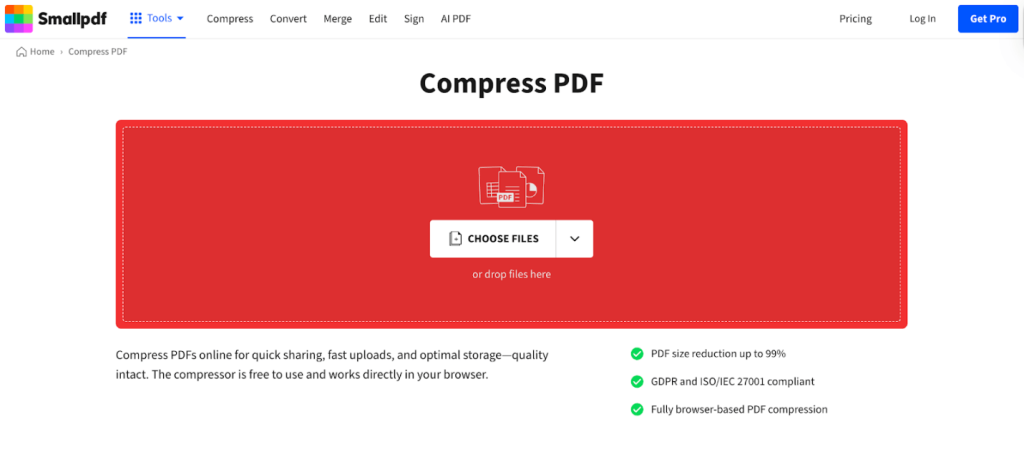
Smallpdf is a popular browser-based solution noted for its straightforward interface and usability. It operates as an online PDF compressor free, enabling users to efficiently upload and compress files. You can easily compress PDFs online without installing software, offering a convenient option for users who like browser-based tools.
Pros of Smallpdf
- Significantly reduces the size of media-rich PDFs without severe quality degradation.
- Simple, clean, intuitive user interface, and easy to navigate, requiring no technical proficiency or training.
- Compression tasks are completed quickly, saving time, especially for users handling multiple files.
- Using “Strong” compression, Pro users achieve maximum file-size reduction beyond standard compression.
- It offers encrypted file transfers (256-bit SSL) and is GDPR/ISO-certified, which provides a level of data security.
Cons of Smallpdf
- The free tier heavily restricts usage, often limiting users to only two or three tasks (like compression) per day before a paywall is triggered.
- Maximum, or “Strong,” compression requires a paid subscription; free users are restricted to basic compression.
- While efficient, higher-resolution photos in a PDF can still degrade in quality when heavily compressed.
Overall, Smallpdf is an ideal tool for users who wish to compress PDFs online without installing software with speed and ease.
SwifDoo PDF Online Converter: Best for Simple PDF Size Reduction
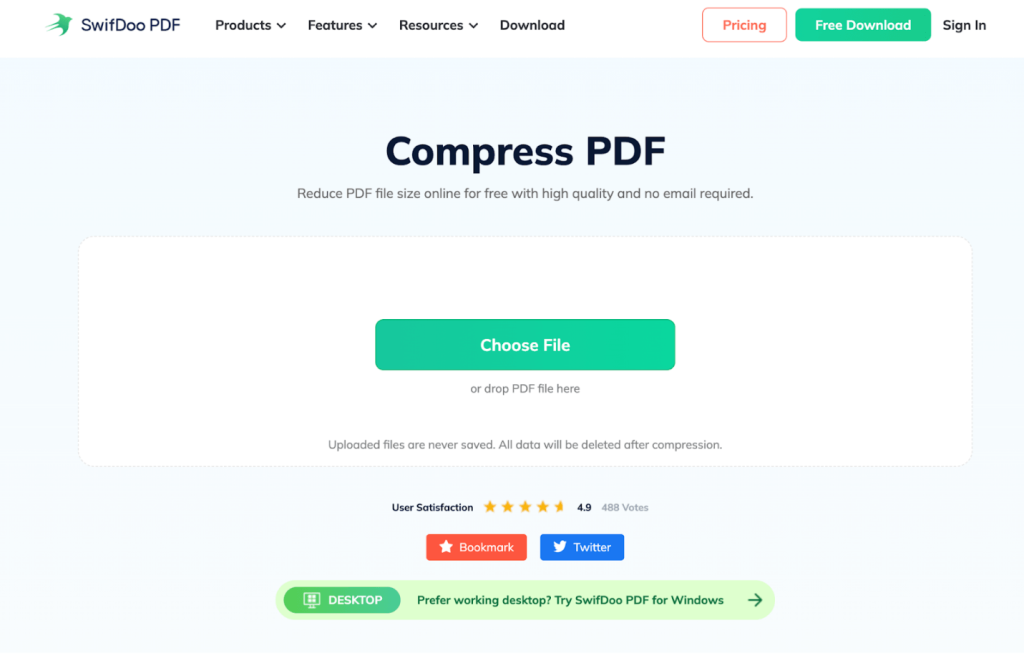
Next up, we have SwifDoo PDF Online Converter, a practical, lightweight, simple PDF size reduction tool for speedy PDF handling. It helps reduce PDF size without losing quality online with minimal effort. Finally, SwifDoo PDF Online Converter is a practical, lightweight tool that helps users batch compress PDFs with ease.
Pros of SwifDoo PDF Online Converter
- Provides multiple compression levels (High, Medium, Low), letting users balance file size reduction with image and text quality.
- Reduces file sizes while keeping images and content legible, avoiding significant loss of quality.
- The interface is clean, simple, and easy to navigate, and the compression process is quick.
- Beyond PDF, it can compress images and Office documents.
- Fast processing and works across devices via browser.
Cons of SwifDoo PDF Online Converter
- Functions best with a stable internet connection.
- Offers fewer advanced features than the desktop application.
Overall, SwifDoo PDF Online Converter provides a simple way for those who need to compress PDF online quickly free effectively.
How to Choose the Best Free PDF Compressor
Choosing the best PDF compressor for different needs relies on usage frequency, file size limits, and platform compatibility.
Key Factors to Consider:
- Compression quality. Opt for software capable of helping you compress PDFs without losing quality.
- Batch processing. Opt for software that can manage multiple files at the same time, reducing manual effort.
- Watermark restrictions. Ensure the tool does not add unwanted watermarks to your files.
- File size limits. Check if there are restrictions on upload or output file sizes.
- Platform compatibility. Make sure the tool works on your device (Windows, Mac, Linux, or browser).
- Security. Prefer tools that protect your files, especially when uploading online.
Best Tools by Use Case:
- Best PDF compressor for students: JOPDF and Smallpdf.
- Best PDF compressor for business: Adobe Acrobat Online and JOPDF.
- Best PDF compressor for occasional users: Smallpdf and Preview (Mac).
- Best PDF compressor for batch processing: JOPDF.
- Best PDF compressor for large PDFs: JOPDF and SwifDoo PDF Online Converter.
Final Words
Selecting the best free PDF compressor ultimately depends on your requirements, whether you favor offline apps or fast online tools. With the proper option, you can reduce PDF file size easily while preserving both clarity and functionality. These tools make it simple to compress PDFs without losing quality, helping you manage and share documents more efficiently.
FAQs
#JOPDF is best overall for offline use and bulk jobs.
#Smallpdf is ideal for quick, free, browser-based online PDF compression tasks.
#Preview works great on Mac without additional software.
#Adobe Acrobat Online is the most trusted tool for secure and simple PDF compression.
#SwifDoo PDF Online Converter is ideal for simple, fast PDF size reduction.
Pick a tool depending on whether you want to compress PDFs offline vs online, file volume, and quality requirements.
#Lossless compression. Shrinks file size while keeping the content quality intact. Text, images, and layout stay preserved, making it perfect for reports, professional documents, and legal files. Tools like JOPDF or Preview often use lossless methods.
#Lossy compression. Creates smaller files by lowering image resolution or removing unnecessary data. Visual quality may be slightly reduced, yet it’s useful for making PDFs smaller for email or online sharing.
Choosing the right method depends on whether maintaining perfect quality is more important than minimizing file size.
Table of Contents

Your Best Free PDF Expert in PDF editing, compressing, converting, annotating, protect, organizing, and more.
Free DownloadWindows · macOS · Linux

Olivia
“Olivia is an editor at JOPDF, where she writes practical guides and insightful articles on managing PDFs—covering topics like editing, annotating, converting, and organizing files efficiently. Passionate about clear communication and digital productivity, Olivia enjoys spending her free time cooking, watching movies, and hiking to unwind and find inspiration for her writing.”
![Find Ways to Download Manga as PDF for Free [5 Proven Ways]](https://b.jopdf.com/wp-content/uploads/2026/04/download-manga-pdf.png)

![4 Best Methods on How to Edit a Signed PDF [Includes Tips]](https://b.jopdf.com/wp-content/uploads/2026/04/how-to-edit-a-signed-pdf.png)
