Introduction
In this guide, we will show you how to batch compress PDF files. You will know how to use the powerful desktop software JOPDF for unlimited offline compression, how to use the online tool for smaller tasks, and a bonus strategy on how to merge your compressed files into one for easy sharing.
We have all been there: you want to send PDFs to an email. You drag the files into your email client, and suddenly, you are hit with the dreaded error message: “Attachment size exceeds the limit.”
Compressing these files one by one is tedious and inefficient. This is where the ability to batch compress becomes a lifesaver.
However, you may wonder: Can I batch compress PDF files and keep high quality? Yes, with a professional PDF compressor like JOPDF, this can be achieved. Download to start or keep reading to learn more.
Method 1. How to Batch Compress PDFs with JOPDF
If you are dealing with sensitive documents, large quantities of files, or simply want the fastest results possible, desktop software is the best choice.
JOPDF is an all-in-one, free PDF editor that excels at batch processing because it uses your computer’s local processing power rather than relying on internet upload speeds.
More importantly, it offers a dedicated compression engine that shrinks file sizes without compromising document quality. It allows you to process multiple files at once and provides clear compression options to balance quality versus size.
See how to compress multiple PDFs at once.
Step 1: Download and launch JOPDF on your Windows PC or Mac computer.
Step 2: From the Home screen, look for the Compress PDF tab and click on it.
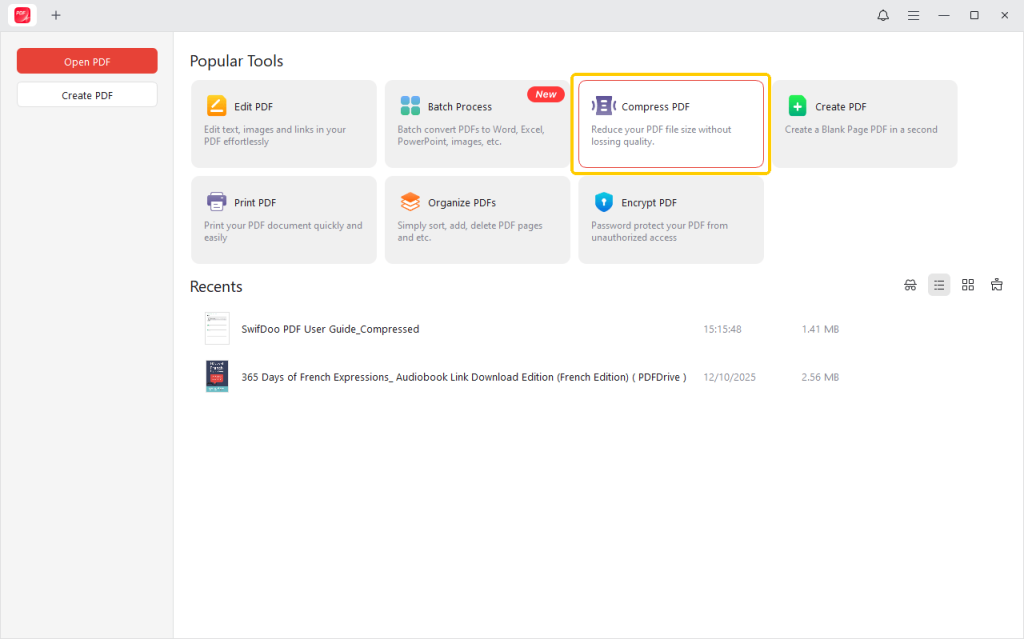
After the first time, you should download and install a plugin. Then you can always compress or convert offline at any time.
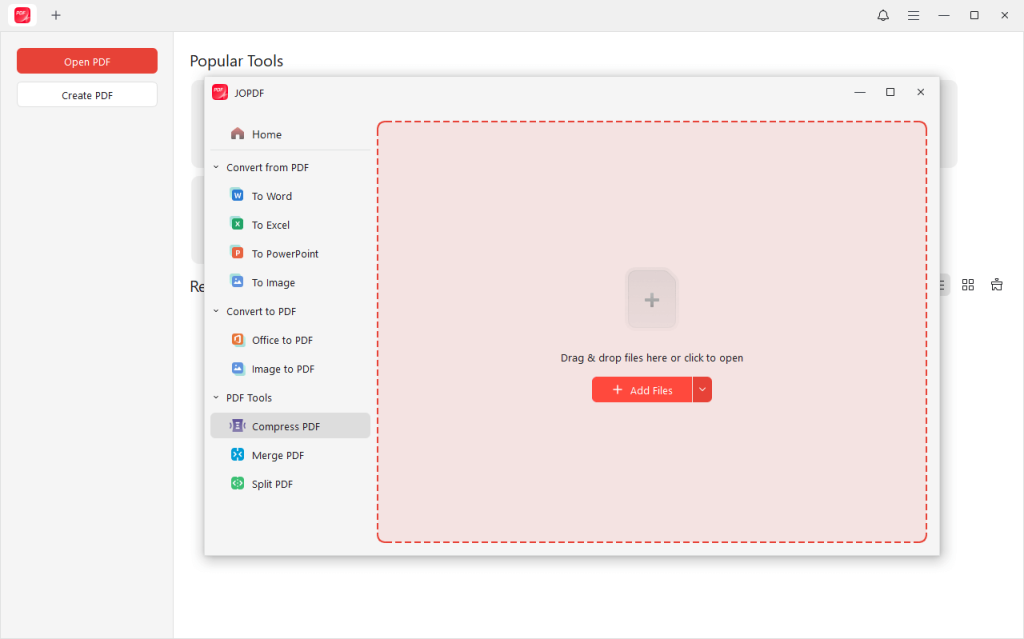
Step 3: Then, a dialogue window will pop up specifically for compression. Here, you can add your files:
- Click the “Add Files” button to browse and select documents from your computer.
- Alternatively, simply drag and drop an entire folder of PDFs directly into the workspace.
Step 4: Choose your compression level based on your needs.
- High: JOPDF will compress documents to the maximum extent possible. However, image resolution may be slightly reduced on very large screens.
- Medium: This is a balanced option. It significantly reduces file size while maintaining sufficient screen display clarity. It is recommended for most standard documents.
- Low: This setting provides minimal file compression while preserving the highest image quality. Select this setting if the document requires professional printing.
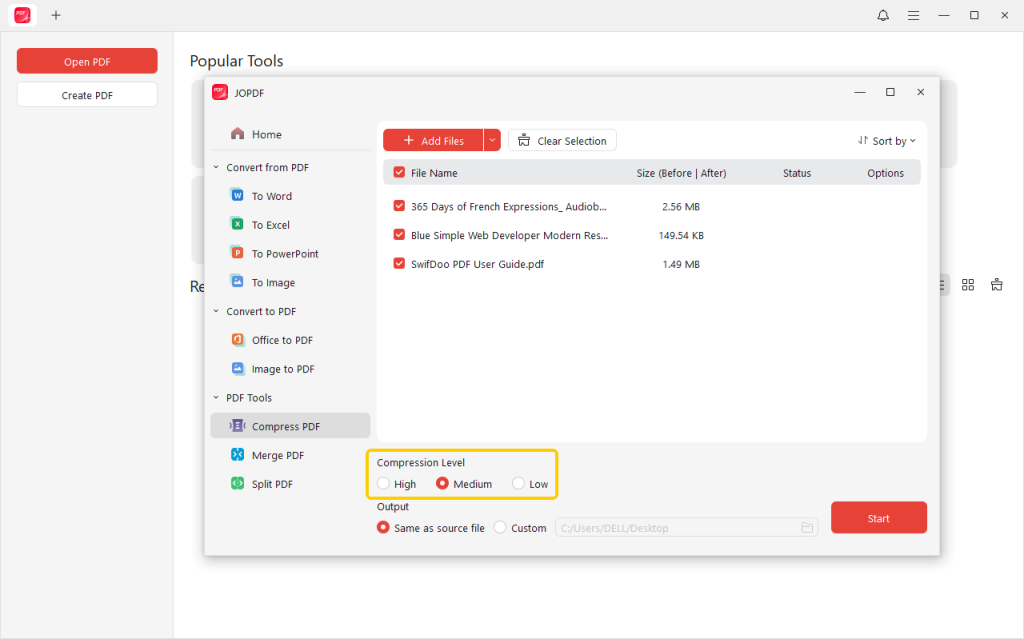
Step 5: Choose an output path. Then, click the Start button.
JOPDF will process the queue rapidly. When done, you can check the file and open the folder containing your created documents.
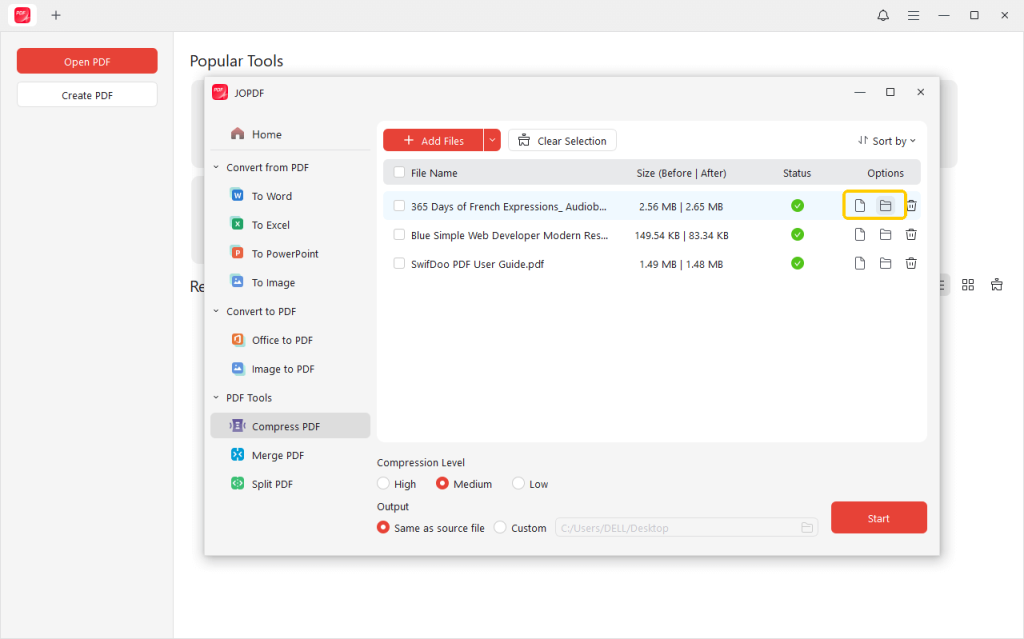
As you can see, JOPDF is extremely easy to use. You can obtain high-quality documents with minimal effort. More importantly, it is completely free. There is no reason to give it a try!
Method 2. How to Batch Compress PDFs Using an Online Tool
Sometimes you don’t have access to your main computer, or you are on a public machine where you cannot install software. In these cases, an online compressor is a convenient solution for quick tasks. Most online tools, including iLovePDF, Smallpdf, and PDF24, work similarly.
However, given document security concerns, online tools are not ideal for handling confidential data. Additionally, online tools often impose file-size limits, making them suitable only for processing small documents.
Step 1: Open your web browser and go to an online PDF compressor. Here, we choose iLovepdf.
Step 2: Then, upload all the PDF documents you want to compress.
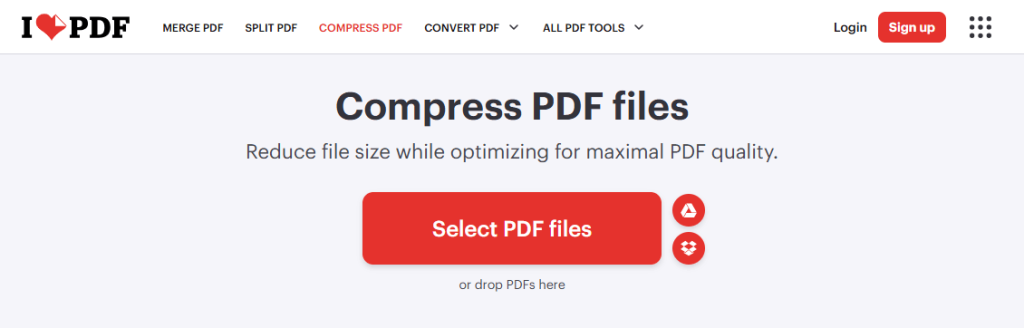
Step 3: Select the compression quality that fits your needs.
Step 4: Click Compress PDF and wait for the process to complete.

When finished, the tool will usually provide a “Download” button. To keep things organized, batch online tools typically bundle your compressed PDFs into a single ZIP file. Download the ZIP file to your computer and extract it to access your documents.
Bonus Tip: How to Use JOPDF to Merge Compressed PDFs
Now that you have successfully batch compressed your 10 separate invoices or project chapters, you have solved the size problem, but you still have a clutter problem. Sending 10 separate attachments in an email is still clumsy and unprofessional.
How to compress multiple PDF files into one? First, compress all the documents. You have already completed this task. The next step is to combine these lightweight files into a single neat package. Since you already have JOPDF, you can do this seamlessly.
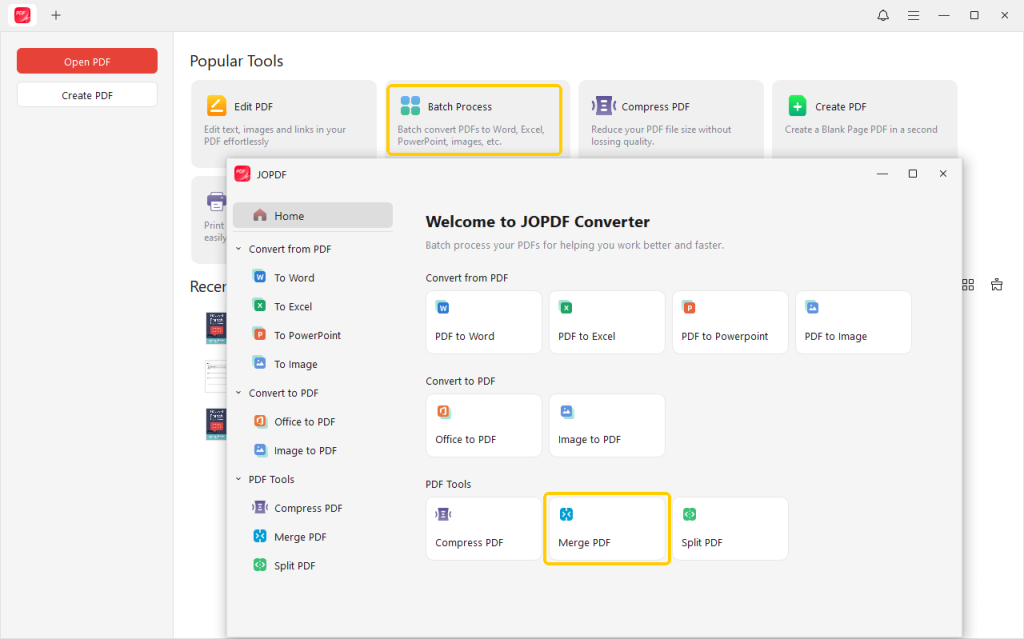
Step 1: From the home screen, click Batch Process.
Step 2: Select the Merge PDF option. Click Add Files and navigate to the output folder where you just saved your compressed PDFs. Select all of them.
Step 3: Name the file, select a location, and click Start.
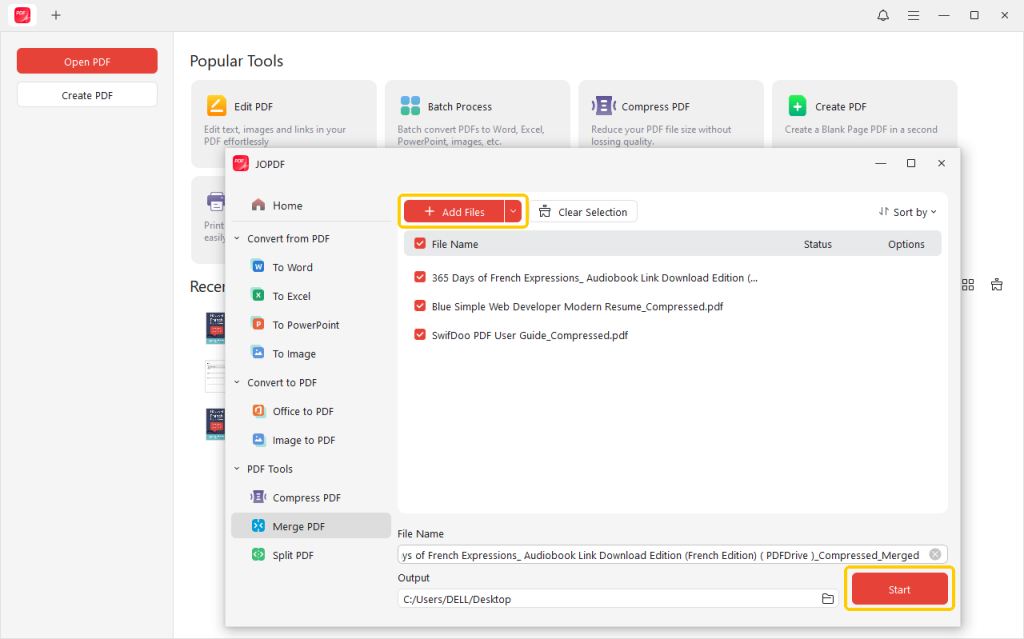
Because the source files were already compressed in the previous step, the final merged document will be small, lightweight, and incredibly easy to share via email or chat apps like Slack or Teams.
Conclusion
That’s all about how to batch compress PDFs. If you value speed, privacy, and need to handle unlimited files without restrictions, desktop solutions like JOPDF are the best choice. You won’t sacrifice quality in the process. Download JOPDF now to effortlessly compress, merge, and manage your documents!
FAQs
Table of Contents

Your Best Free PDF Expert in PDF editing, compressing, converting, annotating, protect, organizing, and more.
Free DownloadWindows · macOS · Linux

Queena
Editor
“As a staff editor for JOPDF, Queena excels at guiding users to the optimal tools and solutions. When she's not analyzing the latest PDF solutions, she enjoys spending her free time playing with her four cats.”
![Find Ways to Download Manga as PDF for Free [5 Proven Ways]](https://b.jopdf.com/wp-content/uploads/2026/04/download-manga-pdf.png)

![5 Best Free PDF Compressors in 2026 [Desktop and Online]](https://b.jopdf.com/wp-content/uploads/2026/04/best-free-pdf-compressor.png)
