Introduction :
Are you looking for ways to watermark your PDFs to protect them, establish ownership, or prevent unauthorized sharing? If so, you are in the right place! In this JOPDF article, I will introduce you to five useful PDF editors to add watermark to PDF. Whether you are sharing business reports, academic materials, or copyrighted files, a watermark helps prevent unauthorized use and ensures your documents look professional.
Adding text like “Confidential,” “Draft,” or your company logo as a watermark helps deter misuse while keeping the original content readable. How to add a watermark to a PDF on Windows, Mac, or other devices? In the following, let’s explore effective, free ways to watermark a PDF using desktop or online tools. Now, let’s get started!
Best Way to Add Watermark to PDF for Free
Do you need a quick, reliable way to add watermarks to a PDF, either for free or at a low cost? JOPDF is a trustworthy PDF editor that enables you to watermark PDFs for free. You can use it to add text and image watermarks to PDF files effectively. Meanwhile, it offers some watermark presets, such as “Draft”, “Do Not Copy”, and others. Also, JOPDF allows you to create watermarks and provide some customizable settings.
In addition to adding watermarks to PDFs on Windows, JOPDF enables you to watermark PDFs on Mac and Linux. What’s more, you can use it to remove watermarks from a PDF. Serving as a free alternative to Adobe Acrobat, JOPDF offers a full set of editing features. It supports adding signatures to PDFs, combining PDFs, annotating PDFs, and more. Here, let’s learn how to insert a watermark into a PDF for free using JOPDF.
Step 1. Click the button below to download and install JOPDF on your Windows or Mac PC. Also, you can visit the download center to download JOPDF for Linux.
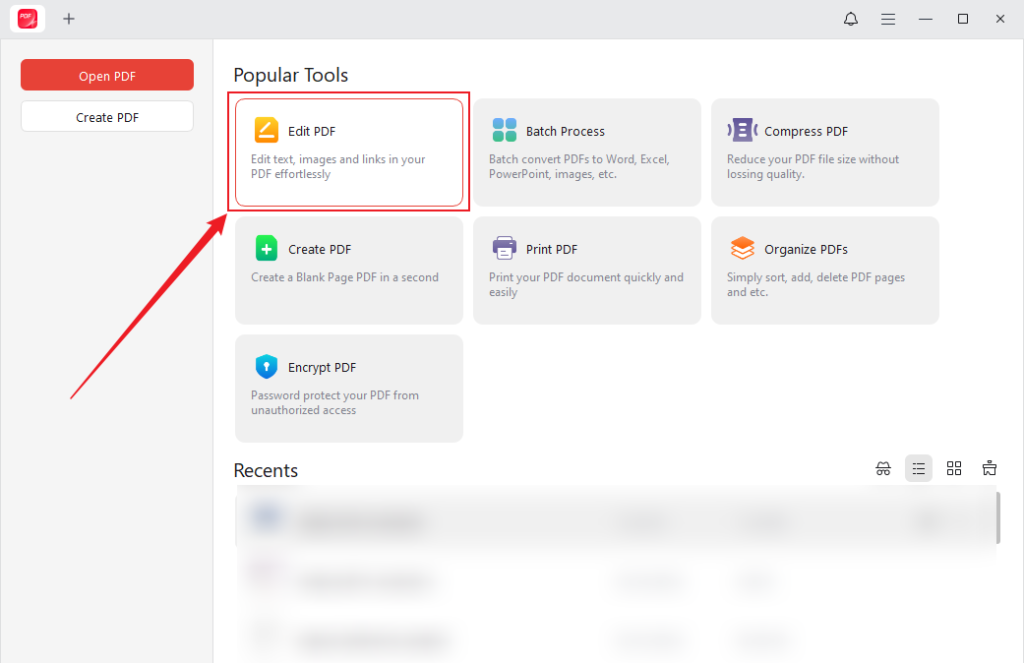
Step 2. Launch this free PDF editor to get to its main interface and click Edit PDF to import the target PDF that you want to add watermarks to.
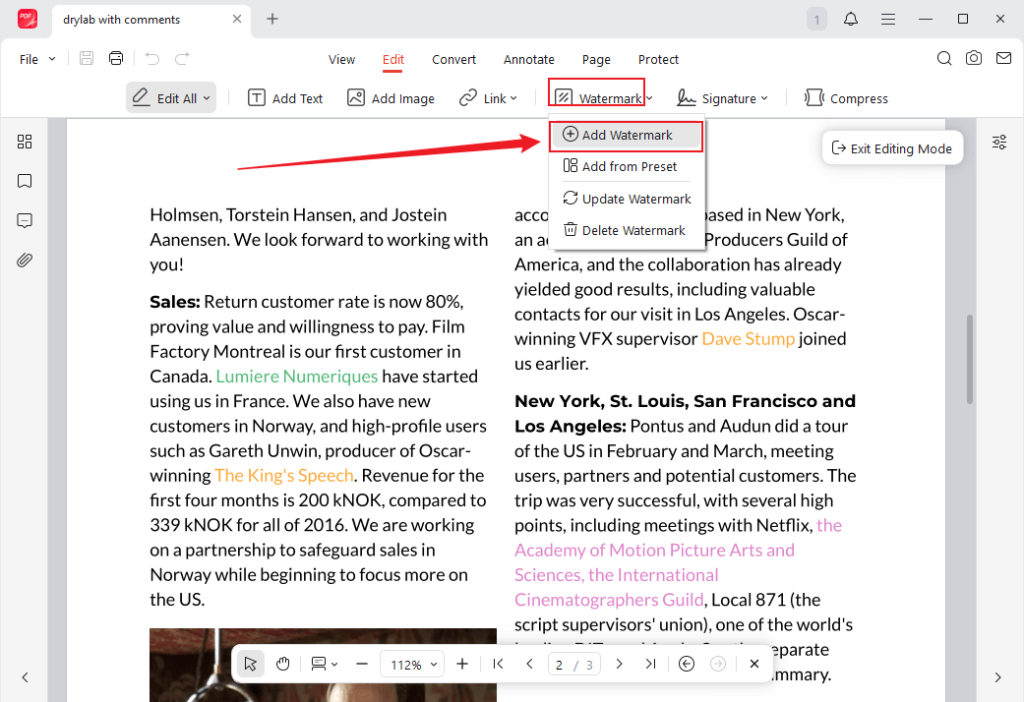
Step 3. Under the Edit tab, click Watermark and select the Add Watermark option.
Next, here are two options: Text Watermark and Image Watermark.
#Add Text Watermark to PDF: Type the text watermark you want to add in the Content box. Optionally, personize the text font and font color, or choose to underline, bold, or italicize the text watermark. Additionally, you can customize the position and appearance and set the page you want to watermark.
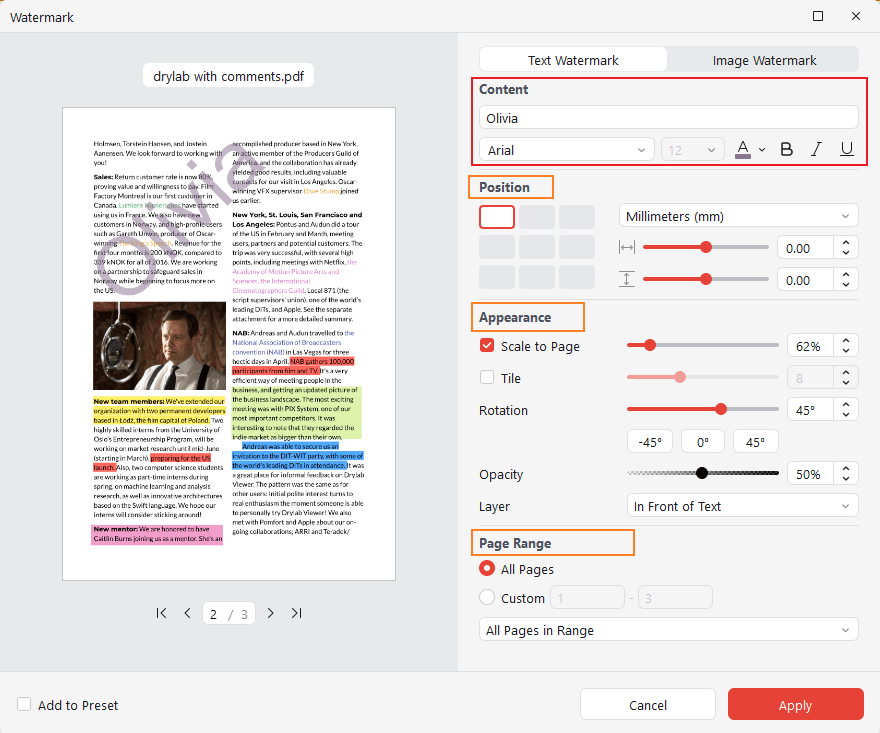
#Add Image Watermark to PDF: Switch to Image Watermark and click the File icon to import your company or product logo or other image watermarks. Similarly, customize the watermark position and appearance as needed.
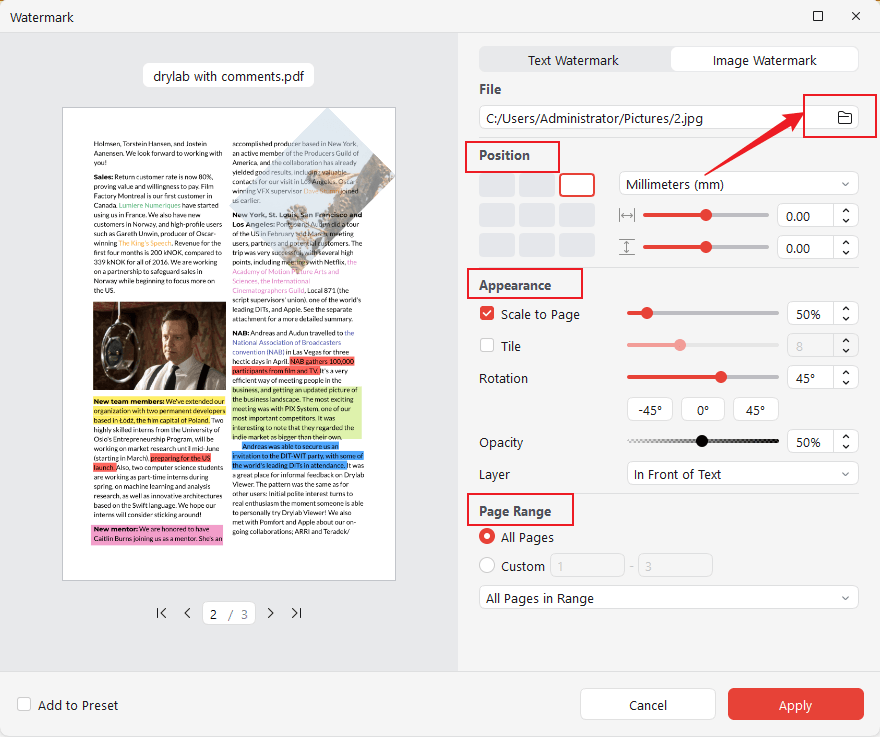
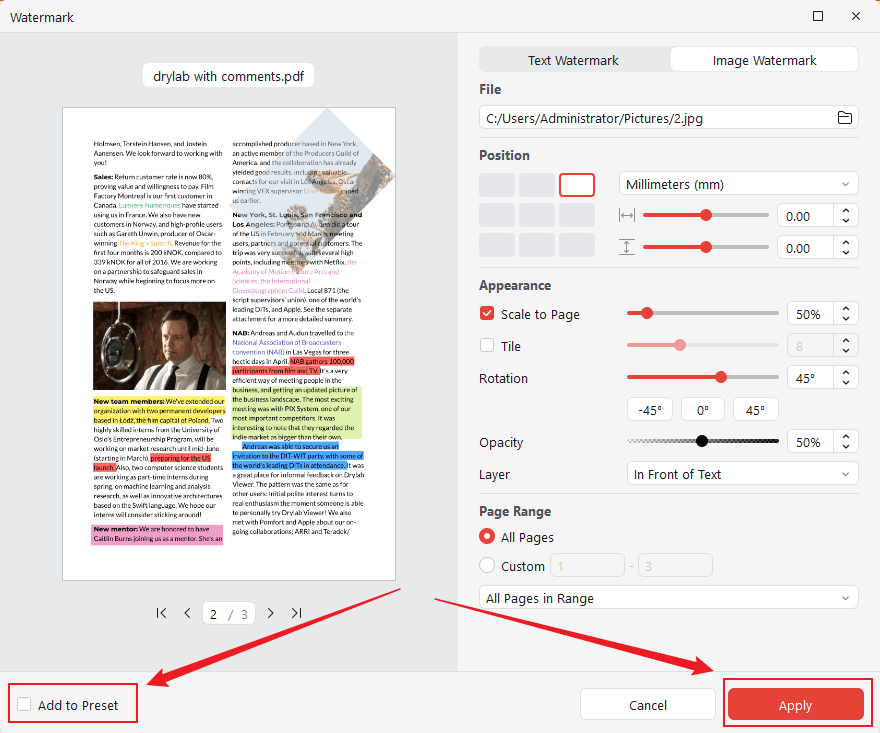
Then click Apply to add the text or image watermark to the PDF. If needed, you can check the Add to Preset checkbox so that you can directly use the watermark from the Preset library.
Step 4. Based on your needs, you can use JOPDF’s editing features to modify the PDF file. Finally, click the Save icon to save the changes.
Tips
You can also use JOPDF to remove watermark from PDF for free. Click Watermark and select the Delete Watermark option. Then, click the Delete button to confirm the operation. Additionally, you can click Update Watermark to adjust the watermark settings as needed.

How to Add Watermark to PDF in Adobe Acrobat
Acknowledged by the PDF industry, Adobe Acrobat is a professional PDF tool. You can use it to add watermarks to PDF files. Additionally, it offers advanced customization options and is widely used in professional environments. Like JOPDF, Adobe Acrobat supports image and text watermarks. Meanwhile, it allows page-specific watermarking. However, it requires a paid subscription.
If you need a professional tool and have a sufficient budget, Adobe Acrobat is the best choice, which remains the gold standard for precise control. Below is a guide on how to watermark a PDF in Adobe Acrobat.
Step 1. Launch Adobe Acrobat Pro or Standard and open your target PDF document.
Step 2. Navigate to the left pane or top menu, click Edit, choose Watermark, and click Add. Alternatively, click Tools, select Edit PDF, and choose Watermark.
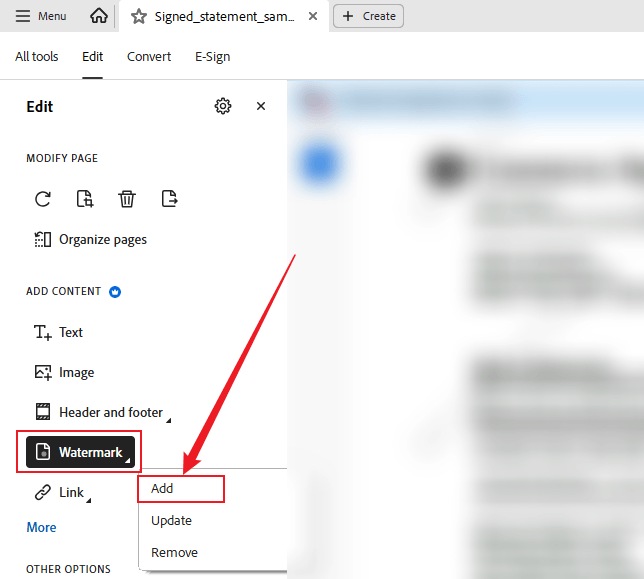
Step 3. Choose the Text or File option to add a text or image watermark. In the Add Watermark dialog box, adjust settings such as opacity, rotation, size, and page range. Next, click OK to apply the watermark.
Step 4. To update or remove the watermark, click Watermark and select the Update or Remove option. Finally, save the watermarked PDF file.
How to Add Watermark to PDF on Mac for Free in Preview
How to add a watermark to a PDF on Mac for free? Does Preview support adding watermarks? Though Preview doesn’t have a native one-click Add Watermark tool for directly inserting a watermark into a PDF, you can also use its Markup tools to add text and image watermarks to PDFs. Follow the steps below to learn how to add a watermark to a PDF using Mac Preview.
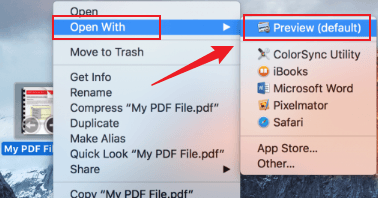
Step 1. Locate your PDF file, right-click it, move to Open With, and select Preview. Then the PDF will open in Preview.
Step 2. Click the Markup icon and click the Text icon. If the Markup doesn’t appear in the top toolbar, click View and select Show Markup Toolbar.
Step 3. Click on the page to create a text box and type your watermark, like DRAFT or CONFIDENTIAL. Next, customize the text to make it look like a real watermark. For instance, you can drag the Opacity slider for a faded watermark look. Meanwhile, you can rotate it as needed.
If you want to add a PNG watermark to the PDF, directly drag the image onto the PDF page in Preview. Then, resize, rotate, and position as needed.
Step 4. Finally, click File and select Save or Export as PDF to save the watermarked PDF file.
From the above, we can know that Preview also has several limitations compared to dedicated PDF editors. For instance, Preview doesn’t have a dedicated watermark tool, automatic application to all pages, and limited customization and precision. To insert watermarks into PDFs on Mac for free, JOPDF is also worth a try.
How to Watermark a PDF Online
If you don’t want to install software, you can add a watermark using online PDF tools. They can work on any device, including Windows, Mac, Android, and iOS. Also, they are very beginner-friendly owing to their user-friendly interface. However, some tools limit file size in free versions. Below are reliable online PDF editors for you to choose from.
- Smallpdf
- iLovePDF
- Sejda PDF
- PDF24 Tools
- PDF Candy
Here, I only take Smallpdf as an example to show you how to add watermark to PDF online.
Step 1. Open your browser and visit Smallpdf’s Watermark PDF website.
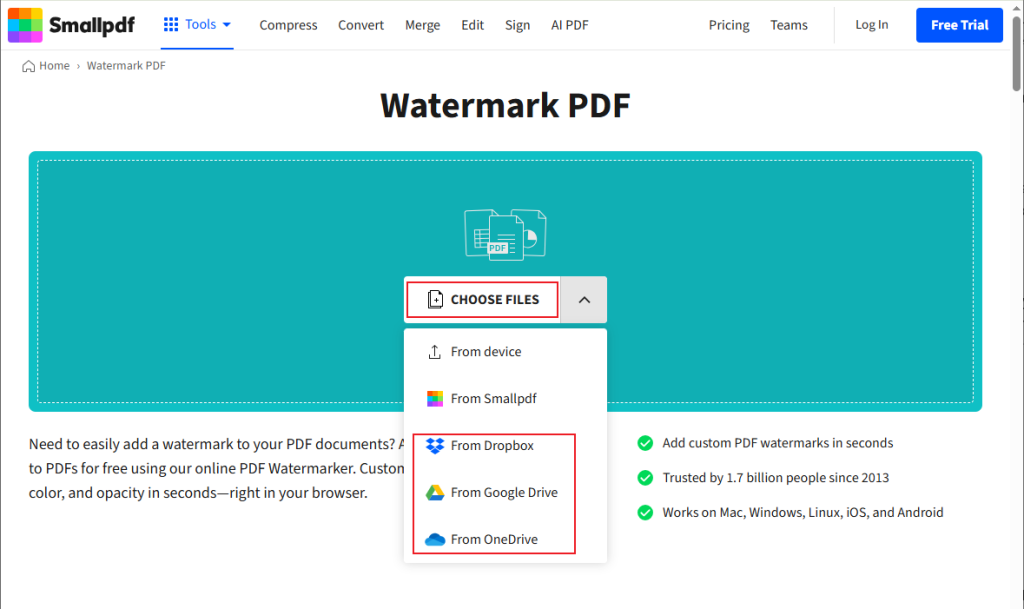
Step 2. Click CHOOSE FILES to upload your target PDF file. Alternatively, you can choose to upload a PDF from Dropbox, Google Drive, or OneDrive.
Step 3. In the “Type here” box, enter the text watermark you want to add. Next, you can change the text font, color, and opacity as needed.
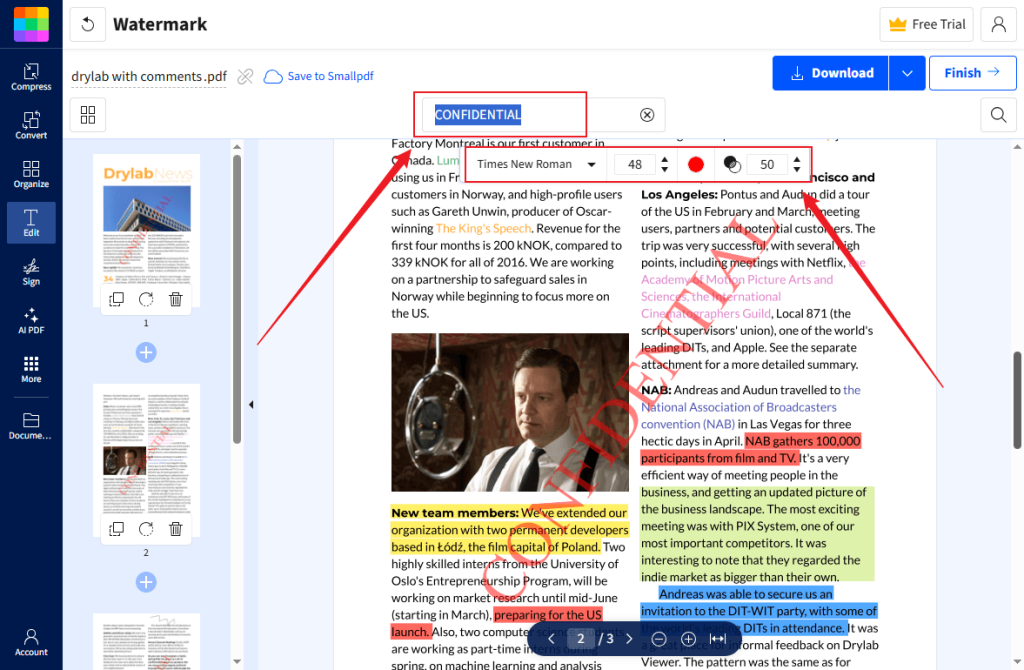
Step 4. Finally, click the Download button to save the watermarked PDF locally.
Using an online PDF editor is a good way to watermark a PDF without additional software. However, if you need to add watermarks to a confidential document, you’d better use offline programs, like JOPDF and Adobe Acrobat.
How to Insert a Watermark into a PDF Using Microsoft Word
Surprisingly, Microsoft Word, a word processing software, allows you to import and export PDF files. You can edit PDF files just like you do with Word documents. When you open a PDF file in Microsoft Word, the PDF will be converted into an editable Word document. You just refer to the steps to add watermarks in Microsoft Word. You can easily add watermarks to the imported PDF file.
How to add a watermark in a PDF using Microsoft Word. Follow the exact steps below.
Step 1. Open Microsoft Word, go to File, and click Open to select your target PDF file. Next, click Open.
Step 2. Microsoft Word will prompt a notice that it will convert the PDF into an editable document. Click OK to confirm it.
Step 3. Click the Design tab on the top toolbar, then click Watermark. You can select the premade watermark. Alternatively, you can click the Custom Watermark option to create a new watermark.
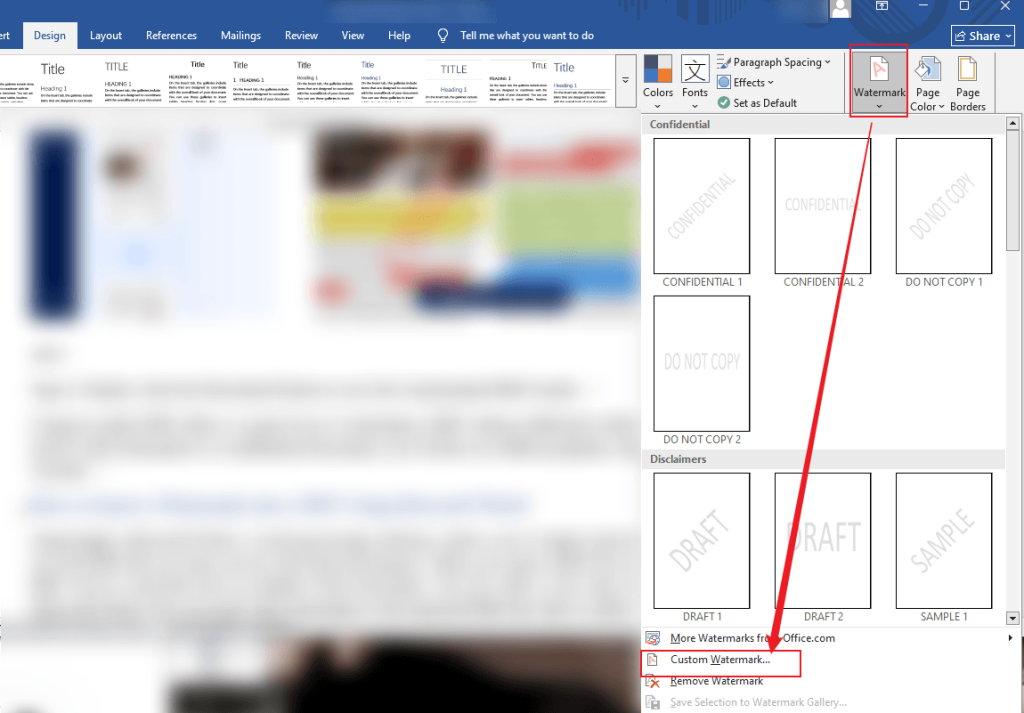
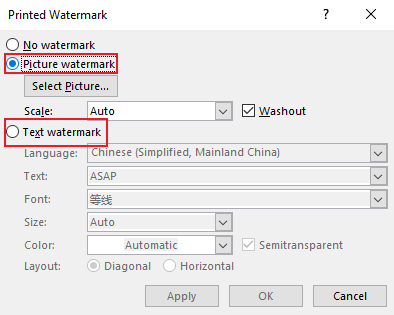
Next, select the Picture watermark or Text watermark option. If you select the Picture watermark option, click Select Picture to choose the target image watermark. If you select the Text watermark option, type in the text and customize other settings. Then, click OK to apply the watermark in Microsoft Word.
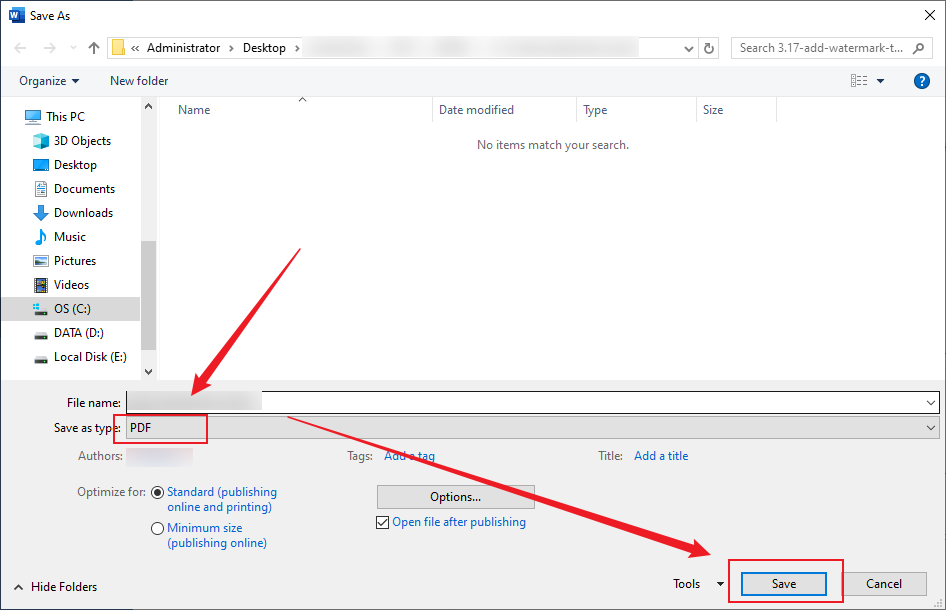
Step 4. Modify the file as you like. Once satisfied, go to File > Save As to choose its saving path and name it. Next, set PDF as the export format. Finally, click Save.
Other Available PDF Editors for Adding Watermarks
In addition to the tools above, I have rounded up several reliable PDF editors to watermark PDFs effectively.
- SwifDoo PDF: It’s a full-featured PDF editor with AI and OCR. You can use it to edit scanned PDFs effectively. It can also watermark scanned PDFs.
- Foxit PDF Editor: Serves as one of the best Adobe Acrobat alternatives, enabling you to add or remove watermarks from PDFs.
- Nitro PDF: It supports adding customizable text or image watermarks to protect PDF files.
- Google Docs: You can watermark PDFs using Google Docs without software.
Final Thoughts
Adding a watermark to a PDF is straightforward and essential for protection and branding. Among the five introduced methods, I prefer JOPDF the most, owing to its free nature and versatile features. Also, it offers many customizable watermark settings.
If you cater for professional usage, try Adobe Acrobat. Additionally, you can use Preview, Microsoft Word, and online PDF editors to add watermark to PDF. Now, it’s your time to choose a method and give it a try.
FAQs
Table of Contents

Your Best Free PDF Expert in PDF editing, compressing, converting, annotating, protect, organizing, and more.
Free DownloadWindows · macOS · Linux

Olivia
“Olivia is an editor at JOPDF, where she writes practical guides and insightful articles on managing PDFs—covering topics like editing, annotating, converting, and organizing files efficiently. Passionate about clear communication and digital productivity, Olivia enjoys spending her free time cooking, watching movies, and hiking to unwind and find inspiration for her writing.”


![How to Add an Image to a PDF in Preview [Quick Guide]](https://b.jopdf.com/wp-content/uploads/2026/03/add-image-to-pdf-in-preview.png)
