Summary :
Adding text to a PDF helps complete forms, revise contracts, provide comments, or make quick changes without having to recreate the document. Curious about how to add text to a PDF on Mac? This article explores three easy ways to get it done quickly and effectively.
1. The Best Free Way to Add Text to a PDF on Mac: JOPDF
JOPDF provides a user-friendly interface that makes editing PDFs and managing documents easy for Mac users. With strong functionality and an intuitive design, it makes PDF editing straightforward and user-friendly.
JOPDF’s Edit tool lets you easily add or change text in your PDF files while keeping the original layout and formatting intact. You can add new text, change font styles and sizes, and move content wherever needed.
With just a few clicks, JOPDF makes editing PDFs on Mac smooth and hassle-free, making it the best PDF editor for Mac.
Check out how to add text to a PDF on Mac using JOPDF in just a handful of clicks.
Step 1. Download and set up JOPDF on your Mac. Once installed, launch the software.
Step 2. Go to the Edit tab in the top toolbar. And click Edit Text in the secondary menu bar to make text elements editable.
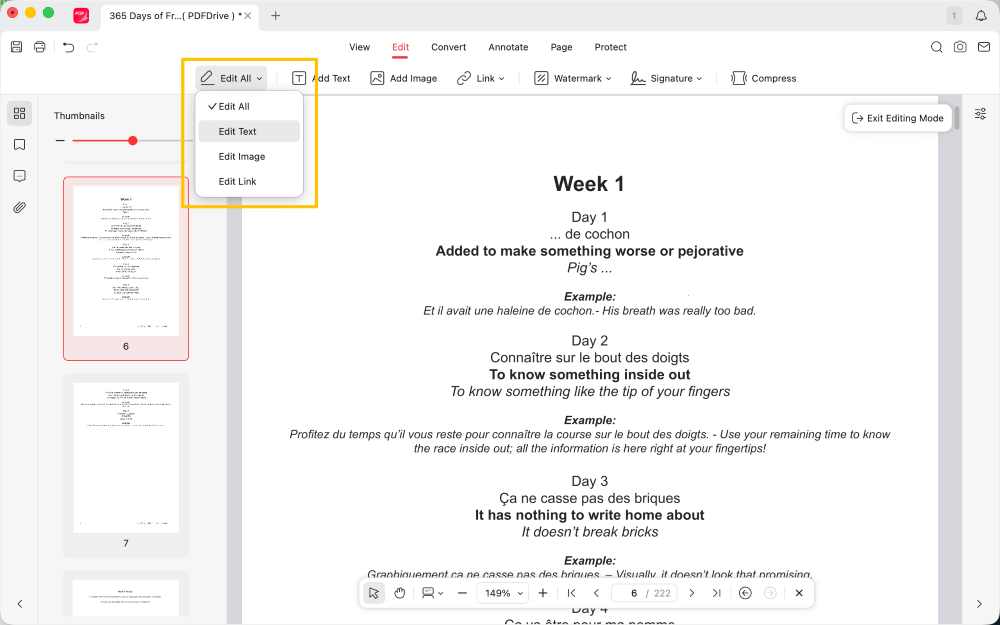
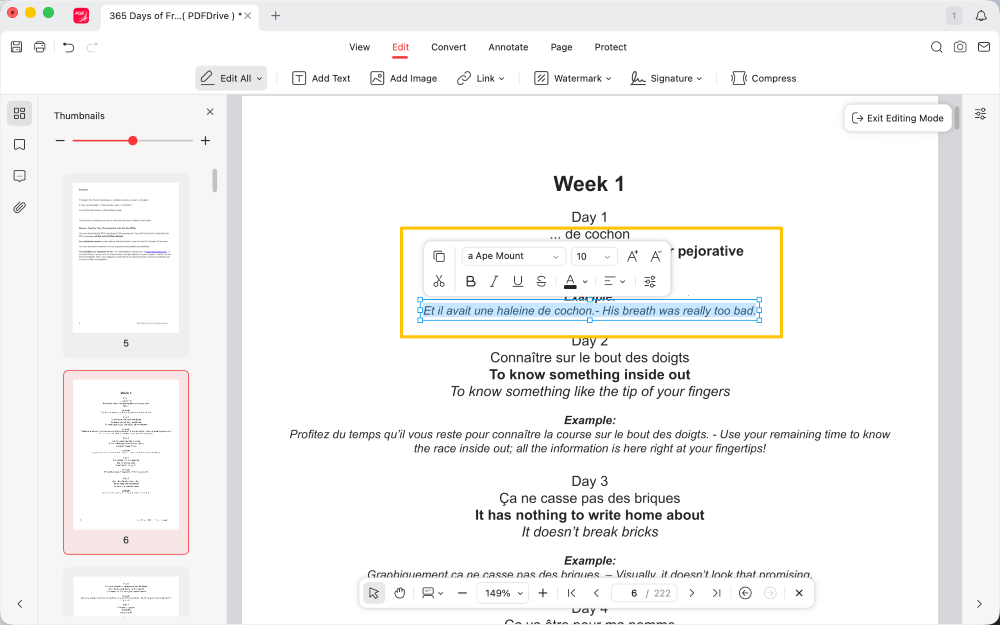
Then, you can select the text box and change the text.
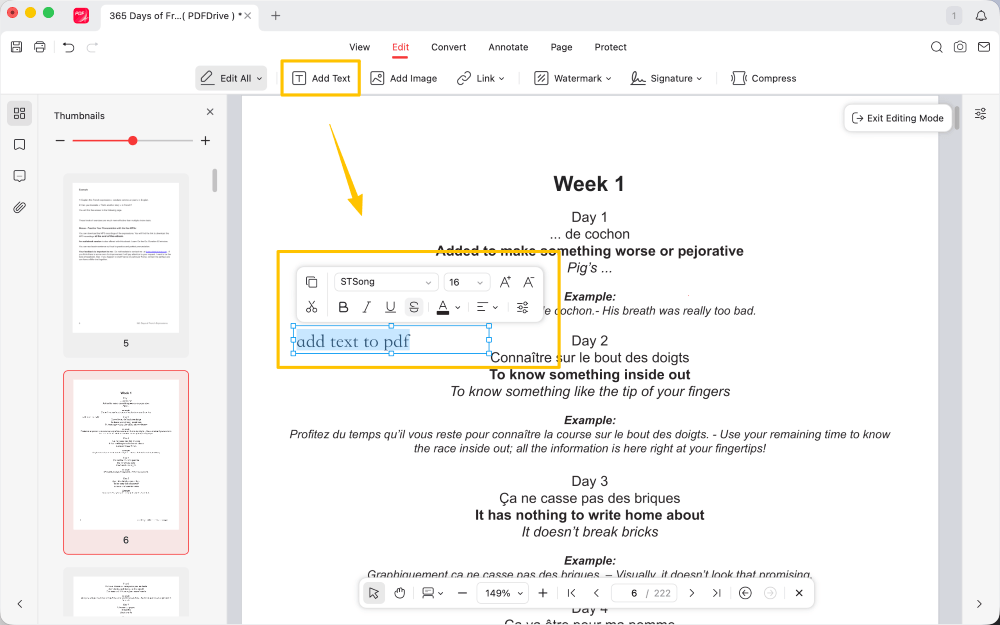
Step 3. If you want to add a text box, please click the Add Text button.
Step 4. Use the Properties sidebar to modify font size, color, and more after selecting the text.
Beyond editing, users can use JOPDF’s PDF conversion, merging, splitting, annotation, and management tools.
Whether you want to write on a PDF, rearrange pages, or convert files to different formats, it offers an all-in-one solution for Mac users. Get JOPDF today and discover how it can make handling PDFs easier!
2. Add Text to a PDF on Mac in Preview
The built-in Preview app on macOS lets you view PDFs and images and offers editing tools. You can add text to PDF, insert shapes, highlight content, and sign documents without needing extra software.
Using the Markup toolbar, you can easily place text boxes anywhere in the PDF, adjust font style and size, and reposition content as needed. For quick, basic edits, Preview is a simple, convenient solution for Mac users.
Let us see how to add a text box to a PDF on Mac with Preview.
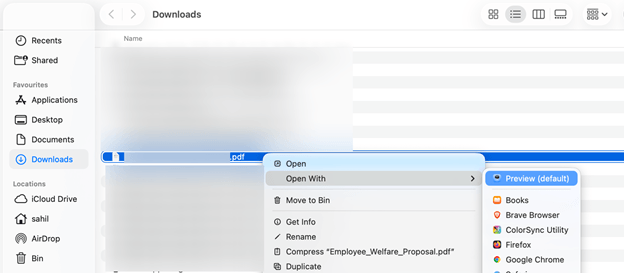
Step 1. In Finder, navigate to the PDF file you want to edit.
Right-click the PDF, select Open With, and tap Preview.
Step 2. Now, select the Markup button, which looks like a pencil tip, from the top toolbar.
Use the text tool (the A icon) to create a new text box in the PDF. Now, add the text you wish to appear in the box.
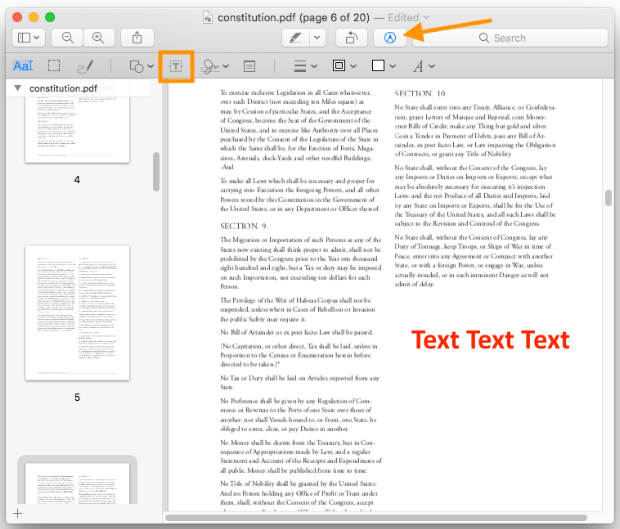
Step 3. Use the formatting options to change font, size, color, and alignment.
Next, drag the text box to position it anywhere on the page.
Step 4. After finishing text adjustments, go to File and hit Save to keep your edits.
Preview is useful for simple annotations, but it doesn’t allow editing of existing PDF text. You can add new text boxes, but you cannot delete text from PDF files or modify existing content.
For full editing capabilities, including the ability to alter or remove existing text, JOPDF is a suitable option.
3. Add Text to a PDF on Mac with Adobe Acrobat
Adobe Acrobat Pro provides professional-grade PDF editing for advanced document creation and modification. It provides powerful editing tools that let you add, edit, and format text directly in a PDF.
By using the Edit PDF function, you can insert new text, edit existing content, tweak fonts and sizes, and reposition elements while maintaining layout. It’s a top choice for anyone who needs comprehensive, precise PDF editing features.
Let us learn how to quickly add text to a PDF on a Mac using Adobe Acrobat.
Step 1. Download and launch Adobe Acrobat on your system. Then, use the program to open your PDF and insert text into the document.
Step 2. Next, in the right-hand menu, select Edit PDF. Then, in the top toolbar, select Add Text (T icon).
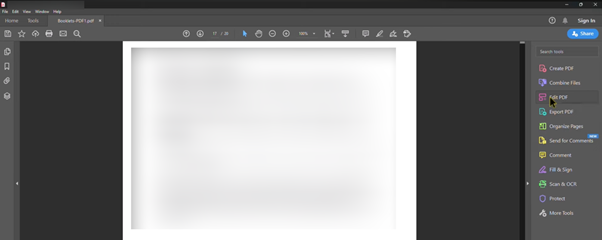
Step 3. Now, click on the space where you wish to add the text. And go ahead and write your text to change your text color.

Step 4. Once done, click on the color box on the right and select your text color. Also, select the text size and a text font family. If needed, make the text bold.
While quick, accessing text-editing features in Adobe Acrobat Pro requires a premium subscription. Without a paid plan, editing capabilities are limited.
If you’re seeking a free solution to edit a PDF without Adobe, you can try JOPDF, which offers convenient PDF editing tools without requiring an ongoing subscription.
A Quick Wrap Up
Being familiar with how to add text to a PDF on a Mac improves efficiency when handling forms, contracts, and updates.
Whether you use built-in tools like Preview, professional software like Adobe Acrobat, or a free alternative such as JOPDF, each method offers different levels of editing capability. With the right tool, you can efficiently add text and manage your PDFs easily. Hope this guide is helpful.
FAQs
Table of Contents

Your Best Free PDF Expert in PDF editing, compressing, converting, annotating, protect, organizing, and more.
Free DownloadWindows · macOS · Linux

Queena
Editor
“As a staff editor for JOPDF, Queena excels at guiding users to the optimal tools and solutions. When she's not analyzing the latest PDF solutions, she enjoys spending her free time playing with her four cats.”
![How to Add an Image to a PDF in Preview [Quick Guide]](https://b.jopdf.com/wp-content/uploads/2026/03/add-image-to-pdf-in-preview.png)
