![How to Add an Image to a PDF in Preview [Quick Guide]](https://b.jopdf.com/wp-content/uploads/2026/03/add-image-to-pdf-in-preview.png)
Summary :
As digital documents become more visual and engaging, learning how to add an image to a PDF in Preview helps improve presentations and reports. This tutorial explains simple steps to add images to PDFs using Preview and a powerful alternative.
Can You Add an Image to a PDF in Preview?
Preview is a default Mac tool that lets users view and perform basic edits to PDF files. Many users want to add images to PDFs in Preview for work, school, or personal document customization.
Fortunately, you can add images using Preview’s markup and editing tools. Still, its image-editing functions are quite basic compared to those of advanced tools.
Users may find layout customization and advanced editing challenging. If you want to edit images in a PDF more easily, it’s recommended to use a professional PDF editor, such as JOPDF.
How to Add an Image to a PDF in Preview
With a Mac, you can easily use Preview to add images to your PDF file without installing extra programs. You can choose to paste the image onto an existing page or insert it as a full-page image inside the PDF document.
Follow these easy steps to learn how to insert an image into a PDF in Preview on Mac.
Method 1. Copy and Paste method
Step 1: Open the PDF File with Preview on Mac
Launch the Preview app, go to the File menu, choose Open, and upload your PDF file into Preview.
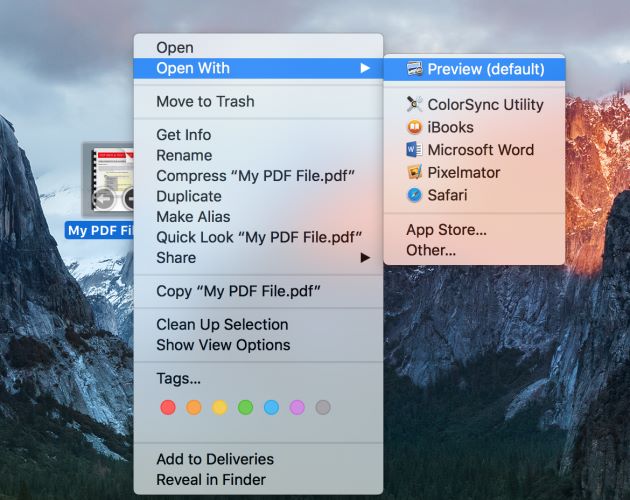
Alternatively, right-click the PDF document, click Open With, and open it using Preview.
Step 2: Open and copy your image in Preview on Mac
Launch the image in Preview, press Command + A to highlight the whole image, and then press Command + C.
Step 3: Convert the image into a selectable object
Press Command + V to paste the image on top of itself, making placement simple.
Step 4: Paste the Image into the PDF
Switch to the PDF window in Preview and navigate to the page where you need the image. Then, press Command + V. The image will now appear on the page.
Step 5. Resize and Save the Image
Drag the handles around the image to resize or move it to the right spot. Once done, select the File tab in the toolbar, then select Save to keep your changes.
Method 2. Place images as full-page graphics
Step 1: Access the PDF and image files
Open both files in Preview on Mac to begin editing.
Step 2. Insert the Image as a Page.
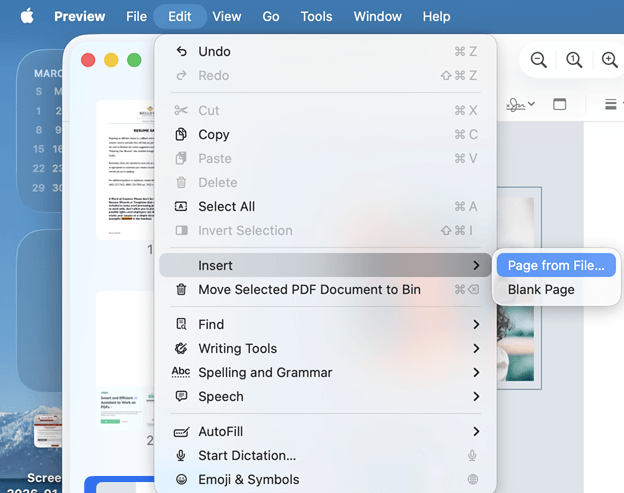
From the toolbar, go to Edit, choose Insert, and select Page from File.
Step 3. Choose the Image.
Search through your files and choose the image you want to insert. It will be shown as a new page in the PDF.
Step 4. Rearrange the page order
When needed, drag the thumbnail in the sidebar to reposition the new page.
Step 5. Save the PDF.
Click File, then select Save to store your changes.
A Better Choice to Add Image and Edit PDFs [100% Free]
Despite being easy to use, Preview cannot deliver the precision required for professional editing. Users who want smoother editing and more advanced design features often need more robust tools. This is where JOPDF comes in, helping users manage PDFs more easily and flexibly.
When looking for the best PDF editor for Mac, many users choose JOPDF, which makes PDF editing simple, fast, and convenient for everyday use. It can help users quickly edit text, add images, and personalize layouts.
Check out how to add an image in a PDF using JOPDF.
Step 1: Once JOPDF is installed on your Mac, open the PDF file where you want to insert an image.
Step 2. Select Edit in the top toolbar to edit PDF on Mac, then proceed with the Add Image feature.
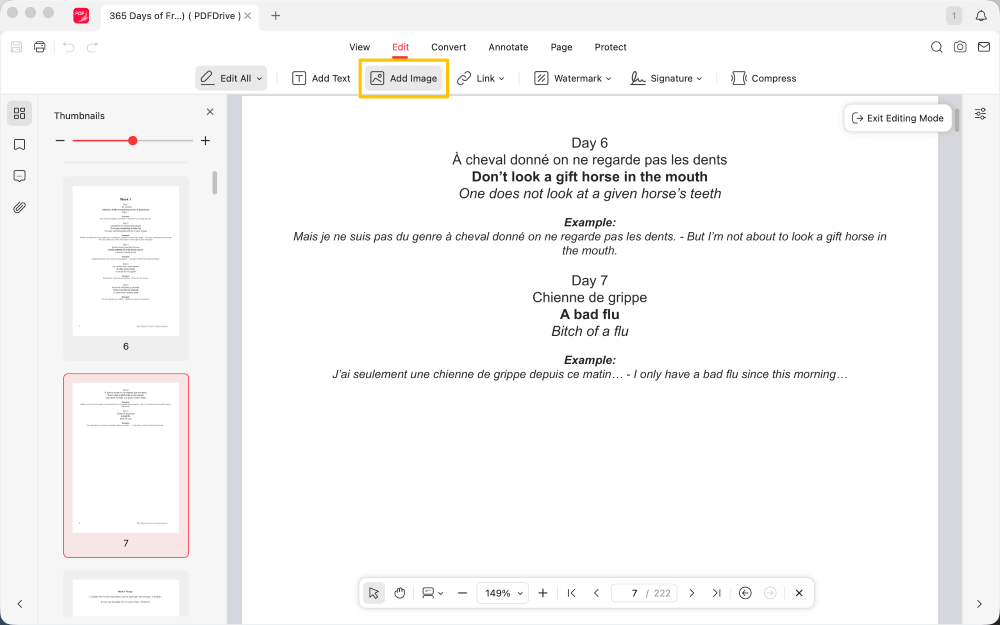
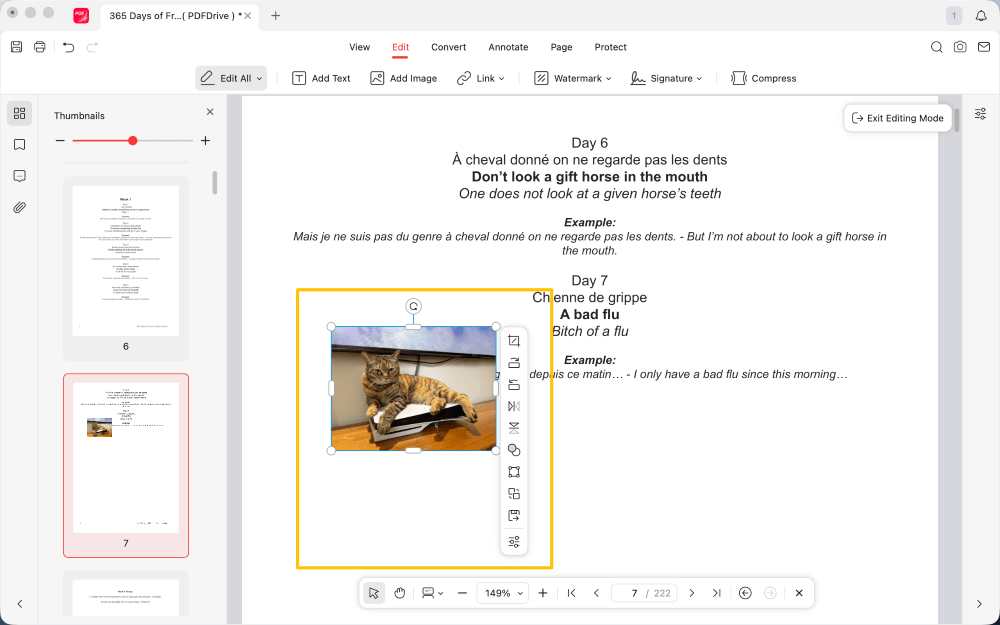
Step 3. Choose your image from your device.
Step 4. Click and drag to set the image size. Finally, save the changes.
Unlike Preview, JOPDF also provides advanced editing tools that allow you to edit text in PDF documents with ease.
In addition, you can compress, merge, convert, annotate, protect, and organize PDFs without effort. Get JOPDF today to unlock powerful features, improve the way you edit PDFs, and experience smooth and efficient document customization!
Final Thoughts
That’s all about how to add an image to a PDF in Preview. You can either opt for the copy-paste method or insert full-page images.
Still, Preview has limited features, making it less effective for regular or advanced editing tasks. For a smoother, more powerful experience, JOPDF is the better choice. Hope this guide is helpful!
FAQs
Table of Contents

Your Best Free PDF Expert in PDF editing, compressing, converting, annotating, protect, organizing, and more.
Free DownloadWindows · macOS · Linux

Queena
Editor
“As a staff editor for JOPDF, Queena excels at guiding users to the optimal tools and solutions. When she's not analyzing the latest PDF solutions, she enjoys spending her free time playing with her four cats.”