![2 Ways to Add Audio to a PDF [One for Free & Playback Tips]](https://b.jopdf.com/wp-content/uploads/2025/12/add-audio-to-pdf-1.png)
Summary :
Since PDF is considered a universal file format, you may pick it to transfer information. Sometimes you want to email someone a PDF containing audio so others can click to play it. A PDF file can contain audio, such as a voice recording or music. However, most PDF viewers don’t have the ability to add audio. For people who are not tech-savvy or confused, read this JOPDF guide. Here are 2 best ways to add audio to a PDF, along with tips for playback problems.
Embed Audio in a PDF in Adobe Acrobat Pro
Regarding how to edit a PDF on Windows or Mac, this can be done using Adobe Acrobat Pro. You can embed audio in a PDF as interactive elements to play within the file in Adobe. The software offers playback settings and has a built-in media player. Please embed MP3 or WAV in PDFs. You can also add voice-over, song, 3D, or video in your file as clickable links in Adobe.
Steps to add audio to a PDF in Adobe Acrobat Pro DC are curated below. Please note that the PDF with audio will be large in size.
Step 1: Open the PDF document you want to add audio to with Adobe Acrobat Pro.
Step 2: Click the All tools or Edit tab on the top left to open the editing tools panel.
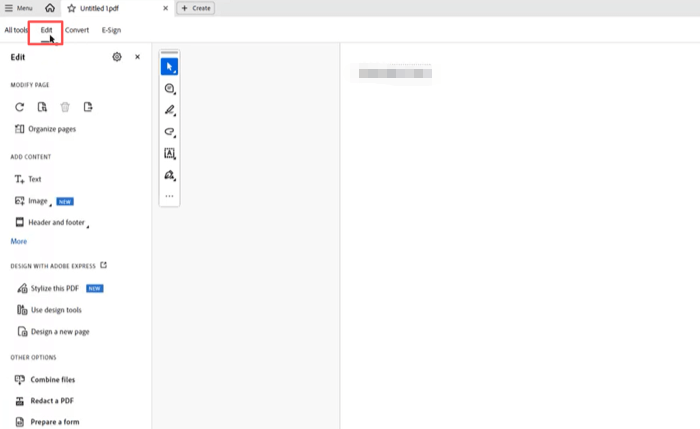
Step 3: Click More under ADD CONTENT, and choose the Sound tool.
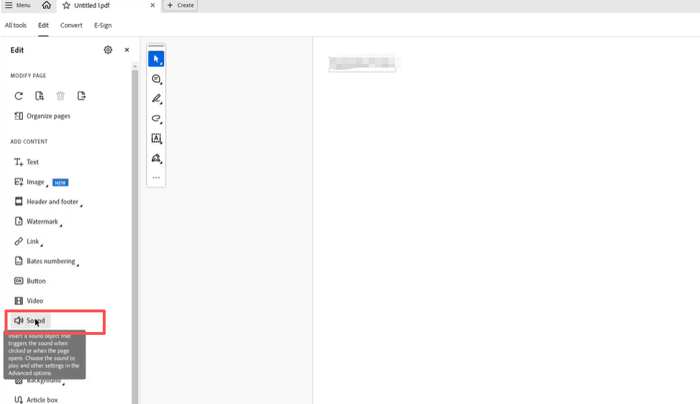
Step 4: Draw a playback area on the PDF, and browse your computer to select the audio file.
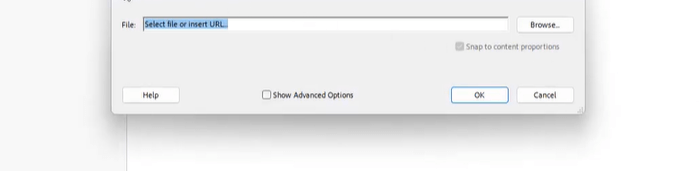
Step 5: Import the audio and click OK to add the rich media to the PDF. After you embed an audio file in a PDF in Adobe Acrobat and save the changes, you can click the play button to preview it.
How to Add Audio to a PDF for Free with JOPDF
If you’re wondering how to add audio to a PDF file for free without Acrobat, JOPDF is the trick. The free PDF editor for Windows and Mac provides an alternative way to include media files in documents. By creating links to your PDFs uploaded and hosted online, you and those receiving them can avoid playback problems. JOPDF also lets you embed audio in a PDF as attachments for free for local use. All other editing features, such as modifying text and images or adding annotations, are also free.
Explore the steps to add music to a PDF for free using JOPDF. You can follow the same process to embed videos in a PDF.
1) Add Audio to PDF as Hyperlink
You can upload your PDF to Google Drive and click the share option to get a free link. Or, upload your audio to a streaming platform to get the URL.
Step 1: Download JOPDF for Windows or Mac, and open the PDF you’ll add audio to.
Step 2: Click Edit on the top bar, and select Link > Add Link in the drop-down.
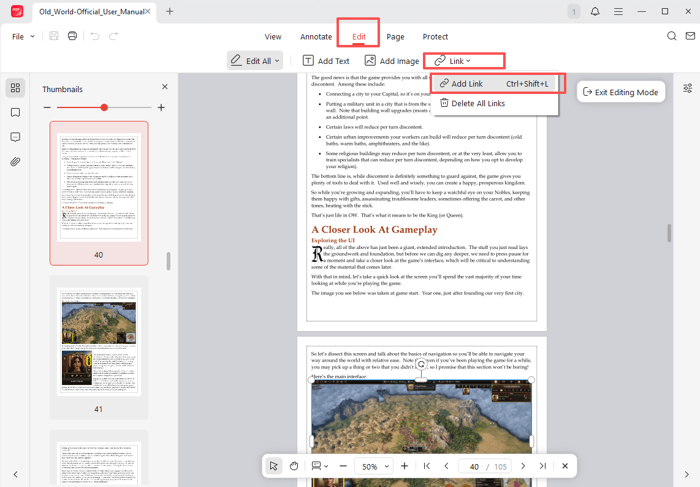
Step 3: Draw around the area where you need to add audio in the PDF, then select Open a Web Page in the pop-up window.
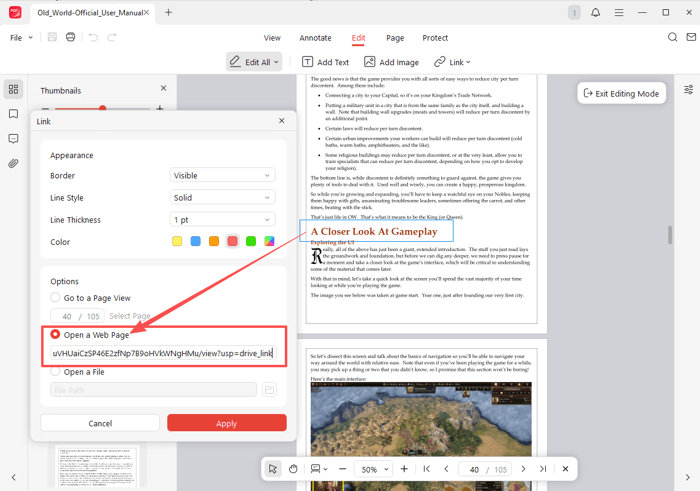
Step 4: Paste the audio file link you generated into the URL field, and adjust the appearance options if needed.
Step 5: Click Apply to insert the audio in the PDF file and save the edits. You can exit the editing mode and click the link to play the sound.
Remember to set anyone with the link to have access to the audio, but not restricted.
2) Embed Audio into PDF as Attachment
You can add audio to a PDF using the attachment method when you will use the same computer to open it. You can only add local audio files and play them locally on the consistent device.
Step 1: Click the download button to install JOPDF, and open your PDF with it.
Step 2: Choose the Annotate menu, and click the Attachment tool.
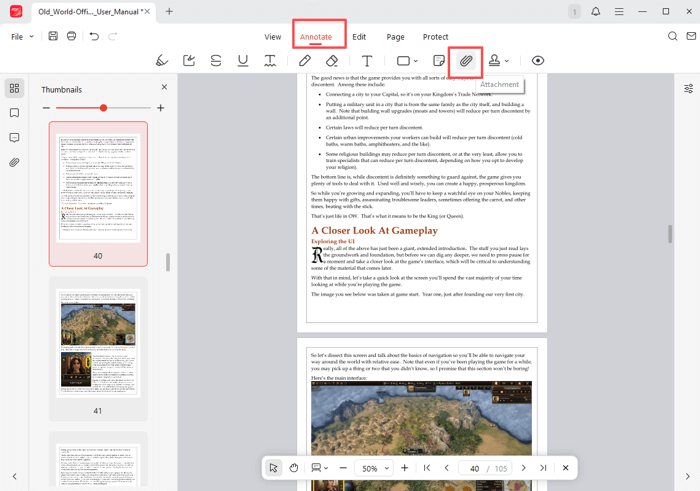
Step 3: Click a location in the PDF where you want to add audio, then select the audio file to open.
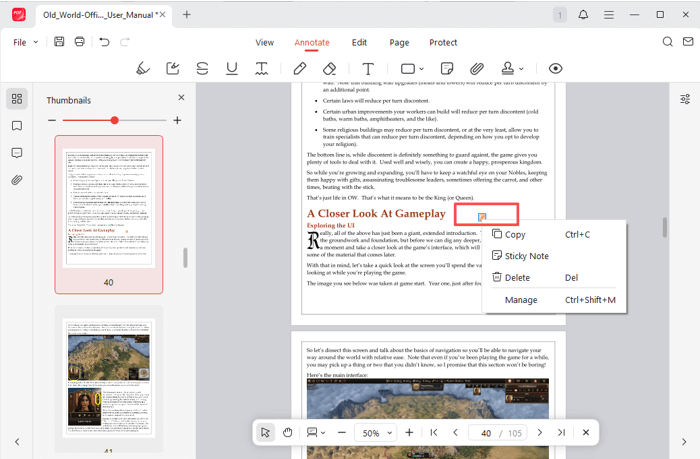
Step 4: You can right-click the added audio attachment to add a note to it. Save the file.
How to Play Embedded Audio in a PDF
The aforementioned PDF editors let you add audio to a PDF without taking much time or effort. However, you may also question how to listen to audio on a PDF. Different adding methods require different opening methods. Here is an overview.
Add audio as rich media: select the Select tool in Adobe Acrobat, hover over or click the audio play area, then click the play icon that appears. You can only play and listen to audio files embedded in a PDF in desktop Acrobat products or Foxit Editor. The mobile version of the software doesn’t support playback. Other PDF applications are not available for that either.
Add audio as a link: open the PDF file in a browser or PDF program, click the link to access the audio in the PDF to play it. All is to ensure the link you create has no access restrictions.
Add audio as an attachment: open the PDF on the same device you added audio, double-click the attachment icon, allow the permission, and play the audio in your media player. You can quickly review and play the audio from the side annotation bar in JOPDF. Keep the local audio files valid and no changes.
Advantages of Adding Audio as Links
Adding audio to a PDF via embedding looks good, but has downsides. Currently, not many PDF solutions support interactive media. If you send the PDF to others, the recipient should have the same OS and the same PDF app. The embedded audio will greatly increase the document size. So, look at the benefits of adding audio as clickable hyperlinks.
No format trouble: Links hosting your audio let everyone open and play videos in PDFs without compatibility issues. Regardless of the audio format, anyone can listen to the audio perfectly.
High compatibility with operating systems and devices: Whether Windows, Mac, mobile, or other OS, and whether low- or high-end devices, users can access the added audio in PDFs without hassle.
Lighter and faster: links to audio weigh nothing and don’t increase your file size. Your document loads swiftly, and the computer will run smoothly.
Free and simple: many online and offline tools let users add audio to PDFs as active links for free. No need for an expensive subscription.
Conclusion
Whether you wish to add audio to play within or outside your PDF, this article covers the workarounds. For those who stick to embedding audio completely in a PDF as a standalone object, Adobe Acrobat is the way to go. If you’d rather try a more convenient way, JOPDF won’t let you down. If you have any problems while using JOPDF, you can contact us by email. Or you can share your nice, distinct methods with us.
We recommend simply adding links in the PDF to point to audio hosted online. That will save you the distress of presenting the media file. Now, download JOPDF to add background music or insert any audio type in PDFs for free in a few clicks.
FAQs
Table of Contents

Your Best Free PDF Expert in PDF editing, compressing, converting, annotating, protect, organizing, and more.
Free DownloadWindows · macOS · Linux

Selena
Staff Editor
“Selena is a staff editor working for JOPDF, passionate and committed to providing how-to and round-up articles. Over 8 years of specialized skills and experience in PDF solutions, hoping to help users ease their lives and solve whatever they encounter. "Work smarter, not just harder!"”