Introduction :
TIFF is ideal for preserving image detail, but it often has a large file size and is hard to share. On the other hand, PDF is a compact and secure format. Meanwhile, PDF is universally compatible and easy to open on any device. How to convert TIFF to PDF effectively? What is the best TIFF-to-PDF converter you should choose? Read this comprehensive JOPDF article, and then you can find the answer.
Overview of TIFF and PDF
TIFF, also called Tag Image File Format, is a high-quality raster image format that is commonly used for professional photographs, scanned images or documents, and others. But it generates large files owing to its lossless compression. Also, it is not natively viewable in every browser and is less convenient for text-heavy multi-page documents.
What is a PDF and its advantages? PDF is one of the most widely used document formats, which can be opened and viewed on any device or operating system with the original formatting. PDF format can contain text, raster images, forms, vector graphics, and other elements. However, the image quality can be lower than that of TIFF if heavily compressed.
Why convert TIFF to PDF? Just as follows:
- Make sharing and archiving documents easy.
- Improve compatibility.
- Reduce file size.
- Maintain original layout and formatting.
Want to know how to convert TIFF to PDF for free? Please read on.
Best Free Way to Convert TIFF to PDF on PC
Adobe Acrobat is a professional PDF editor and converter that can convert TIFF to PDF and handle other PDF tasks. Instead of choosing a paid tool, most of us prefer a free, reliable tool. Among various Adobe Acrobat alternatives, JOPDF is highly recommended.
Why Choose JOPDF
JOPDF is a free PDF converter that enables you convert TIFF to PDF and vice versa. You can use it to convert multiple TIFF images into PDFs in bulk. Additionally, JOPDF effectively supports combining multiple TIFFs into a single PDF. What’s more, you can adjust the page size to Original/A4 or customize it. You can also use JOPDF to convert and combine images into one PDF.
In addition to converting between TIFF and PDF, JOPDF enables you to convert PDF to PPT, Word, Excel, and other image formats. Beyond serving as a PDF converter, JOPDF is a free PDF editor with the following main editing features.
- Edit and add text in a PDF.
- Annotate and draw on PDFs;
- Make all PDF pages the same size.
- Merge PDFs into one single PDF.
- Make a PDF smaller by compressing.
- …
How to Convert TIFF to PDF for Free Using JOPDF
Now, let’s learn how to convert TIFF to PDF for free with JOPDF. Below are the exact steps for your reference:
Step 1. Click the corresponding download buttons below to download and install this free TIFF to PDF converter on your Windows or Mac PC.
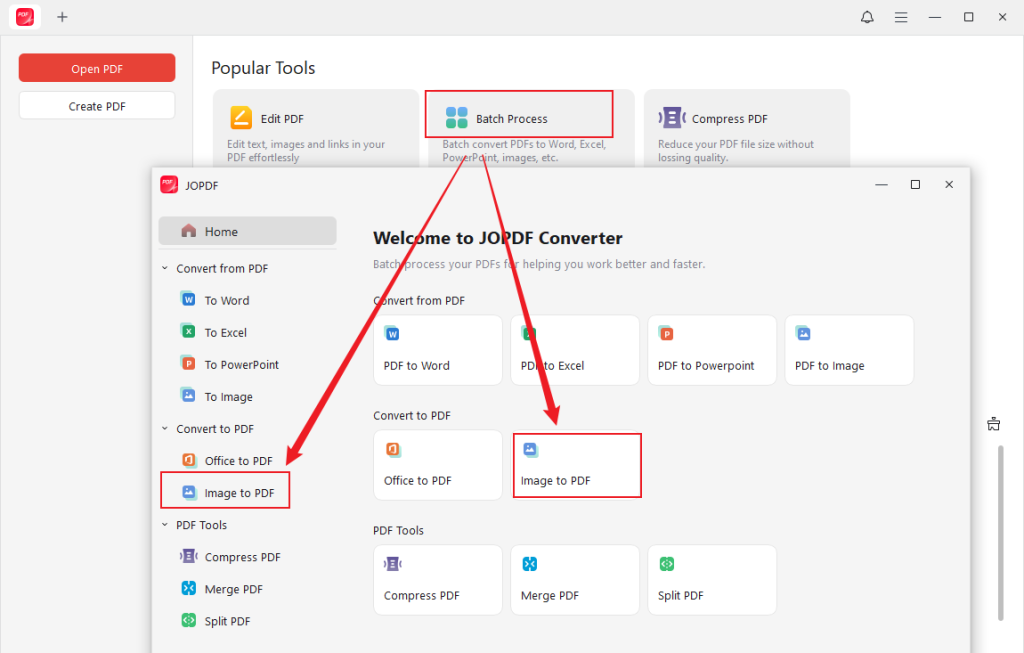
Step 2. Run JOPDF, click Batch Process in the main interface, and select the Image to PDF option.
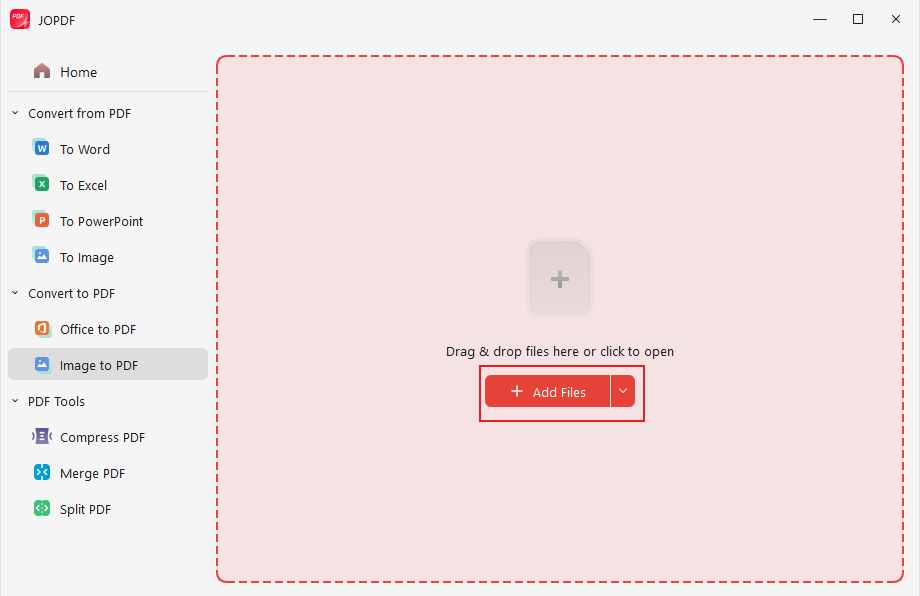
Step 3. Import your TIFF file by dragging and dropping the dotted box of JOPDF. Or, click Add Files to import the target TIFF.
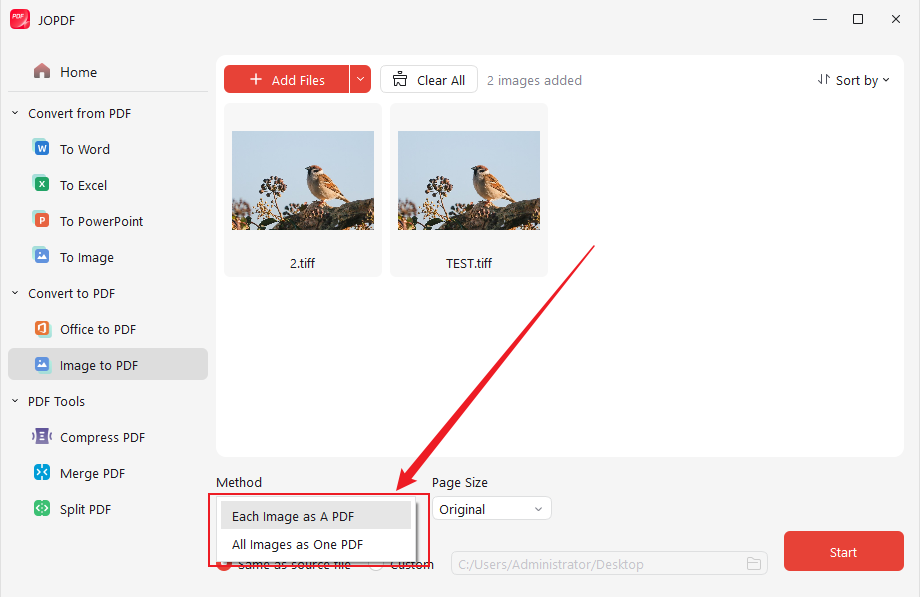
Step 4. Open the Page Size list to set the PDF page size, select the save path, and click Start to start the TIFF-to-PDF conversion.
Tips
If you’ve uploaded multiple TIFF files, you need to set the conversion method as needed. Here are two options for your choice, including Each Image as A PDF and All Images as One PDF.
How to Convert TIFF to PDF Online
Don’t have enough storage space to install one more program? Want to make a TIFF to PDF conversion without downloading and installing any software? If so, an online PDF converter is your best choice. Also, if you only need to convert TIFF to PDF occasionally, consider online converters.
Why Smallpdf Is Recommended
Smallpdf is a web-based platform for editing, converting, organizing, and compressing PDFs. With its conversion features, you can convert PDF to and from Word, Excel, PPT, and Image. In other words, Smallpdf supports converting TIFF to PDF.
You can use Smallpdf on Windows, Mac, Linux, and mobile since it can be accessed via most browsers. Moreover, all conversions occur in the cloud without consuming your storage. With its intuitive and user-friendly interface, most users, especially beginners, can master how to use it quickly and easily.
How to Convert TIFF to PDF Online with Smallpdf
Read the step-by-step guidance below to learn how to convert TIFF to PDF online with Smallpdf.
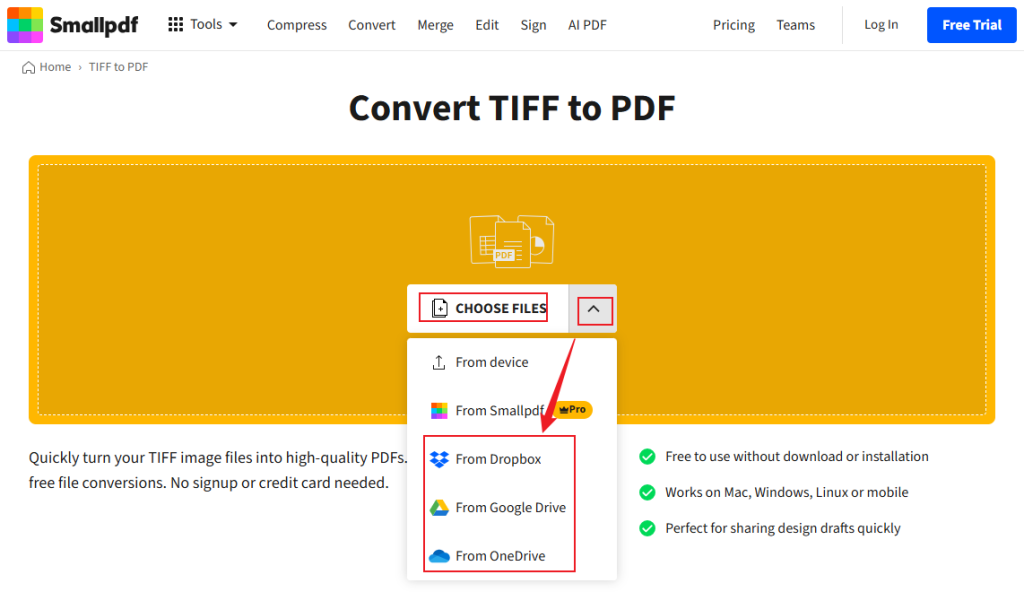
Step 1. Open your browser and visit Smallpdf’s TIFF to PDF Converter website.
Step 2. Click CHOOSE FILES to upload your TIFF image locally. Also, you can click the inverted arrow next to CHOOSE FILES to upload files from OneDrive, Google Drive, and Dropbox.
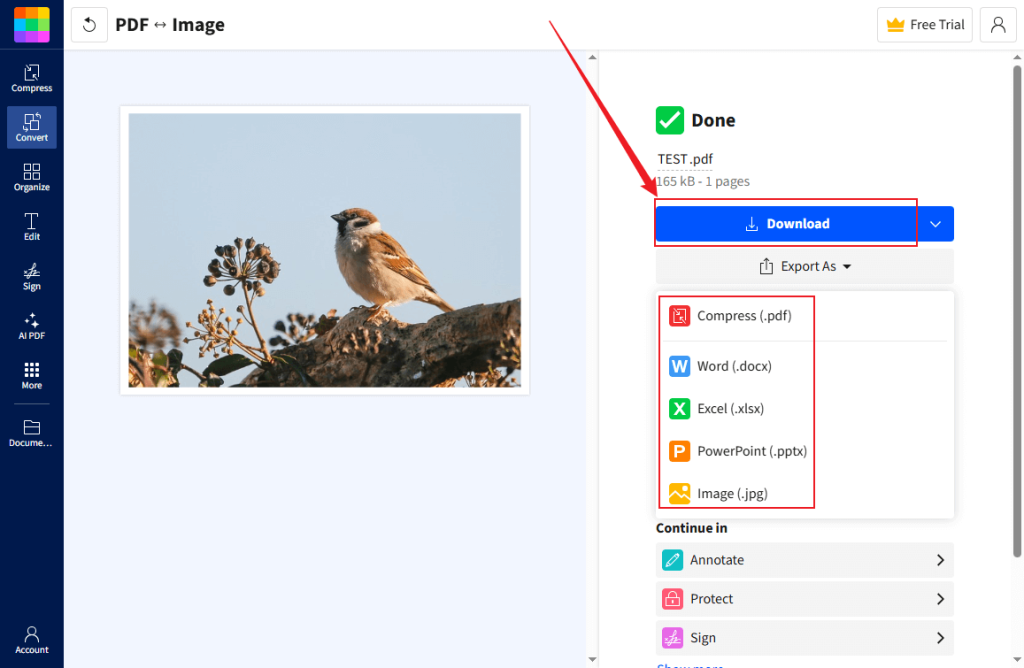
Step 3. Once the TIFF file is loaded, click the Finish button to start the conversion process. Next, click the Download button to save the converted PDF file. Alternatively, expand the Export As dropdown and select to compress the PDF or save the file as a Word, Excel, PowerPoint, or JPG file.
Other Recommended TIFF to PDF Converters
In addition to the two converters above, I have also tested and selected several useful, reliable converters for TIFF-to-PDF conversions.
#Adobe Acrobat Pro
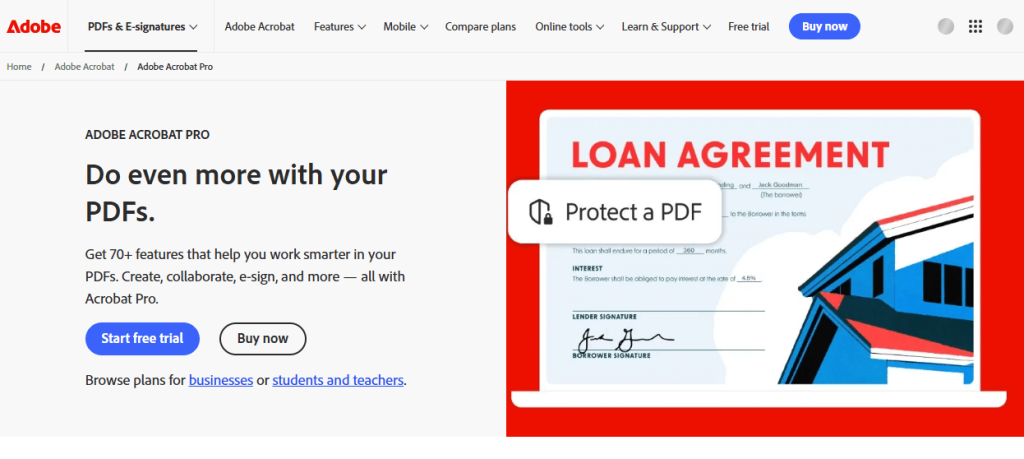
Adobe Acrobat Pro is a paid software. In other words, you need to pay for its subscription to unlock its conversion features and other advanced features. If you have a sufficient budget and need professional features, Adobe Acrobat is worth the money. With this professional PDF tool, you can use its advanced features to create, edit, convert, sign, secure, and manage PDF documents. In addition to converting TIFF to PDF, you can use it to convert PDF to TIFF, JPEG, PNG, and more.
#Preview
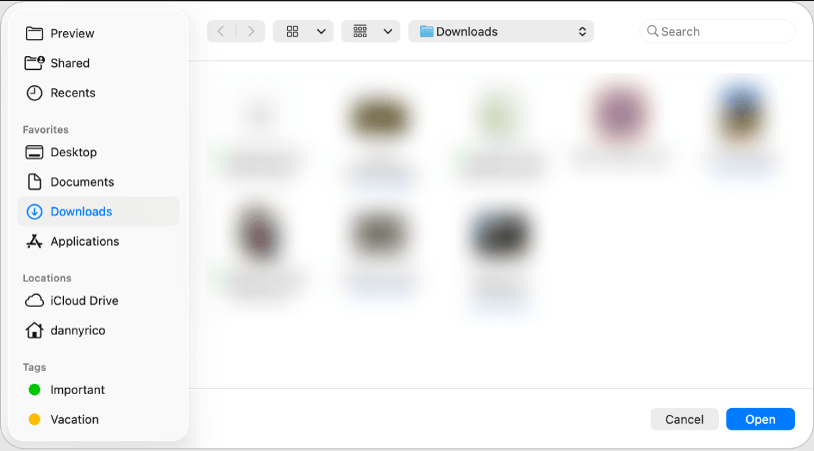
Preview is macOS’s built-in program for viewing and editing images and PDFs. Surprisingly, Preview enables you to import images (PNG, JPG, and TIFF) and export them as PDFs. In other words, you can use it to convert TIFF to PDF without needing extra software. In addition, Preview enables you to combine multiple images into a multi-page PDF.
#SwifDoo PDF
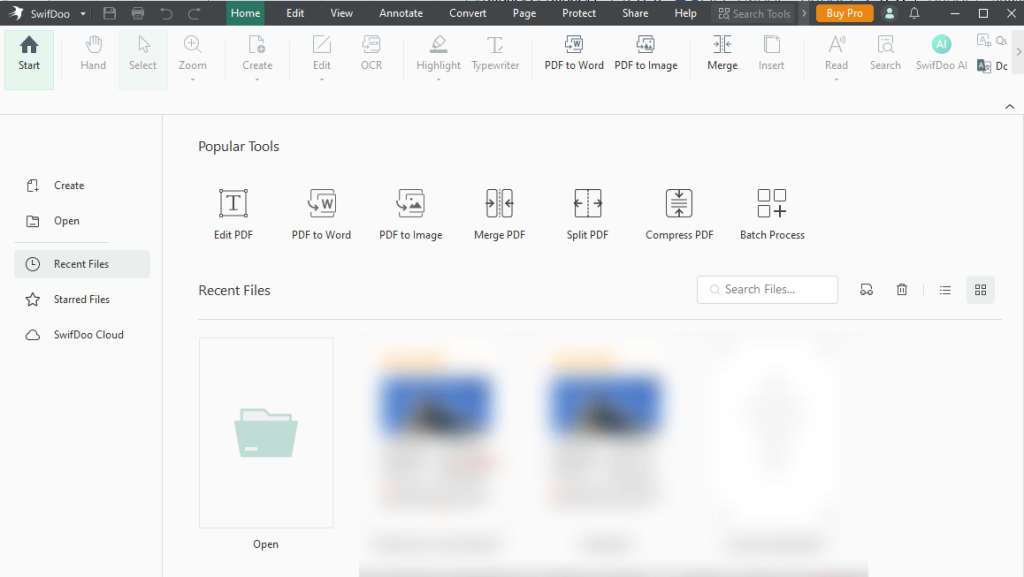
SwifDoo PDF is a cost-effective alternative to Adobe Acrobat. It’s a piece of cake for SwifDoo PDF to convert TIFF to PDF. You can use it to batch convert TIFFs to PDFs or into a single PDF. What’s more, SwifDoo PDF is a PDF editor with OCR that lets you recognize text in PDFs and scanned documents. Beyond a TIFF-to-PDF converter, it can convert PNG, JPG, BMP, SLSX, RTF, and more to PDF.
To Wrap Things Up
To make archiving and sharing your TIFF images easy, it is a good idea to convert them to PDF. How to convert TIFF to PDF for free on Windows and Mac? JOPDF is the best choice. If you don’t want to install any software, online tools like Smallpdf and CloudConvert can be a good choice. But those online tools have file size limits. Alternatively, you can try Adobe Acrobat Pro, Preview, or SwifDoo PDF. Hopefully, this article can be helpful to you!
FAQs
Table of Contents

Your Best Free PDF Expert in PDF editing, compressing, converting, annotating, protect, organizing, and more.
Free DownloadWindows · macOS · Linux

Olivia
“Olivia is an editor at JOPDF, where she writes practical guides and insightful articles on managing PDFs—covering topics like editing, annotating, converting, and organizing files efficiently. Passionate about clear communication and digital productivity, Olivia enjoys spending her free time cooking, watching movies, and hiking to unwind and find inspiration for her writing.”
![6 Must-Know Bank Statement Converters in 2026 [Full Review]](https://b.jopdf.com/wp-content/uploads/2026/03/bank-statement-converter.png)
