Introduction :
Sometimes, owing to the need for a fixed, professional format, you need to convert RTF to PDF. What are the benefits of converting an RTF file to PDF? How to convert RTF to PDF effectively? All you want to learn is covered in this comprehensive article from JOPDF. Now, let’s get started!
Overview of RTF and PDF
Before getting to learn effectively ways for converting RTF to PDF, it is essential to have a basic understanding of RTF and PDF formats. If you only want to know the detailed guide, skip this section.
What Is RTF Format
RTF, short for Rich Text Format, is a document file format developed by Microsoft. It is compatible across different word processors and operating systems. Compared to plain text files, RTF can hold formatting, such as bold or italic text, color, alignment, and more. How to open an RTF file? Various word processors support that, including Microsoft Word, WordPad, LibreOffice, Google Docs, etc.
In our daily work and study, we usually use RTF files for drafts, text-heavy documents, and cross-platform sharing. However, RTF files are not perfect for finalized or other confidential documents, as formatting and content can be easily changed and edited.
What Is PDF Format
PDF, also called Portable Document Format, is a popular file format that can preserve the original layout, fonts, or formatting across all devices and operating systems. If you don’t have a dedicated PDF editor, like JOPDF, it is difficult to edit PDFs. Hence, PDF is ideal for printing, archiving, and official documents.
Why Convert RTF File to PDF
Owing to the differences between RTF and PDF, you need to convert RTF files to PDF. Below are some main benefits of converting an RTF file to PDF:
- Maintain formatting across devices and platforms.
- Prevent viewers from editing the document.
- Ensure print accuracy.
- Share documents professionally.
How to Convert RTF to PDF for Free with JOPDF
Among various RTF to PDF converters, JOPDF is the best one, I think. I have used JOPDF many times and am really astonished by its conversion speed and quality. As a free RTF-to-PDF converter, JOPDF supports batch conversion of multiple RTF files to PDFs. Additionally, it enables you to convert PDF to RTF effectively. How to convert an RTF file to PDF for free in JOPDF? Check the exact steps below:
Step 1. Click the button below to download this free RTF to PDF converter and then install it on your Windows or Mac PC. Next, launch it to get to its main user interface.
Step 2. Click Batch Process and click the Office to PDF option.
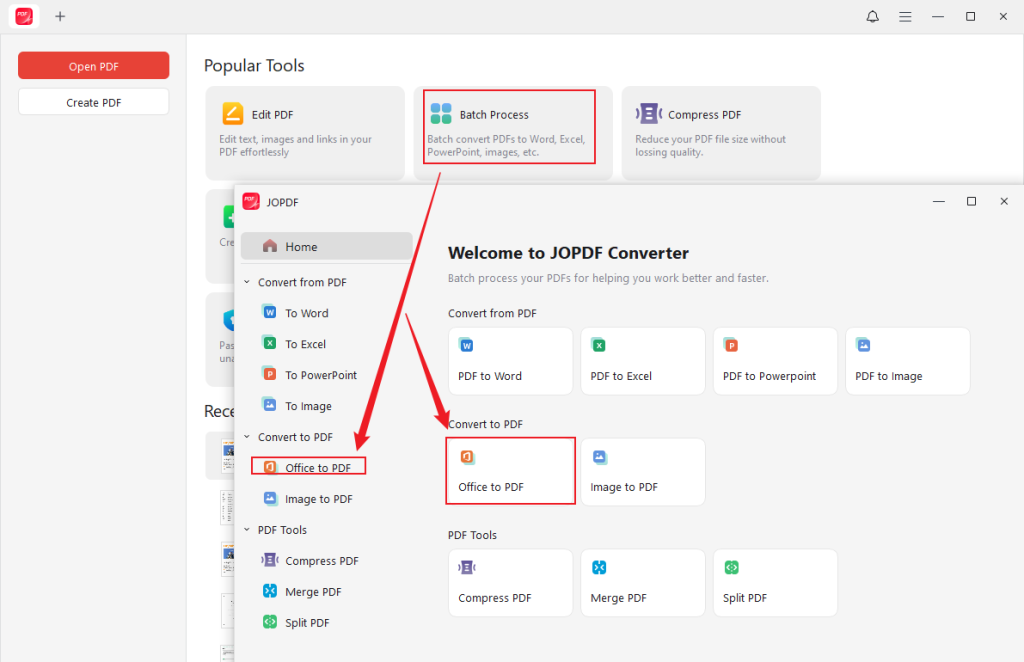
Step 3. Click the + Add Files button to import your target RTF file. Or, you can import files by dragging and dropping them into JOPDF. Next, go to the bottom Output section to specify the saving path.
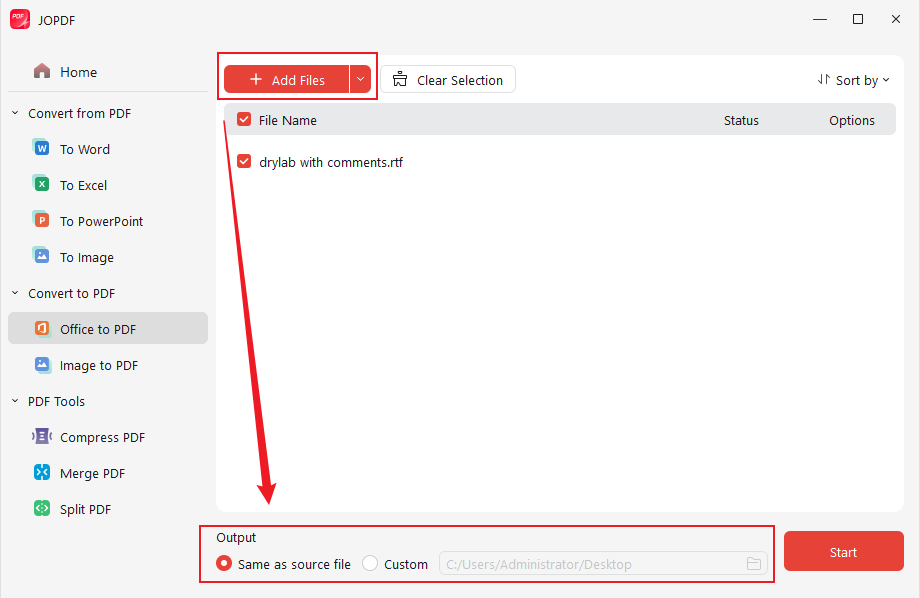
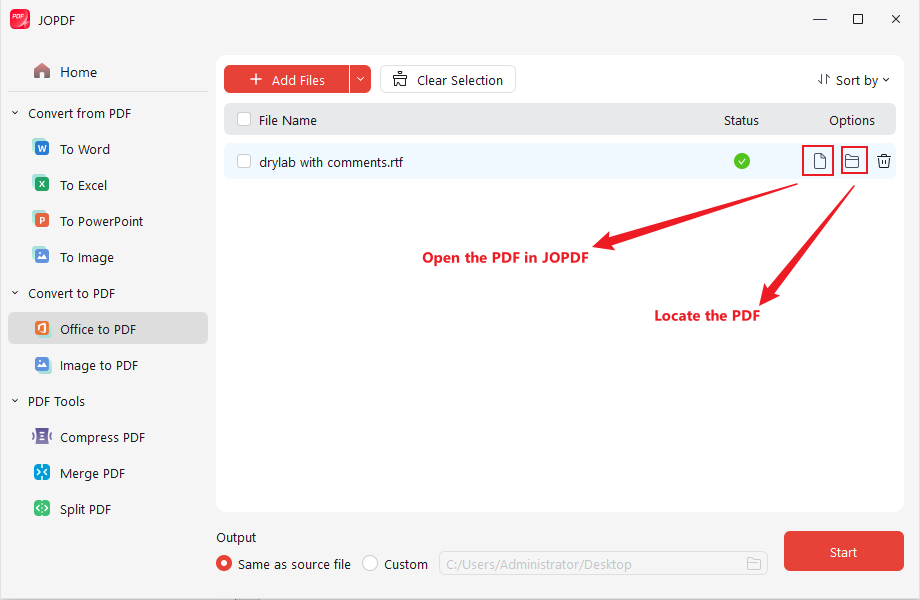
Step 4. At last, click Start to enable the conversion process. When the conversion is over, you can click the File icon to open and edit the PDF in JOPDF. For instance, you can lock the PDF from editing. Meanwhile, click the Folder icon to locate it.

Other Outstanding Features of JOPDF:
- Edit PDFs for free on Windows, Mac, and Linux.
- Edit, rotate, and resize images in a PDF.
- Make PDFs smaller to email.
- Make PDFs editable or non-editable.
- Copy text from PDFs that cannot be copied.
- Combine and split PDFs
- …
How to Convert RTF to PDF in Microsoft Word
Though Microsoft Word is a word processing program, it enables you to export an RTF file as a PDF. Additionally, it enables you to save a DOCX, DOC, or XPS file as a PDF. As long as you have Microsoft Word installed and activated, it is quite reliable to convert rich text format to PDF on Windows and Mac.
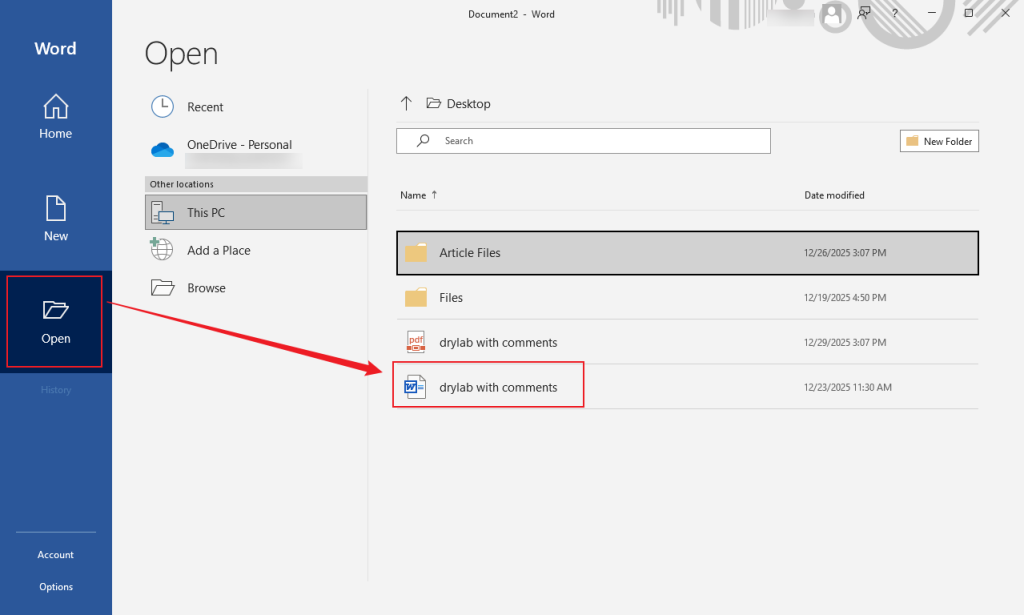
Step 1. Launch Microsoft Word on your Windows or Mac computer. Then, click Open to locate and import your RTF file.
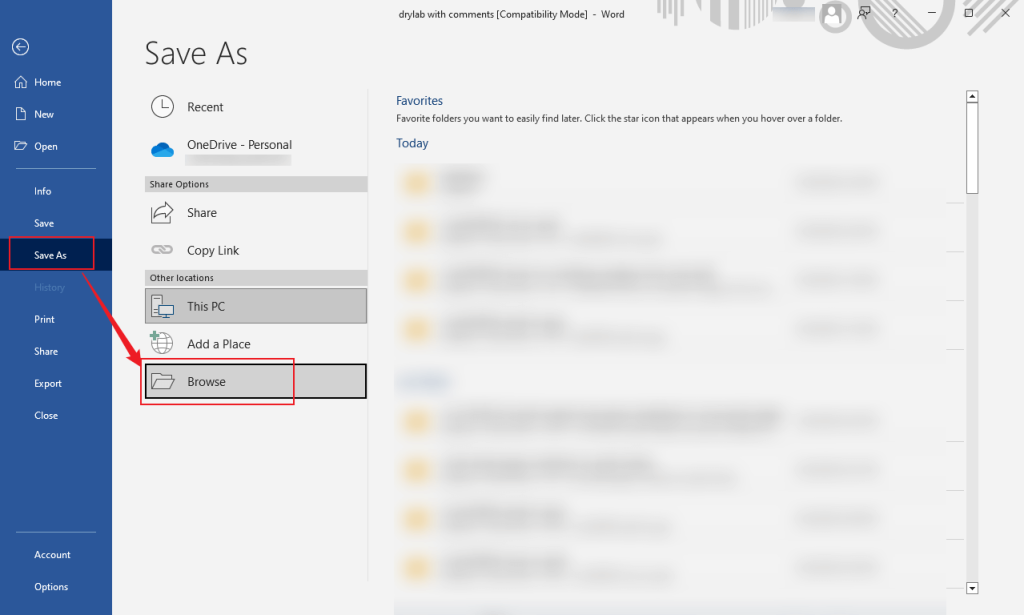
Step 2. Before exporting to PDF, you can edit the RTF file in Microsoft Word as needed. Next, click File, click Save As, and click Browse to choose a folder to save the exported file.
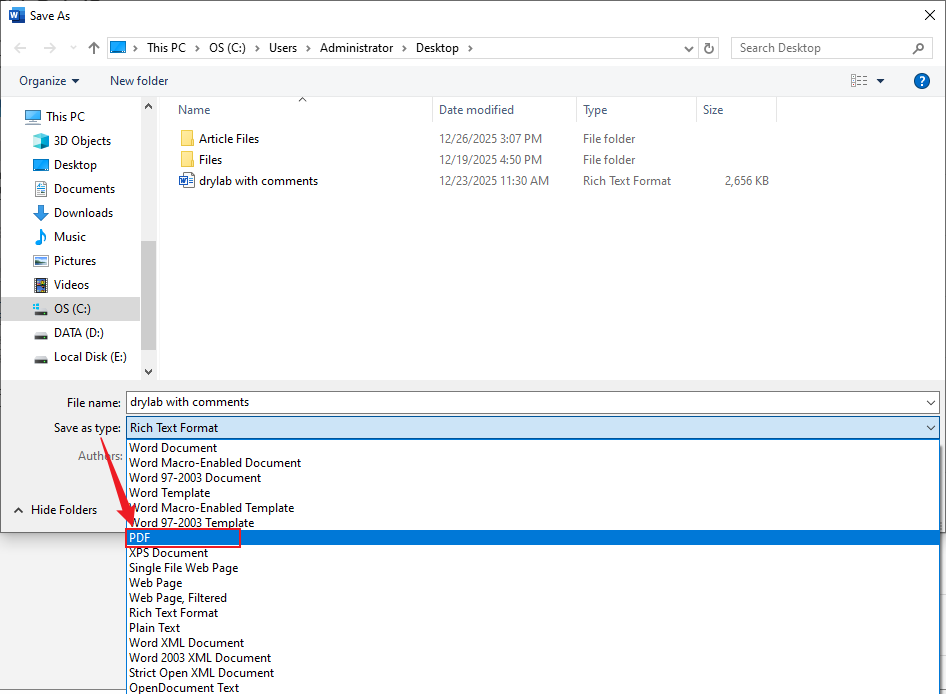
Step 3. Optionally, change the file name. Expand the “Save as type” dropdown, choose PDF, and click the Save button.
How to Convert RTF to PDF Online Using CloudConvert
Are you looking for ways to convert rich text to PDF without software? If so, this section is written for you. To convert rich text to PDF online, you can use CloudConvert, Online2PDF, and pdfFiller. Here, I take CloudConvert as an example. In addition, CloudConvert supports converting PDF to JPG, PDF to TIFF, and more. Below are the exact steps for RTF file to PDF conversion in CloudConvert.
Step 1. Open any browser on your Windows, Mac, Android, or iPhone, and then visit CloudConvert’s official website.
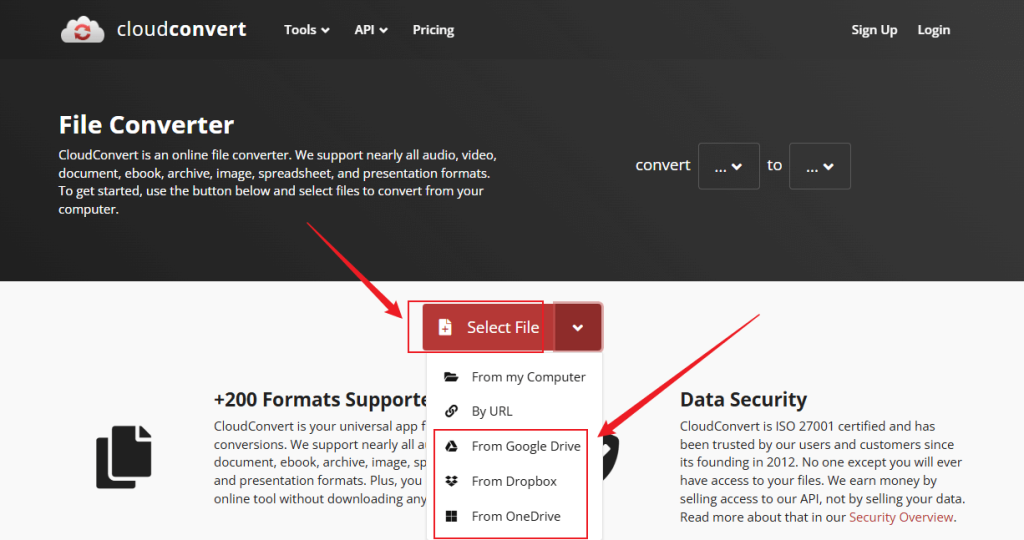
Step 2. Click the Select File button to import your RTF file from your local storage. Alternatively, you can upload files from cloud services, such as Google Drive, Dropbox, and OneDrive.
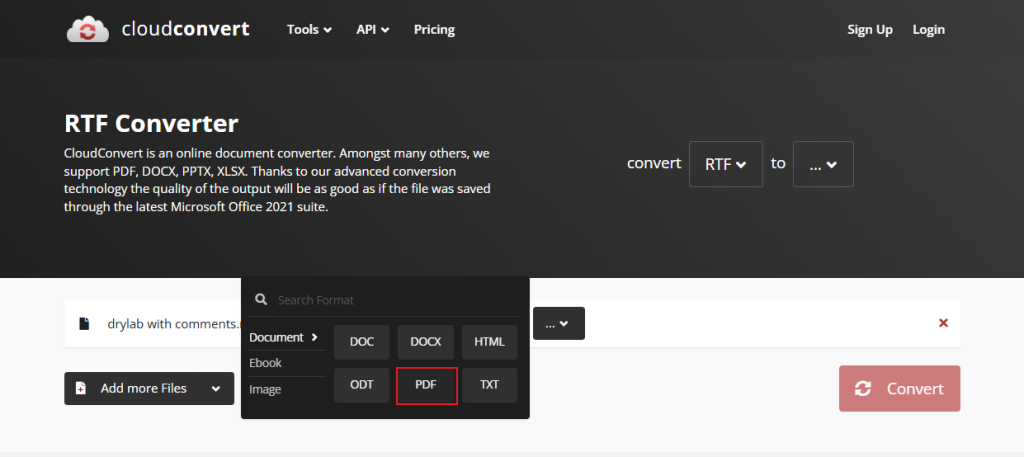
Step 3. Open the “Convert to” list, select the PDF option, and click Convert to start the conversion. Once done, click Download to save the PDF file.
How to Convert RTF to PDF using Google Docs
In addition to using an online RTF to PDF converter, you can also use Google Docs, a web-based word processor. Surprisingly, owing to its support for the PDF export format, you can use it to convert rich text format (.rtf) files to PDF. It can preserve basic formatting like fonts, bold, italics, images, and tables. How to convert a rich text document to PDF in Google Docs? Below is how:
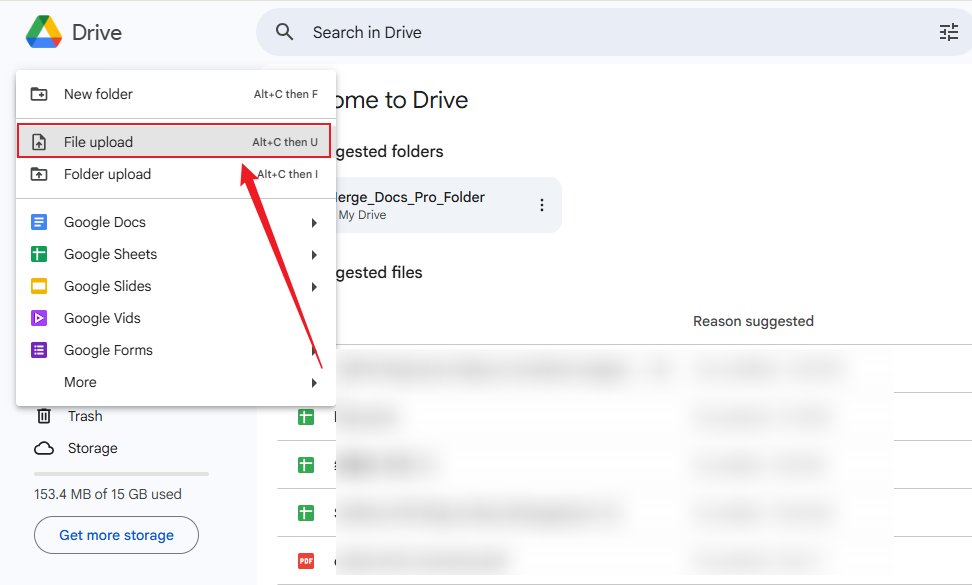
Step 1. Visit Google Drive in your browser and sign in with your Google account. Then, click + New and select File upload to import your RTF document.
Step 2. Once uploaded, right-click the RTF file, move to Open with, and choose Google Docs.
Step 3. Then, the RTF file will be opened in Google Docs. You can edit the file as needed.
Step 4. Next, click File, move to Download, and click the PDF Document (.pdf) option.

To Wrap Things Up
Although RTF files are flexible and editable for drafting, they are not suitable for official documents. For official documents, printing, sharing, or archiving files, PDF is the ideal format. How can you convert RTF to PDF effectively for consistent formatting or enhanced security? Many RTF-to-PDF converters are available. Among the 4 methods above, I prefer JOPDF because it’s free, easy to use, and reliable. Now, it’s your time to have a try!
FAQs
1. Go to Batch Process and click Official to PDF.
2. Click Add Files to import your RTF files.
3. Finally, click Start.
On macOS, try TextEdit and Microsoft Word.
On Android and iOS, consider, Google Docs and Google Drive.
Table of Contents

Your Best Free PDF Expert in PDF editing, compressing, converting, annotating, protect, organizing, and more.
Free DownloadWindows · macOS · Linux

Olivia
“Olivia is an editor at JOPDF, where she writes practical guides and insightful articles on managing PDFs—covering topics like editing, annotating, converting, and organizing files efficiently. Passionate about clear communication and digital productivity, Olivia enjoys spending her free time cooking, watching movies, and hiking to unwind and find inspiration for her writing.”