Introduction :
PDFs have become the standard choice for document sharing due to their small size and broad support. But at times, there are occasions when you must convert a PDF to TIFF for detailed image quality, printing, or archival needs. Choosing the best PDF to TIFF converter keeps your files sharp and detailed during the conversion process. In this JOPDF article, we’ll explore five top converters and show different ways to convert PDF to TIFF across various devices.
Benefits of Converting PDF to TIFF
Before using PDF to TIFF converters or starting the conversion, we should clarify what TIFF is. TIFF is a lossless, high-quality image format frequently used for professional printing, scanning, and archiving. It is a format designed to preserve image detail and accuracy without compression loss.
Here’s a list of frequent reasons users need to convert PDF to TIFF.
🌟High image quality. TIFF files keep all resolution and detail intact, ideal for professional work.
🌟Lossless format. No data is lost during conversion, unlike some compressed image formats.
🌟Better for printing. TIFF is preferred in industries like publishing and graphic design.
🌟Easy page handling. Each page of a PDF can be exported as a separate TIFF file.
🌟Long-term archiving. TIFF is widely accepted for document preservation and records management.
5 Best PDF to TIFF Converters
When working with image-based files, using the right conversion tool is essential. Check out some of the best PDF to TIFF converters today, made to ensure accurate and easy conversions. Whether you choose to convert PDF to TIFF via a browser or a dedicated app, these tools ensure accurate, high-quality output.
JOPDF – Best Free PDF to TIFF Converter
Supported Platform: Windows, Mac, and Linux computers.
JOPDF is a user-friendly, free PDF converter made to convert files with high quality and ease. It lets users convert PDF to TIFF while keeping text, layout, and image quality intact. In addition to images, JOPDF can convert PDF to PPT, Excel, and Word formats, making it an all-in-one tool. With this tool, you can batch convert PDF to TIFF to efficiently manage several files at once. With its simple interface and reliable performance, JOPDF is ideal for both personal and professional document workflows.
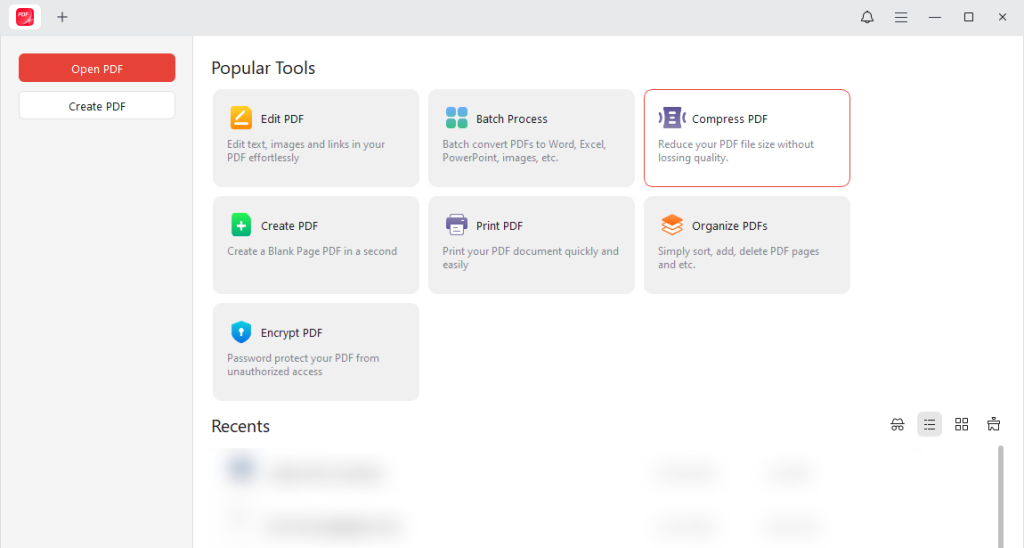
Other Main Features of JOPDF:
- Effortlessly annotate, edit, and create PDFs for free, letting you modify, add, or remove content in your PDF documents without any cost.
- Read, protect, and print PDF files without losing the format and quality.
- Efficiently convert scanned or static PDFs into editable formats to update text, images, and layouts, and make a PDF editable.
- Convert PDFs to TIFF, Word, Excel, PPT, and more with precise accuracy.
- Handle multiple PDF files at once, reducing time spent on repetitive tasks.
- Friendly layout for easy navigation, making it suitable for beginners and pros alike.
- Entirely free, with no ads, no watermarks, and no sign-up is required.
Adobe Acrobat – Best Professional PDF to TIFF Converter
Supported Platform: Windows, Mac, iOS, Android, and Web (online services).
Adobe Acrobat acts as a professional PDF to TIFF converter favored by enterprises and organizations worldwide. It allows users to convert PDF to JPG, TIFF, and other image formats while maintaining precise layout and color accuracy. With advanced tools, Adobe Acrobat can convert multiple PDFs to TIFF at once, making it ideal for large-scale and professional document processing.
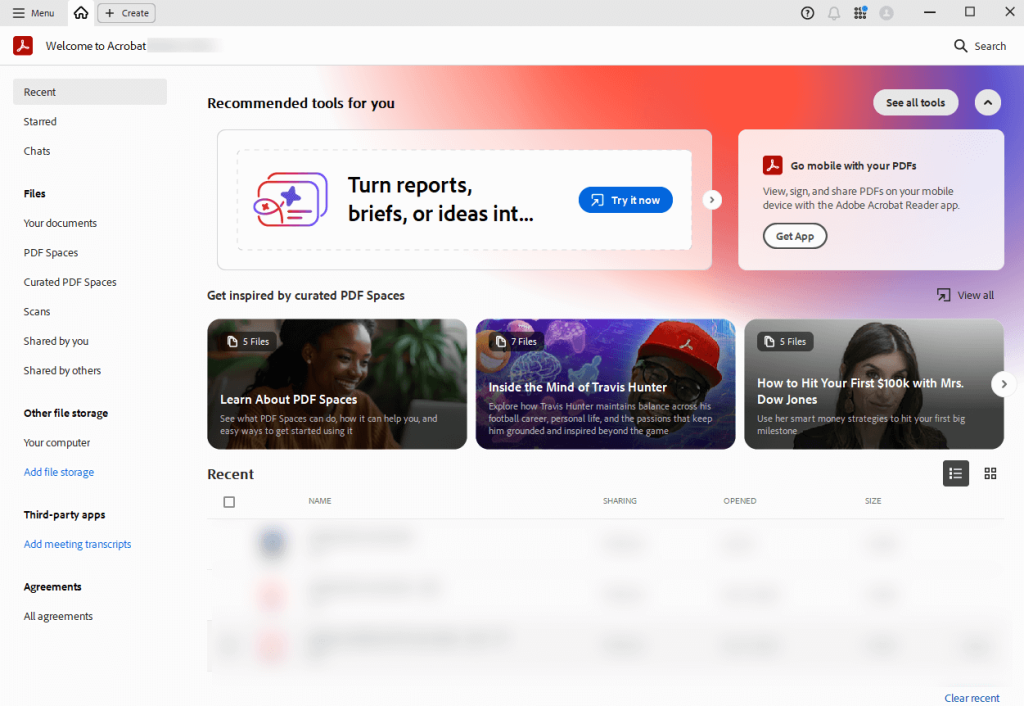
Other Key Features of Adobe Acrobat:
- Efficiently edit, reorder, rotate, crop, merge/split, and combine images into one PDF.
- Convert PDFs to Word, Excel, or PowerPoint, or vice versa.
- Create, fill, sign, and send forms; request e-signatures and track responses.
- Add comments, highlights, stamps, and use markup tools.
- Password-protect, restrict copying/editing, and redact sensitive info.
- Create accessible PDFs and check for compliance.
- Access files across devices with cloud storage (Box, Dropbox, etc.).
SwifDoo PDF – Best Bargain PDF to TIFF Converter
Supported Platform: Windows, Mac, iOS, Android, and Web (online services).
SwifDoo PDF is a cost-effective, lightweight, and reliable Adobe Acrobat alternative that delivers high performance for everyday document tasks. As a capable PDF to TIFF converter, it helps users maintain image quality while simplifying the conversion process. With SwifDoo PDF, you can even batch convert PDF to TIFF, making it a practical choice for users who need efficiency without the high price tag.
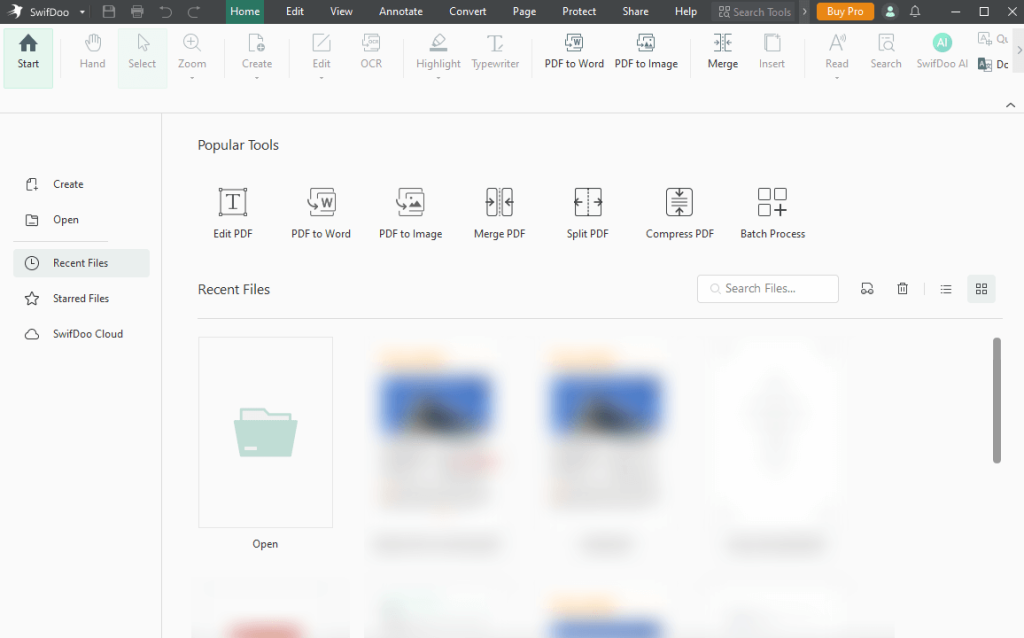
Other Key Features of SwifDoo PDF:
- Effortlessly add, delete, or adjust text and images, alter fonts/colors, include links or watermarks, and edit scanned PDFs.
- Supports converting multiple PDF files to/from Word, Excel, PowerPoint, CAD, TXT, HTML, and image formats (JPG, PNG, TIFF, BMP).
- Supports tools for merging multiple files, splitting large documents, and reordering or removing pages.
- Compresses files greatly without compromising document quality.
- Offers tools to highlight, underline, strike through text, add notes, and shapes.
- Comes with AI tools for text summarization or translation, plus OCR to turn scanned PDFs into editable documents.
- Enables password protection, restriction settings, and digital signature integration for secure document signing.
Preview – Best PDF to TIFF Converter for Mac
Supported Platform: Built into iOS, iPadOS, and macOS.
Preview is a native macOS app offering an easy, dependable way to manage basic PDF tasks without extra software. As a free PDF to TIFF converter for Mac, it allows users to export PDF pages as high-quality TIFF images directly from their Apple devices.
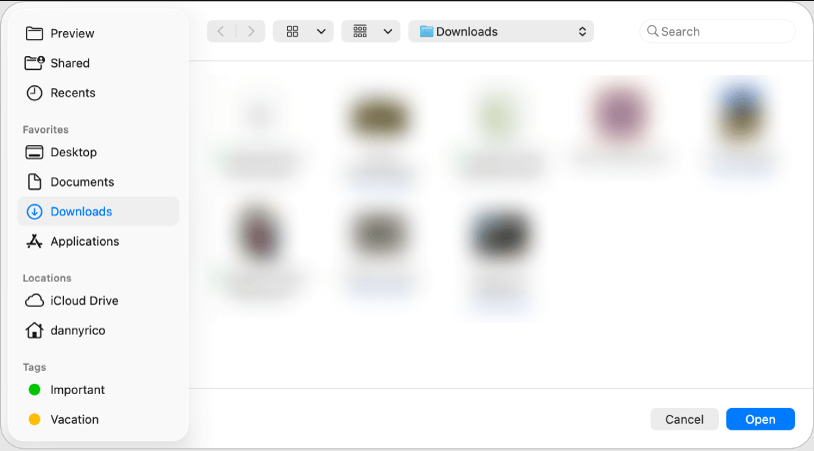
Other Features of Preview:
- Merge, split, rearrange, add, or remove text and pages in PDFs, and fill and sign forms digitally.
- Provides tools to crop, rotate, flip, and resize images, as well as adjust colors.
- Lets users highlight, underline, or strike through text, and insert shapes, arrows, and text boxes.
- Supports converting images and documents to a variety of formats, including PDF, HEIC, JPEG, PNG, and TIFF.
- Imports images directly from scanners and can recognize text in images (OCR) for copying and searching.
- Password-protect sensitive PDF documents and sync signatures across Apple devices for easy insertion into documents.
CloudConvert – Best Online PDF to TIFF Converter
Supported Platform: Browser-based application (Windows, macOS, Linux, ChromeOS, Android, and iOS).
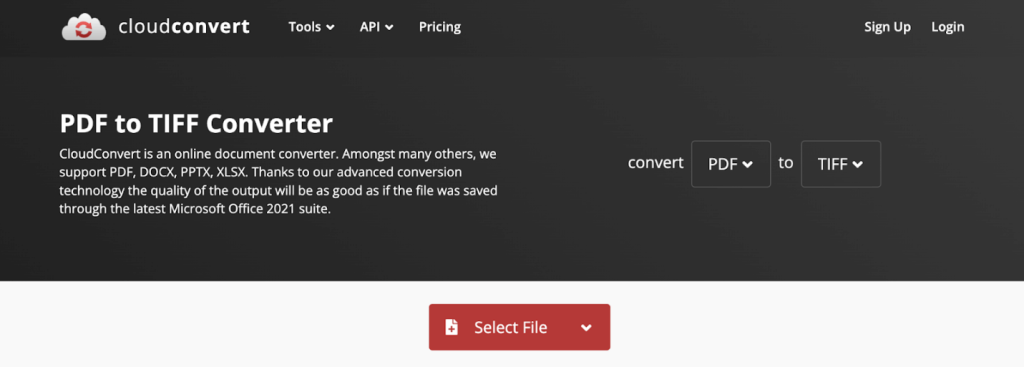
Lastly, we have CloudConvert. CloudConvert is a flexible, browser-based tool that lets users convert files without installing software. As an efficient online PDF to TIFF converter, it offers reliable image output and cross-device compatibility.
Other Features of CloudConvert:
- Handles over 200 formats, including PDFs, DOCX, PPTX, images (PNG, JPG), audio, video (MP4, HEVC, AV1), and archives.
- Uses NVIDIA GPU encoding to make HEVC and AV1 conversions quicker and more efficient.
- Features options to merge, split, and compress PDFs, as well as convert website screenshots into PDFs.
- Lets users convert multiple files at once by queuing them, with options for prioritized processing.
- ISO 27001 certified, guaranteeing user data is secure, not sold, and automatically deleted after processing.
- Includes detailed options for conversions, such as modifying video resolution, quality, and bitrate.
How to Convert PDF to TIFF on PC for Free
JOPDF works perfectly to convert PDF to TIFF for free on Windows and Mac PC while preserving quality. With a simple design and dependable conversion options, it’s perfect for fast and precise free usage.
Learn how to convert PDF to TIFF for free quickly with JOPDF in a few clicks.
Step 1. Grab the PDF to TIFF converter free download, JOPDF, directly from the official website.
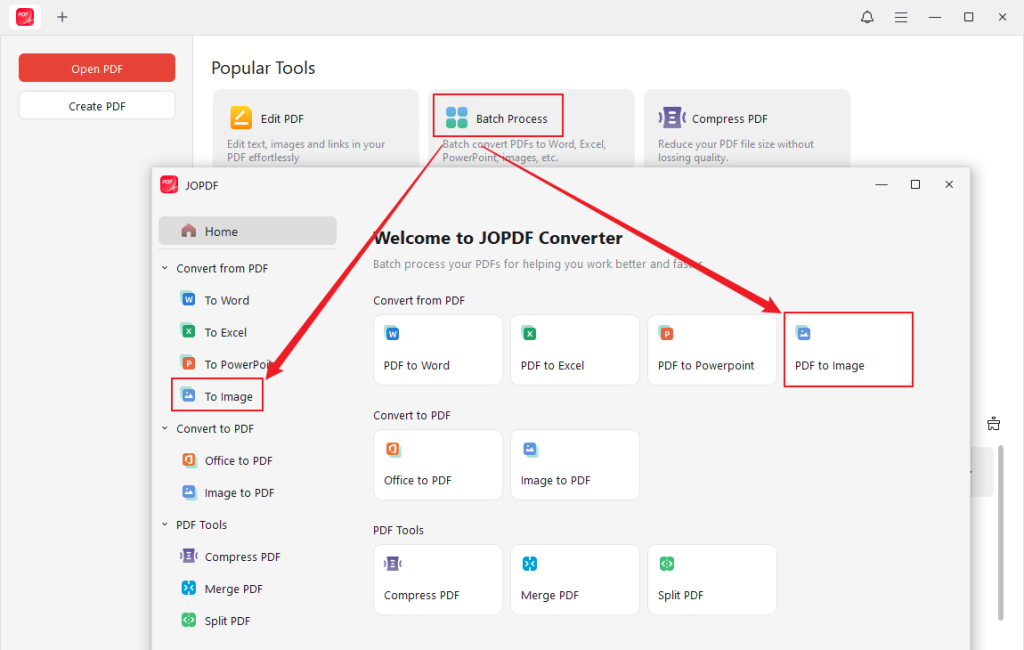
Step 2. Once you launch the program, choose the Batch Process option under Popular Tools. Then, select PDF to Image.
As another option, you can tap the Convert tab in the main menu at the top and select the To Image tool.
Step 3. Hit the +Add Files tab to import all PDFs that you want to convert to TIFF. Alternatively, drag and drop them directly into the converter window.
Step 4. Next, adjust the format, choose the method, and set the quality.
- Format: Select TIFF.
- Method: Select to save each page as an image or all pages as one image.
- Quality: For standard screen use, 96 DPI is fine, or select 300 DPI for sharp prints and presentations.
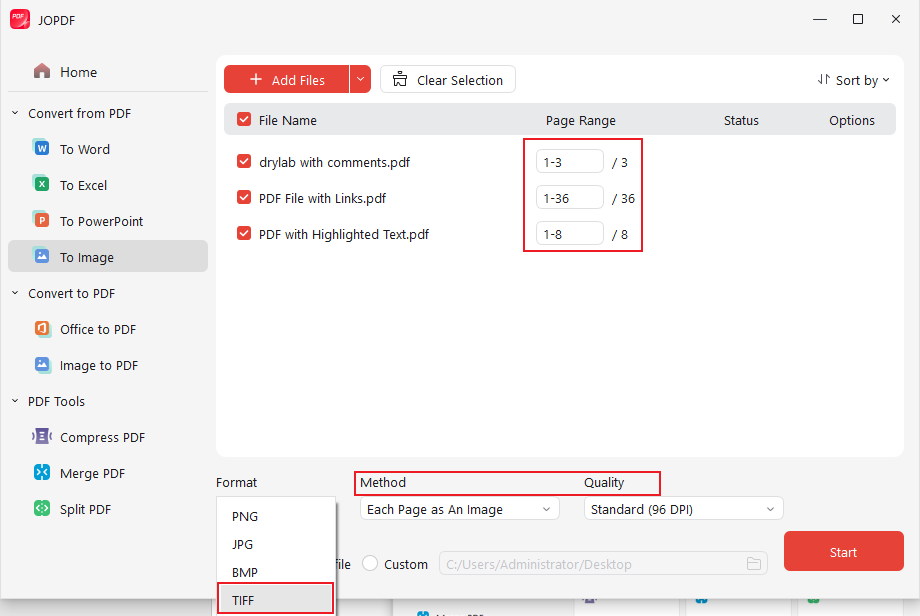
Note. If you want, you can set the page range to speed up the conversion.Be sure to select the folder where you want to save the converted TIFF files.
Step 5. Once you’re satisfied with the settings, press the Start button to proceed. JOPDF immediately begins working on your file.
How to Convert PDF to TIFF Online
For users who like online conversion, CloudConvert provides a convenient way without installing software. It allows high-quality PDF to TIFF conversion and operates smoothly on different devices. With its clean interface and cloud-based processing, CloudConvert is ideal for quick and hassle-free online conversions.
Find out how to convert PDF to TIFF online using CloudConvert without hassle.
Step 1. Use your browser to visit the official CloudConvert website for conversions.
Step 2. Click Select File and add the PDF files you wish to convert to TIFF.
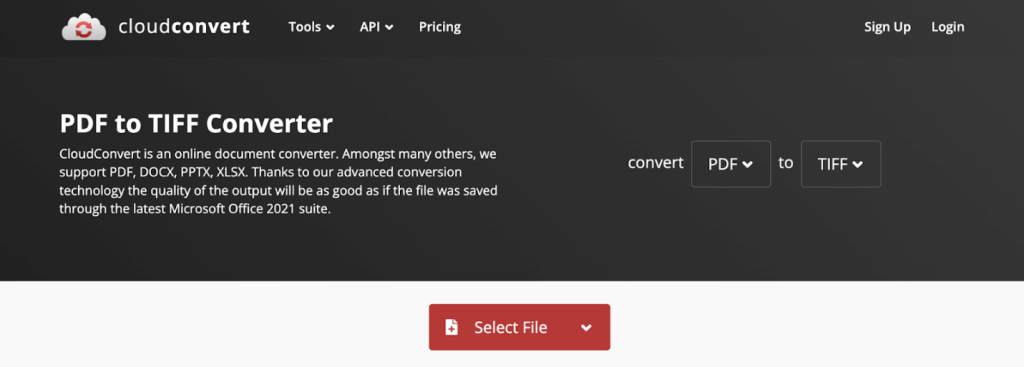
Step 3. In the Convert to menu, go to Image and select the TIFF file format.
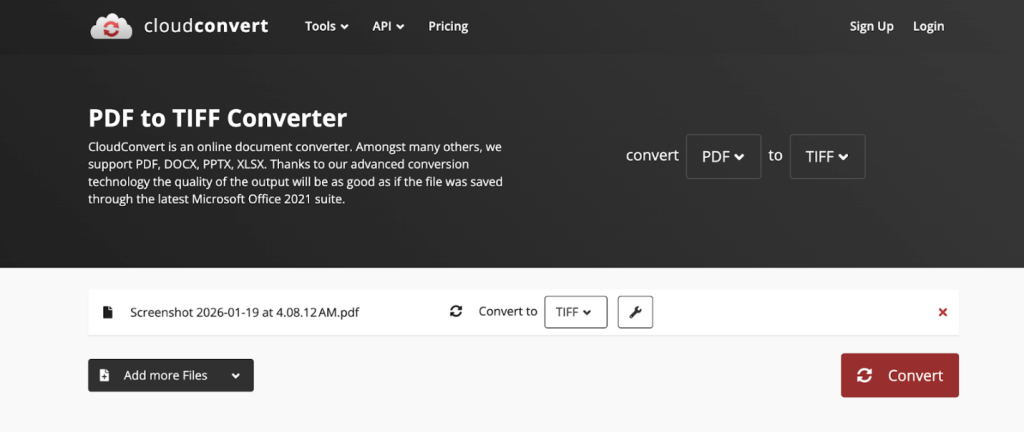
Note. Select Add More Files to upload more documents from your device, Google Drive, Dropbox, OneDrive, and more if necessary.
Step 4. Click the Wrench icon to customize output settings, including page range, pixel density, width, and height. Then, tap Okay.
Step 5. After adjusting the necessary settings, tap Convert to start the conversion. The process will be completed by CloudConvert in just a few moments.
Finally, tap Download to save the converted TIFF file to your local storage.
A Quick Sum Up
When working with documents that require high-quality image output, having the right tool to convert PDF to TIFF can make a big difference for printing, archiving, or sharing. We have highlighted the 5 best PDF to TIFF converters to ensure your files stay clear and detailed while saving time. Whether you use a free desktop app like JOPDF or an online converter like CloudConvert, there are trustworthy options for all devices. With the right tool, converting PDFs has never been easier or more efficient.
FAQs
Step 1. Open the document you wish to convert in Adobe Acrobat.
Step 2. Click the Tools pane, then select Export PDF.
Step 3. Select Image and then choose TIFF.
Step 4. Click the Settings gear icon to adjust color management, compression, and resolution.
Step 5. Click Export, choose a destination folder, and click Save.
1. Retains all original image data with no loss in quality.
2. Difficult to edit; maintains accurate colors and fine details.
3. Features layers, transparency, high-resolution quality, and detailed metadata.
4. Ideal for printing, scanning, and professional graphic work.
5. Supports multiple color spaces and compression methods.
6. Widely favored for preserving documents and long-term archival storage.
7. Compatible with most image editing and desktop publishing software.
Table of Contents

Your Best Free PDF Expert in PDF editing, compressing, converting, annotating, protect, organizing, and more.
Free DownloadWindows · macOS · Linux

Olivia
“Olivia is an editor at JOPDF, where she writes practical guides and insightful articles on managing PDFs—covering topics like editing, annotating, converting, and organizing files efficiently. Passionate about clear communication and digital productivity, Olivia enjoys spending her free time cooking, watching movies, and hiking to unwind and find inspiration for her writing.”