Introduction :
PDFs have become the preferred format for document sharing because they keep formatting consistent on any device. Yet, there are times when it becomes necessary to convert PDF to BMP, such as for editing graphics, processing images, or including sharp visuals in presentations. This JOPDF article presents the 4 best PDF to BMP converter tools and shows you how to convert PDF to BMP on Windows, Mac, and online.
Why Convert PDF to BMP
A BMP (Bitmap) file is a high-quality, uncompressed image format that preserves every detail of graphics and text, making it ideal for editing and printing. Converting PDFs to BMP enables you to work more flexibly with images extracted from PDFs. This makes it perfect for designers, educators, and professionals who need precise, editable visuals from their PDF documents.
Here’s a list of the reasons why you convert PDF to BMP.
- BMP retains full image detail without compression loss.
- Simple to share and compatible with graphic design software like Photoshop or Paint.
- Ensures sharp, clear prints from PDF content.
- Works with software that does not support PDF files.
- Allows easy archiving of high-quality visuals from PDFs.
- Perfect for creating detailed thumbnails or icons.
- Keeps colors true and resolution high when making changes.
How to Convert PDF to BMP on Windows
When working on a PC, using reliable PDF to BMP converters for Windows makes it easy to turn your PDF files into high-quality images quickly and efficiently. These tools guarantee precision and maintain every detail from your original PDF file.
Let us present two reliable solutions to convert PDF to BMP on Windows that are user-friendly and produce top-quality results.
Convert PDF to BMP on Windows for Free with JOPDF
JOPDF is a fast, lightweight, and free PDF converter that makes file conversions easy and efficient. It enables you to convert PDF to BMP, PNG, JPG, and TIFF quickly with just a few clicks while preserving high-quality results. With batch conversion, the software lets you convert several PDFs at once efficiently. With an intuitive interface and dependable performance, JOPDF is a great choice for anyone needing to manage PDF to image conversions efficiently.
Let’s quickly see how to convert PDF to BMP using JOPDF.
Step 1. Obtain JOPDF from its official website and install it on your Windows computer.
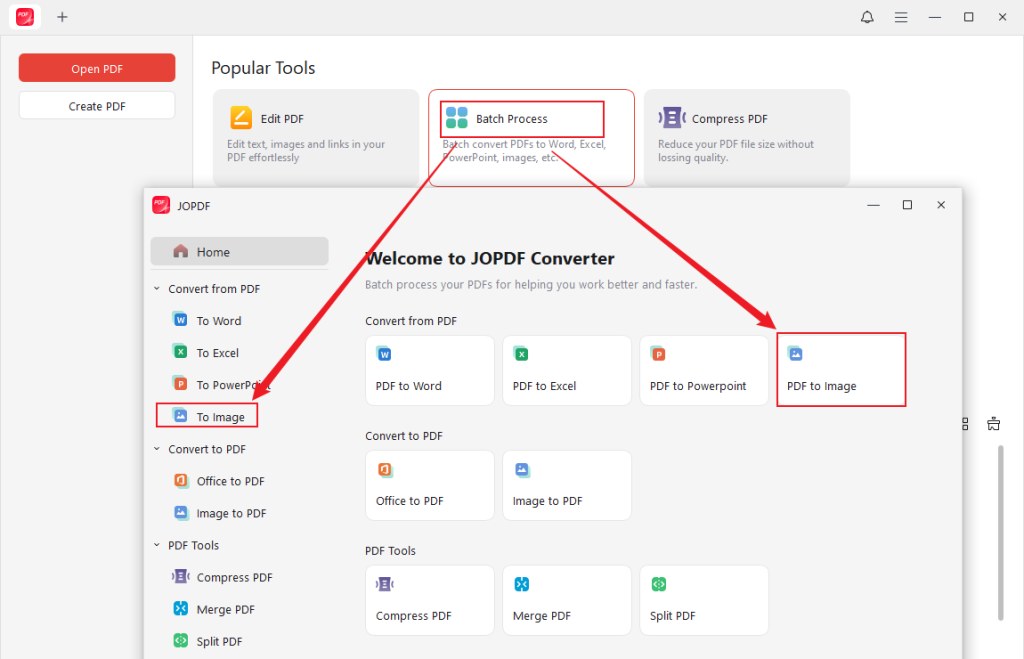
Step 2. Once launched, click Open to import the target PDF file, navigate to the Convert tab in the toolbar, and select the To Image tool.
Alternatively, click Batch Process in the main interface, choose the PDF to Image option, and press the +Add Files option to import and open PDFs. Or, simply drag and drop them into the converter window.
Step 3. Scroll to the bottom, then in the Format menu, choose BMP. Then select your Method and Quality.
Then click Output to select the storage folder where you’d prefer to save the converted files.
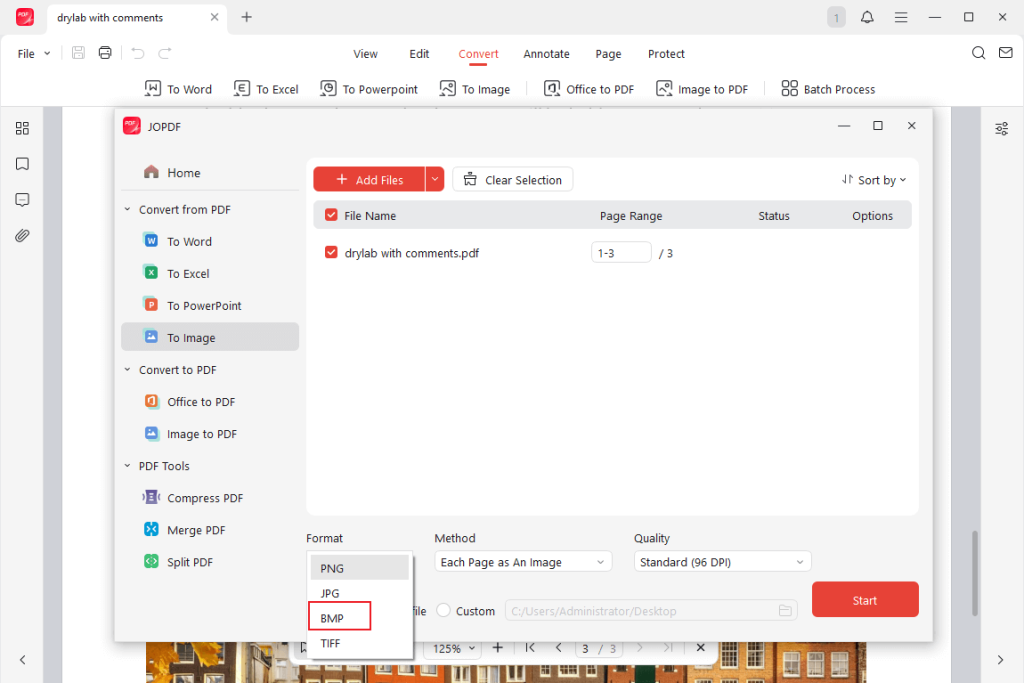
Step 4. After configuring all conversion settings, tap Start to proceed.
Please wait a few seconds; your PDF will now be converted to a BMP.
Besides conversion, here are the other main features of JOPDF:
- Easily combine images into one PDF for organized sharing and storage.
- Handle multiple PDF files at once with fast batch conversion.
- Easily handle PDFs by viewing, editing, annotating, compressing, merging/splitting, printing, and signing them.
- Quickly convert PDF to PPT and other Office documents without losing formatting.
- Its simple interface makes managing PDFs easy for both beginners and professionals.
- Keeps your files safe without compromising privacy.
- Absolutely free software with no hidden paywall, no ads, no watermarks, or sign-up required.
- Runs smoothly on Windows PC, Mac, and Linux systems.
How to Convert PDF to BMP on Windows with Adobe Photoshop
Adobe Photoshop is a professional image editing program widely used by designers and photographers. It provides the ability to convert PDF to JPG, BMP, and other image formats while preserving fine details and quality. With its powerful editing tools, Photoshop makes it easy to customize and enhance images extracted from PDFs.
Find out how to convert a PDF to BMP with Adobe Photoshop in just a few clicks.
Step 1. Download and launch Adobe Photoshop on your Windows PC. Then, click File > Open… and select the PDF file you need to convert.
Alternatively, open your PDF file through Photoshop by right-clicking on it and selecting Open With and choosing Adobe Photoshop.
Step 2. A dialog box will then show up asking you to select which pages to import. Select the pages and adjust settings (resolution and color mode) as needed, then click OK.
Step 3. Go to File and tap Save As… (or “Save a Copy” in newer versions). In the Save As dialog, click the Format dropdown menu and select BMP.
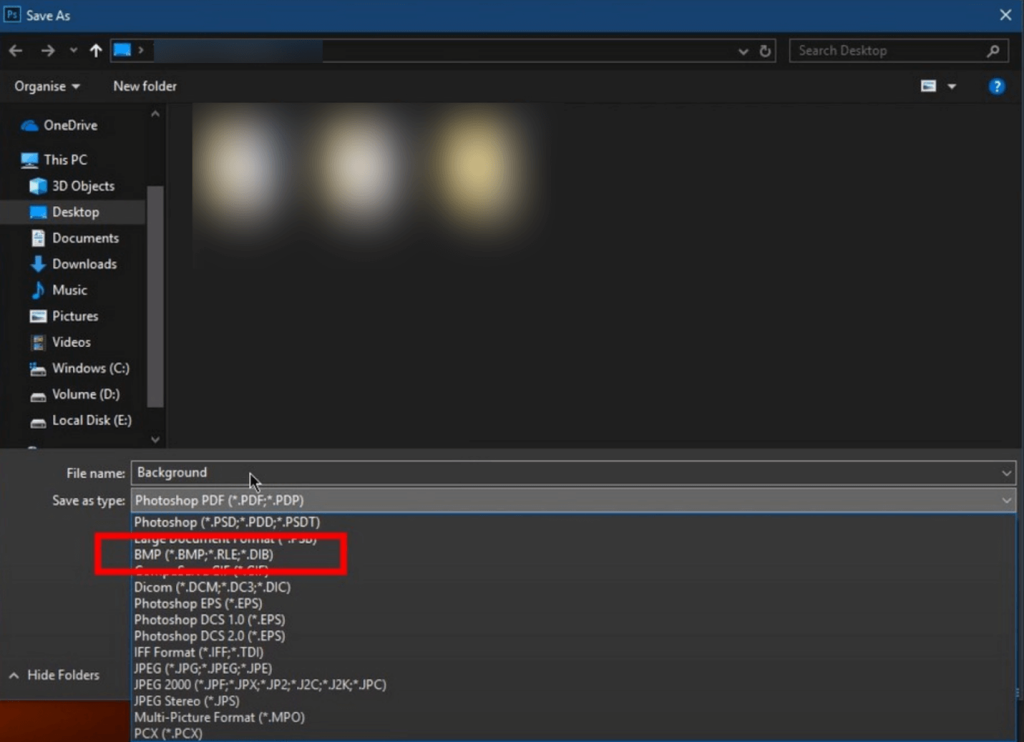
Step 4. Name your file, choose the destination folder, and click Save.
Note. You may be prompted with BMP options (e.g., File Format, Depth); leave them at their defaults or adjust as needed. Then click OK.
How to Convert PDF to BMP on Mac
Preview is a built-in macOS app that enables you to convert and edit PDFs on Mac simply and efficiently. It provides a simple way to convert PDF to BMP on Mac while preserving image quality. Lightweight and user-friendly, Preview is ideal for quickly turning PDFs into high-quality images.
Quickly learn how to convert PDF to BMP with Preview on Mac with just a handful of clicks.
Step 1. Right-click your PDF file, go to Open With, and pick Preview (default).

Step 2. Click File in the top menu bar and select Export… from the context menu.
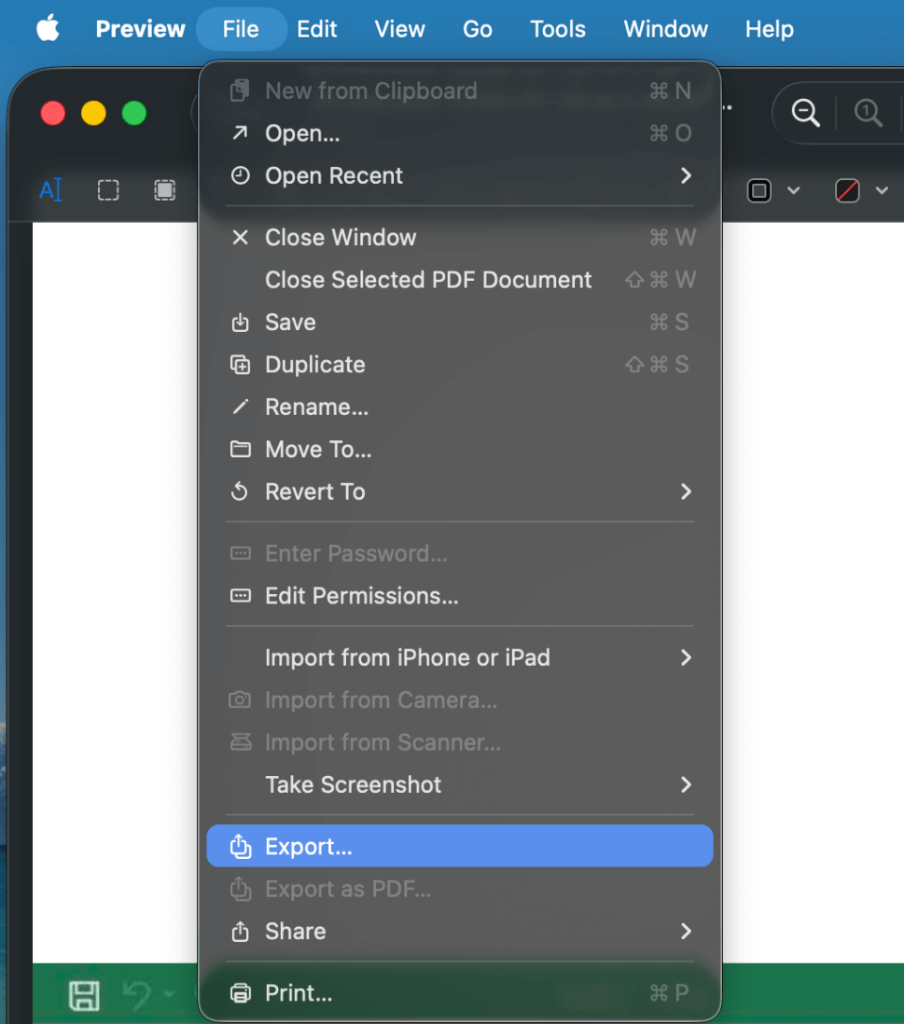
Step 3. In the format pop-up menu, press and hold the Option key while clicking the default format (PDF). By doing so, a larger list of more options will appear. Then choose Microsoft BMP.
Step 4. Next, adjust the Resolution and quality if necessary. Choose a file location under Where, and click Save.
How to Convert PDF to BMP Online
Along with desktop converters, online PDF tools make converting files fast and easy. PDF Candy is a flexible online tool that works on Windows, Mac, and mobile devices without needing any installation. It provides a simple way to convert PDF to BMP online while ensuring top-quality results. Its simple interface ensures smooth conversions anytime, anywhere.
Let us find out how to convert PDF to BMP online with PDF Candy without hassle.
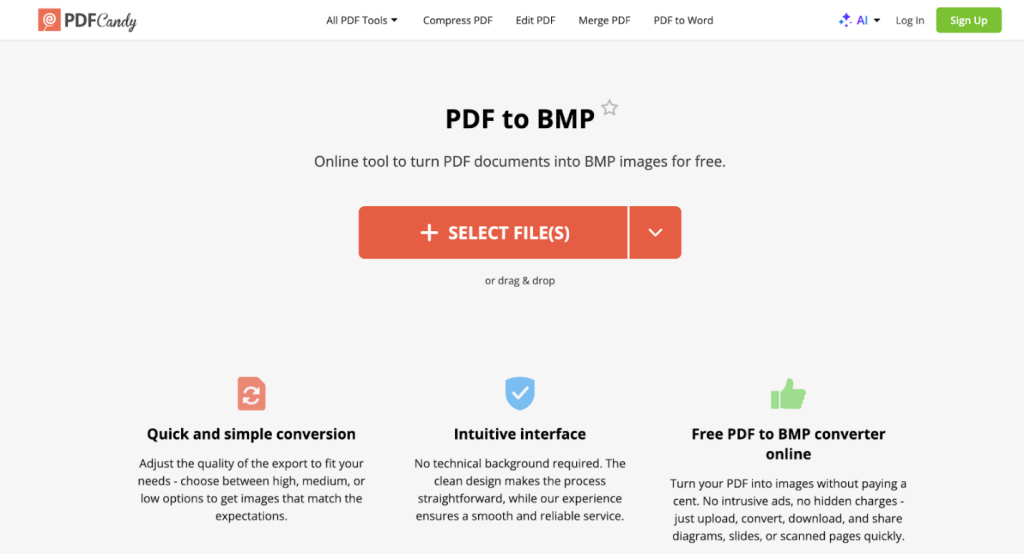
Step 1. Open your web browser. Then, visit the official PDF Candy website. Then, under Other PDF tools, select All PDF Tools on the homepage and locate the PDF to BMP tool.
Step 2. Use +Select File(s) to choose PDFs for conversion from your device, Google Drive, or Dropbox. Or just drag and drop the PDF into the browser to add it.
Step 3. Next, pick the quality level for your BMP output files.
- Low Quality: Lower quality, more compact file
- Medium Quality: Medium quality and file size
- High Quality: Higher quality, larger file size
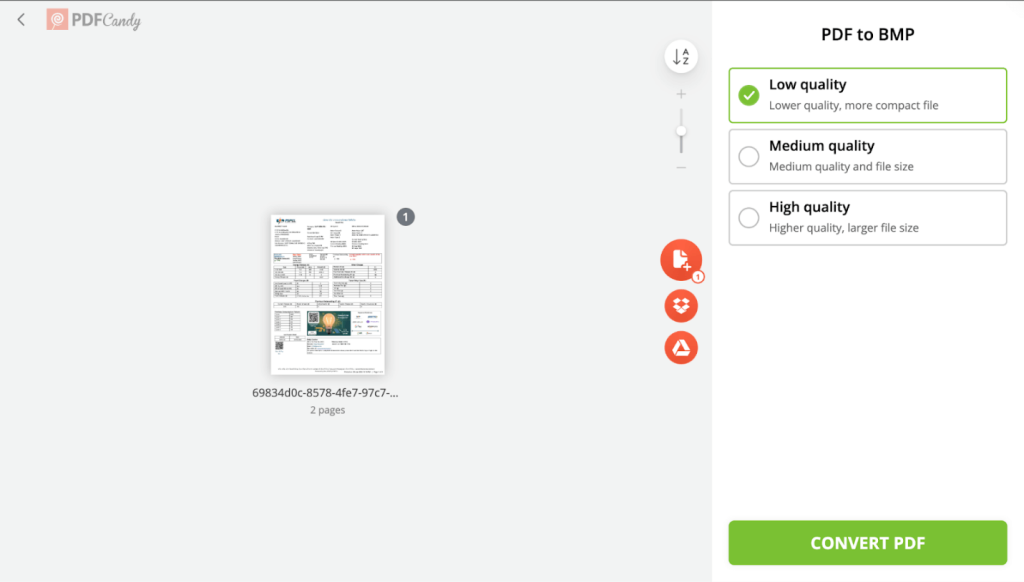
Step 4. Once finished, press the Convert PDF button below to start converting. After your PDF files are successfully converted, click Download file to save the resulting BMP files to your local storage or cloud storage (Dropbox or Google Drive).
A Quick Wrap Up
Learning how to convert PDF to BMP is key for users who want to obtain detailed, high-quality images from PDF files. No matter if you work on Windows, Mac, or prefer an online solution, these 4 best PDF to BMP converters allow you to convert PDFs to BMP quickly and effortlessly. Tools including JOPDF, Adobe Photoshop, Preview, and PDF Candy ensure flexibility, batch conversion, and excellent output. Choosing the right tool ensures your images stay sharp, editable, and ready for any project.
FAQs
Step 1. Get JOPDF and run it on your Windows or Mac PC.
Step 2. Click Batch Process under Popular Tools, then select To Image in the Convert from PDF section.
Step 3. Click +Add Files to import all the PDFs you wish to combine into one PDF, or drag them into the converter window.
Step 4. Select BMP as the output Format. Then, choose your Method and Quality.
Select a storage folder to save the converted files. And then tap Start.
Table of Contents

Your Best Free PDF Expert in PDF editing, compressing, converting, annotating, protect, organizing, and more.
Free DownloadWindows · macOS · Linux

Olivia
“Olivia is an editor at JOPDF, where she writes practical guides and insightful articles on managing PDFs—covering topics like editing, annotating, converting, and organizing files efficiently. Passionate about clear communication and digital productivity, Olivia enjoys spending her free time cooking, watching movies, and hiking to unwind and find inspiration for her writing.”