Summary :
PDFs are great for sharing documents because they look the same on every computer. However, they are terrible for working with data. In this guide, I will show you how to extract data from PDF to Excel, so you can easily analyze the data.
Method 1: Extract Data from PDF to Excel Using JOPDF (Recommended)
If you want the easiest and most reliable way to move your data, we recommend using a professional tool called JOPDF.
What is JOPDF?
JOPDF is a professional PDF editor and converter for Windows, macOS, and Linux. With its conversion feature, you can easily convert PDF to Excel, Word, PowerPoint, and other formats. With just a few clicks, you can obtain the correct document and start analyzing the data.
Why Choose JOPDF?
- It keeps the Layout: Have you ever copied a table from a PDF and pasted it, only for the columns to get mixed up? JOPDF prevents that. It keeps your rows and columns perfectly straight.
- It is Safe: JOPDF works offline on your own computer. Your data never leaves your hands.
- It can handle Big Files: If your PDF is 50 pages long, JOPDF can handle it in seconds.
Check to learn how to extract data from PDF to Excel using JOPDF.
1. First, click the download button below. Follow the simple instructions to install it on your computer. It is lightweight and safe.
2. Launch the JOPDF program. Click the Batch Process option, select PDF to Excel to continue.
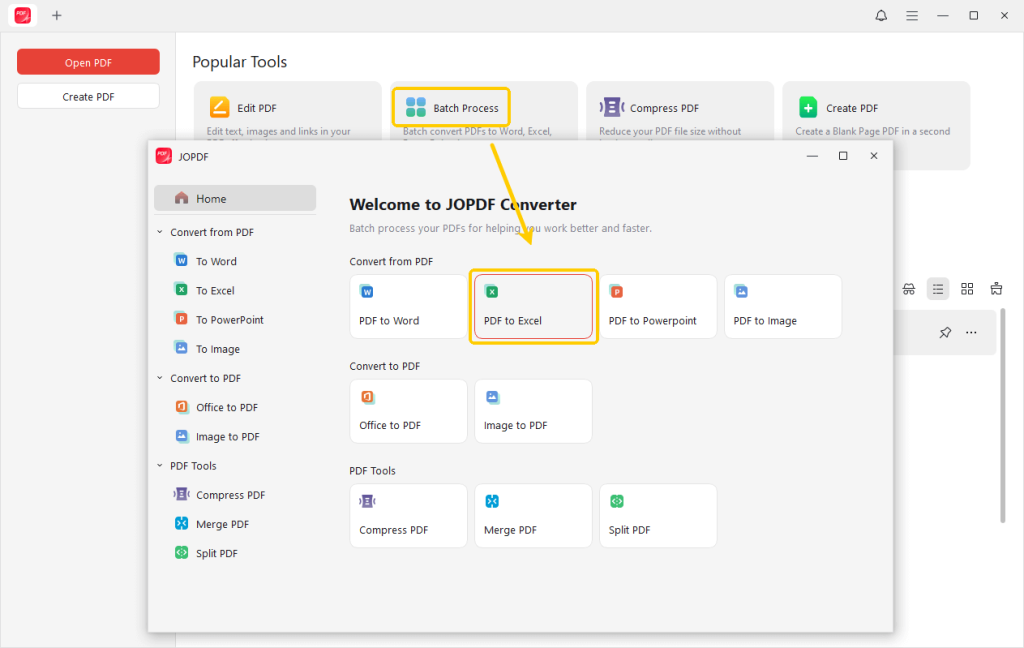
3. Next, add all the PDFs you want to convert. You can click the Add Files icon to select files, or simply drag them onto the interface.
4. Adjust the page range and output path, then click Start.
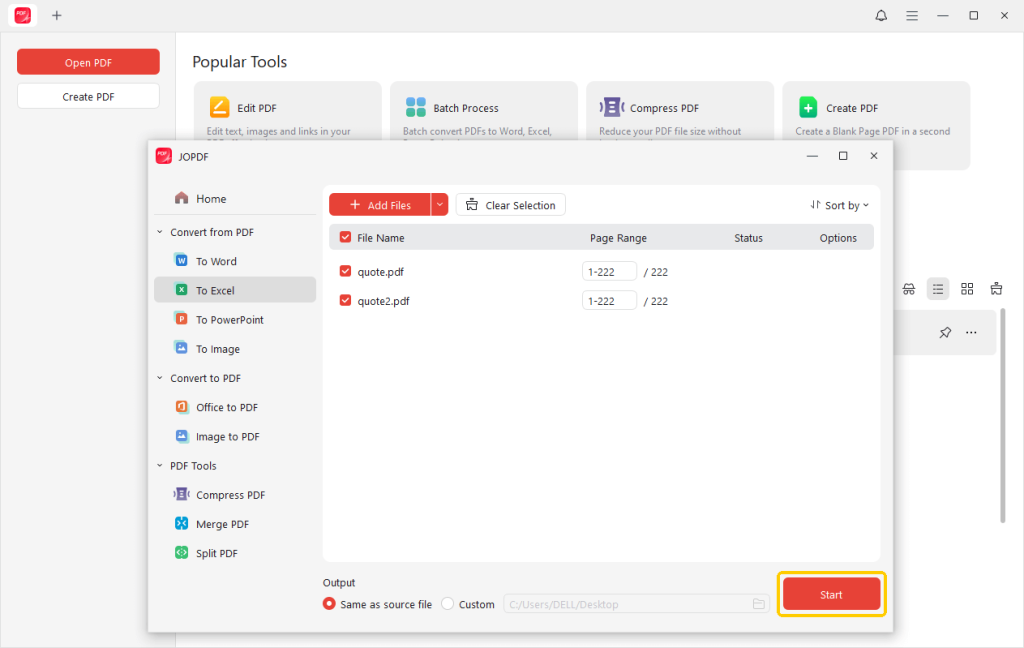
That’s it! JOPDF will read your PDF, extract all tables, and create a brand-new Excel file (.xlsx) for you. You can now open that file in Excel and work with the numbers just like any other spreadsheet. Very simple, right? Try it now!
Method 2: Extract Data from PDF to Excel with “Get Data” Feature
In fact, Microsoft Excel has a built-in tool specifically for reading PDFs. It is a bit hidden, so many people don’t know it exists. It is called “Get Data.” This method is great because you don’t need to download any extra software.
However, this feature works best with newer versions of Excel (2016, 2019, 2021, or Office 365).
Here is how to use the Get Data feature:
1. Start Microsoft Excel and open a new, empty workbook.
2. Look at the green ribbon at the very top of the window. Click on the tab labeled Data.
On the far left of the Data ribbon, look for the Get Data button (or sometimes just “New Query”). Click it, then move your mouse to From File. A new menu will appear. Select From PDF.
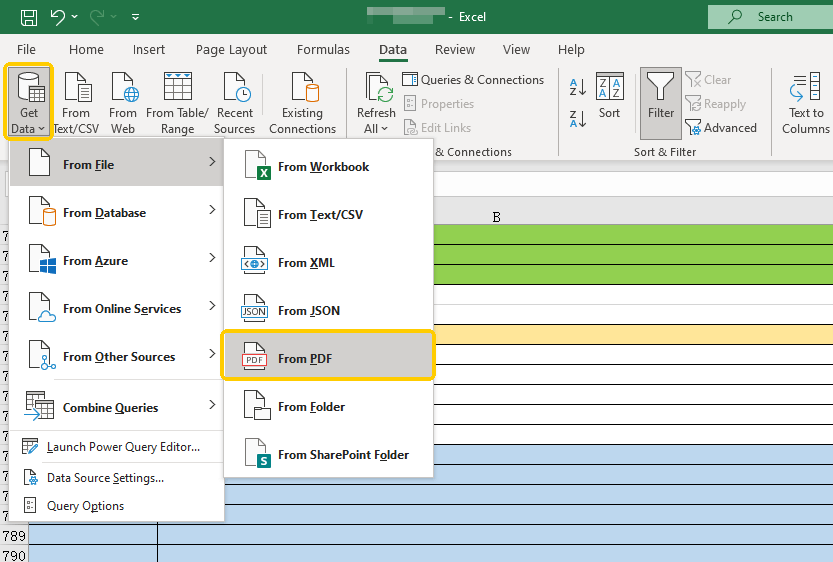
3. A file window will open. Find your PDF file on your computer and click “Import.
4. Then, a new window called “Navigator” will pop up. On the left side, you will see a list. It might say “Table001,” “Table002,” or “Page 1.”
Click on these names one by one. On the right side, you will see a preview of the data. Find the table that looks like the one you want.
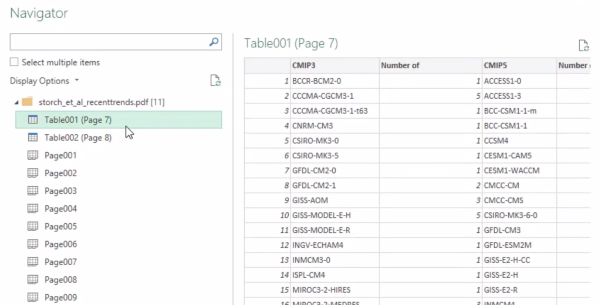
5. Once you have selected the correct table, look at the bottom of the window. You will see a button that says “Load.” Click it.
Excel will now grab that data and place it neatly into your spreadsheet. The rows and columns will be separated correctly, ready for you to use.
Method 3: Extract Data from PDF to Excel via Copy and Paste
Sometimes, you don’t need the whole document. Maybe you just need five numbers from a single paragraph. In this case, downloading software or setting up a data connection might be too much work. You can just use the classic Copy and Paste.
However, simply pasting usually makes a mess. The data often gets squished into a single column. I will show you how to fix that using a tool called “Text to Columns.”
1. Open your PDF file. Use your mouse to highlight the text or numbers you want. Press Ctrl + C on your keyboard to copy (or right-click and choose Copy).
2. Open Excel. Click on the first cell (A1). Press Ctrl + V to paste.
The Problem: You will likely see that all your data is stuck in the first column (Column A). It looks like a long list of text instead of a proper table.
Fix it with “Text to Columns”:
We need to tell Excel to split that text apart.
- First, highlight the column where your data is (usually Column A).
- Go to the “Data” tab at the top of Excel.
- Click the button that says “Text to Columns.”

The Wizard:
A box will pop up.
- Choose “Delimited” and click Next. (“Delimited” just means the computer should look for a specific character, like a space or a comma, to know where to split the data).
- Choose what separates your data. Usually, it is a Space or a Tab. Check the “Space” box and look at the preview at the bottom. Does it look like a table now? If yes, click Next.
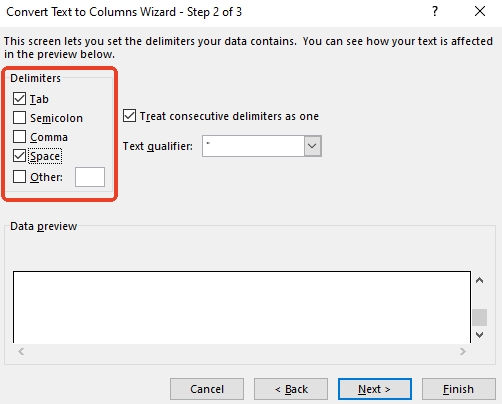
- Click Finish.
Boom! Your data will jump from a single messy column into neat, separate columns.
Conclusion
That’s all about how to extract data from PDF to Excel. Extracting data from a PDF doesn’t have to be a headache. You don’t need to be a computer expert to do it.
✅ If you have a large document and you want it to look perfect with zero effort, downloading JOPDF is your best choice. It is safe, offline, and powerful.
✅ If you have a modern version of Excel and want to pull data directly, use the “Get Data” feature in the Data tab.
✅ If you just need a few quick numbers, use Copy and Paste, but remember to use the “Text to Columns” trick to clean up the mess.
Now you can stop typing numbers by hand and get back to your real work. Hope this guide is helpful.
FAQs
Table of Contents

Your Best Free PDF Expert in PDF editing, compressing, converting, annotating, protect, organizing, and more.
Free DownloadWindows · macOS · Linux

Queena
Editor
“As a staff editor for JOPDF, Queena excels at guiding users to the optimal tools and solutions. When she's not analyzing the latest PDF solutions, she enjoys spending her free time playing with her four cats.”
![6 Must-Know Bank Statement Converters in 2026 [Full Review]](https://b.jopdf.com/wp-content/uploads/2026/03/bank-statement-converter.png)
