Introduction
Word documents may change when opened on different devices. Let’s learn how to convert Word to PDF. This way, your carefully crafted resumes, school reports, or business proposals will look perfect on any screen.
Method 1. How to Export Word to PDF Using Microsoft Word
⭐ Best For: People who have already installed Microsoft Office and only want to create a PDF without editing it.
If Microsoft Word is installed on your computer, the most straightforward method is to use the built-in “Export” feature. Generally, it will preserve all formatting exactly as it was created.
Steps:
1. Open the document in Microsoft Word.
2. Click the File tab in the top-left corner of the screen.
3. Find the Export option in the left sidebar, then click it. Then, select Create PDF/XPS Document.
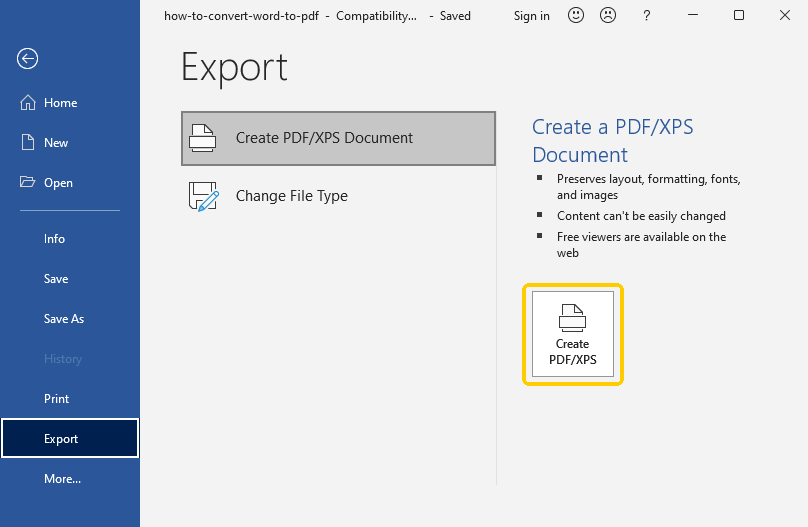
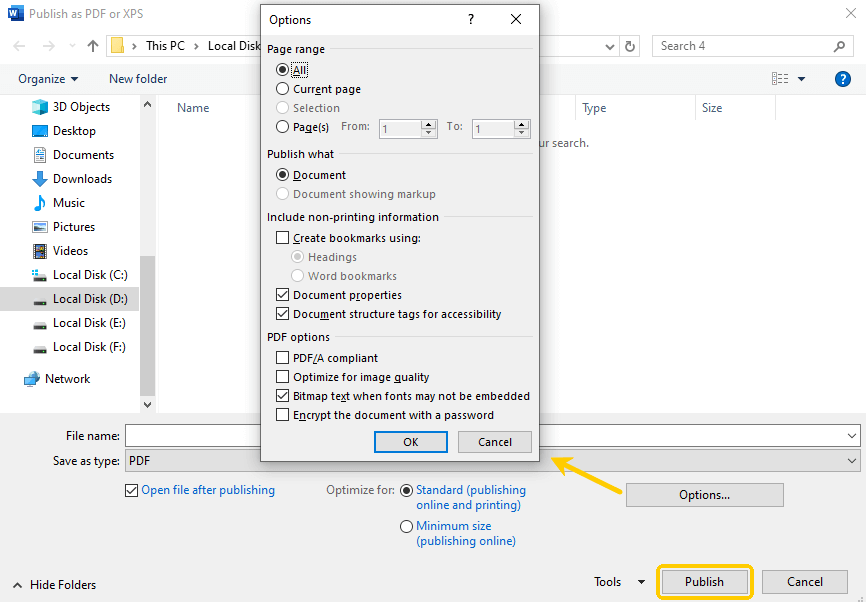
4. A window will pop up asking where you want to save the file. If needed, you can click Options to select the pages you want to convert and adjust other settings.
5. Choose a location and click Publish.
That’s it! You now have a PDF copy of your document saved on your computer.
Method 2. How to Convert Word to PDF on Windows and Mac with JOPDF (Highly Recommended)
⭐ Best For: Users who want to convert PDF to Word without losing formatting, want to convert multiple documents, and want to edit the converted PDF.
While Microsoft Word is good for simple documents, it isn’t perfect. Have you ever converted a file and noticed that a photo looked blurry? Or maybe you converted the file, spotted a typo, and realized you couldn’t fix it because it was now a “locked” PDF?
This is why we highly recommend using JOPDF, a professional PDF converter and editor.
Benefits of Using JOPDF
✅ Convert PDF to Word without losing formatting: JOPDF employs advanced conversion technology to ensure that every letter, every image, and every margin will be in the right place.
✅ Edit PDF After Conversion: If you use Word to convert, you can’t change the PDF later. But with JOPDF, you can edit text in a PDF to fix typos, highlight content, or move images, even after it’s been converted to PDF.
✅ Fast and Easy to Use: It has a simple interface and can convert large documents in seconds.
Download JOPDF and follow the steps below!
1. Open JOPDF on your Windows or Mac computer.
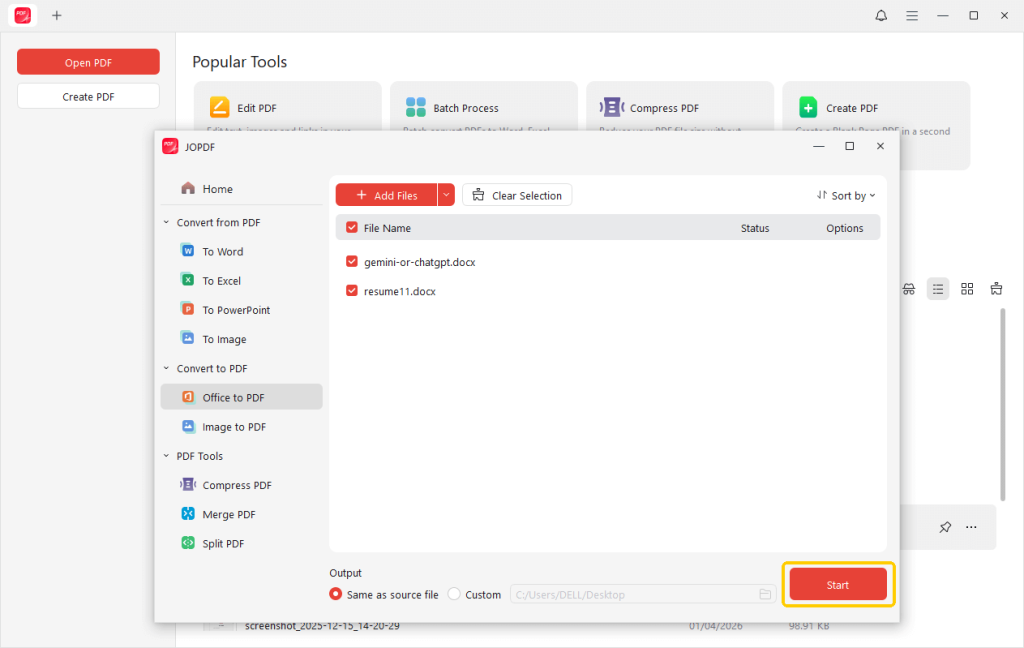
2. On the home interface, click Batch Process. Then, select Office to PDF.
3. Now, you can add the document by clicking Add Files. Or, you can drag and drop the document into the window. It’s OK to add all the files you want to convert.
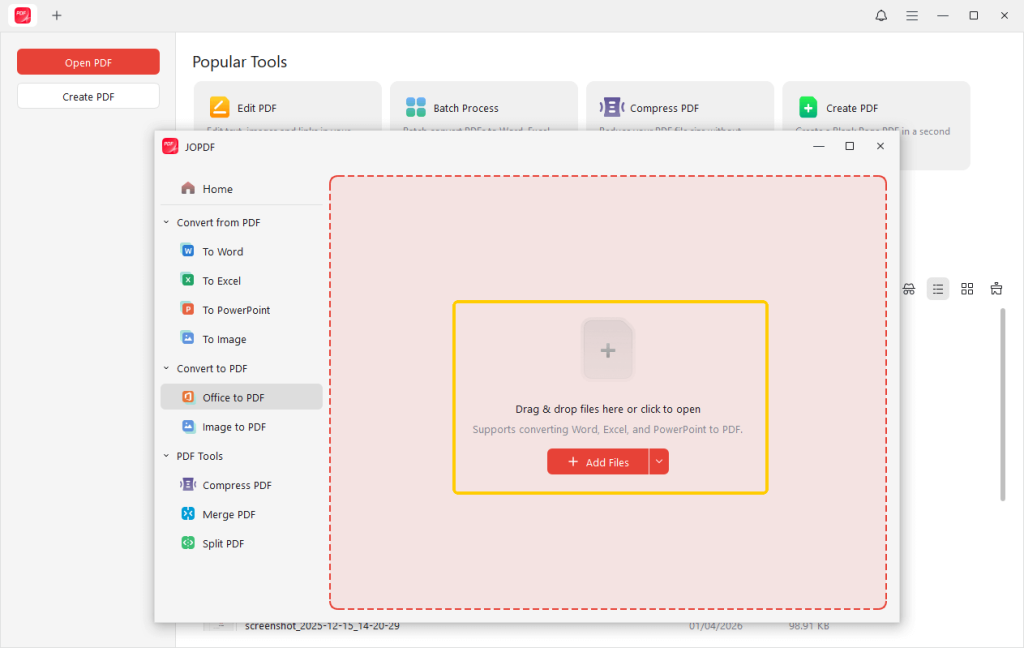
4. Finally, select a location and click Start.
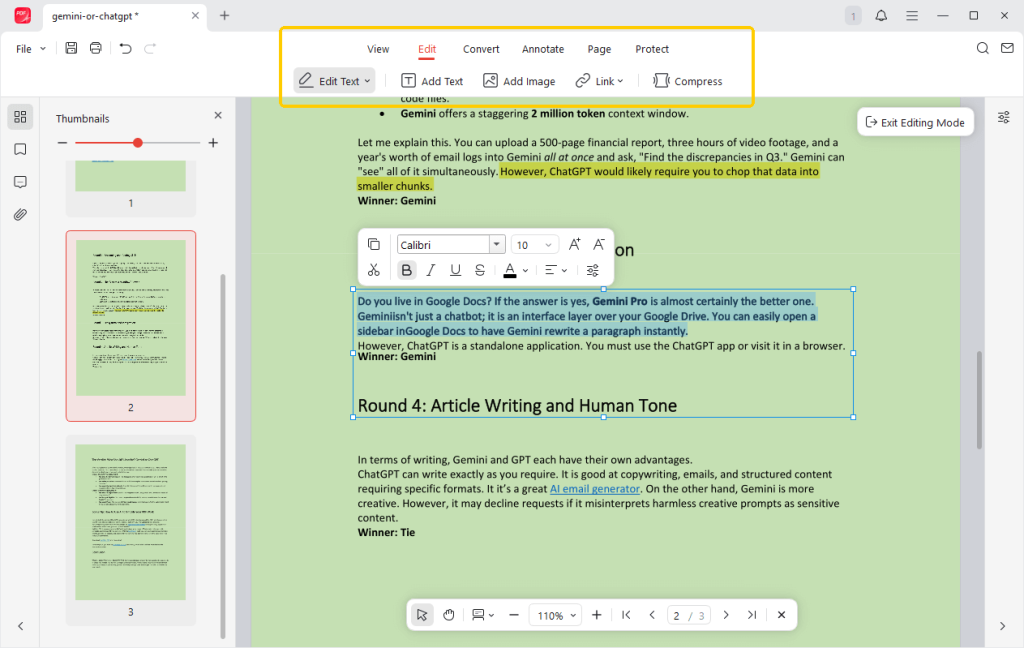
Wait for a few seconds, and you will get an editable PDF. You can open it in JOPDF and make any edits.
For example, to change the text, please go to Edit and select Edit Text. If you want to password protect a PDF, please select Protect > Encrypt to make it.
Method 3. How to Change Word to PDF in Google Drive
⭐ Best For: People who don’t want to install any software and need to convert a text-based document.
What if you don’t have Microsoft Word on your computer? Or what if you are using a friend’s laptop? No problem. You can use Google Drive, which is free for anyone with a Gmail account.
First, upload the document to Google Drive and download it as a PDF. However, sometimes, complex formatting might look a little different here. Therefore, this method is not suitable for documents with a large number of images and complex formats.
Steps:
1. Open a browser and go to drive.google.com. Log in to your account
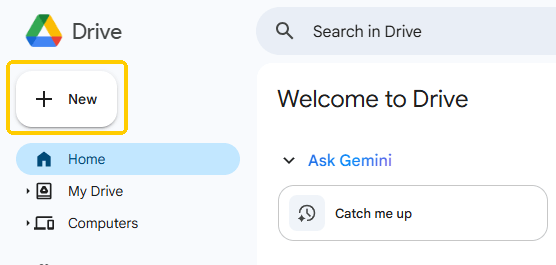
2. Click the + New button and select File Upload to choose your Word document.
3. Once it uploads, double-click the file to open it in Google Docs.
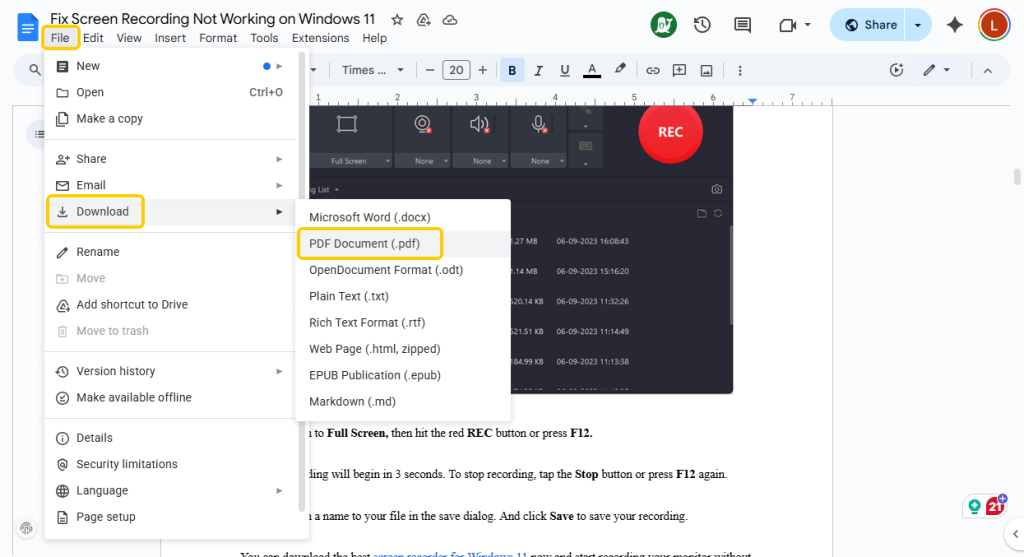
4. Next, go to File > Download and select PDF Document (.pdf). In this way, the PDF will automatically save to your computer’s “Downloads” folder.
Method 4. How to Convert Word to PDF Online
⭐ Best For: Users who want to convert a small and simple document only at this time.
Another way to convert Word to PDF for free is to use an online converter. There is no need to download any software, which is particularly suitable for one-time tasks. However, you should be aware that online tools typically support only small documents.
You can search for a trustworthy tool in your browser. Or, to save time, just pick SwifDoo PDF Online Converter. This tool is extremely simple, ad-free, and doesn’t even require registration. Check to learn the steps.
1. Open your browser and visit the SwifDoo Word to PDF online converter.
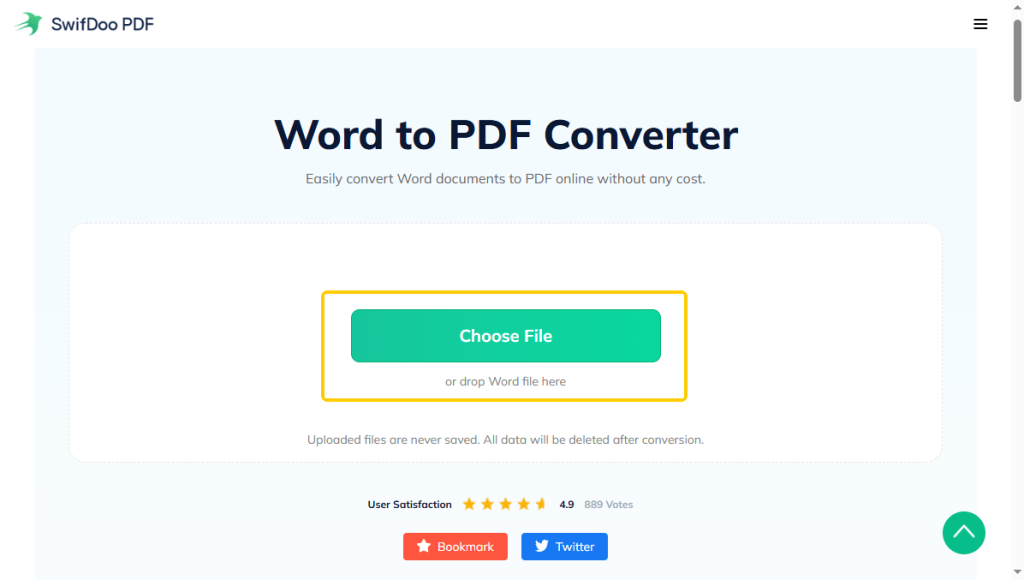
2. Click the Choose File button, then select your Word document.
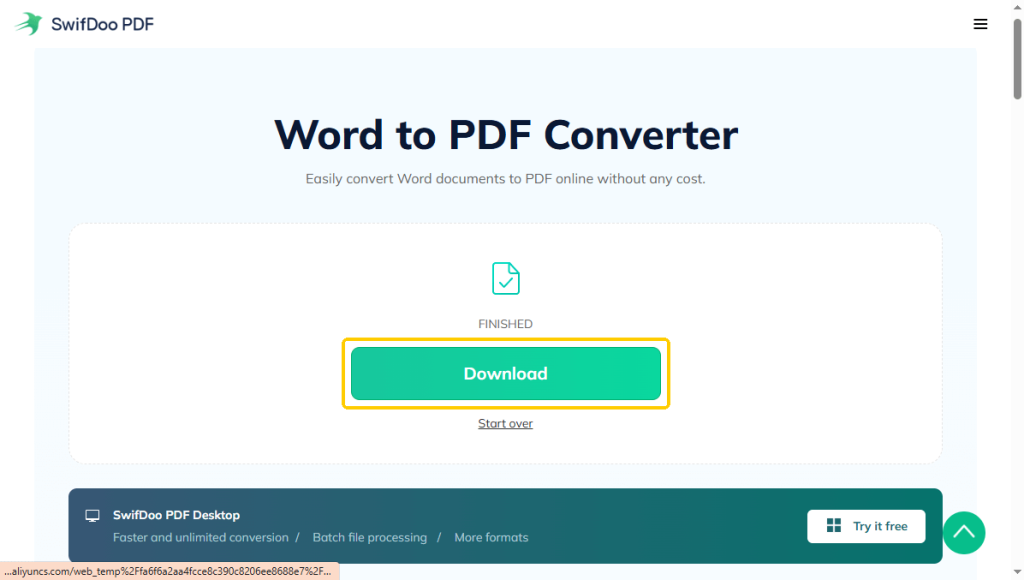
3. Wait for the process to complete, then click the Download button to save the PDF to your computer.
Conclusion
That’s all about how to convert Word to PDF for free. There are many methods that can help you complete the task. You just need to choose the one that suits you best.
For simple, everyday files, Microsoft Word works fine. But if you are sending something important—like a resume or a business contract—don’t take the risk. Download JOPDF to keep your formatting perfect and give yourself the power to make edits whenever you need.
Ready to make your documents look professional? Give JOPDF a try today!
FAQs
Table of Contents

Your Best Free PDF Expert in PDF editing, compressing, converting, annotating, protect, organizing, and more.
Free DownloadWindows · macOS · Linux

Queena
Editor
“As a staff editor for JOPDF, Queena excels at guiding users to the optimal tools and solutions. When she's not analyzing the latest PDF solutions, she enjoys spending her free time playing with her four cats.”
![6 Must-Know Bank Statement Converters in 2026 [Full Review]](https://b.jopdf.com/wp-content/uploads/2026/03/bank-statement-converter.png)
