Introduction
In this guide, we will show you how to convert PNG to PDF on Windows and Mac computers. We will cover the built-in tools, a convenient online tool, and the professional PDF too if you care about quality and want to edit your documents after conversion.
PNGs are fantastic files. They support high-quality transparency, offer lossless compression, and are the standard for web graphics and screenshots. However, they are not a good solution for document sharing. So, you need to know how to turn PNG to PDF.
By converting your image to PDF format, people can view the document on any device, and the format will remain unchanged. There are many tools that can help you achieve this goal, but if you want to convert a PDF to PDF without losing quality, a professional PDF converter like JOPDF is the best choice!
Click to get JOPDF and start!
If you still want to know all the methods before making a decision, then please continue reading.
Method 1. How to Convert PNG to PDF on Windows
If you are using Windows 10 or Windows 11, you already have a tool installed that can handle this task. It is a clever feature built into the operating system called “Microsoft Print to PDF.”
This feature allows you to “print” a file rather than print it on physical paper. Your computer will not print a piece of paper; it will generate a PDF file instead.
Steps:
1. Select the PNG you want to convert. If you are converting multiple images into one PDF, hold down the Ctrl key and click each file you want to include.
Tips
By default, it converts all images into a single PDF. Therefore, if you want to obtain an independent PDF file, you need to select only one image at a time.
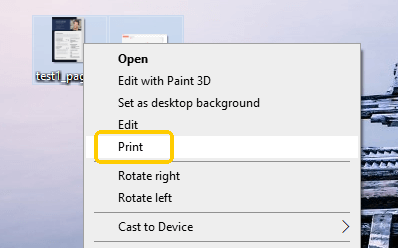
2. Right-click on one of the selected images. From the context menu that appears, select Print.
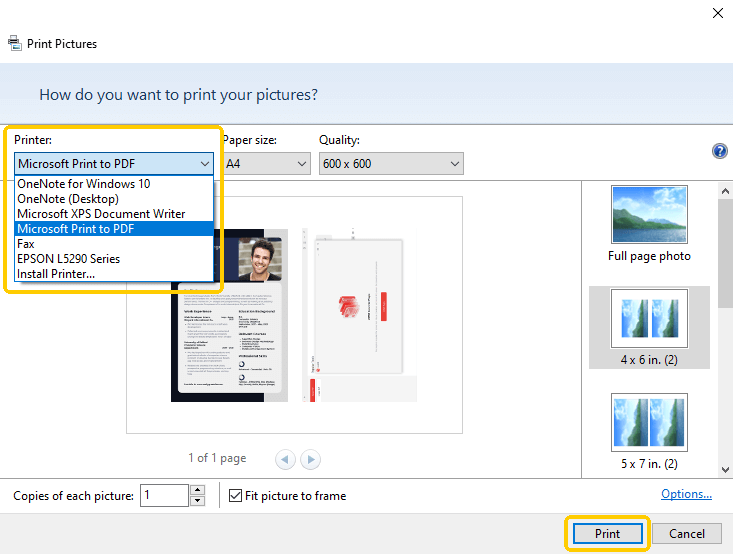
3. A new window will pop up. Under “Printer”, please select Microsoft Print to PDF.
4. Next, you can adjust the paper size and other settings as needed.
5. When OK, click the Print button and save your document.
If you want to edit a PDF on Windows, please get JOPDF to help you.
Method 2. How to Convert PNG to PDF on Mac
It is easy to create a PDF on a Mac. The built-in tool “Preview” can help you convert images, such as PNG and JPG, into PDF format. Whether you want to convert one image or multiple images, there is no problem. You can also combine all the images into a single PDF file.
Furthermore, Preview can also be regarded as a Mac PDF editing tool. However, it can only assist you in merging, splitting, and annotating PDF files. If you want to modify the existing content, you need a more powerful tool, such as JOPDF.
Steps:
1. Open Finder and locate your PNGs. Select all the PDF files you want to convert by holding the Command key and clicking them.
Tips
If you don’t want to save all the pictures as a single PDF, please select only one picture at a time.
2. Right-click on the selected image. Then, go to Open With and select Preview.
3. Next,you can drag and drop these thumbnails to rearrange the page order before converting.
4. Then, go to the top menu bar and click File > Select Export or Export as PDF.
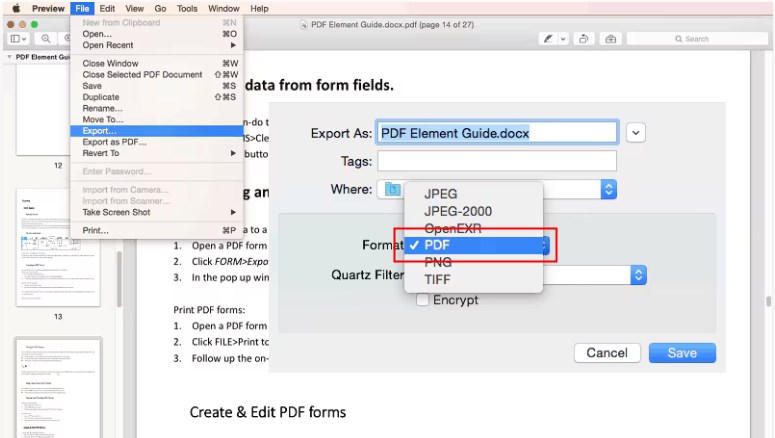
5. Name your file, choose a save location, and finally click Save.
Method 3. How to Convert PNG to PDF Using JOPDF (Highly Recommended)
The built-in tools are not perfect. When you need to convert multiple PDFs, they will combine them into one PDF file. To obtain an independent PDF, convert only one document at a time, then repeat the process. This is obviously very time-consuming.
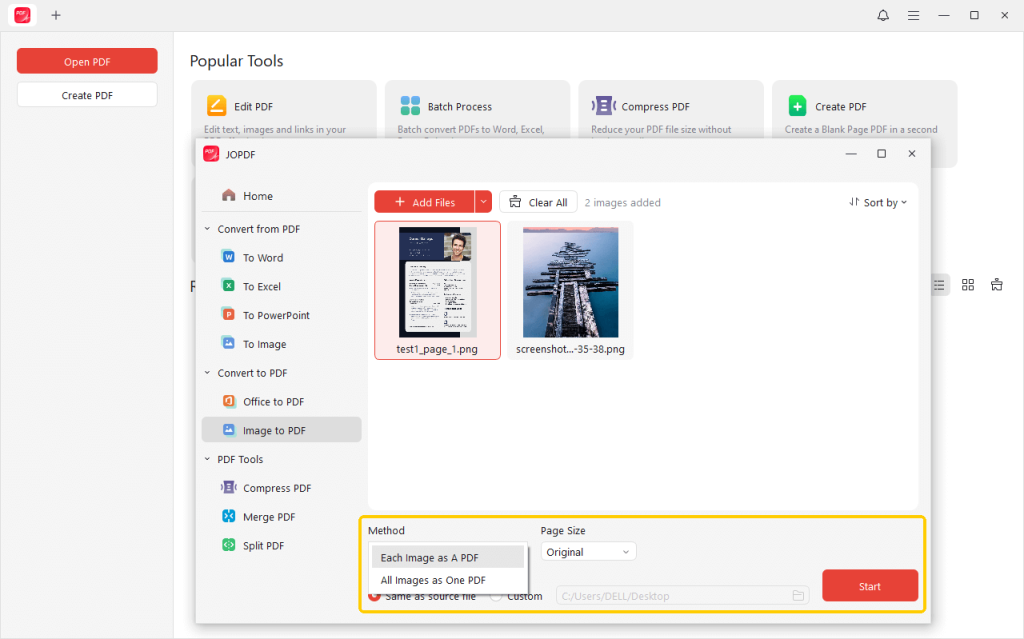
Luckily, with a professional converter, JOPDF, you can make it quickly. JOPDF lets you save each image as a PDF and all images as a single PDF. Download JOPDF and follow the steps below to make it. It’s a 100% free tool.
Steps:
1. Open JOPDF. On the home interface, select Batch Process and go to Image to PDF.
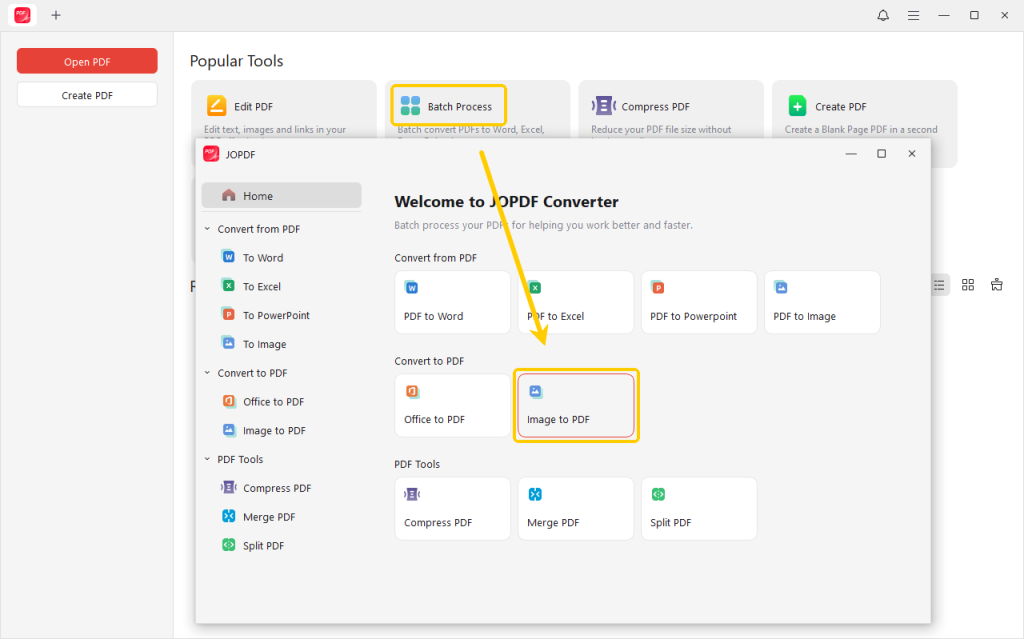
2. Next, add all the PNG images you want to convert.
3. Select the conversion method and page size.
4. Finally, select a location and click Start.
When done, you can check the document in JOPDF immediately or go to the folder.
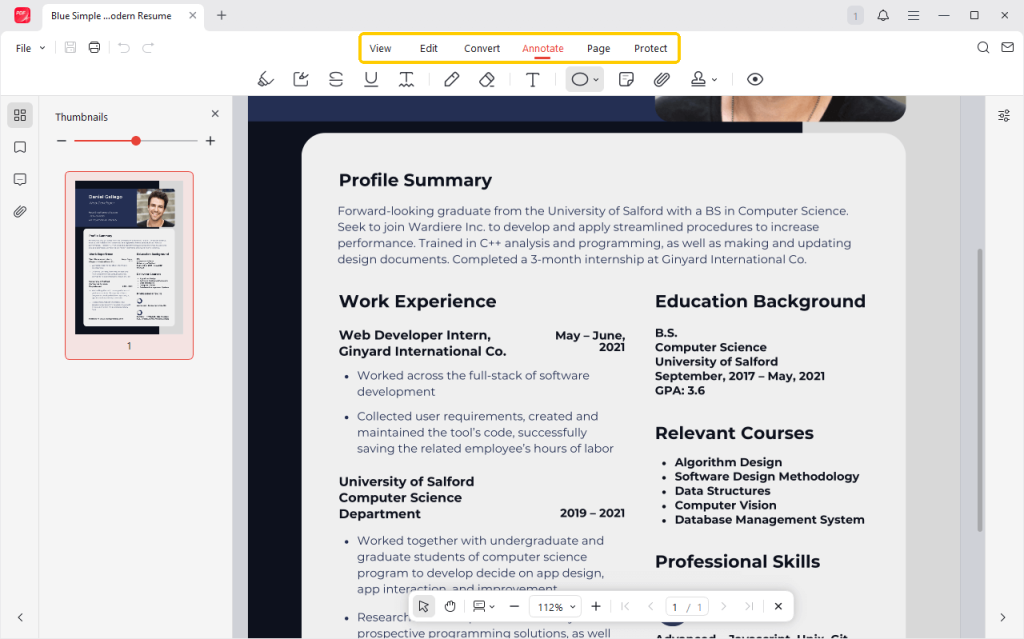
JOPDF is not merely a conversion tool; it is also a feature-rich and free PDF editor. With JOPDF, you can easily add text boxes, edit the existing text, add highlights, leave a comment, adjust page size, add password protection, and more.
When you want to edit the document, please choose Edit, Annotate, Page, and you will see the tools.
Method 4. How to Convert PNG to PDF Using an Online Converter
What if you are operating on a computer in a public library or working on a mobile phone/tablet where desktop software cannot be installed? You can use online tools. As long as there is an internet connection, you can complete the conversion quickly.
Here, let me take SwifDoo PDF Online Converter as an example. The reason for choosing it is that it is very fast, free from advertisements, and doesn’t require registration, which is very convenient.
Steps:
1. Open your web browser and go to SwifDoo PDF PNG to PDF Online Converter.
2. Click the Choose File button and select the PNG image.
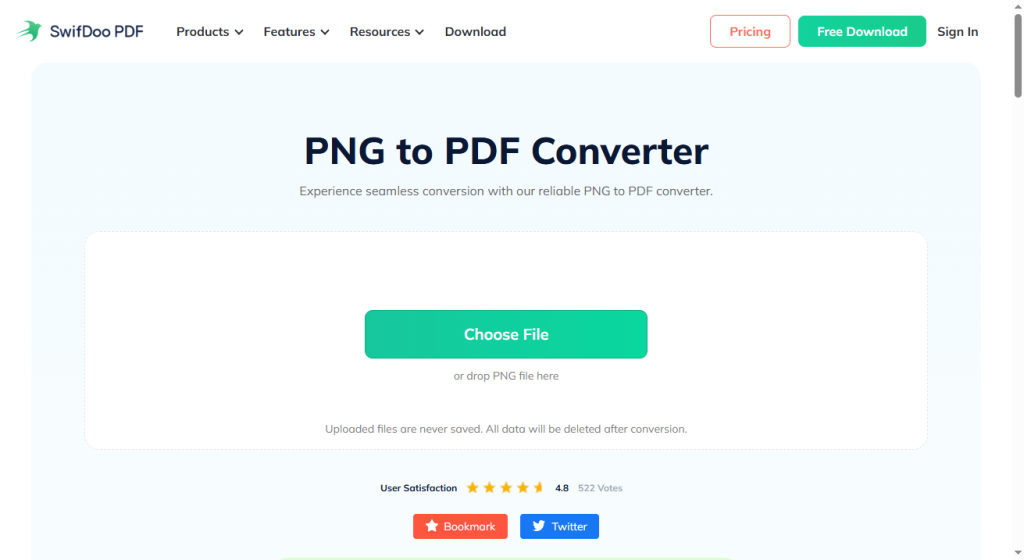
3. The website will automatically upload and convert your file. Once the conversion is complete, download the PDF document, and that’s it.
Conclusion
That’s all about how to convert PNG to PDF for free. If you need a quick, easy solution, built-in or online tools are good options. However, if you value quality and want to do more editing, then JOPDF would be a better choice.
Whether you need to save all the pictures as a single document or save each picture as a separate document, JOPDF can help. Moreover, you can continue editing the PDF document without effort. Try it now!
FAQs
Table of Contents

Your Best Free PDF Expert in PDF editing, compressing, converting, annotating, protect, organizing, and more.
Free DownloadWindows · macOS · Linux

Queena
Editor
“As a staff editor for JOPDF, Queena excels at guiding users to the optimal tools and solutions. When she's not analyzing the latest PDF solutions, she enjoys spending her free time playing with her four cats.”

![6 Must-Know Bank Statement Converters in 2026 [Full Review]](https://b.jopdf.com/wp-content/uploads/2026/03/bank-statement-converter.png)
