Summary :
Converting PDFs into images makes it easier to use documents in presentations, on social media, and on websites, while saving time and improving accessibility. Continue reading to discover how to convert PDF to image for free using 4 simple and practical methods.
1. [Fastest Way] Convert PDF to Image for Free Using JOPDF
JOPDF is a convenient free PDF editor that makes handling and organizing PDF files effortless. The tool makes it simple to convert a PDF to an image without losing quality.
You can convert your PDF documents to high-quality image formats, including JPG, PNG, and others. The tool is easy to use, requires no technical knowledge, and supports multiple image formats.
Accessible to everyone, JOPDF also makes it easy to convert PDFs to other formats, including Word, Excel, and PowerPoint.
Follow these steps to learn how to convert PDF to image formats for free with JOPDF.
Step 1. Download and install JOPDF on your Windows or Mac computer. And then launch it.
Step 2. On the start page, click Batch Process under Popular Tools. In the pop-up window, choose the PDF to image conversion tool.
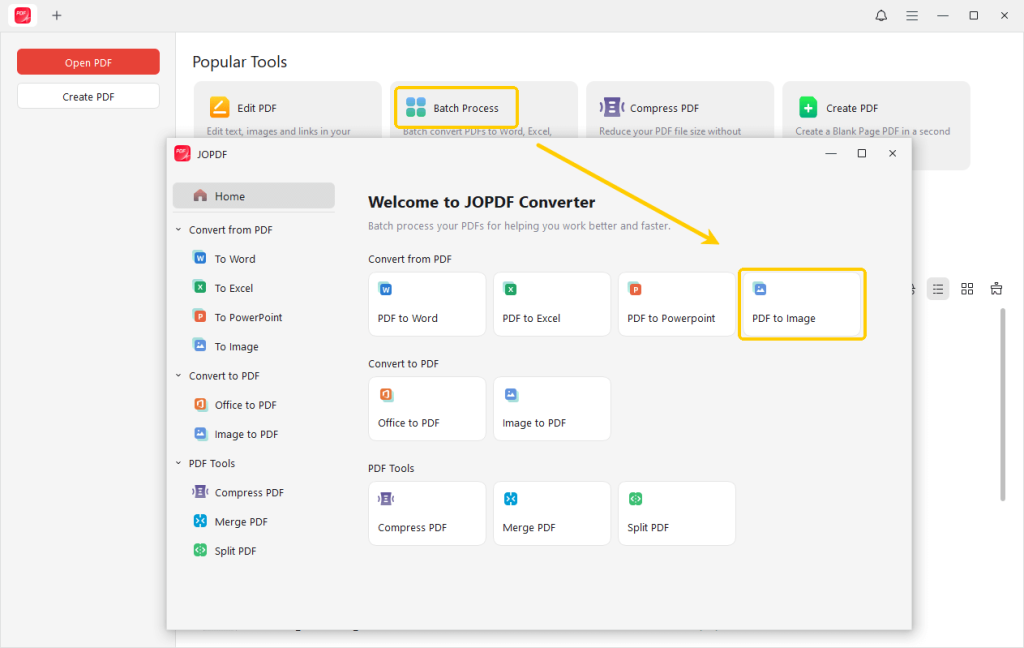
Alternatively, open your PDF document with the program, go to the Convert tab at the top, and select the To Image tool.
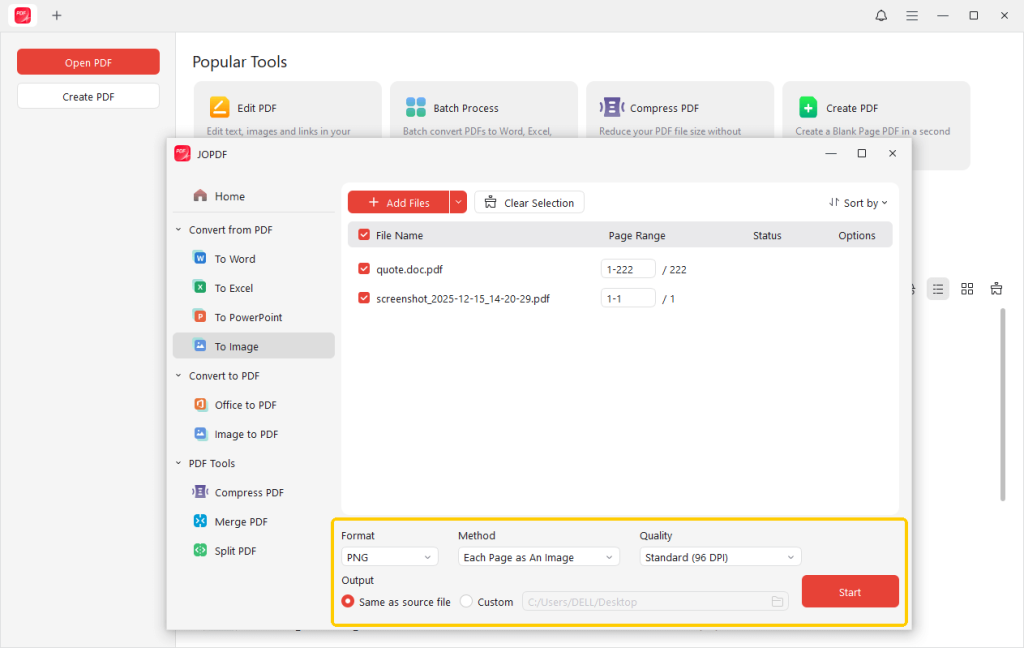
Step 2. Click the Add Files button to upload PDFs, or simply drag and drop them into the converter window.
Step 3. Then choose the Format option at the bottom and select the image format you wish to convert your PDF into, such as PNG, JPG, BMP, or TIFF.
Then, select the Quality for your image.
Make sure to choose the folder where you want to save the converted files.
Step 4. After configuring the settings, select Start to launch the conversion process. Your PDF will soon be converted to your preferred format.
In addition to converting PDFs to images, JOPDF offers a range of tools for easily editing, annotating, compressing, merging, splitting, and managing your PDF files.
The tool has no ads or watermarks and does not even require sign-up. Try JOPDF today and discover its wide range of useful PDF tools.
2. Convert PDF to Image on Mac in Preview
Preview is a standard Mac application that lets users open and manage PDFs with ease. With this feature, you can easily turn PDF pages into clear JPEG, PNG, or TIFF images.
Preview may not be the best PDF converter; it is mainly suitable for basic conversions. For Mac users, Preview is a free and straightforward tool for quick PDF-to-image conversions.
Use the instructions below to understand how to convert PDF to image for free with Preview on Mac.
Step 1. Start the Preview application on your Mac, then click File > Open to select the PDF you want to convert.
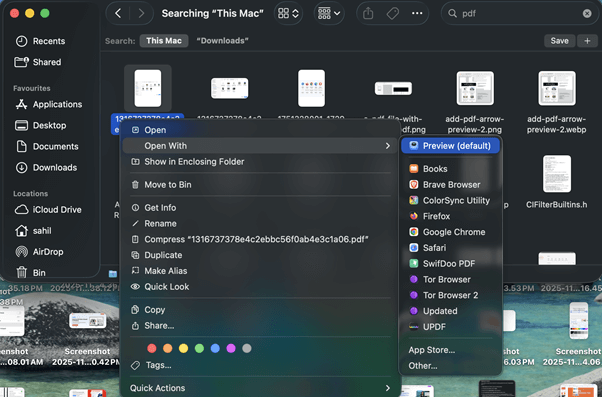
The file can also be opened by right-clicking the PDF and choosing Preview under Open With.
Step 2. From the menu bar, choose File, click Export…, and pick an image format like JPEG, PNG, or TIFF.
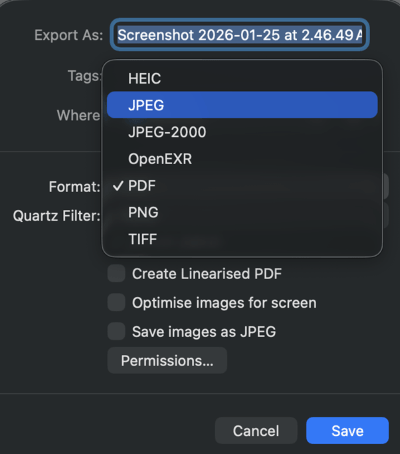
Step 3. Adjust the output settings, including quality, resolution, and pixels.
Step 4. After setting your preferences, click Save. Your PDF will then be exported and saved as an image.
While convenient, the editing capabilities in Preview are limited. You cannot edit existing text directly in a PDF.
However, JOPDF lets you easily edit text in PDF and remove unnecessary content before converting it into an image. You can also effortlessly add annotations, modify text, and delete unwanted elements using JOPDF.
3. Convert PDF to Image Online for Free
Canva is a widely used web-based platform recognized for its user-friendly design features. Easily convert PDF to PNG or JPEG, producing crisp, high-resolution images from your PDF documents.
Since Canva runs directly in any browser, no software installation is needed, making it perfect for fast, free online conversions. Beyond converting PDFs to images, it lets you edit, enhance, and customize your designs. In short, Canva offers a quick and reliable way to turn PDFs into PNG or JPEG online.
This guide shows how to convert PDF to image in Canva quickly and easily.
Step 1. Launch Canva, select Create a design > Import file, or drop your PDF onto the home screen.
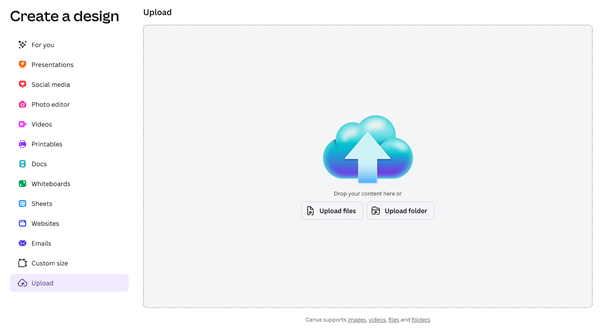
Step 2. Once your PDF is uploaded, open it from Recent Designs. You can change text, update colors, or add design elements as required.
Step 3. In the top-right corner, click Share, then choose Download. Choose JPG or PNG as the file type. Tweak quality or size as needed, then click Download to save it to your device.
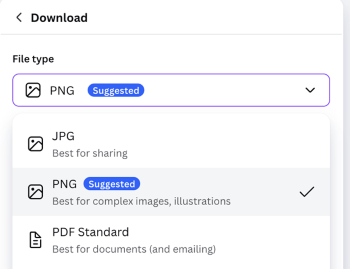
Step 4. If your PDF includes multiple pages, select the pages you wish to save, then click Download.
4. Convert PDF to Image by Taking Screenshots
By taking screenshots of PDF pages, you can quickly generate high-quality images without installing any software.
This method is ideal for single pages or specific sections of a PDF. Screenshots aren’t well-suited to very large documents, yet they make converting PDFs to images simple and fast. All in all, they offer a convenient and trustworthy way to convert PDFs to images.
Here’s a free way to convert a PDF to an image on Windows and Mac using screenshots.
#On Windows
Step 1. Access your PDF in Chrome, Edge, or a PDF viewer, then locate the page you plan to convert.
Step 2. Click the Fit to Page option to display the entire PDF page on your screen.
Step 3. Hit Windows + Shift + S to activate the Snipping Tool.
Step 4. Use the crosshair tool to click and drag over the section of the PDF page you want to screenshot.
Step 5. After the thumbnail appears, click it, then click Save and choose JPEG or PNG as the format.
#On Mac
Step 1. Launch your PDF file using Preview.
Step 2. Navigate to the page you wish to convert into an image.
Step 3. Activate the screenshot tool by pressing Command + Shift + 4, then drag the crosshair to choose the area to capture.
Step 4. As soon as you release the keys, the screenshot will be captured.
By default, your screenshot is saved to the desktop.
Conclusion
Learning how to convert PDF to image allows you to quickly get documents ready for websites, social media, or presentations. The methods highlighted above give simple, cost-free solutions to get the job done. Hope this guide is helpful!
FAQs
Table of Contents

Your Best Free PDF Expert in PDF editing, compressing, converting, annotating, protect, organizing, and more.
Free DownloadWindows · macOS · Linux

Queena
Editor
“As a staff editor for JOPDF, Queena excels at guiding users to the optimal tools and solutions. When she's not analyzing the latest PDF solutions, she enjoys spending her free time playing with her four cats.”