Introduction
In this guide, we will walk you through how to convert Excel to PDF using four free methods. Whether you need a quick snapshot using built-in tools, a way to build a narrative report in Word, or a powerful method to edit the document after conversion using JOPDF, we have you covered.
Before You Convert: Tips to Keep Page Layout
If you simply hit “Convert” on a wide spreadsheet without prepping it, you will likely end up with a PDF where half your table is cut off. To avoid this, follow these quick pre-conversion steps inside Excel:
🔶 Use Page Break Preview: Go to the View tab and click Page Break Preview. This will show you exactly where Excel plans to cut your pages with blue dotted lines. You can drag these lines to adjust what fits on one page.
🔶 Switch to Landscape: If your table is wide (many columns), go to Page Layout > Orientation and switch from Portrait to Landscape.
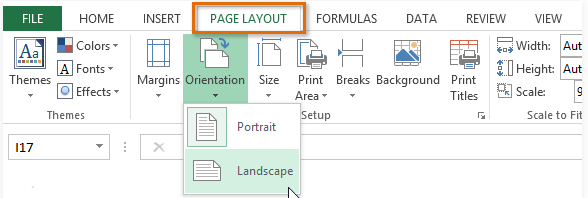
🔶 The “Scale to Fit” Trick: This is the lifesaver. Go to Page Layout. Look for the “Scale to Fit” section. Change the width from “Automatic” to “1 page.” This forces Excel to shrink your data slightly so it all fits perfectly on a single sheet width-wise.
Once your layout looks good, you are ready to use one of the methods below.
Method 1. How to Convert Excel to PDF Using JOPDF (Highly Recommended)
JOPDF is a robust desktop PDF converter and editor. It transforms the conversion process from a final step into a flexible workflow. It is the only method on this list that gives you total control over the document after conversion.
Benefits of Using JOPDF
✅ Editing: You can fix numbers, typos, or add text to the PDF without reopening Excel.
✅ Security: JOPDF processes files offline on your computer. If you are handling sensitive financial data, this is much safer than uploading it to an online converter.
✅ Organization: Easily delete unwanted pages or rearrange the PDF order if your spreadsheet is split awkwardly.
Steps to save Excel to PDF with JOPDF:
1. Click the download button below. Install and launch the software.
2. On the homepage, select Batch Process and select Office to PDF.
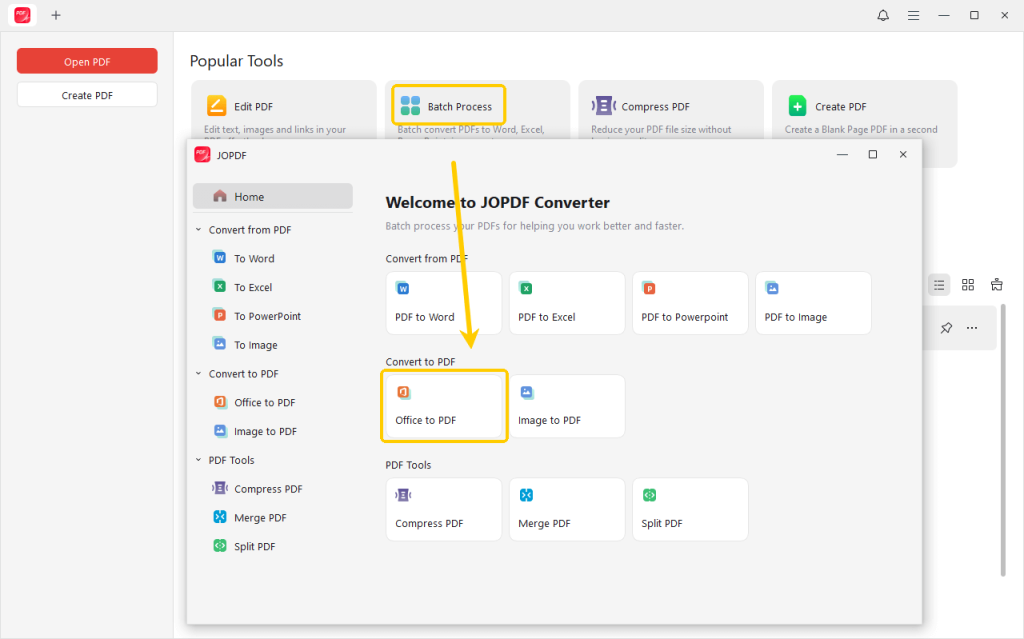
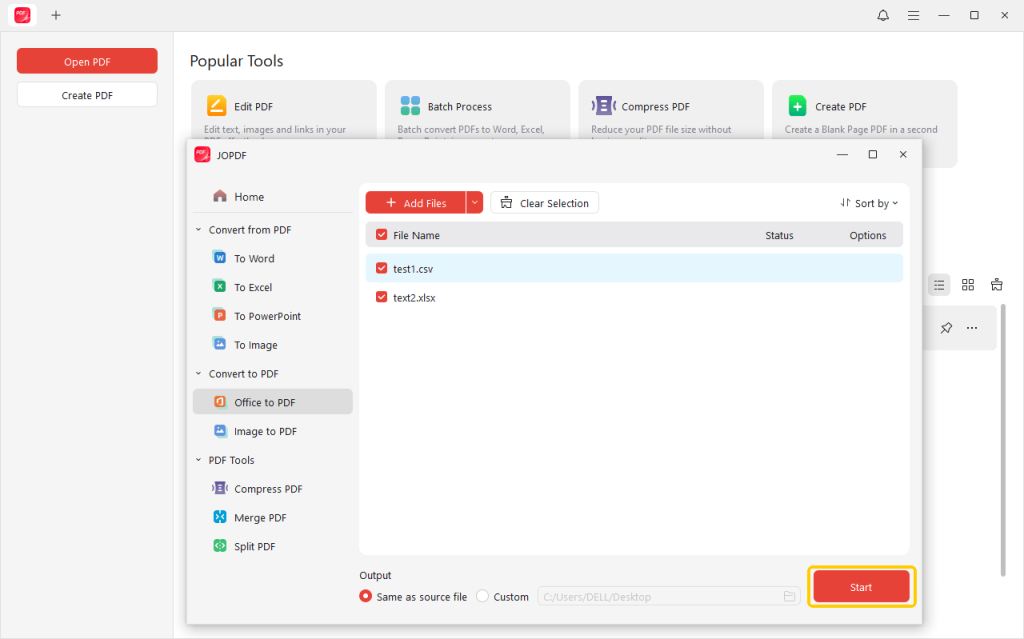
3. Then, add the Excel document. JOPDF supports batch processing, so you can add as many documents as you want to convert.
4. Finally, select an output path and click Start. The software will instantly convert the spreadsheet into a high-quality PDF document.
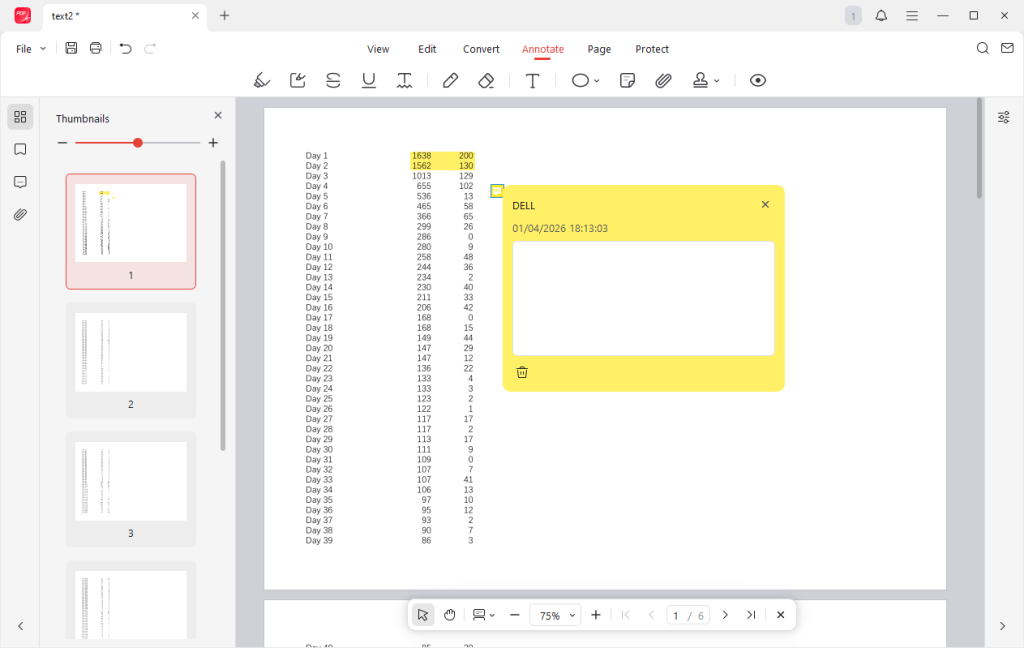
After conversion, you can open the document in JOPDF and make edits immediately. For example, you can go to Annotate and highlight important sections.
Method 2. How to Convert Excel to PDF Using Microsoft Word
Microsoft Excel has an Export feature to help you change Excel to PDF. However, if you want to convert Excel to PDF without cutting out, you should set the correct orientation and adjust the page margins.
Steps to export Excel to PDF:
1. Open the document in Microsoft Excel. Go to Page Layout > Orientation and select Landscape. If needed, you can also change margins and page size.
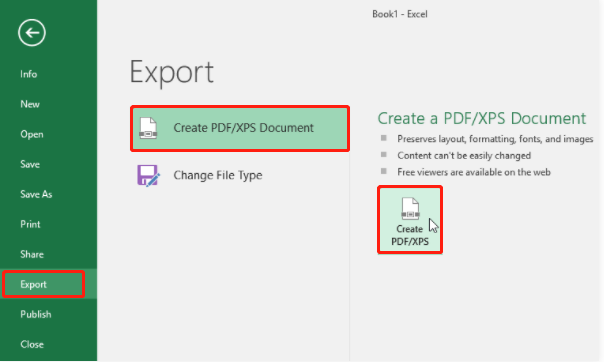
2. Next, click File and choose the Export option. Select Create PDF/XPS to continue.
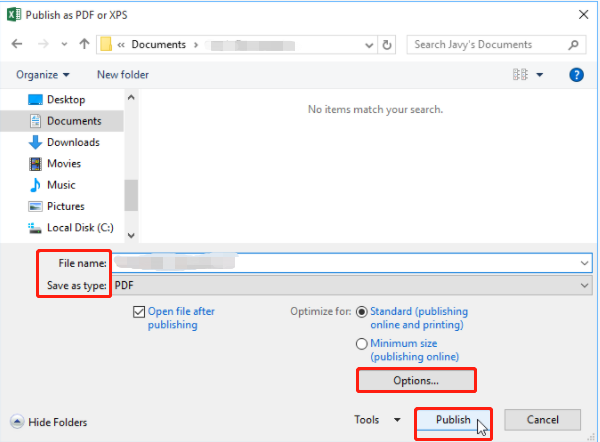
3. Name the file and adjust settings by going to Options. For example, you should select the Entire workbook if you want to save the whole Excel worksheet into a PDF.
4. Finally, click Publish to start.
Method 3. How to Convert Excel to PDF with Print Feature
In fact, you don’t necessarily need to install new software if you just need a static snapshot of your data. Both Windows and Mac computer includes a virtual printer that creates files instead of paper.
This method is fast, free, and already installed on your computer.
Steps:
1. Launch your spreadsheet in Microsoft Excel.
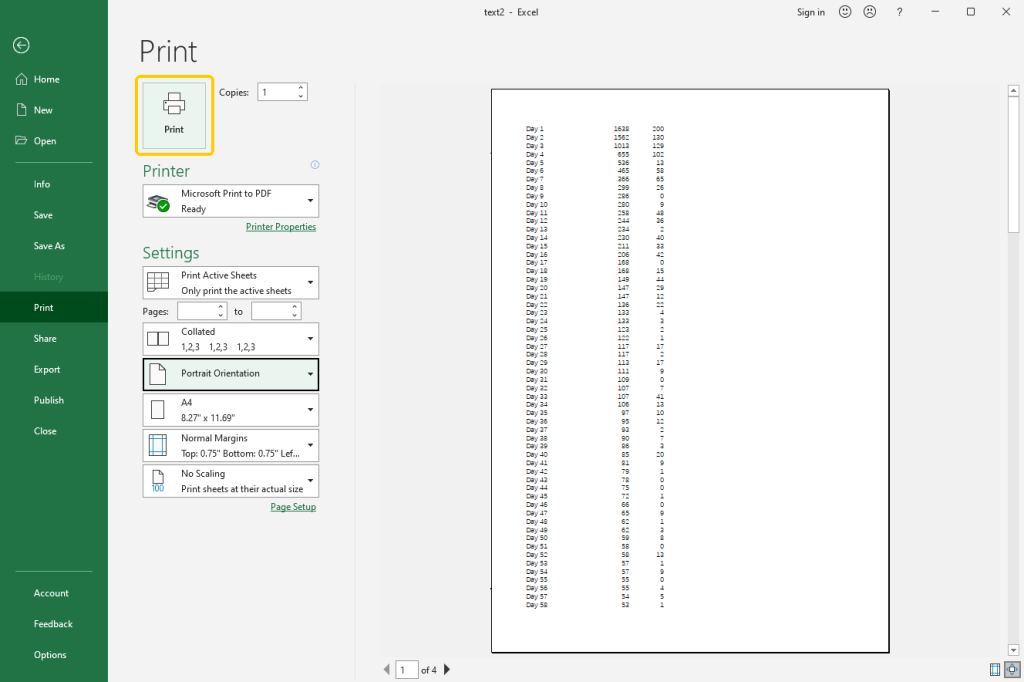
2. Go to File > Print or use the keyboard shortcut: Ctrl + P (Windows) or Cmd + P (Mac).
3. In the “Printer” dropdown menu, do not select your physical office printer. Instead, select “Microsoft Print to PDF. On a Mac computer, please select Save as PDF.
4. Next, you can adjust the settings to satisfy you need.
5. When OK, save the document: click Print, name the file, select a destination, and click Save.
Method 4. How to Convert Excel to PDF Online
Another way to convert Excel to PDF is using an online converter. You don’t need to install any software. As long as there is an internet connection, you can complete the conversion directly in your browser.
Most online tools have a file-size limit, so this method is better suited to converting small documents.
Steps:
1. Open your web browser (Chrome, Safari, etc.) and go to an online Excel to PDF converter, like SwifDoo PDF. This tool does not require registration and is ad-free.
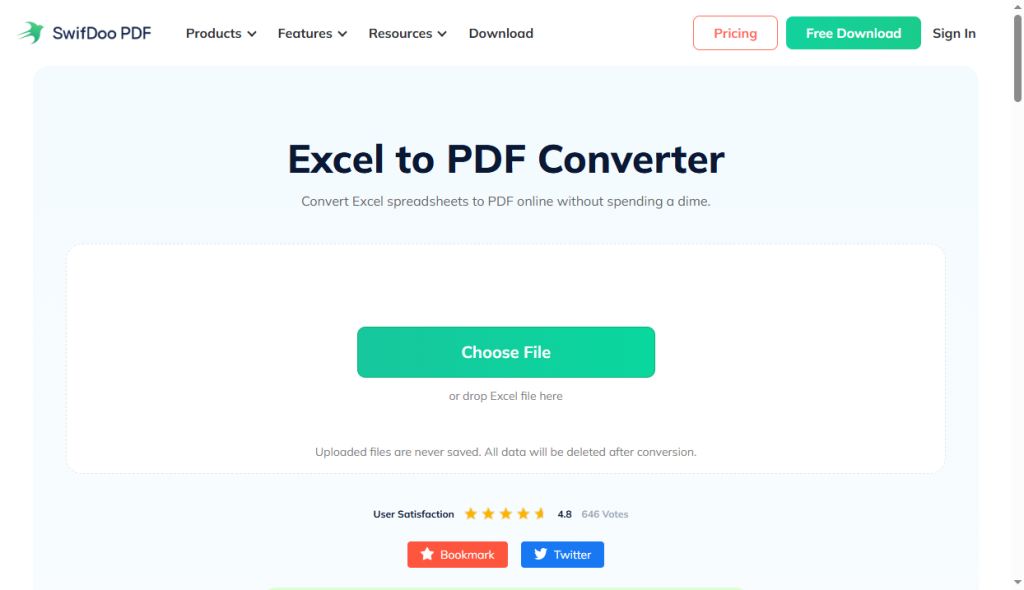
2. Drag your Excel file into the upload box, and the tool will start the process automatically.
3. Wait a few seconds, then click Download to save the PDF to your device.
Comparison: Choosing the Right Method
The four methods above can all help you convert the documents. If you don’t want to try them one by one, then we have compiled a selection guide. Here is a quick summary of when to use each tool:
👍 JOPDF: The Overall Winner. This is the professional choice. If you want to edit the PDF, adjust the page order, and keep your data secure offline, JOPDF is the tool you should try.
Microsoft Excel: Use this if your Excel data is just one part of a written report.
Microsoft Print to PDF: It’s built-in, free, and great for a simple “snapshot” of your data.
SwifDoo Online: Use this when you can’t install software or for one time task
Conclusion
That’s all about how to convert Excel to PDF for free.
You can choose the most suitable method based on your situation. For simple daily tasks, the built-in functions are sufficient. However, if you want more control and the ability to freely edit after conversion, JOPDF would be a better choice.
FAQs
Table of Contents

Your Best Free PDF Expert in PDF editing, compressing, converting, annotating, protect, organizing, and more.
Free DownloadWindows · macOS · Linux

Queena
Editor
“As a staff editor for JOPDF, Queena excels at guiding users to the optimal tools and solutions. When she's not analyzing the latest PDF solutions, she enjoys spending her free time playing with her four cats.”
![6 Must-Know Bank Statement Converters in 2026 [Full Review]](https://b.jopdf.com/wp-content/uploads/2026/03/bank-statement-converter.png)
