Introduction :
HEIC is a modern image format used by Apple devices that offers better compression and higher quality than older image formats. However, HEIC is not always compatible with all platforms and software. If you need to share or print HEIC images, converting them to PDF can be a practical solution. In the comprehensive JOPDF article, I will walk you through the best methods to convert HEIC to PDF on Mac, Windows, iPhone, and online.
What Is an HEIC Image
HEIC (High-Efficiency Image Format) is a digital image format that can store individual digital images and image sequences. It is commonly used by Apple devices owing to its superior compression, which allows for smaller file sizes while maintaining higher quality.
However, HEIC is not widely supported by many platforms and devices. For this reason, it is necessary to convert HEIC to PDF for easy sharing and printing. How to change HEIC to PDF effectively? Please read on.
How to Convert HEIC to PDF on Mac
If you are a Mac user, you have a few convenient methods for converting HEIC files to PDF. Whether you’re using the built-in tools or third-party HEIC to PDF converters, converting your images is a straightforward process.
Method 1. Built-in Feature to Change HEIC to PDF in Preview
One of the easiest ways to convert an HEIC file to PDF on macOS is to use Preview, which is built into macOS. In most cases, we only use Preview to open and view images and PDFs. Surprisingly, Preview includes a feature to convert HEIC to PDF. Additionally, it can convert JPG, PNG, and BMP to PDF for free. How to convert HEIC to PDF on Mac with Preview? Follow the steps below.
Step 1. Right-click the HEIC image file, select “Open With”, and choose “Preview”.
Step 2. When the HEIC image is shown in Preview, click File from the top menu bar and click the Export as PDF option.
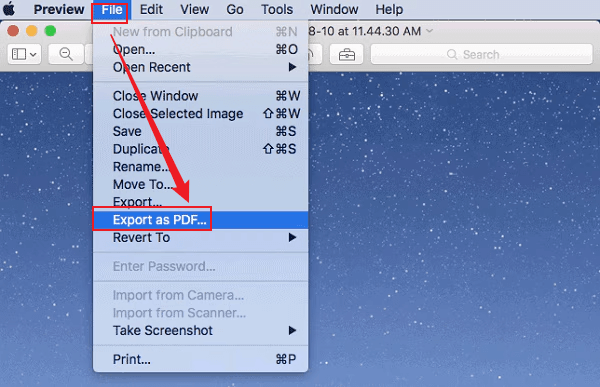
Step 3. Choose the output folder, name the new PDF file, and click Save to save it.
Tips
To change HEIC to PDF in Preview, you can also go to File and select Print. Click the PDF button and select the Save as PDF option. Next, choose a destination to save it and click Save.
Method 2. Batch Convert HEIC to PDF for Free with JOPDF
If you have multiple HEIC files to convert, you can batch convert them to PDF using JOPDF, a free PDF converter for Mac and Windows. In addition, JOPDF supports combining images into a PDF. With this feature, you can combine multiple HEIC images into a single PDF. Furthermore, JOPDF is a free PDF editor. After you get the new PDF file from HEIC, you can edit, draw, write, organize, and annotate it in JOPDF effectively.
Here, let’s learn how to batch convert HEIC to PDF on Mac for free with JOPDF.
Step 1. Click the button below to download and install this free HEIC to PDF converter on your Mac. Then launch it to access its main interface.
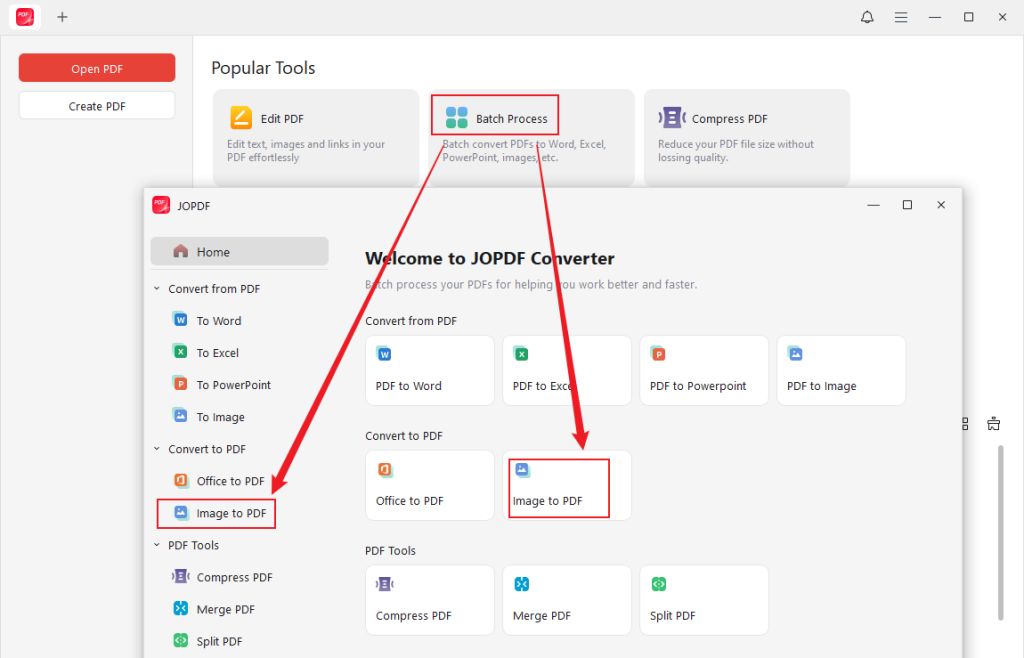
Step 2. Click the second Batch Process option and hit the Image to PDF option under Convert to PDF.
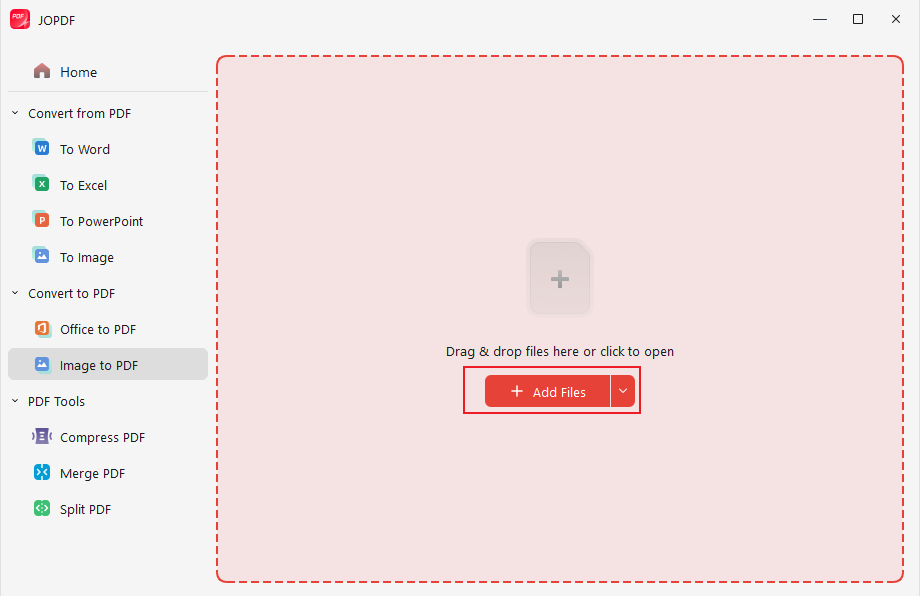
Step 3. Import the target HEIC images by dragging and dropping them into JOPDF. Or, click Add Files.
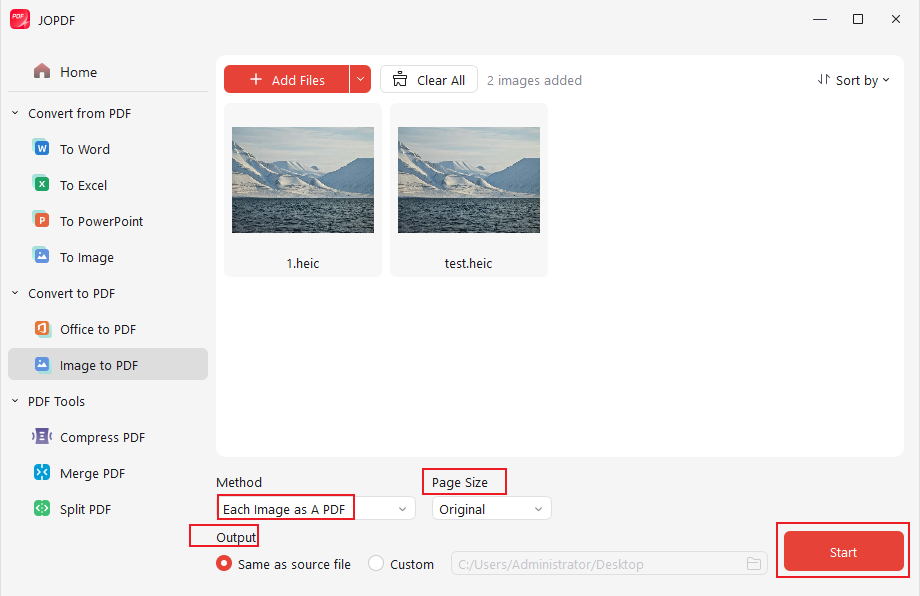
Step 4. Keep the default Each Image as A PDF option for Method, customize Page Size, choose the destination folder, and click Start to batch convert HEIC files to PDF files.
Tips
If you want to combine all imported HEIC images as a single PDF, set the All Images as A PDF option for Method.
How to Convert HEIC to PDF on Windows
For Windows users, you can find that converting HEIC to PDF requires third-party software, but there are still a few effective methods to get the job done. Now, let’s check them one by one.
JOPDF also allows you to convert HEIC to PDF on Windows. The conversion steps are similar on Mac. You can also download JOPDF for Windows on your Windows computer and use it to convert and edit images and PDFs with ease.
Method 1. Convert HEIC to PDF on Windows with SwifDoo PDF
SwifDoo PDF is a feature-rich PDF editor and converter. With a few clicks, you can change HEIC to PDF easily. Additionally, its batch conversion feature enables you to convert multiple files simultaneously. What’s more, SwifDoo PDF is an image converter that allows converting images to JPG, PNG, BMP, and icons, as well as Excel/Word/PowerPoint to PDF. Let’s learn how to convert HEIC to PDF on Windows using SwifDoo PDF.
Step 1. Install SwifDoo PDF on your Windows PC and launch this HEIC to PDF converter.
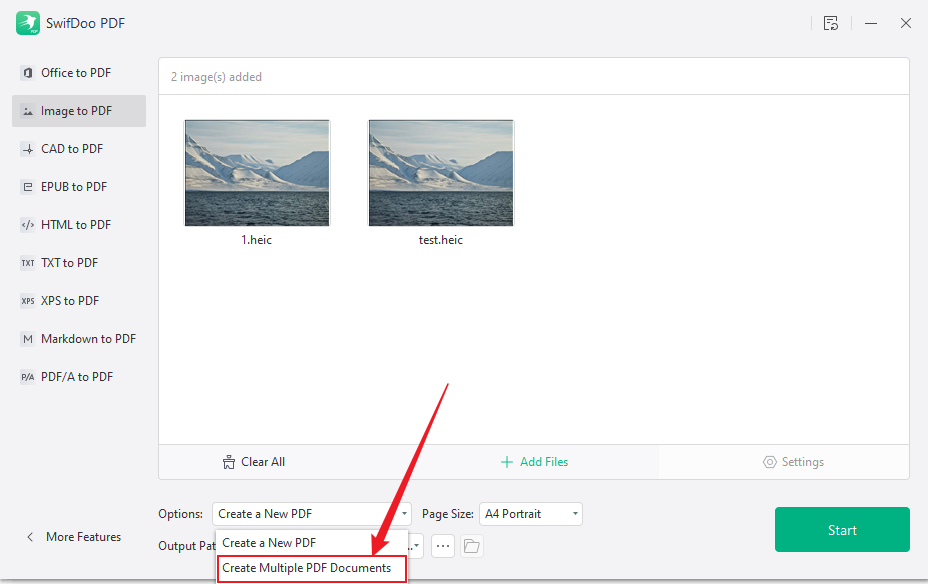
Step 2. Switch to the Convert tab and select the Image to PDF option.
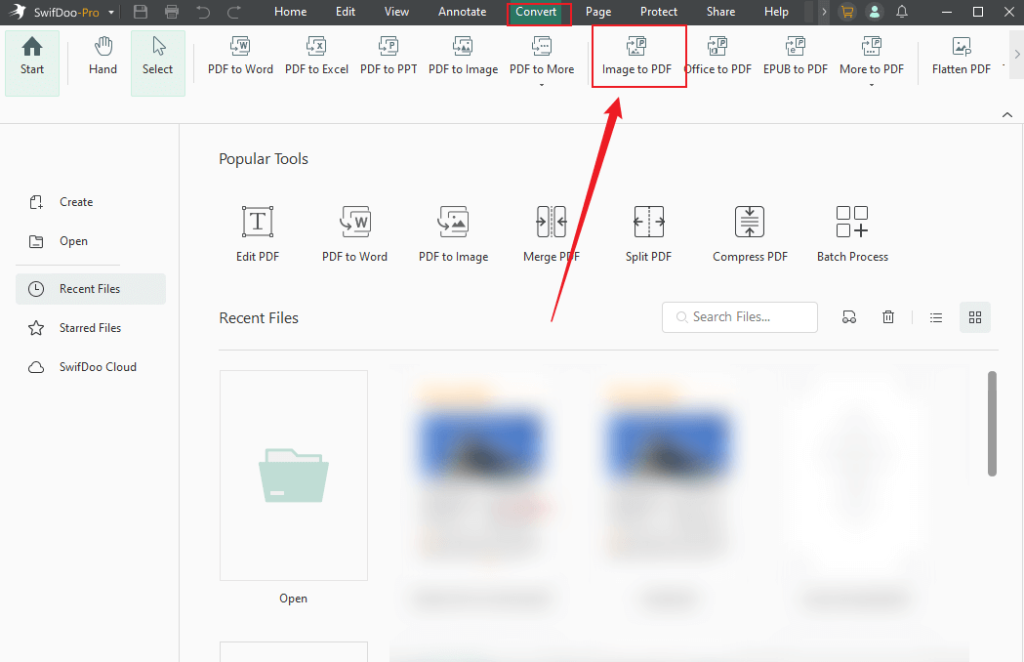
Step 3. Click the + Add Files button to import the HEIC image you want to convert. Adjust other export settings as needed. Finally, click Start.
Tips
If you uploaded several HEIC images, you can choose the Create a New PDF option to combine all images as a single PDF. Or, choose the Create Multiple PDF Documents option to batch convert HEIC to PDF.
Method 2. Change HEIC to PDF Using Microsoft Print to PDF
If you don’t want to install third-party software, you can also use the built-in “Microsoft Print to PDF” feature on Windows. This feature is a virtual printer that converts images and documents to PDF files. How to change HEIC to PDF using Microsoft Print to PDF on Windows? Since Windows doesn’t natively support HEIC images, you need to install the HEIF Image Extension from the Microsoft Store first. Then, follow the steps below.
Step 1. After you install the HEIF Image Extension, you can open and view HEIC images on Windows PCs. Locate the HEIC image you want to convert, right-click on it, and open it in Photos.
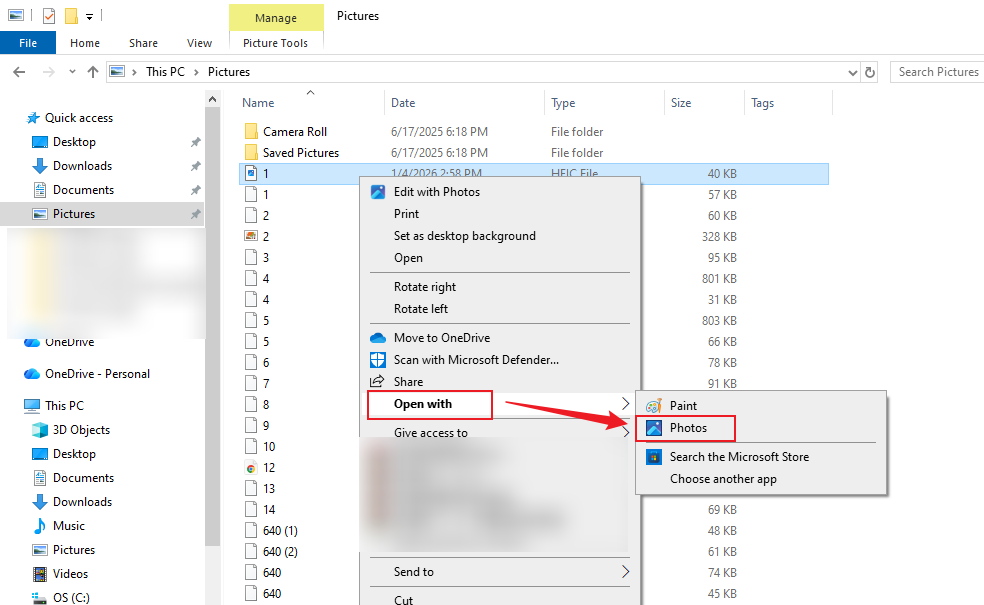
Step 2. Click the Print icon from the top menu bar or press Ctrl + P to enable the Print dialog.
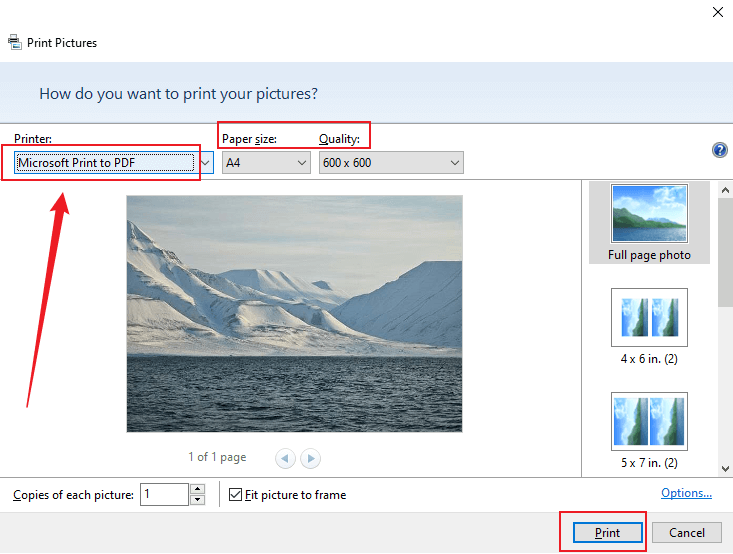
Step 3. Open the Printer list and select Microsoft Print to PDF. Personalize the paper size and quality. Next, Click Print.
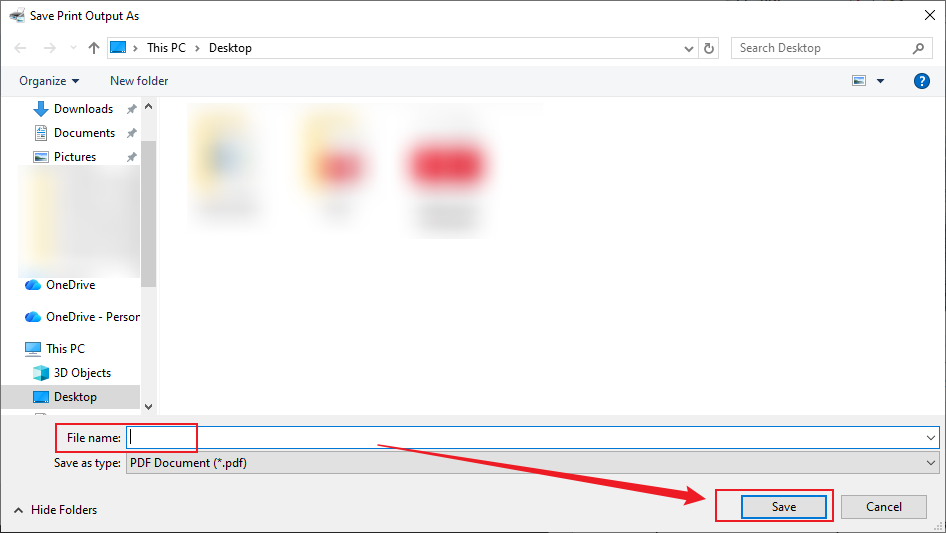
Step 4. The Save Print Output As window will appear, name the new PDF file, choose a folder to save it, and click Save.
How to Convert HEIC to PDF on iPhone
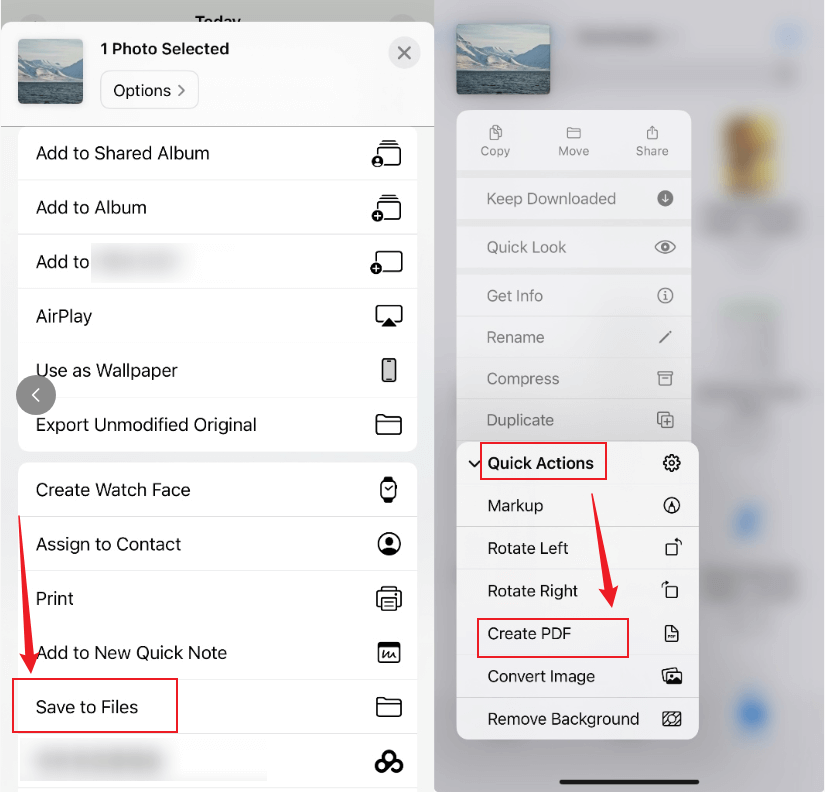
Is it possible to convert an HEIC file to PDF on iPhone or iPad? Of course! The iPhone’s built-in feature lets you convert HEIC files to PDF. The iPhone’s built-in Files app allows you to do that. How to convert HEIC to PDF on iPhone? Below is the step-by-step guidance for your reference.
Step 1. Find the HEIC image in the Photos app, tap the Share icon, and choose the Save to Files option. Next, select a folder to save it to.
Step 2. Then, open the Files app to find the newly saved HEIC image.
Step 3. Tap and hold the HEIC image, hit Quick Actions, and select the Create PDF option. Later, you can find the new PDF automatically created in the same folder.
How to Convert HEIC to PDF Online
For those who prefer not to download any software, converting HEIC to PDF online is a great alternative. There are many free online tools that can help you convert HEIC files into PDF format quickly.
- SwifDoo PDF Online PDF Converter
- Smallpdf
- FreeConvert
- CloudConvert
- PDF Candy
How to convert HEIC to PDF online? Most online tools offer an intuitive and user-friendly interface. Here, I only take Smallpdf as an example to show you how to change an HEIC file to PDF online.
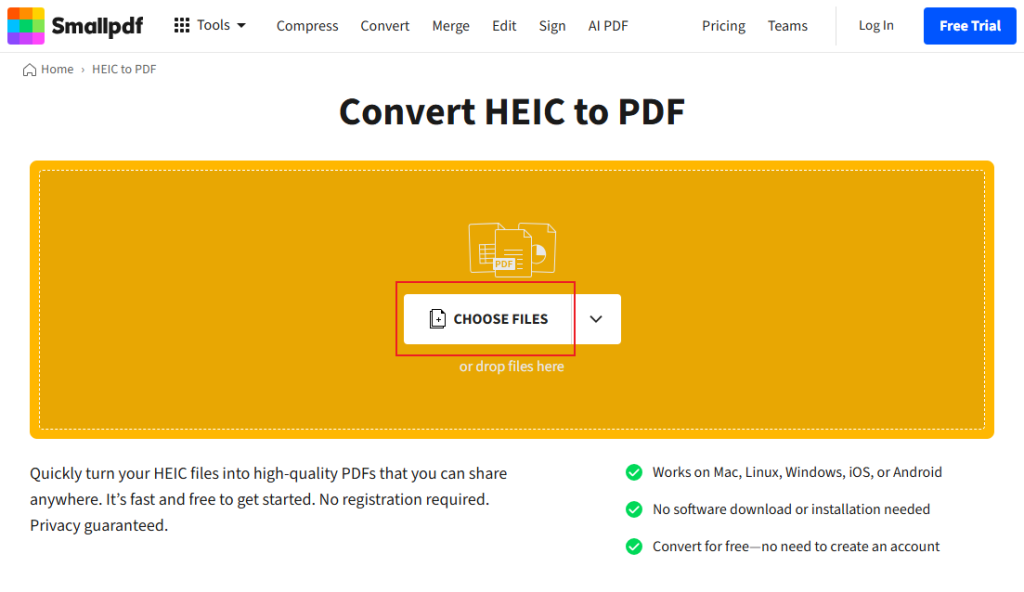
Step 1. Visit Smallpdf’s HEIC to PDF Converter website first.
Step 2. Click CHOOSE FILES to import the HEIC image you want to convert.
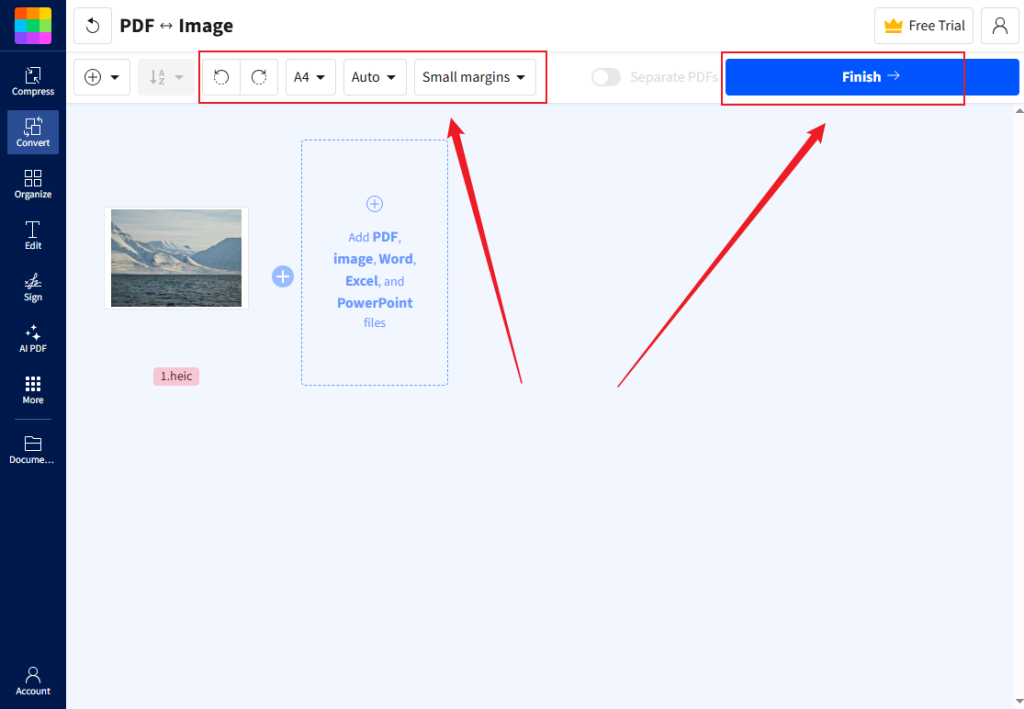
Step 3. Then, adjust the new PDF page size, orientation, and margins as needed. Next, click the Finish button to start the conversion. Once the conversion is complete, click Download to save the new PDF.
A Quick Sum Up
Though HEIC offers excellent compression and quality, it lacks widespread compatibility. Converting HEIC files to PDF can be helpful for sharing and printing. In this article, I introduce several methods for converting HEIC to PDF, ranging from built-in features on Mac, Windows, and iPhone to third-party apps and online tools. Now, choose the method that works best for you and give it a try!
FAQs
Go to Batch Process > Image to PDF.
Click Add Files to import HEIC images.
Select the Each Image as A PDF option for Method.
At last, click Start.
Table of Contents

Your Best Free PDF Expert in PDF editing, compressing, converting, annotating, protect, organizing, and more.
Free DownloadWindows · macOS · Linux

Olivia
“Olivia is an editor at JOPDF, where she writes practical guides and insightful articles on managing PDFs—covering topics like editing, annotating, converting, and organizing files efficiently. Passionate about clear communication and digital productivity, Olivia enjoys spending her free time cooking, watching movies, and hiking to unwind and find inspiration for her writing.”