Summary :
Dealing with a normal PDF is hard enough. But a scanned PDF is even worse. How to convert scanned PDF to Excel? To do that, you need special tools that can “read” pictures. Here are three easy ways to do it.
Way 1: Convert Scanned PDF to Excel Using JOPDF (Highly Recommended)
If you want the best results without any headaches, we highly recommend using JOPDF.
Why Choose JOPDF?
✅ Total Privacy: It works completely offline on your own computer. You do not have to upload your private bank statements or company invoices to the internet.
✅ Great Accuracy: JOPDF is very smart at keeping your tables looking right. It remembers where the columns and rows are supposed to be.
✅ Easy to Use: You do not need to be a computer expert to figure it out.
✅ Various Features: It can also help you edit text in PDF, delete unwanted images, split or merge files before conversion.
Here is how to convert scanned PDF to Excel with JOPDF:
1. Download and install the software on your computer. It works well on Windows, macOS, and Linux.
2. Next, go to Batch Process and select the PDF to Excel option.
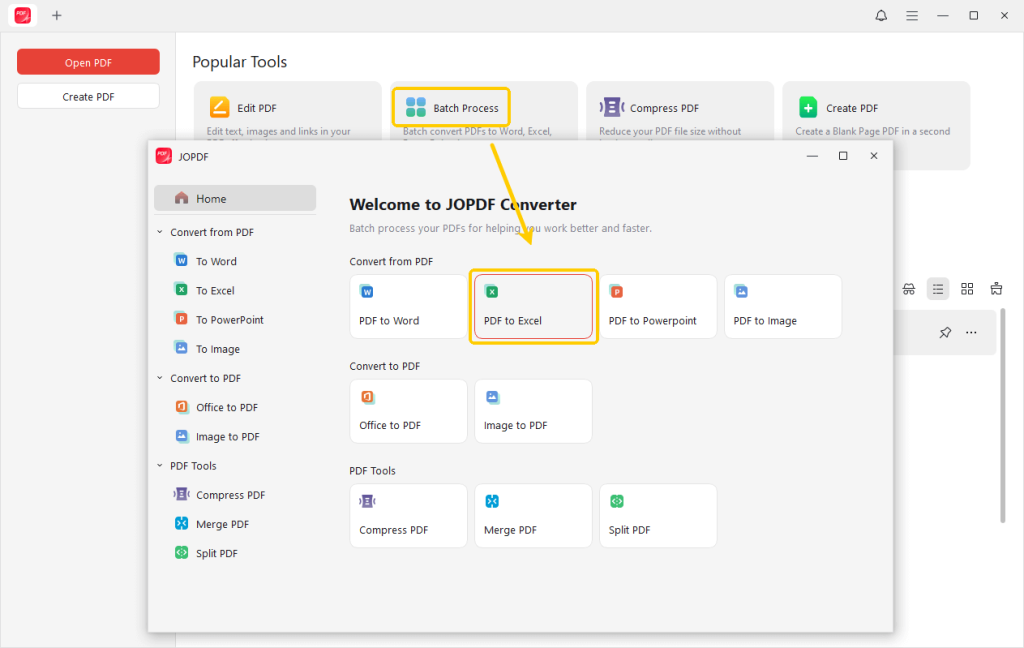
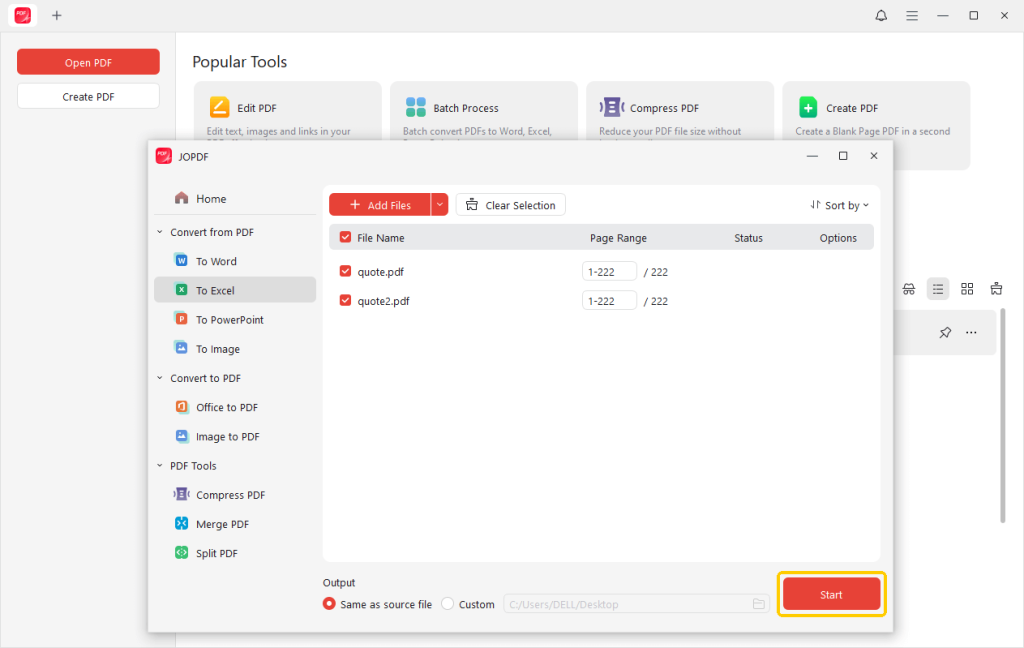
3. Then, add all the PDF documents you want to convert. If needed, you can adjust the page range to save time.
4. Finally, select an output path and click Start. When done, you can immediately open the Excel document and do anything.
Using JOPDF is very simple, right? That’s because JOPDF is designed to enable users to complete various tasks with minimal effort.
It can also help you convert Excel to PDF. If you often work with PDFs, it can be a good assistant! Give it a try!
Way 2: Convert Scanned PDF to Excel with Excel “Get Data” Feature
In newer versions of Excel, the Get Data feature can help users pull data from PDFs, including scanned ones.
This is a great option if you already pay for Microsoft Office and you do not want to download any new software. It keeps all your work inside a program you already know.
Here is how to use the Get Data Feature:
1. Start Microsoft Excel and open a brand new, empty workbook.
2. Look at the menu ribbon at the very top of your screen. Click the Data tab.
3. On the far left side, click the button that says “Get Data.” A menu will drop down. Move your mouse to From File, and then click on From PDF.
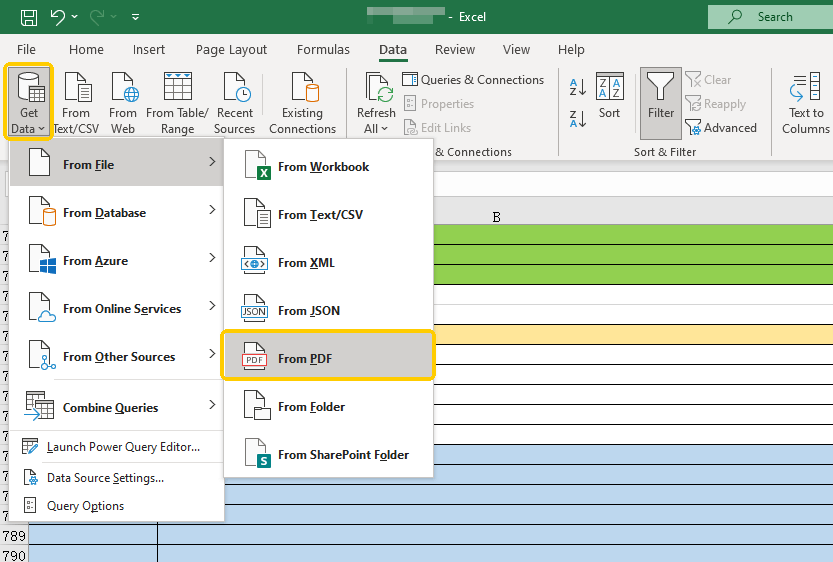
4. Find your scanned PDF on your computer and open it. Excel will now try to look at the picture and guess where the tables are.
5. Then, you will see a new window called the “Navigator”. It will show a list of the tables it found. Click on them to see a preview.
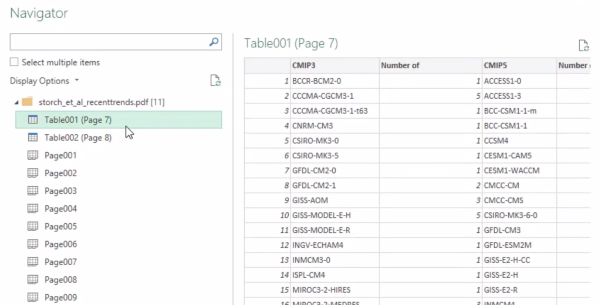
If the preview looks good, click the “Load” button at the bottom. The numbers will pour into your spreadsheet.
Tips
Excel’s built-in tool is good, but it is not perfect. If your scanned paper was wrinkled, crooked, or blurry, Excel might make a few mistakes. You might need to fix a few numbers by hand after it loads.
Way 3: Convert Scanned PDF to Excel Online Using iLovePDF
Don’t want to install software for a one-time task? In this case, an online converter website is very handy.
One of the most popular websites for this is iLovePDF. It has a special OCR tool just for scanned documents. It is fast, it works inside your web browser, and you do not need to install anything.
Check to learn how to convert PDF online for free:
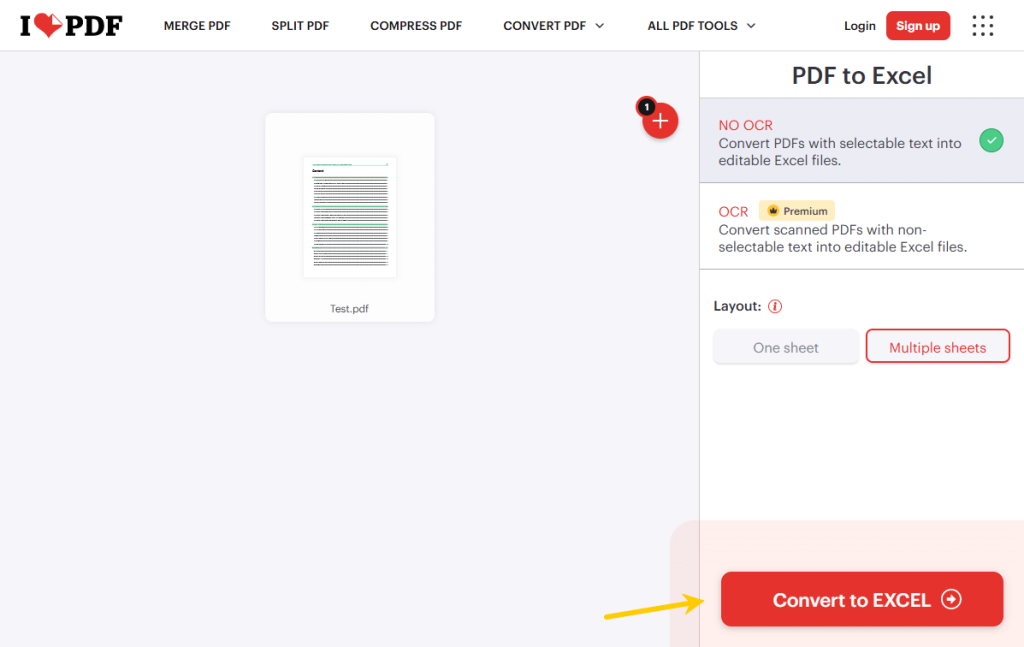
1. Open your web browser and go to the iLovePDF website. Look for the tool called “PDF to Excel.” Or, you can visit the converter directly: https://www.ilovepdf.com/pdf_to_excel.
2. Click the big button to select your file, or just drag your scanned PDF from your computer and drop it onto the webpage.

3. Before you click convert, look at the options on the screen. You must select the button that says “OCR.” If you use the normal conversion without OCR, the website will just give you a blank Excel sheet.
Note: Using the website’s OCR feature usually requires a premium account.
4. Hit the convert button. Once it is finished, a download button will appear. Click it to save your new Excel file.
Tips
When you use a website, you are sending your file across the internet to their servers. If your document contains highly sensitive information, this might not be the safest choice.
When you use a website, you are sending your file across the internet to their servers. If your document contains highly sensitive information, this might not be the safest choice.
Conclusion
That’s all about how to convert scanned PDF to Excel. Turning a static picture of a document into a working spreadsheet might seem like magic, but it is really just OCR technology doing the heavy lifting.
If you are in a rush and do not mind using the internet, iLovePDF is a quick fix. If you want to use the tools you already have, try Excel’s hidden Get Data feature.
However, if you want the safest, most accurate, and most private way to handle your documents, downloading JOPDF is the smartest choice. Anyhow, you can try all three methods to find the best one!
FAQs
Table of Contents

Your Best Free PDF Expert in PDF editing, compressing, converting, annotating, protect, organizing, and more.
Free DownloadWindows · macOS · Linux

Queena
Editor
“As a staff editor for JOPDF, Queena excels at guiding users to the optimal tools and solutions. When she's not analyzing the latest PDF solutions, she enjoys spending her free time playing with her four cats.”
![6 Must-Know Bank Statement Converters in 2026 [Full Review]](https://b.jopdf.com/wp-content/uploads/2026/03/bank-statement-converter.png)