Summary :
If you want to know how to convert PDF to Excel without losing formatting, you are in the right place. In this article, we will show you three simple ways to move your data safely. We will explore a powerful computer program called JOPDF, a hidden trick built into Microsoft Excel, and a quick online website for emergencies.
1. The Best Way to Convert PDF to Excel Without Losing Formatting: JOPDF
If you want the absolute best results with minimal effort, you should use a professional computer program. Our top recommendation is JOPDF.
JOPDF is built specifically to help users handle PDF tasks in daily life. When it comes to moving tables from a PDF into a spreadsheet, it has a very smart engine that recognizes the invisible lines, rows, and columns on the page. Then, it t rebuilds them perfectly in Excel.
The Advantages of Using JOPDF:
✅ Perfect Accuracy: It keeps your formatting exactly as it looks in the original PDF. Your rows and columns stay organized.
✅ Super Fast: Even with a massive PDF report, JOPDF can process it in just a few seconds. It can also batch convert PDF to Excel to save time.
✅ Complete Privacy: Many free tools force you to upload your files to the internet. With JOPDF, everything happens offline on your own computer. Your private financial reports and business data stay completely safe.
Check to learn how to convert PDF to Excel without losing formatting:
1. Click the button below to download and install the program on your computer.
2. On the home interface, look for Batch Process and click it. Then, choose PDF to Excel.
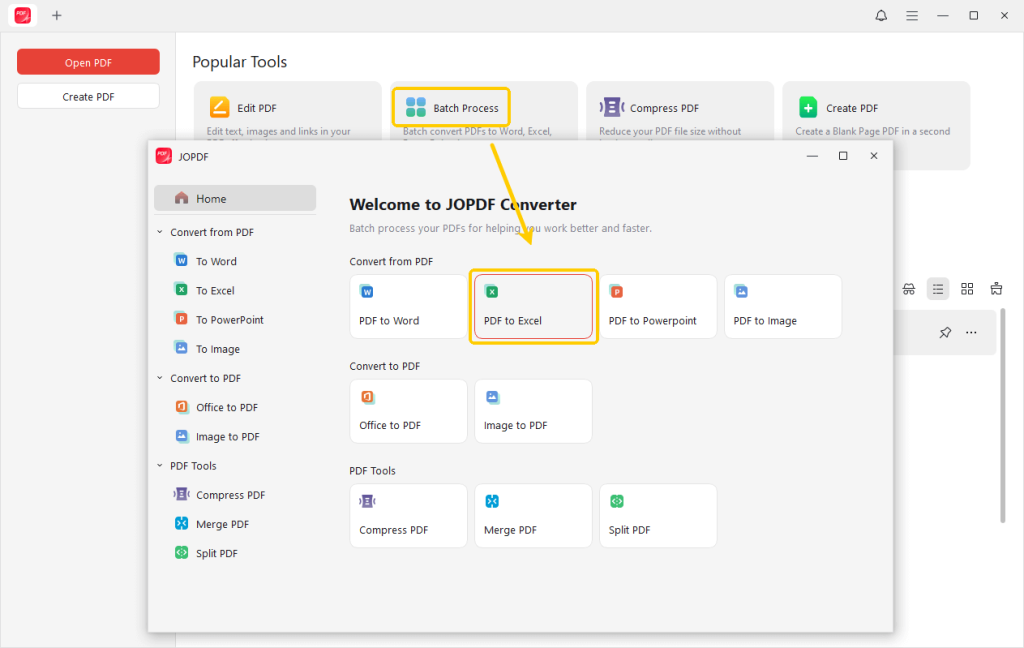
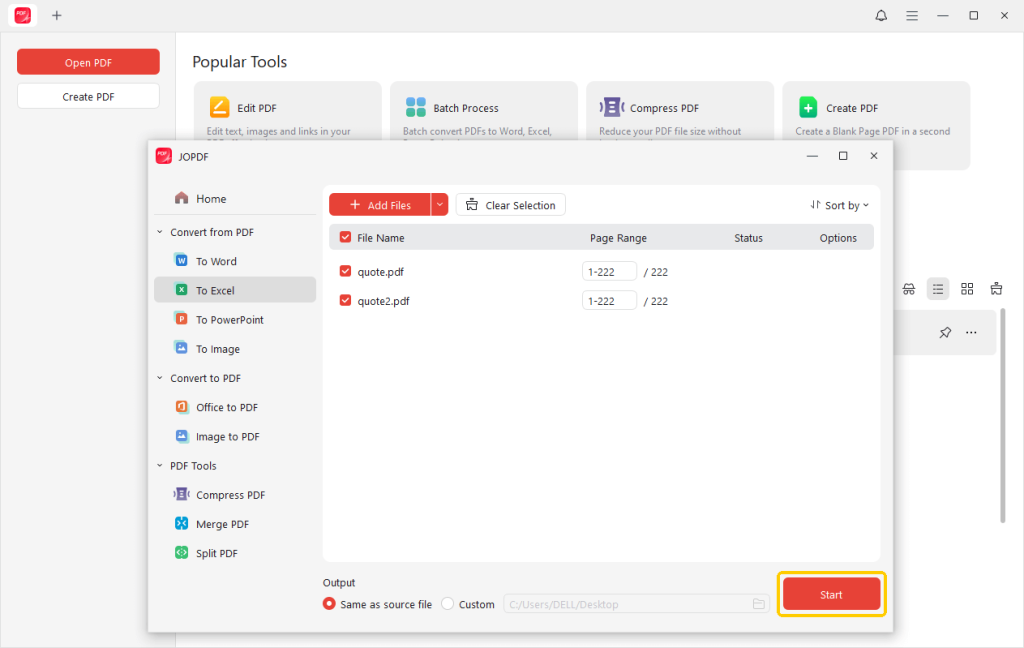
3. A new window will appear. Please add the document you want to convert and adjust the page range if needed.
4. Finally, choose a folder, click Start, and you are done!
In fact, JOPDF is more than just a PDF converter; it also offers many other amazing features. You can use it to edit the text inside a PDF, merge several small PDFs into one big book, delete useless pages, or even lock your file with a password.
If you often need to work with PDFs for your job or studies, JOPDF would be a very helpful tool. Try it now!
2. Convert to Excel with the Built-in Get Data Feature
Did you know that you might already have a PDF converter on your computer? Many people do not realize that newer versions of Microsoft Excel (such as Office 365 or Excel 2019 and later) have a built-in hidden tool.
This tool is called “Get Data, which can help you extract data from PDF to Excel. It can analyze a PDF, extract its tables, and pull that data straight into a blank spreadsheet. The most important thing is that it retains the formatting, which is precisely what you need.
Here is how to convert a PDF to Excel without changing the format using Excel:
1. Open a brand new, blank Microsoft Excel workbook.
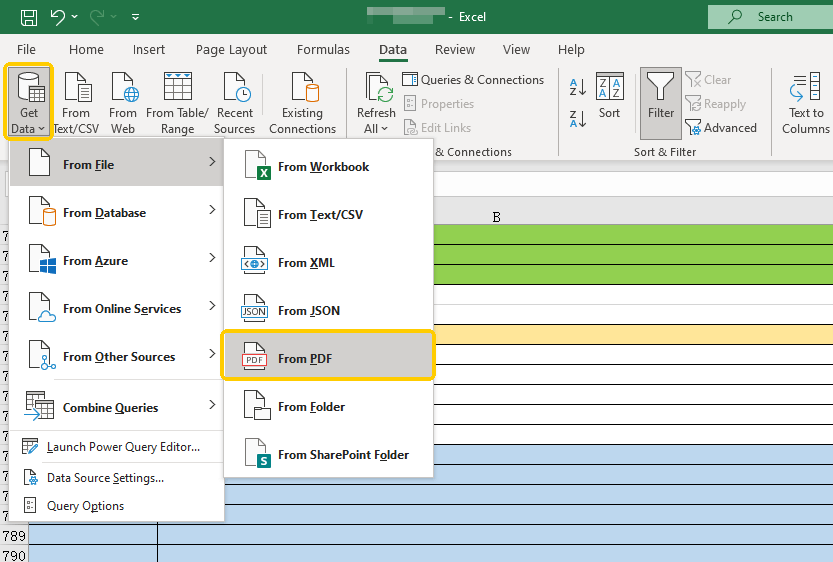
2. Look at the green ribbon menu at the very top of your screen. Click on Data. On the far left side, click the button named Get Data.
3. A drop-down menu will appear. Move your mouse to From File, and then click on From PDF. Then, find and select the PDF on your computer.
4. Excel will take a moment to scan your document. Then, a new window called the “Navigator” will pop up. It will show you a list of all the tables it found on the pages. Click on the tables to see a preview.
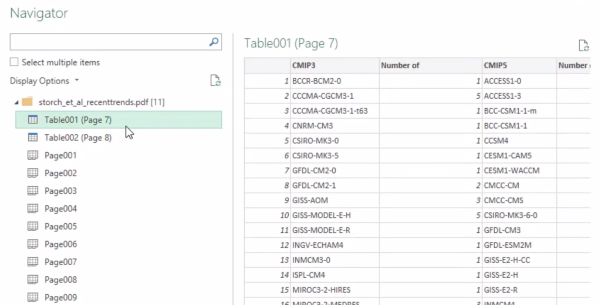
5. Once you click on the correct table, click the Load button at the bottom. The neat table will appear in your spreadsheet.
Tips
This method is great because it is free if you already own Excel. However, it is not perfect. If your PDF contains complex colors, strange borders, or a messy layout, Excel might get confused and mix up the rows.
3. Use an Online Converter
Sometimes, you are in a big hurry. Maybe you are using a borrowed computer at a library, or you just have a single file to convert and do not want to download any software.
In these situations, using an online converter website is a very fast solution. One of the most popular and easy-to-use websites for this is Smallpdf.
Steps to convert PDF to Excel without losing formatting online:
1. Open your web browser and go to the Smallpdf “PDF to Excel” tool (https://smallpdf.com/pdf-to-excel)
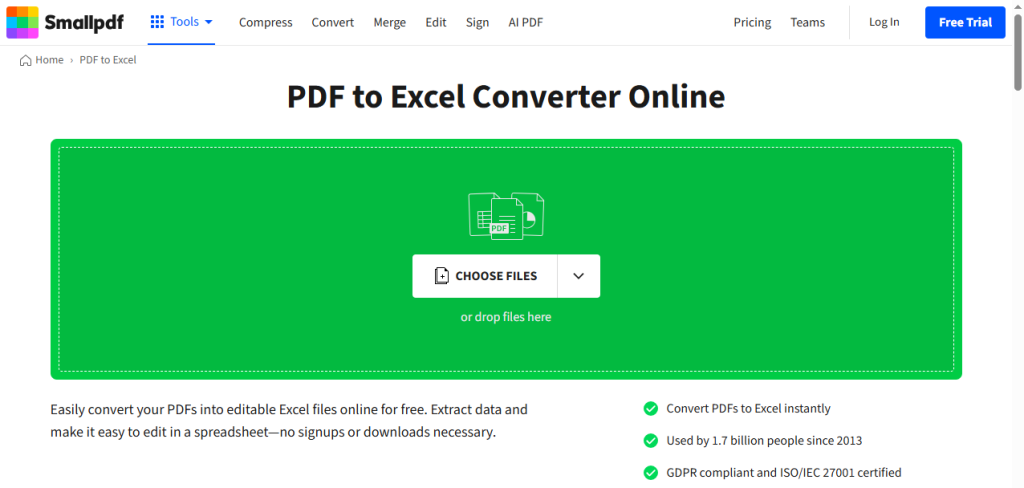
2. Click the button to choose your file, or simply drag the PDF from your computer and drop it onto the web page.
3. Wait a few moments. The website’s cloud servers will handle the heavy lifting and process your file.
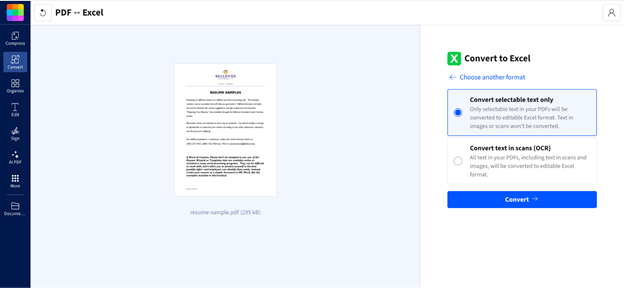
4. When it is finished, a download button will appear. Click it to save your brand new Excel file to your computer.
An Important Warning About Online Converters:
Online converters are very convenient, but you must be careful. When you use a website like this, you are uploading your document to a stranger’s computer server.
If your PDF contains highly sensitive information, such as bank account numbers, passwords, or private medical data, it is not safe to post it online. For secret files, always use an offline tool like JOPDF.
Tips for Saving the Format When Converting to Excel
No matter which method you choose, computer programs are not human. Sometimes they need a little bit of extra help. Here are two tips to make sure your final spreadsheet looks perfect.
Check if Your PDF is a Scan
If someone printed a spreadsheet on paper, scanned it with a printer, and emailed it to you, it is no longer a text file. It is just a photograph of a piece of paper. Normal converters will fail because they cannot “read” pictures.
To convert a scanned PDF to Excel, you need a premium tool like JOPDF that has a feature called “OCR” (Optical Character Recognition). OCR acts like reading glasses for your computer, letting it read the numbers inside the picture.
Clean Up the Excel File
Even the smartest converter in the world might make a tiny mistake. It might add an extra blank column or an empty row at the bottom.
When you open your new Excel file, take 30 seconds to do a quick visual check. Delete any empty spaces to make your data look clean and professional.
Conclusion
That’s all about how to convert PDF to Excel without losing formatting.
Moving data from a document to a spreadsheet is easy with the right tools. If you are on a public computer and need a quick fix, an online tool like Smallpdf works great. If you have a very simple table, try using the hidden Get Data feature inside Excel.
However, if you want the absolute best results, the most privacy, and a tool that can handle anything you throw at it, JOPDF is the smartest choice. It will ensure you convert PDF to Excel without losing formatting every single time. You can also use it to edit your PDF easily in the future!
FAQs
Table of Contents

Your Best Free PDF Expert in PDF editing, compressing, converting, annotating, protect, organizing, and more.
Free DownloadWindows · macOS · Linux

Queena
Editor
“As a staff editor for JOPDF, Queena excels at guiding users to the optimal tools and solutions. When she's not analyzing the latest PDF solutions, she enjoys spending her free time playing with her four cats.”

![6 CSV to PDF Converters in 2026 [Top Offline and Online Finds]](https://b.jopdf.com/wp-content/uploads/2026/03/csv-to-pdf-converter.png)
