Introduction :
Converting images into PDFs has become essential for organizing, sharing, and preserving documents in a professional format. Whether you need to convert image to PDF for professional, academic, or official reasons, it guarantees your files remain accessible and compatible across devices. Many users also need to convert PNG, TIFF, or JPG to PDF for submissions or storage. In this guide, we’ll share the top 5 ways to operate an image to PDF converter on multiple devices.
When Do You Need to Convert Images to PDF
There are many situations where converting images into PDFs becomes useful for better organization, sharing, and presentation. Compared to standalone images, PDFs deliver a structured and universally compatible format. You can consider these use cases.
⭐Share Multiple Images in One File
If you want to share multiple images at once, it’s simpler to combine images into one PDF rather than sending each file separately.
⭐Preserve Layout for Printing
If you want consistent formatting, you can print images as a PDF to maintain alignment, margins, and quality.
⭐Create Digital Documents from Photos
You can quickly convert pictures to PDF to efficiently manage scanned pages, notes, or receipts in a single file.
How to Convert Image to PDF on Windows
Windows users can easily create PDFs from images without any technical skills. Learning how to convert images to PDFs on Windows 10/11 is simple, thanks to several easy methods available for all users.
- JOPDF.
- Adobe Acrobat.
- Microsoft Print to PDF.
- Nitro PDF.
- PDF4me.
- PDFCreator.
- Foxit PDF Editor.
Among these practical options, JOPDF is a reliable choice if you want to convert JPG, PNG, or TIFF to PDF quickly without complicated steps. It also lets you combine images into one PDF, which is ideal for keeping multiple files organized in a single document. Recognized as the best PDF converter for beginners, it provides features to quickly batch convert images to PDFs. On top of that, you can edit a PDF for free, which is perfect for routine editing needs.
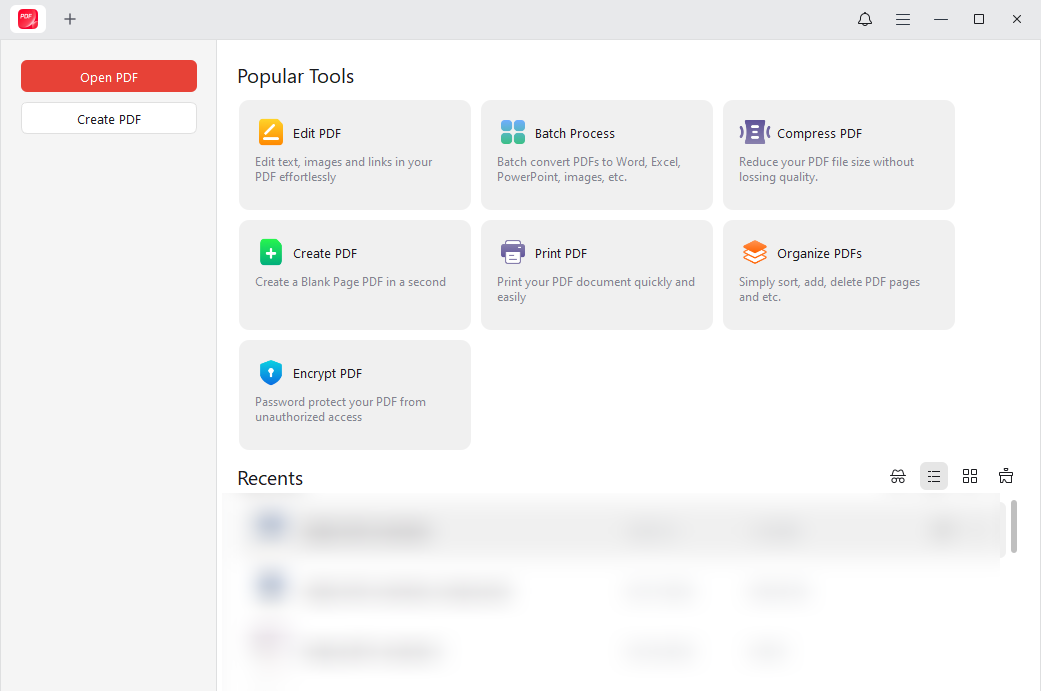
Let us learn how to convert image to PDF on Windows for free using JOPDF.
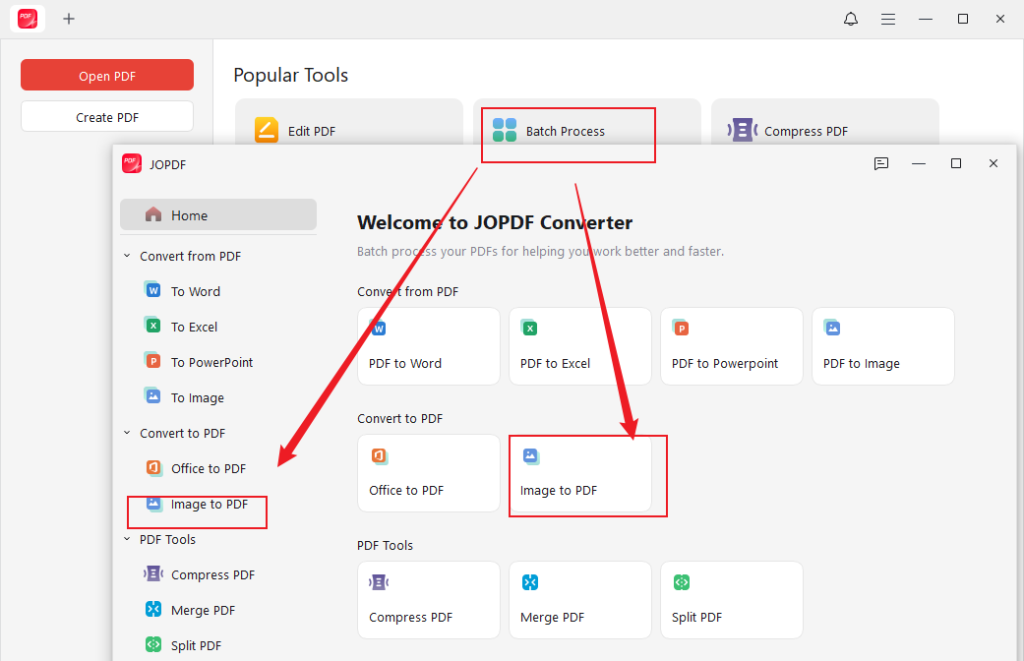
Step 1. Download and install JOPDF directly from the official website on your Windows PC. Once launched, click Batch Process on the main interface under the Popular Tools category.
Step 2. Then, select the Image to PDF tool under the Convert to PDF section.
Step 3. Now, add all the image files you wish to convert to PDF by dropping them into the program.
Alternatively, click the +Add Files button to upload all the image files for conversion.
Step 4. Once added, go to the Method section at the bottom. And choose All Images as One PDF from the dropdown menu. Also, you can select the Each Image as A PDF option.
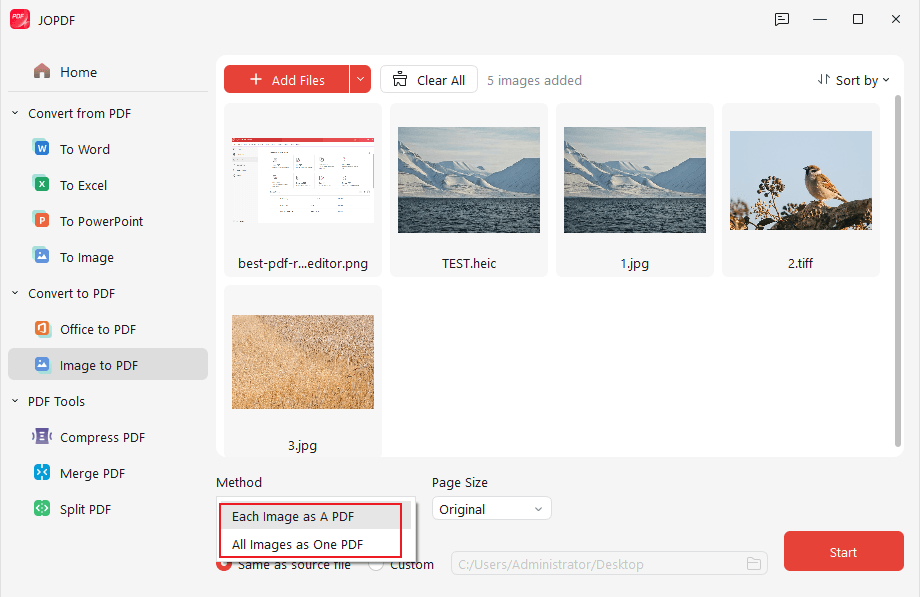
Also, specify the Page Size.Enter the File Name, then select the Output section to choose a save location.
Step 5. Arrange your images in the preferred order, then click Start to merge the PNG files into one PDF for free.
How to Convert Image to PDF on Mac
macOS provides simple methods for converting both individual images and multiple files without needing advanced skills. When looking to convert photos to PDF on Mac, several convenient built-in and third-party options are available. Here are a few popular options.
- Preview.
- Adobe Acrobat.
- JOPDF.
- PDFExpert.
- PDFsam Basic.
- Wondershare PDFelement.
Preview is the simplest built-in app to convert JPG to PDF on Mac without needing any additional software. Its easy drag-and-drop interface makes image to PDF conversion fast and straightforward, even for beginners. You can use Preview to quickly create a PDF on Mac from multiple images, providing a simple and reliable solution.
Let us find out how to convert an image to a PDF on Mac with Preview in a few clicks.
Step 1. Navigate to Finder and right-click the image you want to turn into a PDF. Click on Open With, then choose Preview as the app.
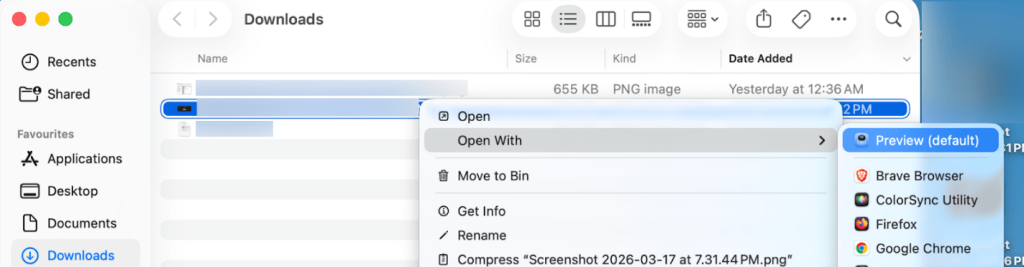
Step 2. After opening the file, click the File menu in the top toolbar and select Export…
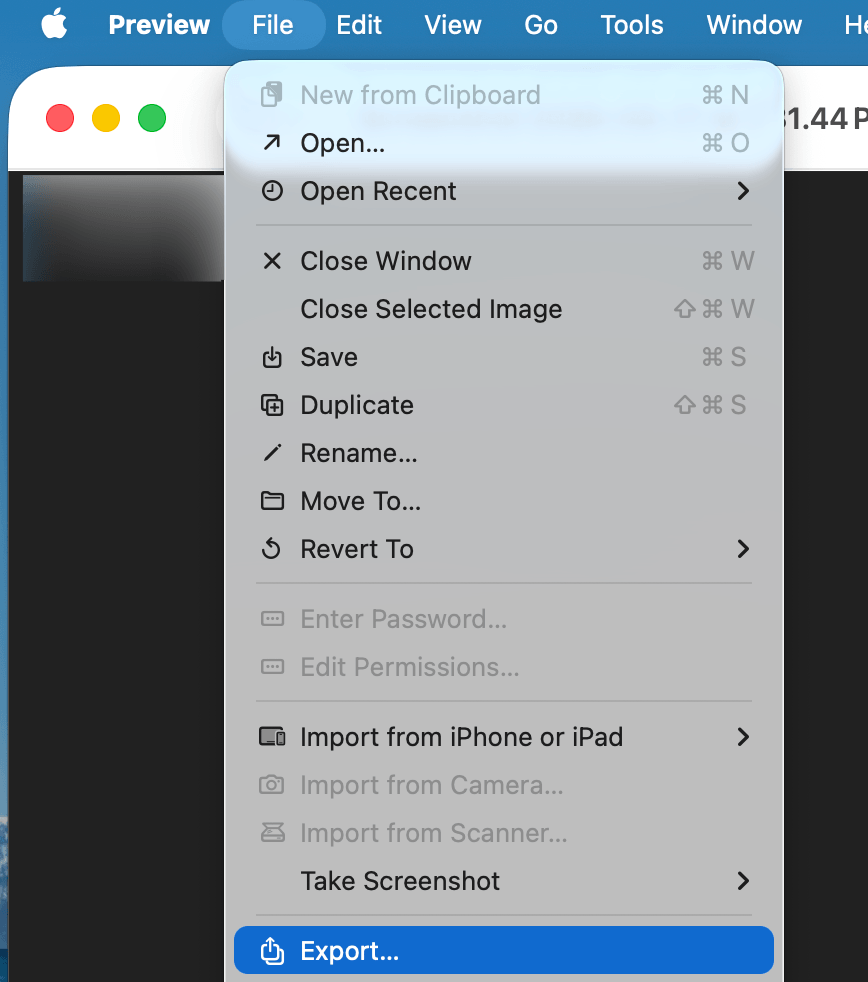
Step 3. In the Export window that opens, choose PDF in the Format section.
Step 4. Finally, select the location in Where and hit Save.
How to Convert Image to PDF Online
If you don’t want to install any software, you can convert images to PDF online for free using web-based tools. These web-based tools function on all devices, allowing speedy uploads, conversions, and downloads. They’re especially useful for occasional use and for fast results on the go. Here are some popular options.
- iLovePDF.
- Smallpdf.
- PDF Candy.
- PDF24 Tools.
- Convertio.
A popular web tool, iLovePDF, lets you convert images to PDF without software, ideal for quick and convenient use. It also lets you convert and combine PNG to PDF, making it easy to merge several files into one document. Its intuitive interface and quick processing make it a dependable option for anyone needing easy online PDF conversions.
Find out how to convert images to PDF online for free using iLovePDF in a few clicks.
Step 1. Access iLovePDF on your web browser. Now choose an Image to PDF converter.
Step 2. Click Select JPG images and choose an image from your computer, Google Drive, or Dropbox.
Alternatively, drag and drop an image file directly into the interface.
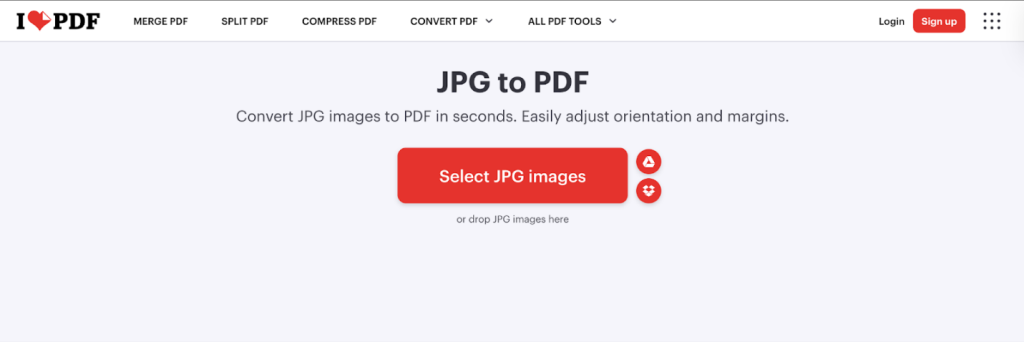
Step 3. Use the + button to add extra images for converting multiple files at once. Once done, choose your Page Orientation, Page Size, and Margin settings.
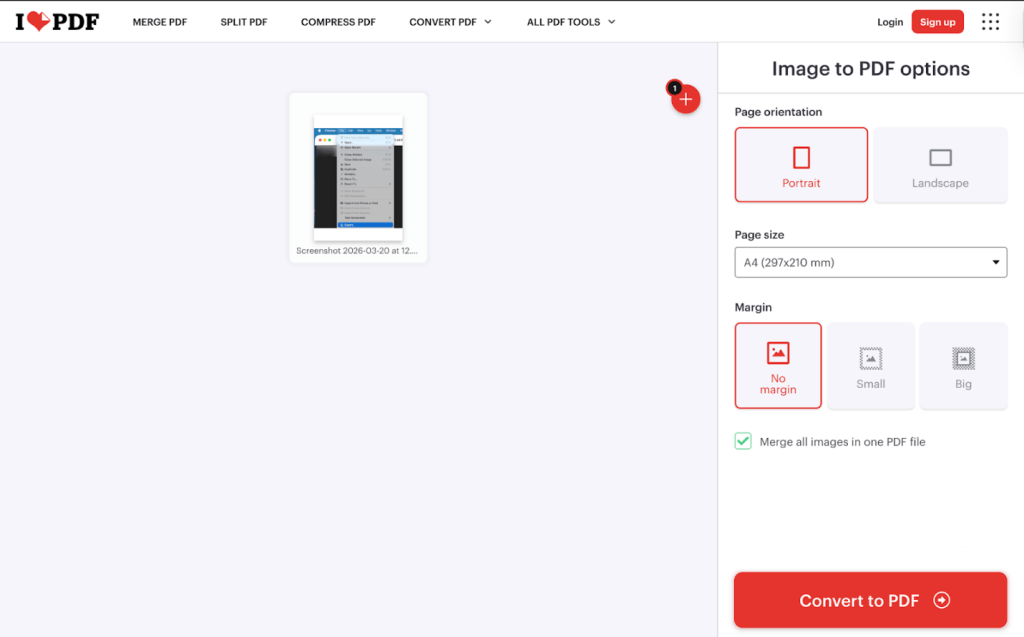
Step 4. After adjusting your preferences, press Convert to PDF.Within seconds, your image will be converted into PDF format. Press Download PDF to save the PDF file to your device.
How to Convert an Image to PDF on iPhone
If you need to convert images while on the move, iPhones provide built-in and third-party tools that simplify the process. You can quickly turn photos into PDFs without needing a computer or complex apps. Here are a few practical options.
- The Files app.
- The Notes app scanner.
- Adobe Scan.
- Microsoft Lens.
The Files app is a convenient built-in option on iPhone that lets you quickly turn images into PDFs without installing any extra tools. With a simple interface, you can create and organize PDFs from your images in just a few steps.
Let’s learn how to convert image to PDF on iPhone using the Files app.
Step 1. To start with, go to the “Files” app on your iPhone. Now, go to the folder where the image to be converted to PDF is located.
Note. If your image is in the Photos app, select it, tap the Share button, and choose Save to Files.
Step 2. Now, a long press on the image would bring up a dropdown. Select “Quick Actions” and select “Create PDF.”
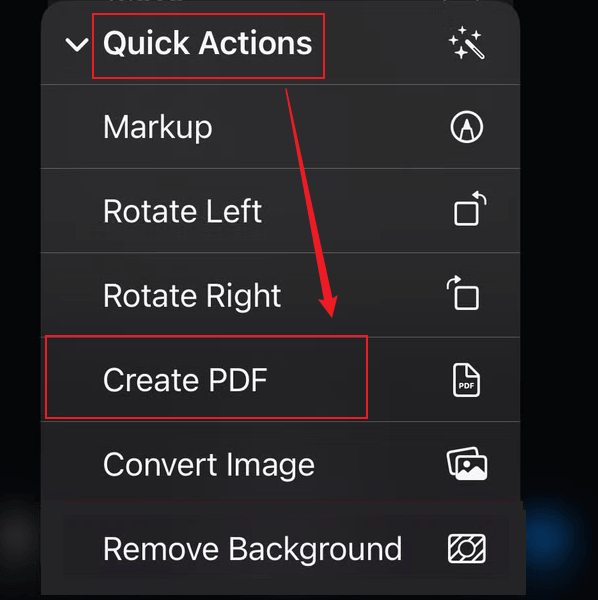
Note. To convert multiple images, tap the three-dot menu icon, then select Select. Then tap the images, select the three-dot icon again, and tap Create PDF.
Step 3. In the same folder, the PDF version of the image will be created. Simply long-press on the file and select “Get Info” at the top and you can see that the PDF file has been created.
How to Convert Photos to PDF on Android
Android smartphones provide easy ways to convert your images into PDFs directly on your device. Simple and user-friendly, these tools don’t need any technical expertise. Here are a few options.
- Google Photos.
- Gallery or Photos App.
- Microsoft Lens.
Google Photos is a simple and accessible option for turning images into PDFs directly on Android devices. You can easily combine screenshots into one PDF through the print feature, providing a fast and convenient solution.
Find out how to convert an image to PDF on Android using Google Photos in just a few clicks.
Step 1. Launch the Google Photos app and select the image you wish to convert.
Then, access the menu by tapping the three dots (…) in the top-right corner, or swipe up on the photo.
Step 2. Scroll through the available actions to locate and tap Print.
Step 3. Next, in the printer selection dropdown menu at the top, select Save as PDF.
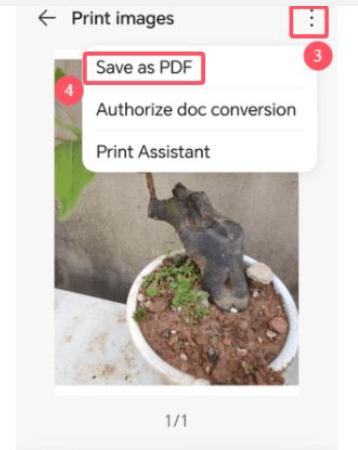
Step 4. Press the PDF/Save icon to save the PDF to either your Downloads or Documents folder.
A Quick Wrap Up
Turning images into PDFs is an easy but effective way to organize, share, and secure your files on any device. Whether you use Windows, Mac, iPhone, Android, or online platforms, there are many easy ways to convert image to PDF quickly. From built-in apps to professional converters, every option provides flexibility to suit your needs. By picking the appropriate tool, you can optimize your workflow and manage files with ease.
FAQs
1. Many people choose JOPDF as their top tool since it’s simple, quick, and enables converting images to PDF and combining multiple files with ease.
2. Professionals may opt for Adobe Acrobat because of its comprehensive editing and conversion tools.
3. Many users like iLovePDF because it offers hassle-free, free online conversions without any downloads.
Each option has strengths, so the best one is the one that fits your needs.
Table of Contents

Your Best Free PDF Expert in PDF editing, compressing, converting, annotating, protect, organizing, and more.
Free DownloadWindows · macOS · Linux

Olivia
“Olivia is an editor at JOPDF, where she writes practical guides and insightful articles on managing PDFs—covering topics like editing, annotating, converting, and organizing files efficiently. Passionate about clear communication and digital productivity, Olivia enjoys spending her free time cooking, watching movies, and hiking to unwind and find inspiration for her writing.”
![6 CSV to PDF Converters in 2026 [Top Offline and Online Finds]](https://b.jopdf.com/wp-content/uploads/2026/03/csv-to-pdf-converter.png)