Introduction :
CSV files are commonly used to store and transfer structured data, ranging from spreadsheets and financial reports to contact lists and data reports. However, CSV is not always the best format for sharing and presenting information. In contrast, PDF is a good format that can preserve formatting and is compatible with almost every device. How to convert CSV to PDF? The following content provides the answer. Let’s dive into this article.
What Is a CSV File
A CSV (Comma-Separated Values) file is a simple, plain-text file format that is used to store tabular data. It is widely used because it’s lightweight, easy to create, and compatible with most data analysis tools. You can open CSV files in Microsoft Excel, Google Sheets, Notepad, and other programs.
Why Convert CSV to PDF
Though CSV files are great for storing data, they are not ideal for sharing and presenting information. Let’s discuss why convert CSV to PDF.
- Better readability: By converting CSV to PDF, you can get clear tables and structured layouts.
- Easy sharing: PDF is compatible with most devices, making it ideal for sharing CSV data with others.
- Prevent accidental editing: PDF files can keep data fixed and protected, preventing unwanted changes.
- Better for printing: PDFs can maintain formatting when printed, making them a better choice for printing CSV tables and reports.
Method 1: Batch Convert CSV to PDF for Free with JOPDF
Supported OS: Windows, Mac, and Linux
JOPDF is a free CSV to PDF converter that enables you to convert CSV to PDF for free without any hidden costs. Additionally, its batch conversion feature helps you convert multiple CSV files to PDF efficiently. Moreover, you can use it to convert Excel to PDF and vice versa. With its intuitive and user-friendly interface, you perform conversions easily.
Follow the steps below to batch convert CSV to PDF for free using JOPDF.
Step 1. Click the button below to free download the CSV to PDF converter and install it on your Windows or Mac PC.
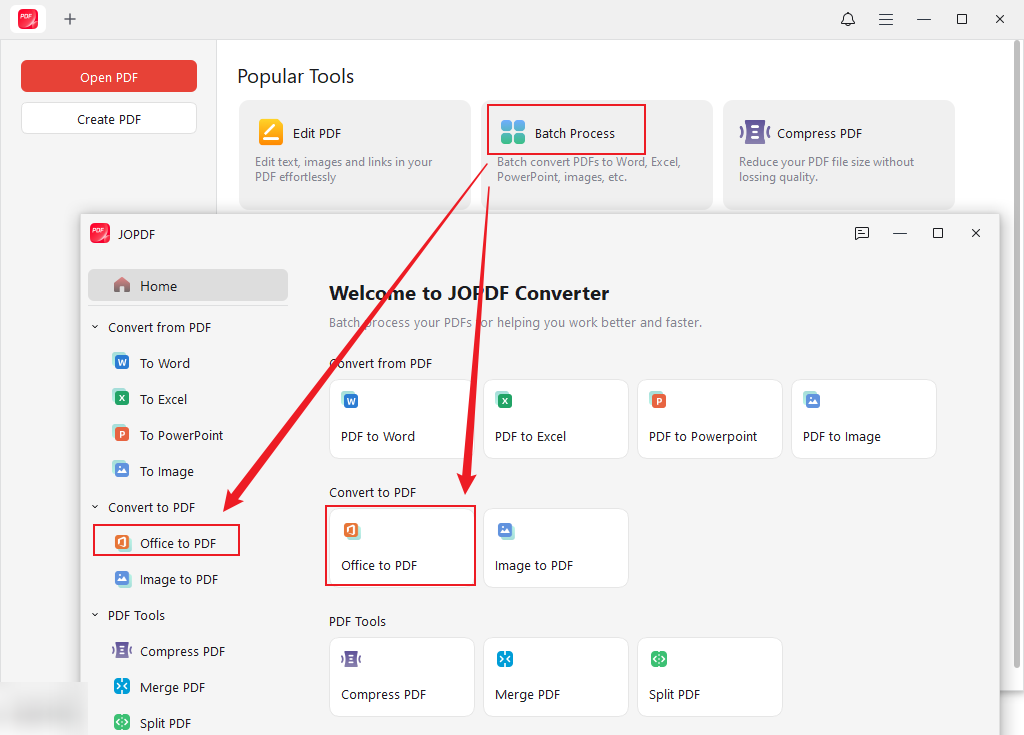
Step 2. Launch JOPDF, click Batch Process, and click the Office to PDF option.
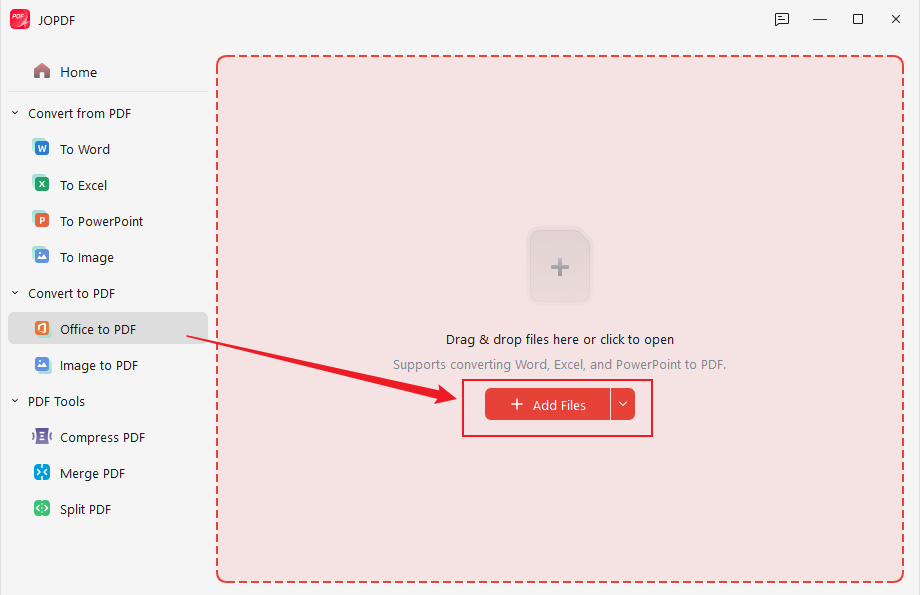
Step 3. Click + Add Files, locate and select the CSV files you need to convert, and click Open to import them into JOPDF.
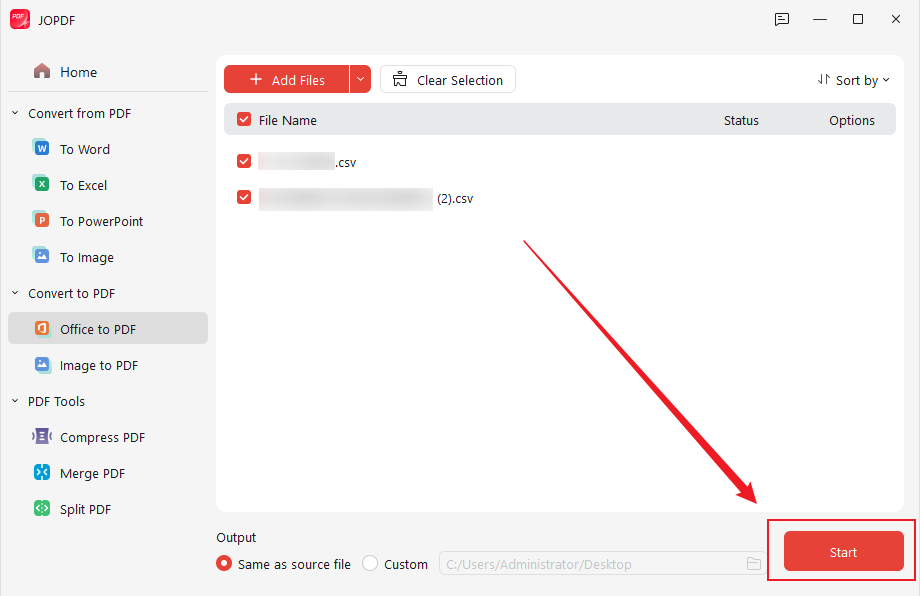
Step 4. Click Custom to specify a folder to save the new PDF files. Finally, click Start to initiate the CSV to PDF conversion process.
In addition to converting CSV to PDF, JOPDF offers more features as follows:
- Work as the best PDF converter to convert PDF to and from Word, PPT, Excel, and images.
- Edit PDFs for free with various editing features.
- Annotate PDFs like underlining, highlighting, and adding attachments to PDFs.
- Add or delete PDF pages.
- Resize PDFs to Letter, A4, or other paper size.
- Add or remove watermarks from a PDF.
- Add signatures to PDFs.
- …
With JOPDF, you can view, edit, annotate, organize, convert, and protect your PDFs efficiently, smoothing your PDF workflow. Now, download and install it on your PC!
Method 2: Convert CSV to PDF Using Microsoft Excel
Supported OS: Windows and Mac
If you have Microsoft Excel installed on your PC, it’s one of the best and easiest ways to convert a CSV file into a PDF in Microsoft Excel. Since Excel can open CSV files directly, you can quickly format the data and export it as a PDF file. In other words, it can save Excel as a PDF. If you haven’t installed it, JOPDF is still the best free way to turn CSV into PDF.
Below is a step-by-step guide on how to convert a CSV file into a PDF in Microsoft Excel.
Step 1. Launch Microsoft Excel and open the target CSV file you want to convert.
Step 2. Before exporting, you can adjust the layout for better readability. For instance, add table borders, adjust column widths, and format numbers or currency values.
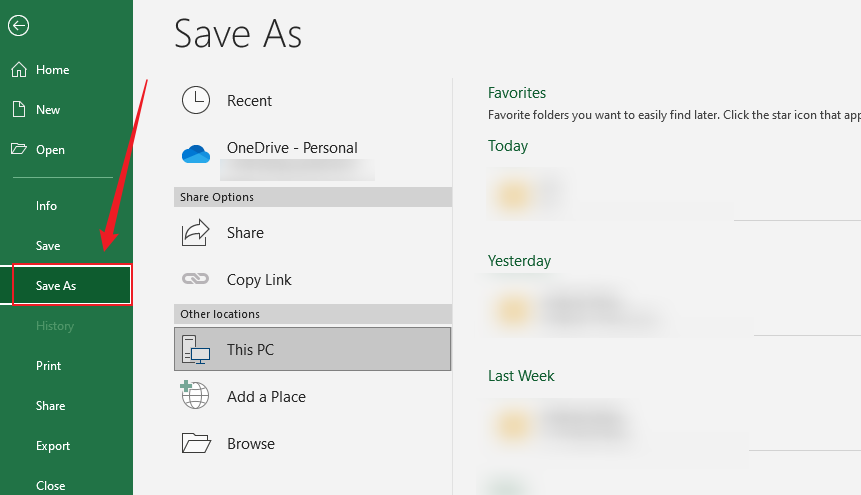
Step 3. Click the File tab in the top ribbon bar and choose Save As.
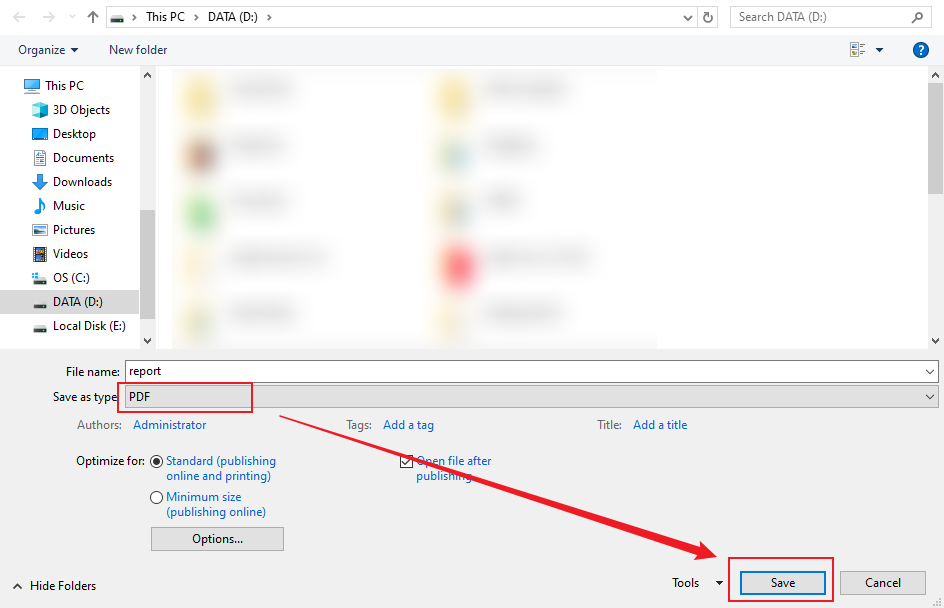
Step 4. Choose the final saving folder, name it, and open the Save as type list to choose PDF. At last, click the Save button. Then, you can get a clean, formatted PDF document.
Method 3: Convert a CSV File to PDF in Google Sheets
If you prefer an online solution, Google Sheets is a great option for converting CSV files to PDF without installing software. As a free, web-based spreadsheet platform, Google Sheets allows you to create, edit, format, analyze, and collaborate on spreadsheets directly in a browser.
Moreover, since it supports exporting to PDF, you can use it to convert Excel files like CSV or XLSX to PDF. How to convert CSV to PDF in Google Sheets? Below is how:
Step 1. Go to the Google Sheets website and sign in with your Google account.
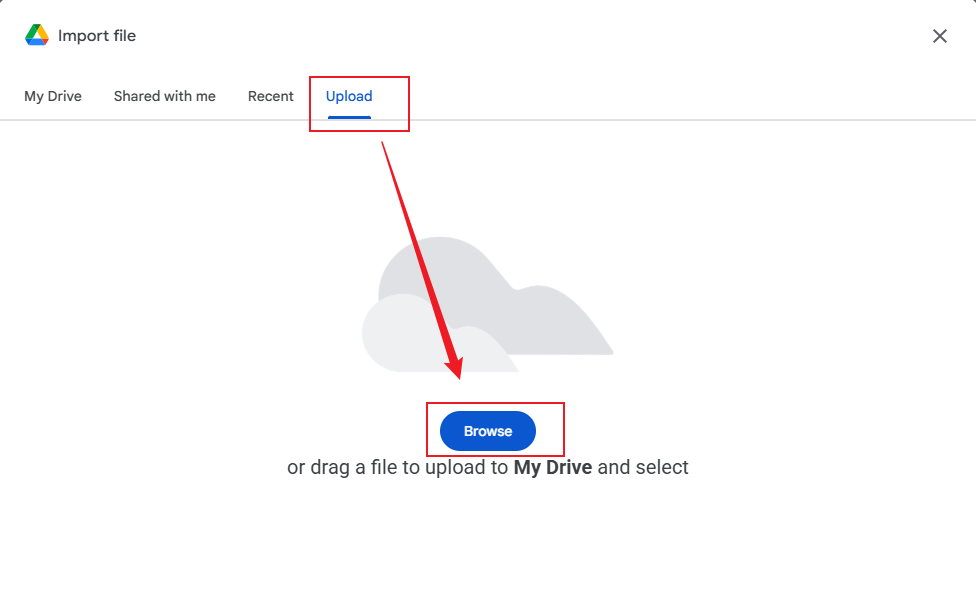
Step 2. Click Blank Spreadsheet, hit File, and click Import. The Import file window will pop up, go to Upload, and click Browse to upload the target CSV file. Then, click the Import data button.
Step 3. Like in Excel, you adjust the formatting or layout of the CSV file as needed.
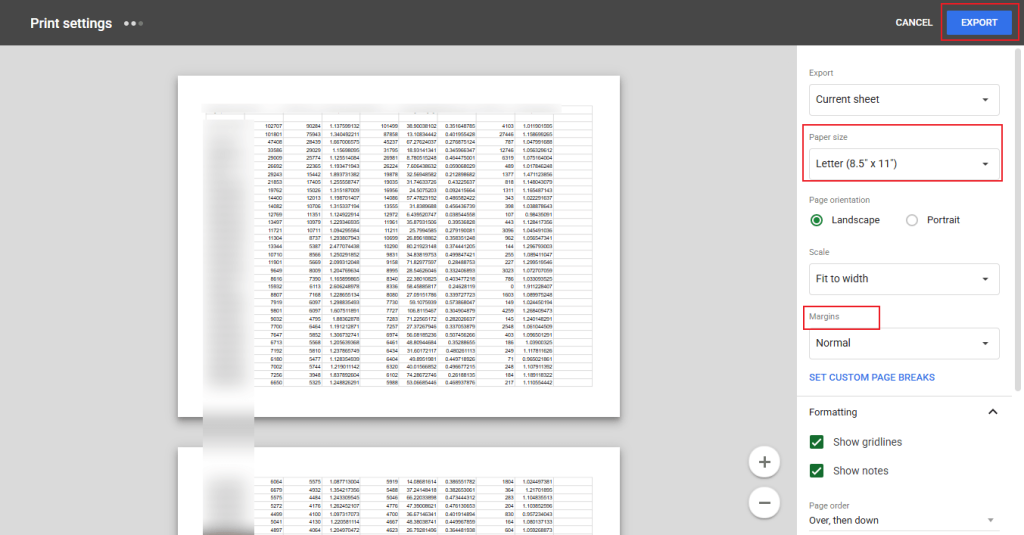
Step 4. Click File, move to Download, and click the PDF (.pdf) option.
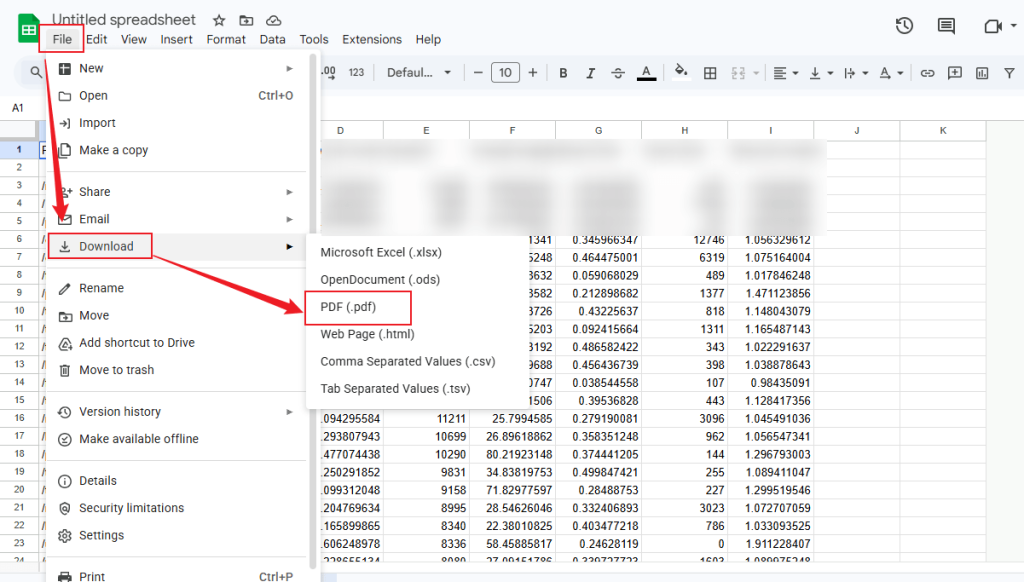
Later, customize the PDF paper size, margins, and other settings. At last, click the EXPORT button.
Method 4: Convert CSV to PDF Online with CloudConvert
If you need a quick solution, many websites allow you to convert CSV files into PDF format in seconds. When choosing online tools, security is extremely important. Among various online CSV to PDF converters, I strongly recommend CloudConvert.
CloudConvert is an online file converter that supports a wide range of formats. You can use it to convert CSV to PDF, PDF to JPG, DWG to PDF, and more. Moreover, it is ISO 27001 certified and can be trusted. You can use it on Windows, Mac, Android, and any device with a browser. Here’s how to convert a CSV to PDF online using CloudConvert.
Step 1. Open your browser and access the CloudConvert CSV to PDF Converter website.
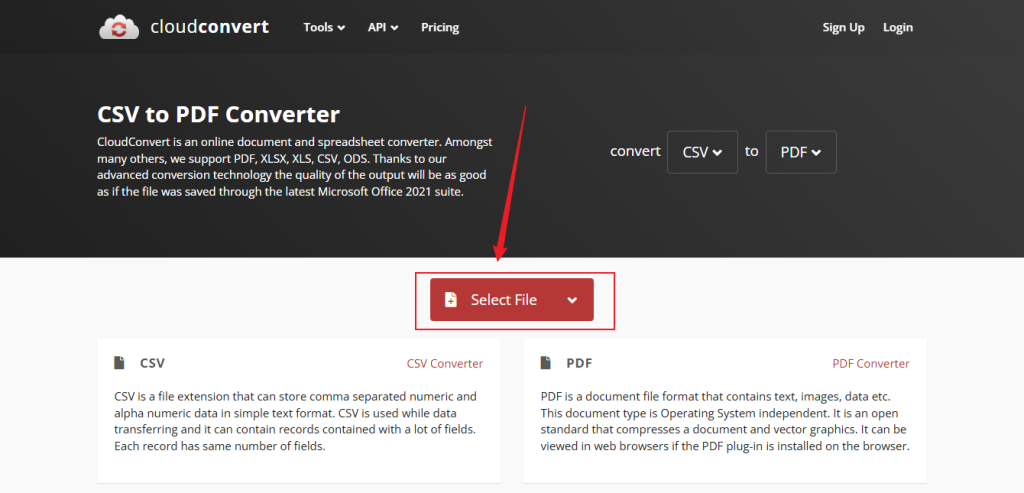
Step 2. Click the Select File button to upload your CSV file from local storage. Also, you can click the down-arrow to upload a file from Google Drive, Dropbox, or OneDrive.
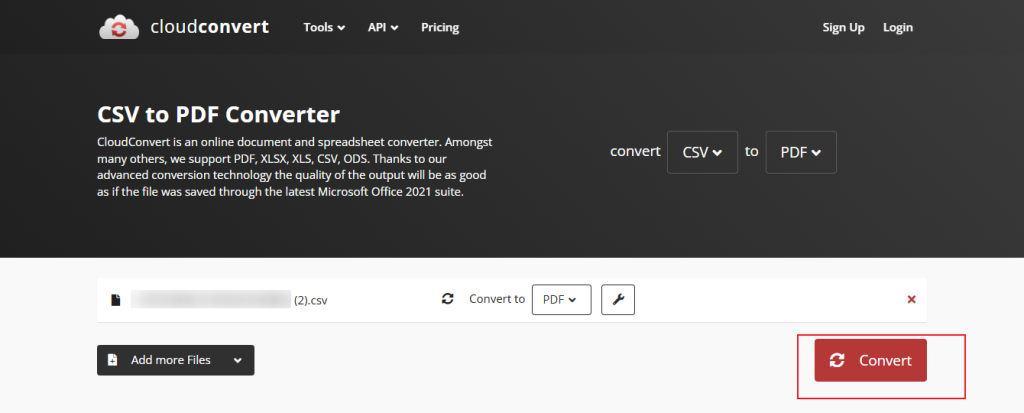
Step 3. Click the Convert button to enable the conversion. Later, click Download to save the PDF file.
If you need to handle and convert PDF files containing sensitive data, it is safer to use offline tools like JOPDF and Microsoft Excel.
CSV to PDF Conversion Tools Comparison
If you still don’t know which method to use, refer to the comparison table below.
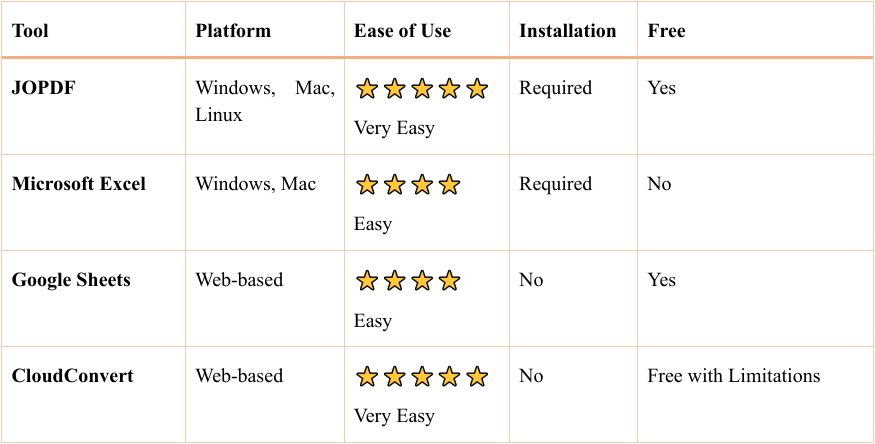
Which CSV to PDF tool should you choose? Here’s a quick guide for you:
- 🎈Choose JOPDF if you want a fast, dedicated CSV to PDF converter with minimal setup.
- 🎈Use Microsoft Excel if you need advanced formatting and professional PDF reports.
- 🎈Use Google Sheets if you want a free online CSV to PDF solution without installing software.
- 🎈Choose CloudConvert if you only need a quick online conversion and don’t want to open a spreadsheet program.
Conclusion
Converting CSV to PDF is a simple yet powerful way to turn raw data into a professional, shareable document. By converting CSV files to PDFs, you can improve readability and ensure universal compatibility. In this article, I provide 4 proven methods for converting CSV to PDF. If you frequently work with PDFs and need to convert CSV to PDF, using JOPDF is a good choice.
FAQs
1. Click Batch Process and choose Office to PDF.
2. Click Add Files to import CSV files.
3. Choose the saving path and click Start.
Table of Contents

Your Best Free PDF Expert in PDF editing, compressing, converting, annotating, protect, organizing, and more.
Free DownloadWindows · macOS · Linux

Olivia
“Olivia is an editor at JOPDF, where she writes practical guides and insightful articles on managing PDFs—covering topics like editing, annotating, converting, and organizing files efficiently. Passionate about clear communication and digital productivity, Olivia enjoys spending her free time cooking, watching movies, and hiking to unwind and find inspiration for her writing.”
![6 Must-Know Bank Statement Converters in 2026 [Full Review]](https://b.jopdf.com/wp-content/uploads/2026/03/bank-statement-converter.png)
