Introduction :
After organizing the bank statements into an electronic spreadsheet, managing financial records becomes much easier. However, most banks provide statements in PDF format, which makes it difficult to sort, analyze, or calculate transactions directly. How to convert bank statements to Excel? In this JOPDF article, I will recommend the best methods and provide step-by-step instructions. Now, let’s dive into.
PDFs can preserve formatting and prevent unauthorized edits. Thus, bank statements are usually distributed as PDF files. Meanwhile, some statements are scanned images. In addition, some banks allow you to directly download statements in CSV format so that you can open them in Excel directly. However, if your bank only offers PDF statements, you need to convert them to access data analysis, faster accounting, better budget tracking, or improved data accuracy.
In the following content, let’s explore the 5 proven and easy ways to convert PDF bank statements to Excel.
How to Convert Bank Statements to Excel Free Using JOPDF
Supported OS: Windows, Mac, and Linux
First, I’d like to introduce a free, powerful PDF bank statement converter called JOPDF. It’s a completely free PDF converter without any hidden costs or ads. You can use it to convert PDF statements to Excel effectively. Meanwhile, it can convert CSV to PDF. With its batch conversion feature, you can convert several statements at once. Below are the exact steps for your reference.
Step 1. Click the corresponding button below to download and install it on your Windows or Mac PC. If you need to convert a bank statement on Linux, go to the download center to download the Linux version.
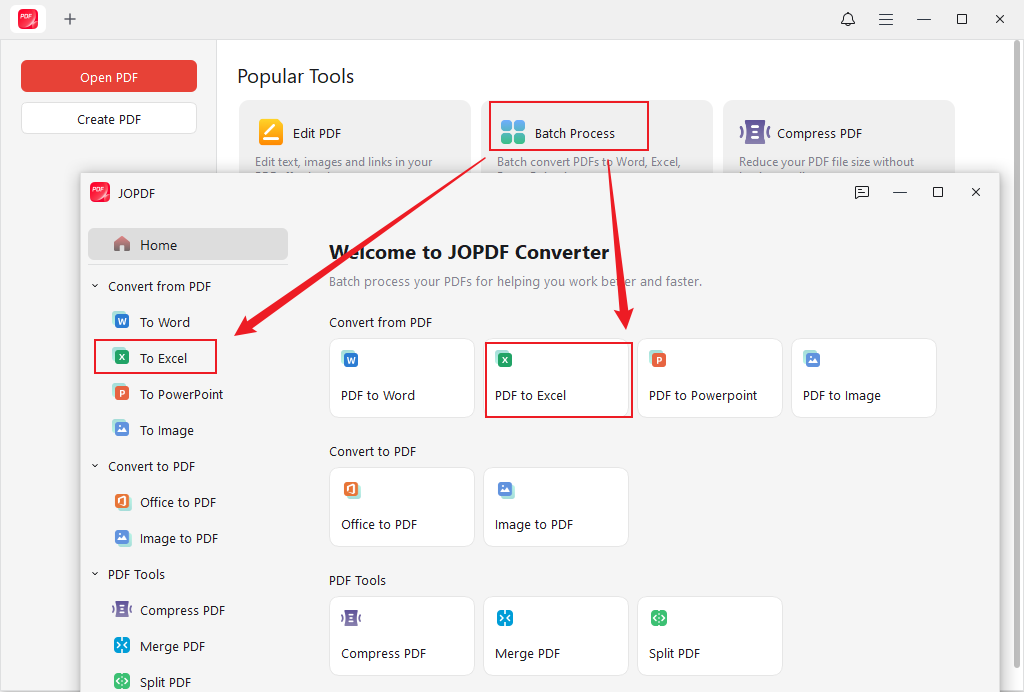
Step 2. Launch this free bank statement converter, click Batch Process, and select the PDF to Excel option.
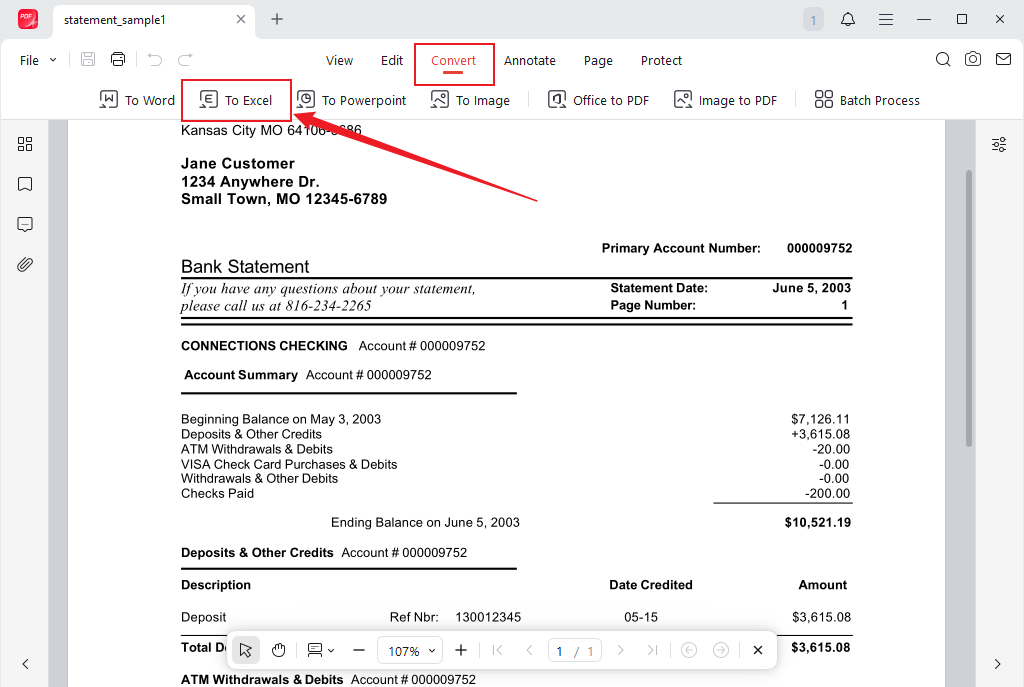
Alternatively, you can click Open PDF to open the target bank statement in JOPDF, then go to the Convert tab and click To Excel.
Step 3. Click Add Files to import your PDF statements, specify the saving path, and click Start to perform the conversion process.
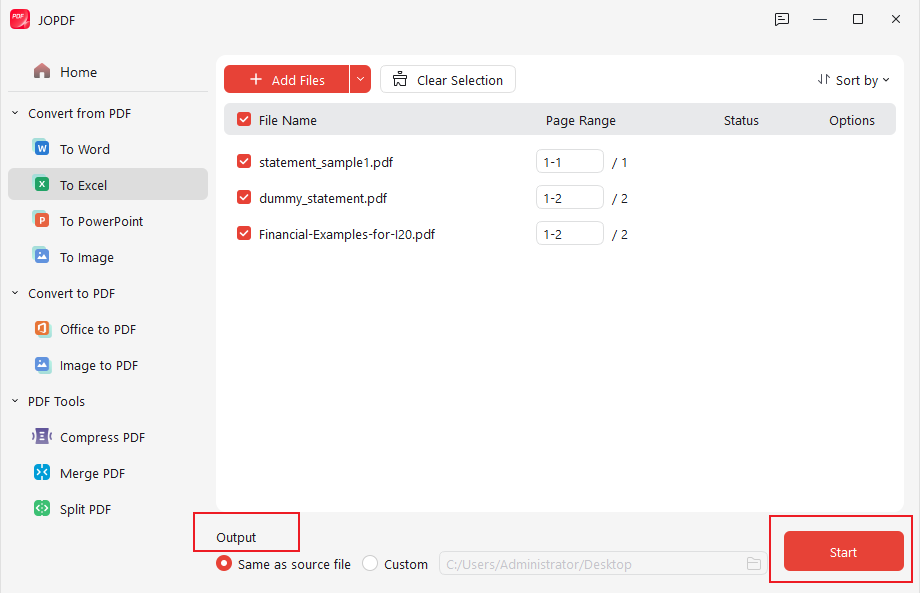
In addition to working as a bank statement converter, JOPDF also allows you to convert PDF to and from Word, PowerPoint, and images. Beyond a PDF converter, JOPDF has the following features:
- Combine PDFs on Windows, Mac, and Linux.
- Annotate PDF with various annotation tools.
- Add or remove a password from PDFs.
- Make a PDF smaller for email or other purposes
- Add or extract images from PDFs.
- Resize PDFs to A4, Letter, or other paper size.
- …
You can install the best PDF editor and explore its various useful features!
Convert a Bank Statement to Excel Using Microsoft Excel
Supported OS: Windows, Mac, iOS, and Android
If you have Microsoft Excel installed, it can be a good choice for converting bank statements. It provides you with high accuracy with structured tables. Moreover, it enables you to save Excel as a PDF. But you need to install a newer version of Excel to get this conversion feature. Also, if the statements have complex layouts, you’d better use professional bank statement converters, such as JOPDF and Adobe Acrobat.
Here’s how to convert a PDF bank statement to Excel in Microsoft Excel.
Step 1. Run Microsoft Excel on your device and create a blank workbook.
Step 2. Click the Data tab from the top ribbon, click Get Data, move to From File, and choose the From PDF option.
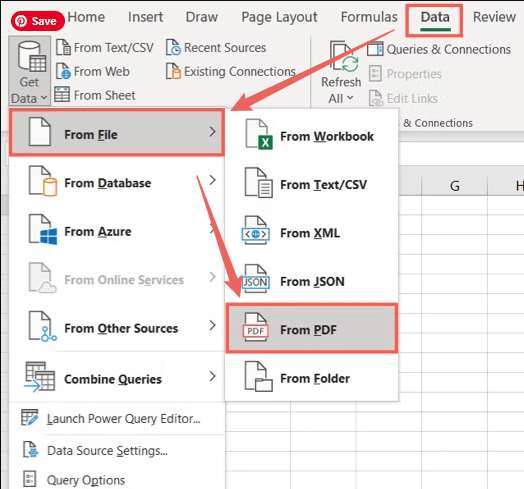
Step 3. Locate and select the target bank statements, and then click Import.
Step 4. Excel’s Power Query will analyze the PDF and show a list of detected tables, pages, or other objects. You need to preview them and select the correct table. If the preview looks clean and ready, click Load.
Then, Microsoft Excel will automatically convert the table into spreadsheet format.
Convert Scanned Bank Statements to Excel with SwifDoo PDF
Supported OS: Windows
Some bank statements are scanned images or documents. In this case, you need a converter with OCR technology that recognizes text in the scanned PDF and makes it editable. Among various PDF converters with OCR, I strongly recommend SwifDoo PDF.
SwifDoo PDF enables you to convert and edit a scanned PDF effectively. You can use it to convert scanned PDF statements to Excel with ease. How to do it? Below are the detailed steps for your reference.
Step 1. Download and install this scanned bank statement converter on your Windows PC.
Step 2. After running SwifDoo PDF, go to the Convert tab and select the PDF to Excel option.
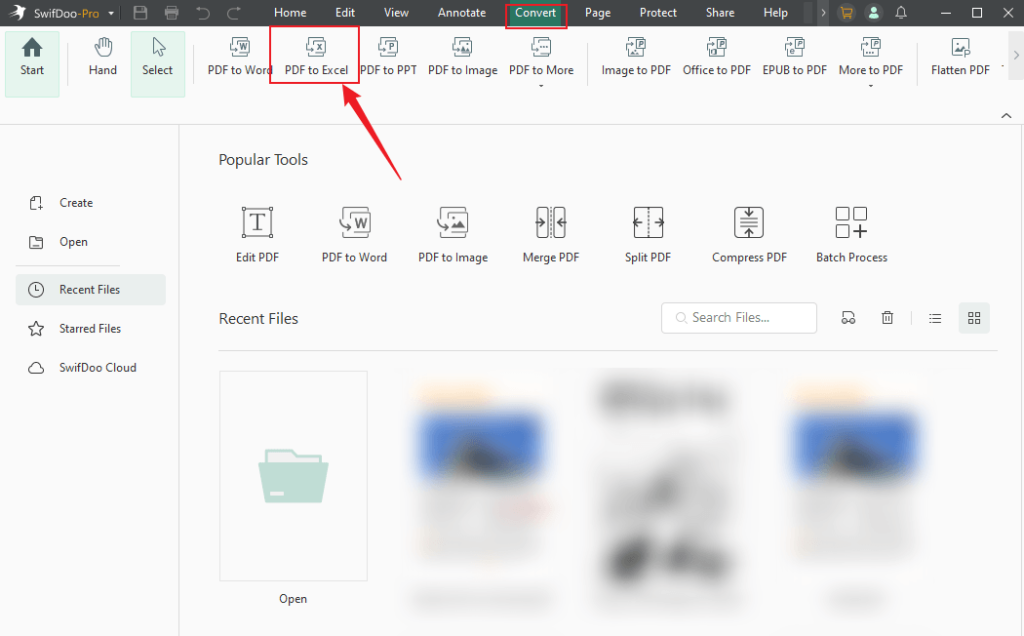
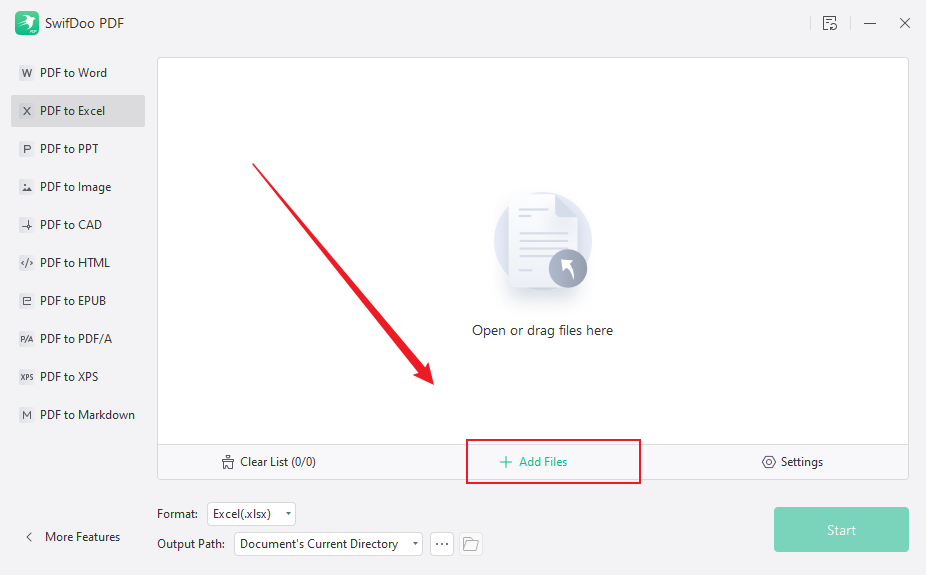
Step 3. Directly drag and drop the target PDF statement file into SwifDoo PDF. Or click + Add Files to import the target file.
Step 4. Click the Settings option and make sure the “Enable OCR and all content can be edited (Recommended)” option is checked. Adjust other settings as needed. Then, click OK to save the changes.
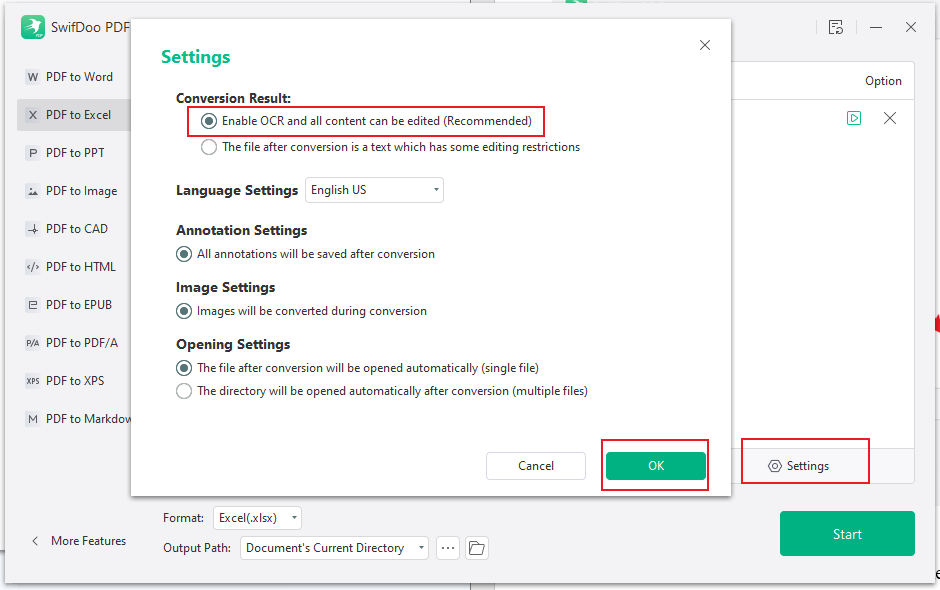
Step 5. Choose a folder to save the converted file, then click Start to start the conversion.
How to Convert PDF Bank Statements to Excel in Adobe Acrobat
Supported OS: Windows, Mac, iOS, and Android
Adobe Acrobat is a professional PDF editor and converter available across platforms. You need to pay for its Pro version to enjoy its conversion and other advanced features. Additionally, its OCR feature lets you convert a scanned PDF to Excel. How to convert a PDF bank statement to Excel in Adobe Acrobat Pro. Here’s how:
Step 1. Launch your Adobe Acrobat Pro and open your PDF bank statement.
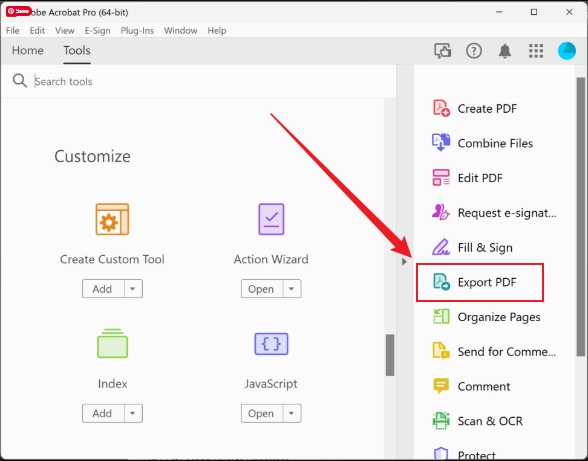
Step 2. Go to the Tools pane and select the Export PDF option.
Step 3. In the Export options, select the Spreadsheet option and then choose Microsoft Excel Workbook (*.xlsx).
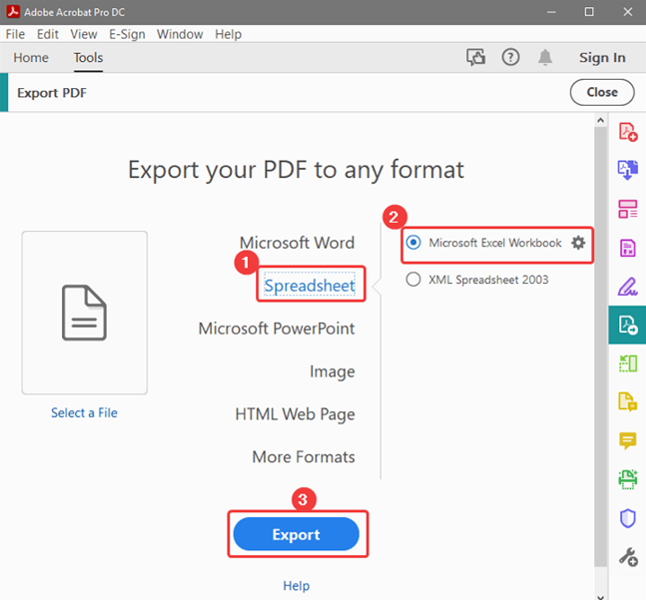
Step 4. Next, click the Export button. Finally, name the Excel file, choose its saving path, and click Save.
Convert PDF Bank Statements to Excel Online with Smallpdf
Supported OS: devices with web browsers
If you don’t handle PDF files frequently, then an online tool would be a good choice. You don’t need to download or install any software. When handling bank statements or other PDFs including privacy information, choosing a secure, reliable online tool is essential. Smallpdf is worth a try.
Smallpdf is a feature-rich online PDF platform that offers editing, compression, organization, protection, scanning, and conversion. Its conversion feature supports converting JPG to PDF, PDF to CSV, PDF to Word, and more. You can use it to convert PDF statements to Excel easily. Below is how to convert a PDF bank statement to Excel online with Smallpdf.
Step 1. Open your browser and visit the Smallpdf PDF to Excel converter website.
Step 2. Click CHOOSE FILES to upload your PDF statement file.
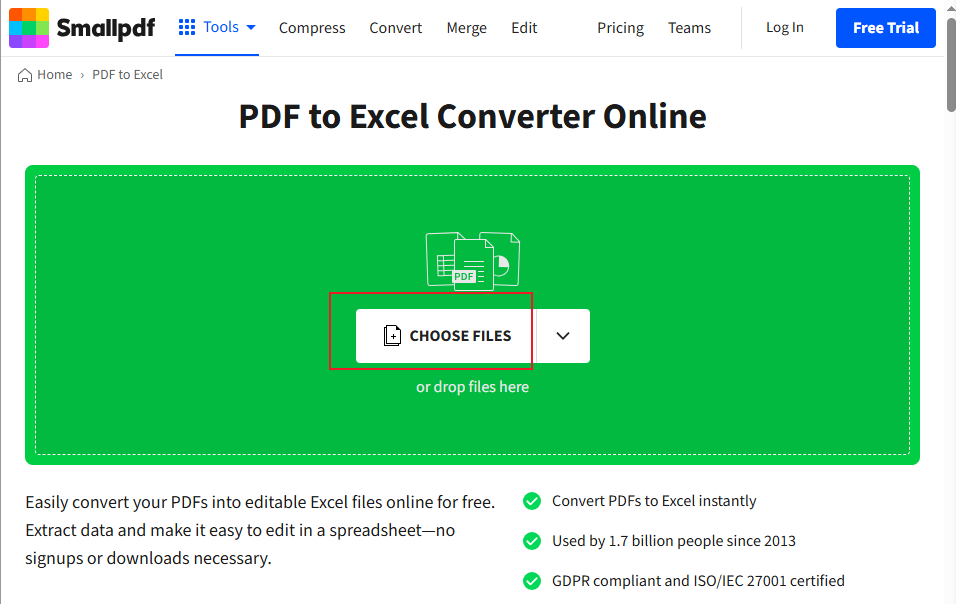
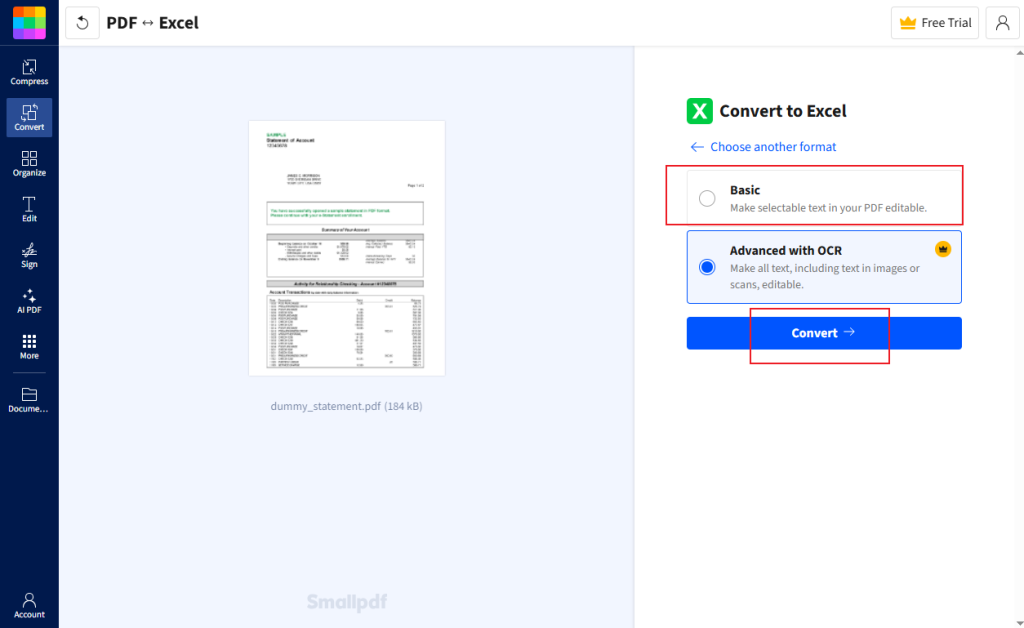
Step 3. Select the Basic option. If your bank statement is scanned, select the Advanced with OCR option. Next, click the Convert button. Once the conversion is over, click Download to save the Excel file.
Final Thoughts
To manage financial data efficiently, you’d better master the skill for converting bank statements to Excel. By converting a static PDF into an editable Excel file, you can analyze and edit the file as needed. How to convert bank statements to Excel? If you need a free bank statement converter, JOPDF is the best choice. Also, online Smallpdf is a good choice. If you have a budget, try SwifDoo PDF, Adobe Acrobat Pro, and Microsoft Excel. Hopefully, this article is helpful to you.
FAQs
#SwifDoo PDF
#JOPDF
#Adobe Acrobat
Take JOPDF as an example to show you how to batch convert bank statements to Excel.
1. Click Batch Process and select the PDF to Excel option.
2. Click Add Files to import the target statement PDFs.
3. Choose the saving path and click Start.
Table of Contents

Your Best Free PDF Expert in PDF editing, compressing, converting, annotating, protect, organizing, and more.
Free DownloadWindows · macOS · Linux

Olivia
“Olivia is an editor at JOPDF, where she writes practical guides and insightful articles on managing PDFs—covering topics like editing, annotating, converting, and organizing files efficiently. Passionate about clear communication and digital productivity, Olivia enjoys spending her free time cooking, watching movies, and hiking to unwind and find inspiration for her writing.”
![6 Must-Know Bank Statement Converters in 2026 [Full Review]](https://b.jopdf.com/wp-content/uploads/2026/03/bank-statement-converter.png)