![[2026] 4 Ways to Combine PNG to PDF on Windows, Mac, and Online](https://b.jopdf.com/wp-content/uploads/2026/02/combine-png-to-pdf.png)
Introduction :
For high-quality images with transparent backgrounds, PNG files are widely preferred for screenshots, graphics, and designs. However, when you have several images to share, print, or archive, the simplest way is to combine PNG to PDF. If you are preparing reports, portfolios, invoices, or presentations, it’s practical to merge PNG files into one PDF. This JOPDF article walks you through 4 efficient ways to combine PNG to PDF on Windows, Mac, and online.
Why Combine PNG Files into One PDF
Turning and combining PNG images into a PDF allows you to keep related visuals organized, accessible, and easy to handle in one file. Instead of handling separate image files, combining multiple PNGs into one PDF creates a cleaner, more practical format for storage, sharing, and presentation.
Here are a few more reasons to combine PNG files into a PDF:
- Easier sharing: Send a single PDF rather than multiple image files.
- Smaller file size: PDFs are usually smaller in size and more efficient.
- Better printing: Keeps page order and layout consistent on every device.
- Professional formatting: PDFs ensure reports, portfolios, and business files maintain a clean, professional layout.
- Improved organization: Keeps every related image within a single, structured file.
- Universal compatibility: PDFs are reliable across nearly all devices and operating systems.
- Enhanced security: PDFs allow password protection and restricted access for security.
- Fixed layout: Keeps images properly aligned and prevents resizing problems.
- Easy annotation: You can enhance PDFs by including comments, highlights, or signatures.
How to Combine PNG Files into One PDF on Windows
Windows allows you to easily organize images into one polished PDF, whether you’re preparing documents for work, school, or personal purposes. Without any technical skills, you can convert multiple PNG files into a single PDF on Windows using built-in or third-party tools. See how you can convert PNG files into PDF using both available methods.
Method 1. Use JOPDF
JOPDF is a reliable, user-friendly tool that makes it easy to combine PNG to PDF with just a few clicks in an organized and professional layout. It enables fast processing while preserving original image quality, making it ideal for both personal and professional use. With JOPDF, you can easily combine images into one PDF without any complicated steps or prior technical knowledge. You can use JOPDF to convert multiple PNG to PDF offline, keeping your files safe, private, and fully manageable whenever necessary.
Let’s see how to combine PNG to PDF for free with JOPDF in a handful of clicks.
Step 1. Get JOPDF directly from the official website for your Windows PC. Once installed, launch and open the program.
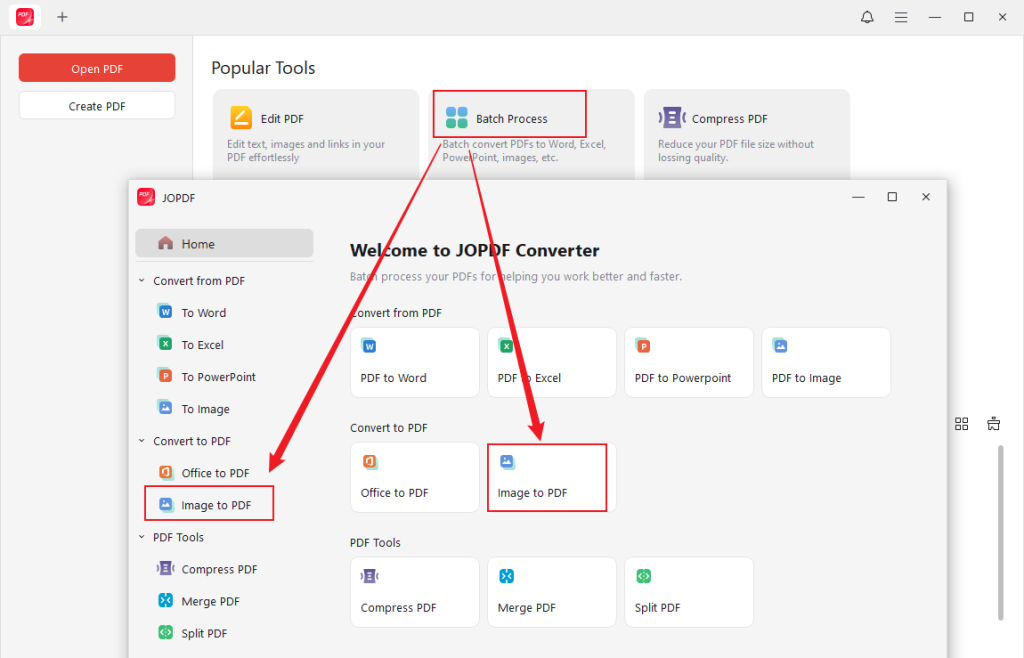
Step 2. Next, click Batch Process in the Popular Tools category, then select the Image to PDF tool under the Convert to PDF section.
Step 3. Add all the PNG images you want to combine to a single PDF by dropping them into the program.
Another option is to press the +Add Files button to upload all PNG images.
Step 4. In the Method section at the bottom, choose All Images as One PDF from the dropdown menu. Also, specify the Page Size.
Enter the File Name, then select the Output section to choose a save location.
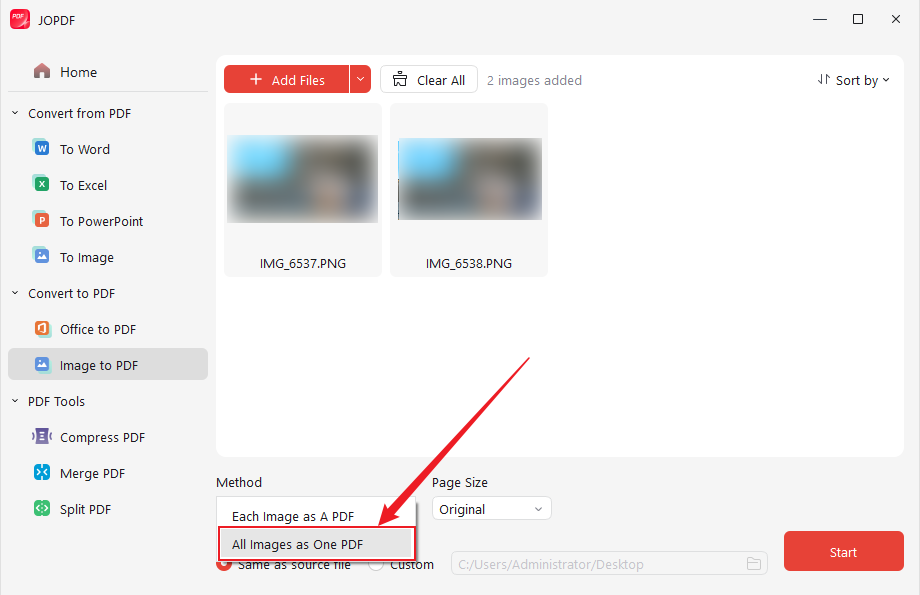
Step 5. Arrange the images as desired, then click Start to merge the PNG files into a single PDF for free.
Here are some other outstanding features of JOPDF.
- A free PDF converter to turn images, Word documents, and other formats into PDFs effortlessly.
- Quickly edit, annotate, convert, print, sign, and compress PDF files with ease.
- Allows you to extract images from a PDF file, making it simple to reuse or edit them.
- Supports combining multiple PDFs into a single, well-structured document.
- Offers page reordering, rotation, and deletion to customize your PDFs.
- No ads, no watermarks, no sign-up required.
- Works effortlessly on Windows, Mac, and Linux computers.
Method 2. Use Microsoft Print to PDF
On Windows, you can also combine PNG files without extra softwarewith the built-in Microsoft Print to PDF feature. This method enables you to select multiple images and print them to a single PDF, keeping everything simple and straightforward. This provides a convenient way to compile your images into a single document.
Learn how to combine multiple images and merge PNG files into one PDF with Microsoft Print to PDF.
Step 1. Go to the folder containing your PNG files. Then hold the Ctrl key, and click every image you want to select.
Note. The order in which you select images determines their placement in the PDF. Select the files in the order you want them to appear in the final PDF.
Step 2. With the files highlighted, right-click and choose the Print option. In Windows 11, you may need the Show more options button first.
Step 3. In the Print Pictures window, choose Microsoft Print to PDF from the dropdown menu.
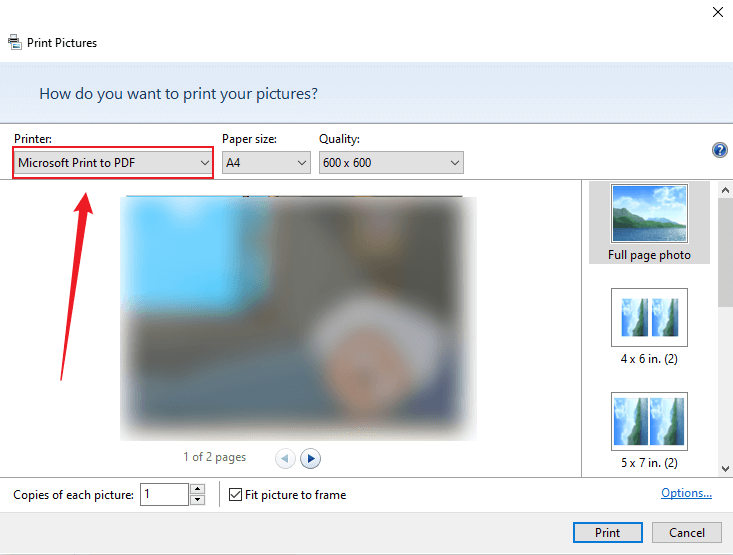
Step 4. Next, choose your preferred layout (like Full Page) and, if needed, uncheck Fit picture to frame to avoid cropping.
Step 5. Click the Print button, choose a save location, name your file, and click Save to combine PNG to PDF on Windows.
How to Combine PNG Files into One PDF on Mac
Using Preview, you can easily merge PNG files into PDF on Mac, saving time and avoiding additional installations. You can effortlessly combine JPG to PDF or PNG files while keeping the original image quality and sequence intact. All in all, Preview provides a convenient way to convert PNG to PDF for reports, portfolios, or presentations, streamlining your workflow.
Here’s a simple way to combine PNG to PDF in Mac Preview with only a handful of clicks.
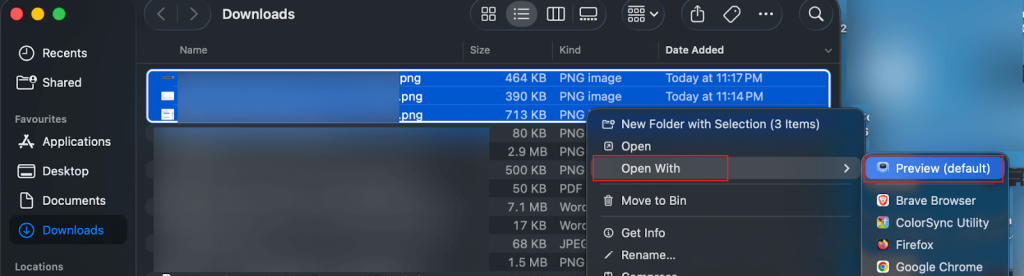
Step 1. Start by selecting every PNG file you wish to merge into a single PDF. Then right-click them, choose Open with, and select Preview (default) from the list of available apps to open them.
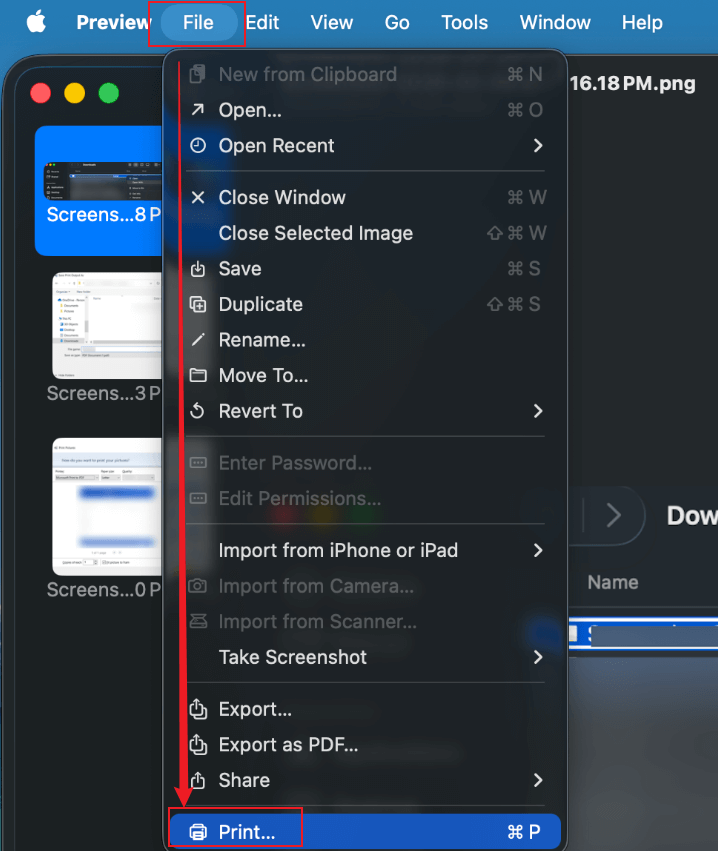
Step 2. From the top menu, click File and pick Print… from the drop-down options.
Step 3. Then adjust the pages, page size, orientation, and other conversion options.
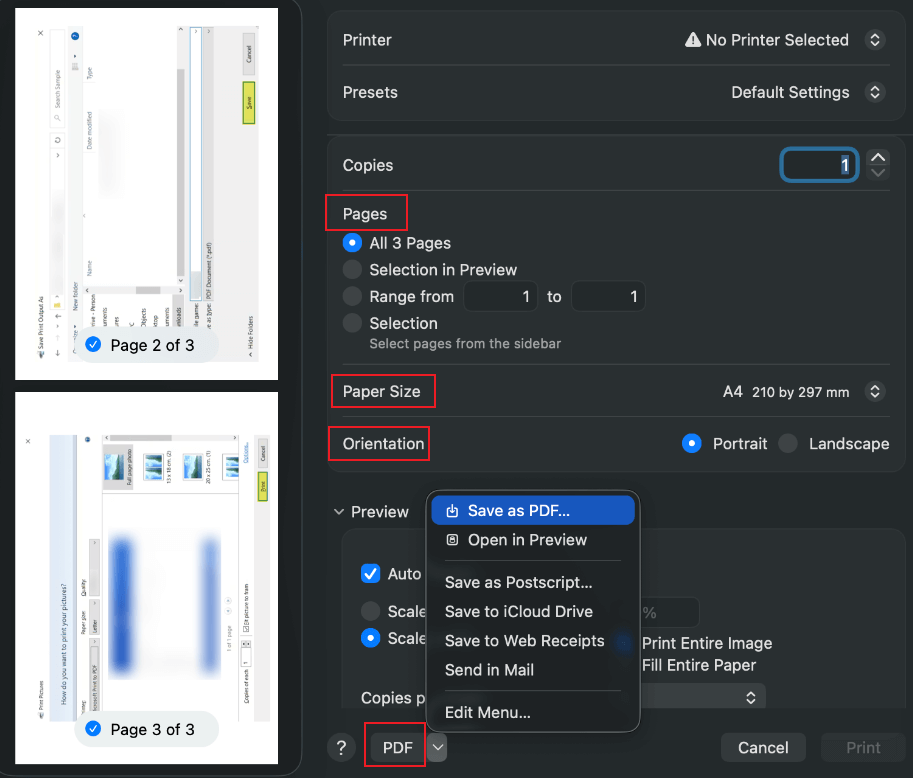
Step 4. Next, select the PDF button in the bottom-left corner to pick where to save the file and name it.
Next, click Save to merge the selected PNG images into a single PDF.
How to Combine PNG to PDF Online
If you prefer convenience, PDF Candy allows you to convert PNG to PDF online without installing software. It allows you to easily merge multiple PNG files into one PDF while preserving image quality and order. With its intuitive interface and fast processing, PDF Candy makes it simple to create a professional PDF from your images directly in your browser.
Quickly learn the steps to combine PNG to PDF onlinewith PDF Candy in a few clicks.
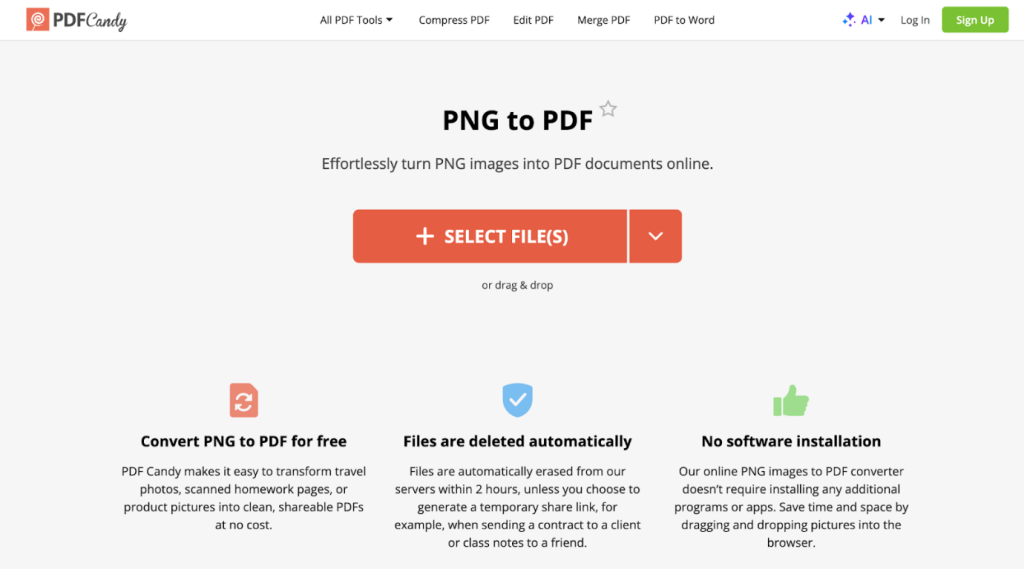
Step 1. Go to the PDF Candy PNG to PDF tool in your web browser.
Step 2. Press +Select Files to add the PNG images you wish to convert. Alternatively, drag and drop the files straight into the browser window.
Step 3. Arrange the images by dragging the thumbnails into your preferred sequence.
You have the option to modify parameters like:
- Page size: Original, A4, US Letter
- Orientation: Auto, Landscape, Portrait
- Margin: No margin, Small margin, Big margin
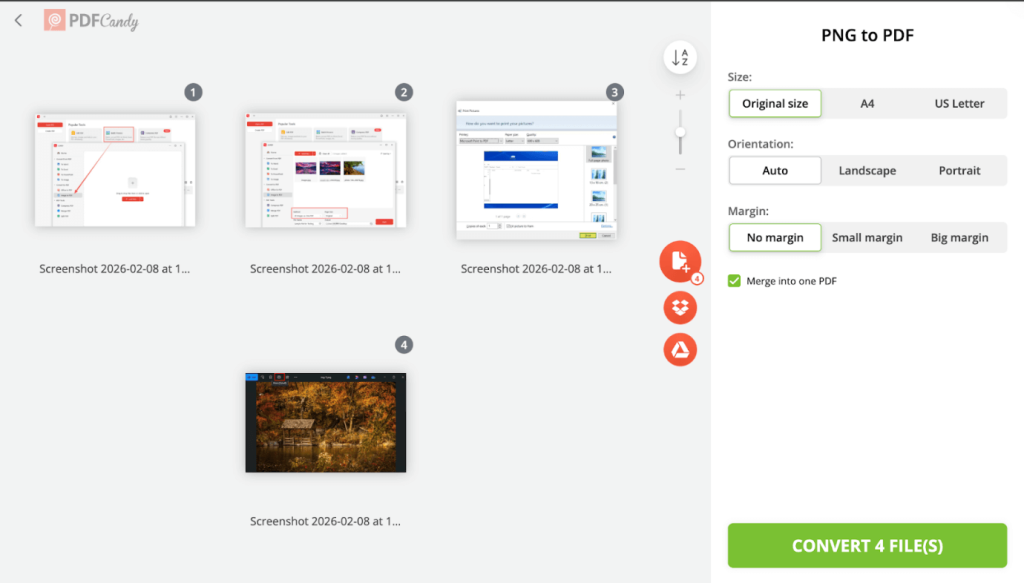
Step 4. Then click the Convert file(s) button to combine the images into one document.
Step 5. Once the process is complete and you see Done, click Download file to save your new PDF.
Useful Tips for Combining PNG Files into a High-Quality PDF
Producing a high-quality PDF from PNG files takes more than image merging; it’s about keeping clarity, structure, and a professional look. These simple tips help ensure your finished PDF looks professional and prints without issues.
Here are some useful tips to help you combine PNG Files into a high-quality PDF.
- Use high-resolution PNGs to preserve image quality.
- Maintain consistent image size and orientation.
- Arrange images in the desired order before merging.
- Compress images when the file size is too large without sacrificing clarity.
- Preview the PDF before saving or sharing.
- Add margins or spacing for better readability and printing.
- Use reliable tools like JOPDF or PDF Candy to avoid quality loss.
Final Thoughts
Combining PNG files into a PDF offers an efficient method for organizing, sharing, and professionally presenting images. No matter the platform—Windows, Mac, or online—the process is simple and helps keep image quality intact while improving accessibility. By following the methods outlined in this article, you can easily combine PNG to PDF for reports, portfolios, invoices, or any project requiring polished, organized visuals. Choosing the right tool ensures efficiency, security, and high-quality results every time.
FAQs
Step 1. Open Adobe Acrobat. And go to Tools > Combine Files.
Step 2. Add two or more PNG files you wish to combine into one PDF.
Step 3. Arrange the image order as you prefer, then click Options to customize how the pages appear.
Step 4. Click the Combine button to turn your PNGs into a single PDF.
Step 5. Save the created PDF to a selected location.
Table of Contents

Your Best Free PDF Expert in PDF editing, compressing, converting, annotating, protect, organizing, and more.
Free DownloadWindows · macOS · Linux

Olivia
“Olivia is an editor at JOPDF, where she writes practical guides and insightful articles on managing PDFs—covering topics like editing, annotating, converting, and organizing files efficiently. Passionate about clear communication and digital productivity, Olivia enjoys spending her free time cooking, watching movies, and hiking to unwind and find inspiration for her writing.”