Introduction :
It’s a common task to convert BMP to PDF when you need to share images professionally, reduce file size, or archive documents. Bitmap files (BMP) are high-quality but often large, making them inconvenient to share or print. How to convert BMP files to PDF on Windows, Mac, online, and mobile devices? You’re in the right place! In this JOPDF article, you’ll learn several effective ways to change BMP to PDF.
BMP is a raster graphics format that can store image data pixel by pixel. The BMP file format can store a high-quality image without compression. However, the file size is large, making it not ideal for sharing or web use. On the other hand, PDF is universally supported, compact, and ideal for multi-page documents. Converting a BMP file to PDF can reduce file size, improve compatibility, enhance professional appearance, and enable easy printing. Now, let’s explore how to convert BMP to PDF effectively.
Best Free Way to Convert BMP to PDF on PC with JOPDF
Instead of using paid converters, a free, reliable converter is the first choice. JOPDF is known as a free PDF converter and editor, available for Windows, Mac, and Linux. In addition to converting a BMP file to PDF, it enables you to convert multiple BMP files to PDFs effectively. Furthermore, JOPDF supports combining multiple BMP files into a single PDF. Meanwhile, it allows you to convert PDF to BMP.
Follow the steps below to change BMP to PDF for free with JOPDF.
Step 1. Click the button below to download this free BMP to PDF converter and install it on your Windows or Mac PC. Launch it to get to its main user interface.
Step 2. Click the Batch Process option and choose Image to PDF.
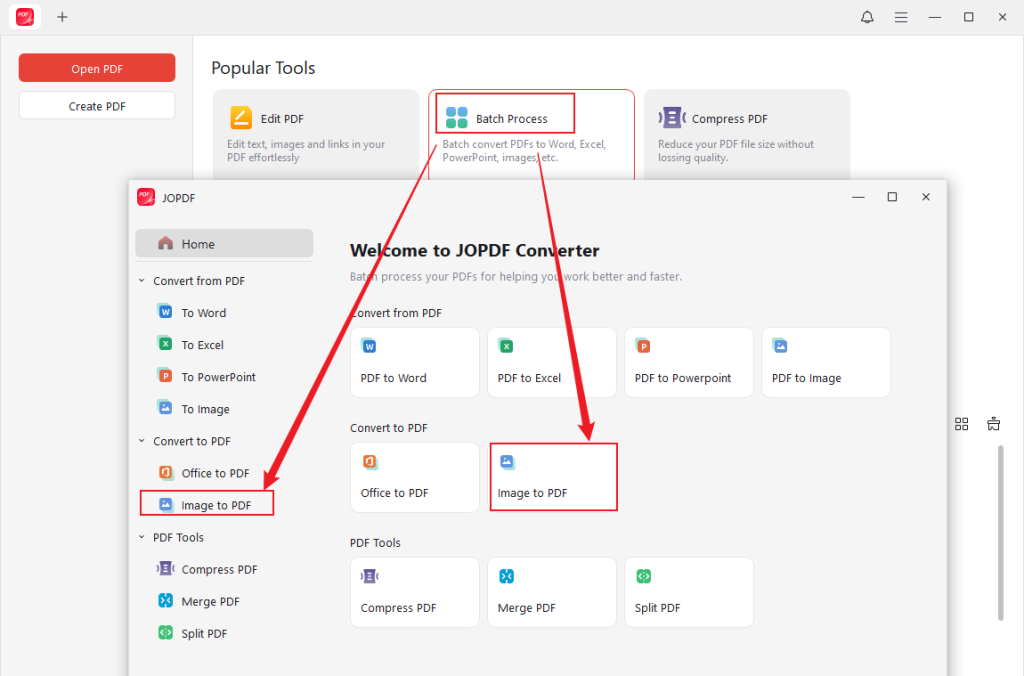
Step 3. Click + Add Files to import your target BMP image. Or, you can directly drag and drop the BMP image into JOPDF. Once the image is imported, personalize the page size and the saving path.
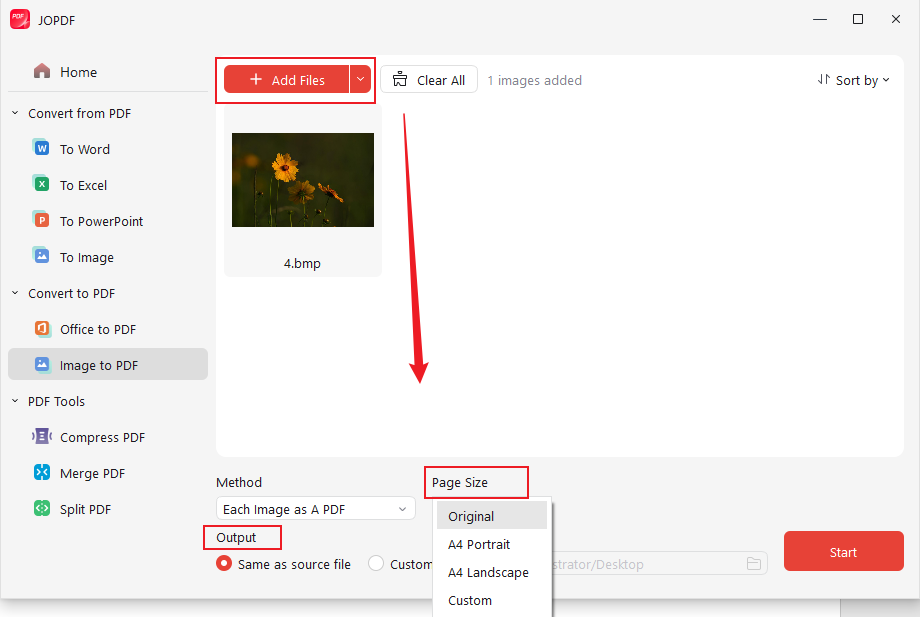
Tips
JOPDF lets you convert or combine multiple BMP files. Here are two options for you:
- Each Image as A PDF: Convert each BMP file into a PDF.
- All Images as One PDF: Combine all BMP files as a single PDF.
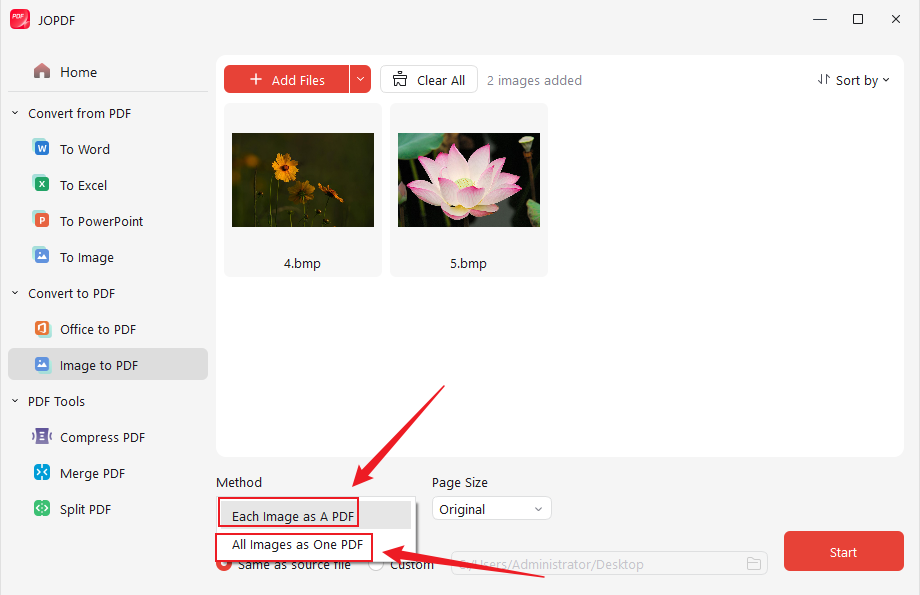
Step 4. Finally, click Start to enable the BMP to PDF conversion process.
✨Other outstanding features of JOPDF:
- Create and edit PDFs for free.
- Secure and unlock PDFs.
- Combine images into one PDF.
- Resize PDF to the same paper size or reduce file size.
- Print PDFs with comments.
- …
How to Convert BMP to PDF with Adobe Acrobat
Adobe Acrobat is a professional PDF tool that offers both desktop and online versions. To enjoy the conversion features and certain advanced features, you need to pay for the Standard or Pro plan of Adobe Acrobat. Meanwhile, Adobe offers an online service to convert BMP files to PDF without installing software. However, neither of them is free. How to convert a BMP file to PDF in Adobe Acrobat? Let’s learn the step-by-step guidance in the following content.
Step 1. Run Adobe Acrobat Pro or Standard on your Windows or Mac PC.
Step 2. Click Tools and select the Create PDF or Create PDF from File option.
Step 3. Then click Single File and click Select a File to import your BMP file.
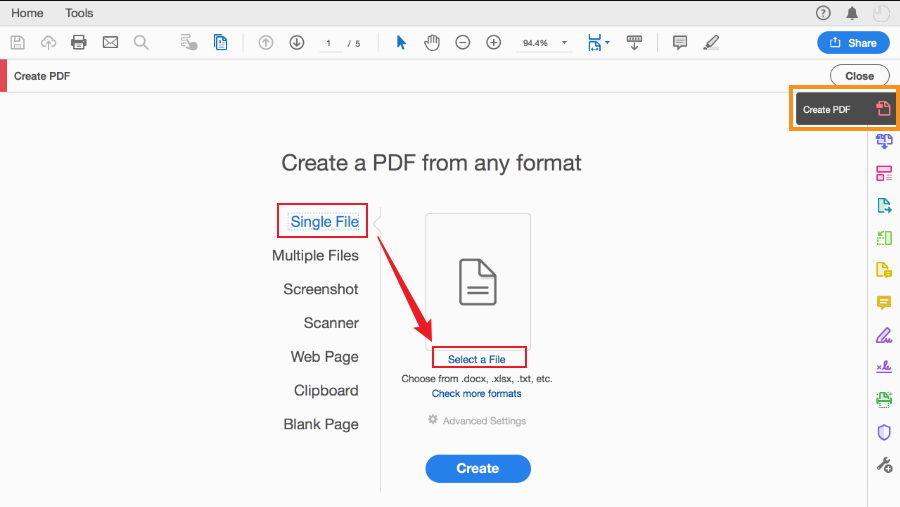
Step 4. Next, click Create to make the PDF from a BMP file. Finally, go to File and Save As to store it.
How to convert BMP to PDF with the online PDF converter of Adobe Acrobat? Check the steps below.
Step 1. Access the Adobe Acrobat Online website through any of your browsers.
Step 2. Click the Select a file button to upload your BMP file from your local device. Alternatively, you can upload from Google Drive or OneDrive.
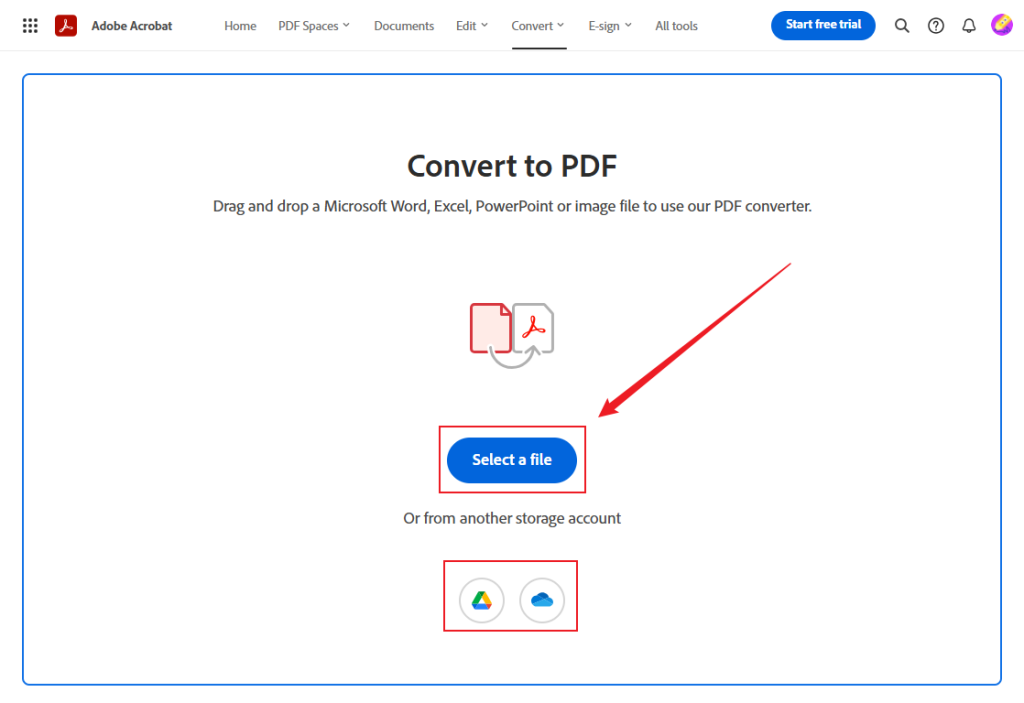
Step 3. Once the BMP file is uploaded, the BMP to PDF conversion will start automatically. After the conversion completes, click Download to save the new PDF to your device.
Batch Convert BMP to PDF on Windows via SwifDoo PDF
If you are frustrated by the fee of Adobe Acrobat, try the free or cost-effective alternative to Adobe Acrobat. SwifDoo PDF is one of them. It is a feature-rich PDF editor and converter. As a PDF converter, SwifDoo PDF enables you to convert PDF to and from Word, Excel, PowerPoint, and image files. With its batch conversion feature, you can convert multiple BMP files to PDF on Windows effectively. How to batch convert BMP to PDF on Windows? Here’s how:
Step 1. Once the BMP to PDF batch converter is installed on your Windows computer, launch it.
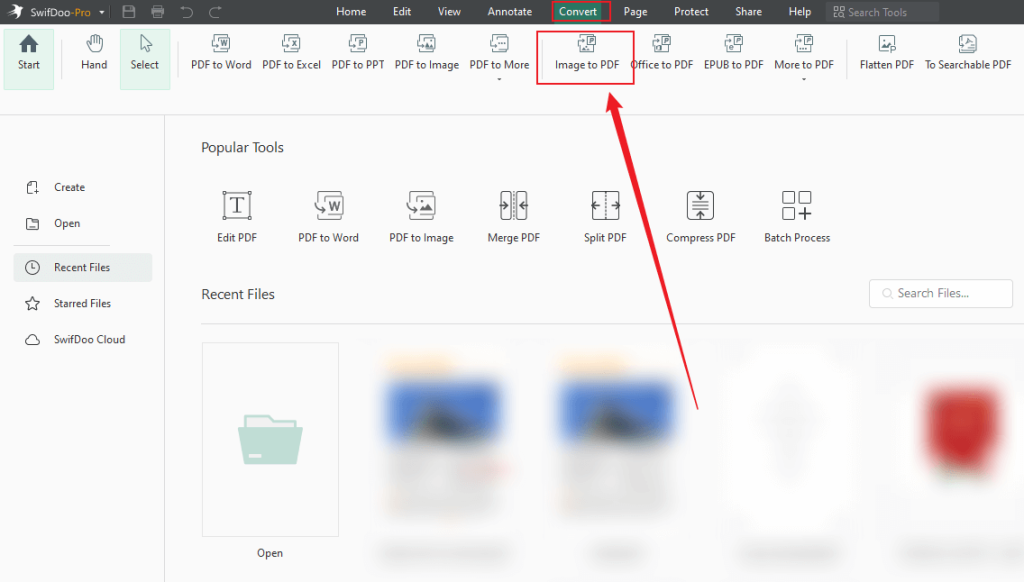
Step 2. Switch from the Home tab to the Convert tab and click the Image to PDF option.
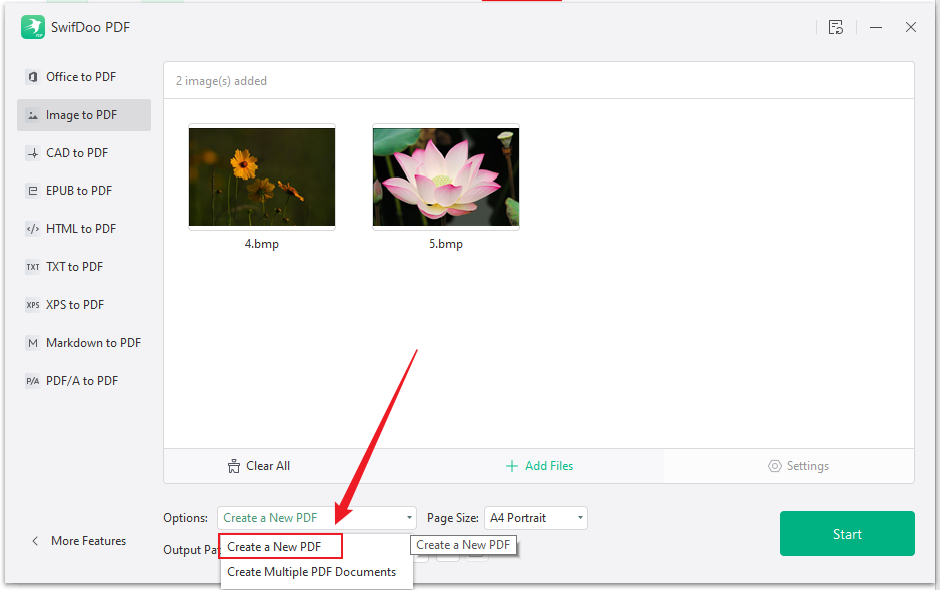
Step 3. Click Add Files to import BMP files into SwifDoo PDF. Keep the default Create a New PDF option to merge all uploaded BMP files as a single PDF. Meanwhile, adjust the Page Size and Output Path. Finally, click Start.
Convert BMP to PDF Using Mac Preview
If you are a Mac user and don’t want to download any software, Preview, a built-in program in macOS, can be a good choice. You can use it to open, view, edit, annotate, and print images and PDFs. It supports importing and exporting JPG, PNG, BMP, PDF, and other image formats. Hence, you can use it to convert BMP to PDF on Mac.
Step 1. Find and locate the target BMP image in Finder, right-click it, go to Open With, and choose Preview. If you have set Preview as the default viewer, double-click the BMP image to open it in Preview.
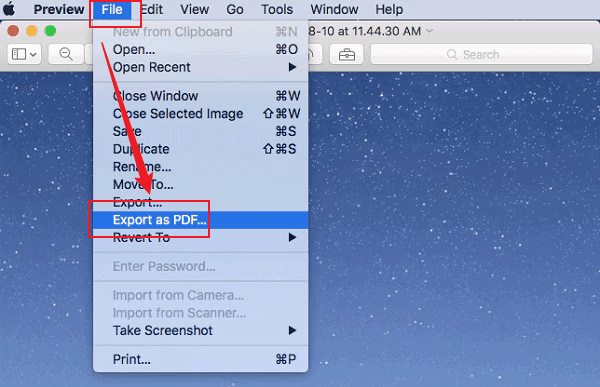
Step 2. When the image is displayed in Preview, click File, then select Export as PDF.
Step 3. Open the Format dropdown and choose PDF. Optionally, you can adjust other export settings. At last, click Save.
How to Convert BMP to PDF Online with Smallpdf
How to convert BMP to PDF without installing software? An online tool is the best choice. Here, I strongly recommend Smallpdf. Even if you are a beginner, you can master using Smallpdf because it has an intuitive, user-friendly interface. It is a piece of cake to change a BMP image to PDF with Smallpdf. With Smallpdf, you can also make other image and PDF conversions, edit PDFs, password-protect PDFs, and more. How to convert BMP to PDF online with Smallpdf? Just refer to the steps below.
Step 1. Visit Smallpdf’s BMP to PDF Converter website.
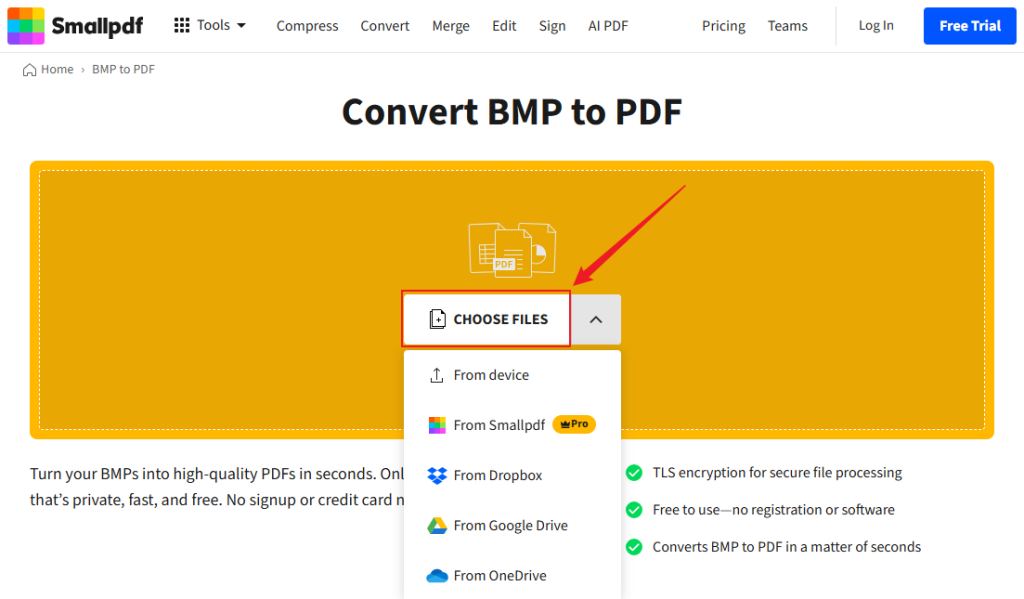
Step 2. Click the CHOOSE FILES button to upload your BMP image. Also, you can upload from Dropbox, Google Drive, or OneDrive.
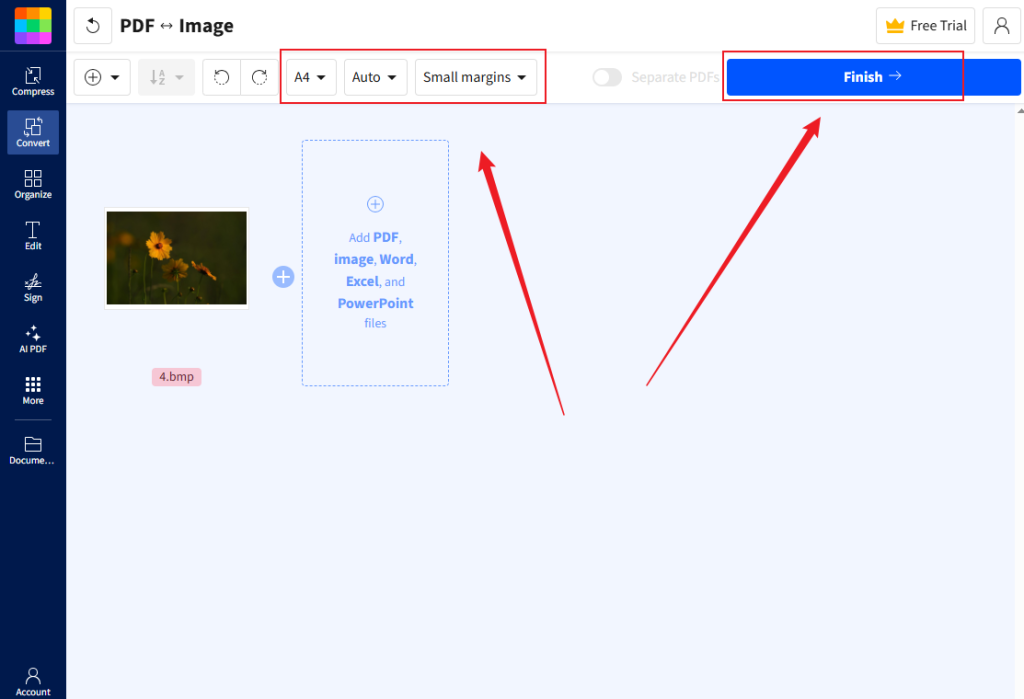
Step 3. Personalize the page size, orientations, and margins as needed. Then click Finish to start the conversion. Once the process is over, click Download to save the new PDF file.
With Smallpdf and other online PDF tools, you can also convert BMP to PDF on Android and iPhone.
Final Words
There are many benefits of converting BMP to PDF, such as reducing file size, improving compatibility, and creating professional documents. How to convert BMP files to PDF on Windows, Mac, online, and mobile devices? This article introduces comprehensive and detailed guidance. Among them, JOPDF is my first choice because it can not only convert between images and PDFs but also edit PDFs for free. Now, it’s you time to have a try!
FAQs
JOPDF – convert and combine BMP to PDF for free
Adobe Acrobat Pro – overall PDF converter with editing features
SwifDoo PDF – PDF converters with OCR
Smallpdf – online BMP to PDF converter
Preview – macOS built-in BMP to PDF converter
Table of Contents

Your Best Free PDF Expert in PDF editing, compressing, converting, annotating, protect, organizing, and more.
Free DownloadWindows · macOS · Linux

Olivia
“Olivia is an editor at JOPDF, where she writes practical guides and insightful articles on managing PDFs—covering topics like editing, annotating, converting, and organizing files efficiently. Passionate about clear communication and digital productivity, Olivia enjoys spending her free time cooking, watching movies, and hiking to unwind and find inspiration for her writing.”