![7 Best PDF Converters in 2026 [Pros, Cons, and More]](https://b.jopdf.com/wp-content/uploads/2026/02/best-pdf-converter.png)
Introduction :
PDF files are commonly used to share documents because they maintain consistent formatting across devices and platforms. At times, it’s necessary to convert PDF to PPT, Word, Excel, JPG, etc., for editing, data extraction, or efficient reuse of visuals. Choosing the best PDF converter saves time, improves productivity, and supports work, study, and business needs. In this article from JOPDF – the best free PDF converter, we’ll introduce the 6 best PDF converters for online and offline use on any device.
What Is a PDF Converter
A PDF converter is a software tool or online service that converts PDF files to other editable or shareable formats, such as Word, Excel, or PowerPoint, or to JPG, and can also convert files from other formats back to PDF. It enables the extraction of text, images, tables, and layouts. All while preserving most of the original formatting.
PDF converters help users edit documents, recycle content, coordinate with teams, and increase productivity across multiple devices and platforms.
How to Choose the Best PDF Converter
With numerous tools available, you may be wondering, “What is the best PDF converter for your requirements?” Your workflow, device, and required features determine the best option. To select the right tool, consider the following factors when choosing the best PDF converter.
Supported File Formats
To be effective, a PDF converter must let you convert PDF to Word, Excel, and PowerPoint while preserving formatting and structure. The tool should allow PDF to image and Office files and images to PDF conversions, streamlining document workflows across platforms.
Conversion Accuracy
High conversion accuracy is essential when choosing a PDF converter. Because it maintains the original layout, fonts, images, and overall formatting of the document. The tool must convert text, tables, and graphics precisely and safely. This ensures documents stay polished and require little to no manual correction.
Ease of Use
Ease of use is an important consideration when choosing a PDF converter. It is especially useful for users who need quick, hassle-free conversions. Intuitive design, straightforward navigation, and simple guidance can make tasks quicker. And make the tool accessible for both beginners and professionals.
Platform Compatibility
Platform compatibility is crucial to make sure the PDF converter runs seamlessly on your chosen device and operating system. A good PDF converter works on all devices or online for easy access.
Security and Privacy
Protecting data is crucial when using a PDF converter for confidential or private files. A trustworthy tool ensures data safety with strong encryption, secure uploads, and automatic removal of files. This ensures your personal, academic, or business information remains safe during and after conversion.
Free vs Paid Features
Free vs. paid features are important factors to consider when choosing a PDF converter. Free versions may cover simple conversions, whereas paid plans provide advanced options like OCR, batch processing, larger file support, and faster processing. Reviewing the features of each plan helps you select a PDF converter that matches your needs and budget.
Best PDF Converters in 2026
Now you understand what to look for in a PDF converter tool. Take a look at the best PDF converters in 2026 for all platforms and devices. Let us see.
#1. JOPDF – Best Free PDF Converter Without Watermark or File Size Limit
Supported OS: Windows, Mac, and Linux computers.
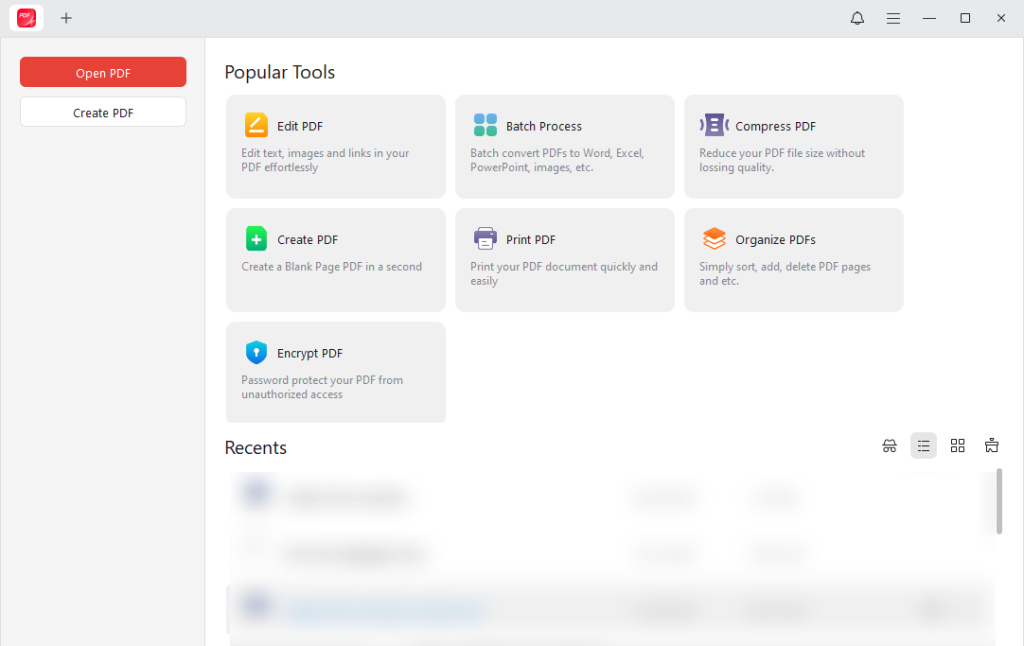
JOPDF is widely regarded as the best free PDF converter. The tool allows you to convert Excel, Word, PPT, and images to and from PDF with high accuracy effortlessly. The tool allows you to edit PDFs for free while maintaining a professional look and unlimited file sizes. With its cross-platform functionality, JOPDF delivers a versatile option for both personal and work-related PDF tasks.
🌟Key Features of JOPDF:
- Offers a clean, intuitive interface for fast and dependable PDF conversions.
- Convert PDFs to and from other file formats while preserving the original formatting.
- Supports over 15 annotation tools to cover the markup needs.
- Edit, compress, merge, and split documents effortlessly.
- Organize, protect, read, and print PDFs hassle-free.
✔Pros of JOPDF:
- Does not have any ads despite being a completely free platform.
- Allows batch conversion for multiple files at once.
- Totally free to use, no signup or payments needed.
- Keeps files safe and private by not storing them permanently.
❌Cons of JOPDF:
- Ideal for simple PDF edits and standard document tasks.
#2. Adobe Acrobat – Best PDF Converter for Accurate Office Documents
Supported OS: Windows, Mac, iOS, Android devices, and Online (Web Services).
Adobe Acrobat is a secure PDF converter trusted by professionals worldwide. It can quickly convert PDF to Excel, Word, and other formats accurately. Along with preserving formatting and batch capabilities, it facilitates smooth and precise workflows for professional documents. Reliable and well-integrated with Adobe apps, the tool ensures an efficient workflow and high productivity.
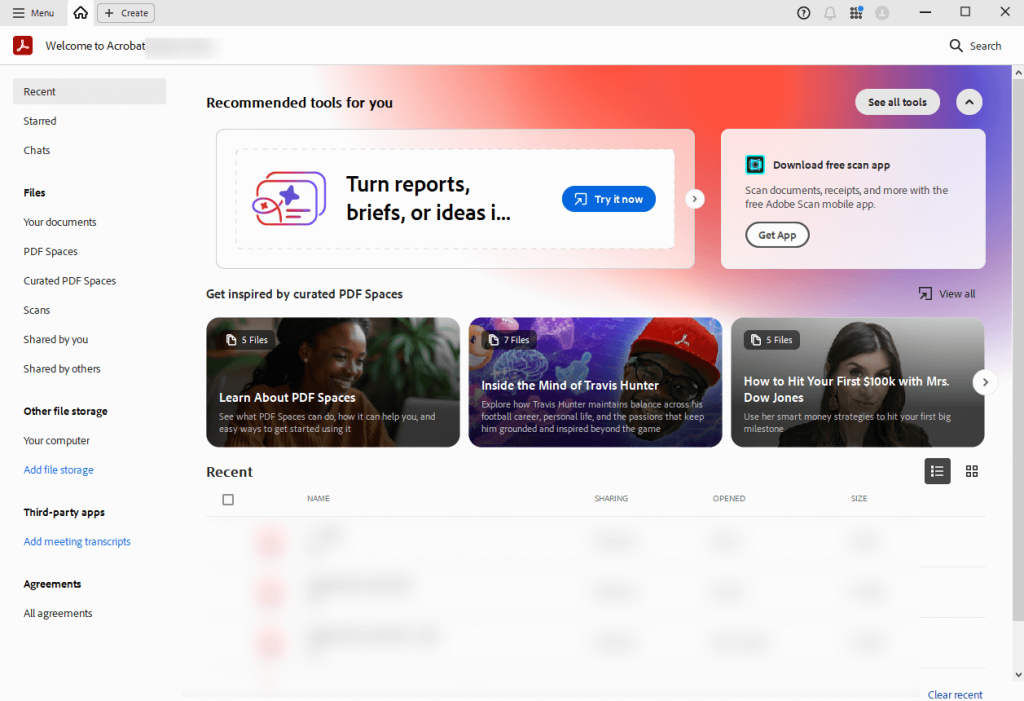
🌟Main Features of Adobe Acrobat:
- Edit, compress, annotate, merge, and split PDFs.
- Converts scanned documents and images into editable, searchable PDFs.
- Enables the conversion of multiple files simultaneously to save time.
- Allows password protection, redaction, and encryption during conversion.
- Works on desktop, mobile, and web, with tight integration into Microsoft 365, Google Drive, and OneDrive.
✔Pros of Adobe Acrobat:
- Maintains document layout, fonts, and images accurately.
- Covers all PDF needs from creation to signing.
- Enables direct editing of text and images within the PDF.
❌Cons of Adobe Acrobat:
- Expensive for individual users or infrequent, as it operates on a recurring model.
- The extensive interface can be intimidating and complex for casual, first-time users.
- The resource-intensive application can be slow, particularly with large files or on older computers.
#3. SwifDoo PDF – Best PDF Converters Keeps Formatting
Supported OS: Windows, Mac, iOS, Android devices, and Web Services.
SwifDoo PDF is another versatile PDF converter for Windows 10/11 and other platforms. Emerging as a powerful Adobe Acrobat alternative, it lets users convert PDFs in batch while preserving formatting and saving time on repetitive tasks. With its user-friendly design, SwifDoo PDF makes PDF management smooth, intuitive, and efficient.
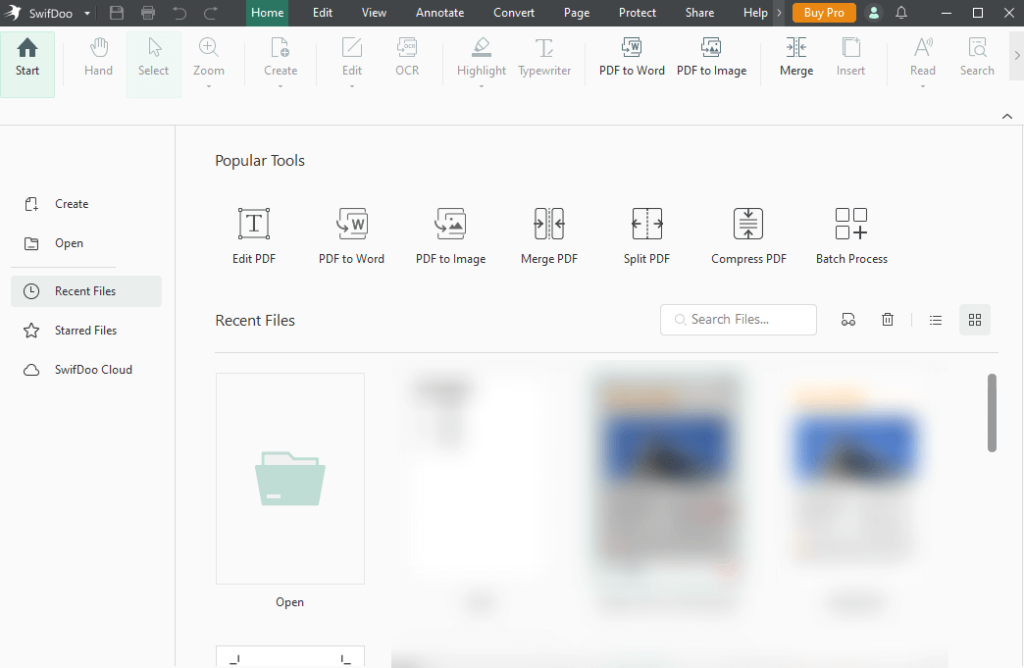
🌟Key Features of SwifDoo PDF:
- Effortlessly converts PDF to/from Word, Excel, PPT, Image, CAD, and HTML, preserving formatting.
- Adjust text and images, including font style, color, and size.
- Extracts text from scanned PDFs or images for editing.
- Provides tools for merging, splitting, compressing, and watermarking documents.
- Provides encryption, password protection, and multiple markup options, including highlights and shapes.
✔Pros of SwifDoo PDF:
- Clean layout and smooth interface for effortless navigation.
- Does not significantly slow down computer systems.
- Offers a full-featured free trial to get the knack of all the functions.
- Efficiently converts files without losing layout integrity.
❌Cons of SwifDoo PDF:
- SwifDoo PDF is mainly built for Windows, offering only limited features on Mac.
#4. Nitro PDF – Best PDF Converter for Large Files
Supported OS: Windows, Mac, and iOS devices.
Recognized as one of the best converter softwareprograms, Nitro PDF handles large files effectively. It provides quick and accurate PDF conversions to Word, Excel, PowerPoint, and images while maintaining formatting. Nitro PDF’s reliable performance makes managing and transforming even bulky documents seamless and efficient.
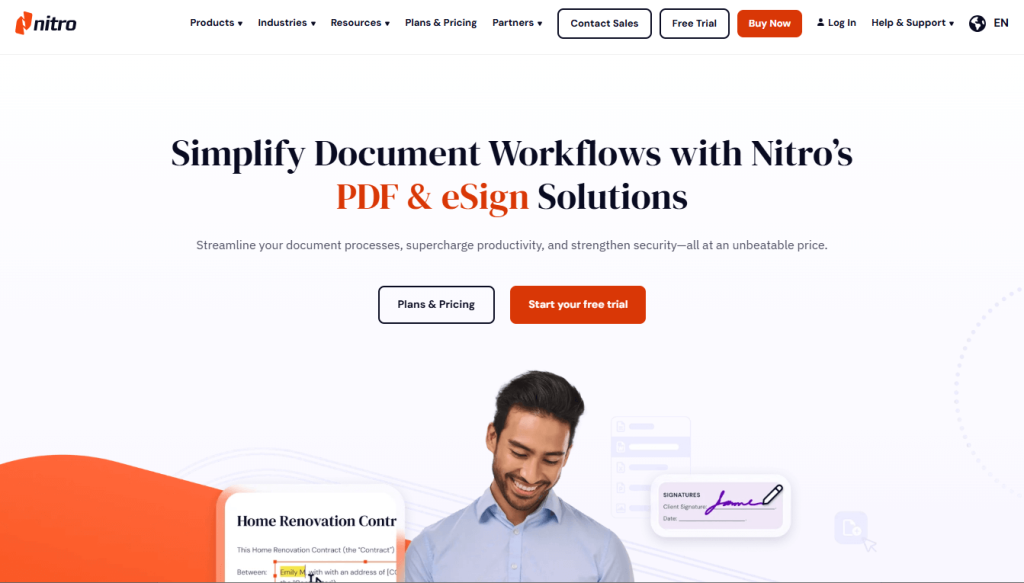
🌟Key Features of Nitro PDF:
- Offers a familiar “ribbon” interface, making it easy for all users.
- Converts PDFs to and from Word, Excel, PowerPoint, and image formats while preserving the original layout.
- Provides text and image editing tools and uses OCR to make scanned PDFs editable.
- Includes unlimited legally binding e-signatures, password protection, and redaction tools.
- Seamless connectivity with SharePoint, OneDrive, Dropbox, and Google Drive.
✔Pros of Nitro PDF:
- Features a user-friendly and intuitive interface.
- Reliable conversion of complex documents.
- Smoothly processes large files.
❌Cons of Nitro PDF:
- Lacks real-time support.
- Some users report software crashes, particularly with complex or large files.
- The OCR tool can sometimes misinterpret characters in scanned documents.
#5. PDF24 Creator – Best Free Offline PDF Converter for Windows
Supported OS: Windows computer only.
PDF24 Creator provides a trustworthy, free solution for offline PDF conversion on Windows. It allows fast conversion of PDFs to Word, Excel, images, and more while preserving formatting. With easy-to-use tools, PDF24 Creator makes managing and transforming documents simple and efficient.
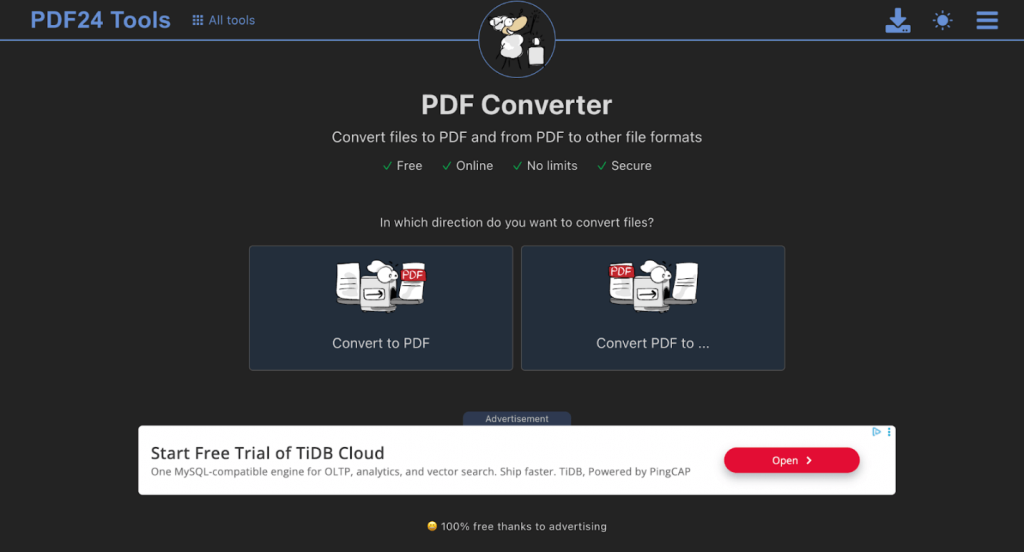
🌟Key Features of PDF24 Creator:
Converts any document that can be printed into a PDF file.
- Converts files to/from PDF (Word, Excel, Images, etc.).
- Includes Optical Character Recognition (OCR) to convert scanned files to searchable text, and tools to password-protect or sign PDFs.
- Merge, split, rearrange, and extract pages.
- Desktop software keeps files local for enhanced security.
✔Pros of PDF24 Creator:
- No ads, no watermarks, and no usage limits.
- Offers a wide range of features in one installer.
- Runs smoothly on older or low-spec Windows computers.
- With offline processing, your sensitive files remain on your device.
❌Cons of PDF24 Creator:
- The desktop version is exclusively for Windows.
- The design feels less polished than modern alternatives.
- Not ideal for heavy editing (e.g., changing existing PDF text).
- A few tasks involve several steps, making them less smooth than premium options.
#6. Smallpdf – Online PDF Converter No Signup
Supported OS: Web-based solution; also available as a mobile app, desktop app for Windows, and Chrome extension.
Smallpdf is a convenient online PDF converter that requires no sign-up or formal software installation. With support for Word, Excel, PowerPoint, and images, it helps you convert PDFs without watermark in just a few clicks. Smallpdf offers a speedy and accessible way to convert PDFs on any device, streamlining document management.
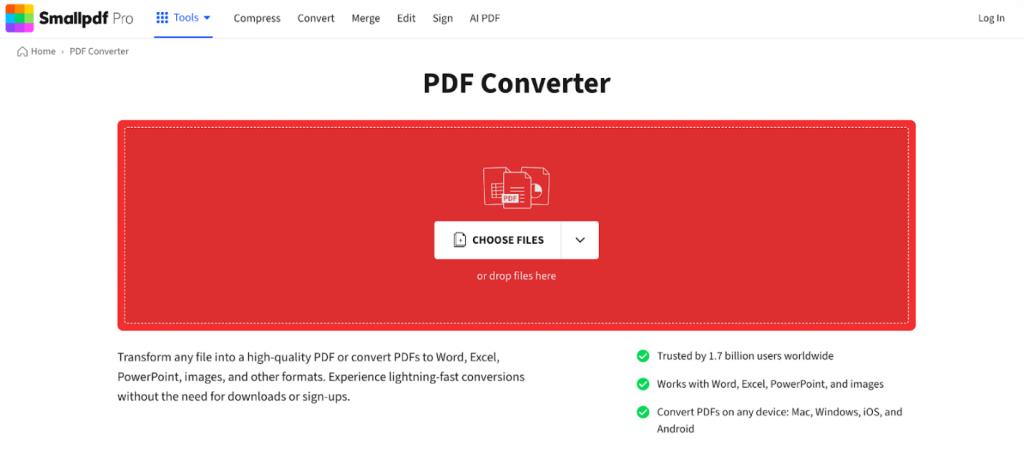
🌟Main Features of Smallpdf:
- Convert PDF to/from Word, Excel, PPT, and images (JPG, PNG, GIF, BMP).
- Allows batch conversion to convert multiple files at once.
- Merge, split, rotate, crop, delete pages, and add text or images.
- Reduces file size and is often cited for its efficiency.
- Offers 256-bit SSL encryption, password protection, and electronic signatures.
✔Pros of Smallpdf:
- Intuitive, drag-and-drop interface.
- Quick conversion speeds are efficient for daily tasks.
- Basic tasks are available for free, on the go.
- Accessible from any web browser or device.
❌Cons of Smallpdf:
- Strict daily usage limits (often 2 tasks per day) restrict free, consistent use.
- Requires upgrade to the pro version for advanced editing and OCR.
- Requires a stable internet connection; limited offline access.
#7. FreeConvert – Online PDF Converter No Watermark
Supported OS: Web-based converter.
Finally, we have FreeConvert. It’s a quick and dependable online PDF converter that allows users to convert PDFs without a watermark. Compatible with a wide range of formats, including Word, Excel, PowerPoint, and images. With its simple interface, FreeConvert makes PDF conversion quick and accessible on any device.
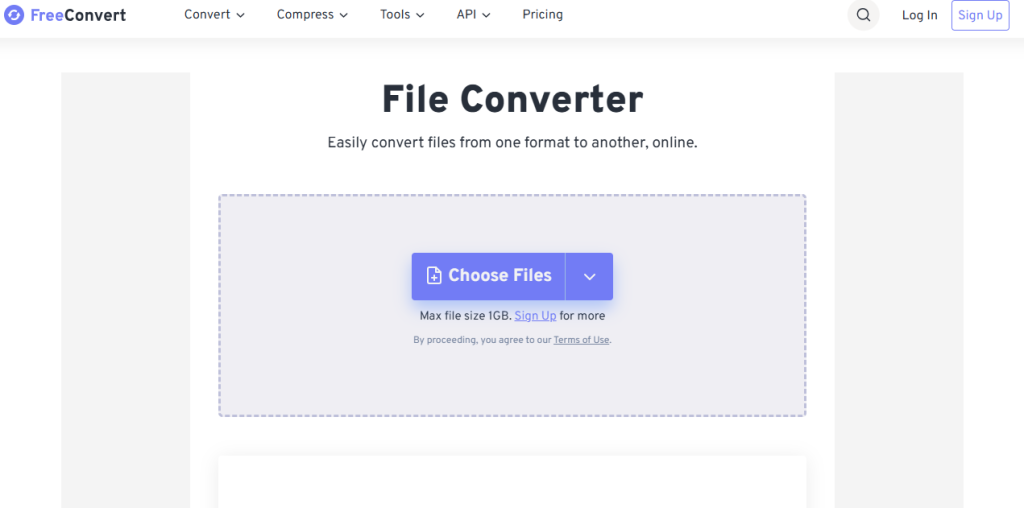
🌟Main Features of FreeConvert:
- Enables quick conversion of videos, images, audio files, and ebooks.
- Files can be uploaded from your device, cloud services, or a URL.
- Allows processing multiple files at the same time to save effort.
- Offers detailed options to refine and perfect conversions.
- Uses 256-bit SSL encryption for file transfers.
✔Pros of FreeConvert:
- User-friendly with a simple interface that needs no installation.
- Supports more than 1500 file conversions.
- Automatically deletes files after 8 hours to protect privacy.
- Available for access from any device via the web.
❌Cons of FreeConvert:
- Supports files up to 1 GB unless you sign up.
- Limited features compared to paid desktop PDF converters.
- Converting big files may require more time based on the internet speed.
- Despite its name, advanced features require the pro version.
Which Is the Best PDF Converter for You
Your best PDF converter choice depends on your needs, workflow, and the devices you use. This guide helps you choose the best PDF converter for different user groups. Let us look.
- Best PDF converters for students: SwifDoo PDF, JOPDF, and Smallpdf
- Best PDF converters for small business: PDF24 Creator, JOPDF, and Smallpdf
- Best PDF converters for office workers: SwifDoo PDF, Nitro PDF, and Adobe Acrobat
- Best PDF converters for occasional users: JOPDF, FreeConvert, and SmallPDF
- Best PDF converters for privacy-focused users: SwifDoo PDF, JOPDF, and Adobe Acrobat
Final Thoughts
That’s all, friends. Using the ideal PDF tool can enhance efficiency in handling and editing documents. For professional work, student use, or quick tasks, the best PDF converter, best free PDF converter, and online PDF converter can save time and effort. Every PDF converter listed comes with unique capabilities, such as accurate conversion, batch support, and secure offline functionality. These PDF tools make handling, editing, and converting documents simple and efficient.
FAQs
Table of Contents

Your Best Free PDF Expert in PDF editing, compressing, converting, annotating, protect, organizing, and more.
Free DownloadWindows · macOS · Linux

Olivia
“Olivia is an editor at JOPDF, where she writes practical guides and insightful articles on managing PDFs—covering topics like editing, annotating, converting, and organizing files efficiently. Passionate about clear communication and digital productivity, Olivia enjoys spending her free time cooking, watching movies, and hiking to unwind and find inspiration for her writing.”