Summary :
Excel files help organize data, run calculations, and create clear reports for work or school. Turning PDFs into Excel files makes table extraction and number editing simpler and more precise. Check this guide to learn how to batch convert PDF to Excel to save time!
[Fastest Way] Batch Convert PDF to Excel for Free
JOPDF is a practical tool that lets users batch convert PDFs to Excel for free. This tool makes file conversion simple, fast, and accurate while preserving data layout and formatting. You can convert PDFs without seeing ads or watermarks.
Along with PDF to Excel conversion, JOPDF enables users to convert files into Word, PowerPoint, images, and other PDF formats.
The tool processes all files locally on your computer to help protect your data and maintain user privacy. It is suitable for both personal and professional document conversion needs.
See how to convert several PDF files to Excel using JOPDF.
Step 1. Download and install JOPDF on your computer.
Launch the program and click Batch Process under Popular Tools. Next, select PDF to Excel.
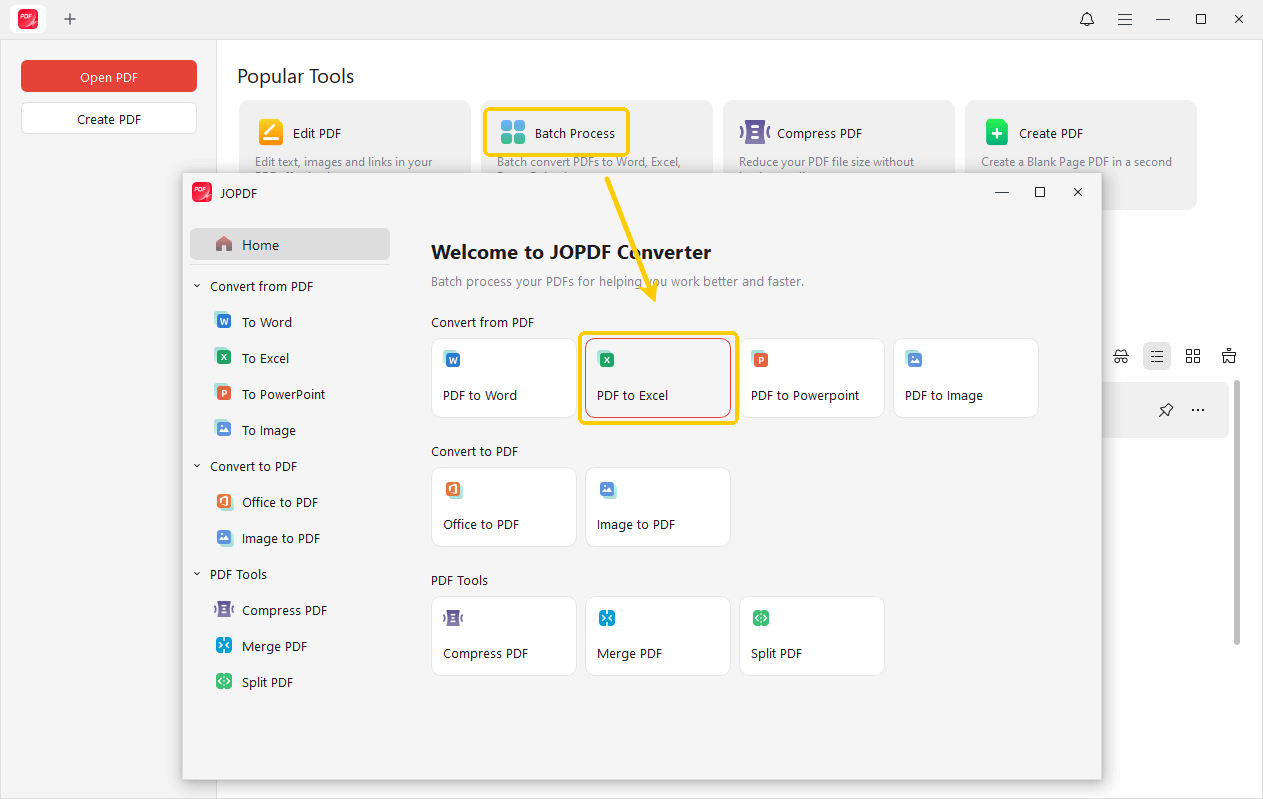
You can also open a PDF file in JOPDF, go to the Convert tab, and choose PDF to Excel to convert PDF to Excel files.
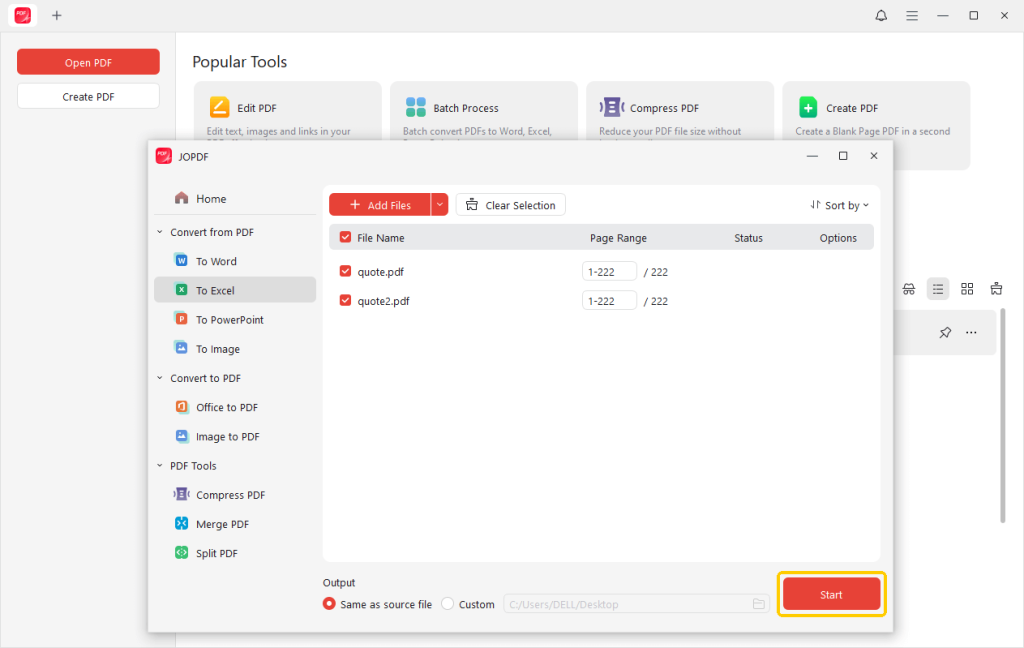
Step 2. Click Add Files or drag and drop PDF files into the converter window to upload documents for conversion.
Step 3. Choose a destination folder to save the converted Excel files.
Step 4. Click Start to begin conversion. When done, open the Excel file to confirm proper column alignment and formatting.
JOPDF is more than a PDF converter; it also lets you edit and manage PDFs with features like splitting and compressing files.
Multiple converted PDFs can be merged into a single file to improve document management. Download JOPDF now to simplify and manage your documents with ease!
Batch Convert PDF to Excel with Adobe Acrobat Pro
Adobe Acrobat Pro is designed for professional document conversion and advanced PDF editing workflows. The software ensures exact table extraction from PDF to Excel while keeping the layout unchanged.
It is popular for its reliable performance and strong file protection. The tool not only converts files but also includes powerful PDF editing and management capabilities.
Check out how to convert PDF to Excel in bulk using Adobe Acrobat Pro.
Step 1: Set up Adobe Acrobat Pro on your computer and launch it.
Step 2. Go to the Tools menu and select Action Wizard.
Step 3. Click New Action and from the Save & Export menu, select Save in the right-hand pane.
Step 4. Now, click the arrow to add the option at right hand pane and select the Specify Settings option.
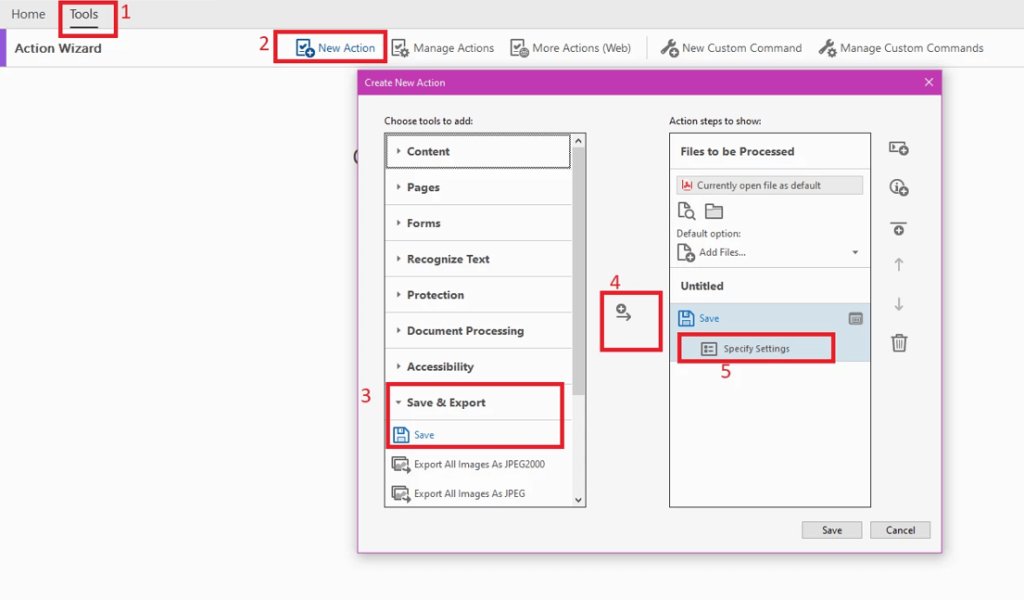
In the Output Options window that opens, select “Export file(s) to Alternate format” under Output Format.
Then, select the Excel workbook from the “Export To” drop-down list. Set your output folder. You can choose a specific folder or select the Same folder as selected file option.
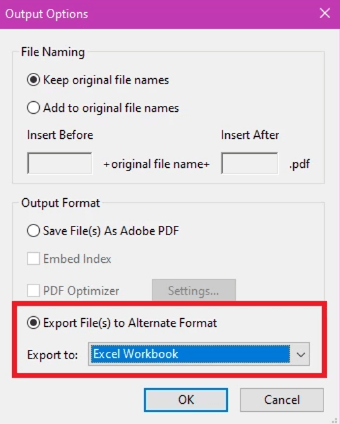
Step 5. Name your action and tap Save. Select the new action from the menu, add the files or folder you wish to convert, and hit Start.
You should know that a subscription is required to unlock Adobe Acrobat Pro’s full conversion and editing capabilities. Those who want a free PDF editor can try JOPDF, which offers simple PDF conversion and management features.
Batch Convert PDF to Excel Using an Online Converter
Online PDF converters provide a quick and convenient way to convert files without software setup. They are helpful for simple and occasional document conversion needs.
iLovePDF is a well-known online converter that helps users convert multiple PDFs to Excel without losing data layout or formatting. Its conversion feature supports multiple file uploads and fast processing for quick results.
Find out how to batch convert PDF files into Excel with iLovePDF in a handful of clicks.
Step 1. Open your web browser to navigate to iLovePDF. Then, visit the iLovePDF PDF to Excel page.
Step 2. Use Select PDF file to add all PDF files for conversion from your device or cloud platforms like Google Drive and Dropbox.

Alternatively, drop PDF files directly in the conversion window. Pick a layout option: One Sheet or Multiple Sheets.
Step 3. Click the Convert to Excel button to proceed.
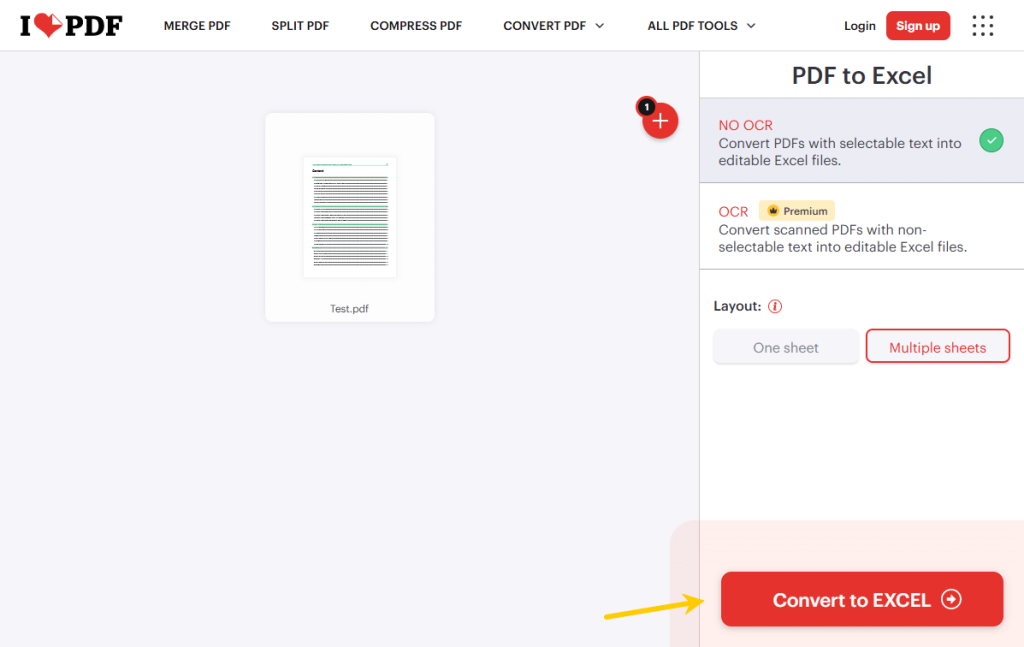
Step 4. Finally, click Download Excel to save the newly converted files to your computer.
Final Thoughts
That’s all about how to batch convert PDF to Excel. These methods help save time, improve data accuracy, and simplify document management.
Just choose the solution that best fits your needs. Anyhow, if you want a simple, safe, and free tool, JOPDF is the best choice. Download it and convert your PDFs for quicker and more efficient file processing!
FAQs
Table of Contents

Your Best Free PDF Expert in PDF editing, compressing, converting, annotating, protect, organizing, and more.
Free DownloadWindows · macOS · Linux

Queena
Editor
“As a staff editor for JOPDF, Queena excels at guiding users to the optimal tools and solutions. When she's not analyzing the latest PDF solutions, she enjoys spending her free time playing with her four cats.”
![6 Must-Know Bank Statement Converters in 2026 [Full Review]](https://b.jopdf.com/wp-content/uploads/2026/03/bank-statement-converter.png)
