![6 Must-Know Bank Statement Converters in 2026 [Full Review]](https://b.jopdf.com/wp-content/uploads/2026/03/bank-statement-converter.png)
Introduction :
Bank statements are important financial records, but static formats often make data analysis difficult. Due to this, professionals depend on a bank statement converter to convert bank statements to Excel and streamline financial workflows. The option to extract transactions from bank statement PDFs streamlines financial workflows and saves time. In this JOPDF article, we compare the top 6 bank statement converters to help you choose the best option.
What Is a Bank Statement Converter
A bank statement converter is software designed to turn bank statements from PDF or scanned files into organized formats like Excel, CSV, or Google Sheets. The system processes the statement, identifies transaction data, and places it into well-structured rows and columns.
Accountants, freelancers, auditors, and loan processors often rely on these tools to reduce manual work and improve efficiency. When statements are converted into spreadsheets, users can quickly analyze, sort, and manage financial information.
How to Choose the Best Bank Statement Converter
The best bank statement converter improves data extraction accuracy and supports efficient financial management. The right tool should save time, minimize manual work, and deliver reliable results when converting bank statements to usable formats like Excel or CSV.
Below are the main factors to review when selecting a bank statement converter.
Supported Output Formats
A trustworthy bank statement converter provides multiple output formats to help users manage financial data easily. Common options include Excel and CSV, which allow sorting and analysis. For users, exporting a bank statement to CSV enables fast and accurate transfer of transactions into spreadsheets.
Accuracy & OCR Technology
Accuracy is critical when extracting financial data from statements. Advanced tools use OCR bank statement technology to read text from PDFs and images. This enables users to convert scanned bank statement to Excel while accurately capturing dates, transactions, and amounts.
Batch Processing & Automation
Batch processing is useful for professionals who regularly handle many statements. A bulk bank statement converter lets users upload and process multiple files simultaneously instead of one at a time. This capability increases productivity while reducing time spent on accounting, auditing, and financial operations.
Security and Compliance
Bank statements contain sensitive financial information, so security is essential when using a converter. Reliable tools offer encrypted bank statement processing to protect uploaded files and prevent unauthorized access. Strong encryption and security measures ensure financial records are protected and confidential throughout conversion.
Pricing and Free Plans
Pricing is a key consideration when choosing the most suitable tool. You can find a free bank statement converter on some platforms, though full features may need a subscription. A bank statement converter with a free trial lets users test its accuracy and features before subscribing.
#1. Adobe Acrobat
Adobe Acrobat is known as the top professional PDF converter for converting, editing, and organizing PDF documents. Users can convert scanned bank statement to Excel along with other formats, simplifying financial data management. With advanced technology for OCR PDFs, it can accurately extract text and tables from scanned or image-based bank statements.

Key Features:
⭐Preserves formatting, fonts, and layouts from the original PDF.
⭐Turns scanned documents and images into Excel spreadsheets that are both editable and searchable.
⭐Automatically detects tables and translates them into Excel rows and columns.
⭐Accessible via desktop app, web browser, and mobile devices. ⭐Lets users convert several files at the same time (Pro feature).
Pros:
✔Achieves better accuracy in converting both text and tables than competing software.
✔Offers password protection and encryption for sensitive financial documents.
✔Includes a user-friendly drag-and-drop system for fast file conversion.
✔Excels at handling large, detailed files and preserves formatting accurately.
Cons:
❌The subscription for Adobe Acrobat Pro can be costly for casual users.
❌Sometimes fails to parse complex, merged tables correctly, resulting in broken or disorganized data.
❌Does not offer detailed control to manually set table areas or column breaks before conversion.
❌Newbies may find the interface complex with a steep learning curve.
❌The program can feel heavy or unresponsive at times, especially with sizable documents.
Best For: Professionals needing advanced PDF editing, reliable conversion, and accurate OCR capabilities.
Pricing: Offers a free trial. Acrobat Pro version starts at US$19.99/month. Acrobat Standard at US$14.99/month and Acrobat Studio at US$24.99/month.
#2. JOPDF – Best Free Bank Statement Converter
Professionals and newcomers can rely on JOPDF to efficiently convert PDF to Excel. Serving as a free Adobe Acrobat alternative, it offers key PDF tools without requiring payment. Offering the ability to freely convert PDF bank statements, it simplifies workflows, and its bulk bank statement converter efficiently manages multiple files.
With its intuitive interface, JOPDF is easy for accountants, freelancers, and loan processors to use.
Key Features:
⭐Converts PDFs directly into fully editable Excel spreadsheets.
⭐Allows for processing multiple PDFs at once.
⭐Desktop tool compatible with Windows, Mac, and Linux.
⭐Outputs clean, column-organized transaction data ready for analysis.
⭐Effortlessly edit, annotate, compress, print, merge, and split documents without hassle.
Pros:
✔Free of ads and watermarks, with no registration required.
✔Completely free software with no hidden charges.
✔Works without needing an internet connection.
✔Intuitive and modern interface that requires no technical expertise.
✔Handles confidential financial data securely without compromising user privacy.
✔The batch processing feature speeds up the conversion of several files at once.
Cons:
❌Functions well for basic PDF needs only.
Best For: Anyone who wants a free Adobe Acrobat alternative with bulk conversion capabilities.
Pricing: Entirely free with no concealed costs.
#3. Nanonets
Nanonets acts as another AI bank statement converter, designed to quickly extract transaction details from PDFs and scanned files. Using artificial intelligence, it accurately identifies and organizes financial details into editable formats like Excel or CSV. Its intelligent automation minimizes manual work, making it perfect for accountants, freelancers, and loan processors.
Key Features:
⭐Utilizes deep learning to extract row-column formats from PDFs, even when they are skewed or low resolution.
⭐Ensures high-precision extraction, often outclassing conventional template-based OCR techniques.
⭐Comes with pre-built models for frequently used documents such as invoices, receipts, and bank statements.
⭐Works with over 5000 apps to automatically retrieve data from emails or cloud storage and export it to Excel.
⭐Enables users to manually verify low-confidence predictions, boosting accuracy and training the AI.
Pros:
✔Works effectively with scanned, handwritten, and original PDF documents.
✔Cuts down on manual data entry, enabling users to achieve up to 90% time savings.
✔Features a user-friendly interface, making it simple for newcomers to handle advanced tasks.
✔Offers 24/7 support and is GDPR- and SOC 2-compliant.
✔Supports over 150 languages and more than 100 document types.
✔Handles large batches of files quickly and efficiently.
✔Works seamlessly with apps like Zapier, Google Drive, and Salesforce.
Cons:
❌Needs some technical expertise to set up, particularly when using APIs or creating complex workflows.
❌Needs configuration to define table boundaries and validation rules for optimal accuracy.
❌Can be expensive for smaller operations, with higher pricing for the Pro tier.
❌Some users may notice that setting up, especially for complex table extraction, requires careful attention.
Best For: Automating bank statement extraction using AI for fast and accurate results.
Pricing: Provides US$200 in credits to start, at no cost. Afterward, users are billed using a Pay As You Go system.
#4. Docparser
Docparser enables automated bank statement data extraction, streamlining workflows and reducing mistakes. It lets users extract bank transactions to Excel and other spreadsheet formats for easy reporting and analysis. With customizable parsing rules, Docparser efficiently handles a variety of bank statement layouts.

Key Features:
⭐Allows users to define, refine, and store custom parsing rules for unique layouts via a point-and-click interface.
⭐Combines OCR for scanned PDFs with pattern recognition to extract tables, text, and specific fields.
⭐Converts thousands of PDFs to Excel or CSV automatically.
⭐Tools to clean up, rotate, or enhance image-based PDFs before extraction.
⭐Directly export data to Microsoft Excel, Google Sheets, or through webhooks/API to CRMs like Salesforce.
Pros:
✔Performs exceptionally well when parsing structured data, including invoices and forms.
✔Dramatically reduces manual data entry.
✔Simple, user-friendly design suitable for users without technical experience.
✔Capable of processing native PDFs, scanned PDFs, and image files.
Cons:
❌High costs make it pricey for heavy users, with some considering it expensive.
❌Defining custom rules for highly inconsistent documents can be difficult and time-consuming.
Best For: Customizing parsing rules and automating data extraction from multiple bank statement formats.
Pricing: Starter plan at US$39/month, Professional plan at US$74/month, Business plan at US$159/month. Enterprise plan at custom prices.
#5. Smallpdf
Smallpdf is a convenient online bank statement converter that lets users manage PDFs without installing software. It lets you convert PDF bank statements online free and quickly transform them into Excel or other editable formats. Users can also convert and edit a scanned PDF, making financial data extraction simple and efficient.
Key Features:
⭐Converts scanned, non-editable PDF tables into editable Excel (.xlsx) files.
⭐Accurately extracts data while attempting to maintain the original row and column formatting.
⭐No installation required; works directly in the browser and integrates with Dropbox/Google Drive.
⭐Ability to convert multiple files at once.
⭐Converts files rapidly while maintaining security with ISO/IEC 27001 certification and 256-bit SSL.
Pros:
✔Easy-to-use drag-and-drop interface, suited for fast, straightforward tasks.
✔Typically reliable for converting tables, even from scanned documents using OCR.
✔Available in all browsers, enabling users to work efficiently on the move.
✔Handles diverse PDF layouts effectively.
Cons:
❌Restricts daily tasks (often only 2 per day) and file sizes.
❌Advanced OCR and unrestricted use come with a paid plan.
❌Highly detailed layouts may not translate accurately into Excel and need editing.
❌As a cloud-based tool, it needs a reliable internet connection.
Best For: Simple, speedy online bank statement conversion that doesn’t need software installation.
Pricing: Offers a free plan with limitations. Pro plan pricing is US$9/month for Individual users and US$7/user/month for Teams.
#6. Veryfi
Designed for speed and precision, Veryfi allows you to extract transactions from bank statement PDFsefficiently. Financial data is organized into Excel or CSV formats, reducing errors and manual work. Ideal for accountants, freelancers, and loan processors, Veryfi streamlines workflows and speeds up financial analysis.

Key Features:
⭐Uses machine learning to recognize and extract data, including line items, tax, and totals, rather than relying on fixed templates.
⭐Processes documents instantly, often completing tasks within seconds.
⭐Extremely capable of handling diverse layouts, including different invoice formats.
⭐Unlike traditional OCR, it does not require pre-defined zones to find data.
Pros:
✔Achieves high accuracy with detailed financial documents, including individual line items.
✔Perfect for scaling, featuring APIs built to manage large volumes of documents.
✔Extracts not only table data but also metadata, such as vendor information.
Cons:
❌May feel overkill or expensive for simple, single-use conversion tasks.
❌As an API-first tool, it requires integration to maximize its benefits.
❌Accuracy may drop with complex or scanned data.
Best For: Freelancers and accountants needing fast, accurate transaction extraction from bank statements.
Pricing: Offers a free plan with limitations. Starter plan at US$500/month.
A Quick Comparison Table of Best Bank Statement Converters
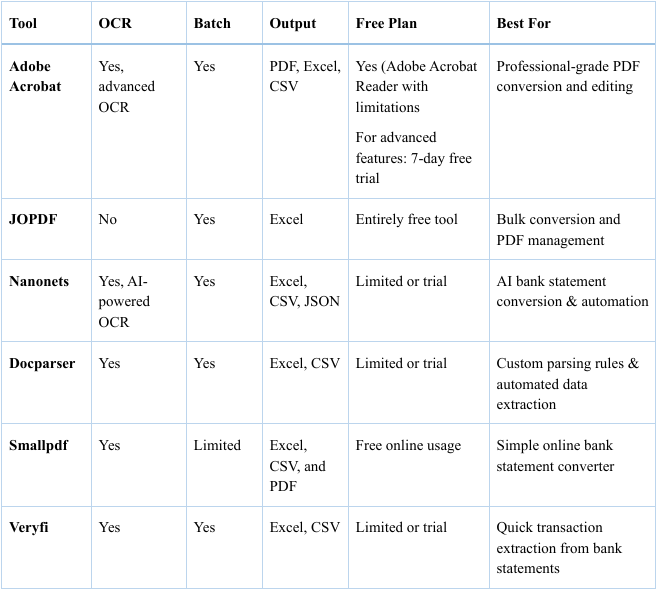
To make selecting easier, here’s a quick comparison table of the top bank statement converters. It emphasizes features such as OCR, batch processing, output formats, free plans, and the best applications for each tool.
This makes it easier to see which converter fits your workflow and financial data needs at a glance.
How to Convert Bank Statement PDF to Excel
Converting a bank statement PDF to Excel can simplify financial analysis, reduce manual data entry, and help professionals manage transactions more efficiently. Using JOPDF as an example, this process allows you to quickly transform your PDF statements into editable Excel sheets, making it easier to organize, sort, and analyze your financial data.
Learn how to convert a bank statement PDF to Excel with JOPDF.
Step 1. Download and install JOPDF on your Windows and Mac computer.
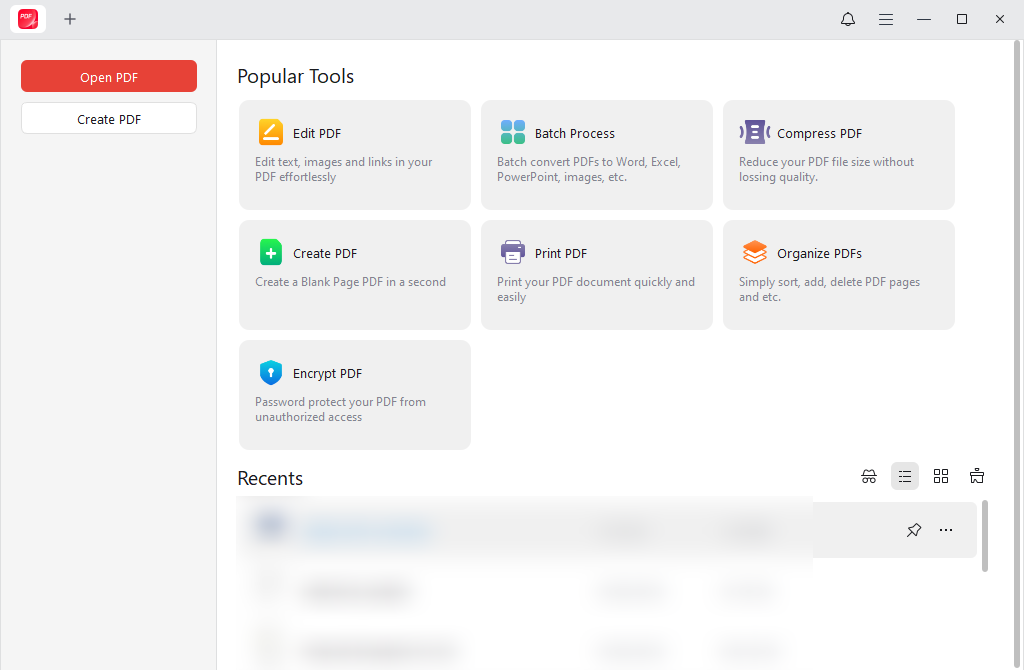
Step 2. Once launched, on the start page, click Batch Process under Popular Tools. In the pop-up windows, select the PDF to Excel converter.
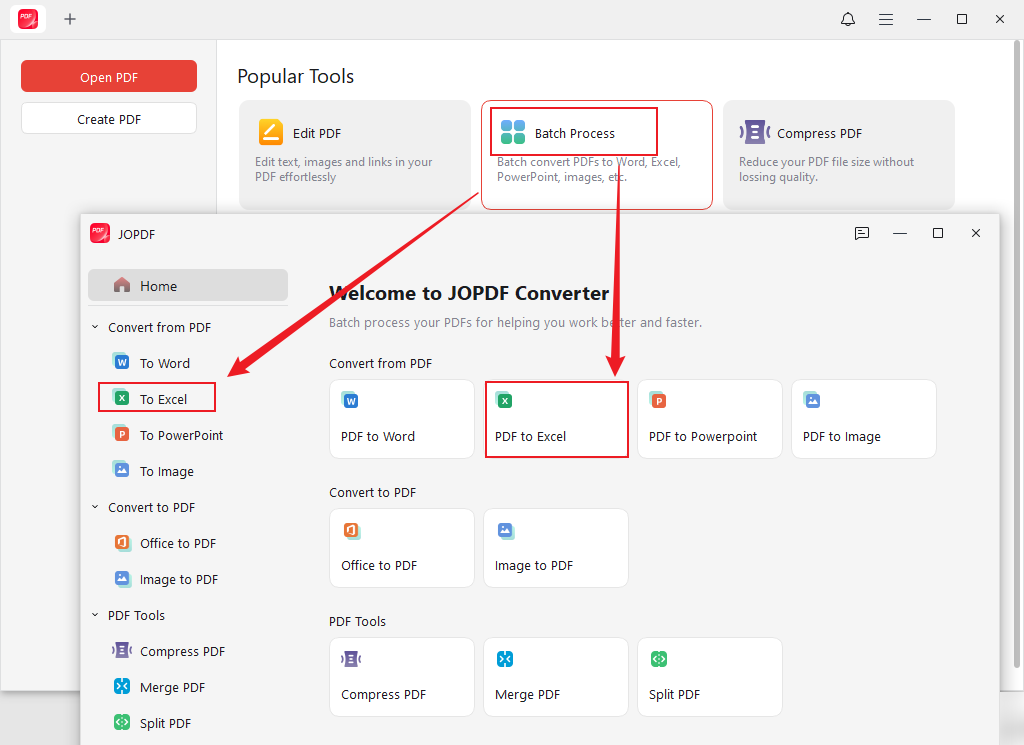
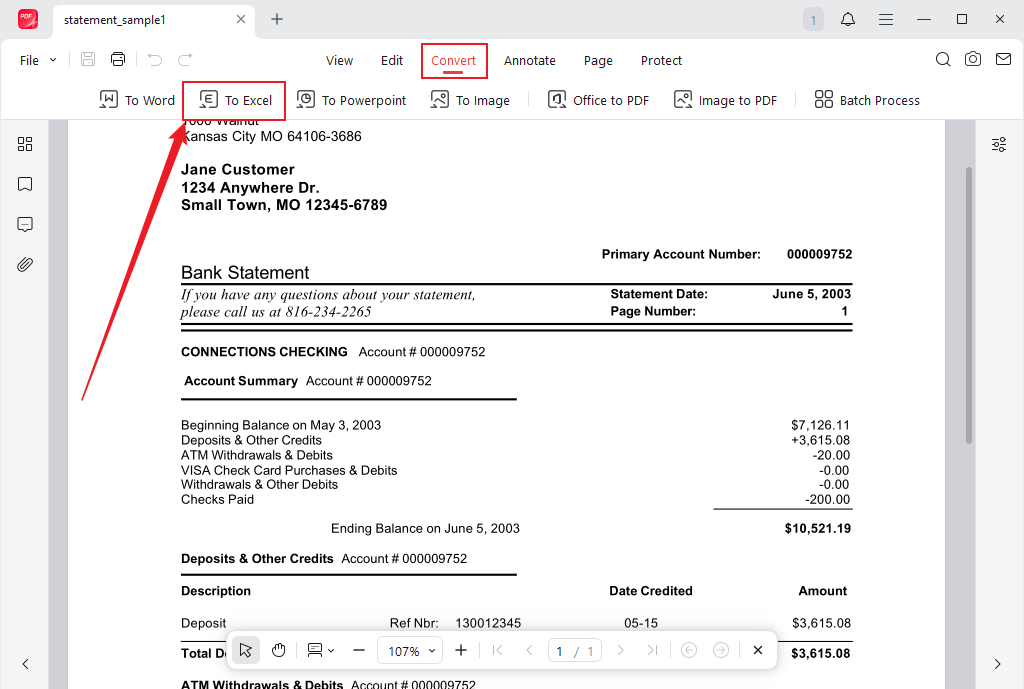
Alternatively, open your bank statement PDF with JOPDF, then go to the Convert tab at the top and select the “To Excel” conversion tool under the Convert from PDF section in the left sidebar.
Step 3. Click the +Add Files button to open bank statement PDFs. Or simply drag and drop them into the converter window to convert all the PDF documents you need to Excel.
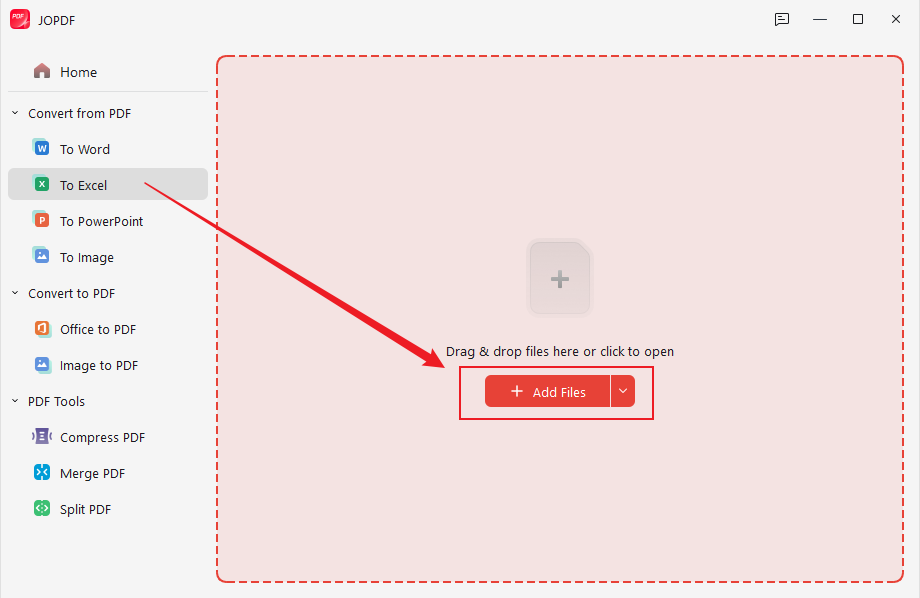
Then, go to the Output section at the bottom and select the folder where you want to save the converted bank statement Excel files.
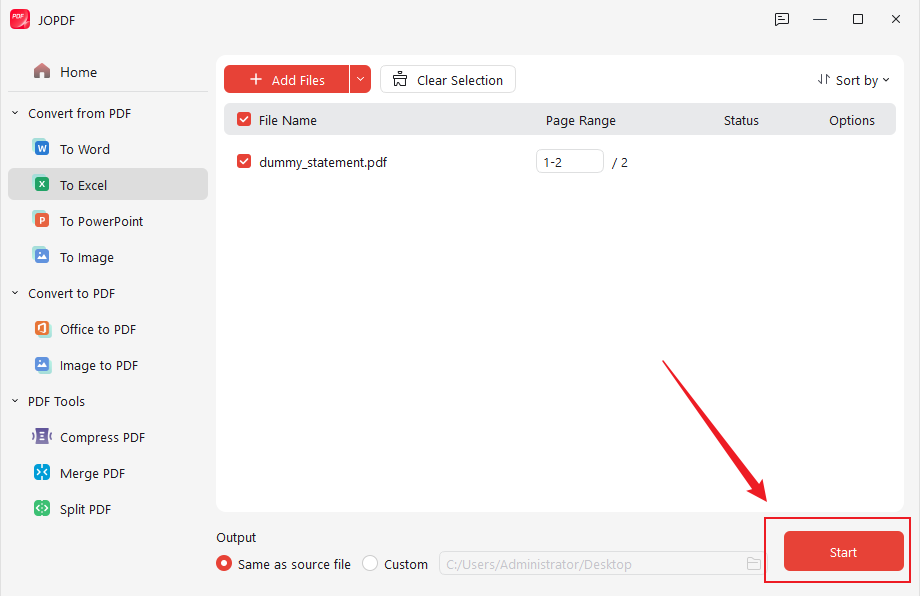
Step 4. Once all settings are done, hit the Start button to begin the conversion. Within moments, your PDF document will be converted to Excel format, and you’ll get an .xlsx file.
Final Wrap Up
Picking the right bank statement converter can streamline how accountants, freelancers, and loan processors work with financial information. These tools streamline workflows, reduce errors, and save time by efficiently extracting transactions and converting bank statements into Excel. The correct tool ensures efficient financial management and boosts overall productivity. By evaluating the tools’ features, pros, and cons, you can select the converter that best fits your needs.
FAQs
1. For professional, full-featured PDF work. Adobe Acrobat is powerful and accurate for complex documents.
2. For budget-friendly desktop use. JOPDF is a strong choice with bulk conversion and offline support.
3. For automated, AI-driven extraction. Nanonets performs exceptionally well at intelligent data extraction.
4. For customizable parsing workflows. Docparser offers flexible rules.
5. For simple online conversions. Smallpdf is quick and easy.
6. For fast transaction extraction. Veryfi is optimized for speed and accuracy.
Overall, if you value accuracy, offline use, and bulk processing at no cost, JOPDF often stands out as one of the best all-around bank statement converters for most users.
Table of Contents

Your Best Free PDF Expert in PDF editing, compressing, converting, annotating, protect, organizing, and more.
Free DownloadWindows · macOS · Linux

Olivia
“Olivia is an editor at JOPDF, where she writes practical guides and insightful articles on managing PDFs—covering topics like editing, annotating, converting, and organizing files efficiently. Passionate about clear communication and digital productivity, Olivia enjoys spending her free time cooking, watching movies, and hiking to unwind and find inspiration for her writing.”