Introduction :
PDFs are everywhere—from contracts to reports—but editing them accurately while tracking changes can feel like navigating a maze. Knowing how to redline a PDF allows you to manage edits with precision, clarity, and effortless collaboration. Reviewing legal or team documents becomes much easier when you master redlining, saving both time and effort. Ready to streamline your editing workflow? Discover the five best methods for redlining PDFs with precision and ease.
Making every edit visible, tracking revisions, and maintaining transparency are why redlining PDFs is indispensable. By leveraging JOPDF, teams can efficiently review changes while keeping documents accurate and organized. Learn how to redline a PDF effectively with this guide, which highlights the best tools and approaches for any workflow.
What Does “Redline a PDF” Mean?
Redlining a PDF means adding markup to a document to display edits, corrections, or suggestions using highlights, lines, or strikethroughs. It helps reviewers clearly distinguish what has been changed, whether added or removed. Redlining within PDFs depends on comments and annotations, and Track changes (if available)helps document all revisions for professional accuracy.
Redlining PDFs is often used for reviewing contracts, refining reports, comparing proposal versions, and working on shared academic or business documents. Legal teams, project managers, and writers use redlining to maintain accuracy and transparency, allowing them to communicate changes clearly without permanently modifying the original document. This is why redlined PDFs are vital for keeping workflows structured and transparent.
How to Redline a PDF Using JOPDF
As a secure and dependable free PDF editor for both Windows and Mac, JOPDF provides users with powerful tools for professional PDF work. It was developed to edit and annotate PDFs, enabling more effective management and organization. You can easily redline any PDF using highlights, strikethroughs, and detailed comments and annotations for clear markup.
You can edit a locked PDF and make changes to your document without registration requirements. JOPDF allows you to use various redlining methods and collaborate efficiently on any document. Additionally, its intuitive interface and robust tools allow users to streamline collaborative workflows with ease.
Learn how to redline a PDF with JOPDF in a few clicks.
Step 1. Download JOPDF on your Windows or Mac computer and launch it.
Step 2. Click Open PDF to import the target PDF, or drag and drop your PDF directly into the workspace.
Step 3. Go to the Annotate tab in the top navigation bar and choose any of the following actions to redline a PDF.
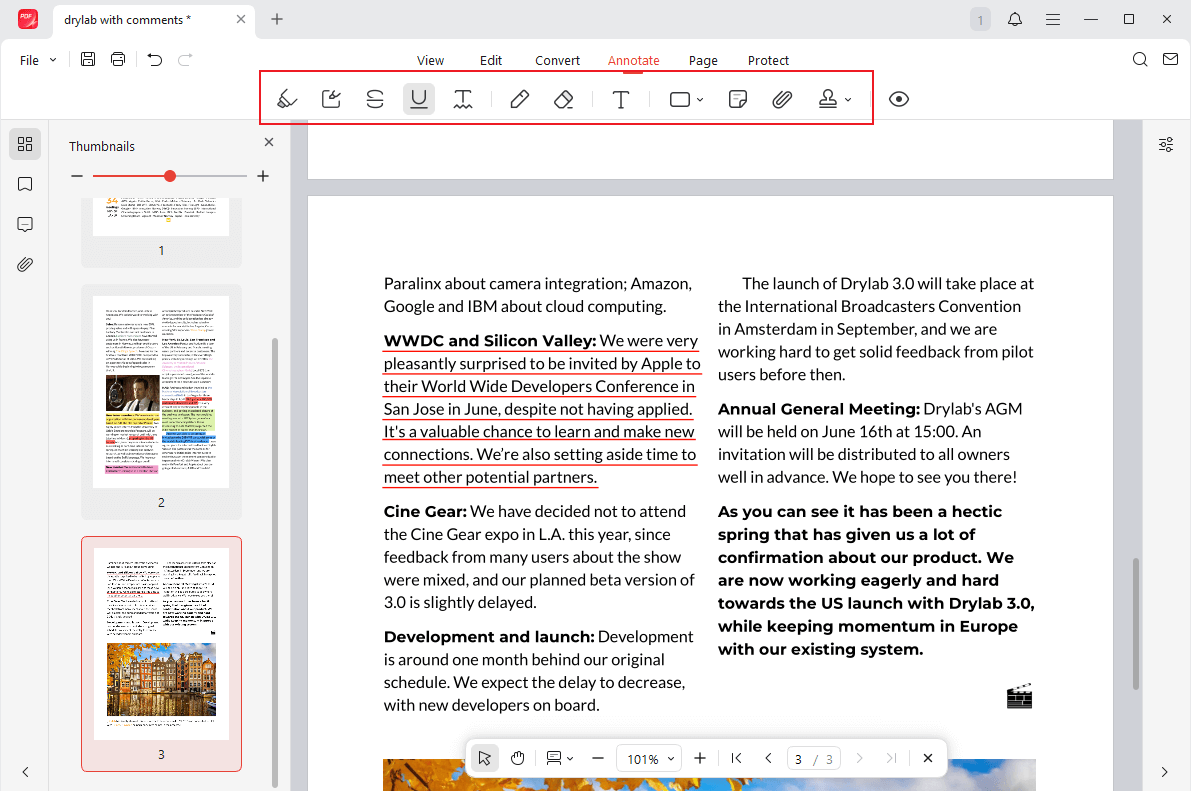
- Click the target line to add.
- Select the color you like (red).
- Choose the target sentence or words.
Step 4. Tap the Save icon in the upper-left corner. Or, hold the Ctrl + S keys to save the redlined (annotated) PDF.
Pros of JOPDF
- Offers seamless PDF editing and powerful annotation features
- Quick page management lets you efficiently move, rotate, split, add, or remove PDF pages
- Free and accessible with full tools, no ads, and no account required
- Easily highlight, underline, or strikethrough text in your PDFs
- Effortless PDF security with password protection for sensitive documents
Cons of JOPDF
- Does not yet offer a mobile version or Linux support, which may restrict some users
How to Redline a PDF in Adobe Acrobat Pro
Adobe Acrobat Pro provides a reliable solution for PDF redlining. Known for its strength and reliability, it provides advanced capabilities that simplify and enhance the redlining process. With its comprehensive annotation and comparison tools, users can easily edit PDFs on Windows, Mac, and mobile devices, ensuring flexibility across any workflow. Whether you’re handling contracts, reports, or collaborative drafts, Acrobat Pro delivers professional-grade control and accuracy for marking changes in any PDF.
Check out how to redline a PDF in Adobe Acrobat Pro in a few clicks.
Step 1. Install and launch Adobe Acrobat Pro on your desktop. Open the PDF file that requires changes.
Step 2. Go to the Tools tab and select Comment under Share & Review to view the toolbar.

Step 3. Click on Strikethrough and pick red for the text.
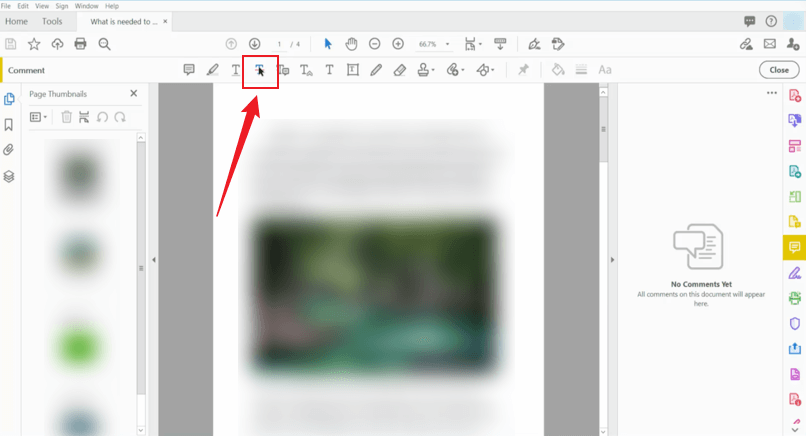
Step 4. Drag your cursor from the beginning of the text you wish to annotate. Alternatively, use Ctrl and drag to highlight a rectangular section for redlining.
Pros of Adobe Acrobat Pro
- Provides all the necessary tools to annotate, comment, highlight, and make suggestions on PDFs
- Strong PDF security protects sensitive data while you annotate and comment
- Compatible and dependable for exchanging PDFs in professional settings
- Seamless Adobe Sign integration lets you request e-signatures on redlined PDFs
Cons of Adobe Acrobat Pro
- The interface can be cluttered and complex for some users, leading to a frustrating experience for those who need only basic functionality
- The subscription-based model is a significant drawback, particularly for casual or first-time users who find the cost expensive over time
How to Redline a PDF Using Microsoft Word
Microsoft Word offers a convenient way to review and annotate documents, even when working with PDFs. The built-in tools and easy-to-use interface let you track changes, add comments, and use the PDF highlighter. Word allows redlining of PDF content by first converting files into an editable format, eliminating the need for special software. It is ideal for those who prefer a simple, user-friendly approach to PDF editing.
These instructions show you how to redline a PDF in Word easily and efficiently.
Step 1. Open your desired PDF document in Microsoft Word. Then, scan the PDF and mark the parts that require editing.
Step 2. Select the text you want to revise. Click the Review tab in the top navigation bar and select the Track Changes feature to mark up the document.
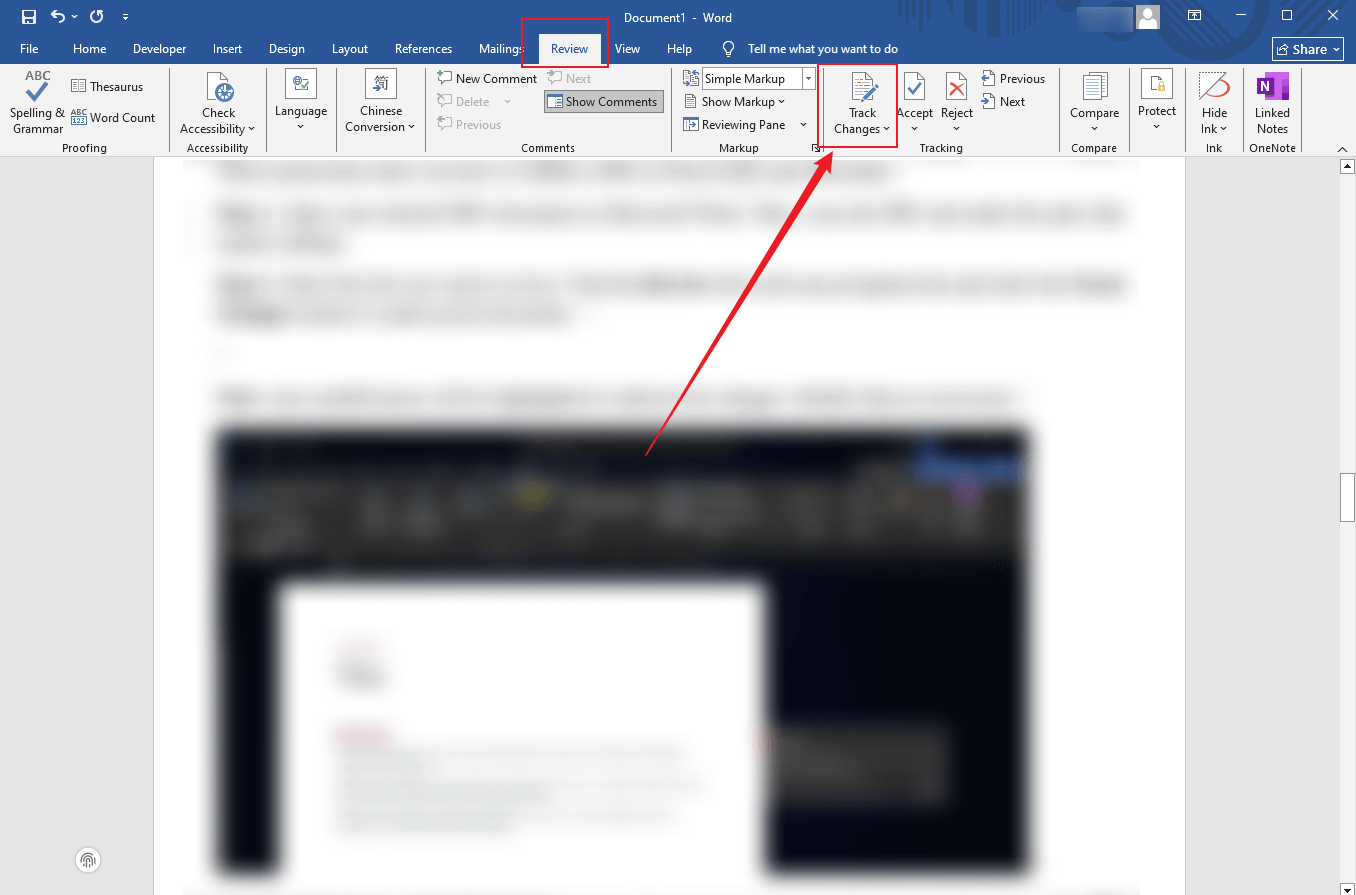
Note: Any modifications will be highlighted to indicate the changes. Modify them as necessary.
Step 3. Select the text you want to comment on and tap New Comment in the Review tab. When the pop-up appears, enter your comment to annotate the PDF. Modify anything else as necessary.
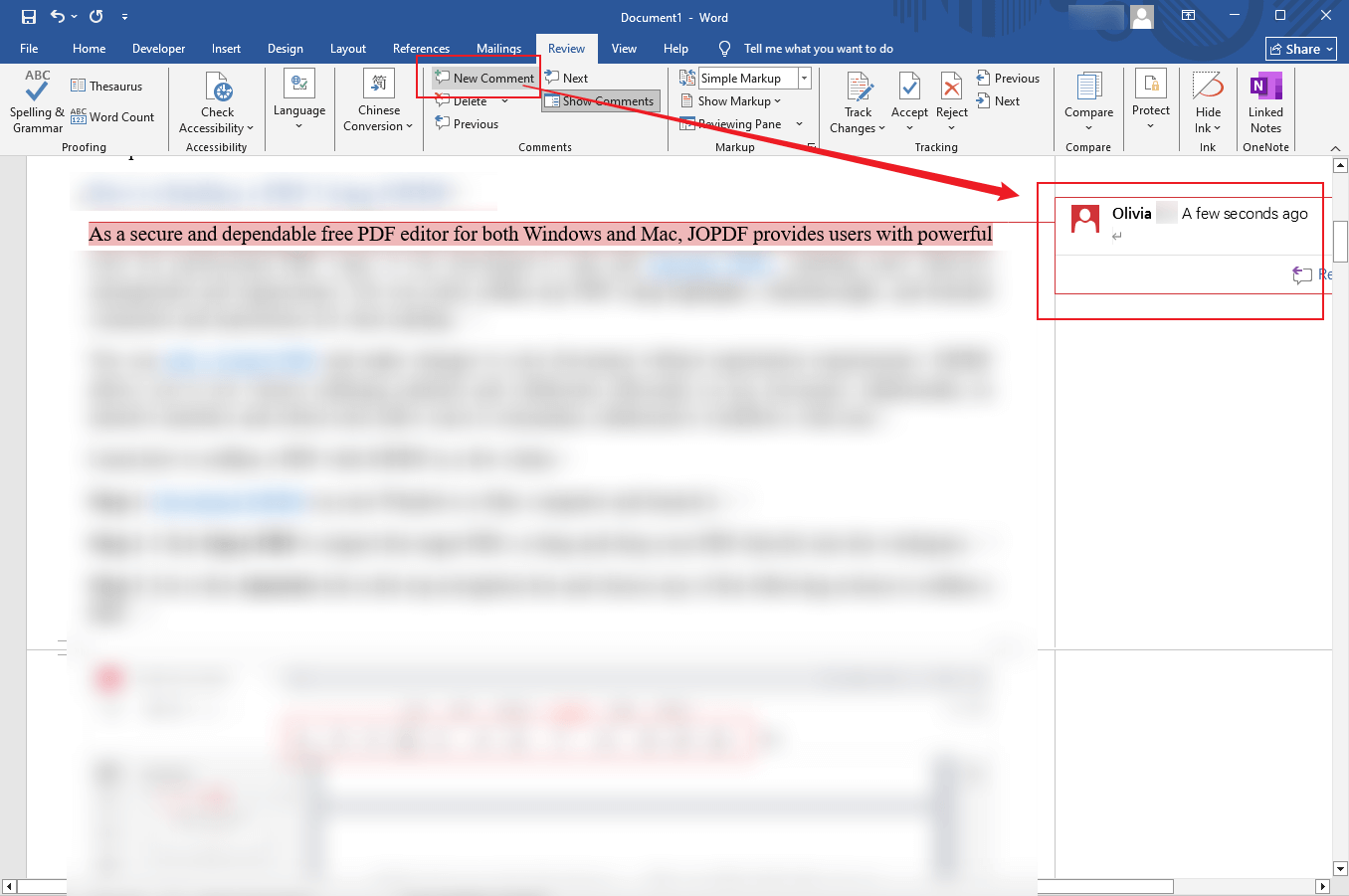
Step 4. Review the document in Final View once all edits and comments are complete. Look at the completed document with all updates applied.
Pros of Microsoft Word
- Use the Track Changes tool to monitor all edits in your Word file
- When paired with cloud services like Google Drive or Microsoft 365, Word allows for real-time collaboration on documents
- Familiar interface, resulting in a quick and intuitive redlining process
- Multiple reviewers can add comments and edits, with Word managing all changes neatly
Cons of Microsoft Word
- Complex PDFs—especially those with tables, graphics, or unique layouts—may convert poorly with formatting inconsistencies
- Manually converting, editing, and then converting back is a time-consuming and labor-intensive process compared to using a PDF-native tool
How to Redline a PDF with Preview
Preview is Mac’s built-in application that lets you view, mark up, and convert PDFs on your macOS for free. As an entry-level PDF app for marking up documents, Preview also allows you to redline and strikethrough text in a PDF. You can use either annotation tools or drawing features to redline a PDF.
Whether you need to add or remove redlines, Preview can be handy. You can avoid installing software, creating accounts, or paying for expensive plans.
Here are the up-to-date steps to redline a PDF in Preview in a few clicks.
Step 1. Launch the Preview app on your Mac computer. And open a PDF file in its workspace.
Step 2. Navigate to the top menu bar and select the downward arrow beside the Highlights and Notes button. Hit Strikethrough.
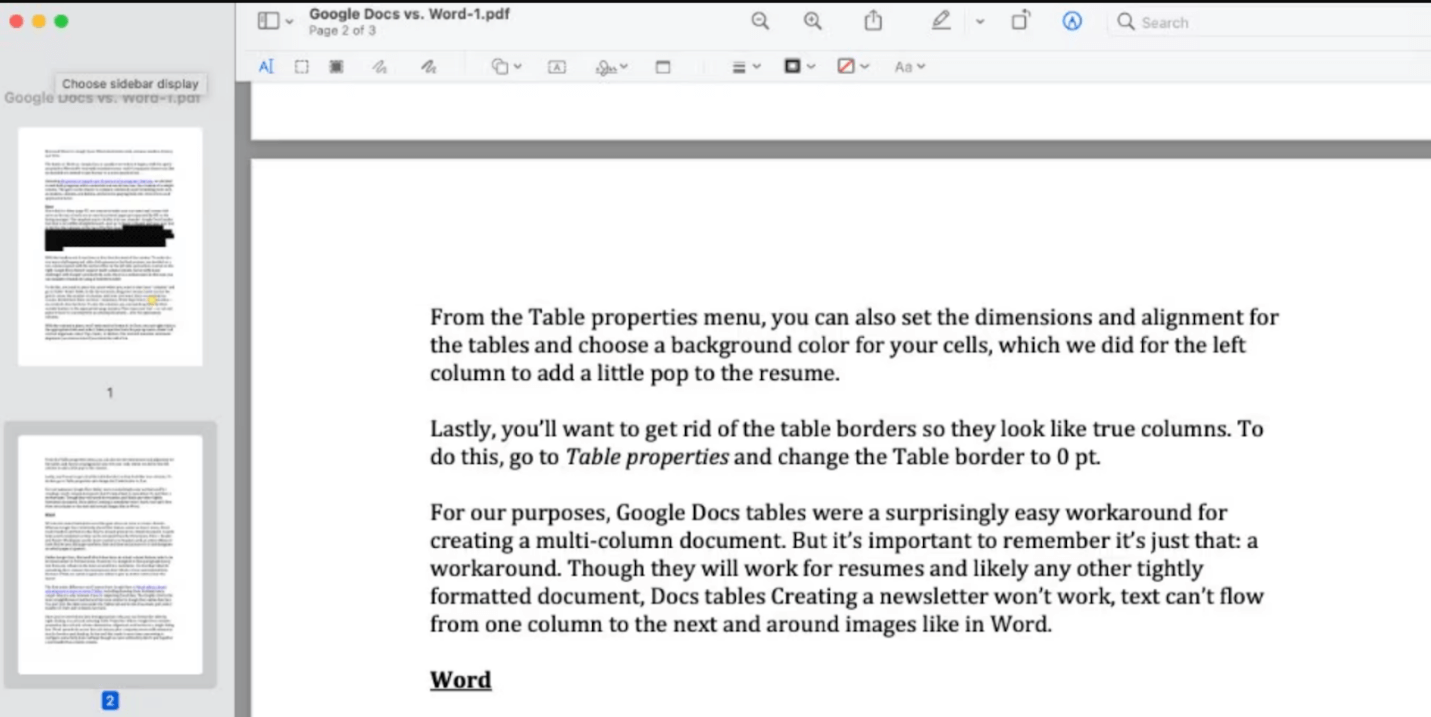
Step 3. Select the text you want to redline in your PDF.
Note. You can tap Strikethrough once more to remove the redlined text.
Step 4. Once done, click on File. Select Save to preserve your redlined PDF.
Pros of Preview
- Free and readily accessible by Mac users anytime, anywhere
- Quickly add text, shapes, and highlights using simple markup tools
- Efficient for quick annotations, making it faster than several professional-grade alternatives
- Your comments and markups are usually visible in apps that support PDF comments, like Safari and Chrome
Cons of Preview
- Cannot perform advanced functions, and no reliable way to secure a document from further editing or annotations
- Other users can easily edit or remove your comments and annotations, making it unsuitable for professional collaboration
How to Redline a PDF Online
Redlining a PDF online offers speed, convenience, and accessibility, making it ideal for users who need quick edits without installing software. Cloud-based tools let you review PDFs on any device, collaborate in real time, and maintain an efficient workflow. Online platforms are beneficial for occasional editors who want simple markup options without the complexity of advanced programs.
Among these tools, SmallPDF stands out for its intuitive interface, reliable security, and robust annotation features, making it an excellent choice for redlining PDFs online.
Find out how to redline PDFs online using SmallPDF’s browser tools.
Step 1. Go to SmallPDF online and choose the PDF Annotator option.
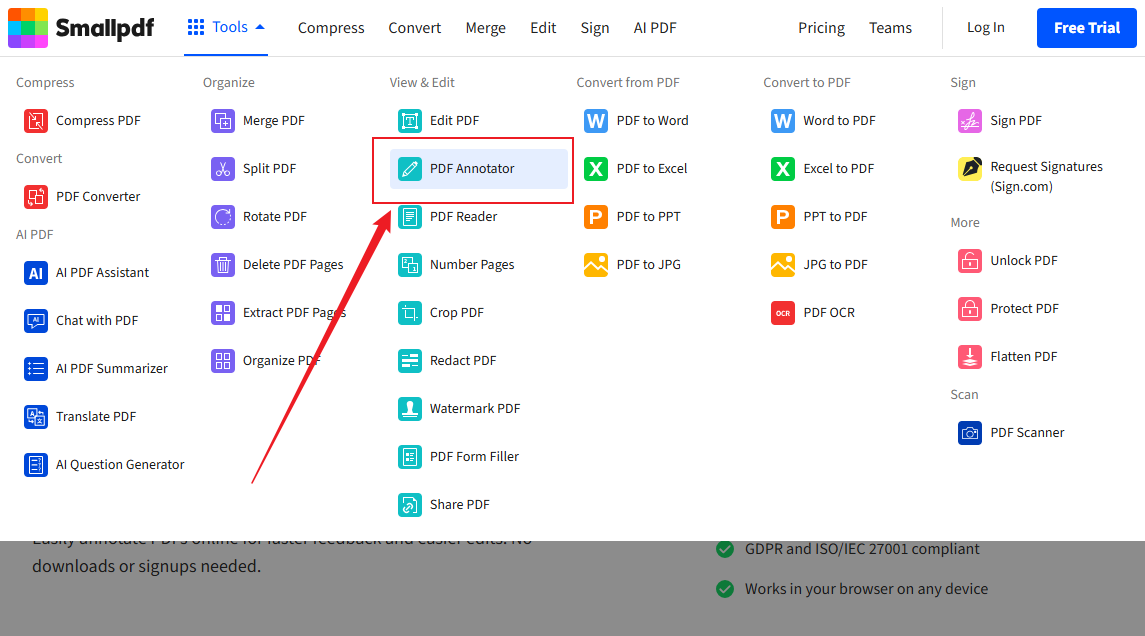
Step 2. Tap Upload to select a PDF file from your computer or cloud. Hold on as the PDF is uploaded to the workspace.
Step 3. Select the Line or Rectangle tool from the top bar. Next, change the line color to red for traditional markup style.
Alternatively, you can draw directly over or beside the text you want to highlight or mark for revision.
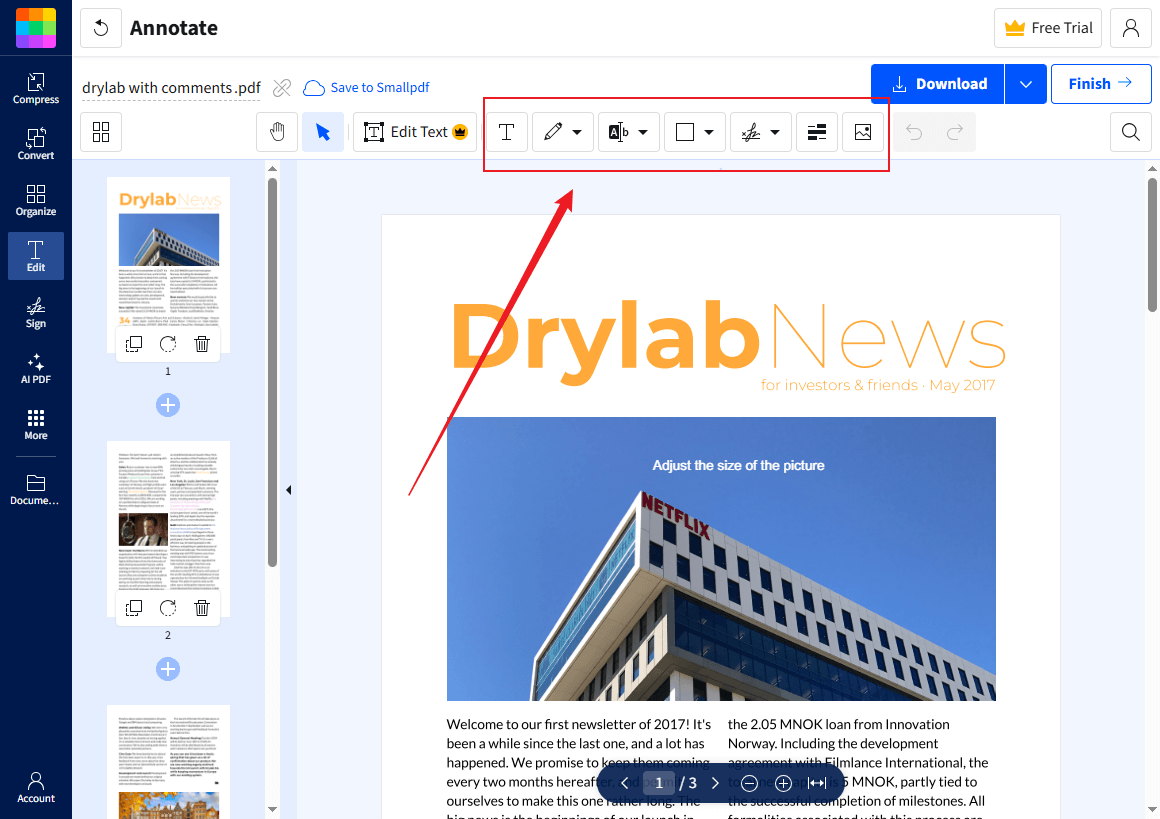
Step 4. Use Text to add remarks and suggested revisions directly on the PDF. Add your note next to the redline mark. Next, change the font size, style, or color as needed.
When finished, click Finish, then download your redlined PDF.
Pros of SmallPDF
- User-friendly interface makes navigation simple for all skill levels
- Allows you to edit and mark up PDFs directly in your web browser
- Accessible from almost any device or browser, ensuring flexible usage
- Supports basic PDF markup with strikethroughs, underlines, and notes
Cons of SmallPDF
- Limited free version, allowing only 2 tasks per day
- Access to all advanced tools requires a subscription, which might not be affordable for everyone
Useful Tips for Redlining PDFs
Before using different tools, get familiar with the best ways to redline documents. Clear, consistent comments make it simple for others to understand your revisions while saving time. Implementing simple best practices enhances document accuracy and keeps the review process organized.
Tips to streamline the process of redlining PDFs.
🌟Keep comments concise for better understanding
🌟Apply consistent colors or styles for each type of edit
🌟Highlight only the important changes, not everything
🌟Add explanations for complicated edits
🌟Check all redlines to guarantee clarity and completeness
🌟Track your document’s progress across revisions with version control
Wrapping Up
That’s all, friends! Effective use of PDF markup tools streamlines review workflows and collaboration. This guide explored the best ways to redline PDFs, with detailed steps, advantages, and drawbacks. Using JOPDF, Word, Acrobat Pro, Preview, or SmallPDF, mastering how to redline PDFs makes edits transparent and simple to track. Following these methods ensures confident editing and professional, error-free results.
FAQs
Table of Contents

Your Best Free PDF Expert in PDF editing, compressing, converting, annotating, protect, organizing, and more.
Free DownloadWindows · macOS · Linux

Olivia
“Olivia is an editor at JOPDF, where she writes practical guides and insightful articles on managing PDFs—covering topics like editing, annotating, converting, and organizing files efficiently. Passionate about clear communication and digital productivity, Olivia enjoys spending her free time cooking, watching movies, and hiking to unwind and find inspiration for her writing.”