Introduction
Drawing on PDFs may seem tricky, but it’s actually quite simple. This guide will show you how to draw a line in PDF with 5 free tools. These tools help you add strikethroughs, underlines, or freely draw lines.
Way 1. Draw a Line in PDF with JOPDF
JOPDF is a 100% free, comprehensive PDF editor that offers a powerful set of tools. It enables you to professionally edit PDF files without subscriptions or watermarks. What’s more, it features a clean, incredibly easy-to-use interface.
It provides a full “Edit” mode to help you add, remove, and modify PDF content. With its Annotate tool, you can easily add strikethroughs, underlines, or freely draw lines. If needed, you can modify the line colors to make the document look more organized and visually appealing.
Here is how to draw a line in PDF with JOPDF:
- Download JOPDF on your computer. Install and launch the software.
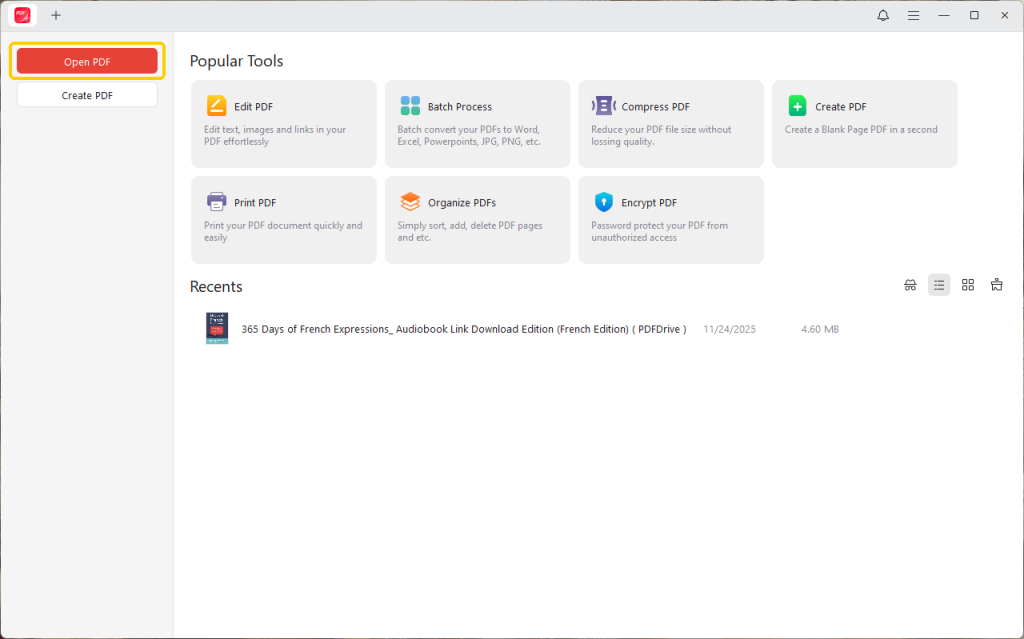
- Click “Open PDF” and select the PDF document.
- Once the file is open, click on the “Annotate” tab in the top menu bar.
- Then select Strikethrough, Underline, Squiggly Line, or Pencil to draw freely on PDF. If you want to draw a straight line, please go to Shape and select Line. Next, select a color you want to use.
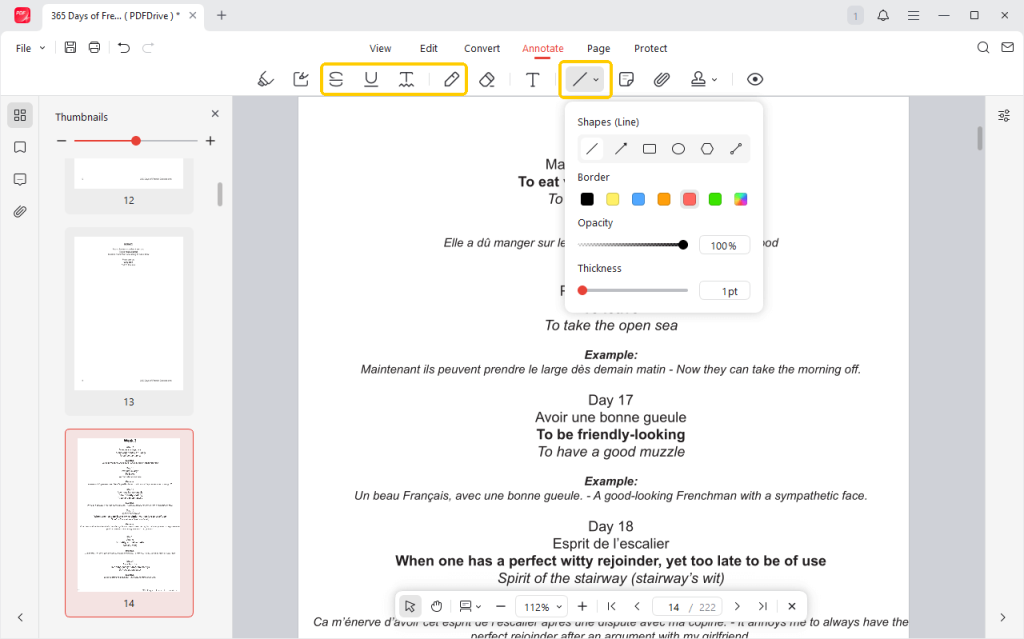
- Now, you can drag your mouse to draw the line.
- After drawing, you can click on the line to select it if you want to add a sticky note, change the color, or delete the line.
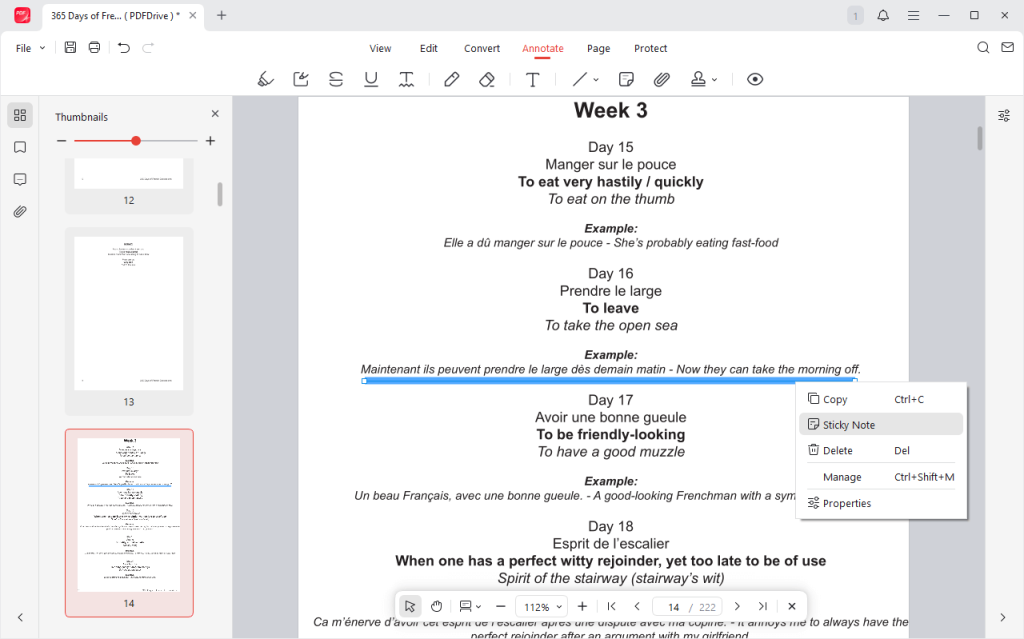
- Finally, click the “Save” icon in the top-left corner to save your changes.
⭐ Best for: Users who need a desktop-based, complete, free PDF editor that goes far beyond simple line drawing.
Way 2. Draw a Line in PDF with Adobe Acrobat Reader
Adobe Acrobat is the most common PDF reader on the planet. Although users need to upgrade to the Pro version to edit PDFs, the free Adobe Reader provides annotation tools that let users draw lines. It also lets you change the color and thickness. Check the details.
- Open your PDF file in Adobe Acrobat Reader.
- Look for the “Comment” icon in the right-hand sidebar (it looks like a speech bubble). Click it.
- Click the Draw free hand button and select Line if you want to draw a straight line in PDF. To add a strikethrough line or underline, please select the Highlight selected text option.
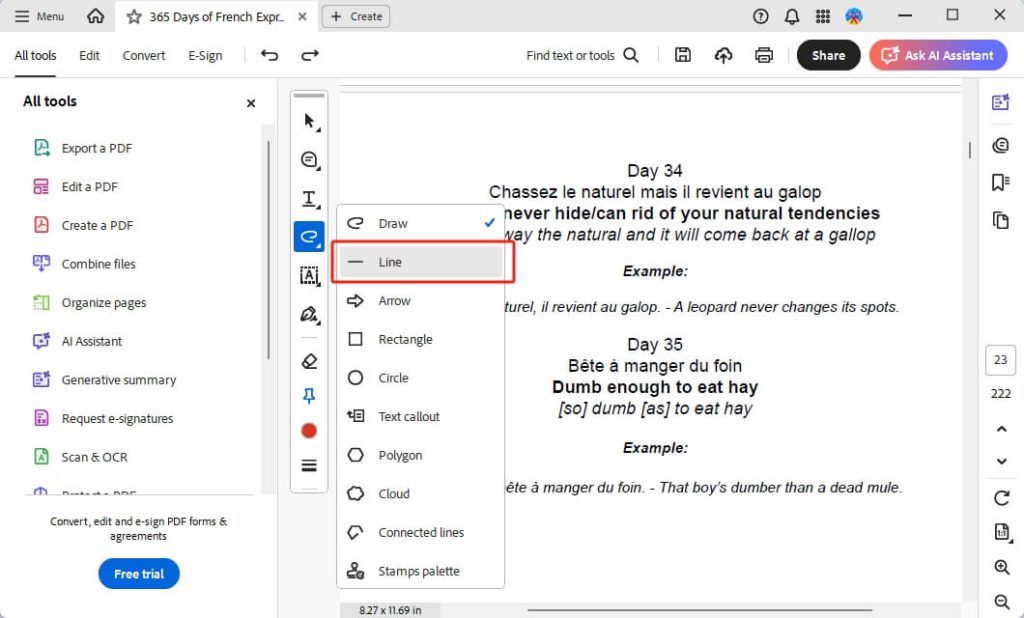
- Then, select the color and change the thickness.
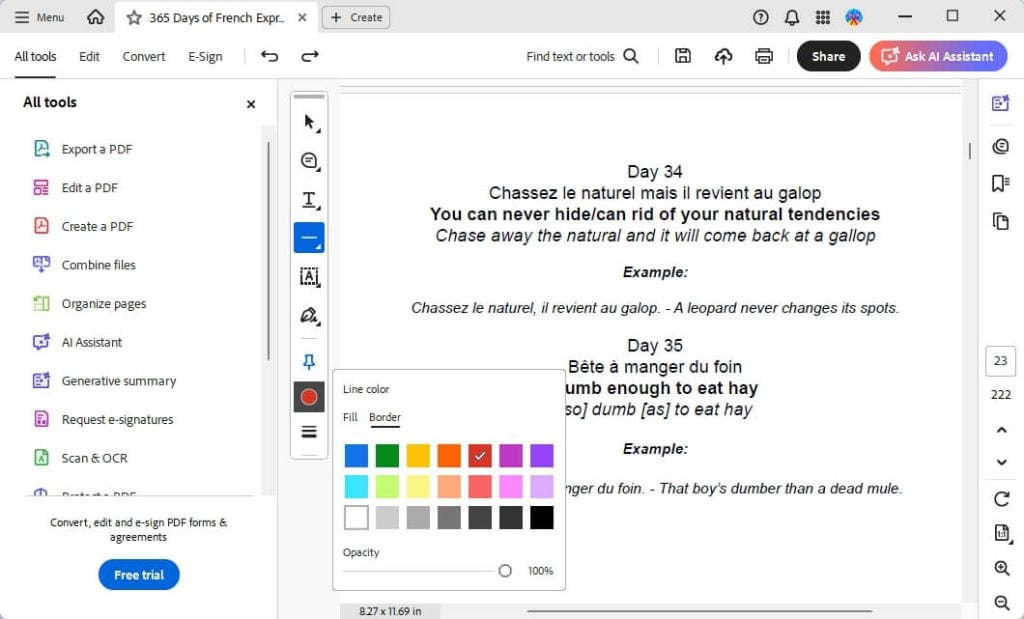
- Click and drag on your document to draw the line.
- To save the changes, click the Save button. Or, go to File > Save to save your PDF as a new document.
⭐ Best for: Any user who only needs to draw lines in PDFs without requiring other editing features.
Way 3. Draw a Line with the Preview App
If you’re a Mac user, you already have one of the best free PDF editors built right into your operating system: Preview.
It’s much more than just an image viewer; it’s a powerful tool for PDF annotation and editing. Adding lines, shapes, and text is fast, easy, and requires no downloads.
- Double-click your PDF to open it in Preview.
- At the top, click the “Show Markup Toolbar” icon. It looks like a pen tip inside a circle.

- A new toolbar will appear with all your annotation tools.
- Find the “Shapes” icon (a small square and circle together) and click it. A dropdown menu will appear.
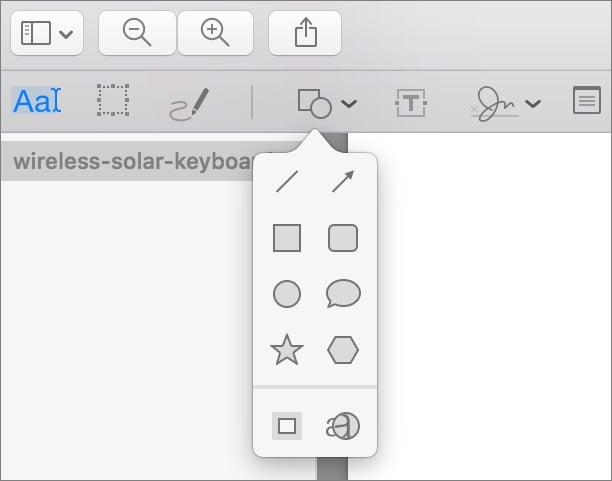
- Select the “Line” tool from the top of this menu.
- Click and drag across your PDF to create the line. Just like with other tools.
- With the line still selected, you can use the other tools in the markup bar to change its properties.
⭐ Best for: Mac users. This is the fastest, easiest, and most integrated method available, with no installation required.
Also Read:
Way 4. Draw a Line with Microsoft Edge
The Microsoft Edge browser, the default PDF viewer in Windows 10 and 11, includes built-in PDF markup tools. This means you can draw on a PDF without any software. It is a quick solution for freehand lines.
- Right-click on your PDF file. Choose “Open with” and select “Microsoft Edge.”
- Click the “Draw” button (it looks like a pen). Then, select a color and adjust the thickness using the slider.
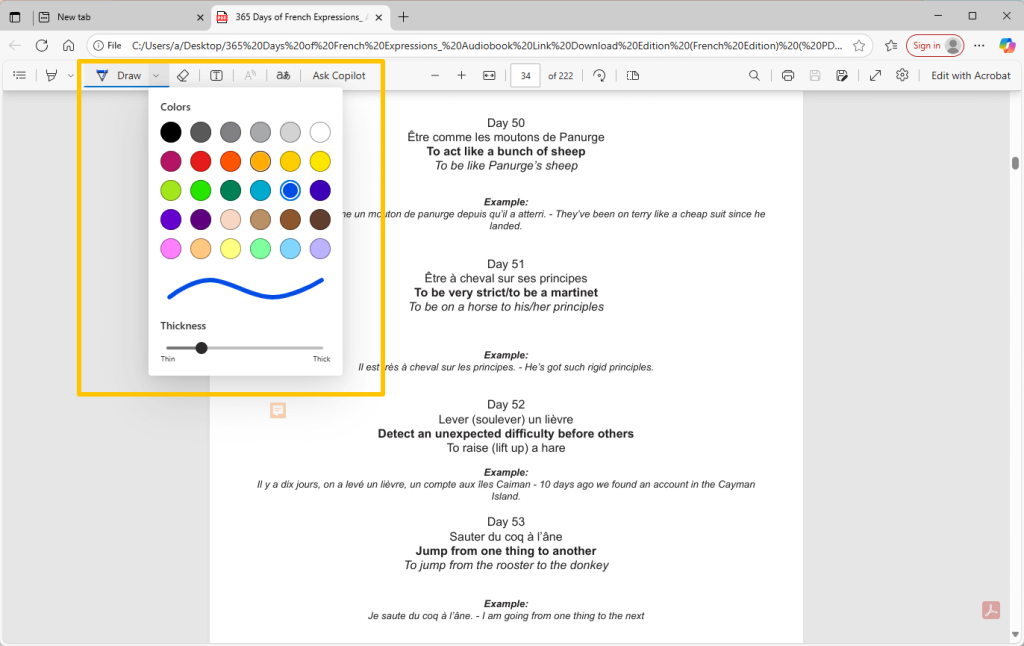
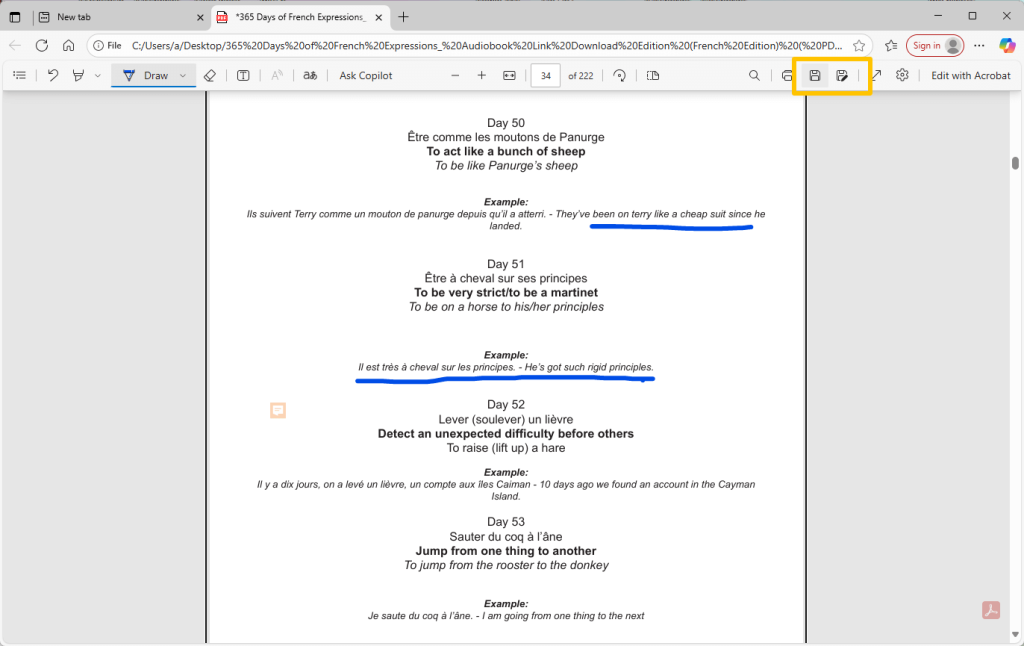
- Carefully draw your line where you needed.
- After you’ve drawn your line, click the “Save” icon in the top-right corner of the browser window to permanently save the changes to your file.
⭐ Best for: Windows users who need to a PDF annotator make freehand markups (like underlining or circling) and don’t want to install any new programs.
Way 5. Draw a Line Using an Online Editor
How to draw a line in PDF online without installing software? In this case, a free online PDF editor is your best choice. Dozens of websites let you upload your PDF, make changes, and download the new version.
However, please be cautious about uploading sensitive personal or financial documents to free, third-party websites.
- In your web browser, search for “free online PDF editor” and choose a reputable site, such as Smallpdf, Sejda, or Canva’s PDF editor.
- Drag and drop your PDF onto the website to upload it.
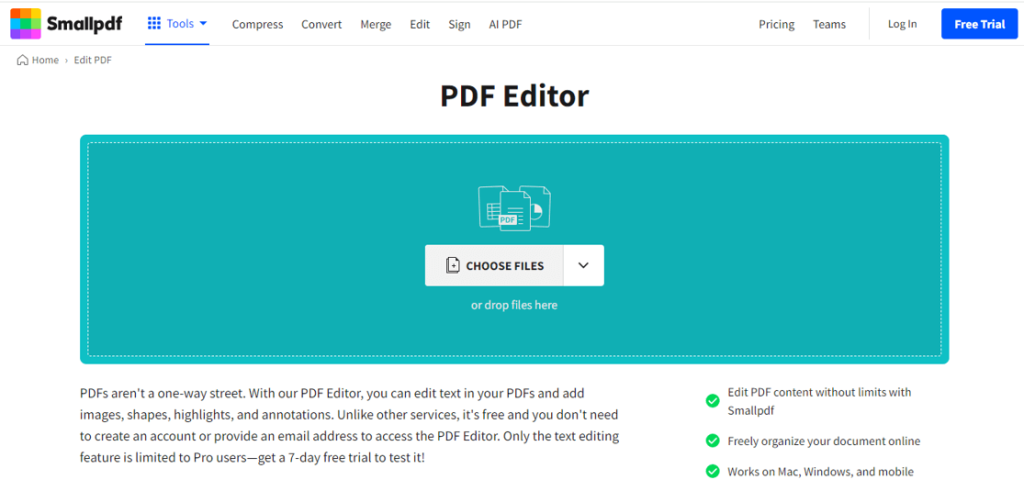
- Once your document loads, look for the toolbar. It will almost always have a “Shapes,” “Annotate,” or “Draw” menu. Select the “Line” tool from this menu.
- Click and drag on your document to place the line. Then, adjust the line’s color and thickness.
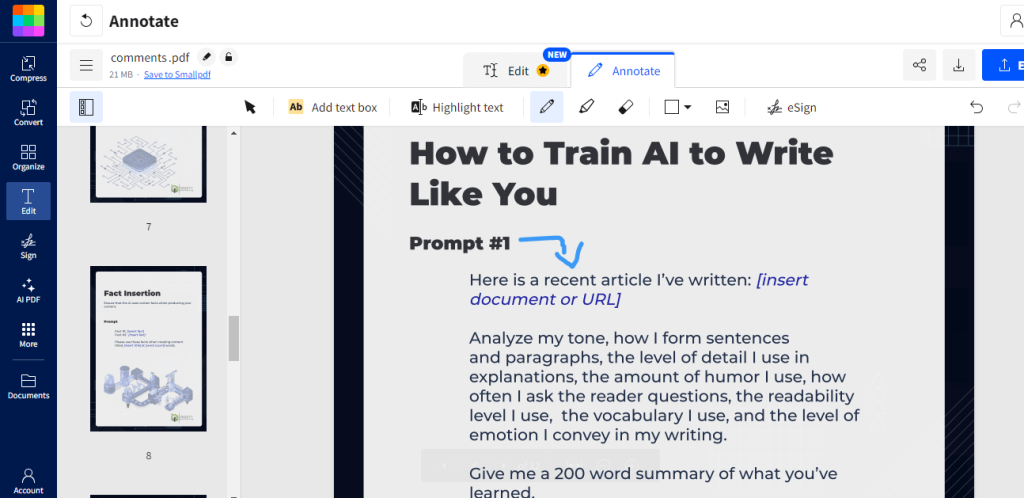
- When you are finished, click the main “Apply Changes,” “Save,” or “Export” button.
- The website will process your document. You can then download the new PDF file, which now includes your line.
⭐ Best for: One-time edits, and anyone who needs to make an edit without installing software.
Conclusion
That’s all about how to draw a line in PDF. As you can see, you don’t need to buy expensive software just to perform a simple task.
For simple annotation additions, Microsoft Edge, Preview, and online tools are sufficient. If you require more control, Adobe Acrobat or JOPDF are viable options.
Of course, if you want to do more than just drawing—such as performing other edits—JOPDF would be the best choice. It lets you easily mark up, edit, compress, convert, and protect your documents. Try it now!
FAQs
Table of Contents

Your Best Free PDF Expert in PDF editing, compressing, converting, annotating, protect, organizing, and more.
Free DownloadWindows · macOS · Linux

Queena
Editor
“As a staff editor for JOPDF, Queena excels at guiding users to the optimal tools and solutions. When she's not analyzing the latest PDF solutions, she enjoys spending her free time playing with her four cats.”