Summary :
You may often need to edit content, add notes, or review PDF documents efficiently. This step-by-step guide on how to annotate a PDF on Mac covers three helpful and free methods in detail.
1. The Best Free Way to Annotate a PDF on Mac
For Mac users, JOPDF is known as one of the best PDF annotators available. It offers tools like highlighting important text, adding comments, underlining content, and inserting notes directly into your PDF. These features make document reviewing, studying, and sharing feedback easier.
JOPDF also helps you manage, edit, and organize PDF documents with professional-quality tools. You can use it to improve your workflow without needing technical expertise. In general, JOPDF helps you handle PDF files quickly and easily on your Mac.
How to annotate a PDF on Mac for free using JOPDF.
Step 1. Use the download button to download JOPDF, then follow the installation instructions displayed on your screen.
Step 2. Upload your PDF by choosing the Open PDF option or by dragging and dropping the file into the application window.
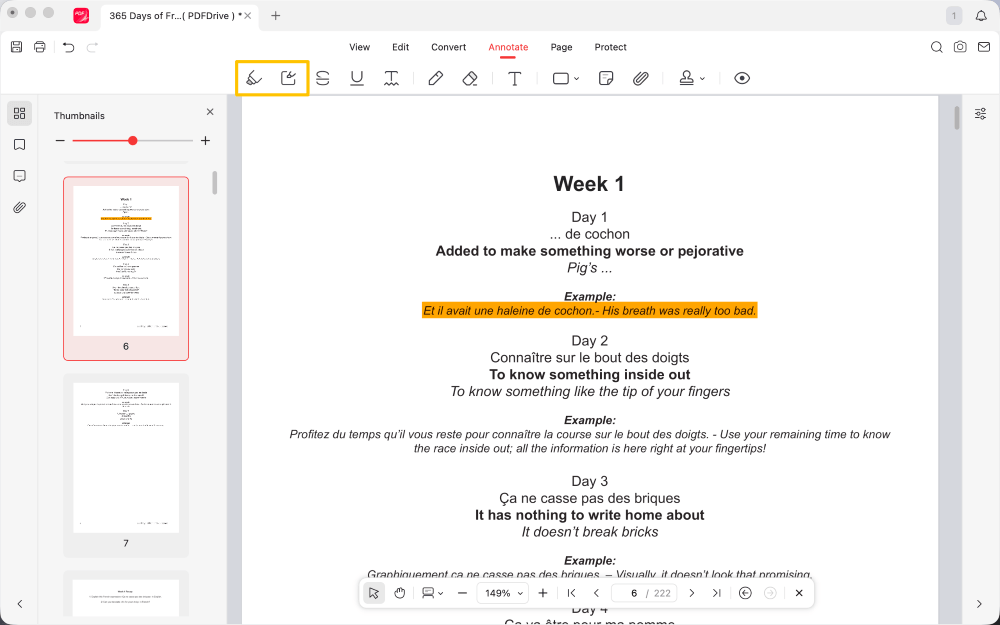
Step 3. Access the Annotate tab and pick the annotation tool you need:
a. Highlight text or an area
Click Highlight, choose a color, and select the text. Use the Area Highlight to mark a specific section.
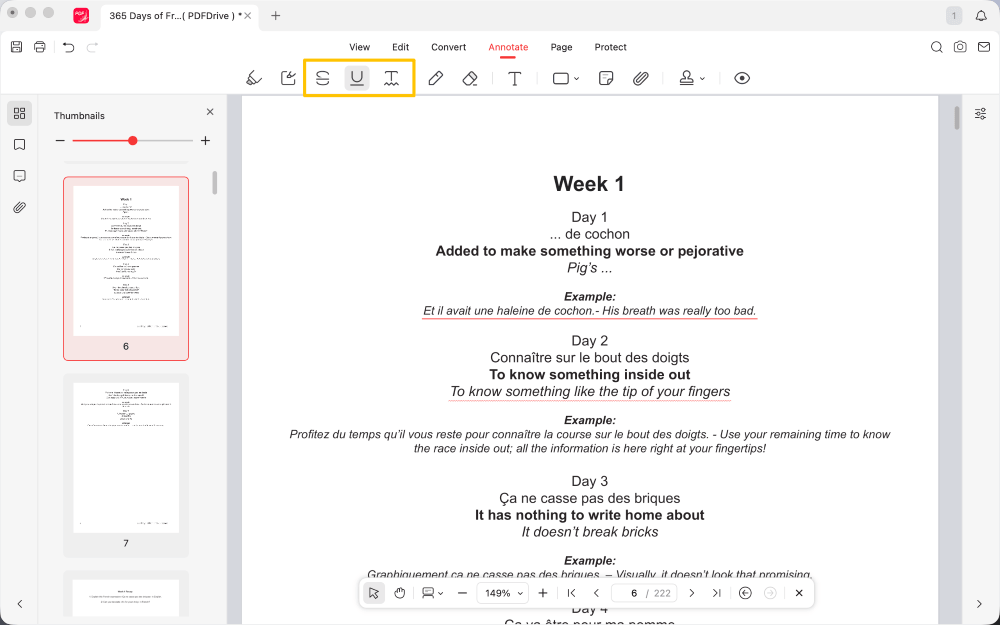
b. Strikethrough, underline, or squiggly
Select a line type and color, then draw over the text to mark it.
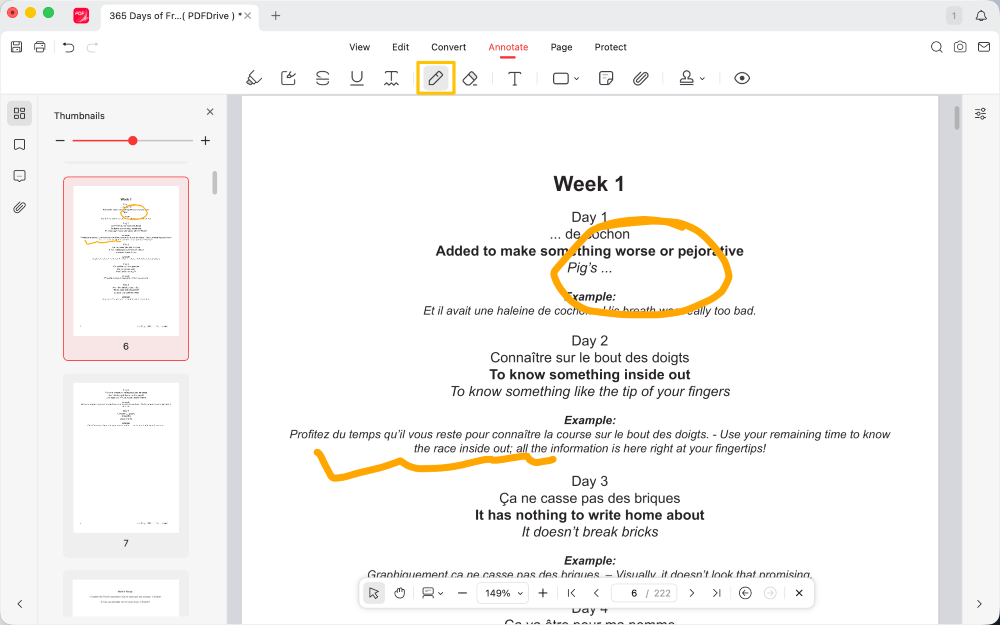
c. Draw on the PDF
Open Pencil, set your preferred color and stroke size, adjust opacity, and begin drawing.
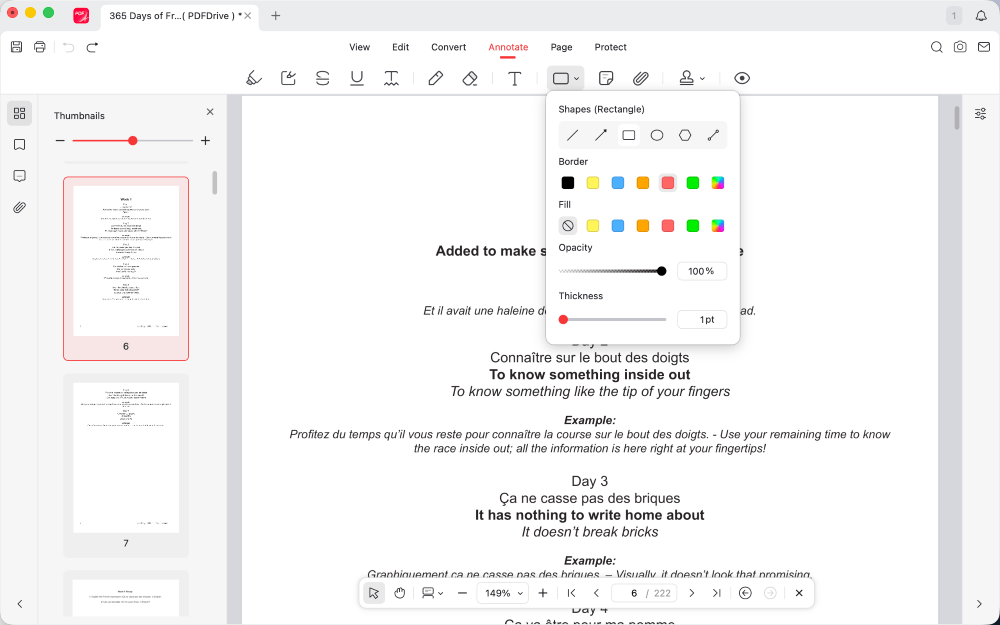
d. Add shapes or stamps
Select Shapes, pick your preferred shape, adjust its appearance, and place it on the page. For stamps, click Stamp, choose one, and position it.
e. Add sticky notes
Choose Sticky Note, place it on the preferred spot, and enter your note.
f. Add attachments
Click Attachment, place it in the document, choose your file, and select Open.
Step 4. Click the Save icon in the top-left corner or press Ctrl + S to save your annotated file.
Very simple, right? You can easily find the tool and apply it to your PDF. It can be the best way to annotate a PDF on a Mac.
More than a simple PDF annotator, JOPDF can also help you edit, rearrange, rotate, merge, and split pages. Get it today and enjoy a smoother work process!
2. Annotate a PDF on Mac in Preview
Preview is a useful macOS app that lets you annotate and edit PDF on Mac with ease.
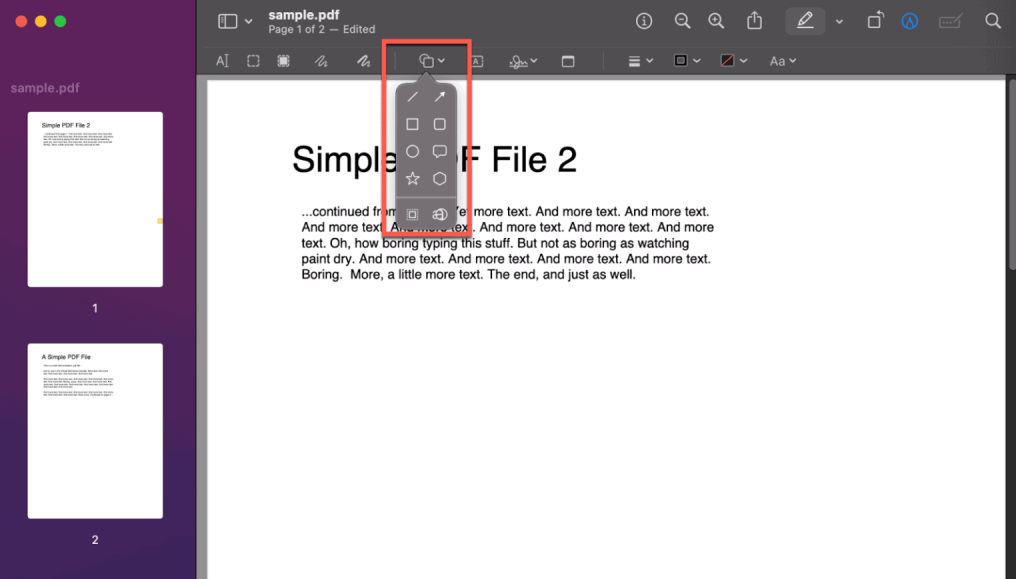
Using this native tool, you can highlight, underline, or strikethrough text, add shapes and arrows, insert text boxes, create speech bubbles, and add a handwritten signature.
Follow these steps to use Preview to annotate a PDF on a Mac.
Step 1. Launch the PDF using Preview. If it opens in another app, Control-click the file, click Open With, and pick Preview.
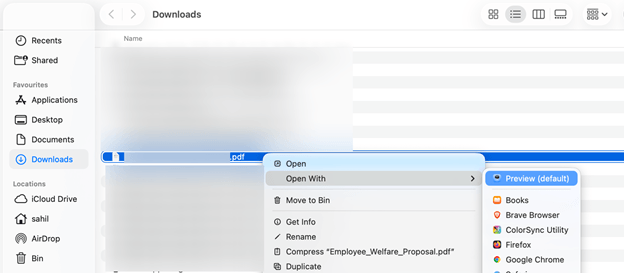
Step 2. Click Tools in the top menu bar, then select Annotate. Choose the tool you need from the dropdown menu.
a. Add comments or text
- Right-click the selection and choose Add Note to add your comment.
- To add a general note, select Note, then click anywhere in the PDF.
- To add text, select Text and click where you want to place the text box.
- For a speech bubble effect, select Speech Bubble.
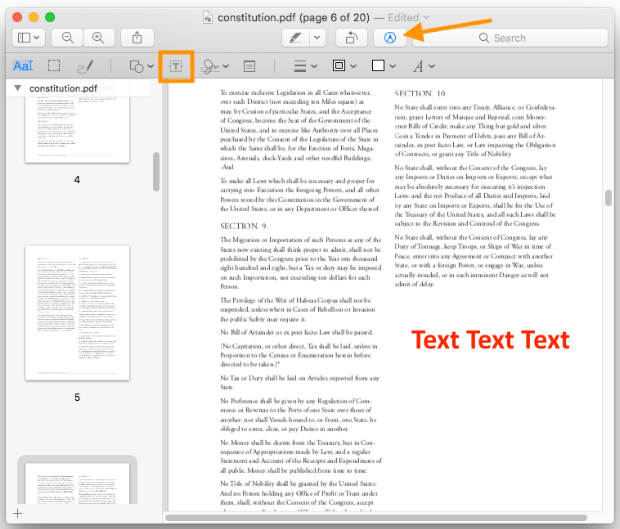
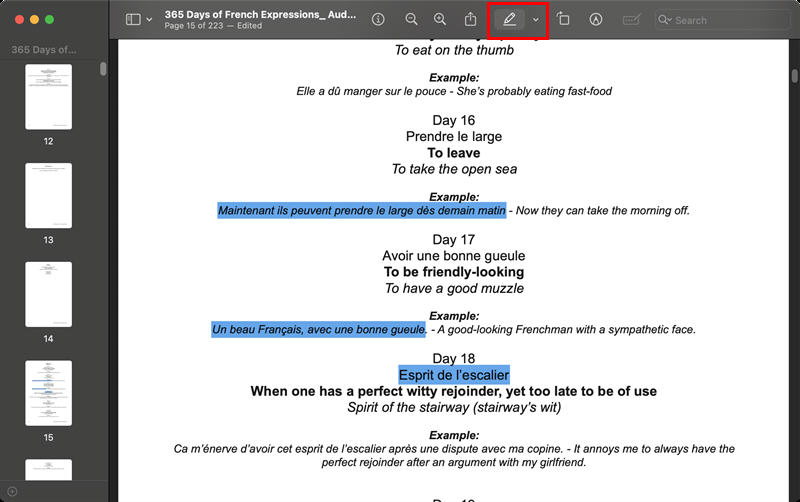
b. To highlight, underline, or strikethrough
- Pick Highlight, Underline, or Strikethrough from the available menu tools.
- You can also change highlight colors.
c. To add shapes to a PDF
- Select a shape, drag it to your desired location, and adjust its size using the blue handles.
- Use the green handles to modify the shape.
d. To insert a signature
- Click Signature, then select Manage Signatures.
- You can generate one with your mouse, trackpad, or by using your camera.
e. To use the Mask Tool
- Choose Mask, position it over the area you want to highlight, and adjust the size as needed.
f. To use the Loupe Tool
- Click Loupe, then drag the green dot to adjust magnification and the blue dot to resize the magnified area.
Be aware that Preview only supports annotations and cannot edit original PDF content. The document can be modified using tools such as text boxes, highlights, and comments.
If you need to edit existing text or make major changes, you can use the best PDF editor for Mac, such as JOPDF, for advanced editing and better control.
3. Annotate a PDF on Mac with an Online Tool
Online tools make it simple to annotate PDFs without installing extra software. They allow you to highlight text, add comments, draw shapes, and underline key points directly in your browser.
For example, Smallpdf has a smooth, easy-to-use interface that makes completing all annotation and other PDF-related tasks a breeze.
Below is a fast and easy guide to annotating a PDF on a Mac online with Smallpdf.
Step 1: Open Smallpdf in your browser.
Step 2: From the home screen, select PDF Annotator to continue. Then, select Choose Files and pick your PDF to upload.
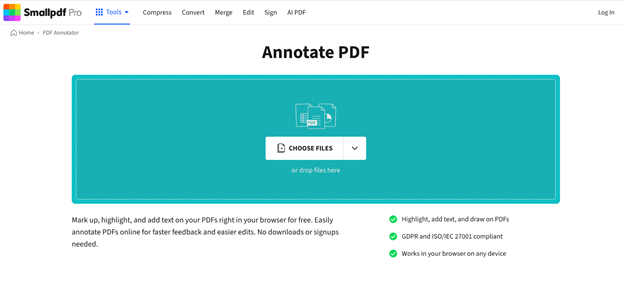
Step 3: Use the toolbar to add text and shapes, create drawings, and enhance the document with highlights and other markup tools.
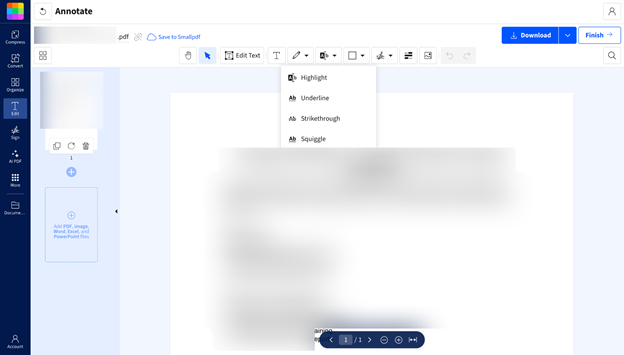
Step 4: Once done, click Finish or Download to download your PDF. You can also share, print, or save it to Smallpdf/Google Drive/Dropbox or OneDrive.
To Quickly Wrap Up
After reviewing these effective options, you now know how to annotate a PDF on Mac without spending any money.
Whether you choose a free professional tool like JOPDF, the built-in Preview app, or a quick online solution, each option offers unique benefits. Try the method that fits your workflow today and start annotating your PDFs more efficiently.
FAQs
Table of Contents

Your Best Free PDF Expert in PDF editing, compressing, converting, annotating, protect, organizing, and more.
Free DownloadWindows · macOS · Linux

Queena
Editor
“As a staff editor for JOPDF, Queena excels at guiding users to the optimal tools and solutions. When she's not analyzing the latest PDF solutions, she enjoys spending her free time playing with her four cats.”