Summary :
Understanding how to draw on a PDF on Mac makes editing, marking up, and collaboration much easier. This article explains 4 straightforward methods to draw on a PDF on a Mac for free, making file markup simple and efficient.
1. The Best Free & Easy Way to Draw on a PDF on Mac
Wondering, “how do I draw on a PDF on Mac”? JOPDF provides a simple and reliable solution. Offering versatile PDF editing features, JOPDF is perfect for both personal and professional use.
As the best PDF annotator, it lets you draw on PDF, highlight, use area highlight, strikethrough, underline, and squiggly line tools accurately while preserving your document’s original formatting.
Here’s a quick way to draw on a PDF on a Mac using JOPDF in only a few clicks.
Step 1. Download and install the newest version of JOPDF on your Mac.
Step 2. On the main screen, click Open PDF to import the file you want to draw on.
Step 3. Go to the Annotate menu at the top and select the Pencil tool in the secondary menu bar. Then, click anywhere on the PDF page to start drawing.
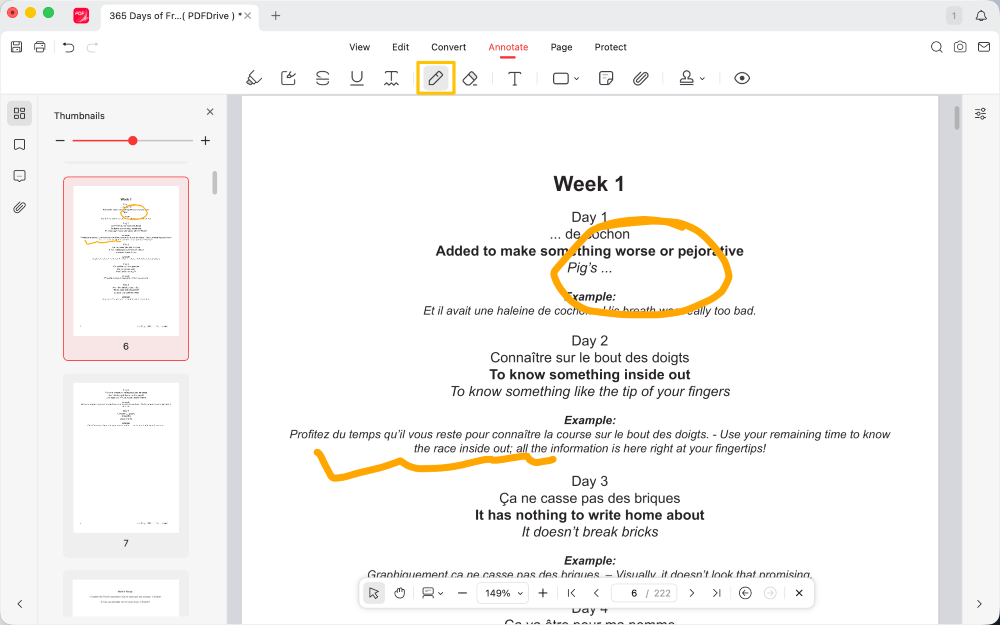
Note: You can easily adjust the color, thickness, and opacity of your pencil while hovering your mouse over the Pencil icon while drawing.
Beyond annotation, JOPDF provides a wide range of tools, including editing, converting, compressing, merging, splitting, creating, organizing, and securing PDFs with ease.
Try JOPDF today to enjoy fast, reliable, and all-in-one PDF tools for every task!
2. Draw on a PDF on Mac in Preview
Preview is a built-in Mac application that makes it easy to draw a PDF on Mac. It includes tools for adding shapes, highlighting text, and inserting notes, enabling users to mark up documents without additional software.
Use Preview to draw on a PDF on your Mac—here’s how.
Step 1. Use Preview to open the PDF document on your Mac.
Step 2. In the top-right corner, select the Markup button (pencil icon).
You may also use Shift + Command + A to show the markup tools.
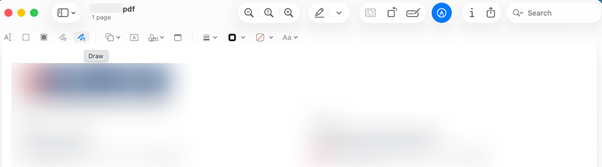
Note. If the Markup Toolbar is hidden, click Show Markup Toolbar.
Step 3. After the tools are displayed, choose the appropriate one to draw on the PDF. The Sketch tool lets you draw freehand lines easily.
- Draw. Allows you to draw freehand, but Preview will automatically recognize and perfect shapes like circles, squares, and arrows.
- Shapes. Click the shapes icon to add pre-drawn lines, rectangles, circles, or stars.
In the toolbar, use Color and Line Thickness to customize your drawings.
Step 4. When finished, select File > Save or File > Export… to store the PDF in your preferred location.
Although Preview is easy to use and free, it supports only basic markup and lacks text editing capabilities.
You can only insert new text, shapes, or notes into the document. It may fall short for advanced editing needs. If you want to edit PDF on Mac with full control, consider using JOPDF instead.
3. Draw on a PDF on Mac Using Adobe Acrobat
As a professional PDF solution, Adobe Acrobat enables Mac users to draw on PDFs accurately and effortlessly. It offers drawing tools, shapes, highlights, notes, comments, and form fields for complete PDF annotation.
The drawing tools work with stylus and touch input, delivering precise annotations while keeping the original layout intact.
Follow these steps to draw on a PDF file on a Mac with Adobe Acrobat.
Step 1. Install and launch Adobe Acrobat on your Mac and open the PDF you wish to edit.
In the right-side toolbar, click Drawing or Comment to open the annotation tools.
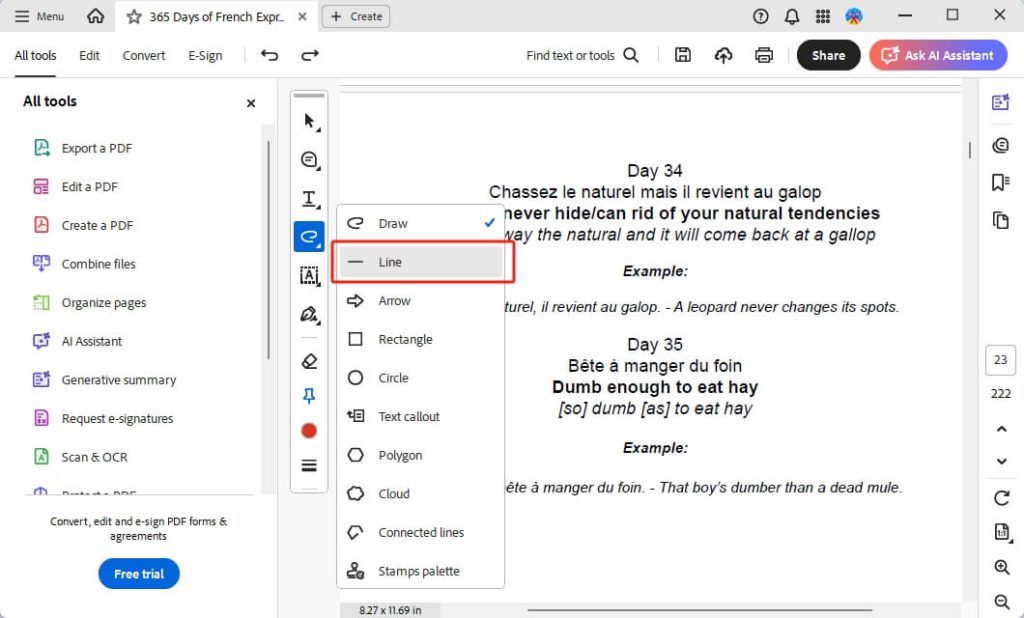
Step 2. Use Draw to sketch freely, or pick tools such as line, arrow, or shape for different annotations.
Step 3. Use the Color tool and the three horizontal lines at the toolbar’s bottom to customize line thickness, style, and color.
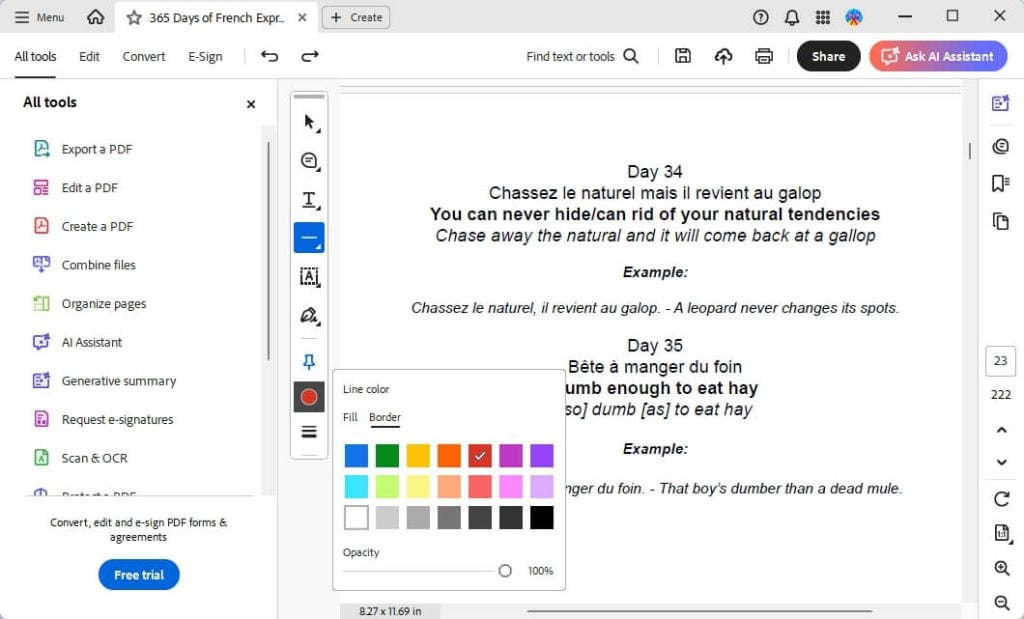
Step 4. You can draw on the PDF with your mouse, trackpad, or stylus.
When finished, click File > Save to store your annotated PDF.
With Adobe Acrobat, you get free basic annotations, while advanced editing features require a subscription.
Need a free yet capable tool? JOPDF, the best PDF editor for Mac, makes editing, annotating, and managing PDFs simple.
4. Draw on a PDF on Mac via an Online Tool
Online tools make it effortless to draw on a PDF on Mac without installing any software. With versatile brushes, color options, and layering controls, you can sketch, doodle, and add visual notes to your PDFs directly in your browser.
DocHub is a powerful, web-based PDF tool that lets Mac users draw a line in PDF and annotate directly in their browser, without installing any software. It offers freehand drawing, text insertion, highlights, shapes, signing, form filling, and collaborative commenting.
Here’s how you can draw on a PDF on a Mac online with DocHub.
Step 1. Open the DocHub website on your browser. And select the Draw in PDF on Mac tool.
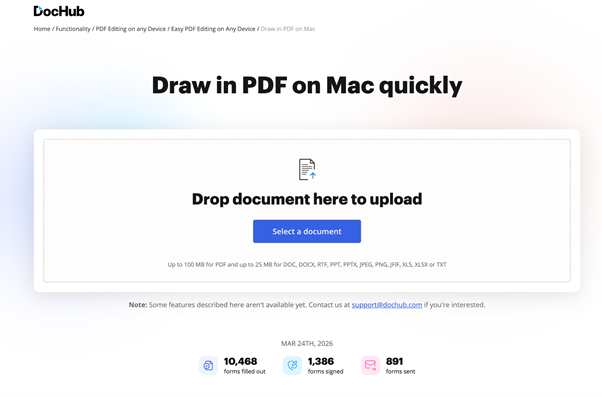
Step 2. Click Select a document and import the PDF you want to draw on. Wait for a few moments for your file to upload.
Once the PDF opens, select the Draw tool in the top toolbar under the Edit & Fill section.
Step 3. Once selected, use your trackpad or mouse to draw directly on the desired page.
Click the freehand drawing to open customization options. You can change the drawing color & opacity, thickness, and even add a hyperlink.
If needed, you can even click the bin icon to delete your freehand drawing.
Step 4. After finishing, click Done in the top-right corner. Select Download PDF to save the newly annotated PDF.
Conclusion
When exploring how to draw on a PDF on Mac, you can choose tools that offer everything from basic annotations to more advanced drawing features.
We have already discussed free and reliable offline, online, and built-in tools to suit your needs. Whether you need to highlight, sketch, or add notes, these solutions make PDF markup quick, efficient, and convenient. Hope this guide is helpful.
FAQs
Table of Contents

Your Best Free PDF Expert in PDF editing, compressing, converting, annotating, protect, organizing, and more.
Free DownloadWindows · macOS · Linux

Queena
Editor
“As a staff editor for JOPDF, Queena excels at guiding users to the optimal tools and solutions. When she's not analyzing the latest PDF solutions, she enjoys spending her free time playing with her four cats.”