Summary :
A PDF stamp is a digital annotation applied to PDF documents. It functions like a physical rubber stamp and is used to mark the document status. You may often have to sign and stamp PDF contracts, certificates, or other official materials as feedback or a disclaimer. PDF stamps are the way to do that without printing or scanning. However, adding them can be complicated if you don’t know the method. Read this post to master the 3 free ways to add a stamp to a PDF. Download the free PDF annotator – JOPDF to start your stamping work!
Way 1: Add Stamp to PDF with JOPDF
JOPDF is a free, powerful PDF application that provides tools for annotating, editing, and securing PDFs. It enables you to insert stamps in a PDF from multiple types. You can add a paid, draft, approved, and review stamp, as well as a dynamic date-and-time stamp, to a PDF. The software also provides Sign Here and other most-used stamps. It lets you move, resize, and take notes on the stamps.
How to add a stamp to a PDF for free using JOPDF:
Step 1: Download, install, and run the JOPDF for Windows or Mac to use its PDF stamp creator.
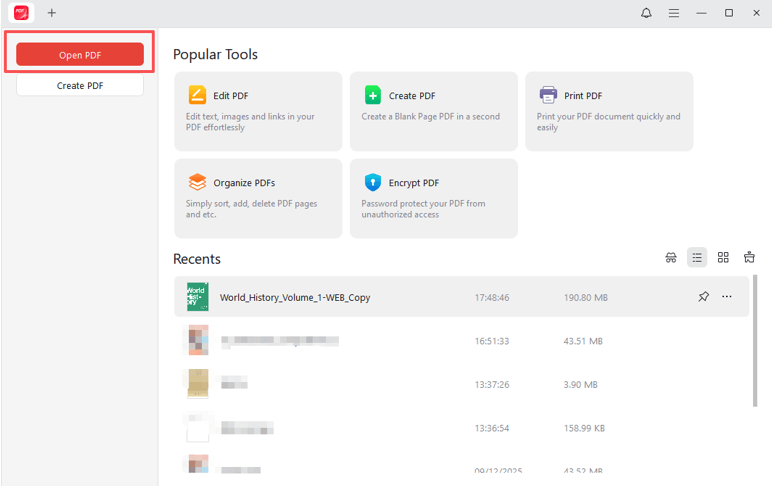
Step 2: Click the Open PDF red button to select your PDF file and open it.
Step 3: Click “Annotate” > “Stamp”, and select your desired stamp, such as the PAID stamp image for PDF.
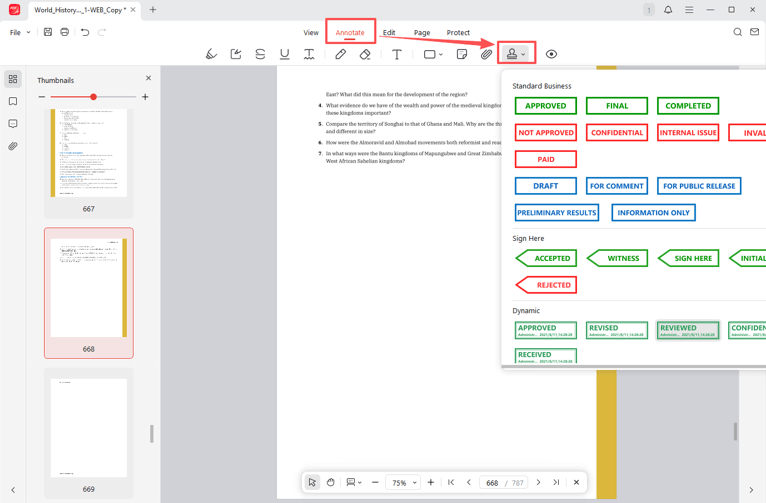
Step 4: Place the stamp where you want to stamp the PDF and adjust its size.
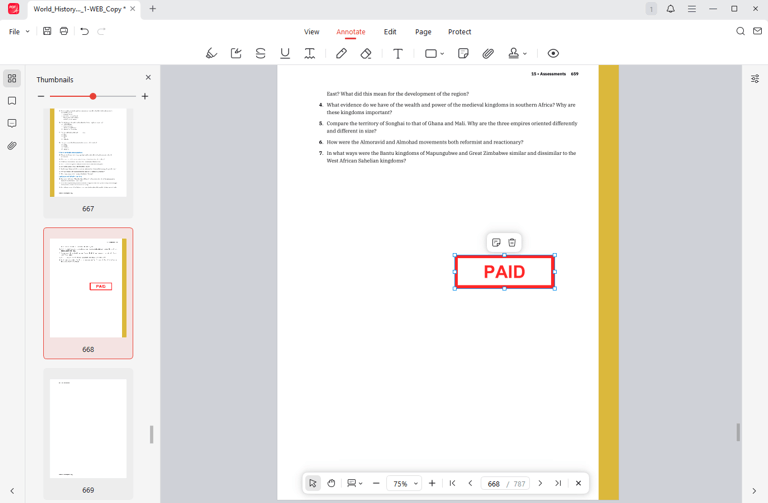
Step 5: Repeat, adding more stamps, and save the file.
Way 2: How to Stamp a PDF in Adobe Acrobat
Adobe Acrobat is the second way to add a stamp to a PDF for free and one of the best PDF highlighters. It allows you to create a PDF stamp from scratch by uploading a stamp PDF file or an exhibit stamp. This way, you can add your company stamp in PDFs by scanning your stamp on paper into a PDF. The free Adobe Reader is enough to go, which also allows PDF signing, printing, and annotating. But adding Bates stamps can only be done with the premium version.
Find out how to create a stamp in Adobe Acrobat for your PDF.
Step 1: Open the PDF you need to add a stamp to using the Adobe Reader DC.
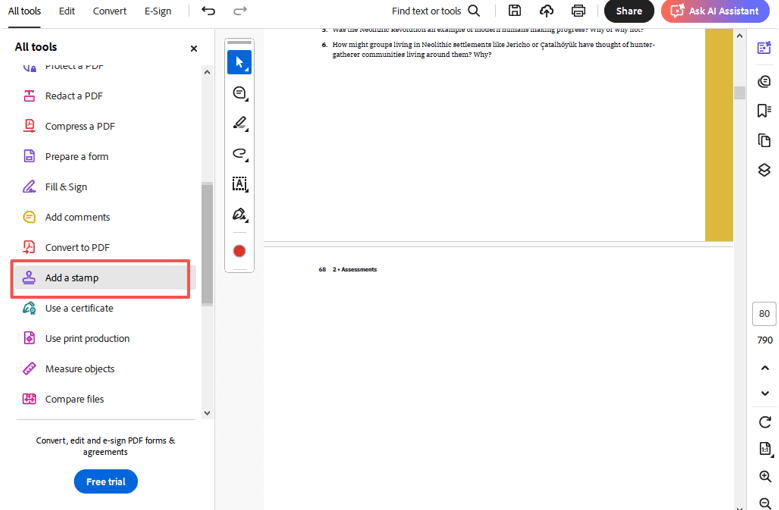
Step 2: Choose the Add a stamp tool in the side tools pane.
Step 3: Click the Stamp button, select the stamp type you want, and choose a preset stamp.
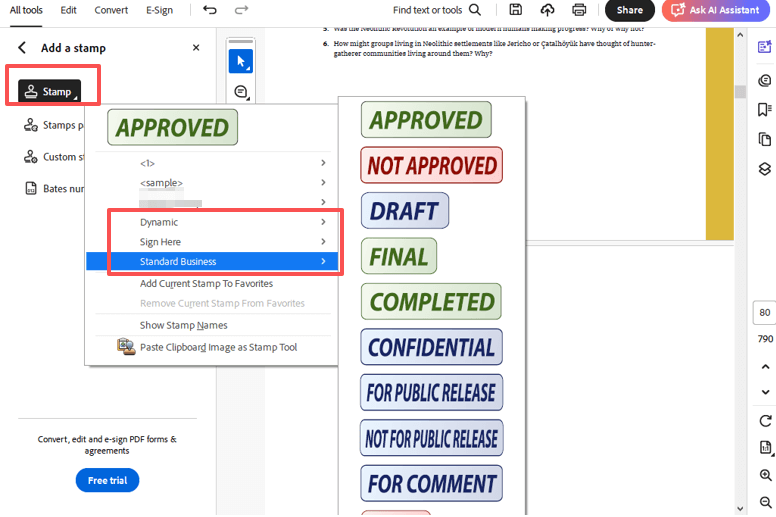
Step 4: Click a position to add a stamp to the PDF.
Step 5: To add an image stamp to a PDF, save the image as a PDF, click “Custom Stamps” > “Create”, and import the stamp file. Then, follow steps 3 and 4 to add the custom stamp to the PDF.
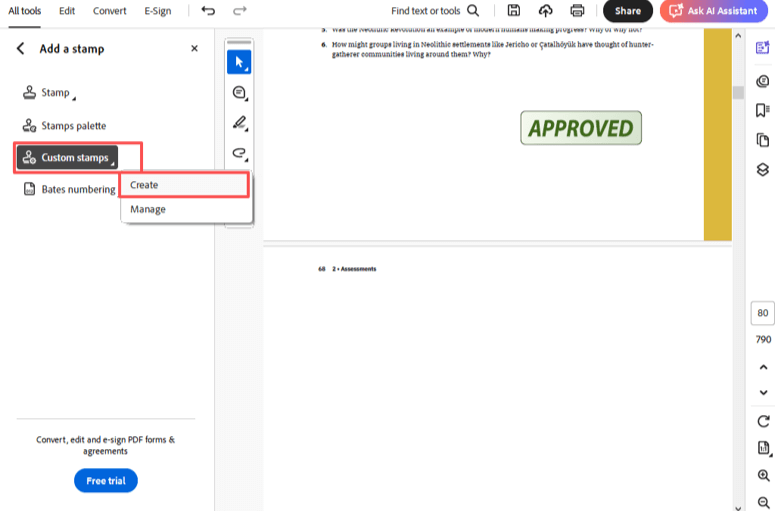
Step 6: To add a signature stamp in the PDF, use the Custom Stamp feature described in step 5. First, save your signature as a PDF on a white page.
You can also add a signature stamp to a PDF with this process: go to “Fill & Sign” from the tools pane, click “Add signature”, select the Image type, upload your signature vector image, and apply it where you like. Or, you can type or draw your signature to apply as a stamp.
Way 3: How to Add a Stamp in a PDF Using StampJam
StampJam is a great PDF stamp maker that lets you add a stamp to a PDF online for free. The special part is that it offers over 100 free PDF stamp templates. You can design and create/make a digital stamp for PDFs yourself and download it with a Starter Plan. However, the online platform only supports uploading stamp images but hasn’t predefined standard stamps. The good thing is that it can add a stamp in all pages of a PDF at once.
Check out how to create a stamp online for a PDF using StampJam.
Step 1: Open the online PDF stamp creator to create a PDF stamp from scratch with a pre-designed template. Or take a photo of your stamp on white paper and convert it to a vector image.
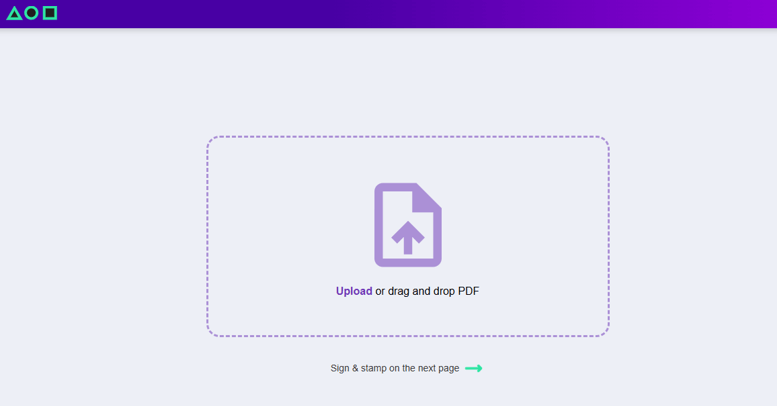
Step 2: Visit the Stamp PDF online page, and upload the PDF document you wish to digitally stamp.
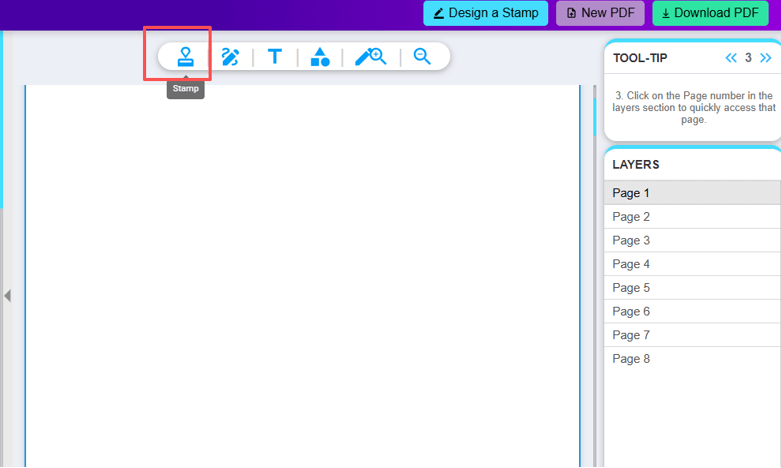
Step 3: Click the Stamp icon on the toolbar to upload your stamp photo.
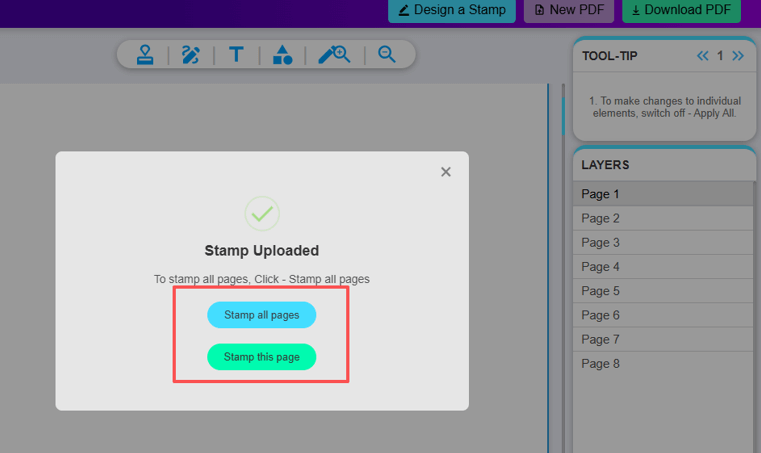
Step 4: Choose Stamp this page to add the copy stamp to the current PDF page. Choose Stamp all pages to add the stamp to all pages in the PDF file.
Step 5: Click the Download PDF button, and enter your email address to download the stamped PDF.
Conclusion
Do you need to add a stamp on a PDF to a submittal? To stamp a PDF is to clarify your document status to be accepted, rejected, or final. It may be essential for your work. There are three of the best methods to accomplish that. If you would like a free solution to put a stamp on a PDF document, give JOPDF a try. If you need to edit a locked PDF that’s protected against your stamping job, look no further than JOPDF.
FAQs
Table of Contents

Your Best Free PDF Expert in PDF editing, compressing, converting, annotating, protect, organizing, and more.
Free DownloadWindows · macOS

Selena
Staff Editor
“Selena is a staff editor working for JOPDF, passionate and committed to providing how-to and round-up articles. Over 8 years of specialized skills and experience in PDF solutions, hoping to help users ease their lives and solve whatever they encounter. "Work smarter, not just harder!"”