Introduction
Due to software costs, device restrictions, or convenience, people often search for how to open a PDF without Adobe. Whether you’re a student, professional, or just reading casually, free alternatives make it easy. Discover three easy and free ways today!
Can You Open a PDF Without Adobe?
Yes. For those curious about how can I open a PDF without Adobe, plenty of tools work perfectly as a PDF reader for Windows and Mac.
Built-in browser viewers, built-in Preview app, and free third-party software let you access documents instantly without subscriptions or heavy installs.
These options are ideal for students, career professionals, and anyone who regularly uses PDFs. Perfect for the ones who need fast access, lightweight performance, and basic editing without relying on Adobe Acrobat. Keep reading to learn more.
1. The Best Way to Open PDF Without Adobe: JOPDF (Win & Mac)
JOPDF provides a simple and effective way to open PDF files on Windows and Mac. As an Adobe Acrobat alternative, JOPDF lets users handle PDFs efficiently without any hidden charges.
Download JOPDF on Mac for Free
Download JOPDF on Windows for Free
With fast loading, smooth navigation, text and image editing, annotations, and format conversion, it provides a user-friendly experience.
Best of all, JOPDF is entirely free, making it ideal for students, professionals, and everyday users who want full PDF access and flexibility without relying on Adobe Acrobat.
Explore how to open a PDF without Adobe using JOPDF with ease.
Method 1. Drag and drop a PDF into the program
- Download and install JOPDF on your computer.
- To quickly open a PDF on Mac and Windows, just drop your PDF into the software window.
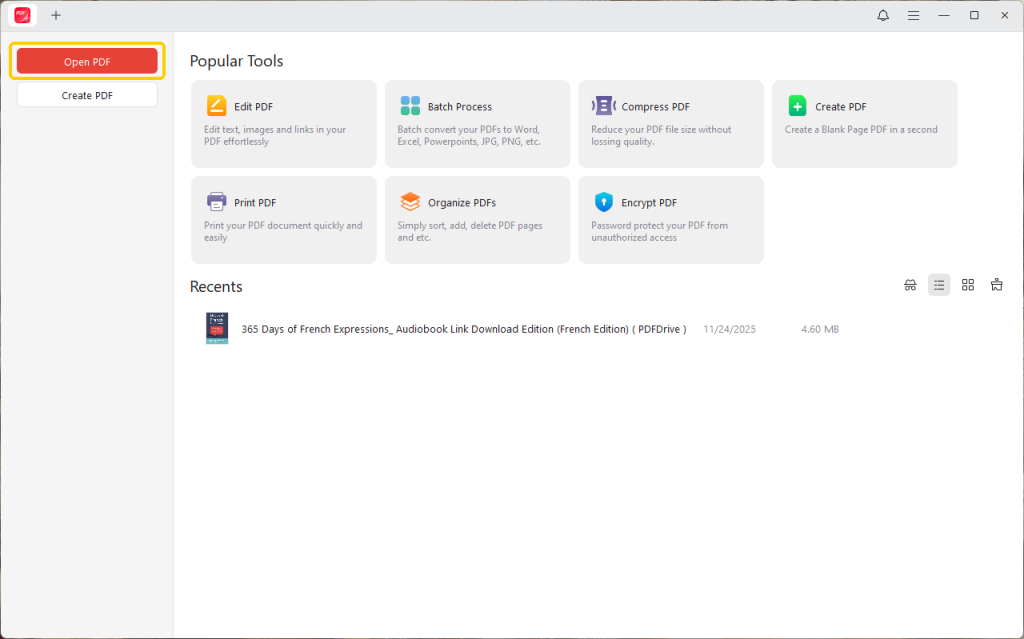
Method 2. Open a PDF from the start page
- Download and launch JOPDF.
- Click the Open PDF button in the upper-right corner. Alternatively, tap the + icon at the top.
- In the pop-up window, browse to select the PDF file you want to open.
Method 3. Right-click to open your PDF
- Find the PDF file you wish to open and view.
- Right-click the PDF document, select Open with, and choose JOPDF.
Method 4. Double-click to open PDF
- Download and set JOPDF as your default PDF viewer.
- Double-click the PDF, and it will open with JOPDF automatically.
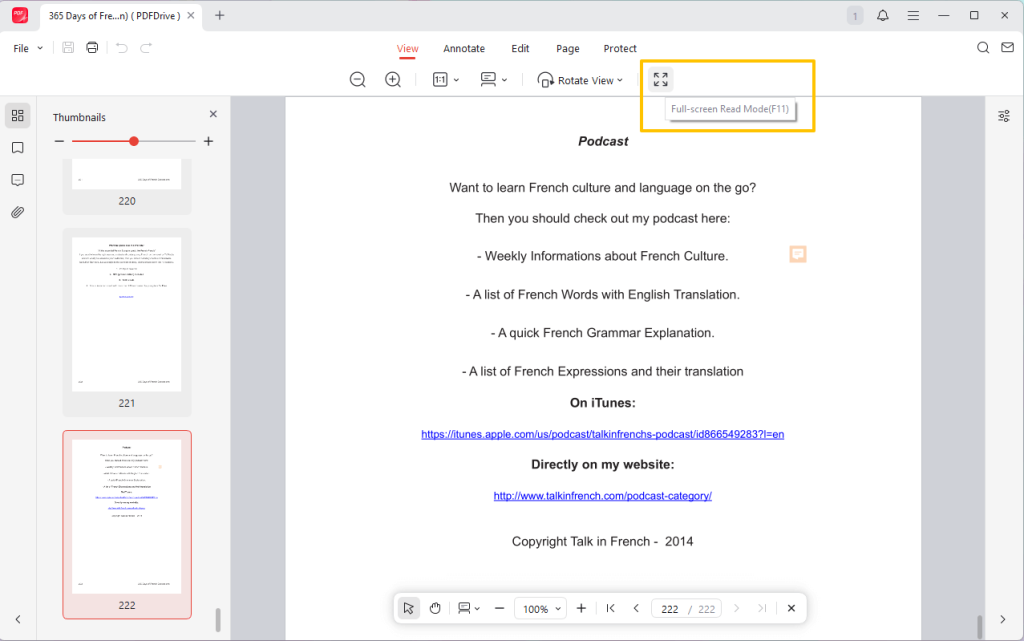
After opening the document, you can go to the View menu and select the reading mode. For example, you can read the PDF in full screen.
If necessary, you can also click on Edit or other options to make the document better.
2. Open PDF on Mac Without Adobe: Preview
With Preview, the built-in macOS PDF tool, you can effortlessly open PDFs on Mac. It supports smooth viewing, page navigation, zooming, highlighting, adding notes, signatures, and basic annotations.
Preview lets you quickly review PDFs and apply basic markups, all for free. However, Preview cannot truly edit PDF on Mac when it comes to modifying existing text or paragraphs. To edit text, images, or the document layout, consider using JOPDF as a capable alternative.
Here’s how you can easily learn how to open a PDF on a Mac without Adobe with Preview.
Method 1. Using the Finder on Mac
- Access the PDF file through Finder or directly from your desktop. Alternatively, find it in an email attachment.
- Double-click your PDF file.
- Your PDF document will automatically open in Preview.
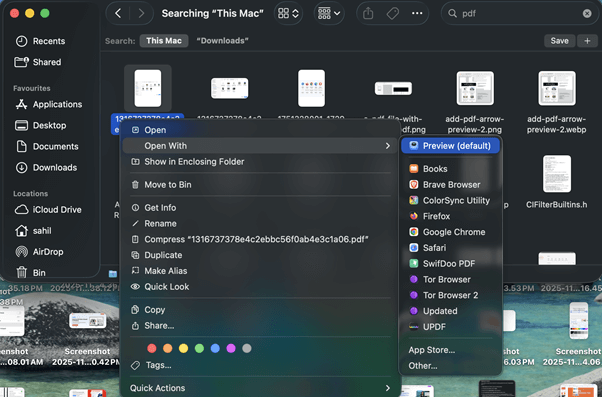
Method 2. Using the Open With function
- Right-click the PDF file.
- Select Open With from the context menu.
- Choose the default app, Preview, from the options.
Method 3. Drag and drop the PDF into Preview
- Drag the PDF file icon from Finder.
- Place the PDF file directly on the Preview icon in your Dock to open it.
3. Open PDF in a Browser
For quick PDF access without installation, opening them in a browser works perfectly. PDFs can be opened immediately in modern browsers—Chrome, Edge, Firefox, and Safari—for reading, scrolling, searching, and downloading.
You can also make a PDF full screen for distraction-free viewing with a single click. While browser viewers are great for fast access, they offer limited editing features and are best suited for viewing rather than advanced PDF management.
Learn how to open a PDF without Adobe Acrobat in a browser.
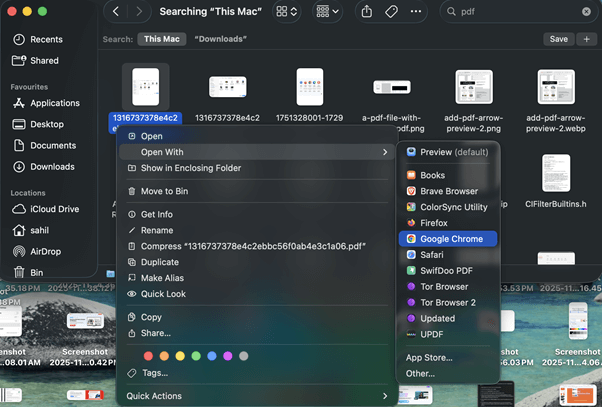
Step 1. Right-click the PDF file you wish to open.
Step 2. Select Open with and choose Google Chrome.
Step 3. As soon as you open your PDF file, you can modify the viewing mode.
A Quick Wrap Up
Opening PDF files no longer requires Adobe Acrobat. Free tools like JOPDF, built-in system apps, and browser viewers offer users multiple easy ways to open PDFs.
However, if you also want to edit the document, JOPDF would be the best choice, after all, it is also a comprehensive PDF editor.
FAQs
Table of Contents

Your Best Free PDF Expert in PDF editing, compressing, converting, annotating, protect, organizing, and more.
Free DownloadWindows · macOS

Queena
Editor
“As a staff editor for JOPDF, Queena excels at guiding users to the optimal tools and solutions. When she's not analyzing the latest PDF solutions, she enjoys spending her free time playing with her four cats.”