Introduction
Viewing a PDF in Chrome provides a quick and easy way to access, share, and manage documents without needing any extra software. In this guide, we show you how to open a PDF in Chrome and maximize the use of its integrated features for a better viewing experience.
How to Open a PDF in Chrome on Windows and Mac
A growing number of people want to know how to open a PDF in Google Chrome for a quick access. Fortunately, it can be done regardless of whether you are using a Windows system or a Mac system.
However, the PDF viewer built into Chrome supports just a simple reading mode and lacks the ability to edit documents. If you’re comfortable with these limitations, Chrome is a practical choice for everyday PDF viewing.
Learn how to open a local PDF on a Windows and a Mac computer in just three clicks.
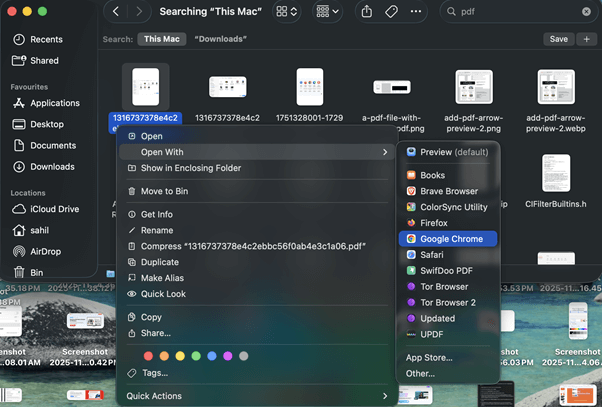
Step 1. To open a PDF, right-click on the file you want.
Step 2. Choose Open With.
Step 3. Select Google Chrome. The file will appear in the browser instantly.
How to Open a PDF in Chrome Instead of Adobe
If you want to always open a PDF in Chrome, you can change the default PDF reader. The steps are as follows.
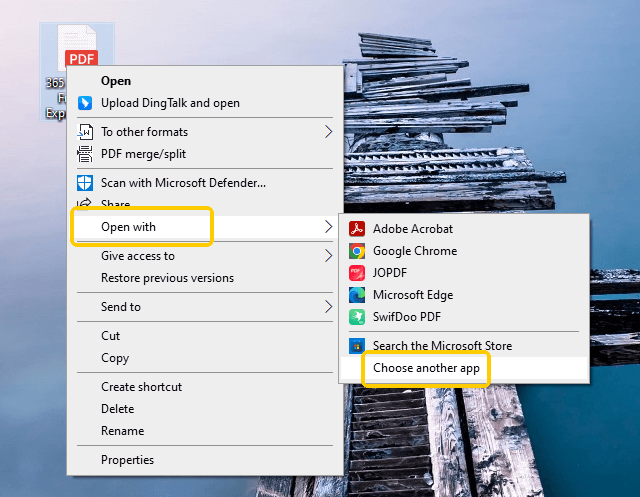
On Windows:
- Right-click any PDF file.
- Go to Open with > Choose Another app.
- Click Google Chrome and select Always use this app to open .pdf files.
- Click OK to confirm.
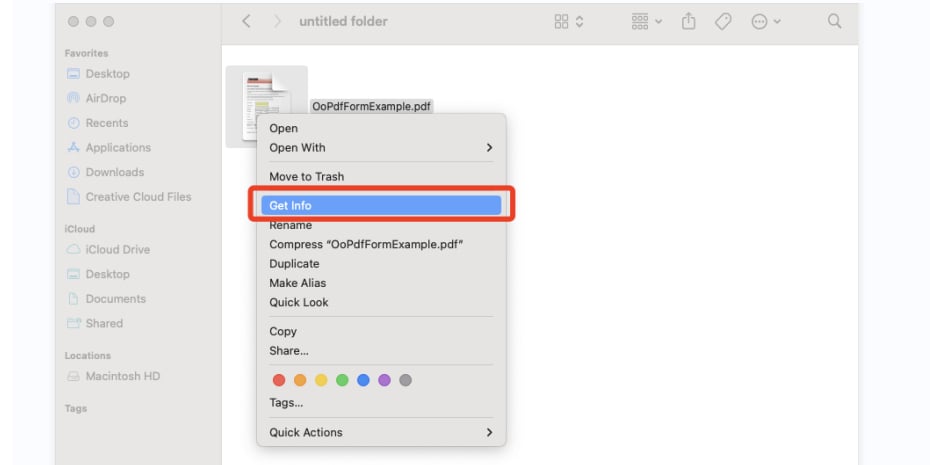
On macOS:
- Right-click the PDF file.
- Click Get Info and select Open With.
- Select Google Chrome and click Change All.
- Finally, click Continue to make it.
However, what you need to know is that Chrome has limited features. If you want more reading modes and editing features, you can turn to another easy-to-use reader: JOPDF.
As a powerful PDF reader for Windows and Mac, it offers a simpler interface, faster performance, and free tools for editing, annotating, and converting PDFs, making everyday document handling easier and more flexible.
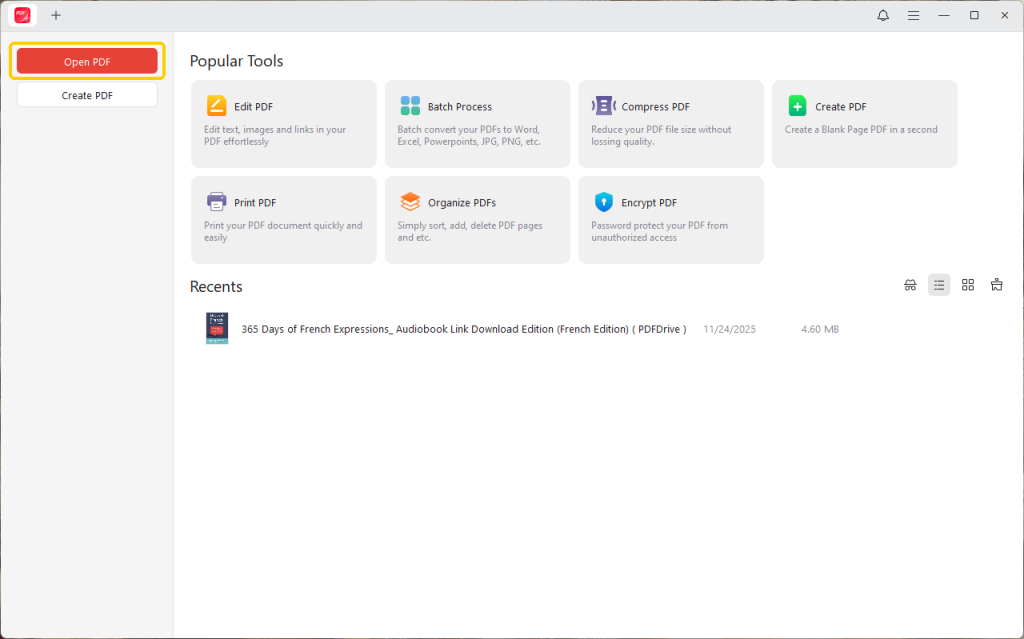
To open a PDF in JOPDF, please click the Open PDF button in the upper-right corner. Alternatively, you can drag and drop the PDF file into the program to open it.
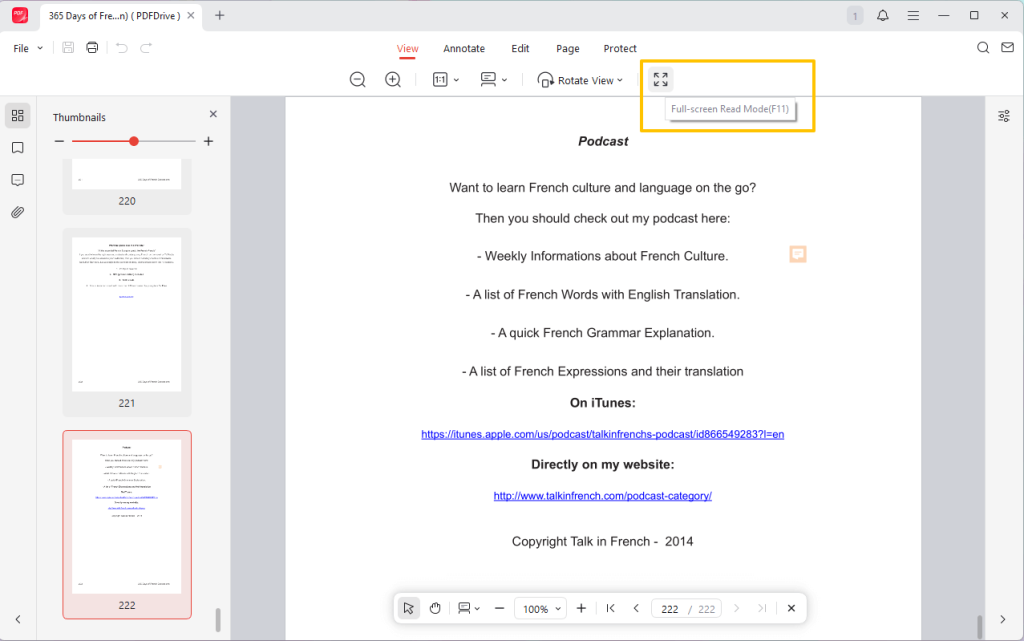
After that, you can go to View to select a reading mode. For example, you can make a PDF full screen for better focus and clarity.
How to Open a PDF in Chrome Instead of Downloading
If Chrome continues downloading PDFs rather than opening them, you can quickly fix the problem by adjusting the browser settings.
This allows you to preview documents instantly in the browser, avoid unnecessary downloads, and keep your folders organized without cluttering your download folder. It also helps to reduce reliance on external PDF readers for basic viewing.
Use the steps below to open a PDF in Chrome instead of downloading.
Step 1. Launch the Google Chrome application. And tap the three-dots icon in the top-right corner.
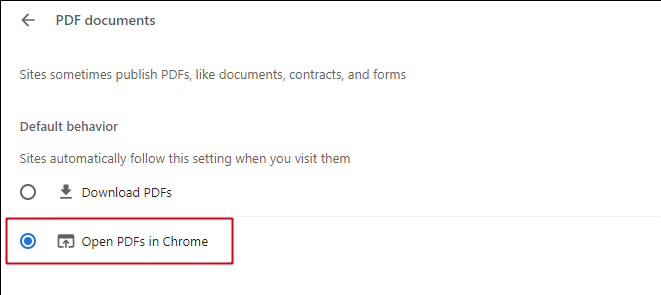
Step 2. Navigate to Settings, then select Privacy and security. Next, click on Site settings, and then select Additional content settings. Choose PDF documents.
Step 3. In the window that opens for PDF documents, choose the “Open PDFs in Chrome” option.
A Quick Wrap Up
Learning how to open a PDF in Chrome allows you to view documents more quickly and conveniently on both Windows and Mac.
While Chrome is perfect for quick viewing and basic reading, JOPDF offerS more advanced functionality for those who need it. If offers more reading modes and can also help you edit the document easily.
By choosing the right settings and tools, you can improve productivity, reduce extra downloads, and enjoy a smoother, more efficient PDF viewing experience every day. Hope this guide is helpful.
FAQs
Table of Contents

Your Best Free PDF Expert in PDF editing, compressing, converting, annotating, protect, organizing, and more.
Free DownloadWindows · macOS

Queena
Editor
“As a staff editor for JOPDF, Queena excels at guiding users to the optimal tools and solutions. When she's not analyzing the latest PDF solutions, she enjoys spending her free time playing with her four cats.”