Introduction
Converting static files into interactive presentations, boosts audience focus, and makes efficient use of existing materials. This guide will teach you how to present PDF as slideshow to maximize impact and save preparation time.
Can You Play a PDF as a Slideshow?
Yes. Many users often ask this question. PDFs can be shown in slideshow mode using the full-screen or presentation features built into PDF readers and browsers. This allows pages to advance manually or automatically, similar to traditional slides.
Learning how to display PDF as slideshow is useful for meetings, classrooms, and webinars. This is because it turns static documents into engaging, easy-to-follow visual presentations without recreating content.
1. The Best Way to Present PDF as Slideshow: JOPDF (Win & Mac)
👍 Best For: Users who need a free, easy way to present PDFs professionally on any device.
A versatile PDF reader for Windows and macOS, JOPDF provides effortless viewing and professional slideshow presentations at no cost.
JOPDF offers full-screen slideshow mode, quick page rendering, and user-friendly controls for smooth navigation. Its compact design and compatibility across platforms allow JOPDF users to deliver smooth, focused presentations without extra tools or costs.
Explore how to display PDF as slideshow using JOPDF in a few clicks.
Step 1. Download and install JOPDF on your Windows or Mac computer.
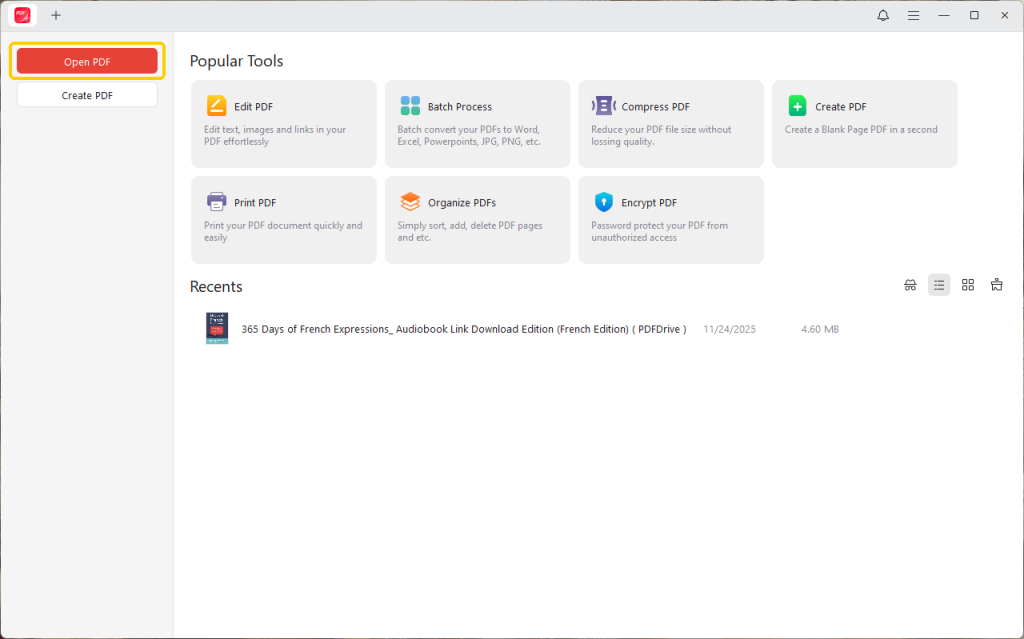
Step 2. After you launch JOPDF, click Open PDF to open your PDF document. Alternatively, drag the file into the application.
Step 3. Select the Full-screen Read option, represented by four arrows, from the menu bar. Or hit the F11 key to enter full-screen mode.
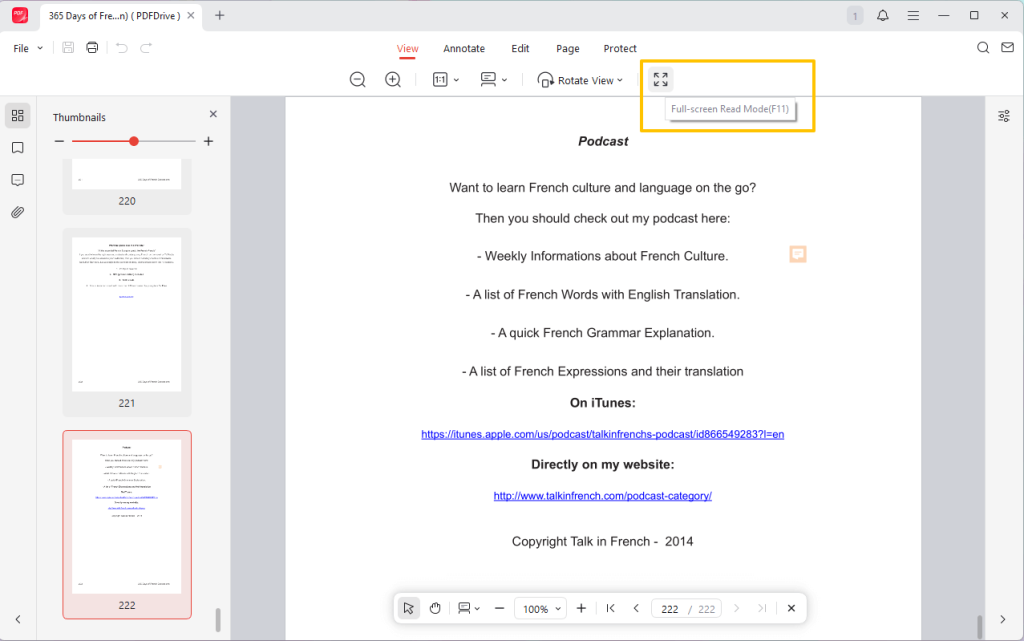
If needed, you can use the control panel to adjust the page size and other things. Use the Esc key to leave full-screen mode and return to normal view.
2. Convert PDF to PowerPoint for More Control
👍 Best For: Users who want complete editing and design control over their presentation slides.
JOPDF offers a free, simple way to convert PDFs to editable PowerPoint files. After opening your PDF in JOPDF, you can use its conversion feature to export the document as a PPT file.
This allows you to customize layouts, add animations, and present PDF as slideshow with greater flexibility, all without paying for extra software.
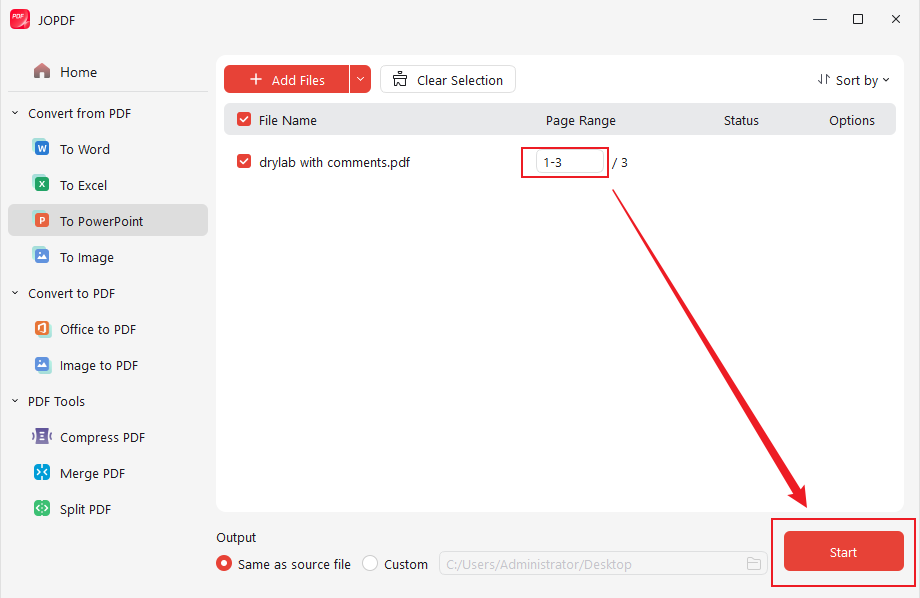
Learn how to present a PDF like a PowerPoint by converting a PDF to PPT using JOPDF in a few clicks.
Step 1. Download and install JOPDF converter. Launch the program and open your PDF file.
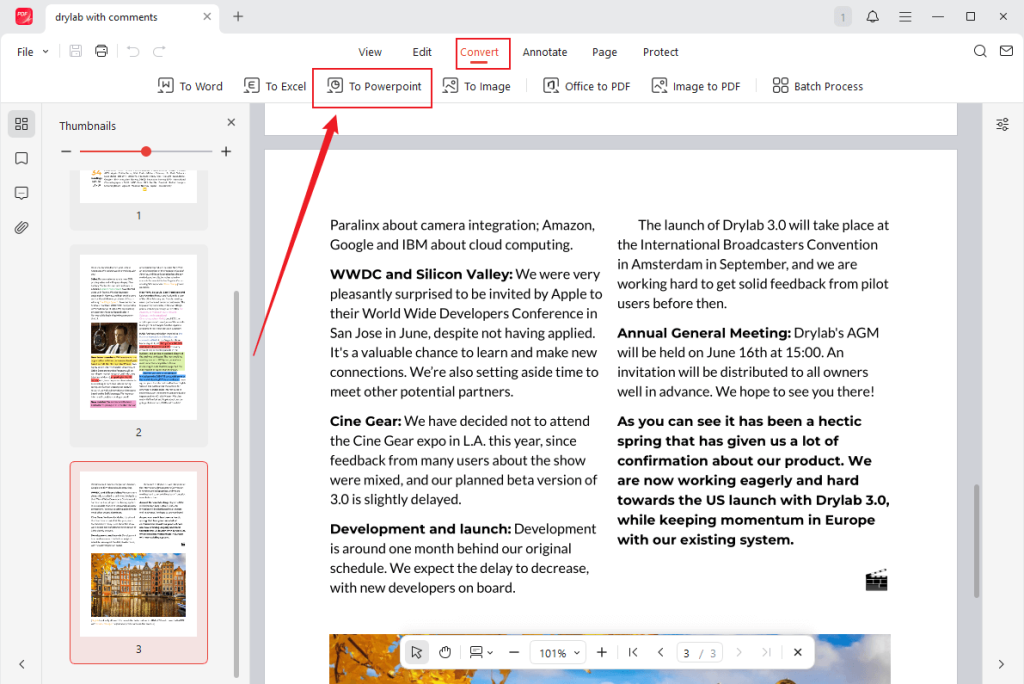
Step 2. Go to the Convert tab in the menu bar and select the conversion tool you wish to use.
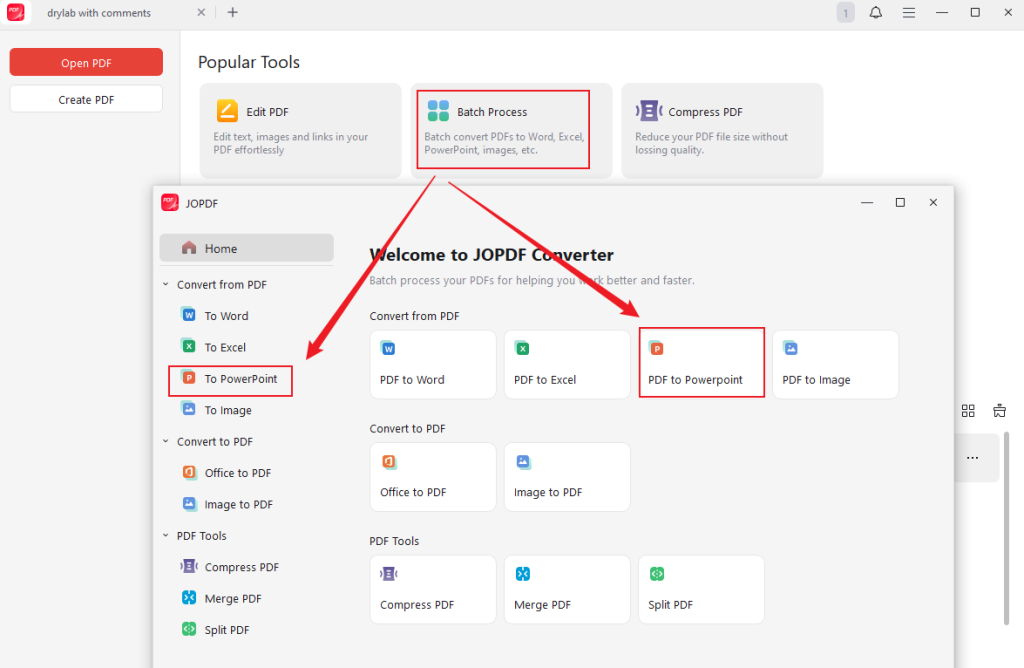
Note: If needed, you can click Batch Process under Popular Tools on the start page to convert multiple PDFs simultaneously. In the pop-up windows, select the conversion tool you need (PPT).
Step 3. Click the Add Files button to open PDFs. Or simply drag and drop them into the converter window.
Step 4. Once your settings are finalized, press the Start button to start the conversion. Within moments, your PDF document will be converted to your desired format.
3. Present PDF as PowerPoint Slideshow with Acrobat
👍 Best For: Users looking for full control over slides and PowerPoint-style presentation features.
As a professional PDF application, Adobe Acrobat enables PowerPoint-style slideshow presentations. The presentation mode allows you to make a PDF full screen, supports smooth transitions, and ensures simple navigation during live presentations.
With its rich feature set, Acrobat is ideal for business, education, and formal presentations that require polish and reliability.
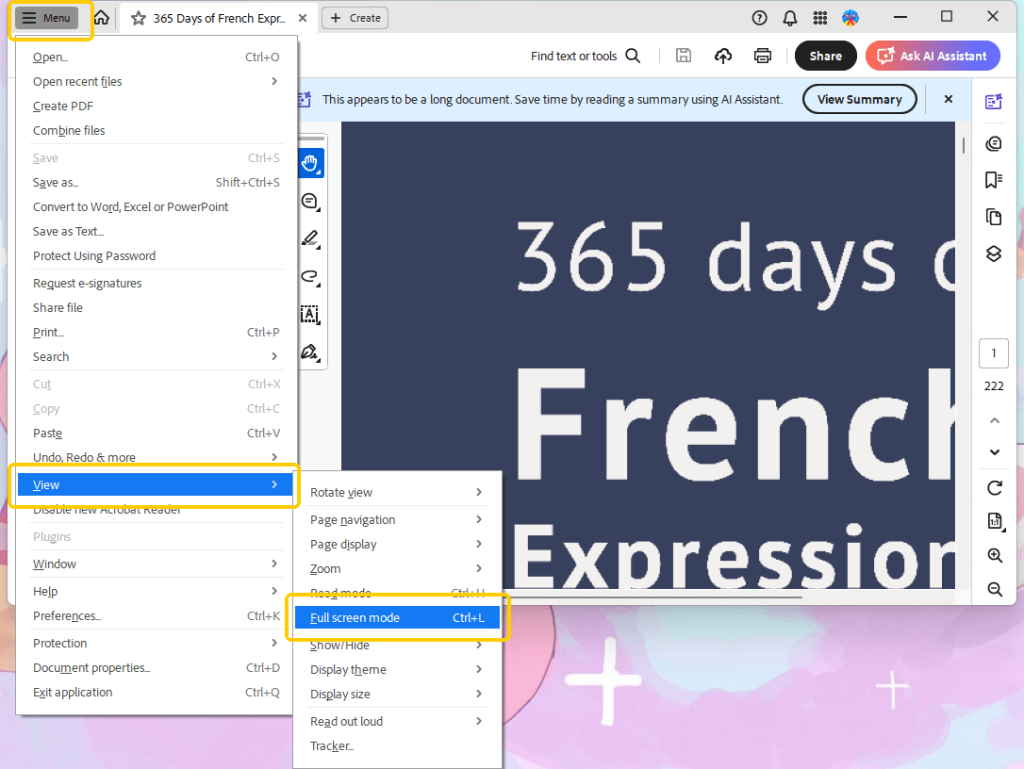
Learn how to present a PDF like a PowerPoint with Acrobat.
Step 1. Right-click on the PDF and choose the Open with option. Then, choose Adobe Acrobat Reader/Pro.
Step 2. Click the View tab in the main menu and select the View option.
Step 3. Select the Fill screen mode and that’s it.
4. Present PDF as Slideshow Using a Browser
👍 Best For: Users who need a quick, no-software method to present PDFs as slideshows.
Modern web browsers allow you to present a PDF as a slideshow without the need for extra software. In addition, you can use the the built-in Print feature to adjust layout and scaling for full-screen viewing, then show the document smoothly like slides.
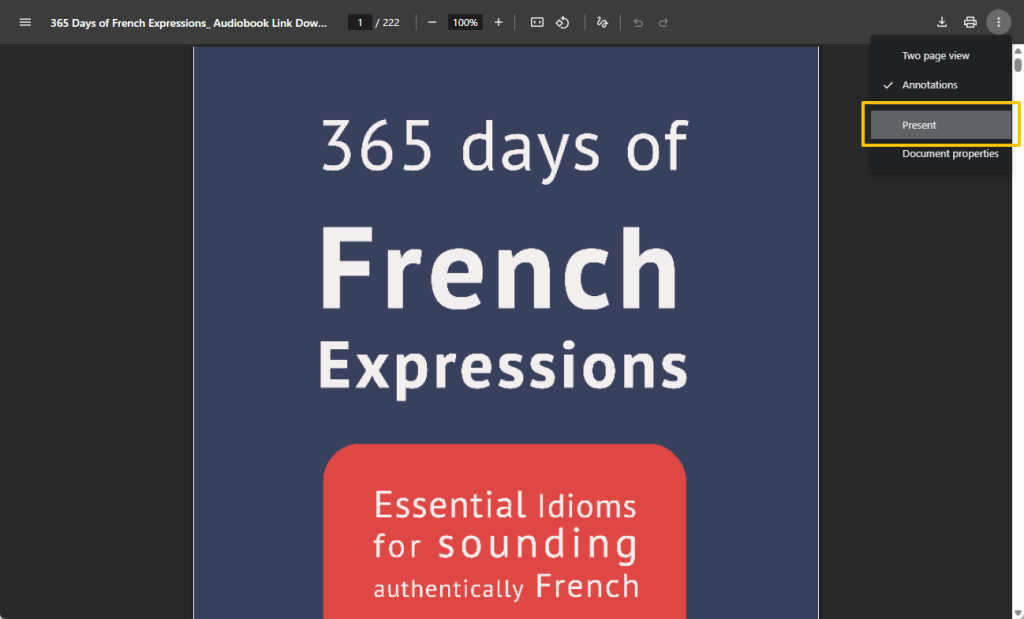
Discover how to present a PDF like a PowerPoint with the help of a web browser’s Print option in a few clicks.
Step 1. Launch the PDF in a web browser like Chrome, Edge, or Firefox.
Step 2. Click the three-dot icon in the top right corner.
Step 3. Select the Present Screen option to make it.
Conclusion
Displaying a PDF as a slideshow helps make your content both visually appealing and professional. Whether you use a PDF reader’s full-screen mode, a browser, or convert your PDF to PowerPoint, there are options for every level of convenience and control.
Free solutions such as JOPDF help users on Windows and Mac to smoothly present PDF as slideshow, saving effort while enhancing visual impact!
FAQs
Table of Contents

Your Best Free PDF Expert in PDF editing, compressing, converting, annotating, protect, organizing, and more.
Free DownloadWindows · macOS

Queena
Editor
“As a staff editor for JOPDF, Queena excels at guiding users to the optimal tools and solutions. When she's not analyzing the latest PDF solutions, she enjoys spending her free time playing with her four cats.”