Introduction
Use a new MacBook and wonder how to open a PDF file? It’s simple. This guide will show you how to open PDF on Mac with built-in tools and professional PDF viewers, and how to troubleshoot any issues.
1. How to Open PDF on Mac in Preview
A simple way to open a PDF on a Mac is by using the built-in Preview app. This is the default PDF viewer pre-installed on every Mac, and for most users, it’s the only tool you’ll ever need.
It’s much more than just a viewer; it’s a powerful tool for basic edits, annotations, and signing. Let’s see how to open PDF in Preview on Mac.
Method 1
Find the PDF file in Finder, on your desktop, or in an email attachment and double-click it. It will automatically open in Preview.
Method 2
Right-click the PDF file and select Open With from the context menu. Then, select Preview from the list.
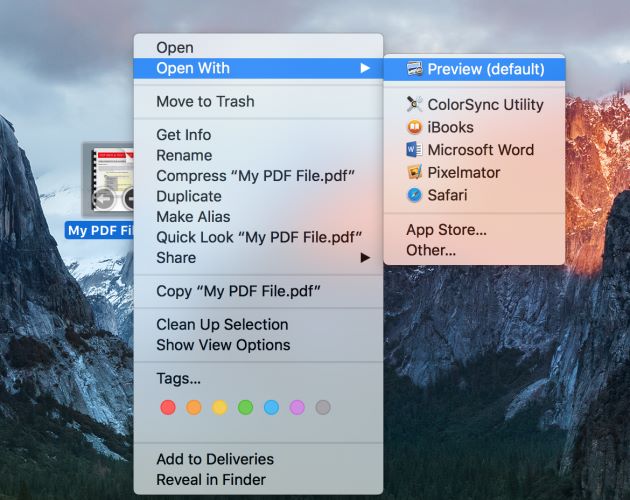
Method 3
Drag the PDF file icon from Finder and drop it directly onto the Preview icon in your Dock.
2. How to Open PDF on Mac with JOPDF
Preview is excellent for daily tasks; however, it is not a good option if you need an all-in-one solution. In this case, a lightweight alternative like JOPDF is a good option. It’s a free, comprehensive PDF viewer and editor.
Why Use JOPDF? It is the best choice if you want to know how to open PDF on Mac to edit it. Unlike Preview, which has limits, JOPDF allows you to:
✅ Directly change, delete, and add text to a PDF document.
✅ Highlight text/area, add shapes, draw lines and anything you like.
✅ Convert PDF to/from Word, Excel, PowerPoint, JPG, PNG, and more.
✅ Add open and permission password to protect sensitive information.
✅ Easily find, add, delete, extract PDF pages to create the one you need.
Here is how to use JOPDF to open PDFs on Mac:
1. First, download and install JOPDF.
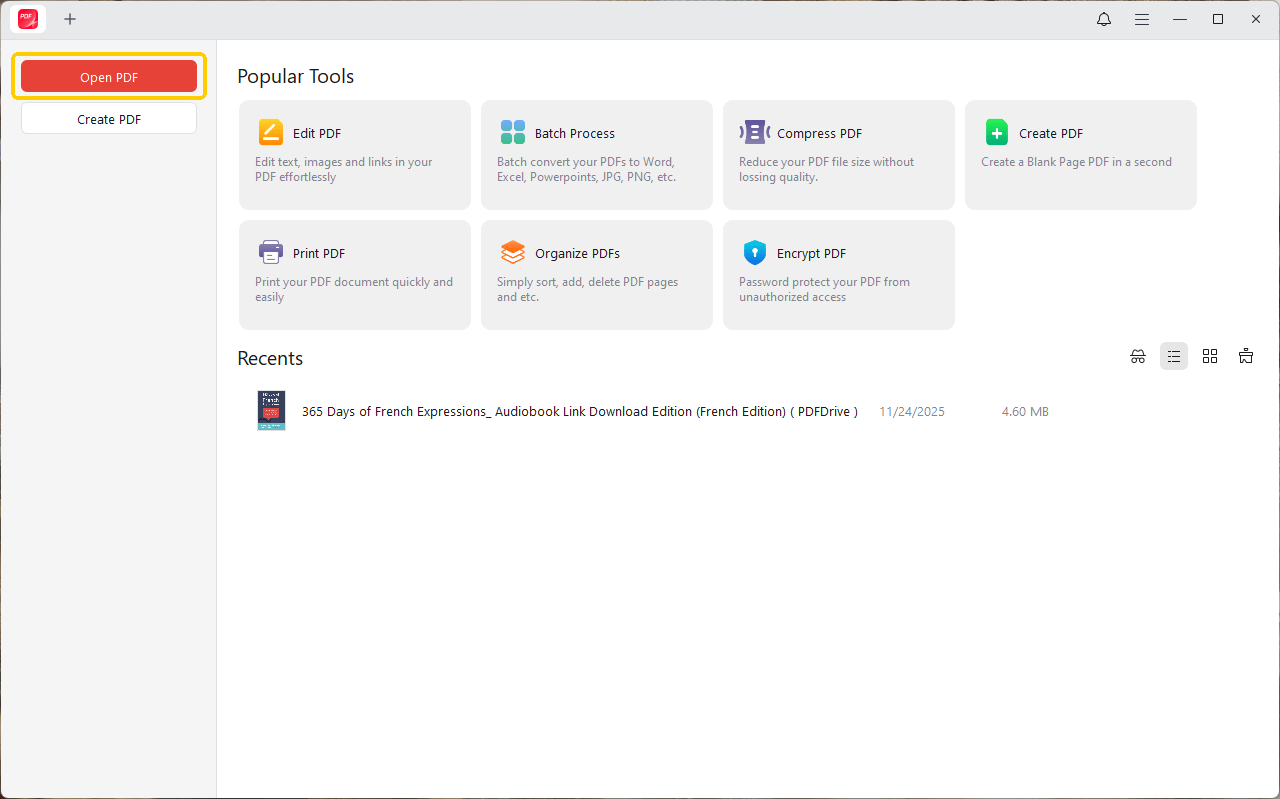
2. Once installed, you can open a file by launching the JOPDF app and clicking the Open PDF button.
3. Alternatively, right-click any PDF file, select Open With, and choose JOPDF from the list.
Now, you can choose your preferred reading mode and make various edits.
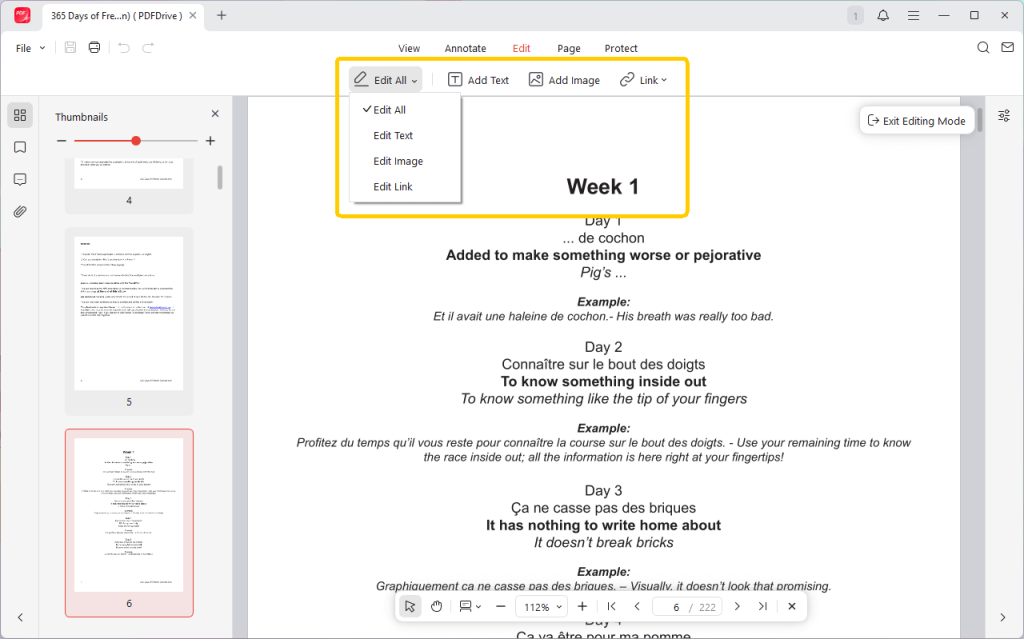
If you are looking for a professional and free PDF editor for Mac, JOPDF is a good option!
3. How to Open PDF on Mac Using Adobe Acrobat
Adobe Acrobat is the “industry standard” for PDF management. This is often the best choice for handling highly complex, dynamic PDF forms or for professional workflows.
It’s important to distinguish between the free Adobe Acrobat Reader (for viewing and commenting) and the paid Adobe Acrobat Pro (for full editing). That’s to say, the free Adobe Reader is enough when you need to view PDF documents.
1. Download Adobe Acrobat Reader from the official Adobe website and install it.
2. During installation, the program may prompt you to set it as your default PDF viewer.
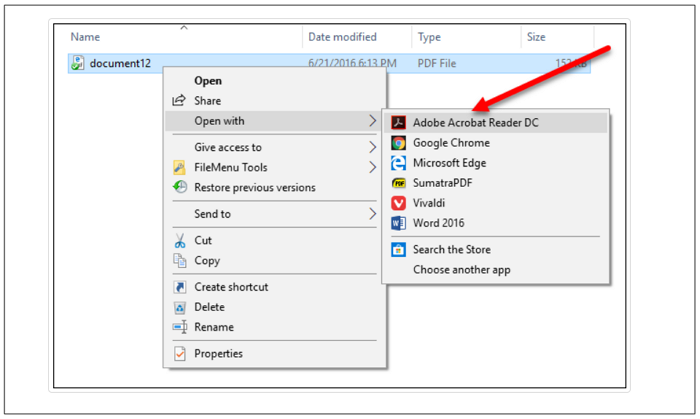
3. You can open a PDF by right-clicking the file, choosing Open With, and selecting Adobe Acrobat.
4. How to Open PDF on Mac in a Browser
For a quick and easy way to view a PDF without launching any app, you can use your web browser. This is perfect for a quick look at a downloaded file, or for viewing PDFs you find online.
1. Open your web browser, such as Safari, Google Chrome, or Firefox.
2. Find the PDF file in your Finder.
3. Click and drag the PDF file icon from Finder and drop it directly into an open, empty browser tab.
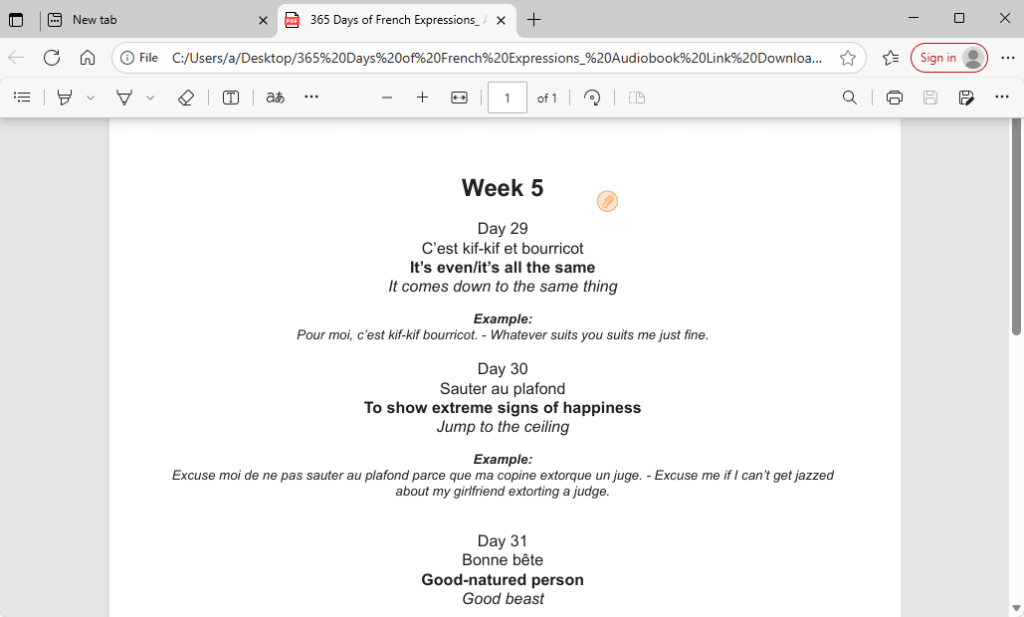
The PDF will load and display in the browser instantly. You can use the browser’s built-in tools to search, zoom, and print the document.
Tip: How to Set the Default PDF Viewer on Mac?
Want to open PDF files in an app automatically? You can change the default setting. After that, when you double-click a PDF file, it will open immediately in this app.
1. Find any PDF file on your Mac and click it once to select it.
2. Press Command + I on your keyboard. Or, right-click and select Get Info.
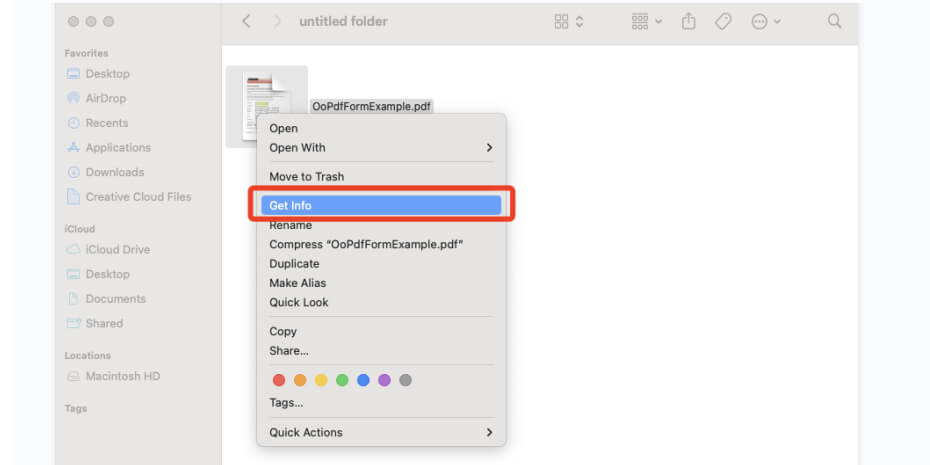
3. In the “Get Info” window, find the Open with section and click the dropdown menu.
4. Select the app like JOPDF from the list.
5. Click the Always Open With option. Now, all PDFs on your Mac will open in JOPDF.
Troubleshoot: Why Can’t I Open a PDF on My Mac?
Double-clicked a PDF and nothing happened, or did you get an error? It’s a rare but frustrating problem. Here are the most common reasons and their solutions.
❌ Problem 1: The File is Corrupted
You get an error message saying the file is “damaged,” “corrupted,” or “cannot be opened.”
💡 Solution: Before you give up, try opening it in another app (like Google Chrome). If it fails to open in every single program, the file itself is broken. You will need to download it again or get a new copy from the original sender.
❌ Problem 2: The File is Password-Protected
The PDF opens, but it immediately prompts you to enter a password before you can view the contents.
💡 Solution: This isn’t an error; it’s a security feature. You must enter the correct password to open the file. There is no way around this.
❌ Problem 3: Your PDF Software is Out of Date
A specific app (like Preview or Adobe) crashes or displays a complex PDF incorrectly, while other apps might open it fine.
💡 Solution: Run a macOS Software Update. Go to System Settings > General > Software Update to ensure that macOS and Preview are up to date. If you’re using a third-party app like Adobe, open it and check for its own updates.
Conclusion
Opening a PDF on your Mac is incredibly simple. For 99% of your tasks, a simple double-click to launch the powerful, built-in Preview app is all you need.
You now also know how to open PDF files on Mac using other great tools like JOPDF, Adobe Acrobat, or your browser. And if you ever run into trouble, you have a comprehensive troubleshooting guide to help you fix the issue. Hope this guide is helpful!
FAQs
Table of Contents

Your Best Free PDF Expert in PDF editing, compressing, converting, annotating, protect, organizing, and more.
Free DownloadWindows · macOS

Queena
Editor
“As a staff editor for JOPDF, Queena excels at guiding users to the optimal tools and solutions. When she's not analyzing the latest PDF solutions, she enjoys spending her free time playing with her four cats.”