Summary :
Passwords safeguard PDF documents from unauthorized viewing, editing, or printing. Still, repeatedly entering a password can be inconvenient, especially for frequently used or personal files. In this blog post, let’s explore how to remove password from PDF on Mac to streamline file sharing, editing, and storage.
1. The Best Free Way to Remove Password from PDF on Mac
JOPDF is a versatile, user-friendly, and best PDF editor for Mac. As a free desktop tool. Whether you need to manage, convert, and secure your PDF files, JOPDF does it all without complicated steps or online uploads. In addition, it has no ads and no watermarks.
One of JOPDF’s standout features is its PDF decryption tool. Whether you need to remove the open (user) password or the permission (owner) password, JOPDF can remove both in a flash. Just enter the correct password, and you can remove it in a few clicks.
With offline functionality, JOPDF maintains document privacy and security, making it ideal for confidential contracts or reports. It works quickly, costs nothing, and needs no technical skills, making it a top choice for unlocking PDFs on Mac.
Let’s go over how to remove password protection from PDF on Mac step by step with JOPDF.
A. Steps to Remove Open Password
Step 1. Get the JOPDF application and install it on your Mac.
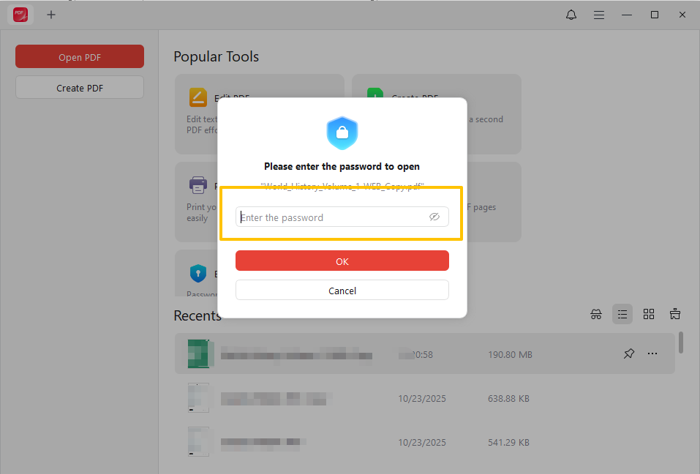
Step 2. Click Open PDF to choose and import the file you want to remove the user password from.
Step 3. Enter your password, then select OK to open and view your PDF.
Step 4. Navigate to Protect in the toolbar and select Decrypt in the secondary menu. Then click Remove in the window that appears.

JOPDF will remove the open/user password from the PDF within a few moments without losing the data.
B. Steps to Remove Permission Password
Step 1. Download and launch JOPDF on your Mac.
Step 2. Next, open the password-protected PDF file you wish to remove the owner password from.
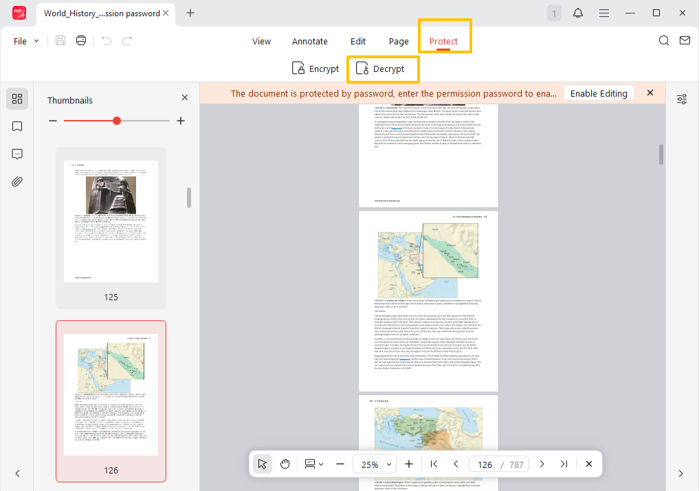
Step 3: Click Protect in the top menu bar. And select Decrypt from the secondary menu bar.
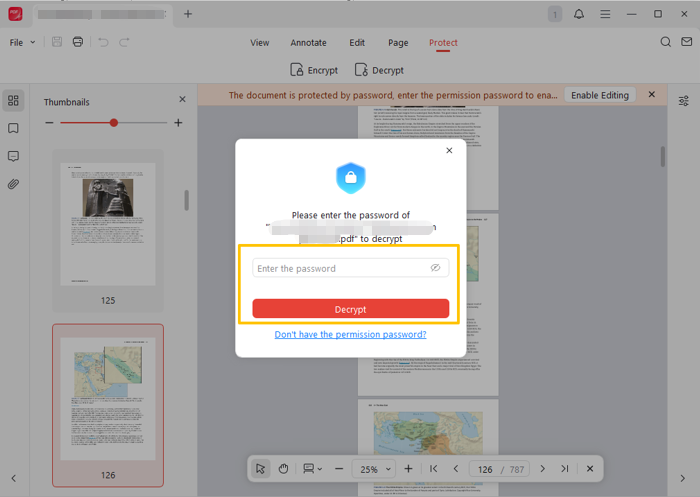
Step 4. Enter the password in the pop-up window. And hit the Decrypt button.
Tips
If you lack the password, tap “Don’t have the permission password.” Then, complete the on-screen instructions to clear the permissions password from the PDF.
In addition to password unlocking, JOPDF offers versatile tools for editing and organizing PDFs. You’re able to change PDF formats, merge or separate files, reduce file size, and edit quickly when required.
If you’re looking for an all-in-one PDF solution on Mac, download JOPDF today and give it a try—it’s free, simple, and designed to boost your productivity.
2. Remove Password from PDF on Mac Using Preview
If you want a simple, built-in solution, Preview makes it easy to remove a password from a PDF on Mac. Because macOS includes it by default, you can use it without downloading anything extra.
As long as you know the correct password, you can quickly unlock the file and save a new copy without password protection—all offline and completely free.
Let us see how to delete password from PDF on Mac using Preview.
A. Steps to Remove Open Password
Step 1. Right-click the secured PDF file. After that, select Open With and open the file in Preview (default).
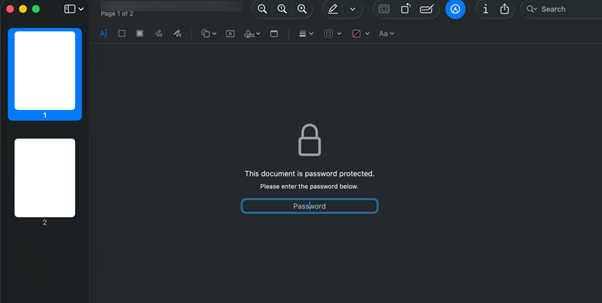
Step 2. Enter the password in the window that appears.
Step 3. Click File from the top left menu and select Export… in the dropdown menu.
Step 4. Name the file and select a location. Finally, click Save.
B. Steps to Remove Permission Password
Step 1. Open the password-protected PDF with Preview.
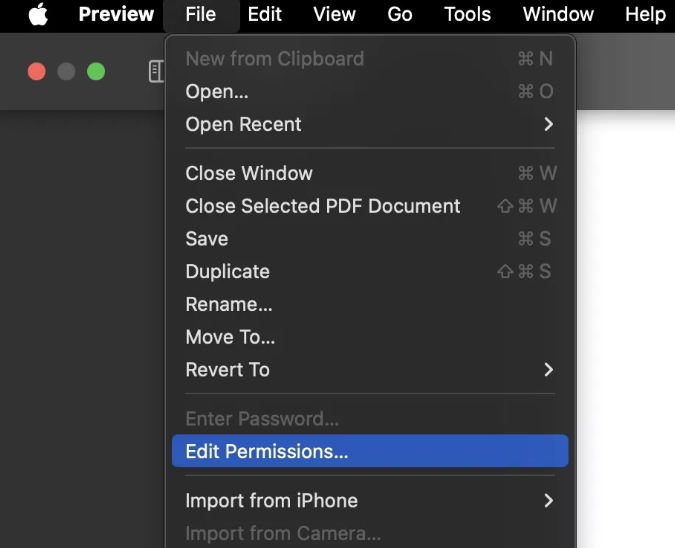
Step 2. In the main menu bar, choose File and select Edit Permissions…
Step 3. Type the password in the Owner Password section at the bottom. And hit Unlock.
Step 4. Then, press Apply to confirm.
While Preview is great for removing passwords, keep in mind that it has limited editing capabilities. It cannot edit or delete text from a PDF; it only supports additions such as text, annotations, or highlights.
If editing or deleting text in a PDF is necessary, a more advanced tool like JOPDF is useful—its robust features make managing files simpler.
3. Remove Password from PDF on Mac with Adobe Acrobat
Another reliable way to remove an open or permission password from a PDF on a Mac is by using Adobe Acrobat. With the right password, Acrobat lets you remove security settings and save the document without restrictions.
Let us check out how to remove a password from a PDF on a Mac with Adobe Acrobat.
Step 1. Launch Adobe Acrobat on your Mac and access the encrypted PDF file. Enter the current password or the permissions password, then tap OK.
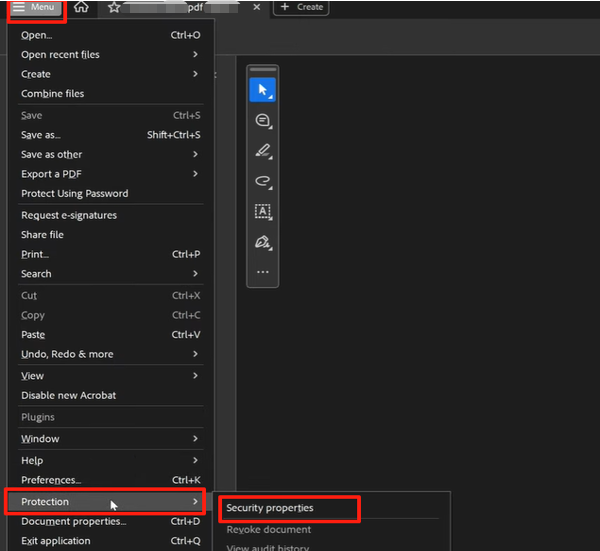
Step 2. Go to Tools > Protect > Encrypt > Remove Security. Alternatively, select Menu> Protection, then click the Security properties tab.
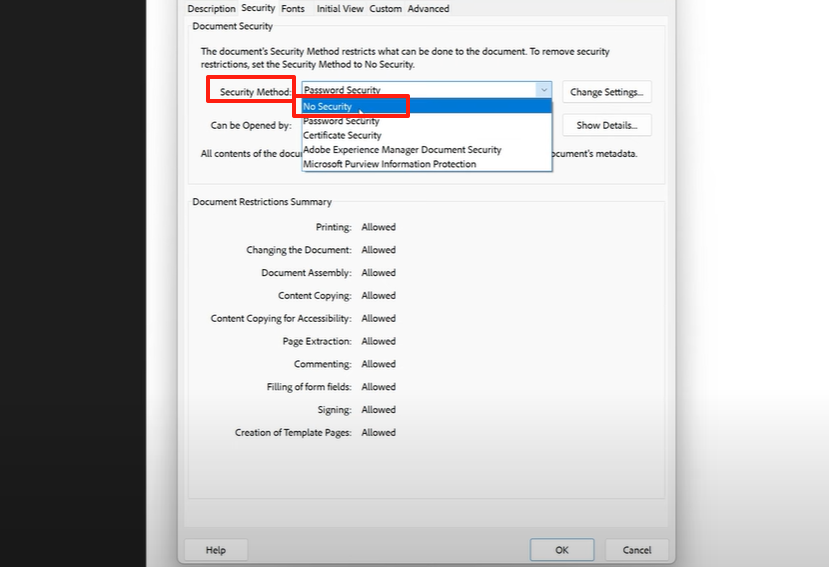
Step 3. Then change the “Security Method” dropdown to “No Security”. If a dialogue box appears, click “OK” to confirm.
Step 4. Click File > Save or press Cmd + S to save the document and permanently remove the restrictions.
Adobe Acrobat is loved by professional users. However, remember that Adobe Acrobat requires a subscription, which may not be ideal for users who only need occasional access.
If you’re looking for a free way to remove passwords and edit PDFs on Mac, consider using JOPDF instead. It offers password removal, along with practical editing and management tools, at no cost.
A Quick Wrap Up
You now know how to remove password from PDF on Mac. Whether you choose the free, versatile JOPDF, the built-in Preview app, or the professional Adobe Acrobat, each option lets you securely and efficiently unlock your files. Hope this guide is helpful!
FAQs
Table of Contents

Your Best Free PDF Expert in PDF editing, compressing, converting, annotating, protect, organizing, and more.
Free DownloadWindows · macOS · Linux

Queena
Editor
“As a staff editor for JOPDF, Queena excels at guiding users to the optimal tools and solutions. When she's not analyzing the latest PDF solutions, she enjoys spending her free time playing with her four cats.”