Introduction
You’ve finished an important contract, invoice, or creative portfolio. The last thing you want is for someone to accidentally—or intentionally—alter the content. In this case, you want to know how to make a PDF non-editable or read-only. Don’t worry. This guide will show you exactly how to do it.
1. Things You Need to Know Before Getting Started
Many tools can help you make a PDF non-editable. There are different levels of security you can apply, each suited for different needs. The three main methods you’ll learn about are:
🔶 Password Protection
This is the most common method. You can add a Permissions Password (also known as an Owner Password) to password protect a PDF.
This doesn’t prevent someone from opening the file, but it blocks them from editing, printing, or copying its contents unless they know the password.
🔶 Change System Permissions
Your operating system has a built-in feature that lets you mark any file as “Read-only.”
This is a basic level of protection that prevents accidental changes on that specific computer, but can be easily undone, and doesn’t travel with the file if you email it.
🔶 Flatten the PDF
This is a highly effective technique that merges all the layers of a document—text, images, annotations, and form fields—into a single, static background image.
A flattened PDF is like a digital printout; the individual elements can no longer be easily selected or edited.
Next, we will explain the specific steps. If you can’t make a choice right now, then you can choose the one that suits you best after you understand and try it.
2. Make a PDF Non-Editable with a Password
Using a password to restrict editing is the most direct and effective method to protect a PDF. Here’s how to do it with different tools.
Way 1. Use JOPDF to Lock a PDF
JOPDF is a comprehensive, free PDF editor for Windows and Mac. Its permissions feature lets you set a specific password to prevent others from making changes to your document, giving you granular control over what recipients can and cannot do.
Thanks to the simple operation interface, you can complete the locking process in just a few clicks. Get JOPDF and follow us!
1. Launch JOPDF on your computer. On the home page, please select Encrypt PDF.
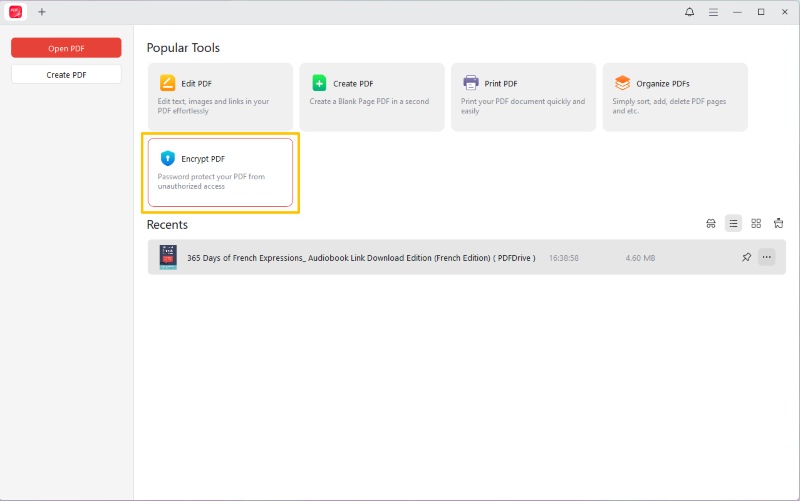
2. Then, select the document you want to lock.
3. Select the Permission Password option and enter a password in the field.
4. Adjust the settings as needed and click Apply to lock your PDF from editing, copying, or printing.
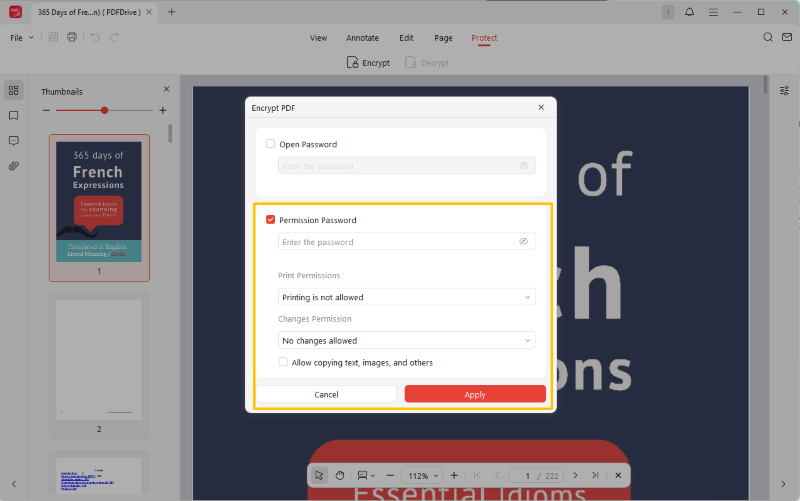
As you can see, JOPDF makes locking a PDF extremely simple. There are no complicated steps.
In addition to PDF protection, JOPDF can help you edit, annotate, and manage pages easily! More importantly, all the features are free! Try it now.
Way 2. Use Adobe Acrobat to Lock a PDF
As the industry standard, Adobe Acrobat offers the most advanced and reliable security options. With its Protect tool, you can lock your documents against editing, printing, and copying. However, to use this feature, you must upgrade to the Pro version.
1. Open your PDF in Adobe Acrobat Pro.
2. Click Tools and choose Protect. Then, select Protect Using Password.
3. Select Editing and enter the password.
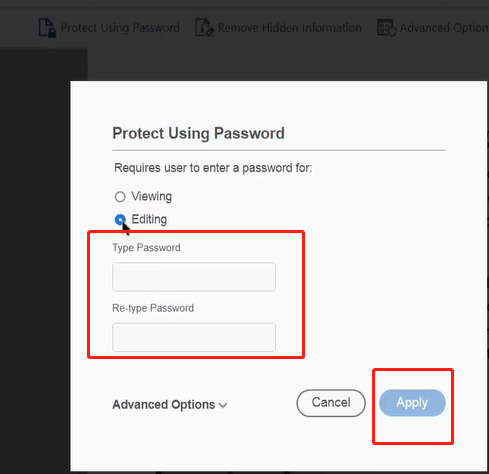
4. Finally, click Apply to confirm.
Way 3. Use Preview to Lock PDF
As a Mac user, you already have a powerful security tool built right into the operating system: Preview. This app allows users to set permission passwords when exporting files to restrict actions such as editing, printing, and deletion.
1. Open your PDF document in the Preview app on your Mac.
2. Go to File > Export… (please do not use “Export as PDF”).
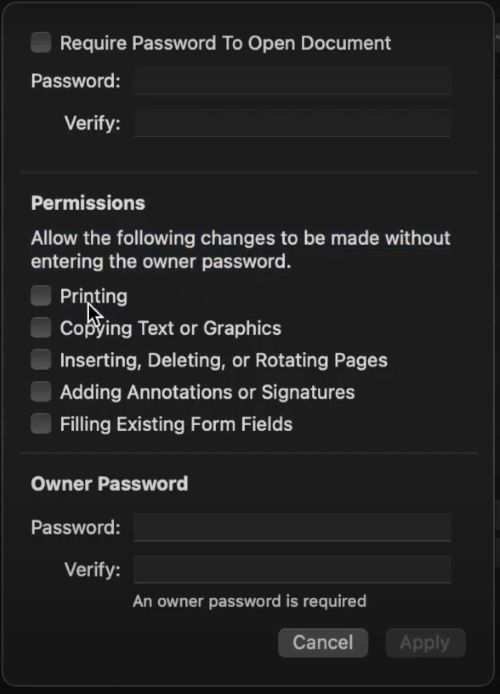
3. In the save dialog box, check the “Permissions” box at the bottom.
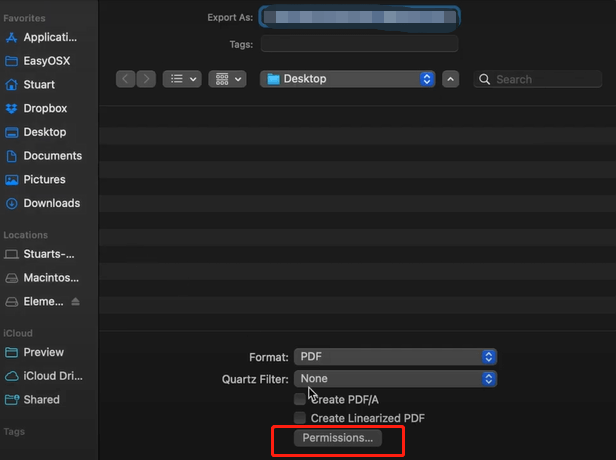
4. Change the permissions and enter the password you want to use.
5. Re-enter the password and apply the changes.
3. Make a PDF Read-Only Without Password
Your computer’s operating system allows you to set a “Read-only” attribute for any file. This is a simple method to prevent accidental editing of files.
However, please note that this protection is not embedded in the file itself. Anyone else can easily change it back, and this attribute does not take effect when you email others.
1. Locate the PDF file in your file manager (File Explorer on Windows or Finder on Mac).
2. Right-click on the file icon.
- On Windows, select Properties. In the “General” tab, check the box for “Read-only” and click Apply.
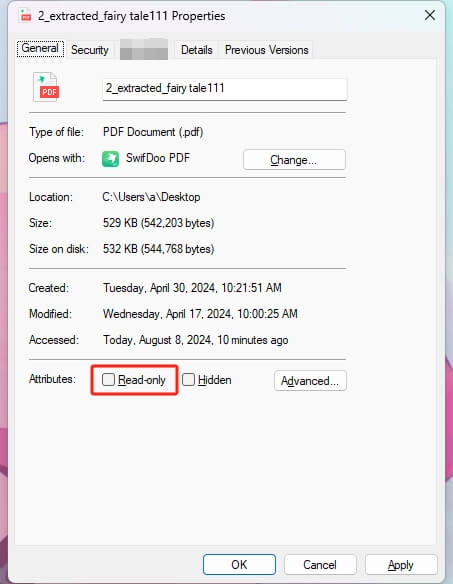
- On Mac, select Get Info. In the “Sharing & Permissions” section, change your user privilege from “Read & Write” to “Read only“.
Now, when someone attempts to save changes to a file, the system prompts them to save it as a new copy, thereby preserving the original file unchanged.
4. Flatten a PDF to Make it Non-Editable
Flattening merges all elements of a document into a single static layer, making it uneditable. If this is what you want, read on to learn more.
Way 1. Use a PDF Editor to Flatten a PDF
A good method for flattening PDFs is to use professional PDF tools, such as Adobe Acrobat, SwifDoo PDF, or PDFgear. Most software requires payment, but you can download their free trial versions as a workaround.
Here, let me take SwifDoo PDF as an example. It offers a 7-day free trial.
1. Download, install, and launch the software.
2. Open the document you want to flatten.
3. Go to Convert and choose Flatten PDF.
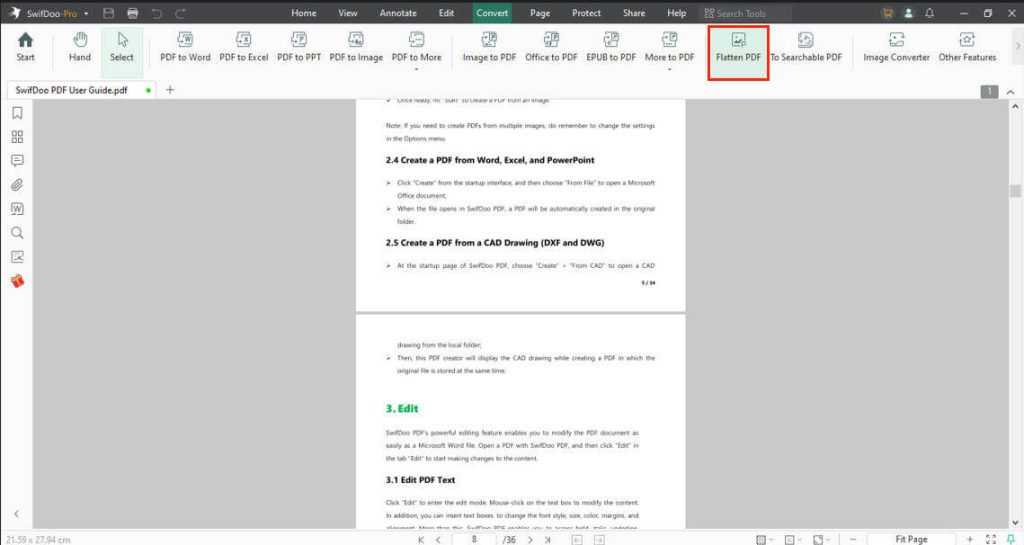
4. Select an output path and click Start.
Way 2. Use the Browser to Flatten a PDF
The “Print to PDF” feature in the browser is a universal, free way to convert a PDF to a flattened version. It can help you “print” an existing PDF into a new, static file, which effectively flattens it.
1. Drag and drop your PDF file into an open browser window.
2. Press Ctrl+P (on Windows) or Cmd+P (on Mac) to open the print dialog.
3. For the printer destination, select “Save as PDF” or “Microsoft Print to PDF“.
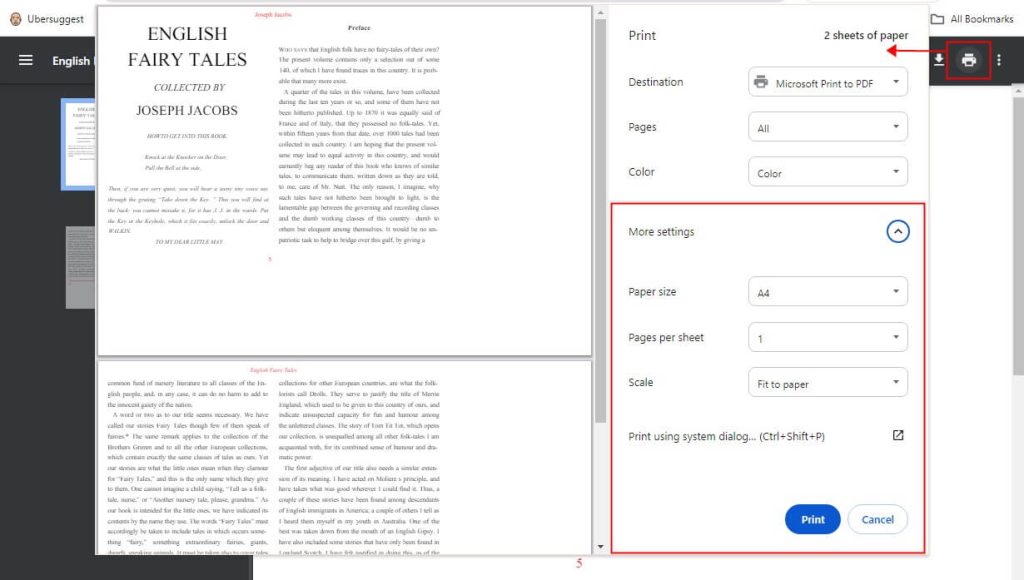
4. Save the document with a new name.
Way 3. Flatten a PDF Online
For those who don’t want to download or use desktop software, online services are available. You can upload files, process them, and download the encrypted version.
However, for data security, we do not recommend uploading documents containing sensitive information.
1. Open your browser and navigate to a reputable website that offers a free online PDF flattener. Here, we choose Smallpdf.
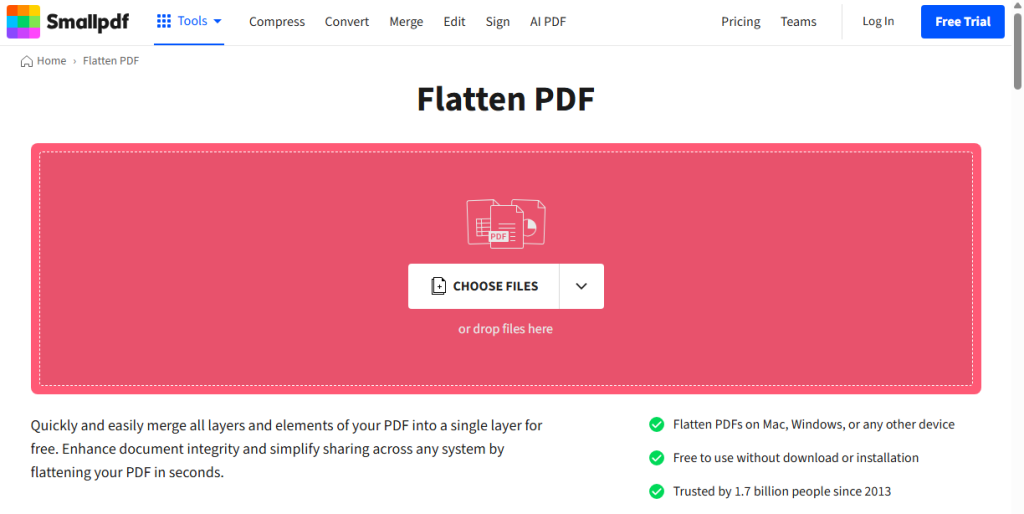
2. Upload the PDF document and wait for a while.
3. Click the Download button to download your new, non-editable PDF file.
Conclusion
That’s all about how to make a PDF non-editable and read-only. From setting password permissions to converting to a fully non-editable format, you can choose the protection level that best suits your needs.
Once you master these methods, you’ll be able to set PDF documents to non-editable or read-only status, enabling you to share important files with peace of mind.
FAQs
Table of Contents

Your Best Free PDF Expert in PDF editing, compressing, converting, annotating, protect, organizing, and more.
Free DownloadWindows · macOS

Queena
Editor
“As a staff editor for JOPDF, Queena excels at guiding users to the optimal tools and solutions. When she's not analyzing the latest PDF solutions, she enjoys spending her free time playing with her four cats.”