Introduction
How can you securely share a PDF that contains sensitive and important information? Adding password protection is key. In this article, let’s explore how to password protect a PDF to prevent unauthorized access and malicious modification.
Why Password Protect PDFs?
Should you encrypt a PDF? If you are unsure, consider the following reasons.
➡️ Protect Information
Protect personal data, contracts, medical records, financial reports, and other sensitive information.
➡️ Prevent Editing or Copying
You can restrict others from modifying text, copying content, or printing files.
➡️ Ensure Legal and Compliance Standards
Many industries (legal, medical, and financial) require documents to be encrypted to comply with data protection laws.
➡️ Access Control
You will knowl who can view the content. It is ideal for customer deliverables, internal reports, or academic materials.
In short, if your PDF contains sensitive, confidential, or private information, we recommend adding password protection, especially if you need to share it via email or on public platforms.
1. How to Password Protect a PDF for Free (Win & Mac)
Best For: Users who need an easy and powerful offline PDF encryption with customizable permission settings
How to password protect a PDF for free is something many users are interested in. Well, free is great, but you also need to consider whether this method is reliable. Therefore, it’s best to use a free and professional PDF password protector, such as JOPDF.
JOPDF is a lightweight desktop PDF tool that offers a robust set of tools, including encryption, creation, editing, annotation, and page management.
With JOPDF, you can add an open and permission password as needed. The former helps you restrict others’ access to PDF files, while the latter prevents others from editing, copying, and printing PDF files.
Here is how to protect a PDF with a password using JOPDF:
1. Download JOPDF, install it, and launch it. It is available on Windows and macOS.
2. On the home page, click Encrypt PDF and select the document.
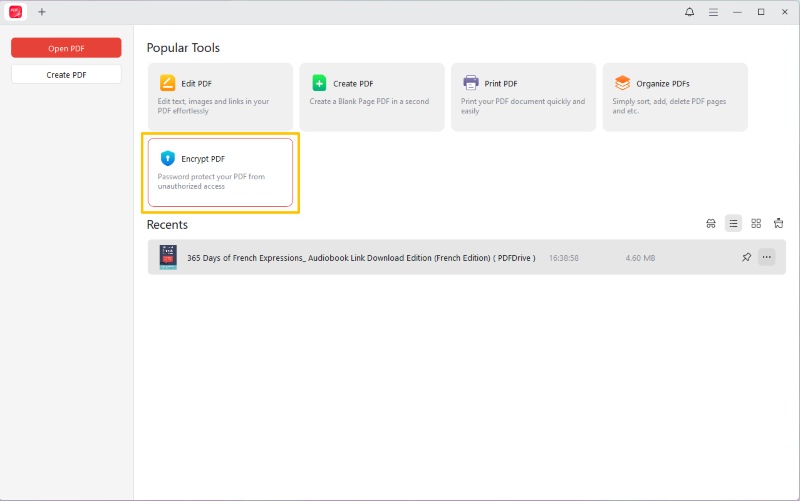
3. Select Open Password or Permission Password as needed.
4. Enter the password and adjust settings.
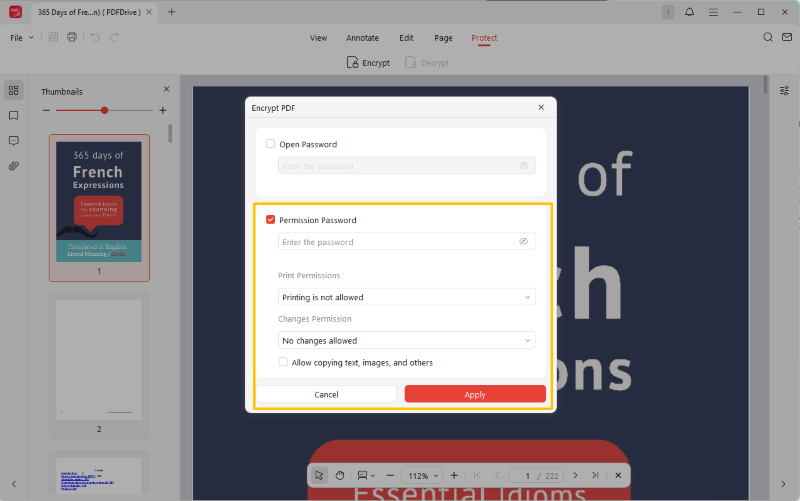
5. Finally, click Apply to confirm.
Pros
- Free
- Easy to use
- Dual-password support
- A feature-rich PDF editor
Cons
- Requires installation
- Lacks advanced features
2. Password Protect PDF on Mac Using Preview
Best For: Mac users who need to add password protection quickly and don’t want to install additional software
If you use a Mac computer, a quick way to encrypt a PDF is to use the Preview app. It is a built-in program that can help users view and edit PDFs and images. You can set password protection via the Export feature.
See how to password protect a PDF on Mac in Preview:
1. Open PDF in Preview: Double-click the PDF, or right-click, select Open With, and choose Preview.
2. Choose File from the menu bar and select Export. Click Permissions.
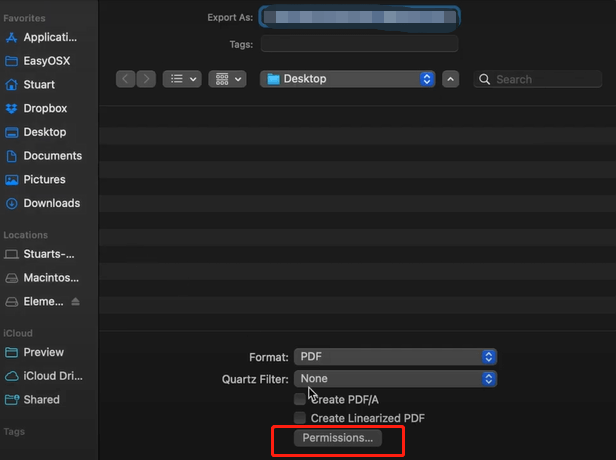
3. Then you can set the open and permission password to lock a PDF from editing.
4. When OK, click Apply.
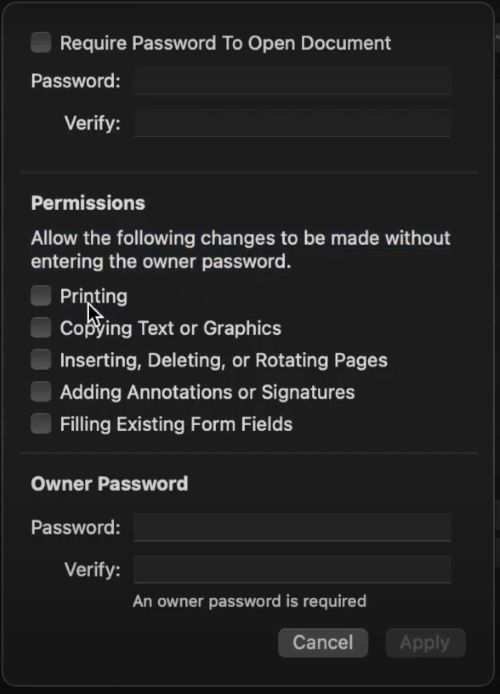
Pros
- Simple UI
- Quick access
- Built-in and free
Cons
- macOS only
- Limited advanced control
3. Password Protect a PDF in Adobe Acrobat
Best For: Professionals demand advanced, industry-standard PDF security and flexibility
Adobe Acrobat is the Industry-standard PDF solution with advanced editing and encryption features. It allows you to lock PDF files so that only users with the password can open them, and you can restrict operations such as printing, editing, or copying.
However, you must upgrade to the Pro version to use the password protection feature. If you find the price too high, you can try the free JOPDF.
Check to learn how to password protect a PDF file with Adobe Acrobat:
1. Open the PDF in Adobe Acrobat.
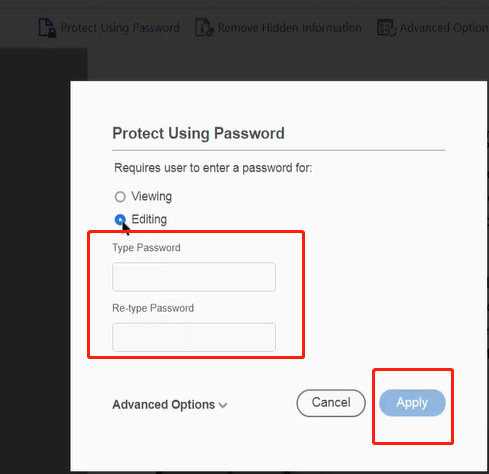
2. Go to Tools > Protect > Protect Using Password.
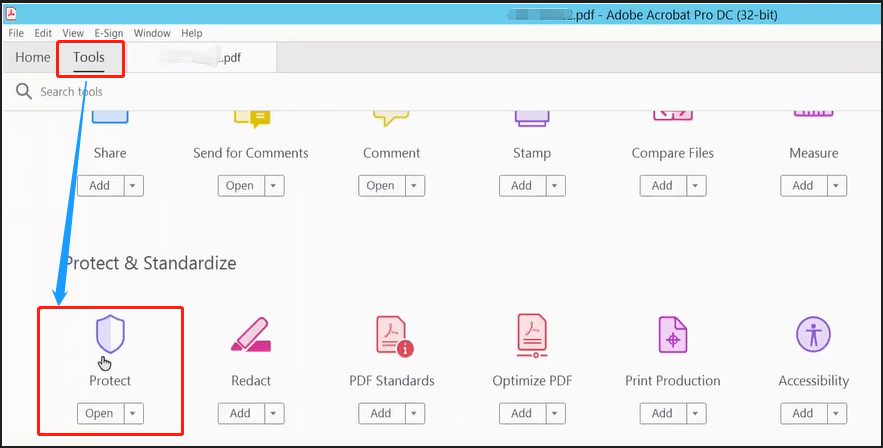
3. Set viewing and editing restrictions.
4. Click Apply, then save the document.
Pros
- Professional-grade features
- Advacned features
Cons
- Requires Pro license
- Steep learning curve
4. Password Protect PDF in Chrome/Firefox/Edge
Best For: People who need a quick way to add password protection without installation
Want to password-protect a PDF for free in Chrome, Firefox, or Edge? In this case, online PDF protectors such as PDF2GO, iLovePDF, and Smallpdf can help you. These tools usually offer a limited number of free tasks, making them better suited to one-off tasks.
Read on to how to password protect PDF in Chrome, Firefox, or Edge:
1. Open a browser and go to an online protector. Here, we choose PDF2GO (https://www.pdf2go.com/protect-pdf).
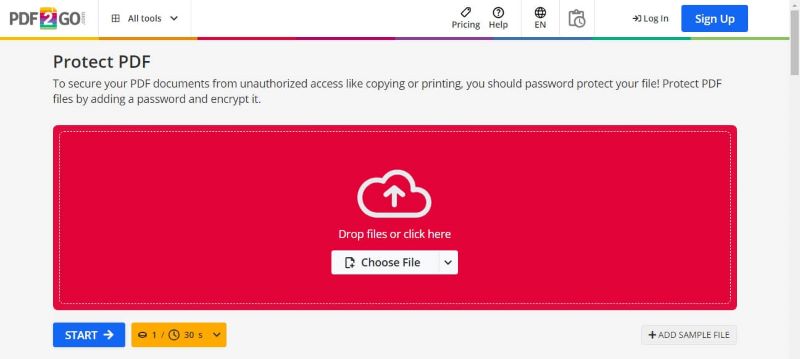
2. Upload the PDF document.
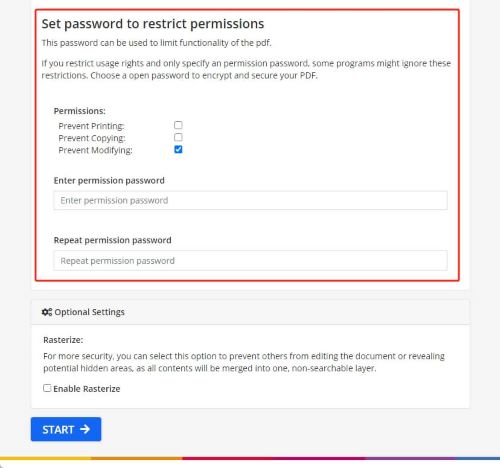
3. Set the open or permission password as needed.
4. Click Start, then download the protected PDF.
Pros
- Simple to use
- No installation
Cons
- Requires internet
- Limited free quota
5. Use Microsoft Word to Encrypt a PDF
Best For: Microsoft users who have plain-text PDF files and wish to perform basic PDF encryption
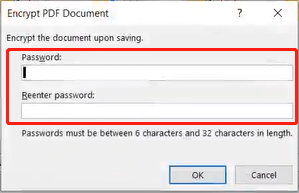
The last way to password protect for free is to use Microsoft Word. This Word processor allows you to encrypt a document with a password before exporting it.
However, it only supports open passwords. In addition, the PDF may experience formatting errors due to the conversion. This method is better suited to pure-text PDF files.
Check to learn how to encrypt a PDF using MS Word:
1. Open your PDF document in Word.
2. Navigate to Export > Create PDF/XPS Document and choose PDF.
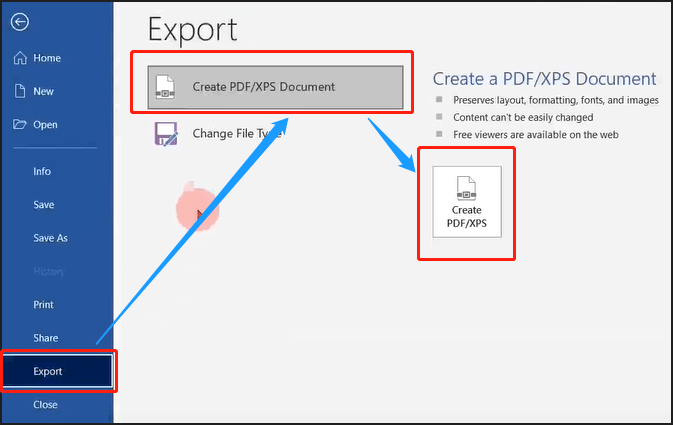
3. Click Options and enable Encrypt document with a password.
4. Enter a password and export the document.
Pros
- Ease of use
- Convenient for Word users
Cons
- Only supports open-password
- Not a full PDF editing tool
Tips for PDF Password Protection
From the above, you know how to protect a PDF with a password. In addition, you can use the following practical tips to protect your PDF files better.
✅ Use strong and complex passwords
Combine uppercase letters, lowercase letters, numbers, and special characters.
✅Set both open & permission passwords
Oen passwords can prevent unauthorized access, and permission passwords allows you to restrict editing, copying, and printing.Use a Trusted Software
✅Choose tools with real PDF encryption, such as JOPDF, Adobe Acrobat, and Preview.
✅Avoid reusing passwords
Set a unique password for each sensitive PDF file. Reusing passwords increases risk. If one document is compromised, other files may also be at risk.
✅Avoid online tools for sensitive documents
Online tools are convenient, but may pose privacy risks. It is better to use a desktop program for sensitive business, legal, or personal files.
✅Update passwords regularly
Change passwords every few months. Alternatively, you can check whether updates are necessary based on the update frequency and the number of shares.
Conclusion
That’s all about how to password protect a PDF. Setting password protection for PDF files helps you control the content of your documents, especially when sharing sensitive or confidential material. It adds a critical layer of security in any situation.
Although all of the tools mentioned in this article can help you add password protection, JOPDF is the best choice among the free and professional options. No complicated steps required—just a few clicks to add protection locks to your documents. TRY IT NOW!
FAQs
Table of Contents

Your Best Free PDF Expert in PDF editing, compressing, converting, annotating, protect, organizing, and more.
Free DownloadWindows · macOS · Linux

Queena
Editor
“As a staff editor for JOPDF, Queena excels at guiding users to the optimal tools and solutions. When she's not analyzing the latest PDF solutions, she enjoys spending her free time playing with her four cats.”