Summary :
This guide will show you how to open password protected PDF, from simple entry to password recovery. Don’t worry—even if you’ve forgotten the password, you’ll find a solution here. However, please note that these methods only apply to documents that you personally own or have access rights to.
Need to access a PDF file but encounter a password prompt? Whether it’s a work report, bank statement, or shared contract, this lockout is frustrating.
The good news is that if you remember the password, the unlocking process can be straightforward; even if you’ve forgotten it, there are still ways to open the file. Let’s learn more.
Part 1. Understand the Two Types of PDF Passwords
Before you can unlock your file, you need to identify what type of lock you’re dealing with. In fact, PDFs use two distinct types of passwords for security.
🔶 1. The User Password (or “Open Password”)
It is like the key to the front door. It encrypts the entire file, and you cannot view any of its contents without entering the correct password first.
🔶 2. The Owner Password (or “Permissions Password”)
This is like the set of rules inside the house. You can open and view the document, but it restricts certain actions. It will lock a PDF from editing, copying, or printing.
Now that you have identified the type of password, let’s proceed to see how to unlock it.
Part 2. How to Open Password Protected PDF Easily
If you have the password, you need a PDF reader to open the file. If you are not the creator of this document, request the password from the author.
Method 1. Use JOPDF
Here, let me show you how to open a password protected PDF using JOPDF. It is a lightweight and free PDF tool that works on Windows and Mac.
Once you unlock the file, you can begin working on the PDF immediately. JOPDF provides a comprehensive toolkit to help you edit, annotate, add, and delete pages in a PDF.
Click the download button to get JOPDF and follow us.
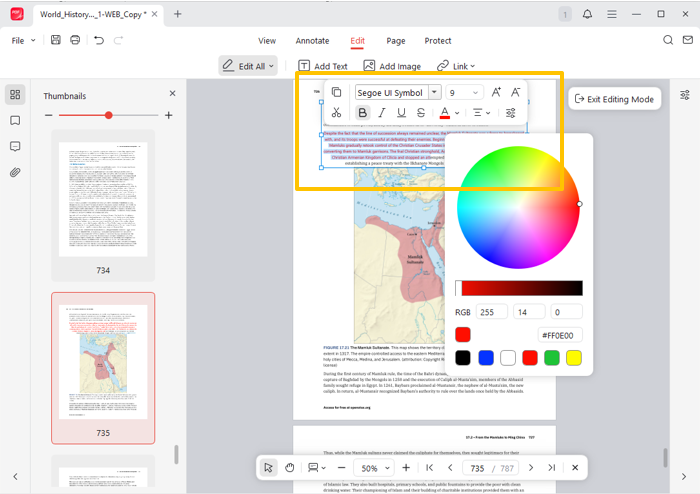
- Launch JOPDF and click Open PDF to browse for your file.
- Select the password-protected PDF from your computer.
- A dialog box will immediately prompt you to enter the password.
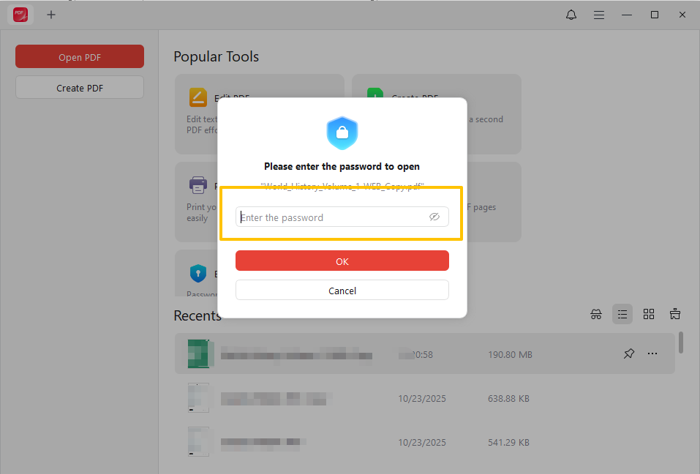
- Type the correct password and click OK. Now, you can check and edit the document as usually.
How to Permanently Remove Open Password?
When a PDF has an open password, you must enter it every time you open it. If you find this inconvenient, you can use JOPDF’s Decrypt feature to remove the password from PDF. The steps are as follows.
- After opening the PDF, go to Protect and select Decrypt.
- A confirmation box will appear. Click Remove to remove the password.

- Finally, click OK and save the file. This new version will no longer require a password to open.
You have now successfully opened the PDF file. You can search for the content you need or make changes to the PDF—provided the file does not have a permission protection setting.
If a password is required, you can also use the Decrypt feature to unlock it. More info: How to Edit a Locked PDF.
Method 2. Use Google Chrome
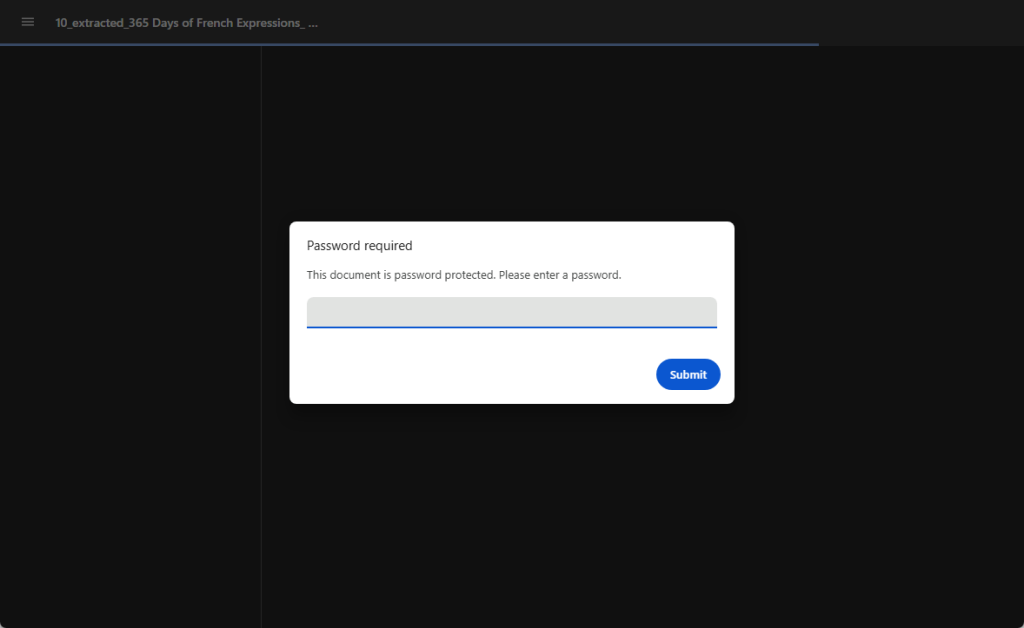
Do you want to avoid downloading any extra tools? In this case, Google Chrome can help. It features a built-in browser that allows users to view PDF documents.
Open a new tab in Google Chrome, and drag and drop the document into it.Then, enter the password to view the contents.
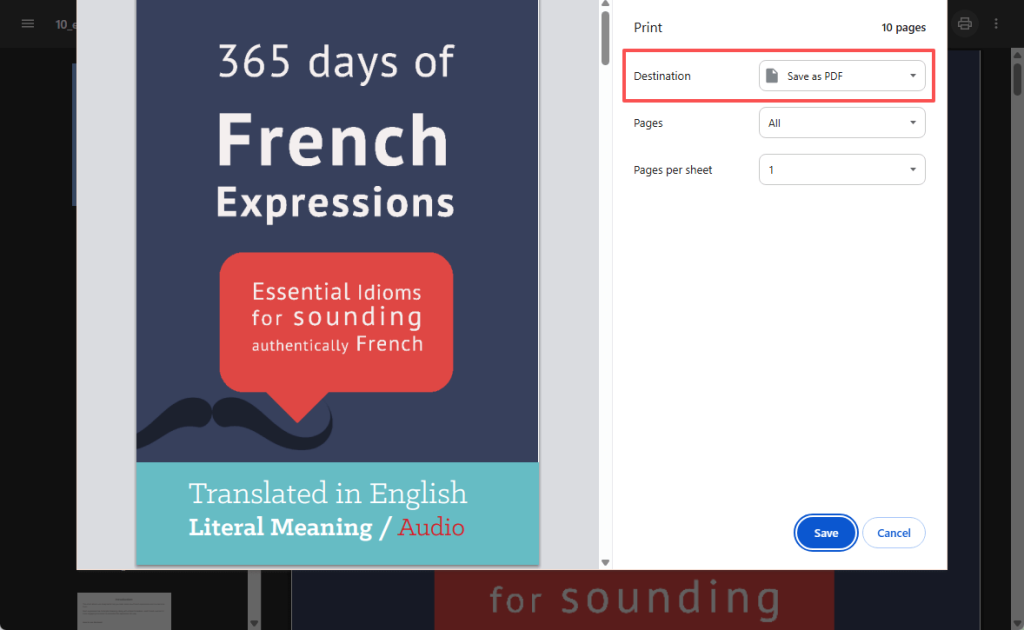
It can also help you remove a permission that restricts printing or copying. The steps are as follows.
- Once the document is visible, press Ctrl+P (Windows) or Cmd+P (Mac) to open the print dialog.
- Change the Destination field to Save as PDF.
- Click Save and select a location. This newly saved version will be free of any printing or copying restrictions
Part 3. How to Open Password Protected PDF Without Password
Warning
The following methods should only be used to recover access to your own documents or those you have permission to unlock. Attempting to bypass the security of a file without authorization is unethical and may be illegal.
Method 1. Use an Online PDF Password Remover
How to open password protected PDF without password online? Online tools are a great first step, as they are fast and require no installation. They are highly effective at removing Open Password and Permission Password.
However, if the password is too complex, unlocking may fail. Still, it never hurts to try.
- Open a browser and navigate to a reputable online service, such as iLovePDF or Smallpdf. Here, we choose iLovePDF (https://www.ilovepdf.com/unlock_pdf).
- Click Select PDF files to upload the protected PDF.
- Upload your locked PDF file.
- Click the “Unlock PDF” button and wait for the tool to process.
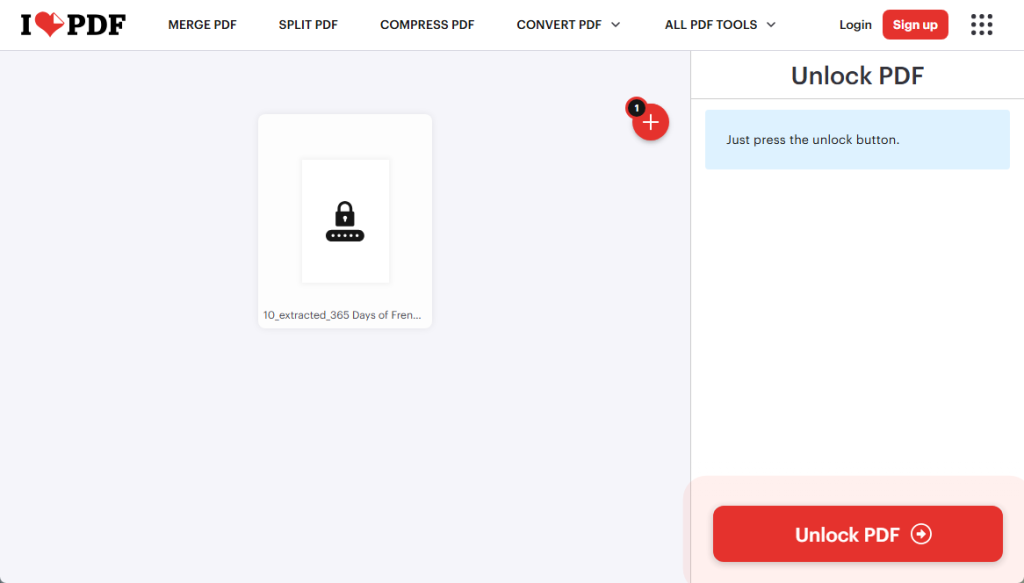
- If successful, you can download a new, restriction-free version of your PDF.
Method 2. Use Desktop Software for Password Recovery
Can you open a password protected PDF if you forget the password? If you’ve forgotten an open password, your only option is to try to recover it. Specialized desktop software does this by attempting to guess the password through various attacks.
However, success is not guaranteed, as it depends on the complexity of the password. Simple passwords, such as “123456,” can be cracked in minutes, while a password composed of letters, numbers, and symbols is considerably more difficult to crack.
Overall, this method is only suitable for recovering your own files when you suspect the password is relatively simple and straightforward.
Conclusion
That’s all about how to open password protected PDF. Working with password-protected PDF files can be quite challenging, but there’s almost always a solution. You can now choose the right tool to open password-protected PDF files.
To avoid the issue in the future, always use these methods responsibly and consider storing important passwords in a secure password manager.
FAQs
Table of Contents

Your Best Free PDF Expert in PDF editing, compressing, converting, annotating, protect, organizing, and more.
Free DownloadWindows · macOS

Queena
Editor
“As a staff editor for JOPDF, Queena excels at guiding users to the optimal tools and solutions. When she's not analyzing the latest PDF solutions, she enjoys spending her free time playing with her four cats.”