Introduction :
To prevent accidental or malicious modifications, we can add a password to lock the PDF. In addition, we can also apply digital rights management (DRM) protection without a password. Read this article to learn all about how to lock a PDF from editing!
Benefits of Locking a PDF from Editing
Restricting a PDF from being edited offers several benefits. Check the details below.
- Ensure content integrity. Ensure that documents remain exactly as you approved them—this is critical for contracts, formal letters, reports, and manuals.
- Maintain a professional appearance. Prevent others from accidentally damaging the layout, fonts, or design.
- Protect intellectual property. Protect original works such as e-books, research papers, and design documents from misappropriation or plagiarism. Preventing content reuse or plagiarism effectively prevents the creation of derivative works.
Lock a PDF from Editing with a Password
When you need to lock a PDF document, the most common method is to add password protection. Based on this, we have tested and compiled six of the most effective methods. First, learn about all of them, then choose the one that best suits your needs.
Of course, if you prefer a professional, simple tool, JOPDF is the best choice. Click the button below to get this software and start right away.
[Recommend] Lock a PDF with JOPDF
Best for: Windows and Mac users who want a free and flexible PDF tool with advanced controls.
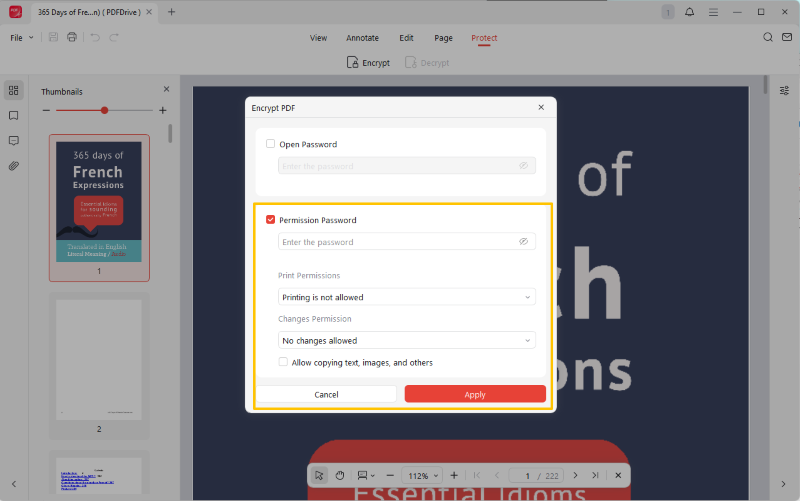
JOPDF is a lightweight yet powerful PDF tool that offers features such as editing, encryption, and annotation. Its Encryption feature can help you add an Open Password and a Permission password: the former can restrict access to PDF files, while the latter can limit editing, copying, and printing.
Whether you are a professional, office worker, student, or teacher, JOPDF is an excellent choice. It offers powerful features, but the interface is very simple and requires no learning curve. More importantly, JOPDF is completely free. There’s no reason not to give it a try, right?
Here is how to lock a PDF from editing with JOPDF:
1. Download JOPDF. Install and launch the software.
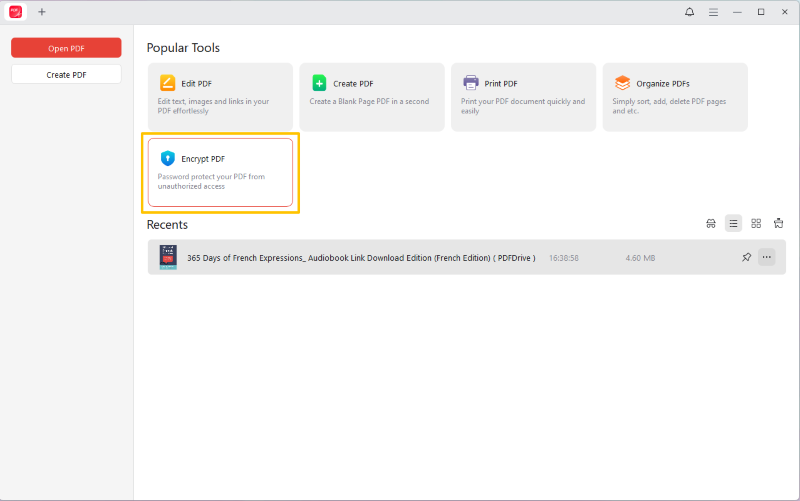
2. On the home page, choose Encrypt PDF to select the document.
3. In the pop-up window, select Permission Password, then enter the password. Then, adjust the permission as needed.
4. Finally, click the Apply button. In this way, others can’t edit the document unless they know the password.
Lock a PDF in Adobe Acrobat
Best for: Heavy users who trust Adobe for robust encryption and fine control.
Adobe Acrobat is a popular PDF tool that supports both open and permissions passwords. However, the encryption feature is only available in the advanced version, so you’ll have to pay a high subscription fee.
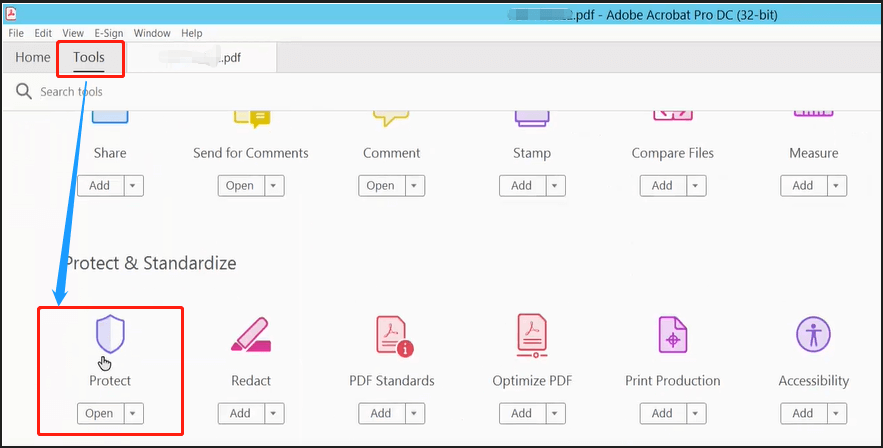
1. Open your PDF in Adobe Acrobat. Go to Tools > Protect a PDF > Protect Using Password.
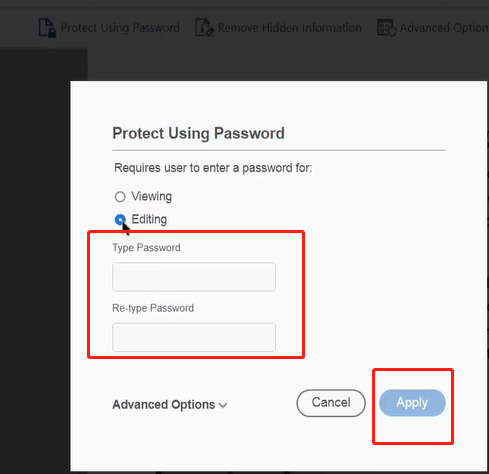
2. Select the Editing option and type in the password.
3. Confirm the password and click Apply to restrict PDF editing.
Use Preview to Lock PDFs
Best for: Mac users need a fast, free solution that doesn’t require installing additional software.
Preview is Apple’s default PDF reader and editor. Users can use Preview to view, annotate, and protect PDFs. It lets you set permission passwords to protect a PDF from editing.
1. Right-click on the document. Choose Open With and select Preview to open it.
2. Click File and select Export. Then, click Permissions or Encrypt options.
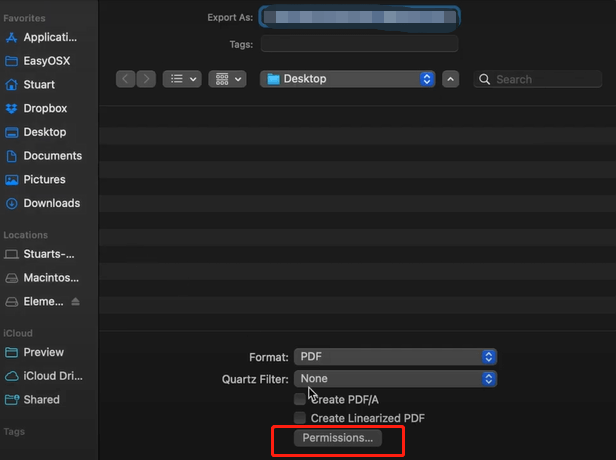
3. Adjust the settings to lock the PDF from editing.
4. Enter the password and verify.
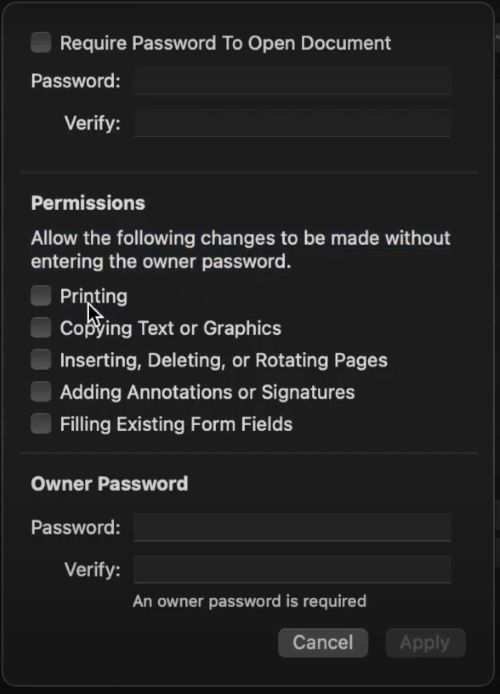
5. When OK, click Apply.
Use MS Word to Lock a PDF
Best for: Users who need to protect simple PDF files but can accept minor changes during conversion.
Microsoft Word can open PDF files via internal conversion, then export them back to PDF format and apply password protection. However, during this process, styles and formatting may change slightly. This method is more suitable for pure text PDF files.
1. Open the PDF in Word and wait for the conversion to complete.
2. Go to File > Export > Create PDF/XPS and click Options.
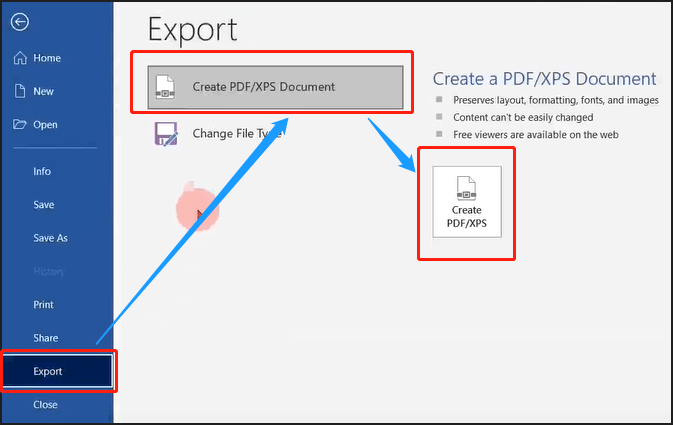
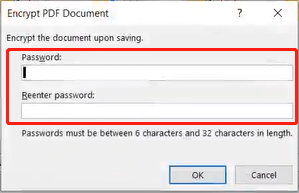
3. Tick Encrypt the document with a password, enter the password, then save as a PDF document.
Try Online PDF Protecter
Best for: One-off task or don’t want to install software. Not good for sensitive documents since files are uploaded to the cloud.
Many online services offer password protection without requiring software installation. For example, online tools such as PDF2GO, iLovePDF, and PDF Pro all support file uploads and direct password setting.
1. Visit an online protection tool like PDF2GO.
2. Upload your PDF.
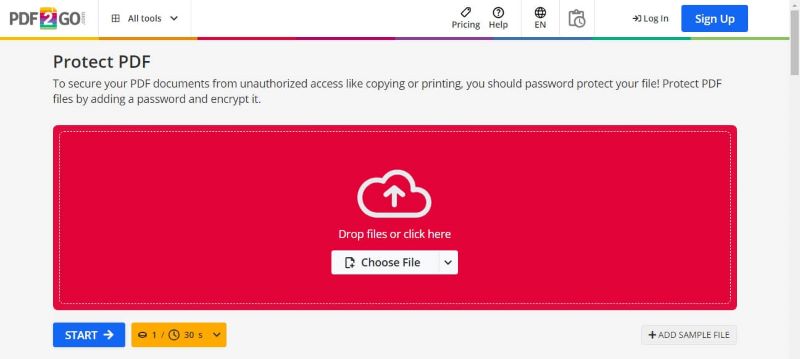
3. Check the box next to Prevent Modifying.
4. Enter the password and click START.
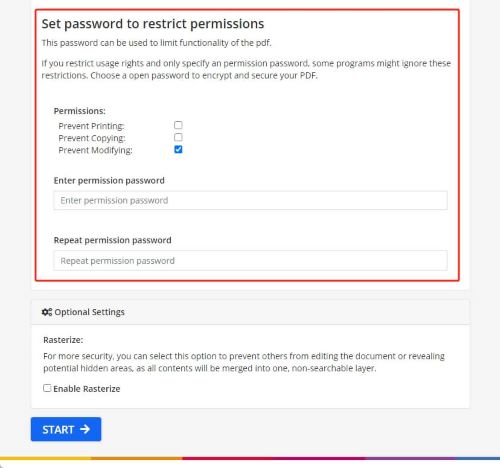
5. Download the protected PDF to your computer.
Lock a PDF from Editing Without a Password
Best for: Users who want to securely lock PDF files without setting a password.
If you are looking for a reliable, password-free way to restrict PDF editing, you can apply DRM-based protection. In this case, a program called Locklizard Secure Writer can help.
Locklizard Secure Writer is the publisher tool in Locklizard ‘s Safeguard DRM system. It can encrypt PDFs into .pdc files and apply DRM restrictions to prevent editing, copying, and printing.
Users do not need to remember or share passwords to view protected PDF files. However, it requires the Locklizard Secure Viewer application and the license file that validates their identity to check the document.
Here is how to lock a PDF from editing without a password:
1. Purchase or request a trial from Locklizard. Download Safeguard Secure PDF Writer on your computer. It is available on Windows and macOS.
2. Locate the PDF file, then right-click it. Select the Make Secure PDF option.
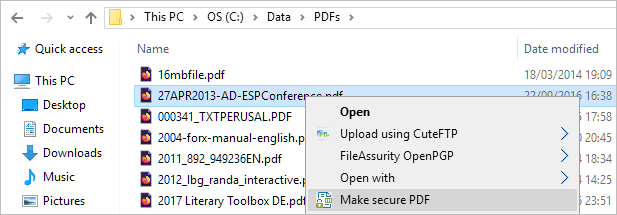
3. Then, you can configure security restrictions as needed.
4. Finally, click Publish to create a .pdc file.
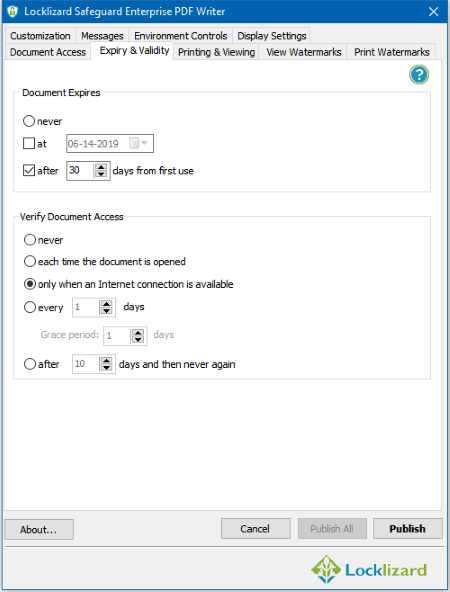
How to open a DRM-protected PDF:
This DRM-protected PDF can only be opened with Locklizard Secure PDF Viewer by an authorized user. Please follow the steps below when you want to add new users, or select existing users you wish to grant access to your protected PDF files.
1. Log in toyour Locklizard Admin Portal in a browser.
2. Create a user account with name, email, and optional access limits.
3. Assign the .pdc file to them. They’ll get an email with:
- A license file or activation link.
- Instructions to download Secure PDF Viewer.
Conclusion
That’s all about how to lock a PDF from editing. For quick and basic password protection, you can use Preview or Microsoft Word. For advanced control and enterprise-level security, choose JOPDF or Adobe Acrobat. Online tools are convenient but offer lower security for sensitive files. Please choose based on your security needs, budget, and device type.
FAQs
Table of Contents

Your Best Free PDF Expert in PDF editing, compressing, converting, annotating, protect, organizing, and more.
Free DownloadWindows · macOS

Queena
Editor
“As a staff editor for JOPDF, Queena excels at guiding users to the optimal tools and solutions. When she's not analyzing the latest PDF solutions, she enjoys spending her free time playing with her four cats.”