Introduction
Learning how to encrypt a PDF file for email is an essential skill for protecting private information. This guide shows you 4 easy methods to add a password to your PDF so you can send it with confidence.
Why You Should Encrypt PDFs Before Emailing?
Emails are like postcards; anyone who intercepts them can open them, including any unencrypted files attached to the message. Therefore, if you want to ensure the security of the PDF you have added, you must encrypt it.
💡 What is PDF Encryption? (Open vs. Permissions)
In fact, there are two types of passwords you can add to a PDF.
- Open Password (User Password): This is what most people want for emailing. No one can open or view the file without the password.
- Permissions Password (Owner Password): It will lock a PDF from editing, copying, and printing. Only when the correct password is entered can the document be modified.
So, how should you make your choice? For maximum security, you can use both. But for emailing, the “Open Password” is the most important one. Check to learn more details.
Method 1: How to Encrypt a PDF File for Email for Free with JOPDF
Want a professional and free PDF editor to complete the task? JOPDF is the best choice. As a professional PDF editor, it lets you set an open and permission password to protect your document.
What’s more, it has a user-friendly interface, allowing even non-technical personnel to complete tasks in just a few clicks.
Here is how to encrypt a PDF for email with JOPDF:
1. Download, install, and launch JOPDF. On the home page, click Protect and select the document you want to encrypt.
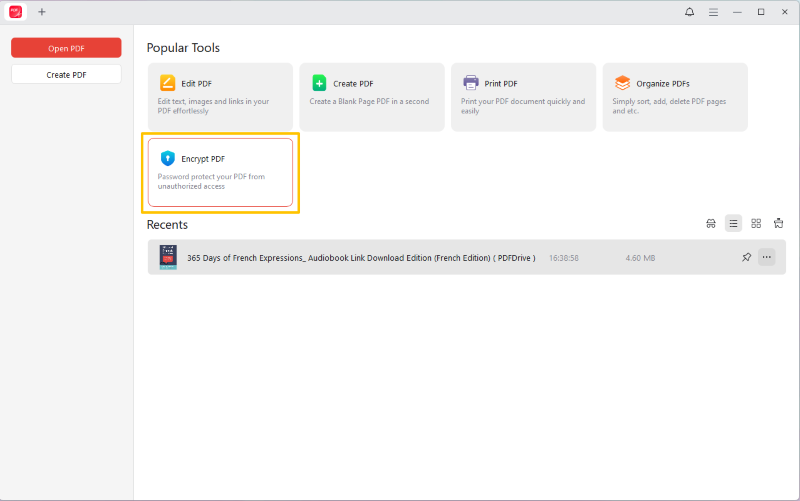
2. A dialog box will open, giving you two clear options: Open Password and Permission Password.
- To secure your file for email, check the “Open Password” box and enter your desired password.
- You can also check “Permission Password” and set a different password to prevent the recipient from modifying it.
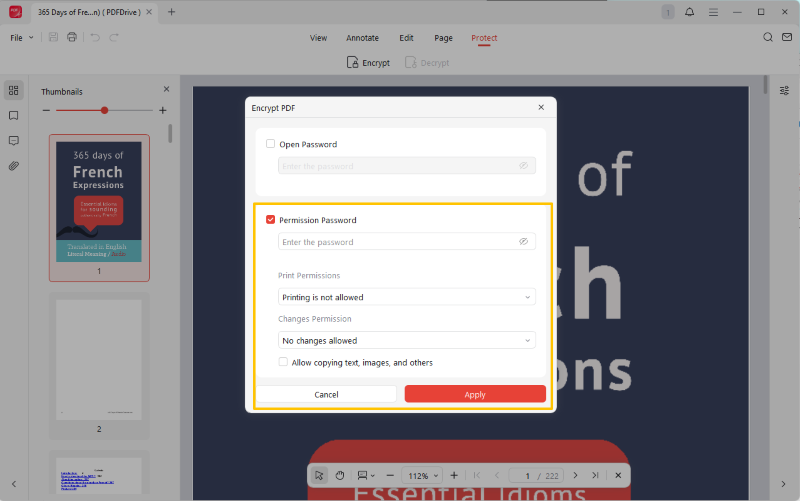
3. Finally, click Apply and save the document. The file is now protected.
As you can see, JOPDF makes password-protecting PDFs extremely simple; there are no complicated steps involved. In addition to protection, it can also help you edit, annotate, manage, and convert PDFs. Give it a try now!
👍 Best for:
Windows and Mac users who need a fast, free, and easy-to-use PDF tool for PDF protection and everyday PDF tasks.
Method 2: Encrypt PDF with the Mac Preview App
If you’re a Mac user, you don’t need any special software. The Preview app, which is pre-installed on every Mac, can help you pasword protect a PDF for email for free.
However, it lacks advanced features. If you want to edit a PDF on a Mac, a professional editor like JOPDF would be a better choice.
Steps to use the Preview app to password-protect a PDF for email:
1. Open your PDF in the Preview app.
2. Go to the menu bar, click File > Export. Then, click the Permissions button.
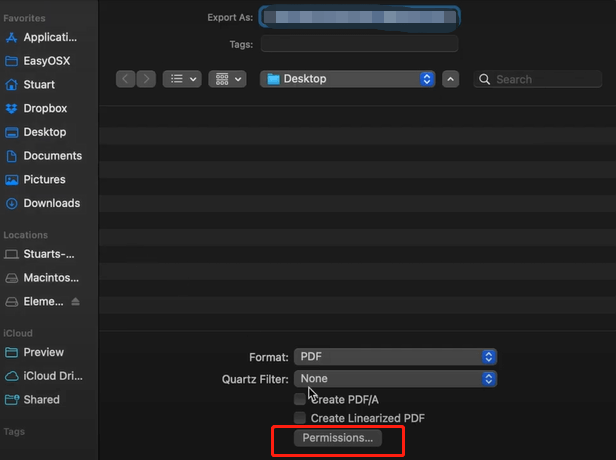
3. Check the box next to Require Password and enter the password.
4. If needed, you can set the owner password to prevent others from making changes to the document.
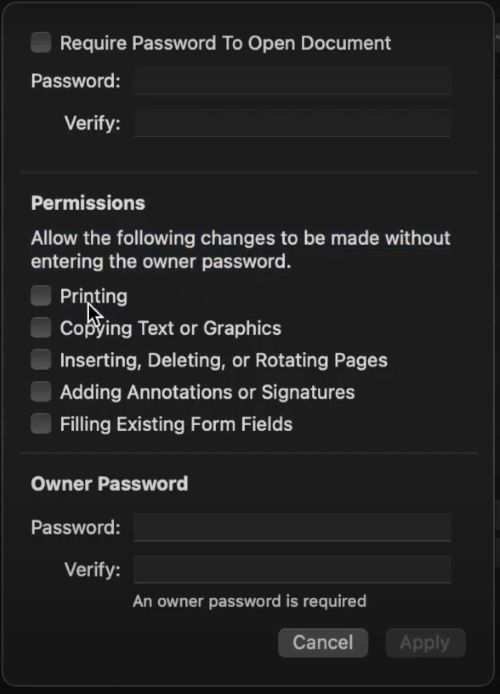
5. Click Apply, and your new file is now encrypted.
👍 Best for:
All Mac users. This is the fastest, free, and most secure way to encrypt a PDF on a Mac without third-party software.
Method 3: Encrypt PDF for Email with Adobe Acrobat
Adobe Acrobat is the industry-standard PDF solution. However, the free Adobe Acrobat Reader does not offer the password protection feature. To password-protect a PDF, you should upgrade to the Pro version.
Check to learn how to encrypt a PDF file for email using Adobe:
1. Open your PDF in Adobe Acrobat Pro.
2. Go to the Tools tab and select Protect. Then, click on “Protect Using Password“.
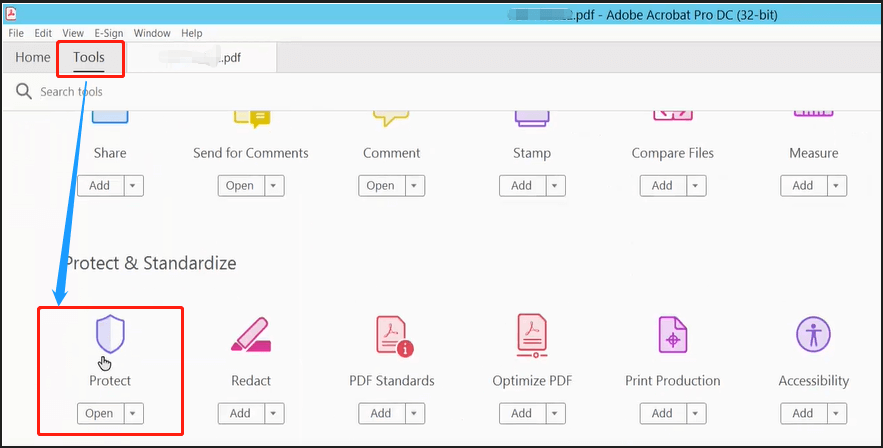
3. A dialog box will pop up. You have two main choices:
- Viewing: Select this to set a Document Open Password. This is what you want for email.
- Editing: Select this to set a Permissions Password (restricting printing, copying, etc.).
For email, check the “Viewing” box.
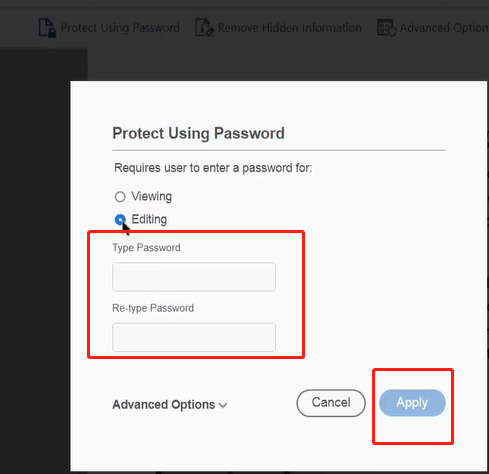
4. Enter a strong, secure password. Re-type it to confirm.
Tips
Click “Advanced Options” > “Encrypt with Password” to set both an Open Password and a Permissions Password simultaneously for maximum security.
5. Click Apply and save the file.
👍 Best for:
In an enterprise or legal environment, users who need to handle highly sensitive data, as well as any personnel who require fine-grained control, are involved.
Method 4: Encrypt a PDF with an Online Tool
You can also use an online tool to encrypt a file. Tools like Smallpdf or iLovePDF are popular and have simple “Protect PDF” features.
However, DO NOT USE THIS METHOD FOR TRULY SENSITIVE FILES. When you use an online tool, you are uploading your unencrypted document to a third-party server. While reputable sites use HTTPS and promise to delete your files, this is still a major security risk for documents containing financial, legal, or personal identity information.
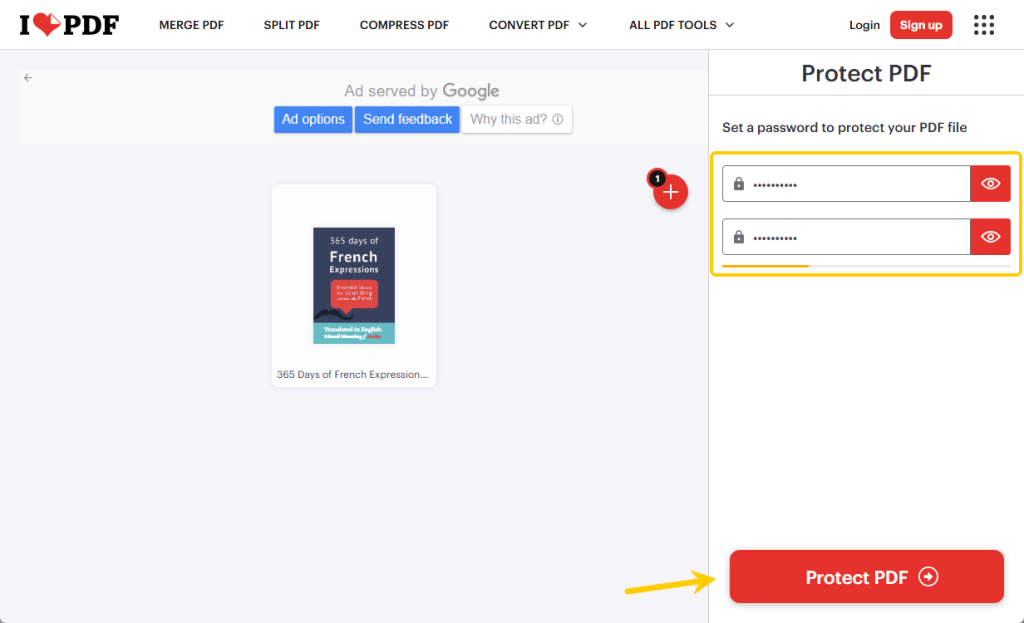
Steps to password-protect a PDF for email with iLove PDF:
1. Open your web browser and go to a trusted site like ilovepdf.com.
2. Find and click on the “Protect PDF” tool (https://www.ilovepdf.com/protect-pdf).
3. Click Select PDF file and upload your document.

4. A new screen will appear. In the right-hand panel, enter your password. Re-type the password to confirm.
5. Click the Protect PDF button. Wait for a while and download your encrypted file.
👍 Best for:
Non-sensitive files, one-time tasks, and users on a restricted computer or Chromebook.
Pro Tips: How to Safely Share Your Encrypted PDF
You’ve encrypted your file. Now you attach it to an email. What about the password?
⭐ THE GOLDEN RULE: DO NOT send the password in the same email as the PDF.
This is the digital equivalent of locking your house and leaving the key taped to the front door. If an attacker intercepts the email, they get both the locked box and the key.
Best Practices for Sharing the Password:
✅ Different Channel: Send the password through a completely separate channel.
- Good: Send the PDF via email, then send the password via text message (SMS).
- Better: Send the PDF via email, then use a secure, end-to-end encrypted messenger (like Signal or WhatsApp) to send the password.
- Best (for high security): Call the person and verbally tell them the password.
Conclusion
That’s all about how to encrypt a PDF file for email. As long as you choose the right tools, it will become very easy.
- JOPDF provides a fast, free, and user-friendly solution.
- Mac users can use the built-in “Export as PDF” feature with Preview.
- Adobe Acrobat offers the most powerful, granular control for professionals.
- Online tools are good choices for non-sensitive PDF documents.
But in any case, the critical step is all on you: never send the password in the same email as the file.
FAQs
Table of Contents

Your Best Free PDF Expert in PDF editing, compressing, converting, annotating, protect, organizing, and more.
Free DownloadWindows · macOS · Linux

Queena
Editor
“As a staff editor for JOPDF, Queena excels at guiding users to the optimal tools and solutions. When she's not analyzing the latest PDF solutions, she enjoys spending her free time playing with her four cats.”