Introduction :
In today’s collaborative and efficiency-driven world, shared documents are commonly used in daily work and study. Beyond the ubiquitous Word documents, PDF remains one of the most convenient formats for sharing and reviewing documents. When collaborating on reports, marking up drafts, or proofreading content, adding comments and annotations can significantly streamline the communication process. Is it possible to print PDF with comments? Let’s explore in this post!
In addition to the dialog box that appears when text is highlighted, comments can also include sticky notes, highlighted annotations, and drawing marks. These comments and annotations include valuable feedback. Hence, it is useful to print PDFs with comments for recordkeeping, proofreading, archiving, or other purposes. Now, let’s delve into the following content to learn how to print PDFs with comments showing effortlessly!
Best Free Way to Print PDF with Comments in JOPDF
Compared to paying for software to print PDFs with annotations, most of us prefer to use free software. However, most free software may not be truly free and often isn’t very good. I tried many free PDF editors available on the market and ultimately chose JOPDF, which is truly FREE and doesn’t require registration.
Serving as a free PDF editor for Windows and Mac, it enables you to annotate PDFs with highlighters, drawing pencil, lines, shapes, comments, or sticky notes. You can use it to annotate and comment on PDFs with ease. More importantly, it enables you to print PDFs with comments. What’s more, JOPDF enables you to print secured PDFs effectively. Here, let’s learn how to print a PDF with annotations using JOPDF.
Step 1. Click the button to download JOPDF for Windows or Mac and install it on your computer.
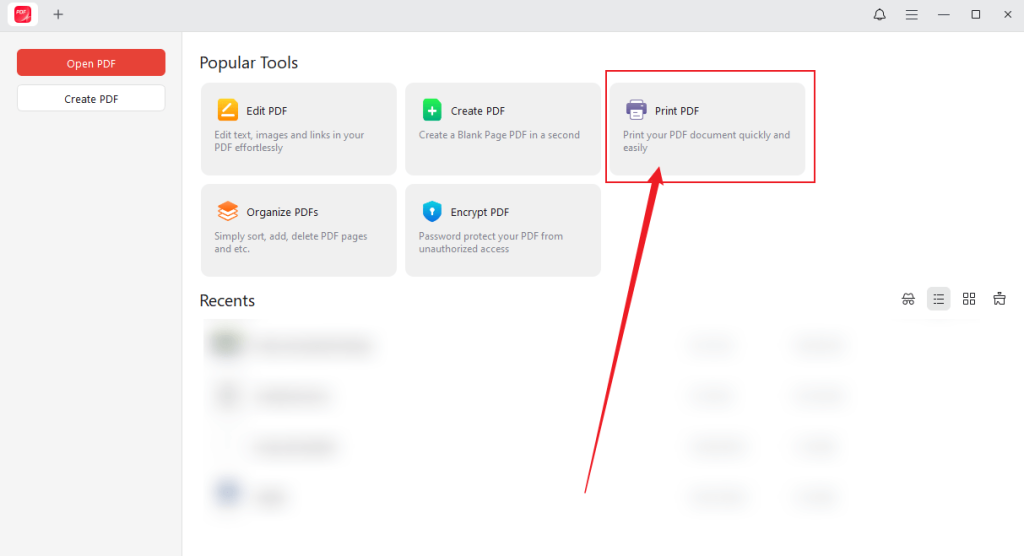
Step 2. Run this PDF printer to get to its main user interface. Select the Print PDF option, locate the target PDF file, and click Open to import it into JOPDF.
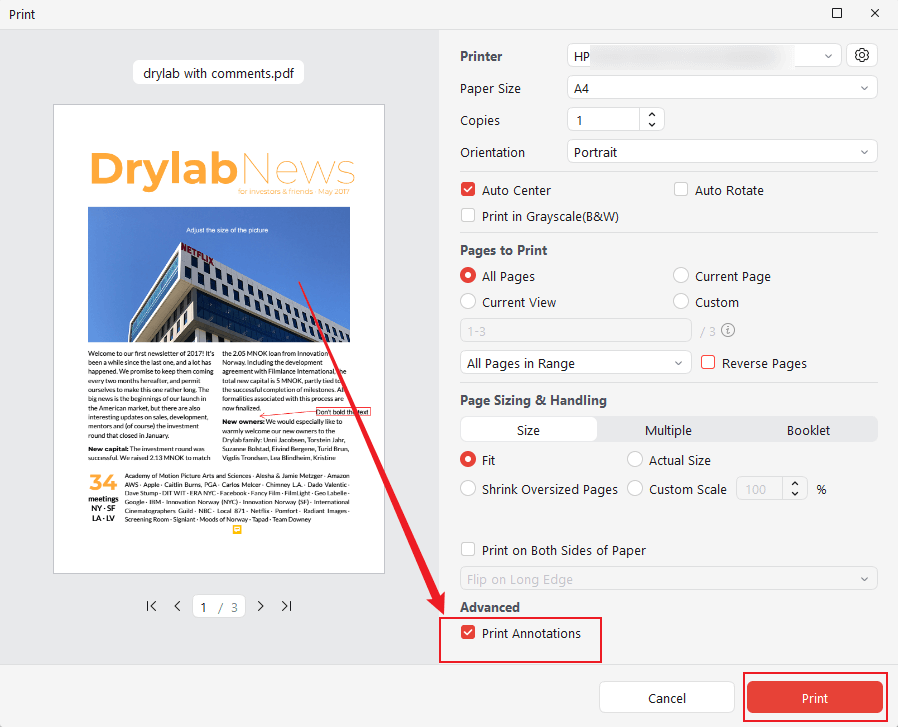
Step 3. On the Print window of JOPDF, navigate to the end of this window to find the Advanced section and tick the Print Annotations checkbox. Once you tick this option, JOPDF will print the PDF with comments and annotations. Meanwhile, you can customize other print settings for the PDF file. Finally, hit the Print button.
Built-in Way to Print PDFs with Comments on Mac with Preview
Is there a way to print a PDF file with comments on a Mac without downloading or installing any software? Yes, there is. Preview, a built-in macOS program, is used to view, edit, and print images and PDFs. How to print a PDF with comments in Preview? Check the steps below.
Step 1. Open Finder, locate your PDF document, right-click on it, and choose the Open With Preview option.
Step 2. Before accessing the Print dialog, you need to make sure that all comments in the PDF are visible. Click the View tab from the top menu bar and click the Highlights and Notes option to show the sidebar with all annotations.
Step 3. Select the Print option from the File list to access the Print dialog. Alternatively, press Command + P. On the Print dialog window, click Show Details, open a dropdown near the middle of the dialog, select Preview, and click the Documents and Annotations option. Enabling this option can make comments appear in the printout.
Step 4. Meanwhile, you can adjust other print settings, such as adjusting page setup and scaling. Finally, click the Print button.
Professional Way to Print PDFs with Comments in Adobe Acrobat
Adobe Acrobat is the leading PDF editor, which is available on Windows, macOS, Android, and iOS. It offers a comprehensive suite of tools for handling PDF files, including features such as editing, annotating, converting, filling forms, and printing. Printing a PDF with comments is a breeze for it.
Working as a professional PDF editor, Adobe Acrobat is a reliable tool for handling PDFs. However, it requires a steep learning curve, making it unsuitable for beginners. But don’t worry! As your most reliable assistant, I have prepared a step-by-step guide on how to print a PDF with comments in Adobe Acrobat. At the beginning, you need to download and install Adobe Acrobat Reader (free version) or Adobe Acrobat Pro (paid version) in advance.
Step 1. Launch your Adobe Acrobat Reader or Adobe Acrobat Pro on your PC. Then, upload and open the target PDF file.
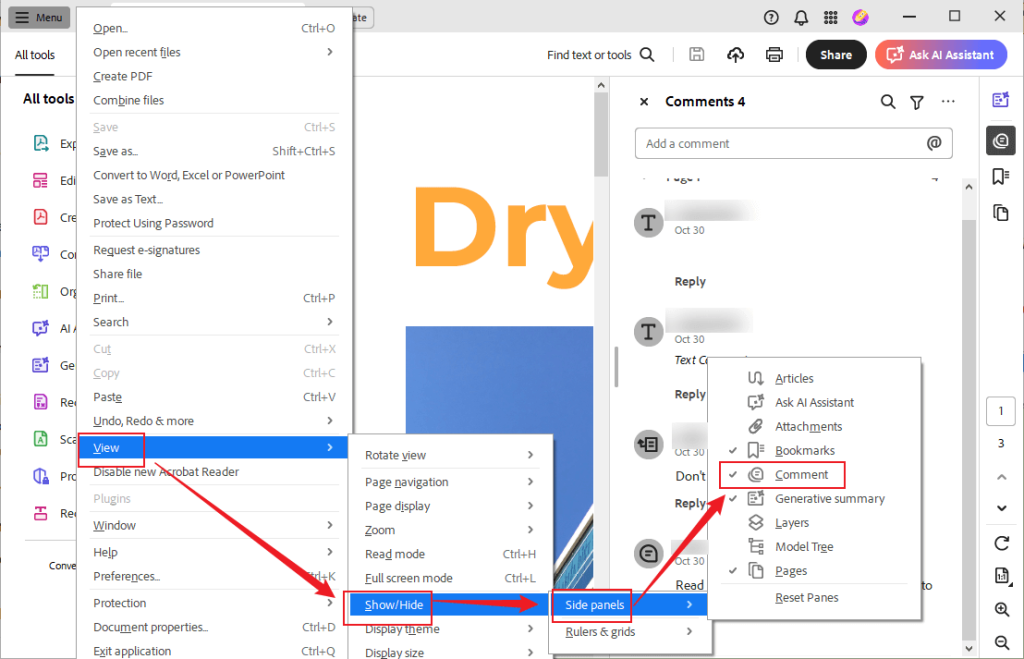
Step 2. If the comments in the PDF file are hidden, you need to show them before printing the PDF file. To enable the comments pane, open the Menu tab, go to View, select Show/Hide, choose Side panels, and tick the Comments option.
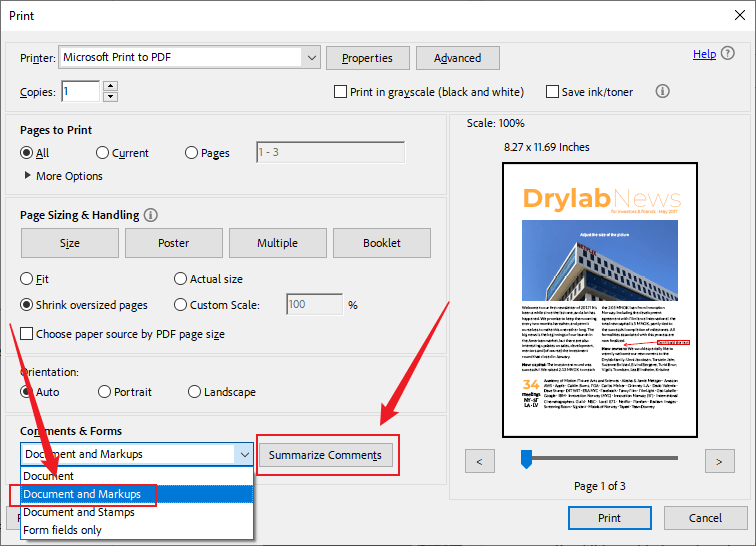
Step 3. Press Ctrl + P or Command + P to open the Print dialog. Navigate the Comments & Forms section at the bottom of this dialog. Open this dropdown, and here are 3 options for you. Select the Document and Markups option to print both the PDF and all visible annotations. If you need to print a PDF with sticky notes, this Document and Markups option can include it.
Optionally, if you prefer a summary of all comments instead of inline markups, you can click the Summarize Comments button. Then, Adobe Acrobat will create a new document to show your original pages with a list of comments attached. At last, click Print in the bottom right.
Tips
If you need to print PDFs with stamps and certain annotations, you can select the Document and Stamps option from the Comments and Forms dropdown.
Print PDF with Comments Online Using Smallpdf
Some of you may think it’s a hassle to download and install software just for the single task of printing a PDF. In such a case, you prefer to use an online tool but not a desktop application. Is there a safe and useful online PDF tool to print PDF files with annotations and comments? Of course, Smallpdf is worth trying!
Smallpdf is an all-in-one online PDF tool that can view, edit, compress, organize, convert, sign, protect, and scan PDFs. More importantly, it offers AI-powered features to translate or summarize PDFs. You can use Smallpdf to annotate a PDF and then print the PDF with annotations. Now, let’s learn how to print a PDF with annotations online in Smallpdf.
Step 1. In your browser, visit Smallpdf’s PDF Editor official website.
Step 2. Click CHOOSE FILES to upload your target PDF document. Also, you can upload files from Dropbox, Google Drive, and OneDrive.
Step 3. Edit the PDF file if you need. Then, open the Download dropdown and select the Print option.
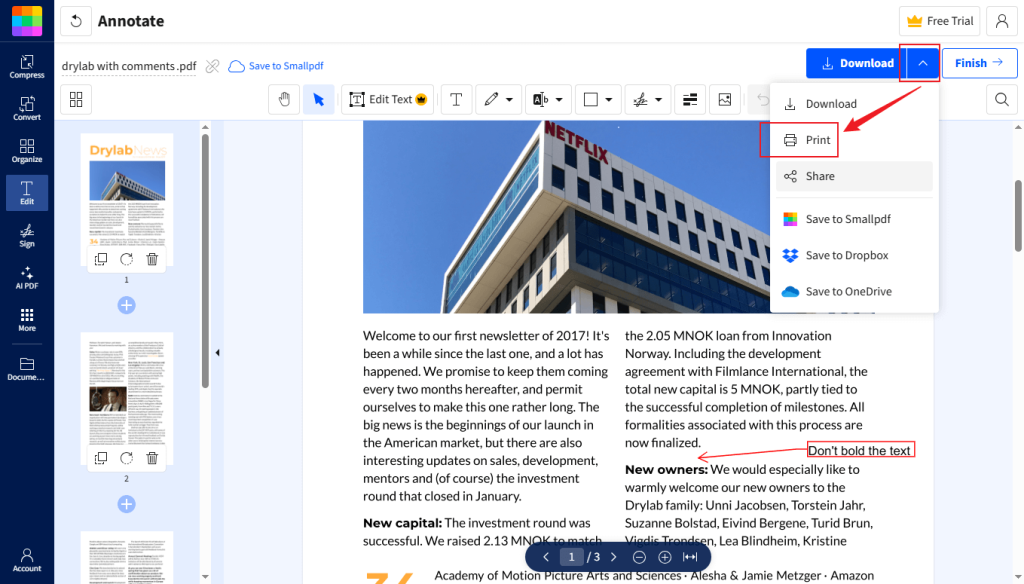
Step 4. On the left side, you can preview the PDF file. Personalize the print settings for this PDF file and click the Print button.
To Wrap Things Up
That’s all about how to print PDF with comments. With the above 4 methods, you can print a PDF file with or without comments on Windows, Mac, and mobile devices with no hassle. For Windows and Mac users, JOPDF is a great option for editing and printing PDFs for free. If you don’t want to download and install any software on your Mac, consider Preview or Smallpdf. Also, you can give Adobe Acrobat a try if you need to make other professional operations for PDFs.
FAQs
1. Go to Review and click Show Comments to display all comments.
2. Click File and select the Print option.
3. In the preview window, check if comments appear. If not, select the Print All Pages option under Settings.
4. Adjust other settings and click Print.
Table of Contents

Your Best Free PDF Expert in PDF editing, compressing, converting, annotating, protect, organizing, and more.
Free DownloadWindows · macOS

Olivia
“Olivia is an editor at JOPDF, where she writes practical guides and insightful articles on managing PDFs—covering topics like editing, annotating, converting, and organizing files efficiently. Passionate about clear communication and digital productivity, Olivia enjoys spending her free time cooking, watching movies, and hiking to unwind and find inspiration for her writing.”
![Solved! Microsoft Print to PDF Missing [Causes and 6 Fixes]](https://b.jopdf.com/wp-content/uploads/2026/02/microsoft-print-to-pdf-missing.png)