Summary :
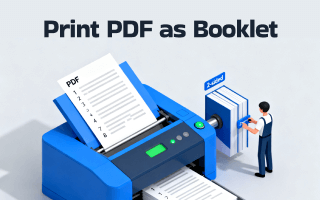
You may have fully formatted a book in PDF version for producing materials like brochures or handbooks. The catch is that you can’t figure out how to arrange pages for the booklet printing from the PDF. You may be struggling to have the pages ordered for correct folding and stapling. No worries, and you can easily complete the task without sending the file to a professional printer shop. Read this JOPDF post to learn 3 quick ways to print a PDF as a booklet without effort.
Way 1: How to Print a PDF as a Booklet with JOPDF
JOPDF is a free offline PDF booklet maker for Windows and Mac. It allows you to convert a PDF to a booklet format completely free, without requiring a sign-up. The software can automatically rearrange and rotate pages to give a printer-ready copy tailored to your needs. You can set printing to double-sided and multiple pages per sheet. JOPDF supports actually printing the PDF or saving the booklet as a PDF.
Here is how to print a PDF as a booklet for free with JOPDF on a Windows or Mac.
Step 1: Download the PDF printer and editor JOPDF for Windows or Mac, then click the “Open PDF” button.
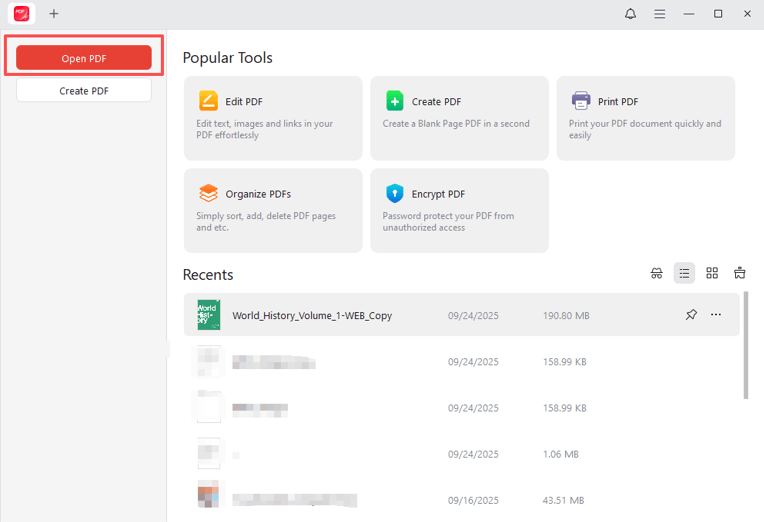
Step 2: Browse your computer to select and open the PDF you want to print as a booklet.
Step 3: Press Ctrl + P (or CMD + P on Mac), or click File > Print.
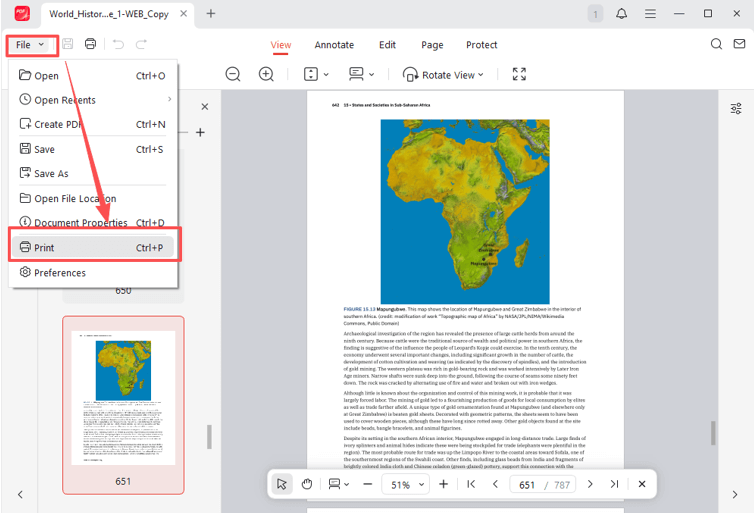
Step 4: Click Booklet in the Page Sizing & Handling section, and specify the page size and orientation.
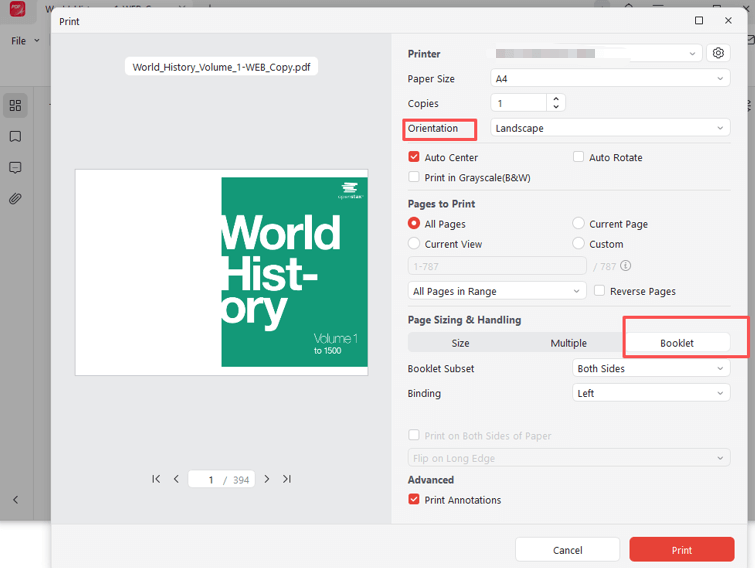
Step 5: Customize the booklet printing settings, such as “Both Sides” or “Front Side” printing, and select either “Left” or “Right” binding method.
Step 6: You can select a physical printer connected to your device to print the PDF as a booklet and fold it in half.
Alternatively, select the printer as Microsoft Print to PDF or another print-to-PDF driver to print the booklet in PDF format. In either of the two printing results, the front and back covers, as well as all the pages, are in the correct sequence. You can check the “Auto Rotate” option to auto-rotate PDF pages in a booklet layout. JOPDF can remove password protection to help print a secured PDF.
Way 2: Print Booklet from PDF in Adobe Acrobat
The world-renowned PDF editing software, Adobe Acrobat, enables you to print a PDF as a booklet on both Windows and macOS. It’s engineered with a powerful printing dialog box that offers a full set of important options. It allows you to adjust the page orientation, binding way, printing sides, and reverse PDF page order. The PDF to booklet converter also provides a preview of the printed pages.
Check out how to perform PDF booklet printing in Adobe Acrobat.
Step 1: Open your PDF in the software, and choose File > Print.
Step 2: Select the Booklet button to set a booklet layout to print.
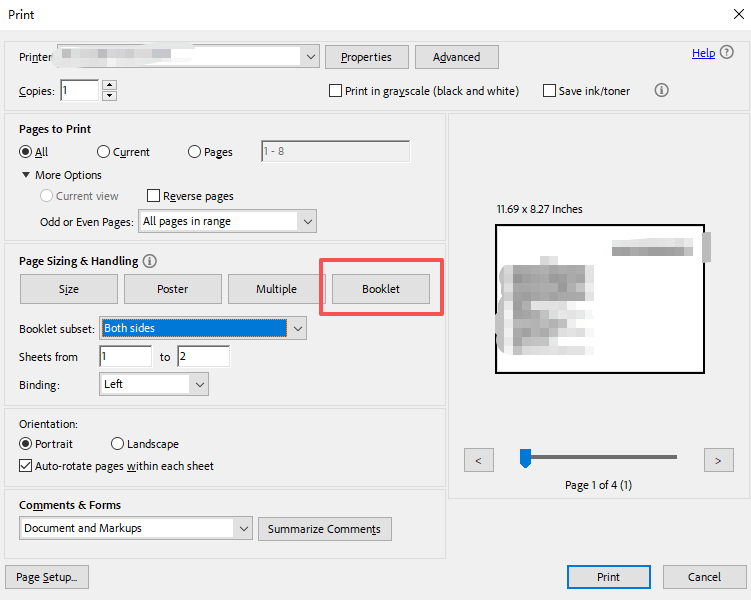
Step 3: Set the page size, printer, pages to print, and other options to your desired settings.
Step 4: Select both sides in the Booklet subset drop-down list for auto duplex printing.
Step 5: Select “Adobe PDF” from the Printer list to print the booklet in PDF format on both sides.
Step 6: You can select a real printer to print the PDF in booklet form for physical distribution.
Way 3: Convert PDF to Booklet Using Online2PDF
Online2PDF works flawlessly to print a PDF as a booklet. The browser-based software saves you from having to download and install packages. It doesn’t need your registration either. From the site, you can convert colored PDF to black and white, create and print a PDF booklet with two or more pages per sheet. The downside is that you can’t preview how the booklet looks before downloading it.
Dive into how to print a booklet from a PDF using the Online2PDF online for free.
Step 1: Open the Online2PDF PDF booklet creator and converter online for free.
Step 2: Click the Select files button to upload your PDF document.
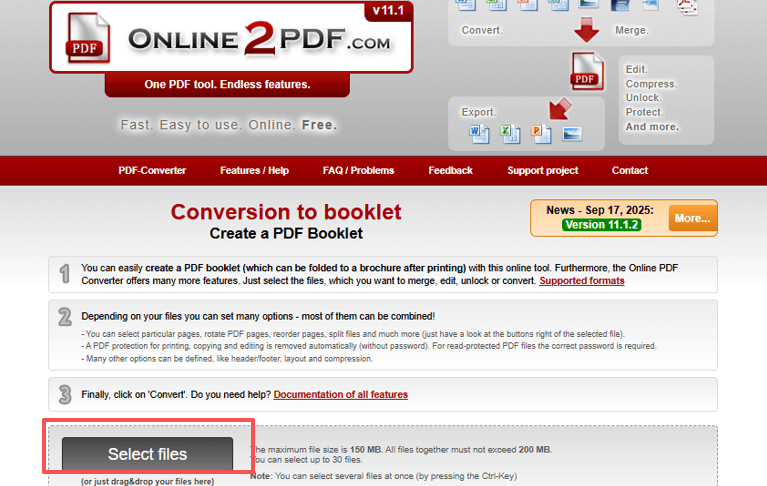
Step 3: Start defining the PDF layout, and the Booklet layout is selected by default.
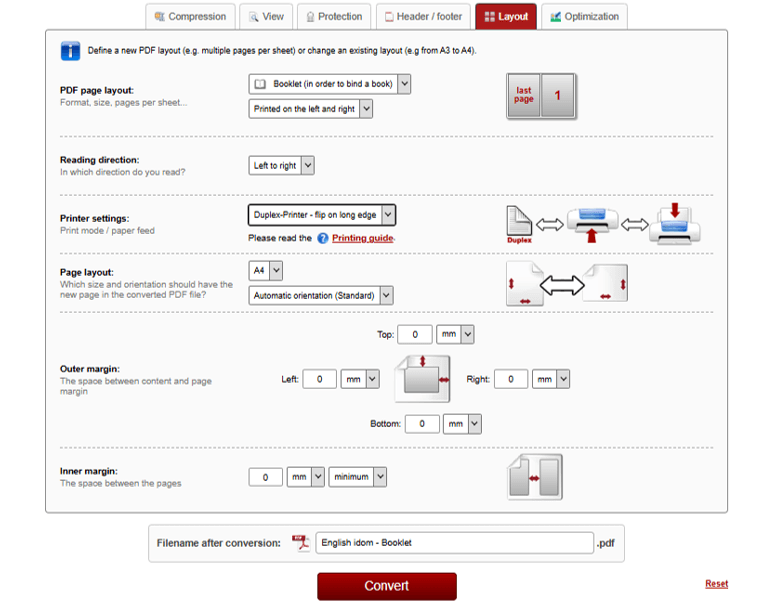
Step 4: You can choose Left to right or another option from the Reading direction list.
Step 5: The default Printer settings are Duplex-Printer – flip on long edge, and you can alter these if needed.
Step 6: Configure the page size, margins, and other options to ensure everything is well-arranged.
Step 7: Click the Convert button to convert the PDF to a booklet for printing online for free, and download the PDF booklet.
Conclusion
Chances are that you’ve tried many booklet makers and converters for creating and printing a booklet from a PDF. However, you find none of them caters to your requirement or relieves you from the trouble. But there are indeed ways to simplify the task in just a minute. JOPDF, Adobe Reader, and Online2PDF all allow you to turn a PDF into a booklet at no cost. JOPDF is more secure and private than online tools, and it’s watermark-free, offering unlimited usage.
Note: If your printer does not have duplex printing capability, you can first print the front sides and then turn the paper over to print the back sides.
FAQs
Table of Contents

Your Best Free PDF Expert in PDF editing, compressing, converting, annotating, protect, organizing, and more.
Free DownloadWindows · macOS

Selena
Staff Editor
“Selena is a staff editor working for JOPDF, passionate and committed to providing how-to and round-up articles. Over 8 years of specialized skills and experience in PDF solutions, hoping to help users ease their lives and solve whatever they encounter. "Work smarter, not just harder!"”
![Solved! Microsoft Print to PDF Missing [Causes and 6 Fixes]](https://b.jopdf.com/wp-content/uploads/2026/02/microsoft-print-to-pdf-missing.png)