Introduction :
Microsoft Print to PDF is a built-in Windows feature that lets users convert documents and images into PDF files with ease. When the “Microsoft Print to PDF not working” error appears, it can frustrate users and halt simple tasks. These issues can hinder efficiency and interfere with your routine tasks, particularly in work environments. In this JOPDF article, we’ll discuss the symptoms, causes, effective fixes, and some top alternatives.
What Is Microsoft Print to PDF
Microsoft Print to PDF is a native Windows tool that lets users generate PDFs from nearly any app that can print. Rather than printing to a physical device, it stores the document as a PDF on your computer. Users often rely on it to convert Word, Excel, or PPT files to PDF for convenient sharing, secure keeping, or polished presentation.
This feature functions as a virtual PDF printer, appearing in the printer list like any regular printer but generating a digital PDF file instead of a physical copy. It is commonly relied upon in offices, educational settings, and businesses where keeping formatting and cross-device compatibility is important.
Common Symptoms of Microsoft Print to PDF Not Working
When Microsoft Print to PDF stops working properly, it generally shows visible warning signs. Recognizing these symptoms early can help you troubleshoot the issue faster.
Below are the most common indicators that something is wrong with the feature.
- Microsoft Print to PDF is missing from the printer list.
- The printer shows in the list but remains unresponsive when activated.
- A warning appears during PDF save process.
- The print job gets hung in the print queue and never completes.
- A blank or corrupted PDF file is created after printing.
- Windows displays a driver-related error when printing to Microsoft Print to PDF.
Why Microsoft Print to PDF Is Not Working
Several technical and system-related issues can prevent this feature from functioning properly. Below are the most common causes behind the problem:
Windows Update Problems
Sometimes, a recent Windows update may conflict with the Print to PDF feature. This may cause it to malfunction or disappear from the printer list.
Disabled Windows Feature
Microsoft Print to PDF can be manually or automatically disabled in Windows Features. As a result, it does not appear or function properly.
Corrupted or Missing Printer Driver
If the Print to PDF driver becomes corrupted, outdated, or accidentally deleted, the feature may fail to respond or generate errors.
System File Errors
Corrupted/damaged or absent system files can interfere with core Windows functions, including the virtual PDF printer.
Incorrect Output Folder or Permissions
If Windows can’t reach the chosen save folder because of permission restrictions or errors, the PDF may not be created.
How to Fix Microsoft Print to PDF Not Working
If you’re having trouble generating PDFs, you may need to fix Microsoft Print to PDF not working on Windows 10/11. This frequent problem can stop documents from saving properly or make the printer option vanish. Fortunately, you can try several straightforward methods to restore the feature and get it running. Now, we’ll review the likely fixes.
Fix 1. Enable Microsoft Print to PDF in Windows Features
The Microsoft Print to PDF option may be absent if it’s disabled in Windows Features. Switching this feature back on can recover the virtual printer without any extra downloads or third-party apps. This method is typically the most direct and speedy fix for the problem. Here’s how.
Step 1. Hold the Windows key. Then, type “Turn Windows features on or off.” And select the top result.
Step 2. Navigate down the menu to find Microsoft Print to PDF.
Step 3. Tick the box for Microsoft Print to PDF and press OK.
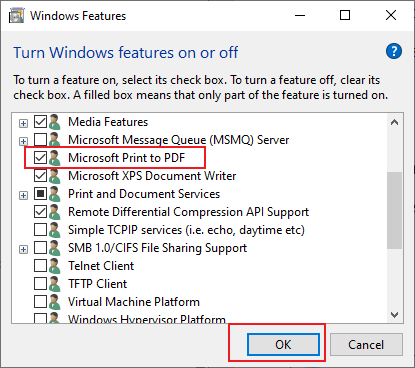
Step 4. Allow Windows to install the feature. Reboot your computer if the system requests it.
Fix 2. Reinstall Microsoft Print to PDF Driver
If reactivating the feature does not resolve the issue, the Microsoft Print to PDF driver may be broken or misinstalled. Installing the driver anew can fix system files and restore normal operation. This method helps ensure Windows properly recognizes and loads the virtual PDF printer. Take a look at the quick process.
Step 1. Press the Windows + X keys and click Device Manager.
Step 2. Expand Print queues.And right-click Microsoft Print to PDF (if visible).
Step 3. Select Update driver or Uninstall device.
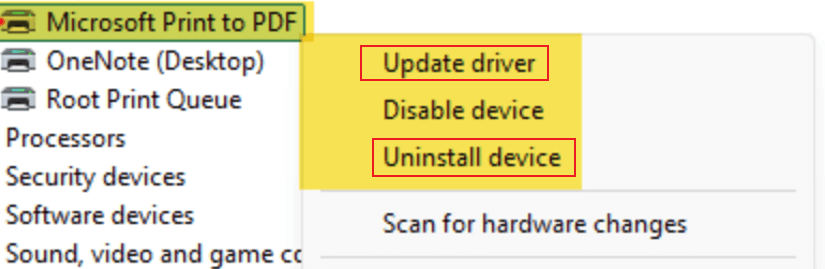
Step 4. Restart your PC.
Fix 3. Set Microsoft Print to PDF as the Default Printer
If you’re having trouble saving files as PDFs, another printer may be set as the default. Setting Microsoft Print to PDF as your default printer ensures Windows automatically selects it when printing. This can prevent errors, reduce confusion, and make PDF creation faster and more consistent. Check out the steps.
Step 1. Search for Printers & Scanners in your Windows start menu.
Step 2. Scroll down and clear the “Let Windows manage my default printer” checkbox.
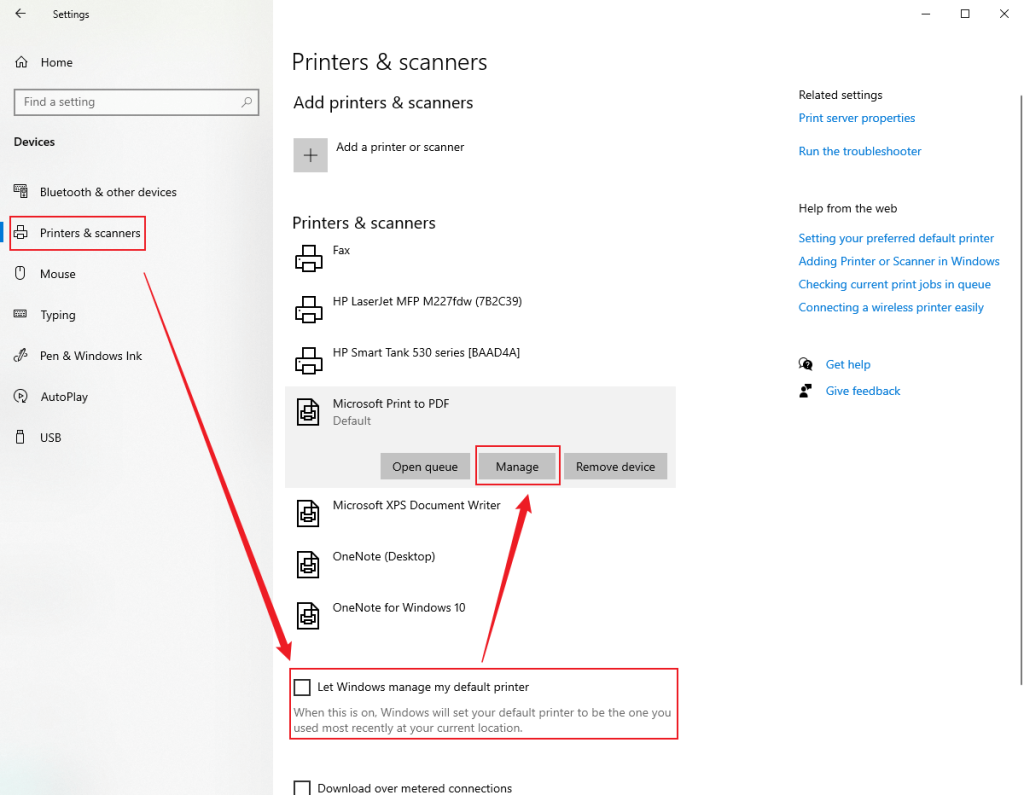
Step 3. Scroll back up to the list of Printers & Scanners. And select Microsoft Print to PDF.
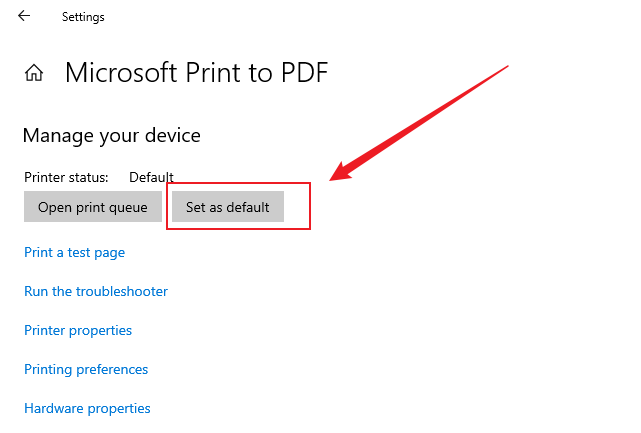
Step 4. Click Manage and select the Set as default button.
Fix 4. Run the Windows Printer Troubleshooter
Should Microsoft Print to PDF keep failing, using the Windows Printer Troubleshooter can diagnose the problem. This built-in tool automatically scans for issues like driver errors, misconfigurations, or missing components. Using this tool can quickly fix common printing issues without manual intervention. Let us see how to do it.
Step 1. Click the Start menu and choose Settings.
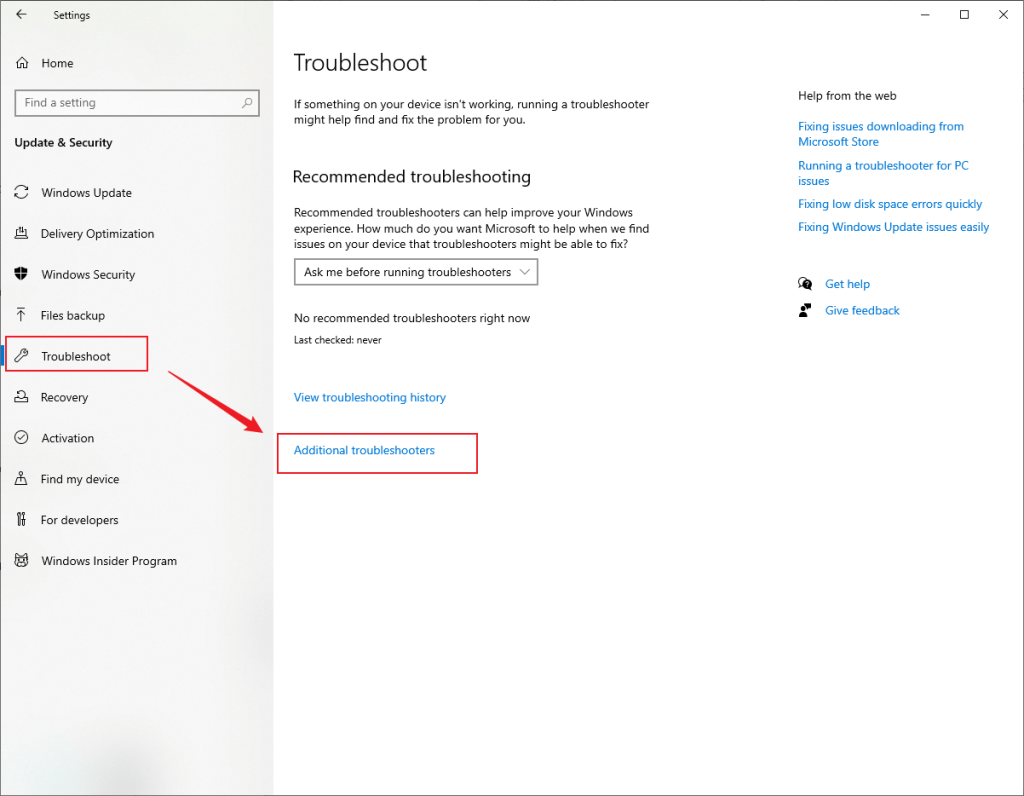
Step 2. Navigate to Update & Security and then select Troubleshoot.
Step 3. Select Additional troubleshooters.
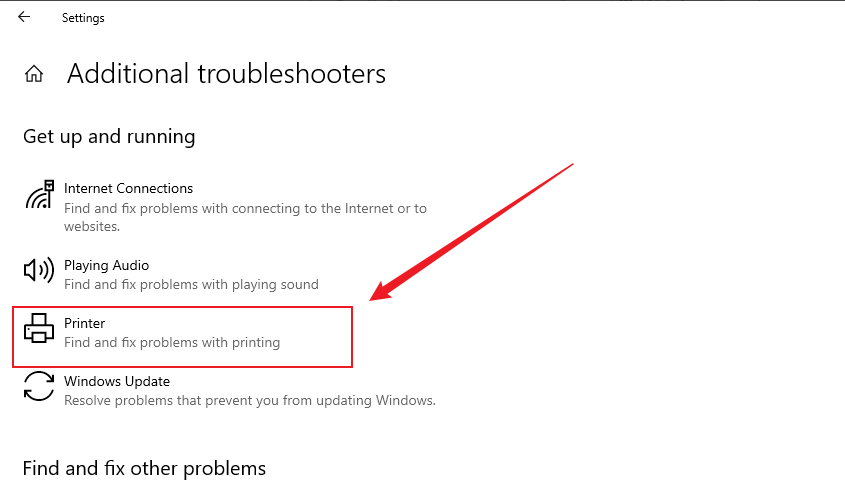
Step 4. Then, click on Printer.After that, choose Run the troubleshooter.
Fix 5. Repair System Files Using Command Prompt
When Microsoft Print to PDF malfunctions due to corrupted system files, repairing them can restore proper function. By running SFC or DISM in the Command Prompt, you can fix damaged Windows files. This approach can resolve underlying system issues that prevent the virtual printer from functioning. Here’s how.
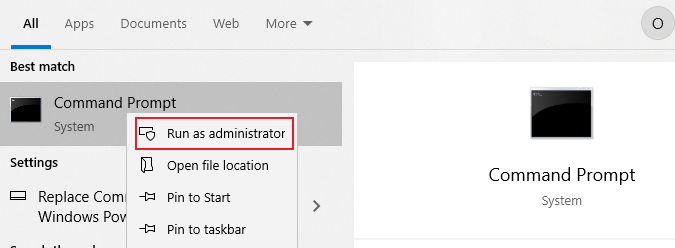
Step 1. Hit Windows + S and enter cmd. Next, right-click Command Prompt and choose Run as administrator.
Step 2. In the Command Prompt, input this command. And press Enter.
DISM.exe /Online /Cleanup-image /Restorehealth
Step 3. Next, open Command Prompt as an administrator.
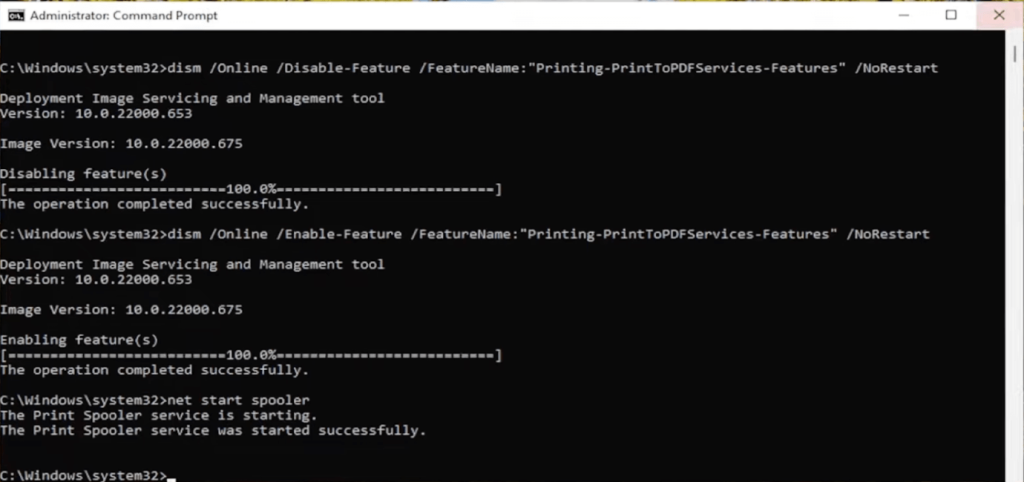
Step 4. Then, type sfc /scannow and press Enter. Let the scan complete; it will automatically fix any corrupted system files detected.
Fix 6. Check the PDF Save Location
When Microsoft Print to PDF doesn’t produce PDFs, the selected folder could be causing the problem. Checking the save path and making adjustments often fixes the issue promptly. Check the following:
- Make sure you have write permissions for the selected folder.
- Avoid system-protected directories like C:\Windows or C:\Program Files.
- Try saving the PDF to a simpler location, such as Documents or Desktop.
This simple adjustment often fixes errors that prevent the PDF from appearing after printing.
Alternative Ways to Print to PDF on Windows
Even after trying the above fixes, if Microsoft Print to PDF isn’t working, there are several alternative methods for creating PDF files on Windows. This approach gives a dependable alternative without using the default virtual printer. Let’s take a quick look.
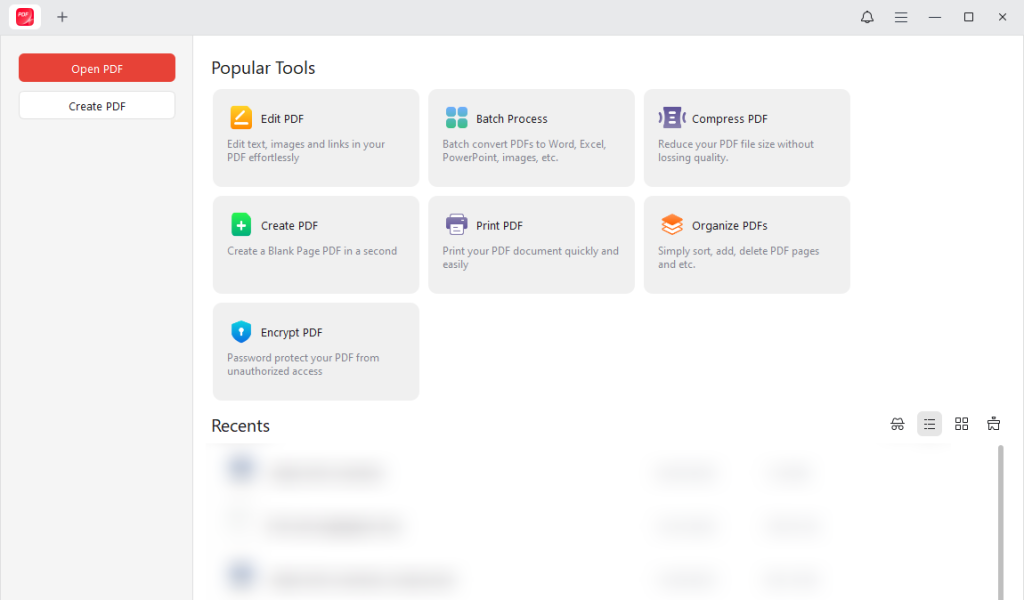
Way 1. Use JOPDF
JOPDF is a trustworthy free desktop tool that lets you easily import files and convert them to PDF within seconds. You can convert Word, Excel, and PPT to PDF, making it ideal for office documents.
JOPDF also allows you to convert images to PDF, such as TIFF to PDF, PNG to PDF, and more, for better organization. With JOPDF, you can quickly create PDFs from several file formats, enhancing your workflow. Additionally, its ad-free, user-friendly interface makes the entire process fast and hassle-free.
Way 2. Export to PDF from Applications
Another simple method is to export to PDF directly from within the program. Many programs, like Word, Excel, and PowerPoint, let you do this in just a few clicks. For instance, it’s simple to save Excel as PDF with the Export or Save As options, so you don’t need a PDF printer. This technique is quick, trustworthy, and ideal for creating PDFs from single documents.
Final Thoughts
If “Microsoft Print to PDF not working” affects your workflow, multiple solutions can help resolve it. However, determining the cause first is necessary to apply the correct fix. We have summarized the signs, causes, and proven fixes to help you address issues promptly. In addition, other methods like exporting from apps or using free tools such as JOPDF let you create PDFs efficiently. By using these fixes, you can restore seamless PDF creation on Windows without any frustration.
FAQs
Step 1. Input Windows Features in the search field. And click Turn Windows features on or off.
Step 2. Look for the Microsoft Print to PDF feature in it.
Note. If the checkbox of Print to PDF is "unchecked", then tick the checkbox and tap OK. However, if the checkbox is already "checked", uncheck it and click OK.
Step 3. Reboot your PC.
Step 4. After reboot, go back to Windows Features. Tick the checkbox next to "Microsoft Print to PDF", then click OK. It will reinstall the feature.
Table of Contents

Your Best Free PDF Expert in PDF editing, compressing, converting, annotating, protect, organizing, and more.
Free DownloadWindows · macOS · Linux

Olivia
“Olivia is an editor at JOPDF, where she writes practical guides and insightful articles on managing PDFs—covering topics like editing, annotating, converting, and organizing files efficiently. Passionate about clear communication and digital productivity, Olivia enjoys spending her free time cooking, watching movies, and hiking to unwind and find inspiration for her writing.”
![How to Print Selected Area in PDF in 2026 [4 Best Ways]](https://b.jopdf.com/wp-content/uploads/2026/03/how-to-print-selected-area-in-pdf.png)
![Adobe Print to PDF Not Working [Reasons and Solutions]](https://b.jopdf.com/wp-content/uploads/2026/03/adobe-print-to-pdf-not-working.png)
