![Solved! Microsoft Print to PDF Missing [Causes and 6 Fixes]](https://b.jopdf.com/wp-content/uploads/2026/02/microsoft-print-to-pdf-missing.png)
Introduction :
Many Windows users often unexpectedly face the problem of Microsoft Print to PDF missing. It can be incredibly frustrating when a built-in feature you rely on simply disappears. This issue may disrupt document sharing, reporting, and overall workflow efficiency. In this article from JOPDF, we’ll cover the possible reasons, six effective solutions, and superior alternatives for creating PDFs. So stay tuned.
What Is Microsoft Print to PDF
The Microsoft Print to PDF feature in Windows is a native tool that lets users generate PDFs without additional software. It works as a virtual PDF printer, appearing in the printer list like a regular printer. Rather than printing on paper, you can save documents or images like Excel, PNG, PPT, or Word as PDFs, which simplifies file management and distribution.
Here are the key benefits of using Microsoft Print to PDF:
- No need to install additional software.
- Completely free and built into Windows.
- Easy to use through the standard Print option.
- Preserves document formatting during conversion.
- Supports multiple file types and applications.
- Secure and widely compatible PDF output.
Why Is Microsoft Print to PDF Missing in Windows
There can be several reasons why Microsoft Print to PDF does not show up on your Windows computer. Here are the most frequent reasons why this feature can unexpectedly vanish from your Windows device.
#Microsoft Print to PDF Feature Is Disabled
At times, the built-in PDF printer is just disabled within Windows Features. When disabled, it will not appear in the printer list until manually re-enabled.
#Windows Update Removed or Broke the PDF Printer
A recent update to Windows may have disrupted or eliminated the PDF printer setup. This can cause the feature to disappear or stop functioning properly.
#Corrupted or Missing Printer Driver
If the Microsoft Print to PDF driver becomes corrupted or deleted, the system cannot recognize it. As a result, the virtual printer will be missing from the available devices.
#Outdated or Incompatible Windows Version
Running an older or incompatible version of Windows may result in functionality issues. This can prevent the PDF printer from appearing or working correctly.
#System File and Registry Errors
System file corruption or registry problems can interfere with key Windows operations. These problems can impact both the visibility and operation of the Print to PDF feature.
How to Fix Microsoft Print to PDF Missing
Having identified the possible causes of Microsoft Print to PDF missing, you can now move on to the effective fixes. Here, we’ll show effective solutions to restore the feature and fix PDF printing issues.
Fix 1. Enable Microsoft Print to PDF via Windows Features
If the Microsoft Print to PDF feature was accidentally disabled, turning it on via Windows Features is usually the fastest fix. Using this method, you can re-enable the built-in PDF printer without installing third-party programs. Once enabled, Microsoft Print to PDF should reappear in your printer list. Here’s how.
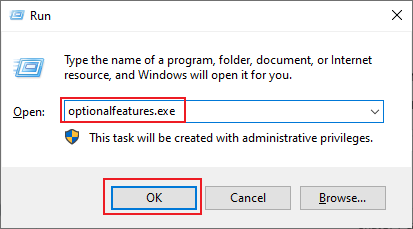
Step 1. Press the Windows + R keys. Then, type optionalfeatures.exe and tap OK.
Step 2. Scroll down the list to locate Microsoft Print to PDF.
Step 3. Ensure the checkbox next to the feature is checked.
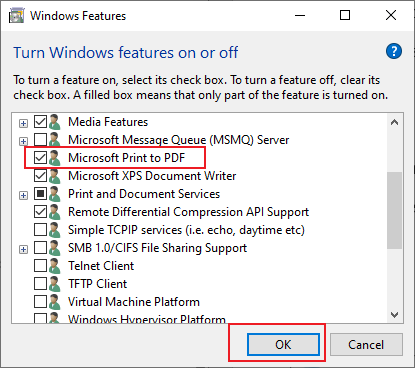
Step 4. Click OK.And wait for Windows to install the feature.
Step 5. Restart your computer to finalize the changes.
Fix 2. Reinstall Microsoft Print to PDF Manually
If a driver problem is behind the missing PDF printer, performing a manual reinstall can recover its functionality. With this method, you restore the PDF printer by adding it back in the system’s printer settings. Reinstallation often resolves problems caused by corrupted or improperly configured drivers. Check out the process.
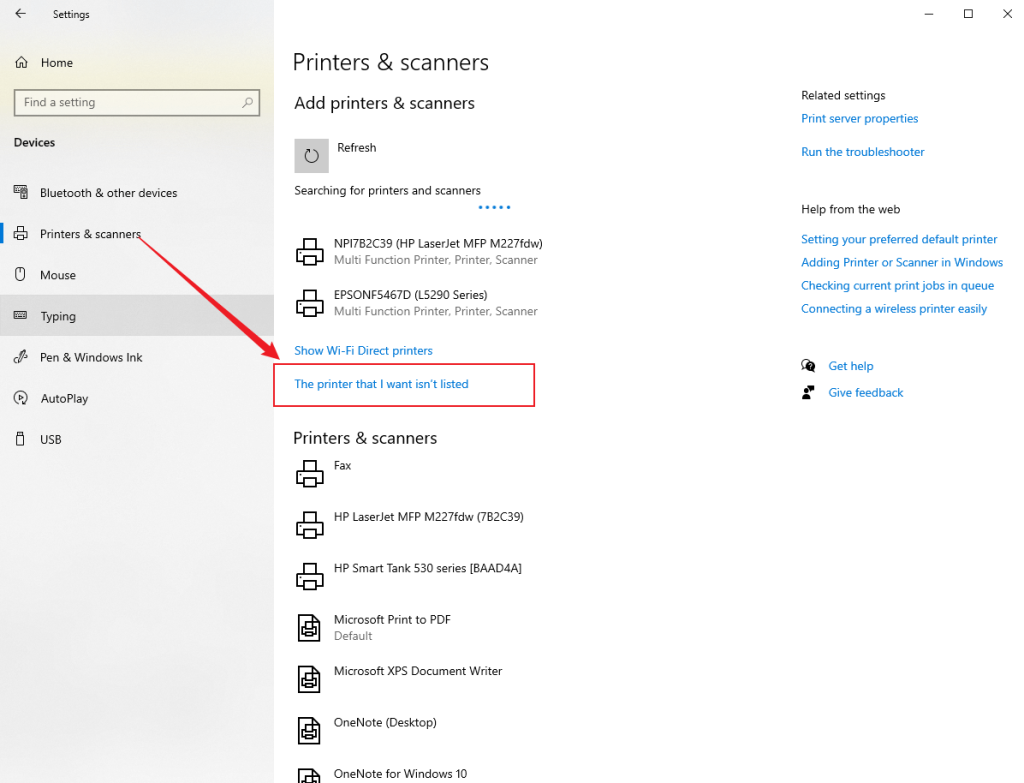
Step 1. Open Settings and navigate to Bluetooth and devices. Then choose Printers & Scanners.
Step 2. Select Microsoft Print to PDF and click Remove.
Tap Add device in the top-right corner. And click Add a new device manually next to the “The printer that I want isn’t listed” option.
Step 3. Next, select Add a local printer or network printer with manual settings. And tap Next.
Then, select FILE: (Print to File) and click Next.
Step 4. In the Install the printer device window, choose:
Manufacturer: Microsoft.
Printers: Microsoft Print to PDF.
Then, tap Next.
Note. Provide the printer’s name if you want, or leave it as the default. And click OK.
Check if the Microsoft print to PDF missing reappears.
Fix 3. Update or Reinstall Printer Drivers
Corrupt or obsolete printer drivers may cause Microsoft Print to PDF to disappear. Updating or reinstalling the drivers helps your system properly detect the virtual printer. This step can resolve compatibility issues and restore smooth PDF printing. Find out how.
Step 1. Press Windows + S keys. After that, type Device Manager into the search box and open it.
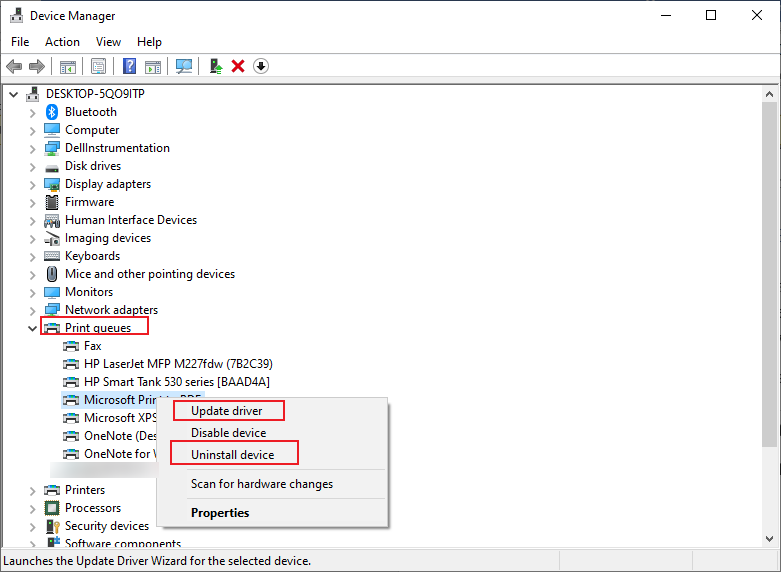
Step 2. Next, expand the Print queues list.
Step 3. Then, right-click Microsoft Print to PDF (if visible). Then, select Update driver or choose Uninstall device from the available options.
Step 4. Choose Search automatically for updated driver software.
Note. Windows will check for a newer driver. And update it if one is available.
Step 5. When finished, reboot your computer.
Fix 4. Run the Windows Printer Troubleshoot
The built-in Printer Troubleshooter in Windows helps detect and correct printing-related issues automatically. It helps pinpoint why Microsoft Print to PDF is unavailable and repair common system or driver faults. It provides a simple way to restore your PDF printing functionality without any complex steps. Check out the process.
On Windows 10
Step 1. Go to Settings and click Update & Security.
Step 2. Select Troubleshoot and choose Additional troubleshooters.
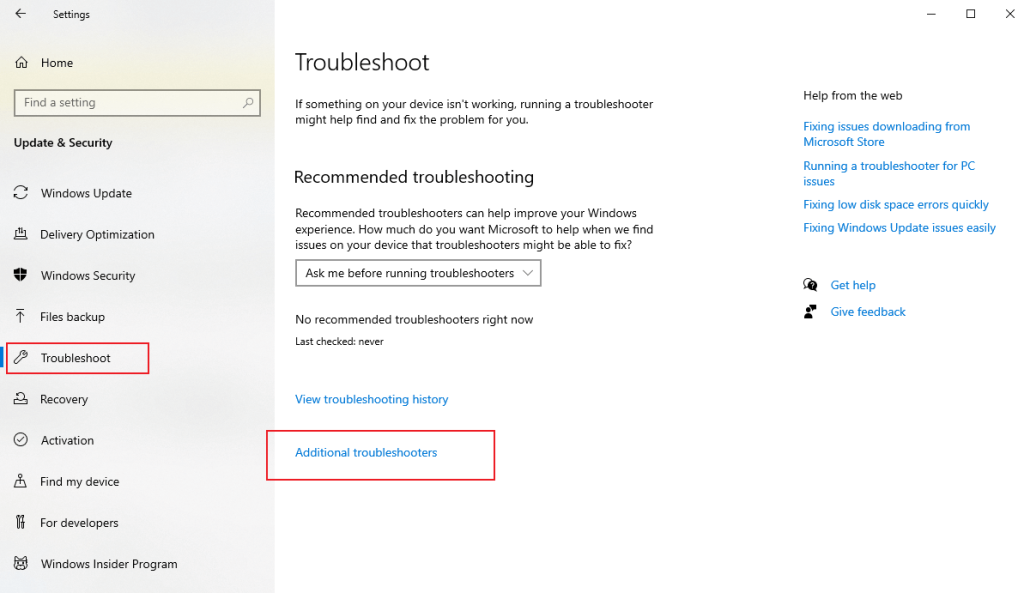
Step 3. Next, select Printer.And click Run the troubleshooter.
On Windows 11
Step 1. Right-click the Start button. And select Settings.
Step 2. Navigate to System Troubleshoot and choose Other Troubleshooters.
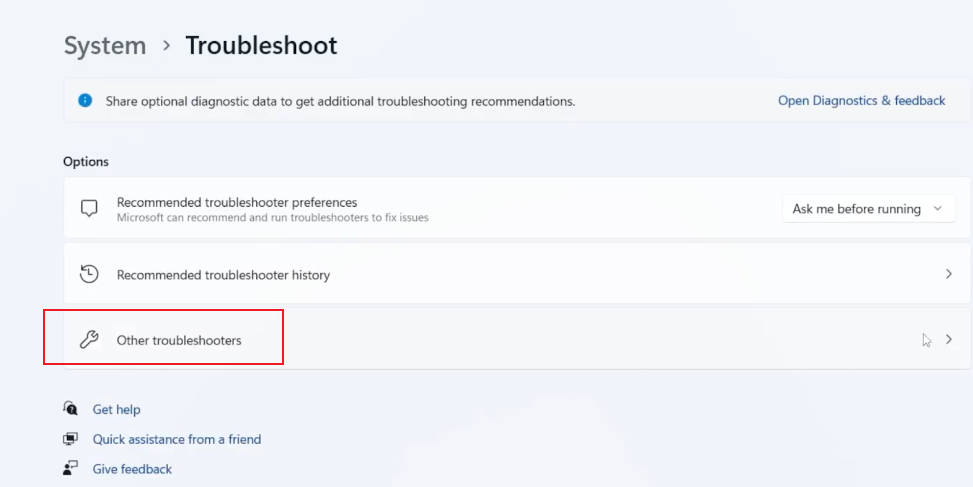
Step 3. Then, click Run next to Printer.
Fix 5. Restart Print Spooler Service
The Print Spooler service manages all printing tasks on Windows. If it isn’t running correctly, printers—including Microsoft Print to PDF—can disappear from your system. Restarting this service can refresh the system’s printing functions and resolve temporary glitches. This simple step often brings back missing printers without requiring complex fixes. Find out how.
Step 1. Press the Windows + R keys. Type services.msc and click OK.
Step 2. Navigate downward to locate Print Spooler in the services list.
Step 3. Select Print Spooler, right-click it, and click Restart.
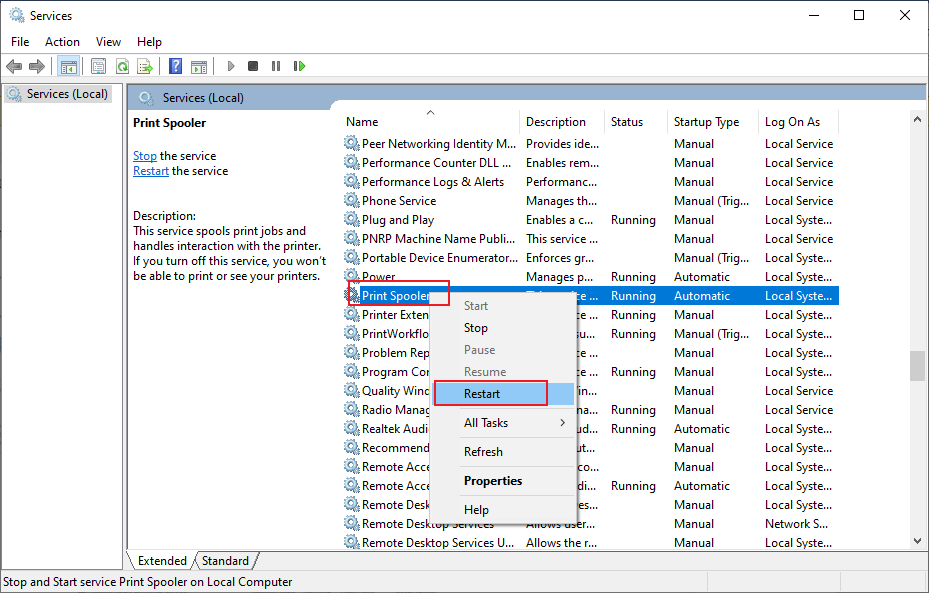
Step 4. Click Start if the service is currently stopped.
Fix 6. Repair System Files Using Command Prompt
Corrupted system files can prevent Microsoft Print to PDF from functioning correctly. Using the Command Prompt to fix system files helps restore missing components and correct Windows issues. This method ensures your PDF printer and other system features work smoothly again. Learn how.
Step 1. Hit the Windows key and type cmd. Then, select Run as administrator.
Step 2. Then, select Yes when the UAC confirmation appears.
Step 3. Type the sfc /scannow command and press Enter to scan and repair protected system files.
Note. Keep the Command Prompt open until the verification is 100% complete.
Step 4. As soon as the scan finishes, restart your computer to apply any repairs.
Alternative Ways to Print to PDF If Microsoft Print to PDF Is Missing
Having applied the practical solutions, it’s possible to save documents as PDF files without Microsoft Print to PDF through other methods. Third-party PDF printers, online converters, and built-in app features offer reliable alternatives when the built-in option is unavailable. Let us check them all.
Method 1. Use Trusted Third-Party PDF Printers
Using a trusted third-party PDF printer is a practical way to save documents as PDF files without Microsoft Print to PDF. In addition to generating PDFs, many of these tools offer additional functions, such as compression, merging, and conversion. They offer a versatile, user-friendly alternative for seamless PDF creation.
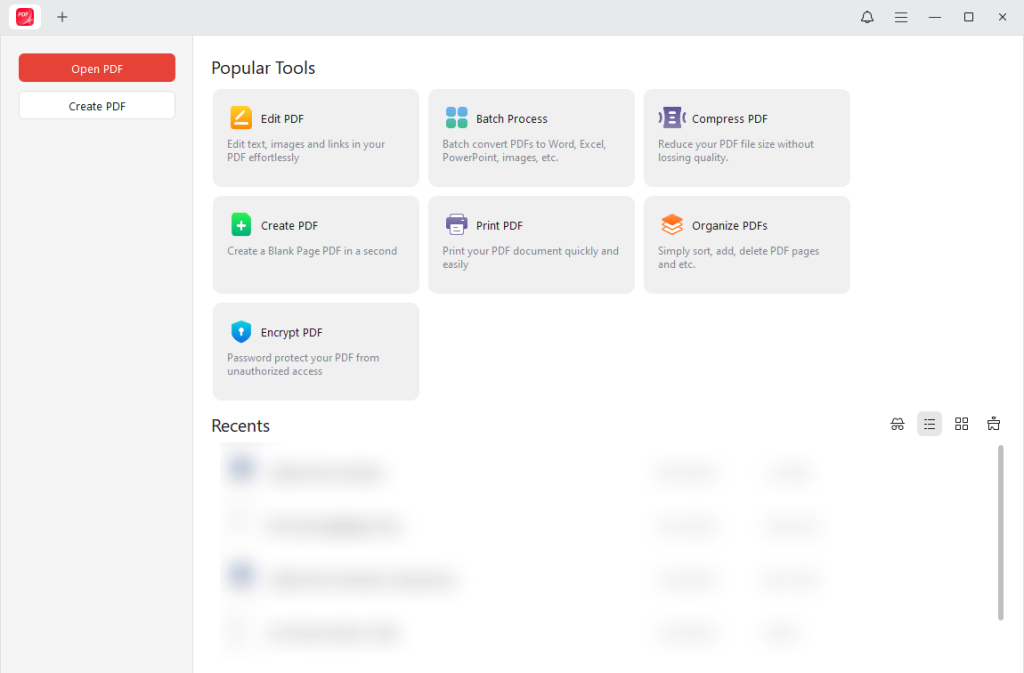
One highly suggested tool is JOPDF, which lets you efficiently save Word or Excel as PDF in just a few steps. Beyond converting documents, it also enables you to convert and combine images into PDF, making it a versatile tool. Thanks to its intuitive interface, JOPDF is ideal for users seeking more than simple PDF printing.
Method 2. Use Built-in Export Features
A convenient alternative to save documents as PDF files without Microsoft Print to PDF is to use the native export or save-as-PDF options in your apps. You can save PowerPoint as PDF in applications like Word, Excel, and PowerPoint, creating PDFs without installing extra tools. It’s a quick and trustworthy method that preserves the original layout of your documents.
Method 3. Use Online PDF Conversion Tools
Online PDF conversion tools let you easily save documents as PDFs without Microsoft Print to PDF. These online services let you convert documents, images, and presentations to PDFs quickly and easily. They’re helpful when installing extra software isn’t an option or preferred.
Conclusion
Dealing with Microsoft Print to PDF missing may be inconvenient. Still, using the solutions outlined above brings the feature back promptly. From enabling Windows Features to system file repairs, these methods effectively target the most frequent causes. If the built-in feature is still unavailable, alternatives like JOPDF or online converters let you continue creating PDFs seamlessly. By following these solutions, your PDF workflow can continue smoothly and efficiently.
FAQs
1. Disabled feature
2. Windows update/installation issues
3. Corrupted or missing drive
4. Outdated or incompatible Windows version
5. System file or registry errors
6. Accidental removal
1. Consider trusted third-party PDF printers, many of which offer additional features such as file merging, compression, and conversion.
2. Using JOPDF to save Word or Excel as PDF or convert and combine images into PDF.
3. Leverage the native export options in Word, Excel, or PowerPoint to quickly save PowerPoint as a PDF.
4. Using reliable online PDF conversion tools for quick, software-free PDF creation.
1. Enable it via Control Panel > Turn Windows features on or off, check the box for Microsoft Print to PDF, and click OK, then restart if needed.
2. If it’s missing, manually add it via Settings > Devices > Printers & Scanners > Add a printer > The printer that I want isn’t listed > Add a local printer using the FILE: port.
Table of Contents

Your Best Free PDF Expert in PDF editing, compressing, converting, annotating, protect, organizing, and more.
Free DownloadWindows · macOS · Linux

Olivia
“Olivia is an editor at JOPDF, where she writes practical guides and insightful articles on managing PDFs—covering topics like editing, annotating, converting, and organizing files efficiently. Passionate about clear communication and digital productivity, Olivia enjoys spending her free time cooking, watching movies, and hiking to unwind and find inspiration for her writing.”
![How to Print Selected Area in PDF in 2026 [4 Best Ways]](https://b.jopdf.com/wp-content/uploads/2026/03/how-to-print-selected-area-in-pdf.png)
![Adobe Print to PDF Not Working [Reasons and Solutions]](https://b.jopdf.com/wp-content/uploads/2026/03/adobe-print-to-pdf-not-working.png)
