Introduction
Adjusting PDFs to the correct size is crucial for ensuring perfect printing. This guide will walk you through how to resize a PDF for printing for free. We’ll cover how to accomplish this task using professional software, built-in tools, and free online services.
Way 1. Resize a PDF for Printing for Free with JOPDF
For those who require precision and control, professional desktop software like JOPDF is the ideal choice. It allows you to permanently change the page size of the document itself, not just how it prints.
This method is ideal when you need to conform to specific print standards or send a perfectly sized file to a colleague or commercial print shop. No problem to print a PDF file into a booklet, poster, and more. It gives you complete control over the final document dimensions.
Moreover, JOPDF is completely free to use. There is no reason not to give it a try. Click the download button to get JOPDF and follow us! It works well on both Windows and macOS.
How to resize a PDF for printing with JOPDF:
1. Launch JOPDF and click Open PDF to add your document.
2. Select the pages you want to resize. You can click on any page as you like, because you can still make adjustments later.
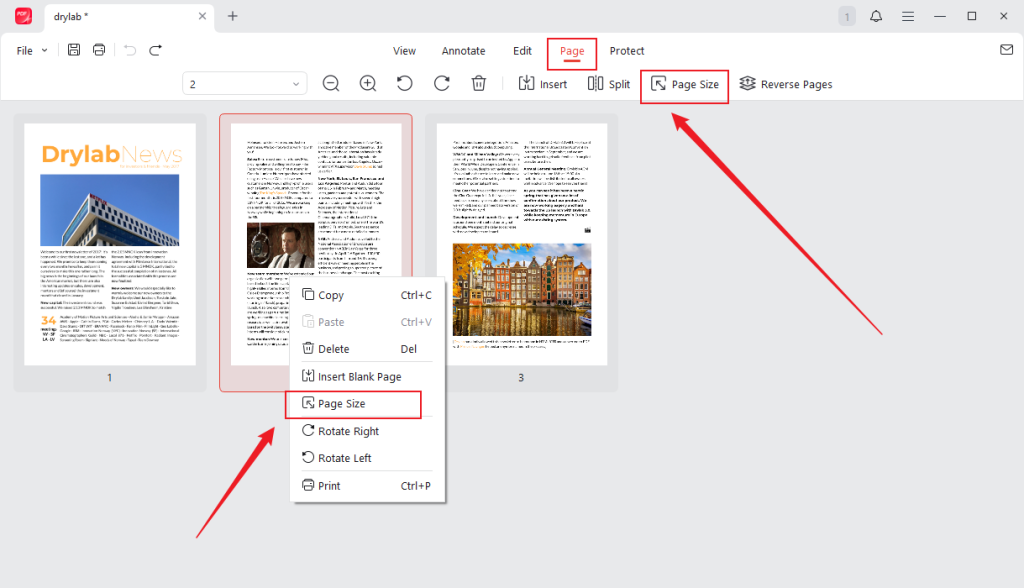
3. Navigate to the Page tab in the top menu bar and click on the Page Size button.
4. A new dialog box will open. Here, you can select from a wide range of standard page sizes, such as A3, A4, B5, and Legal, using the dropdown menu.
Alternatively, you can select Custom and manually enter the desired width and height. Ensure the aspect ratio is maintained to prevent distortion.
5. Under the Page Range section, choose whether to apply this new size to all pages, the current page, or a specific range of pages.
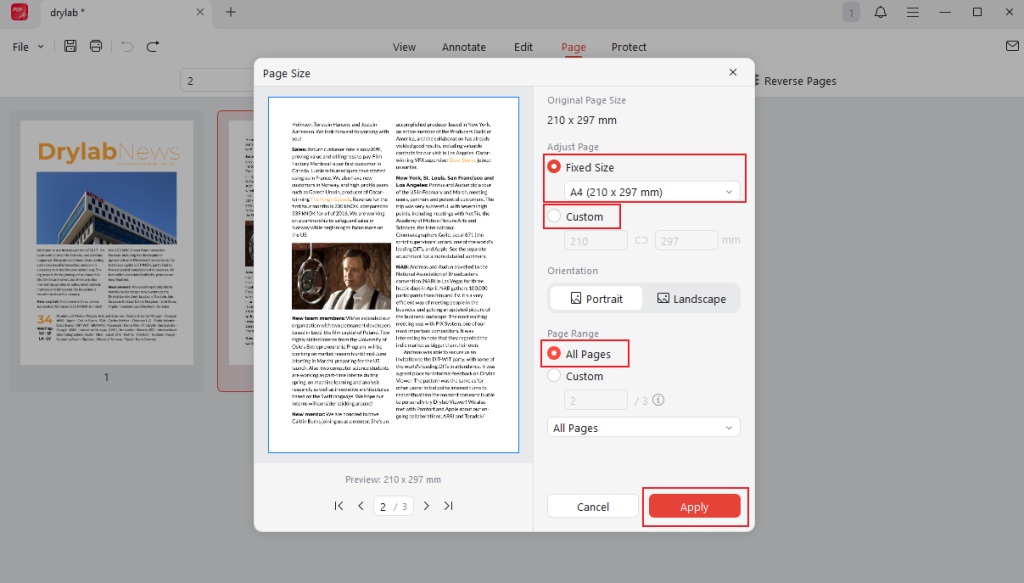
6. Click Apply to confirm. After that, you can click the Print button to print the PDF.
⭐ Best for: Professionals, designers, and anyone who needs to permanently change a PDF’s page dimensions to a standard or custom size before sharing or sending it to a commercial printer.
Way 2. Use the Print Option of the Browser
A quick way to resize a PDF for printing is to use the web browser. Google Chrome, Firefox, and Microsoft Edge all have built-in PDF viewers that enable you to read and print PDFs. They can help you adjust page size and scale your PDF for printing.
1. Open your PDF in a browser, such as Google Chrome.
2. Press Ctrl+P (on Windows) or Cmd+P (on Mac) to open the Print menu.
3. Select your printer from the dropdown list. Then, adjust the pages, copies, and color as needed.
4. Then, click the More settings option. Now, you can adjust the size and scale the document.
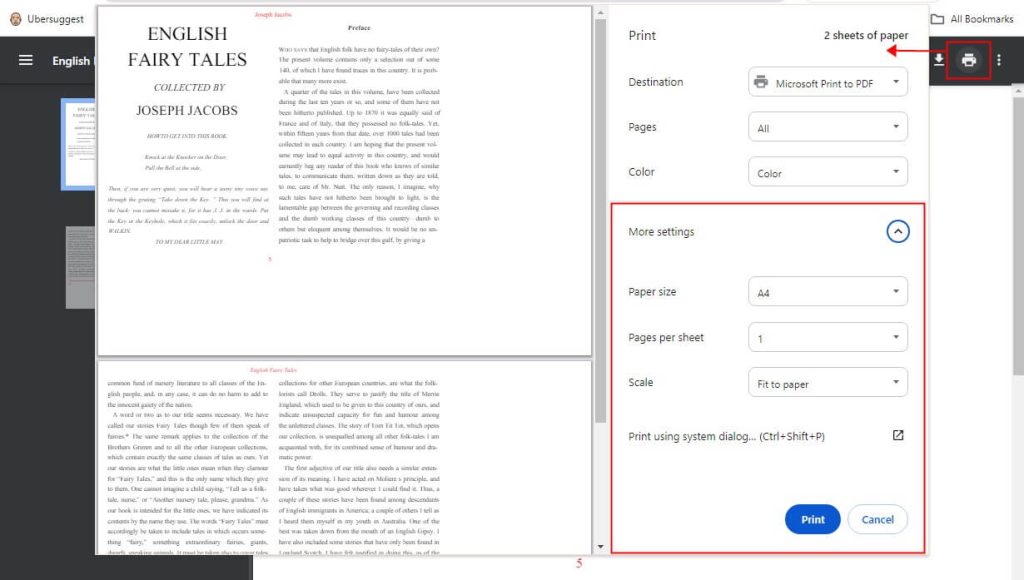
5. Before clicking “Print,” always check the print preview window. It will show you exactly how your resized document will look on the page.
⭐ Best for: Everyday tasks like printing a US Letter document on A4 paper (or vice versa), or ensuring any document prints correctly without being cropped.
Way 3. Resize a PDF with Preview
For Mac users, a powerful PDF resizing tool is already built into the operating system: Preview.
While you can use the browser’s Print option as described above, Preview also allows you to permanently change the document’s page size, similar to professional software. In addition, Preview can help you edit a PDF on your Mac.
Learn how to resize a PDF for printing on Mac with Preview:
1. Open your PDF document in the Preview app.
2. Go to the menu bar. Click Tools > Adjust Size…
3. Enter a new Width or Height. By default, the “Scale proportionally” box is checked, which locks the aspect ratio to prevent distortion.
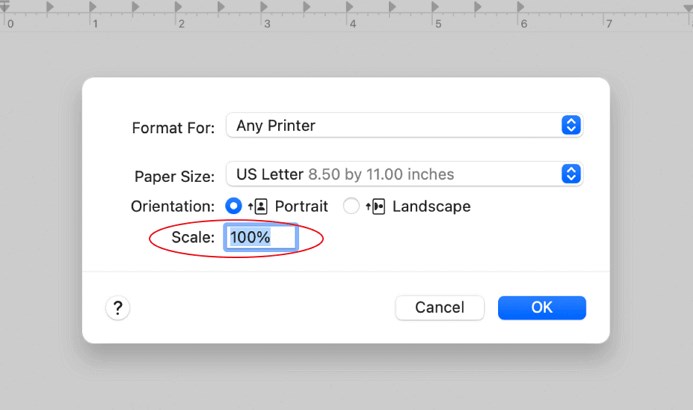
4. You can also change the resolution (DPI) of the document here, but be cautious, as increasing it won’t add detail that isn’t already there.
5. Once you have entered your new dimensions, click OK.
6. The page size of your PDF will be permanently changed. Go to File > Save/Save As to save the resized version.
Additionally, you can access the print settings by going to File > Print. From there, you can change the paper size, scale the PDF, and print it out.
⭐ Best for: Mac users who want a built-in tool to permanently resize their PDF documents without needing third-party software.
Way 4. Using an Online PDF Resizer
How to resize a PDF for printing online? The answer is to use an online tool, such as PDF2Go, iLovePDF, or Smallpdf. All you have to do is upload your PDF file, change the page size, and download the file.
However, this method is not recommended for documents containing sensitive information.
1. In your web browser, search for “online PDF resizer” and select a reputable service, such as PDF2GO.
2. Upload the document from your computer and cloud drive.
3. Look for the resizing options. Choose from a preset or set the custom page size.
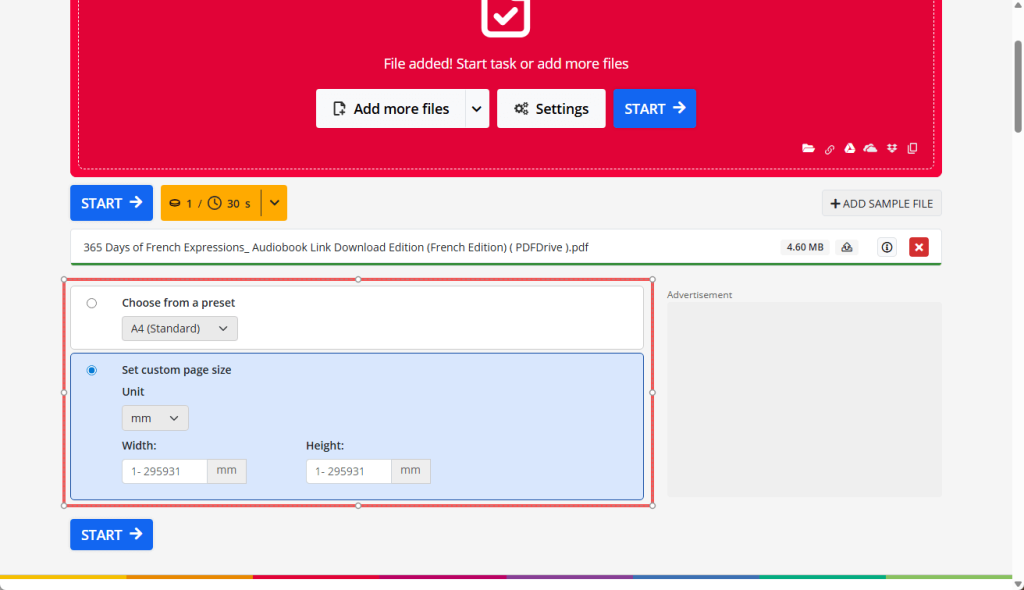
4. Click START to make it. Finally, download the document.
⭐ Best for: Permanently changing a PDF’s page size to a standard format when you don’t have access to desktop software or need a quick solution on any device.
Understanding the Basics: Page Size, Aspect Ratio, and DPI
Understanding a few key concepts can save you time and prevent disappointing results. These principles are the foundation of a high-quality print job. Check the details.
🔶 PDF Page Size & Paper Size
Every PDF document has a built-in “digital” page size, such as A4 or US Letter. Your printer, on the other hand, holds physical paper of a specific size.
The goal of resizing for printing is to correctly map the digital dimensions of the PDF onto the physical dimensions of the paper.
🔶 Aspect Ratio
This refers to the proportional relationship between the width and height of an image or object. For example, an 8×10 photo has a different aspect ratio than a 4×6 photo.
To avoid stretching or squashing your PDF’s content, you must maintain this ratio when scaling up or down.
🔶 DPI and Print Quality
DPI is the measure of print resolution and sharpness. For high-quality, professional-looking prints, 300 DPI is the industry standard.
While you can sometimes get away with 150 DPI for less critical prints, anything lower will likely look blurry or pixelated, especially when enlarged.
Conclusion
That’s all about how to resize a PDF for printing for free. Choose the tool that best suits your needs to boost efficiency.
Of course, if quality is a priority for you, JOPDF is the best choice. This professional and free PDF editor helps you fine-tune every aspect. Additionally, it allows you to edit your PDF before printing.
FAQs
Table of Contents

Your Best Free PDF Expert in PDF editing, compressing, converting, annotating, protect, organizing, and more.
Free DownloadWindows · macOS

Queena
Editor
“As a staff editor for JOPDF, Queena excels at guiding users to the optimal tools and solutions. When she's not analyzing the latest PDF solutions, she enjoys spending her free time playing with her four cats.”
![Solved! Microsoft Print to PDF Missing [Causes and 6 Fixes]](https://b.jopdf.com/wp-content/uploads/2026/02/microsoft-print-to-pdf-missing.png)