Summary :
Double-sided printing (also known as back-to-back, front-and-back, duplex, or both sides printing) can reduce paper costs. It is also environmentally friendly and compacts your document. If you are trying to print on both sides of the paper from a PDF document, this post has you covered. Printing is a basic feature in some PDF readers and editing software—no need to pay anything or register for any account. Find out how to print double-sided for a PDF using 3 ways.
How to Print PDF Back to Back with JOPDF
JOPDF is a straightforward way to print back-to-back for a PDF. It is a 100% free PDF editor that allows you to view, annotate, secure, and modify PDF files without requiring a sign-up. No watermark and no limitations. It packs a comprehensive set of printing options, allowing you to customize paper orientation/size, reverse PDF page order, and do more. You can also print multiple pages on one sheet or print in book format.
Check out how to print double-sided for a PDF using JOPDF.
Step 1: Download and launch the JOPDF application on a Windows or Mac.
Step 2: Click the Open PDF button to select and open the PDF you want to print double-sided.
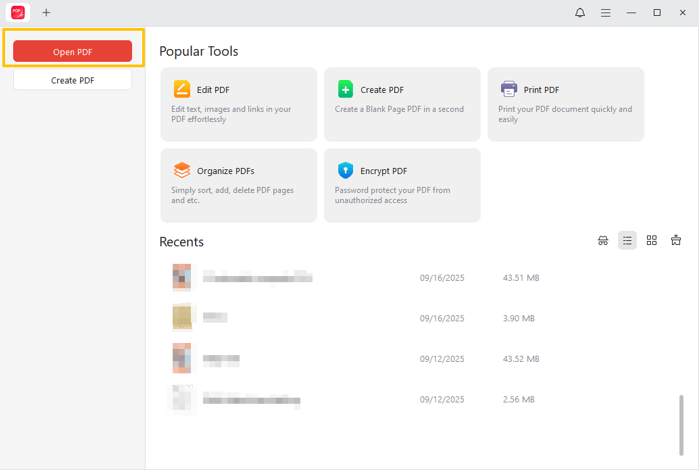
Step 3: Click the Print button, or choose File > Print to open the printing dialog box.
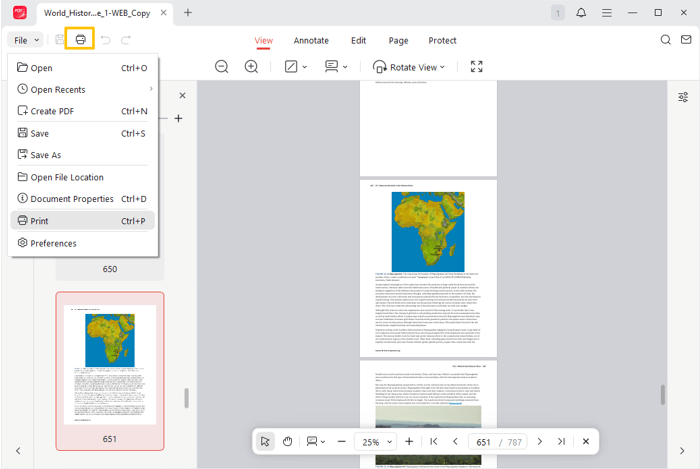
Step 4: Connect and select the correct duplex printer, then check the ‘Print on Both Sides of Paper‘ box.
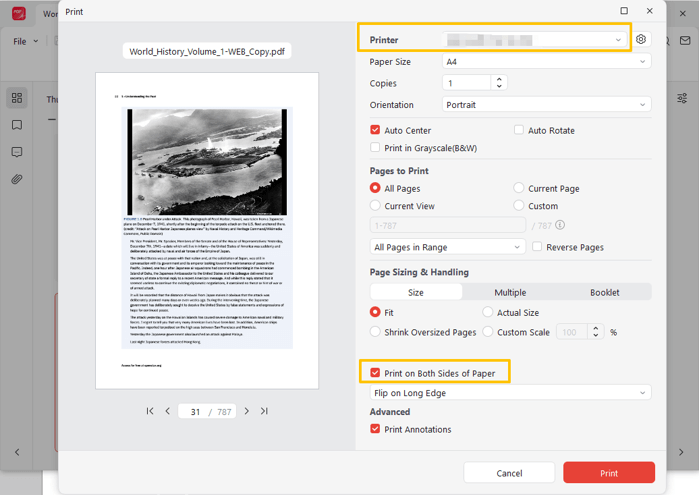
Step 5: Select an option under the two-sided printing option (“Flip on long edge VS short edge”).
Step 6: Define other options if needed, and click Print at the lower corner to print on both sides of the PDF.
How to Print a PDF Front and Back with Adobe Acrobat
The second way to print double-sided for a PDF on Mac or Windows is using Adobe Acrobat. Both Adobe Reader and Acrobat Pro provide a powerful printing dialog box with flexible options. It allows you to set the page range, scale, color, and other necessary options. You can print multiple copies and print a booklet in PDF on both sides of the paper.
Here is how to print double-sided on a Mac for your PDF with Adobe Acrobat.
Step 1: Open Acrobat to import the PDF you wish to print on both sides of paper.
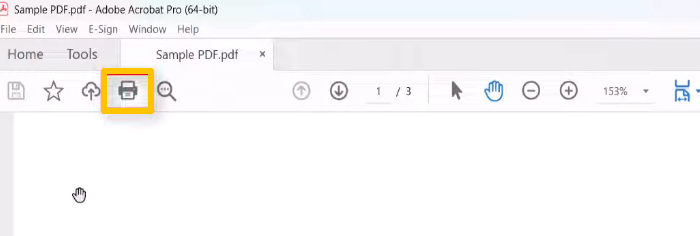
Step 2: Once the file is opened and the printer is turned on, click the printer button or press the shortcut (Ctrl/CMD + P).
Step 3: Select the right printer, and adjust the printing size and other settings.
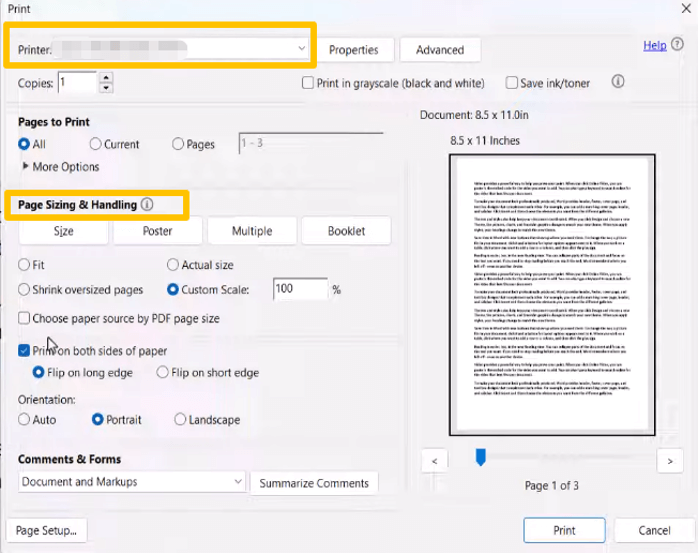
Step 4: Turn on two-sided printing for the PDF by checking the box labeled Print on both sides of paper.
Step 5: Select the flipping method suitable for your document type, and click Print to print the PDF double-sided.
How to Print Double-Sided for a PDF in Chrome
The Google Chrome browser is built with a printing function. As long as you have installed a printer for double-sided printing, you can open your PDF in Chrome for printing on both sides of the paper. There are also options for printing odd or even pages, setting the page quality, and scaling the pages to fit the paper. There are no software installation or subscription troubles.
Let’s see how to print back-to-back for a PDF in Chrome.
Step 1: Confirm your printer is properly connected and working.
Step 2: Open the PDF for double-sided printing by dropping it to the Chrome tab bar.
Step 3: Click the printer-like button in the top-right corner or press the printing hotkey.
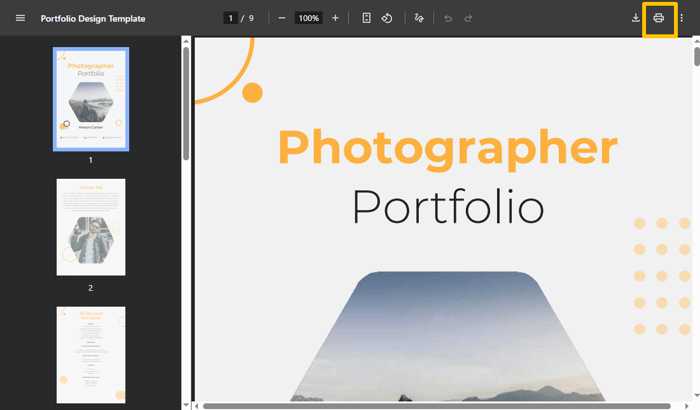
Step 4: Select your specific printer, and click the More settings drop-down button.
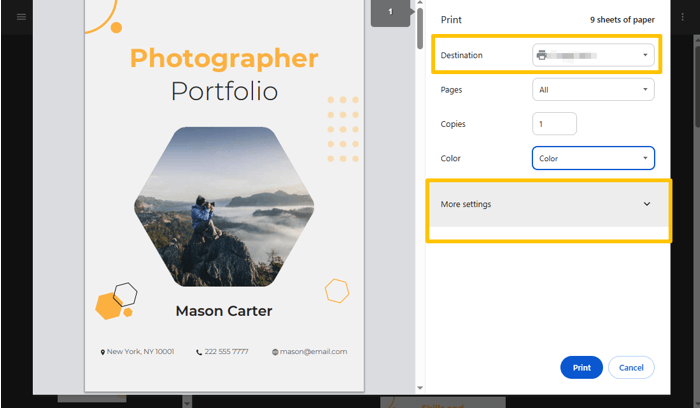
Step 5: Scroll down to select ‘Print on both sides‘ and adjust other settings as needed.
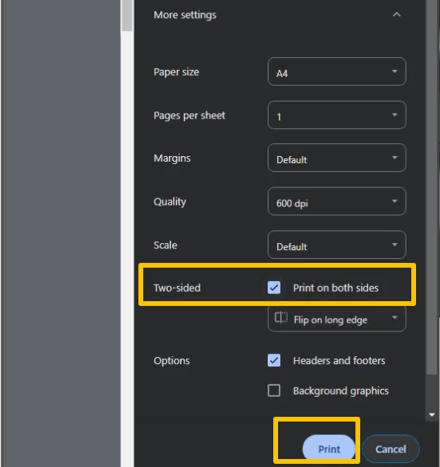
Step 6: Hit Print at the bottom to get your PDF to print double-sided.
Why Can’t I Print a PDF Double Sided?
You may have encountered an issue where you can’t print double-sided for a PDF. Or, you used to be able, but you’re no longer able. Here are several possible causes along with corresponding solutions.
Printer doesn’t support back-to-back printing: make sure your printer offers this feature, or switch to another functional one.
Double-sided printing is disabled in printer settings: Your printer not printing on both sides is often because the both sides printing option is turned off. To enable double-sided printing on Windows, go to “Settings” > “Bluetooth & Devices” > “Printers & scanners”, select your printer, click “Printing Preferences”, select the “Duplex Printing” option in the window, and click “Apply” > “OK”.
On a brother printer, go to “Control Panel” > “View devices and printers”, right click the printer, and select “Printer properties” > “Device Settings” > “Installable Options” > “Duplex Unit” > “Installed”.
Sometimes, open the “Printers & scanners” interface, select your printer, choose “Printing preferences” > “Advanced” > “Document Options” > “Printer Features”, and turn on the double-sided printing option.
The printer drive is outdated: access “Device Manager”, click the printer queue, right-click on your printer, and select the “Update driver” option. You can also update the operating system to update the driver automatically.
The printer driver is corrupted or installed incorrectly: remove it and reinstall the latest driver from the official website. Choose “Settings > Devices > Printers and Scanners > Print Server Properties > Drivers, select the printer driver and click “Remove > Remove driver and driver package”, and click Ok.
Conclusion
Get everything ready before you start real physical printing. You should do a printing test to see if a two-sided printing option is available in the printing dialog. Check your printer’s working status and connection. We recommend printing a few test pages before printing a large amount. Download JOPDF to print double-sided business cards or a double-sided brochure from a PDF. It also lets you make edits to PDF documents easily.
FAQs
Table of Contents

Your Best Free PDF Expert in PDF editing, compressing, converting, annotating, protect, organizing, and more.
Free DownloadWindows · macOS

Selena
Staff Editor
“Selena is a staff editor working for JOPDF, passionate and committed to providing how-to and round-up articles. Over 8 years of specialized skills and experience in PDF solutions, hoping to help users ease their lives and solve whatever they encounter. "Work smarter, not just harder!"”
![Solved! Microsoft Print to PDF Missing [Causes and 6 Fixes]](https://b.jopdf.com/wp-content/uploads/2026/02/microsoft-print-to-pdf-missing.png)