Summary :
Are you printing a document for reading or distribution, and would like to print on both sides to save paper? If so, you must have encountered the printing options “flip on long edge” and “flip or short edge”. You may have been confused and would like to figure out the differences between them. As a result, you can make the most correct choice to fit your needs. This article explains everything on “flip on long edge VS short edge” in plain words.
In addition, you’ll learn how to flip on the long edge or the short edge using a free PDF editor – JOPDF. Download the JOPDF to print PDFs on Mac or Windows now!
What Is “Flip on Long Edge VS Short Edge”?
You may wonder what flip on long edge VS short edge means if you are a printing newbie.
First of all, this question often happens in two-sided printing, and you’ll have to understand “flip on long edge VS short edge” to make a selection between long edge and short edge. The printer settings offer two options for determining page orientation and ensuring the printed paper is readable on both sides. Selecting the wrong option will print your document pages upside down.
When you are planning to bind a printed document together at one side and turn the pages to read, you should decide to flip on the short or long edge. Therefore, you should ask yourself: which side do you need to bind it to? The answer will win the flip on the short edge vs. the long edge battle. If you want to turn the pages like a standard vertical book, choose the long edge. Flipping the pages like a calendar usually adopts the short edge.
What Does Flip on Long Edge Mean when Printing?
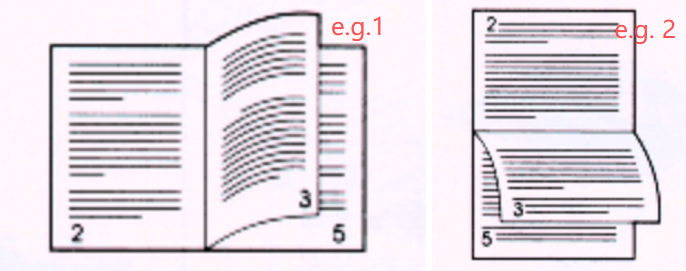
“Flip page on long edge” means the pages printed on the 2, 4, 6, or other back pages are flipped along the long edge, and you can flip through the printed pages along the long edge. This way, you can put or staple the sheets together along the long side and view and turn the pages left to right, like a book, in a vertical orientation.
It is typical for books and manuals with sequential content on both sides of each sheet. You can punch binding or ring holes on the long side.
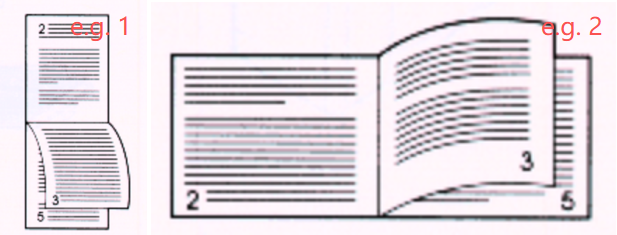
What does Flip on long edge look like: mostly example 1 and sometimes example 2, depending on your PDF design.
What Does Flip on Short Edge Mean?
In the “flip on the long edge vs. the short edge” competition, flipping on the short edge means users can turn each page over along the short side of the paper after printing. It ensures that all pages on both sides are oriented for proper reading. It will align the text properly. In the most classic case, it enables you to flip the papers top-to-bottom, like a small notepad or calendar. It’s also used to print a horizontal book in landscape mode, like a picture album.
Here is what flip on short edge looks like:
Differences between Flip on Long Edge and Short Edge
Are you printing something and don’t know whether to flip on the long or short edge? This part lists several key differences between the two settings to help you tell which suits you best.
Binding and Reading Method
The basic and most intuitive difference between long-edge and short-edge printing is the binding method. The flipping options are available when you need to bind or staple the pages.
Long-edge printing is best for documents to be bound along the long edge.
Short-edge printing is better for documents that need to be bound along the short edge.
Application Scenarios for Printing Flip on Long VS Short Edge
If you are stuck on whether to flip on the long edge or the short edge for landscape or portrait printing, consider where you will use it. Also, focus on the document type.
Long edge double-sided printer setting: win the game in flip on long edge VS short edge for portrait printing, such as legal contracts and reports. Make sure the text-heavy content can be read seamlessly page by page.
Short edge printer setting for both sides printing: winner in flip on long edge VS short edge for landscape or horizontal, like a brochure or a booklet. Ideal for presentations or documents filled with pictures.
Pros and Cons of Flip on Long Edge and Short Edge
Either choosing the flip on the short or long edge option has its advantages and drawbacks.
Flip on the long edge:
Pros: Common document printing method for natural and general book-like reading.
Cons: Not suitable for vertical or image-heavy content.
Flip on the short edge:
Pros: Professional and wonderful format for specific taller documents, like wedding albums, forms, or diagrams.
Cons: It can mess up the content direction if the document design and printing settings are not set correctly.
How to Print to Flip on Long Edge or Short Edge: Step by Step
If your printer is capable of and enabled for duplex printing, you can use a free document viewer to print files on either the long or short edge. JOPDF is a free PDF editor for Windows and Mac that allows you to choose between “flip on long edge VS short edge“. It’s free to open, edit, secure, and annotate PDF documents without signing up for the software.
JOPDF also lets you print multiple pages per sheet, print a PDF in booklet format, and print multiple copies of your document. It supports colored or grayscale printing.
Step 1: Install the lightweight PDF printer and editor, then open your PDF with it.
Step 2: Go to File to choose Print, or click the Printer icon at the top.
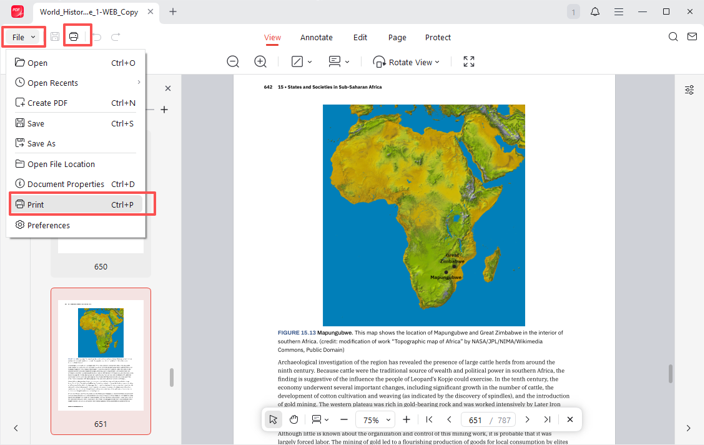
Step 3: Select the printer for both sides from the Printer list, and choose the page orientation.
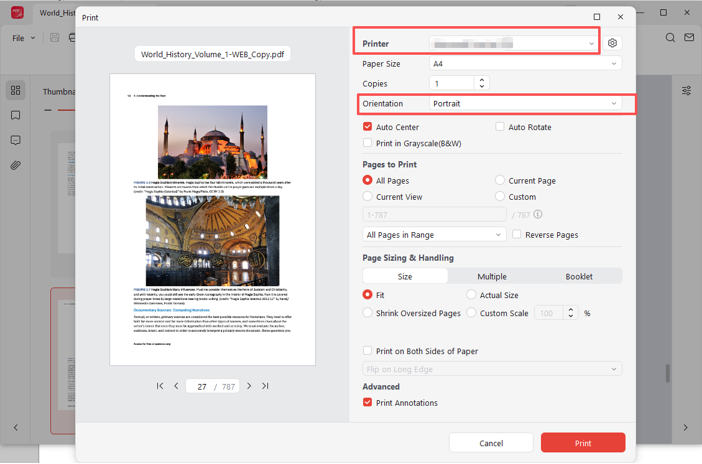
Step 4: Check the box labeled Print on Both Sides of Paper, then select the Flip on Long Edge or Flip on Short Edge flipping option.
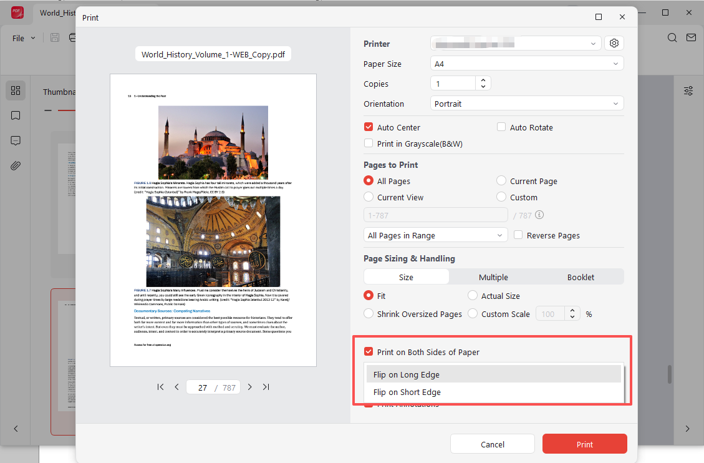
Step 5: Click the red Print button to start the double-sided printing for edge flipping.
Tips
To avoid paper waste, print a test page first, then print the rest. In the dialog box, select the Pages to Print section, select Custom, and enter a page range for several consecutive pages to print to see if it meets your needs.
Final Words
The long-edge vs. short-edge flipping for printing depends on how you would like the printed sheets to appear. To be more specific, the best setting for double-sided printing depends on which edge you will bind or staple the papers.
We recommend that you first experiment with both settings on several papers to find which one best meets your requirements. You can then master the final printing effects and results under different flipping ways. So, you’ll have experience and can easily judge the right setting next time without testing. When you need to print a secured PDF, get JOPDF to unsecure the file.
FAQs
Table of Contents

Your Best Free PDF Expert in PDF editing, compressing, converting, annotating, protect, organizing, and more.
Free DownloadWindows · macOS

Selena
Staff Editor
“Selena is a staff editor working for JOPDF, passionate and committed to providing how-to and round-up articles. Over 8 years of specialized skills and experience in PDF solutions, hoping to help users ease their lives and solve whatever they encounter. "Work smarter, not just harder!"”
![Solved! Microsoft Print to PDF Missing [Causes and 6 Fixes]](https://b.jopdf.com/wp-content/uploads/2026/02/microsoft-print-to-pdf-missing.png)