Summary :
Sometimes you have books or documents scanned in color that you need to convert to black and white. You can do that to save printing costs, reduce file size, or improve printer-friendly. It will take much effort to convert color to black and white in a PDF if you don’t know the right way. Actually, there are straightforward, automatic methods. You can apply the change to all pages for free. Now, dive into the ultimate guide on how to convert PDF to black and white.
Way 1: Convert PDF to Black and White with JOPDF
JOPDF is a free color-to-black-and-white PDF converter. Serving as the top free PDF editor and printer, it packs all the essential tools into a lighter, compact application. It allows you to adapt the page size, orientation, and printing method. You can print double-sided, multiple pages per sheet, and print PDFs in booklet format. The software lets you modify the PDF content, add annotations, and organize pages.
How to use the free method to convert PDF to black and white on Windows or Mac.
Step 1: Click the Download button below to get, install, and launch JOPDF for Windows or Mac.
Step 2: Click Open PDF in the UI to open the PDF that you need to convert from color to black and white.
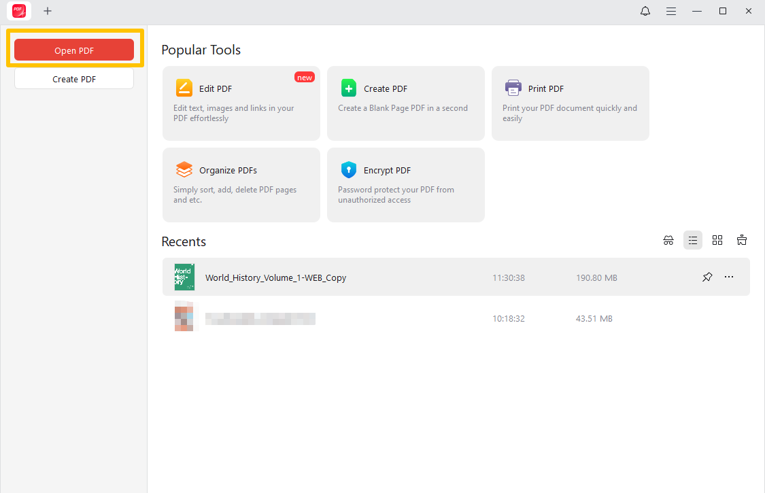
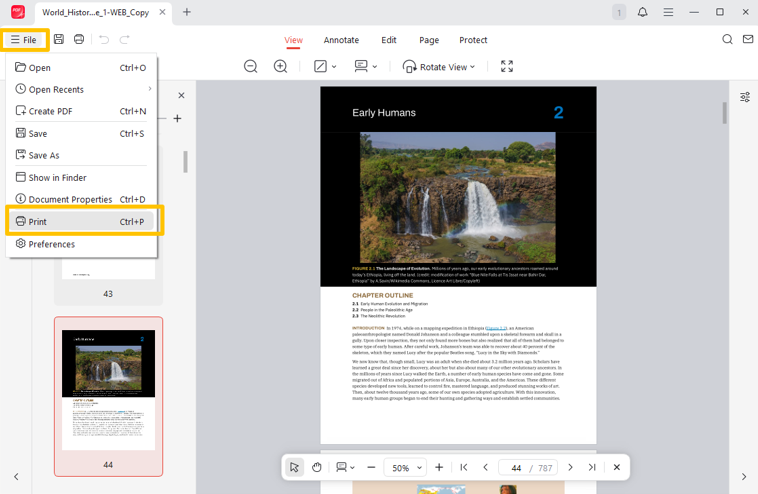
Step 3: Go to the File button > Print, or press the Ctrl + P shortcut.
Step 4: Select a PDF printer, and check the box labeled “Print in grayscale (black and white).”
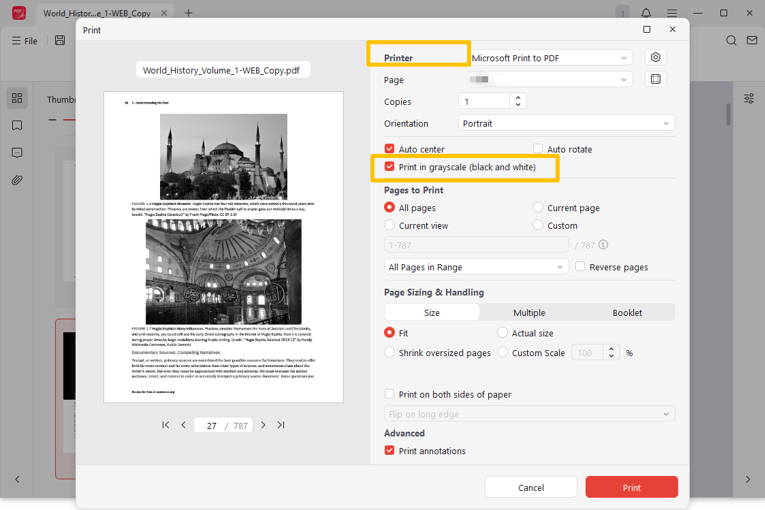
Step 5: Adjust other settings in the dialog box, and click Print. Step 6: Assign a filename, then click Save to make the PDF black and white or grayscale.
Way 2: Convert Color to Black and White in PDF Using Preview
Mac OS comes with a default PDF viewer that lets you convert PDF to black and white or grayscale to print PDFs on Mac for free. The application is Preview, and its Export feature does the trick. You can also use the feature to adjust the PDF brightness and compress PDFs. You can open and convert images to black and white using the program as well.
Let’s see how to use the Preview as your PDF-to-black-and-white converter.
Step 1: Right-click the certain PDF you wish to convert to black and white or grayscale and select Open with.
Step 2: Choose Preview to open the file, and go to File > Export from the top bar.
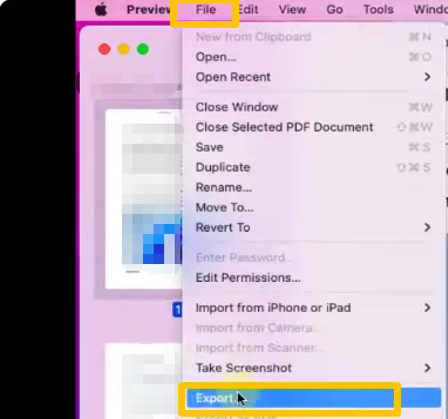
Step 3: Enter a file name, click the Quartz Filter drop-down button to select Black & White.
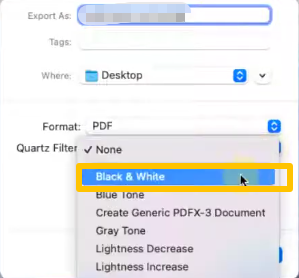
Step 4: Click the Save button to turn the PDF into black and white finally.
Way 3: Convert Color PDF to Black and White in Adobe Reader
You may not use Acrobat Pro since it’s too expensive. Try another method to convert a PDF to black and white or grayscale using the free Adobe Acrobat Reader DC. Luckily, the free version offers basic functionalities for simple daily document tasks. It allows for PDF signing, drawing, text commenting, viewing, and printing. If you are not targeting 100% black-and-white, it is enough.
Learn how to make a color PDF file black and white in Adobe Acrobat Reader.
Step 1: Open the PDF you desire to change to black and white in Adobe Reader.
Step 2: Click the File button from the top right and select the Print option.
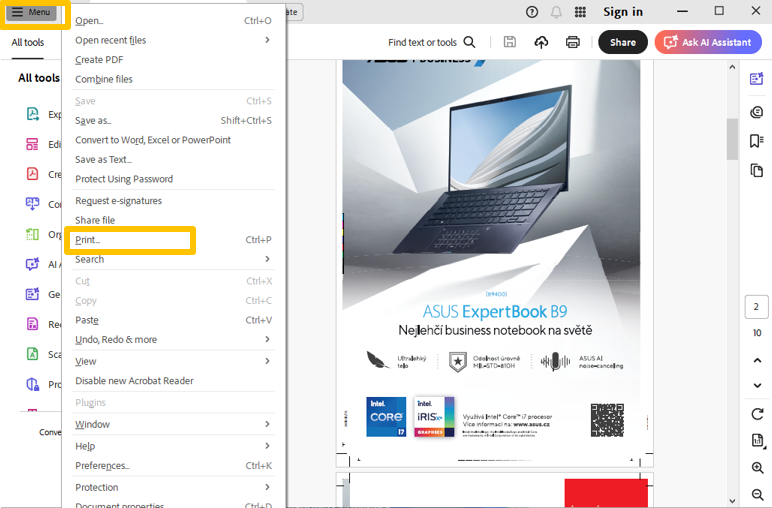
Step 3: Select Microsoft Print to PDF from the Printer menu, and check the Print in grayscale (black and white) box.
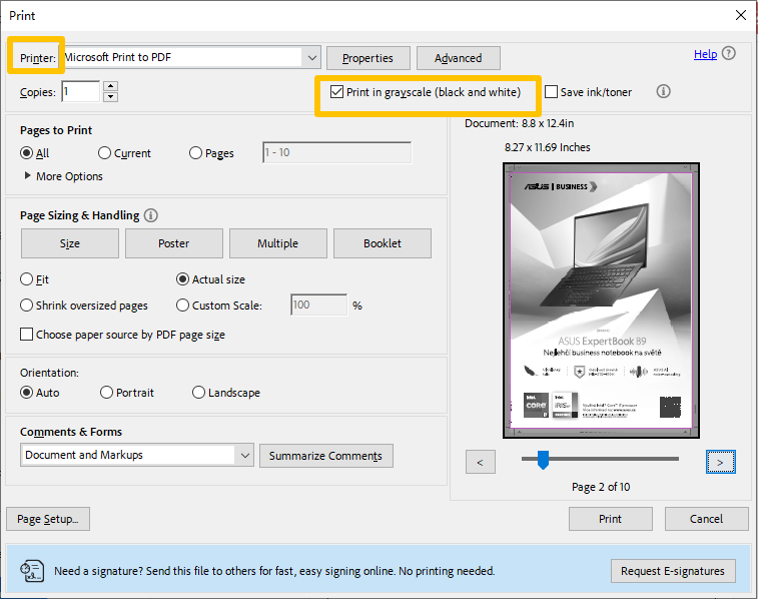
Step 4: Configure other options and preview the result. Then, click the Print button.
Step 5: Specify the output location and then grayscale the PDF. You can expand More Options to choose Reverse pages to reverse PDF page order.
Way 4: Convert PDF Color to Black and White in a Browser
One convenient way to change a PDF to black and white is to use a web browser. The fundamental principle is still the printing function. Take Google Chrome as an example: you can use the print function to change or scale the page size and extract pages. You can also remove a password from a PDF when needed. All for free, with no need for third-party software.
Discover how to convert a PDF from color to black and white in Google Chrome.
Step 1: Drag and release your PDF into the browser’s address bar.
Step 2: Once the file opens, click the Print button in the top-right corner.
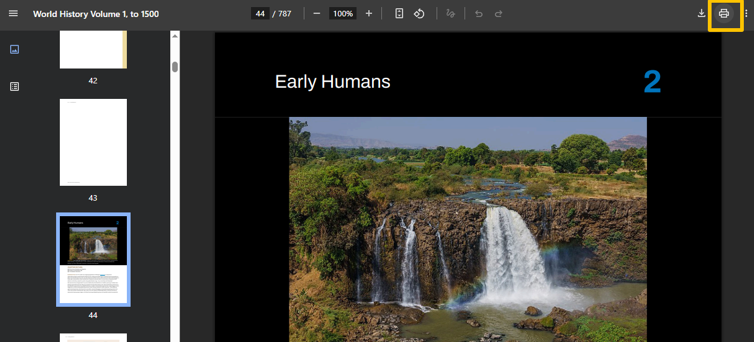
Step 3: Select a printer for PDFs, and choose Black and white from the Color menu.
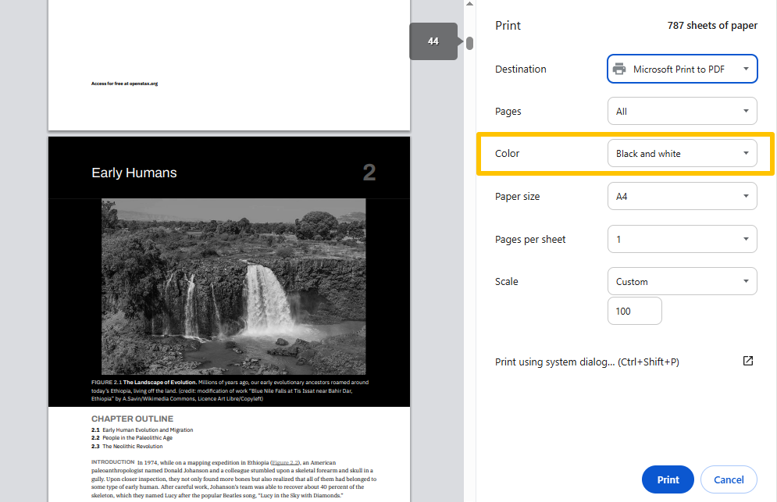
Step 4: Hit the Print button, then change the color PDF to black and white.
Convert PDF to Black and White, Not Grayscale
Is there a way of converting a color PDF to black and white so that all colors are rendered in pure black and white? Not a shade of gray, but monochrome. The answer is yes, but note that it will change the PDF to an image type, and the images in the file will appear as black boxes. If you are still willing, read on to explore the two methods.
Convert PDF into Black and White Using online2pdf
Online2PDF is a popular PDF converter service that lets you convert a PDF to black and white online for free on any device, including Linux. The best part is that it is free and doesn’t require a sign-up. The UI is clean, while a bit outdated. The web app also allows you to merge, print, and optimize PDF documents. It supports converting a color PDF or a grayscale PDF to black and white.
Look at the tutorial on how to convert a PDF into black and white.
Step 1: Open the Online2PDF PDF color-to-black-and-white conversion tool, then click Select files.
Step 2: Upload your PDF under the size limit, and click the Gray scale button to select Black-and-white (monochrome).
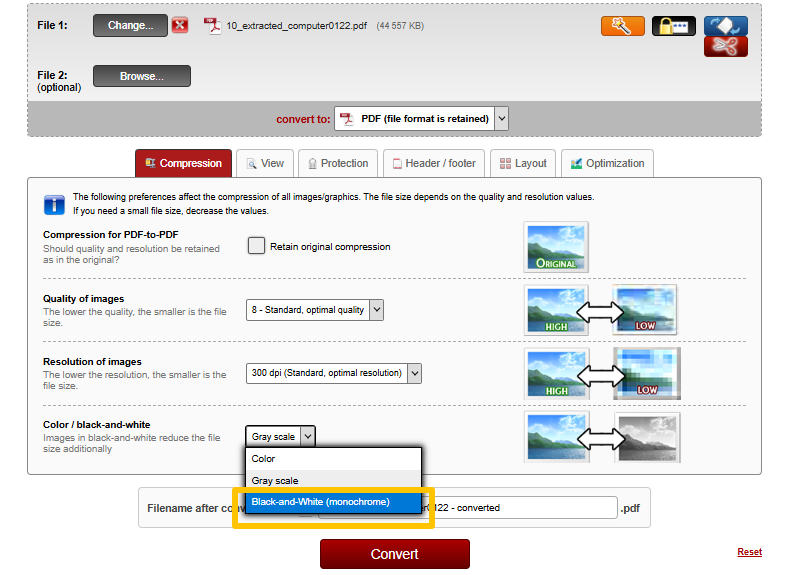
Step 3: Click OK to confirm you agree to convert the PDF to image-PDF.
Step 4: Click the lower Convert button to convert the color PDF to black-and-white online.
Step 5: Download and save the resulting PDF.
Convert PDF to Black and White with Foxit
Foxit is a color PDF to black and white converter for free download on Windows and macOS. It provides multiple methods to grayscale or monochrome your file. It also lets you convert just image objects to grayscale. If you are budget adequate for a costly subscription, you can try it without hassle.
Here is how to convert a PDF file to black and white (not grayscale) in Foxit.
Step 1: Open the PDF you want to remove color from with Foxit Editor.
Step 2: Navigate to File > Print to access the Print dialog box.
Step 3: Select the Foxit Printer, click Properties, and select Black&White for Color under the Setting tab.
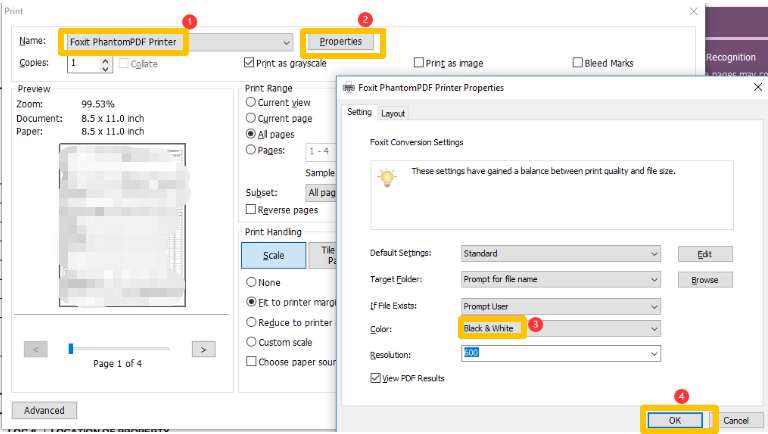
Step 4: Click OK, then click OK again in the first dialog box to print and save the PDF in black and white (not grayscale).
Step 5: Follow the on-screen prompts to save the new PDF.
Conclusion
To choose the converter and way to turn a color PDF into black and white, figure out your actual needs. Mostly, the former 4 ways work if you only want to make the files not colored. They keep the clarity and quality better. In addition, if you prefer a color-to-black-and-white PDF converter rather than a PDF-to-grayscale tool, we’ve also compiled 2 workarounds.
FAQs
Table of Contents

Your Best Free PDF Expert in PDF editing, compressing, converting, annotating, protect, organizing, and more.
Free DownloadWindows · macOS

Selena
Staff Editor
“Selena is a staff editor working for JOPDF, passionate and committed to providing how-to and round-up articles. Over 8 years of specialized skills and experience in PDF solutions, hoping to help users ease their lives and solve whatever they encounter. "Work smarter, not just harder!"”
![Solved! Microsoft Print to PDF Missing [Causes and 6 Fixes]](https://b.jopdf.com/wp-content/uploads/2026/02/microsoft-print-to-pdf-missing.png)